The WooCommerce Request a Quote add-on makes online shopping more personal for customers who prefer to discuss pricing before buying. Instead of jumping straight into checkout, shoppers can collect one or more products in a quote basket and ask the store for a custom price.
Once they’ve selected the items they’re interested in, customers can easily submit a request using a streamlined quote form, which captures their contact details and any specific requirements or questions. This approach is particularly beneficial for businesses that deal in custom products, bulk orders, or B2B transactions, where fixed pricing doesn’t always apply.
Store owners gain the flexibility to review quote requests, communicate directly with customers, and provide tailored pricing or special offers. By enabling this feature, businesses not only simplify complex sales interactions but also create opportunities to build stronger, trust-based relationships with their customers, ultimately leading to increased conversions and customer satisfaction.
Installation
- Install and activate the WooCommerce plugin.
- Install and activate the WooCommerce Request a Quote add-on.
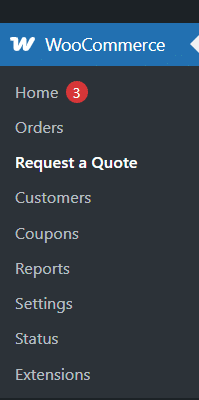
- A new sub-menu will appear in the WooCommerce menu with the name “Request a Quote”.
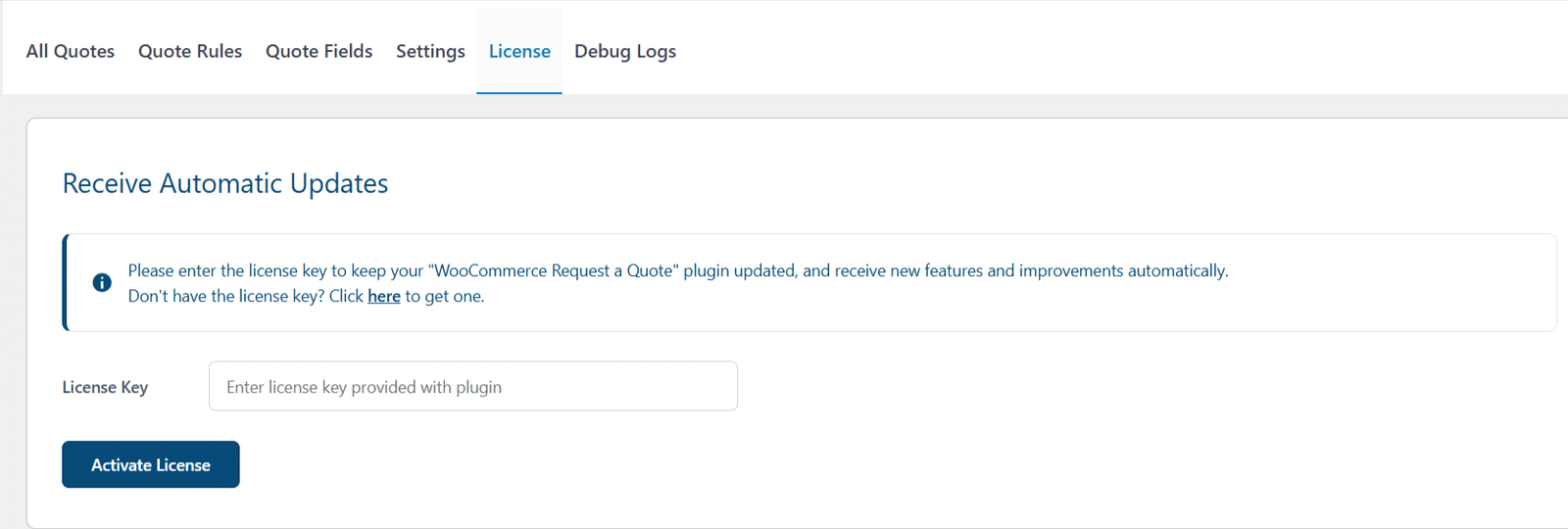
License Configuration
Navigate to the Request a Quote sub-menu and go to the License tab. Then, enter the License Key in the corresponding field and click on the “Activate License” button.
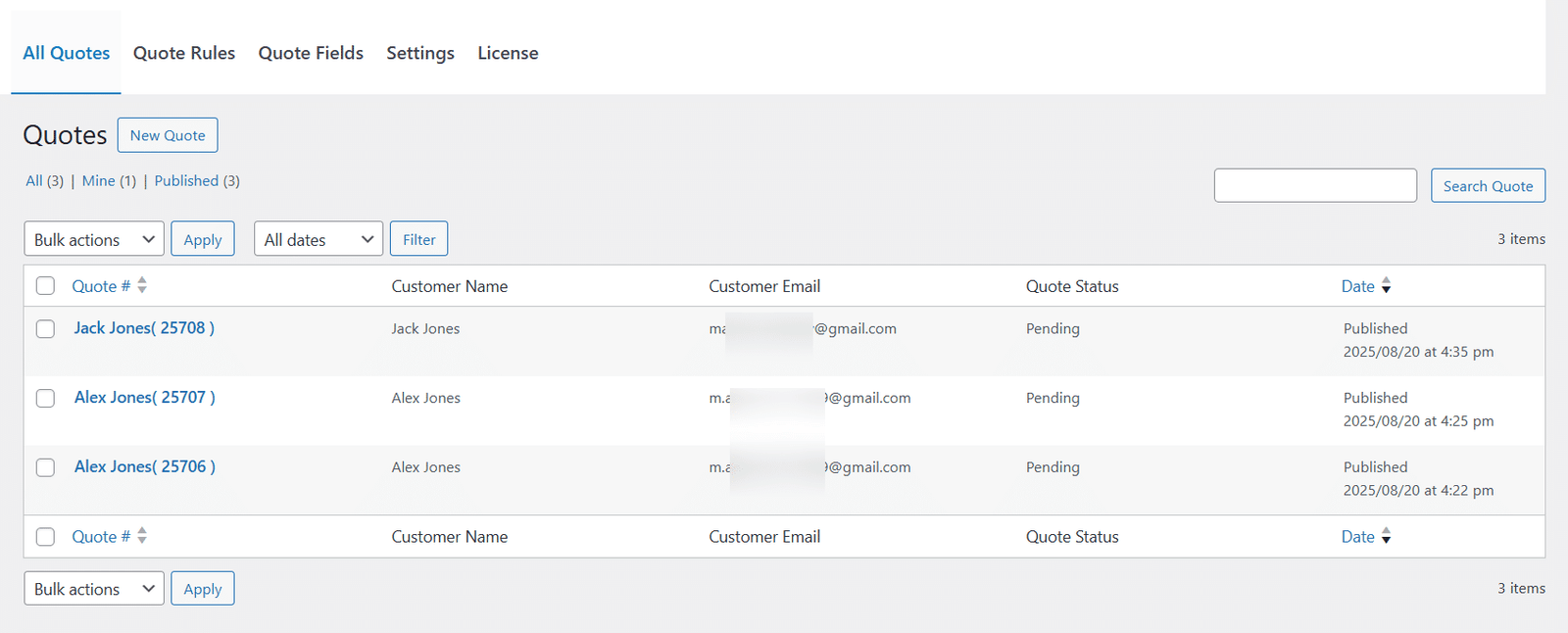
All Quotes
In this tab, the administrator will be able to view, manage, and delete all the quotes sent by all the customers.
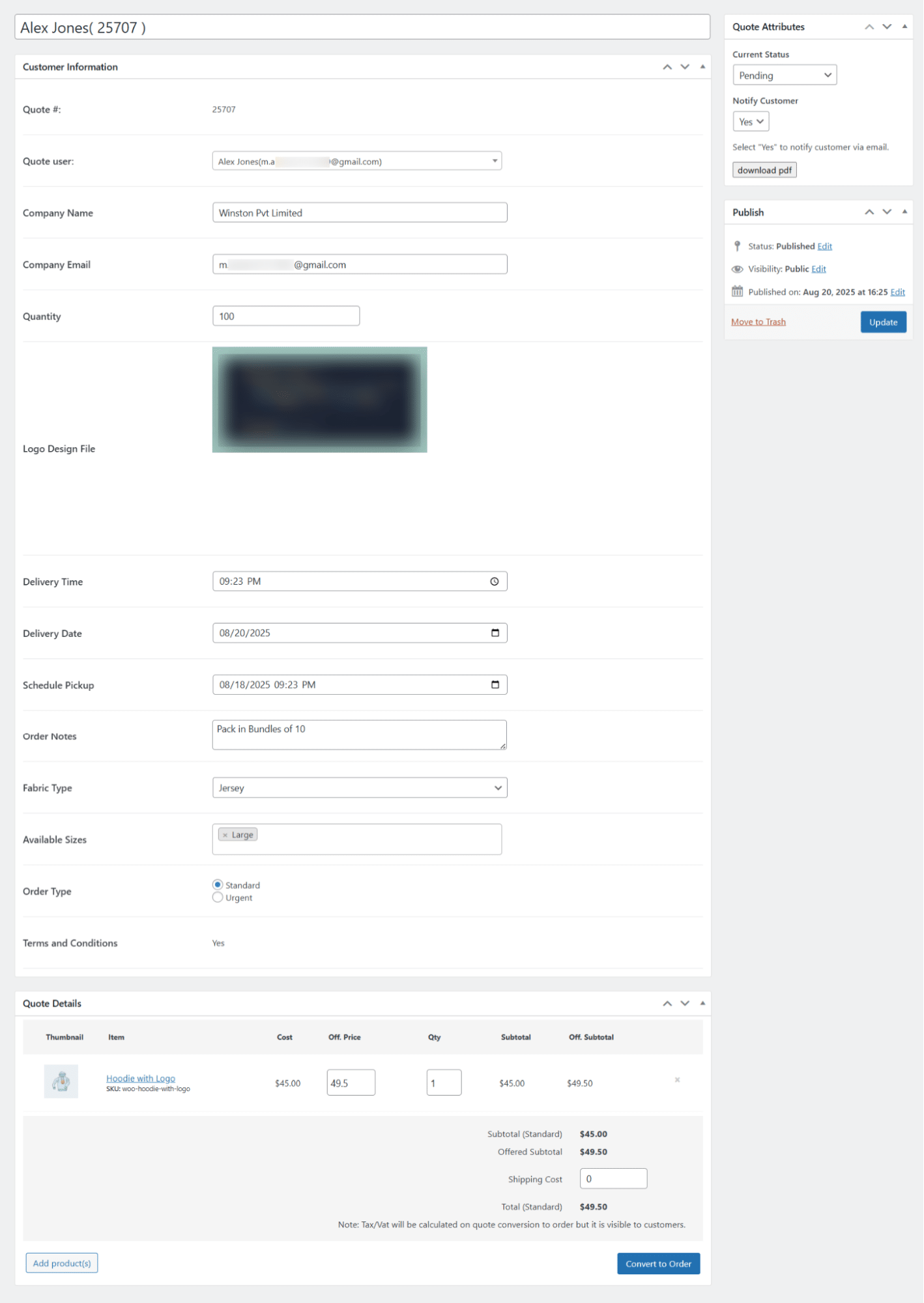
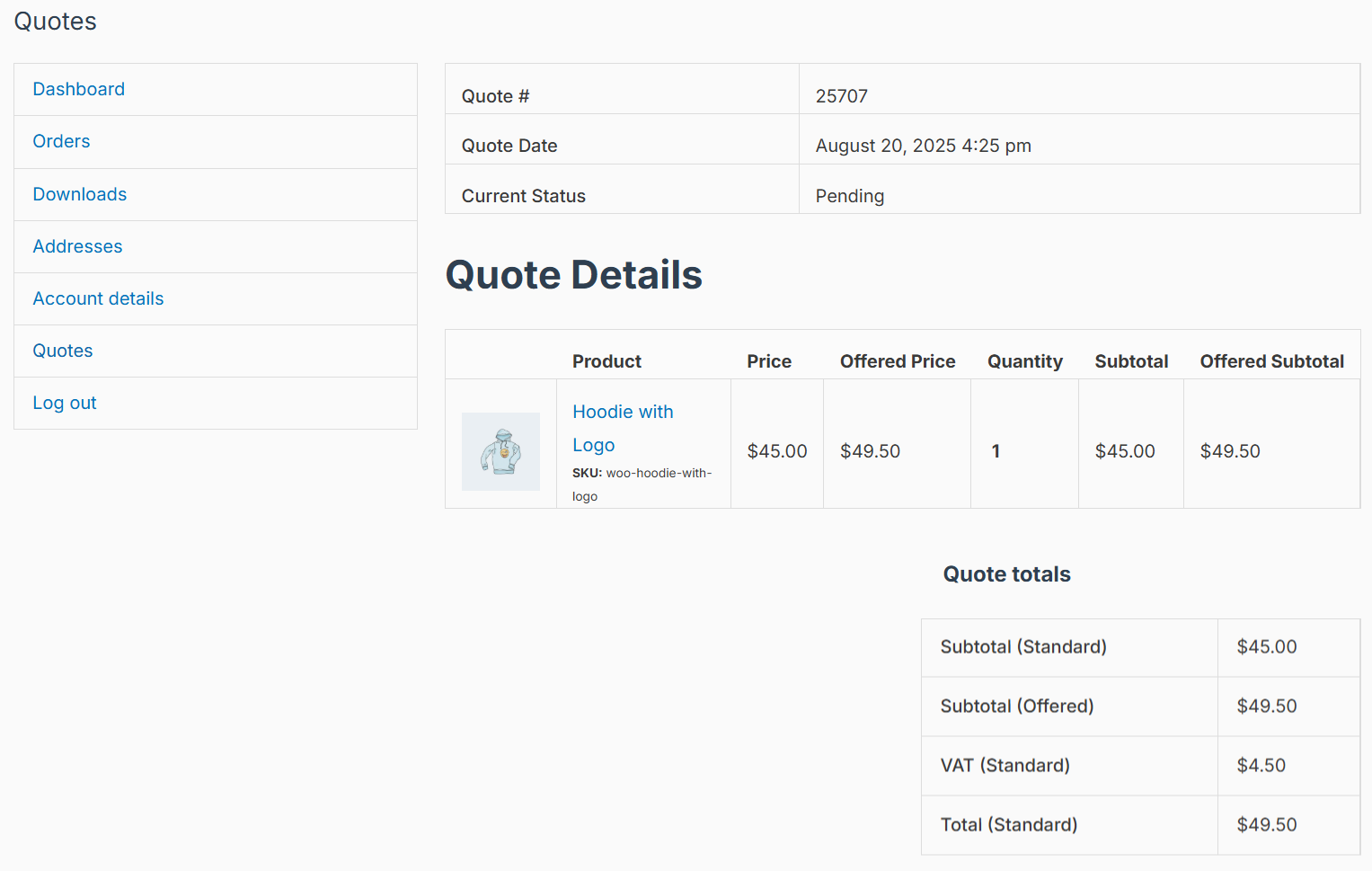
On the individual quote page, the administrator can view all the quote fields submitted by the customer, download the quote in a PDF file, and also change the status of the respective quotes.
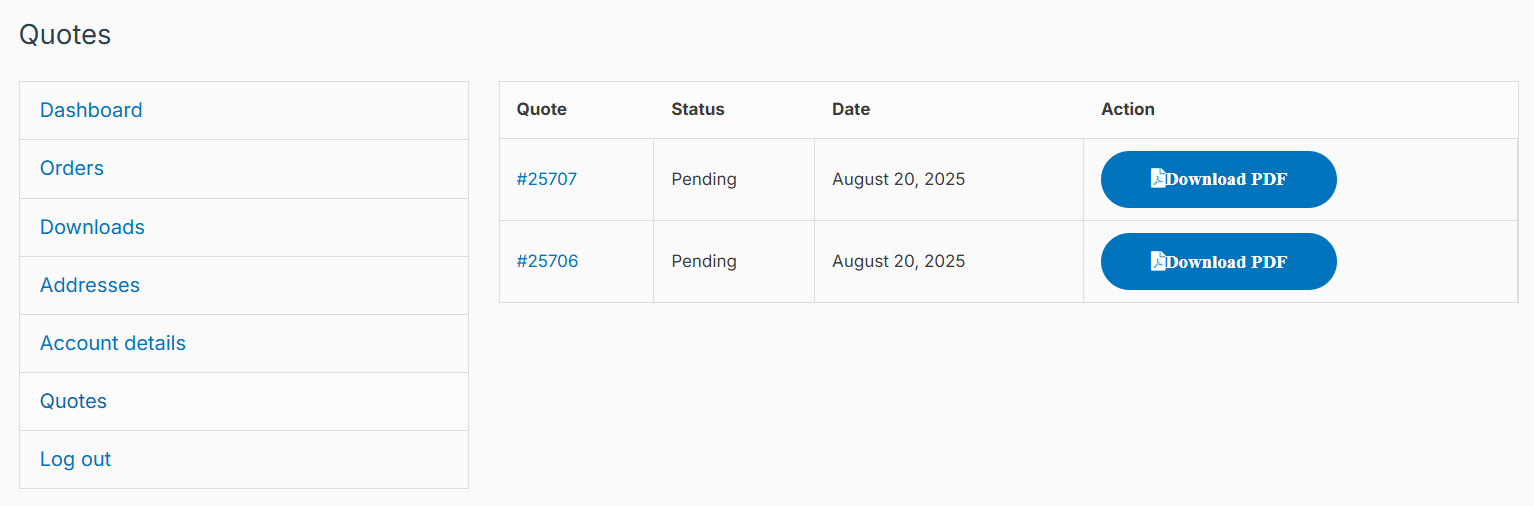
Customers can check their updated quote details and status anytime by visiting the “Quotes” section in their WooCommerce dashboard.
Quote Rules
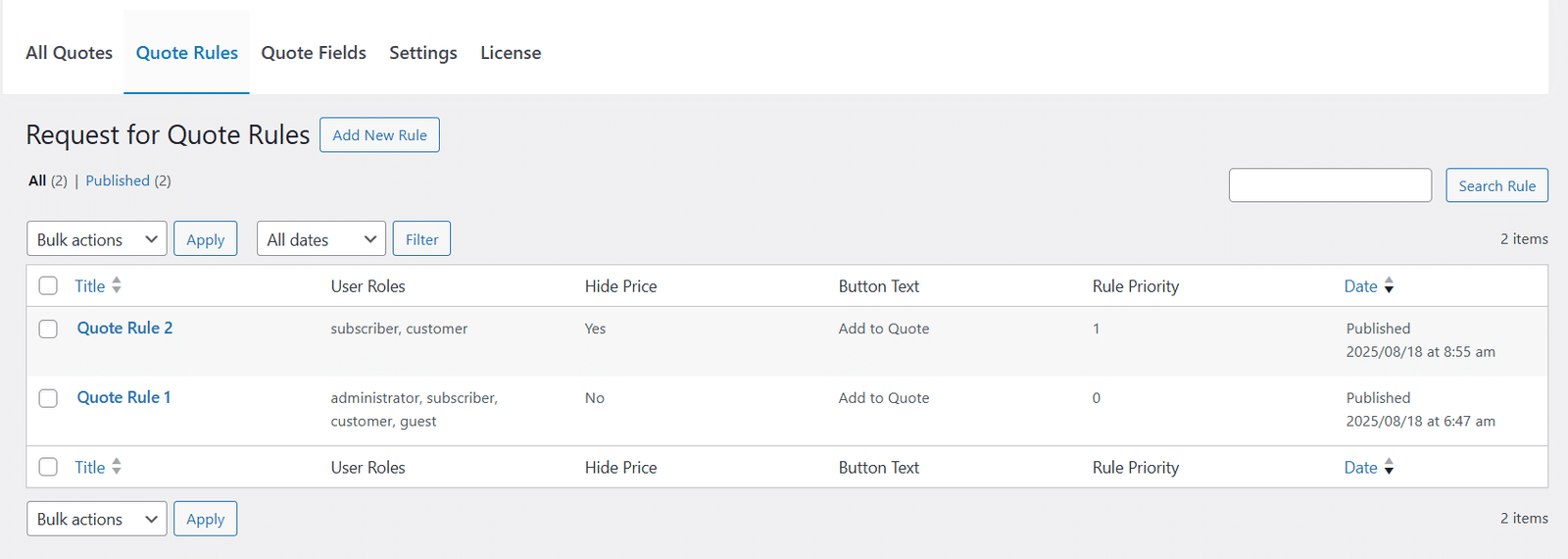
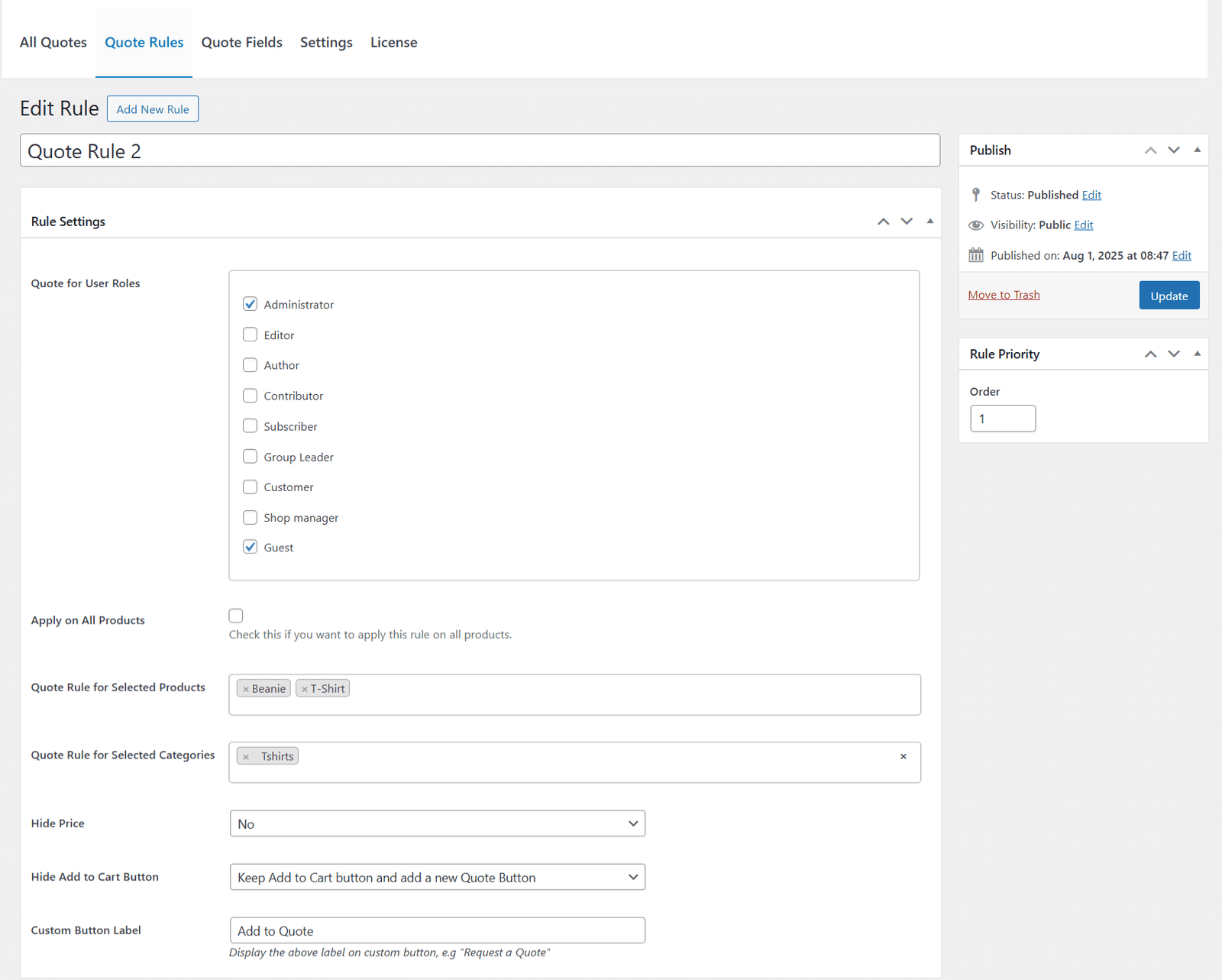
In this tab, the administrator will be able to view, manage, and delete all the quote rules that will be applied on the respective individual product page(s) and the shop page.
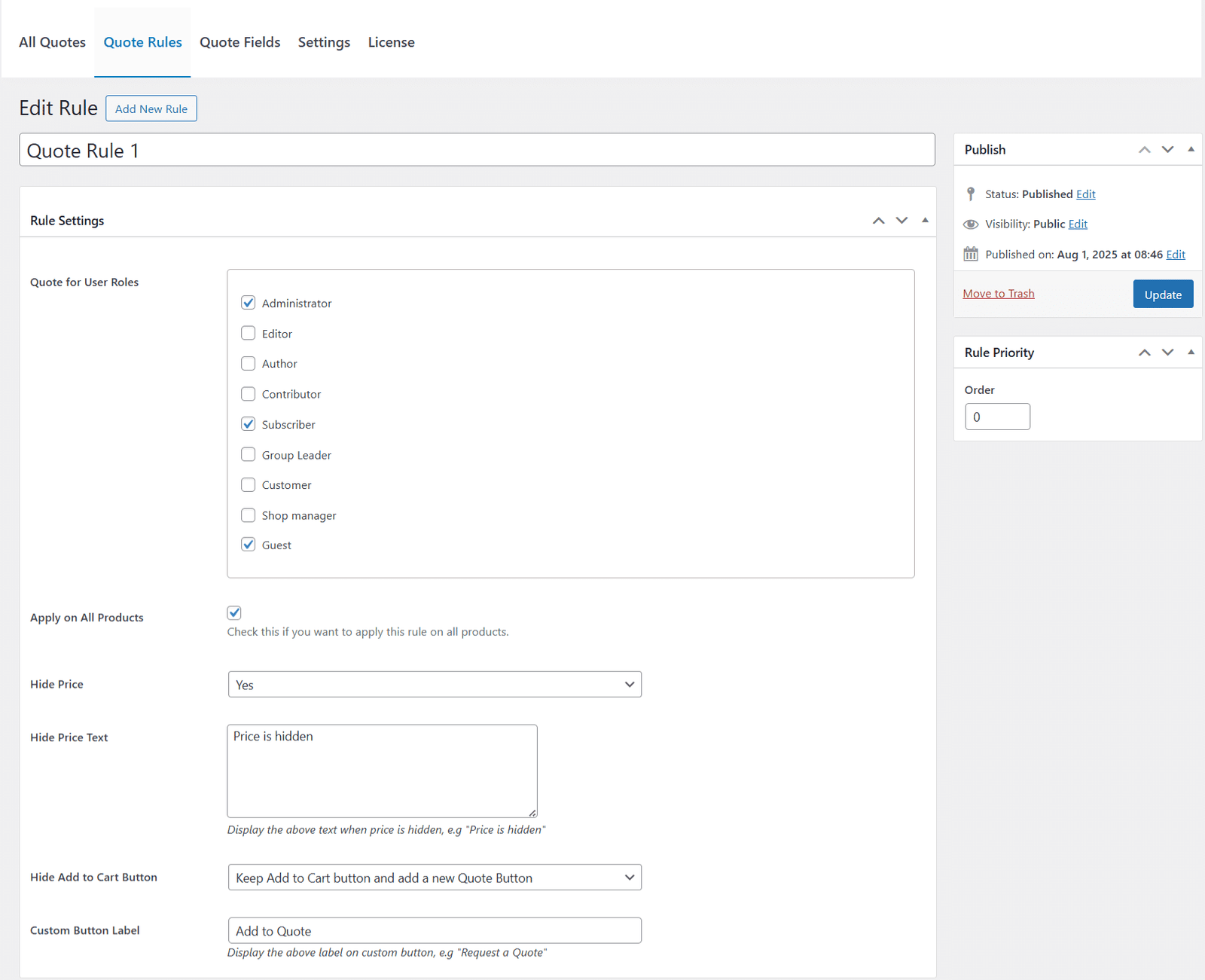
On the individual quote rule edit page, the administrator can set the following options for the individual quote rules to be applied:
- Quote Rule Title
- Order
The quote rule with the smallest number will be given priority. - Quote for User Roles
The respective quote rules will only be applied to the selected user role(s). - Apply to All Products
If checked, then this quote rule will be applied to all WooCommerce products.
Note: Our addon only supports simple products and variable products of WooCommerce. - Quote Rule for Selected Products
If no product is selected, then the quote rule will not be applied to any product. If any product is selected, then the quote rule will be applied to that respective product only. - Quote Rule for Selected Categories
If no product category is selected, then the quote rule will not be applied to any product of any category. If any product category(s) are selected, then the quote rule will be applied to all the respective products of that category(s) only. - Hide Price
If “Yes” is selected, then the product price will not be visible on the shop page and the respective product page(s). If “No” is selected, then the product price will be visible on the shop page and the respective product page(s).- Hide Price Text
If left blank, no message will appear in place of the hidden price. If filled, the text you enter will appear wherever the product price is hidden.
- Hide Price Text
- Hide Add to Cart Button
If the “Replace Add to Cart button with a Quote Button” option is selected, then on both the shop page and the respective product page(s), only the “Quote” button will be visible with the text provided in the “Custom Button Label” field. If the “Keep Add to Cart button and add a new Quote Button” option is selected, then on both the shop page and the respective product page(s), both the “Add to Cart” and the “Quote” button will be visible with the text provided in the “Custom Button Label” field. - Custom Button Label
Set the text that appears on the “Quote” button. If left empty, the default label “Add to Quote” will be used.
Quote Fields
In this tab, the administrator will be able to view and manage all the quote fields that will appear on the “Request a Quote” page.
Note: The request a quote page on the customer’s frontend will show all the quote fields (currently published). Similarly, the individual quote edit page in the “All Quotes” tab will show all the quote fields (currently published) and their currently published data. If you delete a quote field, then that field will no longer be visible on the “Request a Quote” page, and its previously submitted data in the individual quote edit page in the “All Quotes” tab will also not be visible.
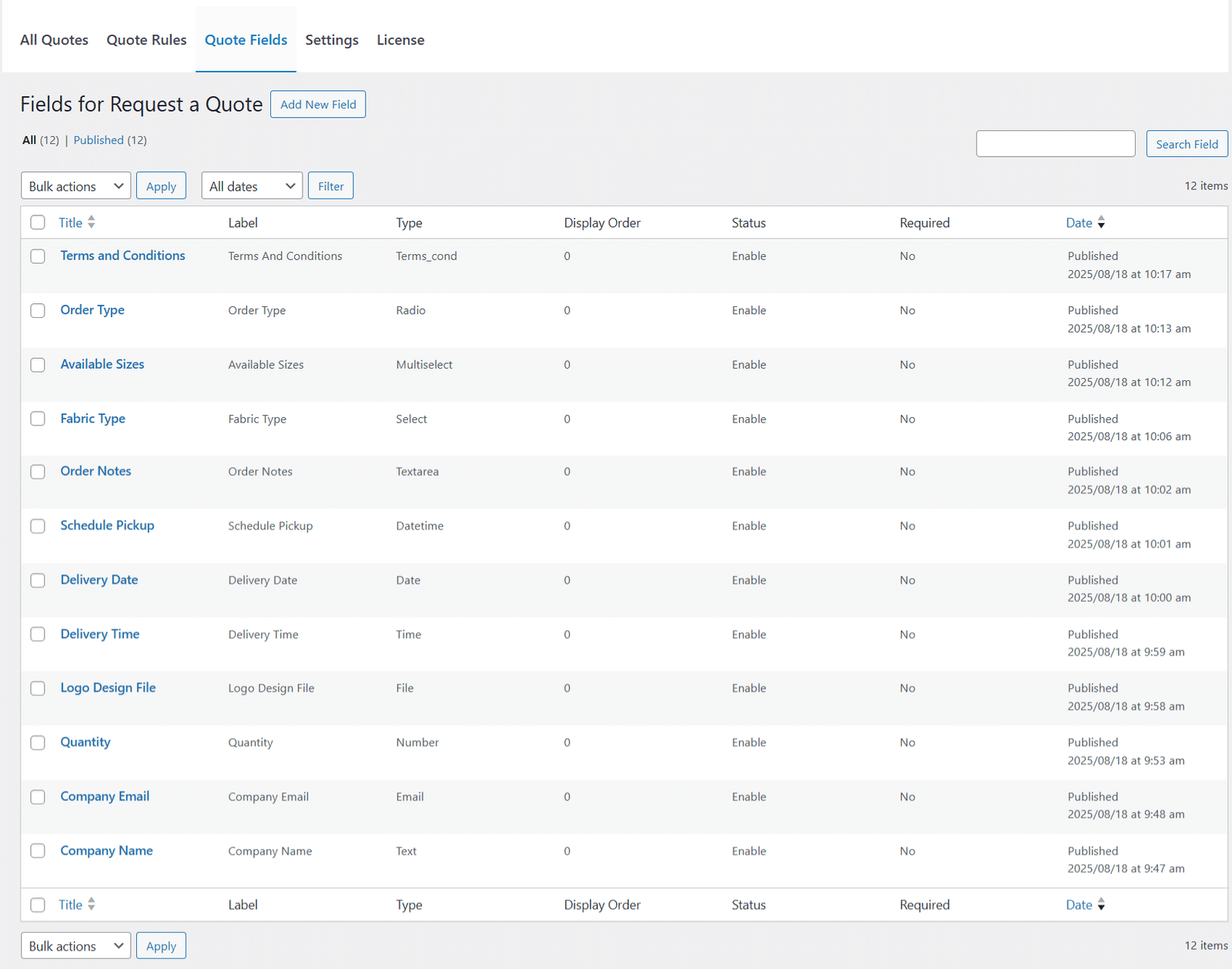
The administrator can add quote fields of the following types, along with their respective options, based on their requirements:
1. Text
You can use this quote field if you want the customers (of your site) to enter any data or information in textual format.
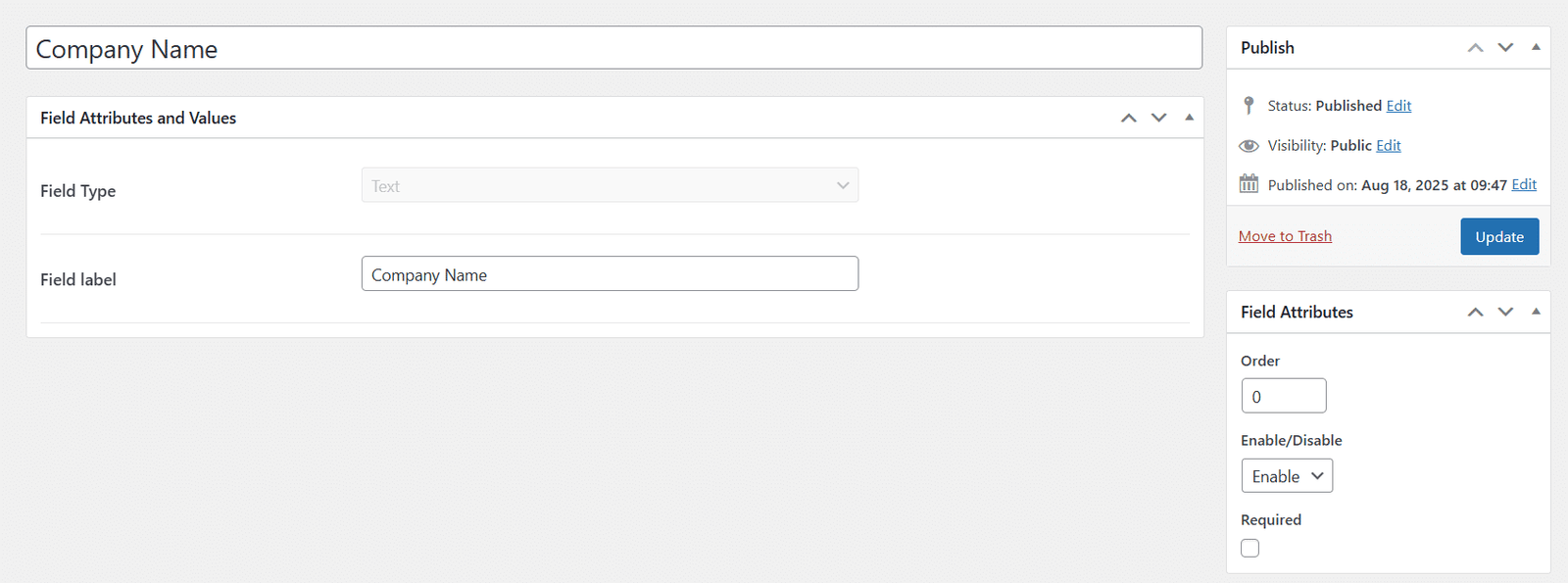
2. Email
This field is required by default. Otherwise, the submit quote button will remain disabled on the frontend until a valid email address has been entered by the customer on the request quote page.
Note: Because the email field can’t be validated automatically when the page loads, make sure your customers know to double-check that they’ve entered their email address correctly. After that, if the Place Quote button appears disabled, simply press the spacebar while in the email field to enable it.
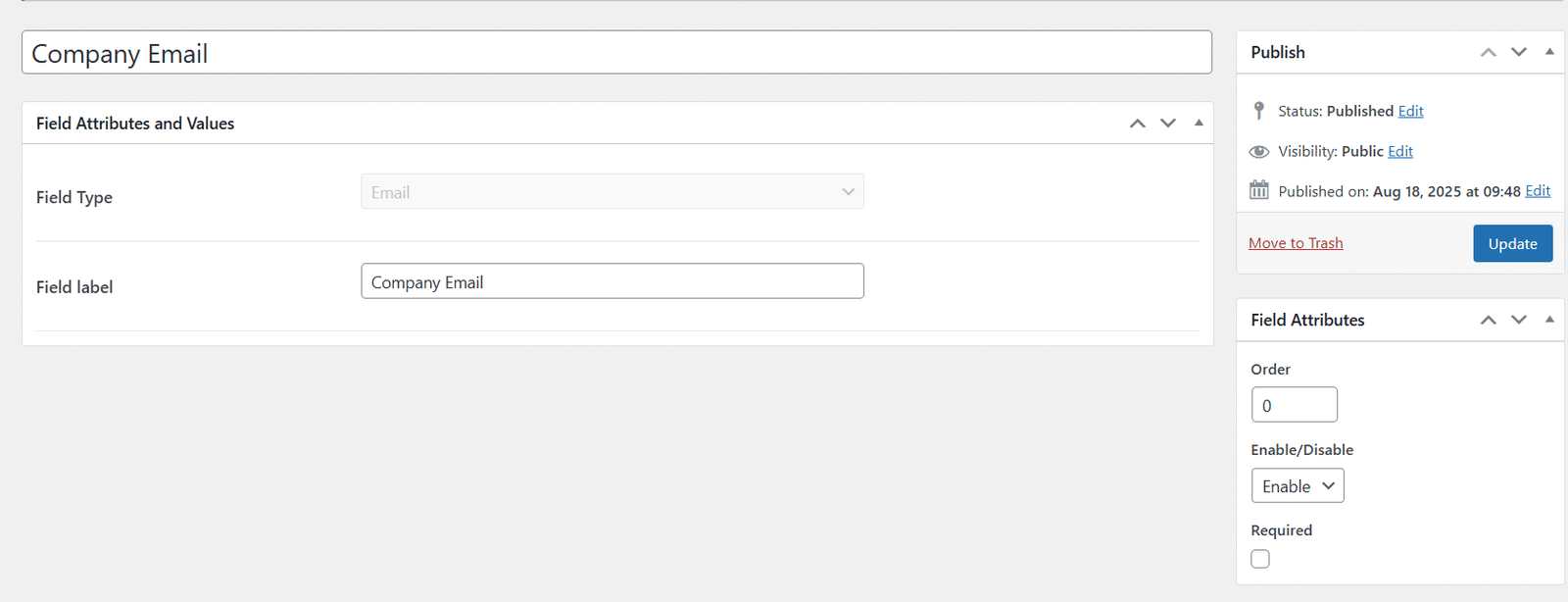
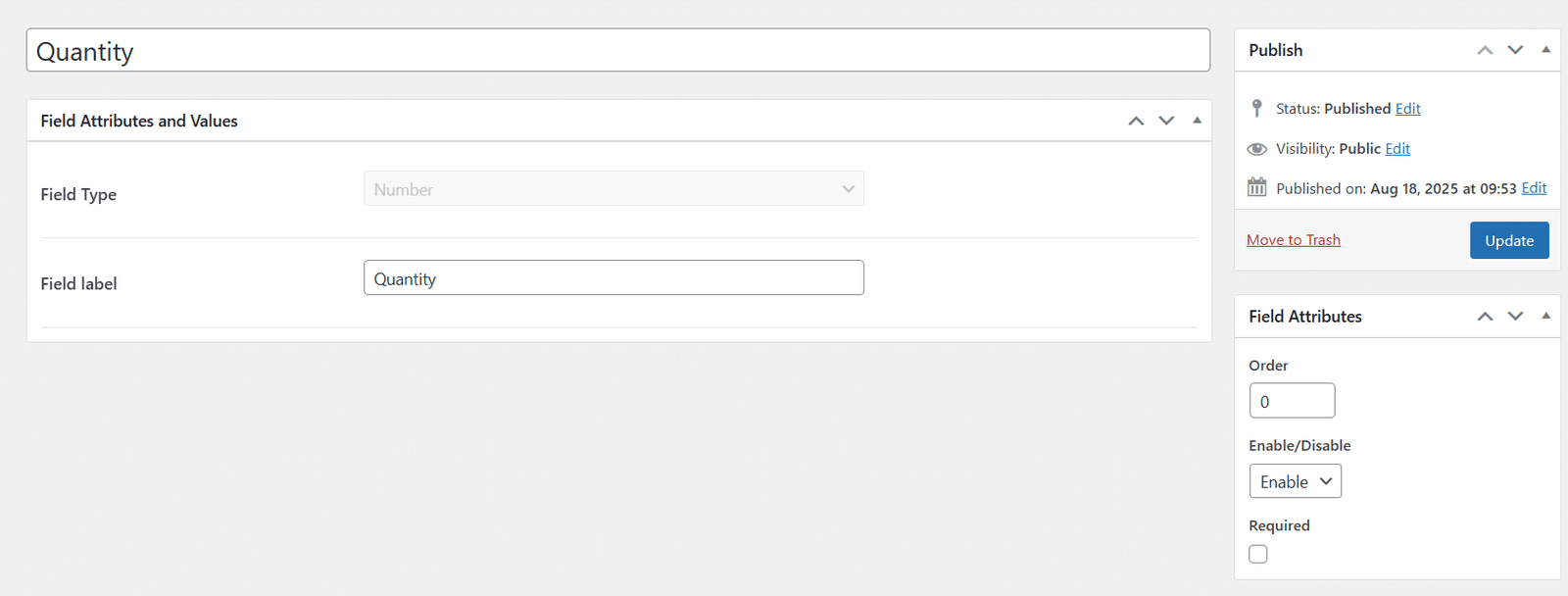
3. Number
You can use this quote field if you want the customers (of your site) to enter any data or information in numbers.
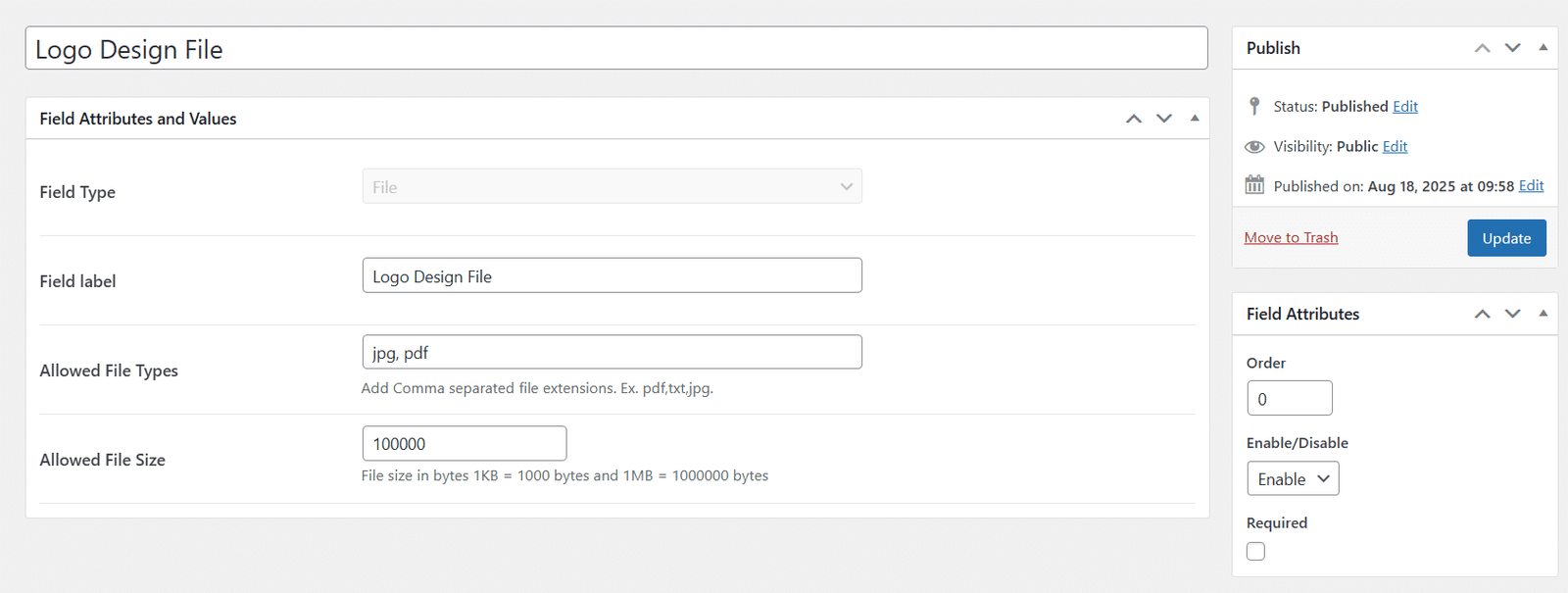
4. File
- Allowed File Types (You can enter multiple acceptable file extension(s) for the quote field by adding them separated by a comma.)
- Allowed File Size (You need to limit the file upload size based on your requirements.)
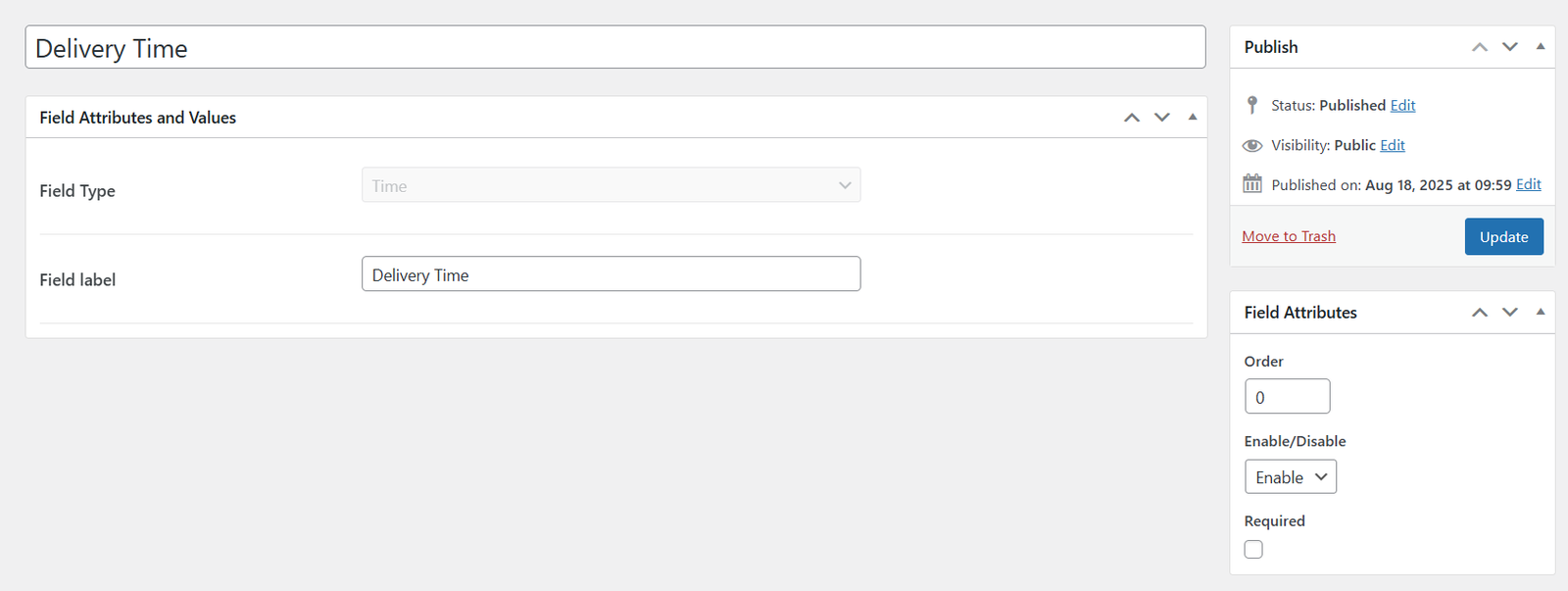
5.Time
Use this field if you want customers to enter information in time format (e.g., hours and minutes).
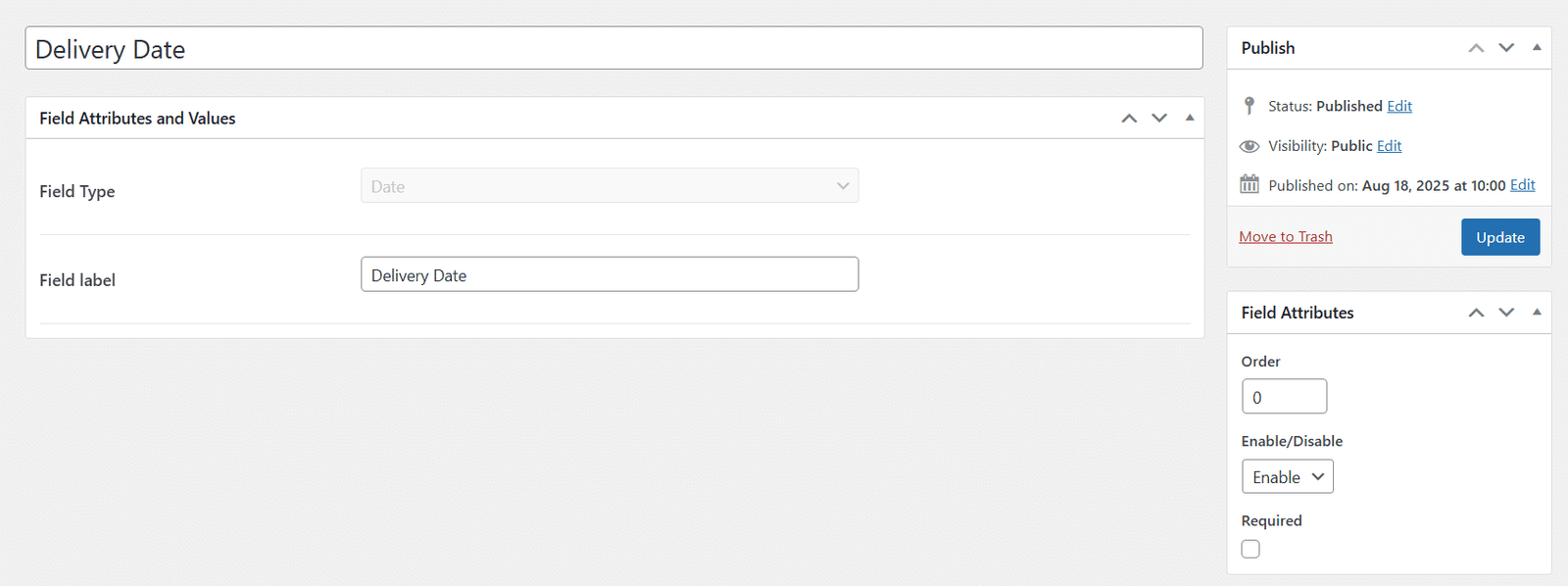
6. Date
Use this field if you want customers to enter information in date format (e.g., day, month, and year).
7. DateTime
Use this field if you want customers to enter information in both date and time format (e.g., day, month, year, hours, and minutes).
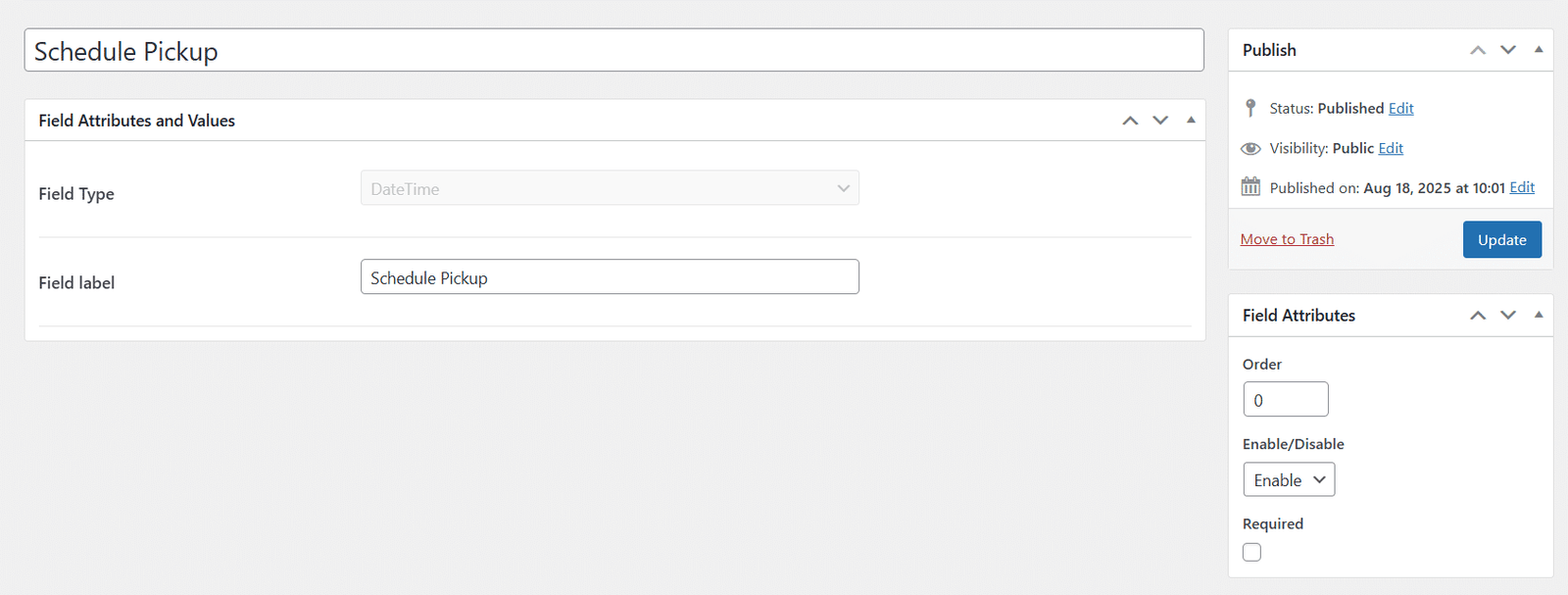
8. Textarea
Use this field if you want customers to enter information in a textual format, like paragraphs.
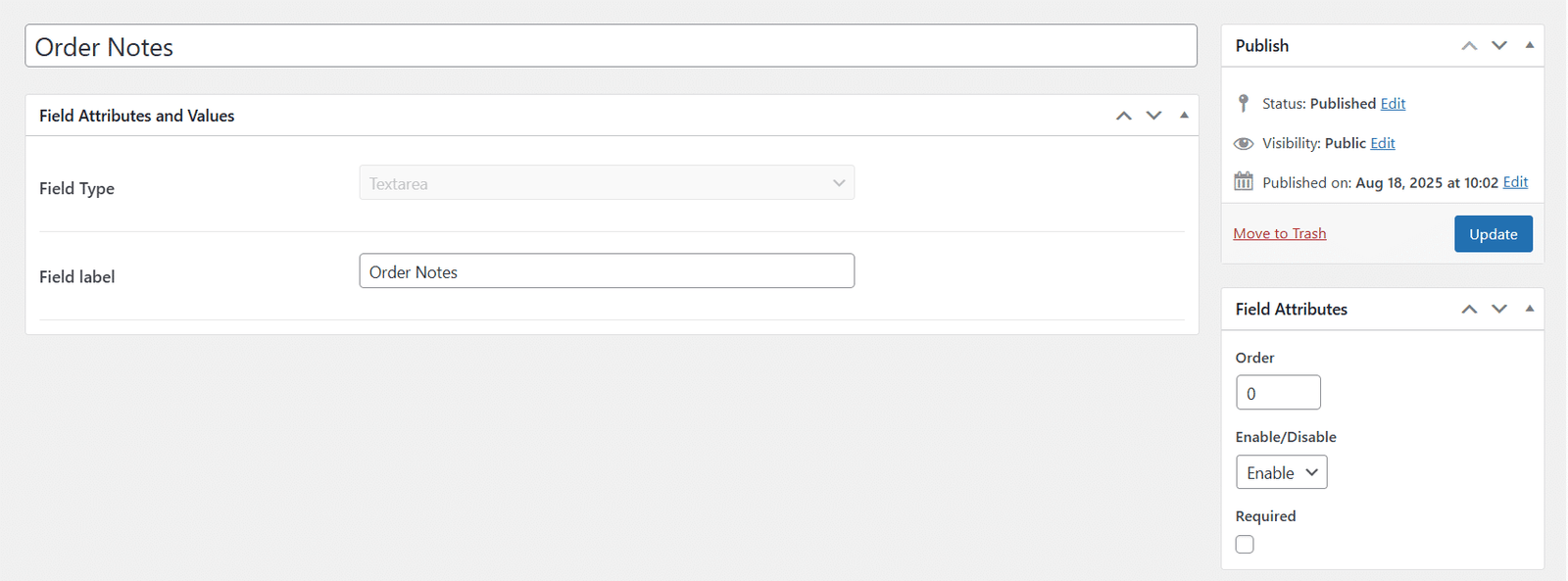
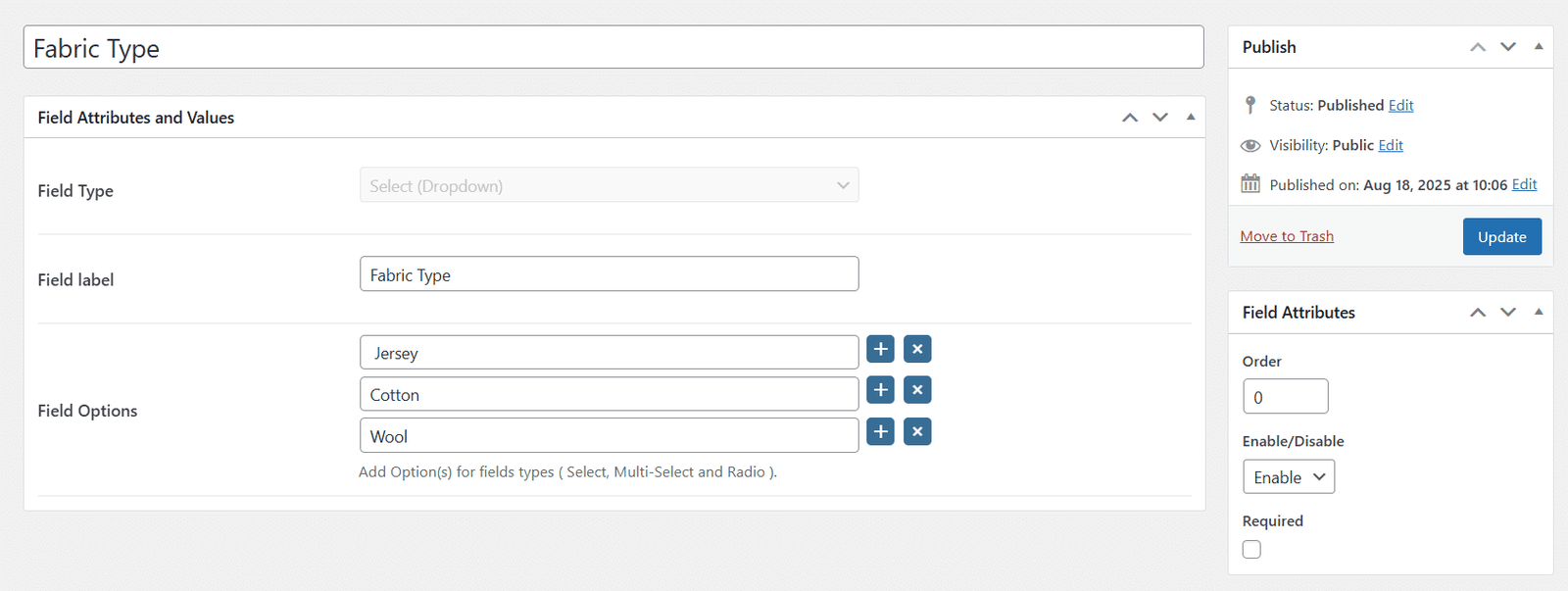
9. Select (Dropdown)
Field Options (Options which will be available on the request quote page for this field.)
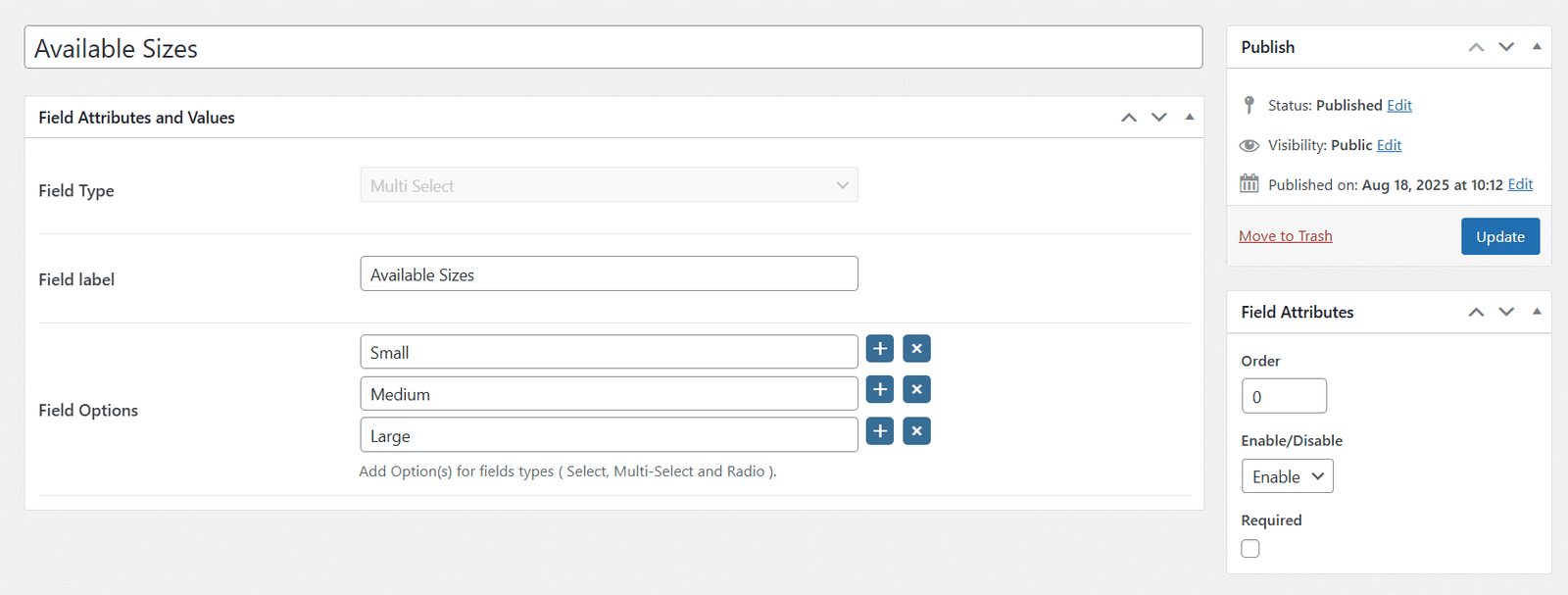
10. Multi Select
Field Options (Options which will be available on the request quote page for this field.)
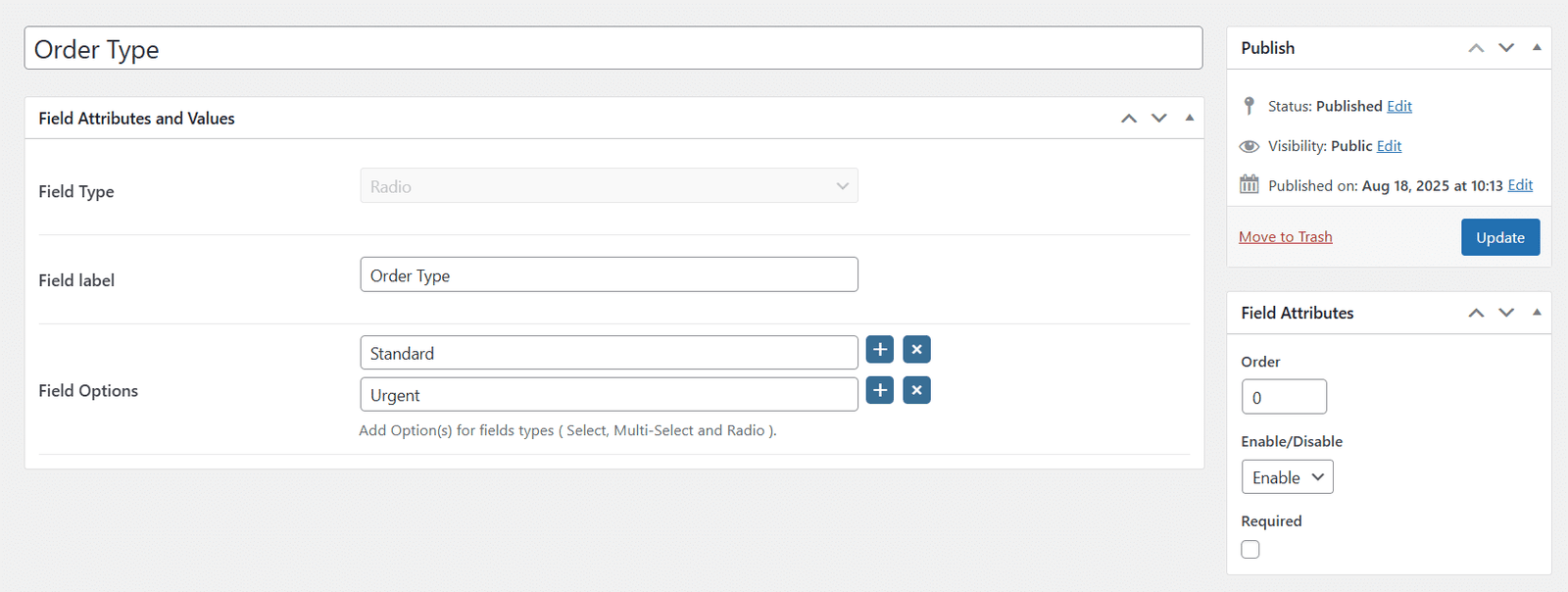
11. Radio
Field Options (Options which will be available on the request quote page for this field.)
12. Terms & Conditions
Terms & Conditions (The text which will be visible on the request quote page for this field.)
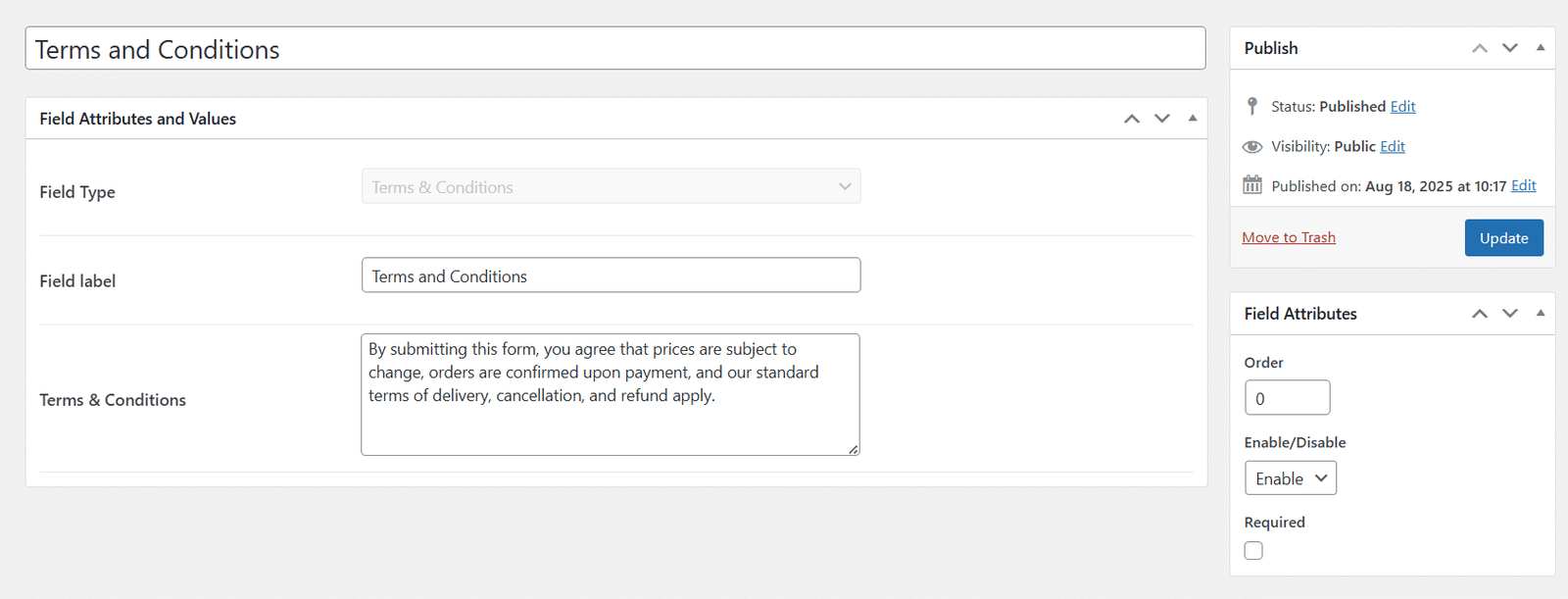
Also, the administrator can set the following options for all the quote fields:
- Field Title (Add a unique text for each quote field to identify it on the “Quote Fields” tab in the backend).
- Field label (Add a unique text for each quote field to identify it on the request quote page on the frontend).
- Order (The quote field with the smallest order number will show at the top).
- Enable/Disable (When enabled, the quote field will show on the “Request a Quote” page. When disabled, the quote field will not show on the “Request a Quote” page).
- Required (The “Request a Quote” form will not be submitted until all the required quote fields are filled by the customer).
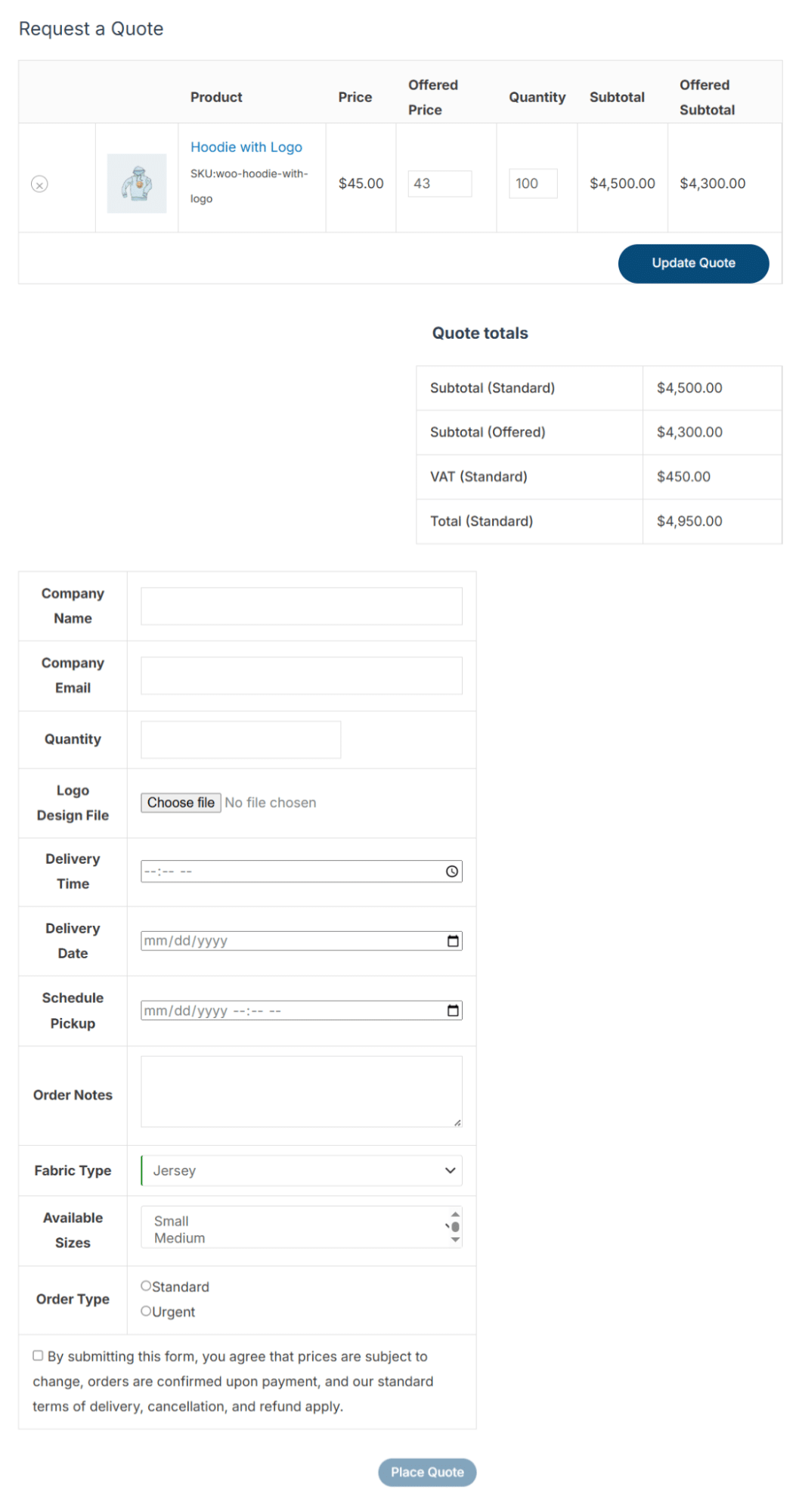
This is how the fields will look on the “Request a Quote” page.
Settings
In this tab, you will be able to update the general settings of the addon based on your requirements.
General
In this sub-tab, you will be able to update the general settings of the addon based on your requirements.
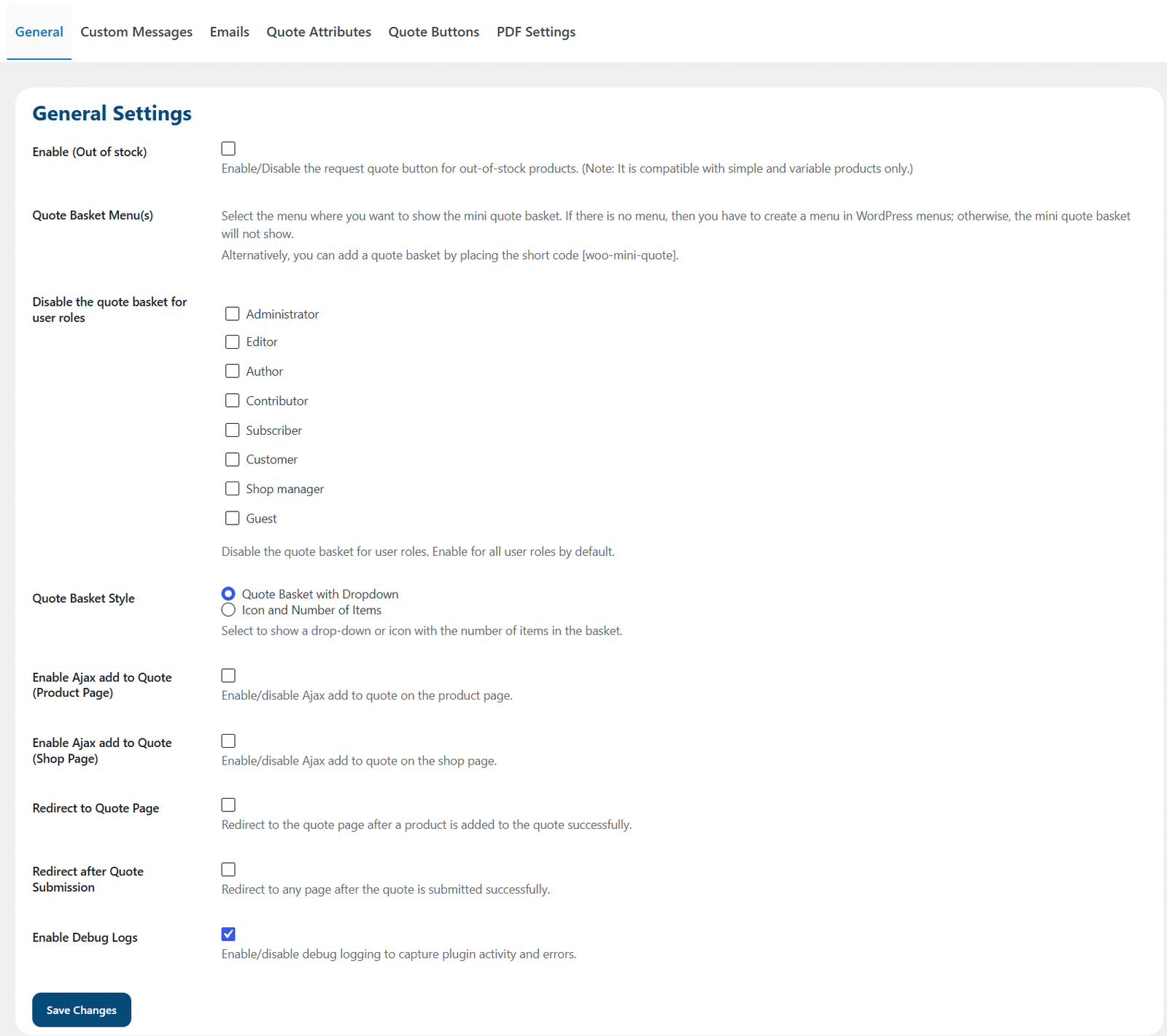
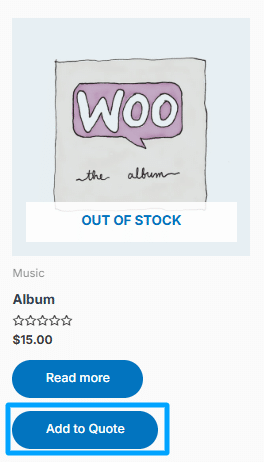
Enable (Out of stock)
Check this checkbox if you want the “Quote” button to be visible on the shop page for the respective products (according to any rule set in the “Quote Rules” tab) with a stock status of “Out of stock”. If the option is unchecked, then the “Quote” button will not be visible on the shop page for the respective products with a stock status of “Out of stock”.
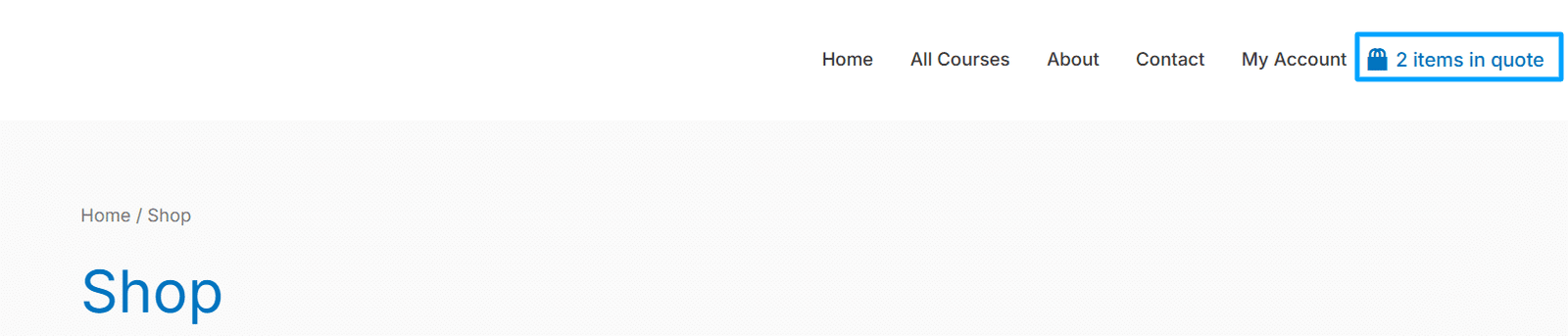
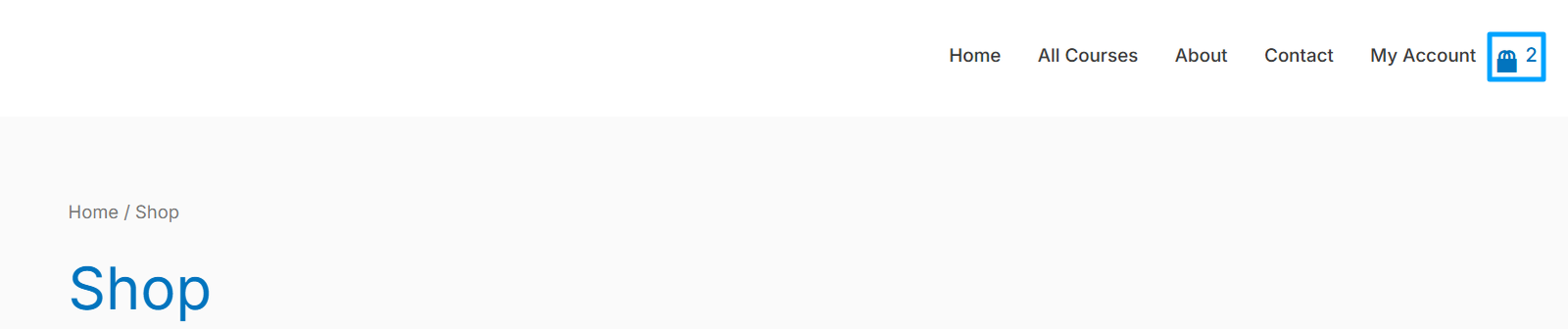
Quote Basket Menu(s)
Here you can select the menu where you want to show the mini quote basket. If there is no menu, then you have to create a menu in WordPress menus. Otherwise, the mini quote basket will not show. The layout of the mini quote basket shown will be based on the “Quote Basket Style” option. Also, if you are building a custom header, then you can add the mini quote basket by placing the shortcode [woo-mini-quote].
Disable The Quote Basket For User Roles
Here you can check the checkbox(es) for the respective user roles for whom you do not want to see the mini quote basket in their header menu (menu checked in the “Quote Basket Menu(s)” option). If no checkbox is checked for any user role, then all the users of all the user roles will see the mini quote basket in their headers.
Note: Selecting a user role from here will not disable the visibility for the shortcode [woo-mini-quote].
Quote Basket Style
Here you can select the view of the mini quote basket in the header and in the shortcode [woo-mini-quote]. “Quote Basket with Dropdown” option will be selected by default.
Enable Ajax add to Quote (Product Page)
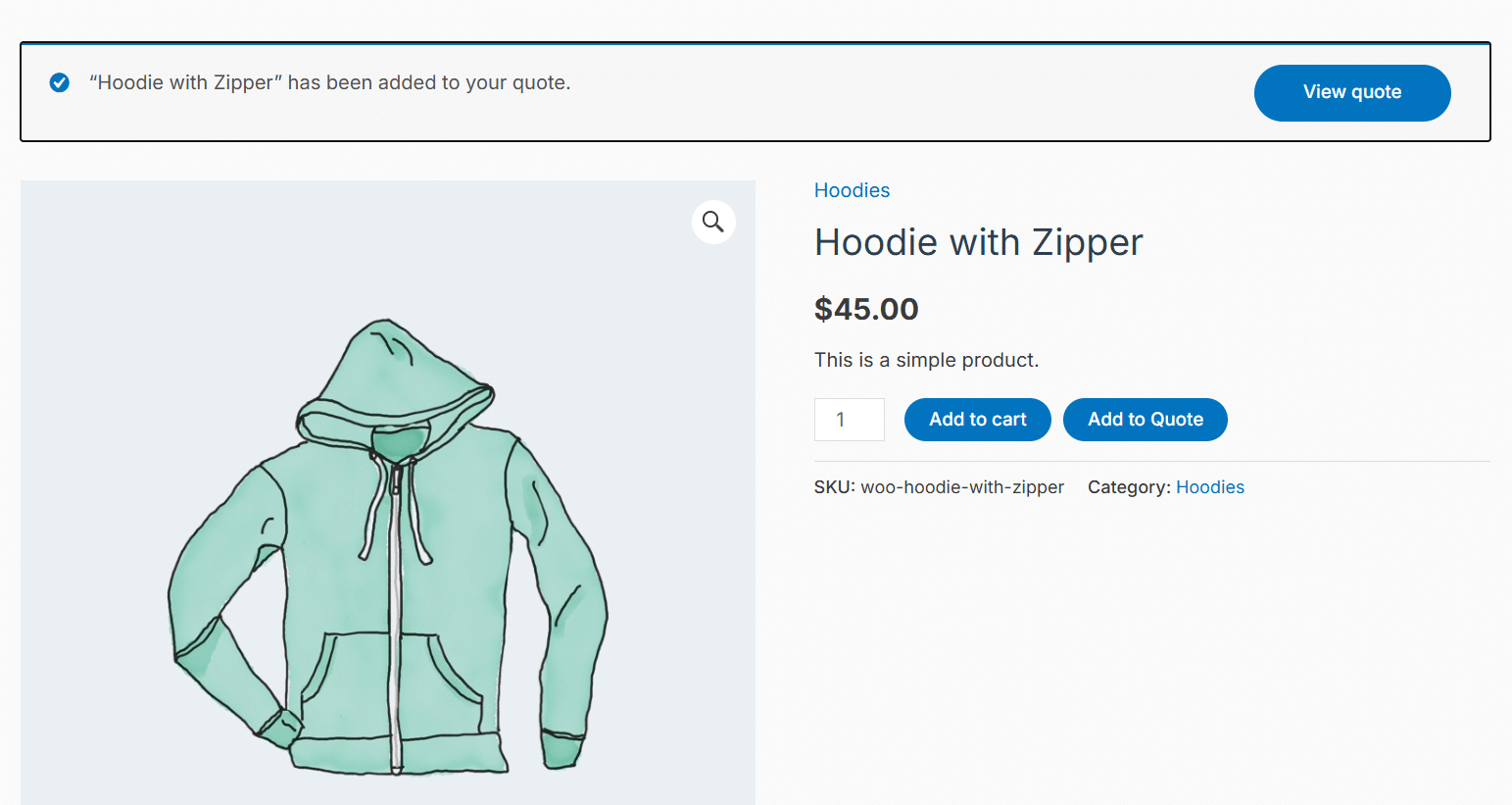
Here, you can select whether you want to enable the Ajax request for the “Add to Quote” button on the product page. If checked, then when the “Add to Quote” button is pressed then the product page will not reload after the respective product is added to the quote page, and the “View Quote Basket Button Text” will become visible right next to the “Add to Quote” button.
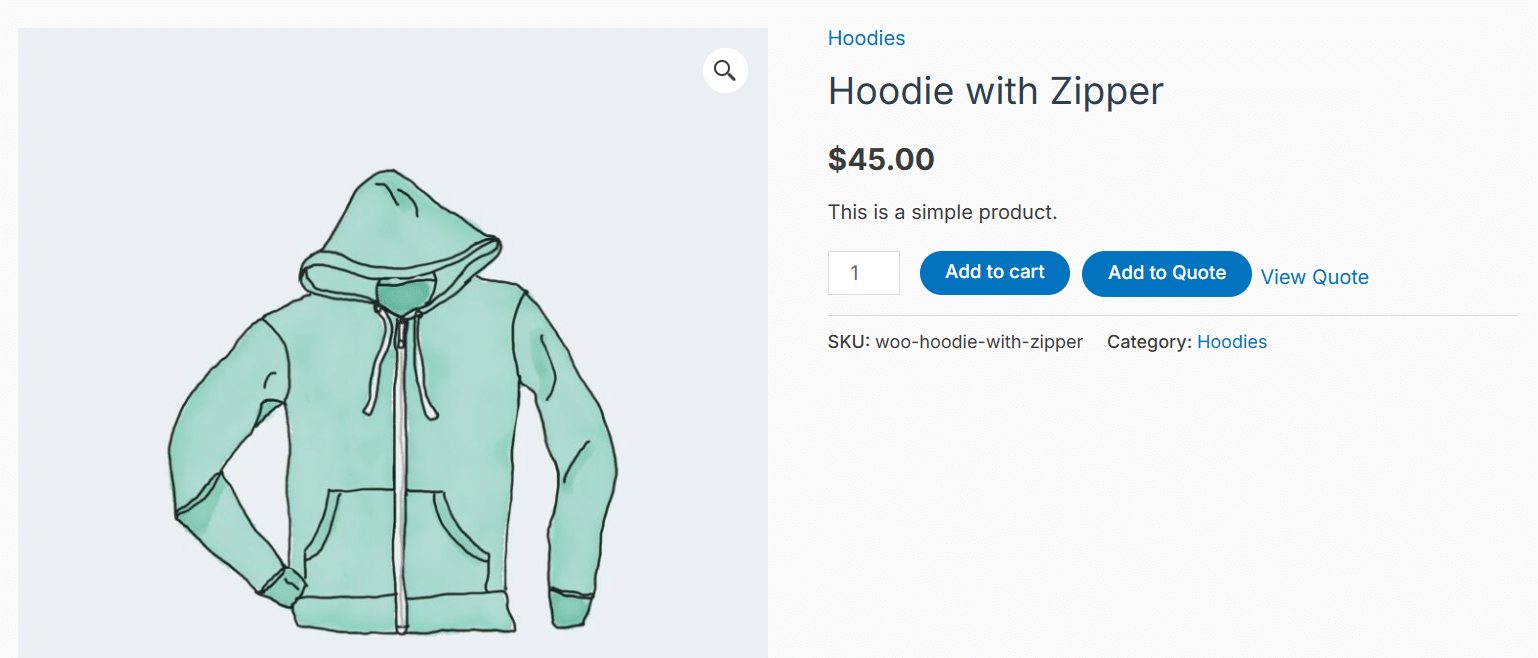
If unchecked, then when the “Add to Quote” button is pressed then the product page will reload after the respective product is added to the quote page, and a notification will become visible at the top of the product page.
Enable Ajax add to Quote (Shop Page)
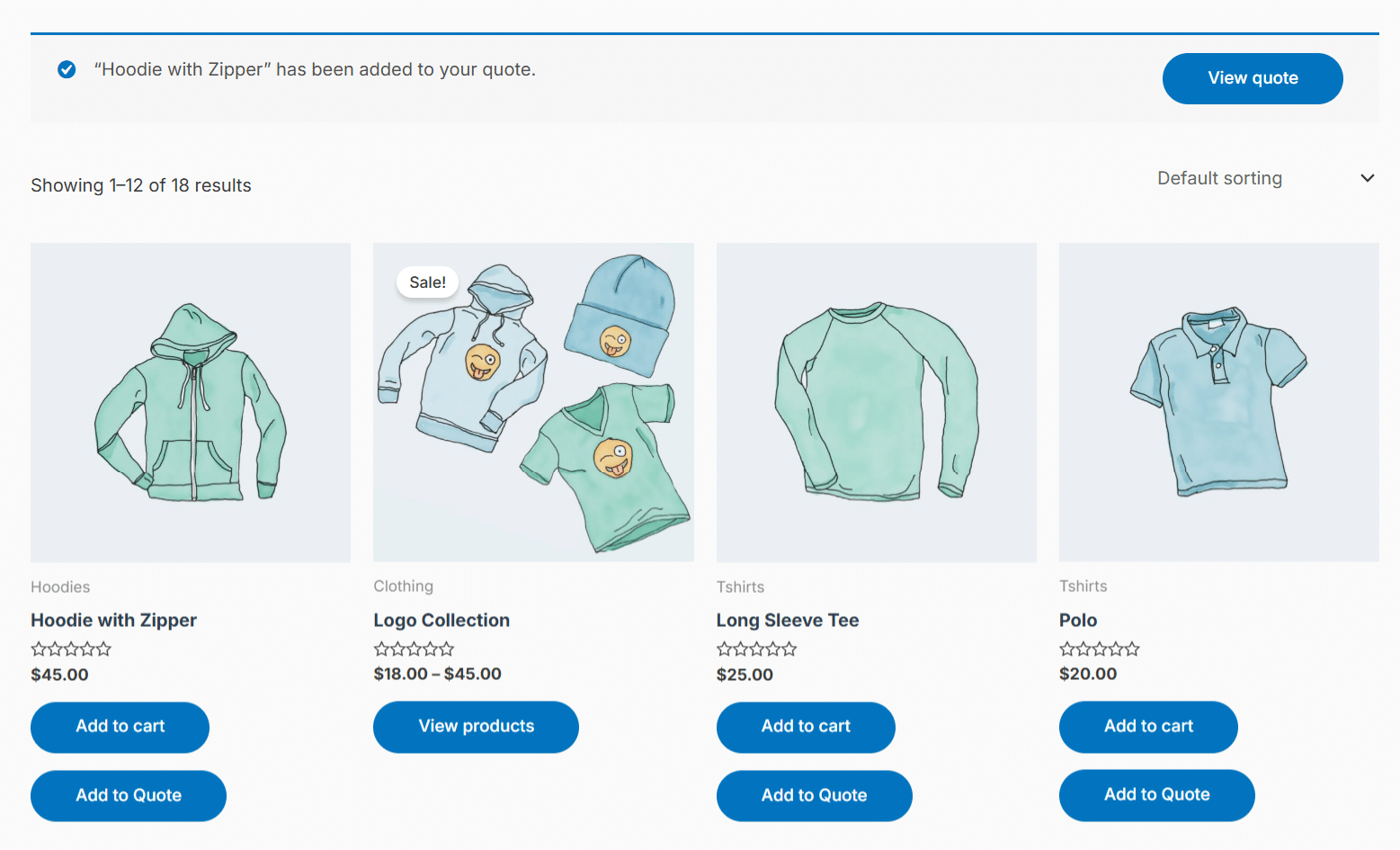
Here, you can select whether you want to enable the Ajax request for the “Add to Quote” button on the shop page. If checked, then when the “Add to Quote” button is pressed then the shop page will not reload after the respective product is added to the quote page. If unchecked, then when the “Add to Quote” button is pressed then the shop page will reload after the respective product is added to the quote page, and a notification will become visible at the top of the shop page.
Redirect To Quote Page
Check this checkbox if you want the customers to be redirected to the quote page after a product is added to the quote successfully from either the shop page or the individual product page. If this checkbox is unchecked, then the customers will not be redirected to the quote page after a product is added to the quote successfully from either the shop page or the individual product page.
Note: This option will not work (even if checked) on the shop page if the “Enable Ajax add to Quote (Shop Page)” option is checked. Similarly, this option will not work (even if checked) on the product page if the “Enable Ajax add to Quote (Product Page)” option is checked.
Redirect After Quote Submission
Check this checkbox if you want the customers to be redirected to any URL after a quote is submitted successfully. If checked and no URL is entered, then the customers will not be redirected to any URL after a quote is submitted successfully. If checked and a URL is entered, then the customers will be redirected to that specific URL after a quote is submitted successfully. If unchecked, then the customers will not be redirected to any URL after a quote is submitted successfully.
Note: The URL entered should include the complete URL (https:// included in the beginning).
Enable Debug Logs
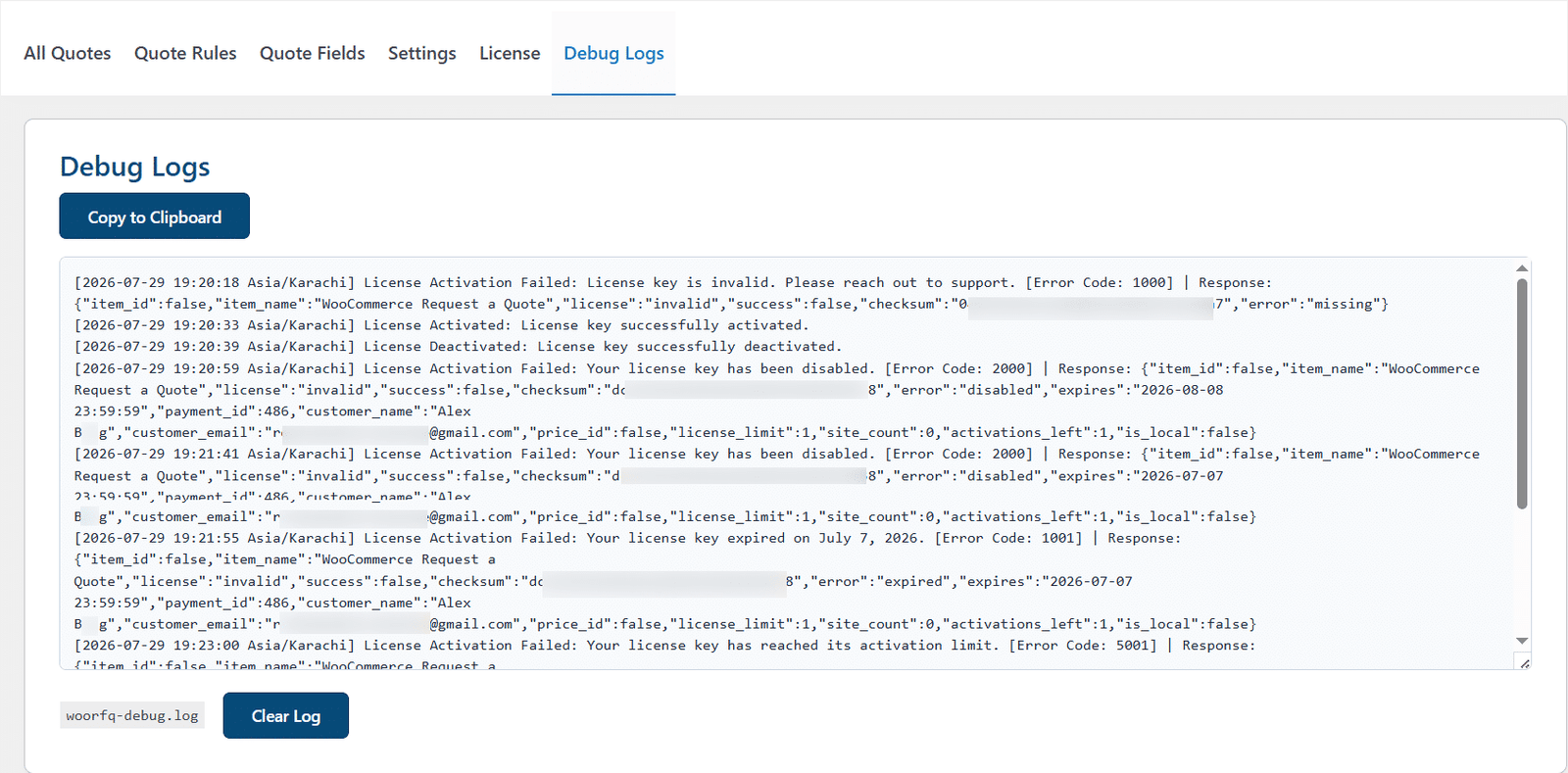
Enable this option to log license activation-related activities in the “Debug Logs” tab. When this option is enabled, a new tab “Debug Logs” becomes visible.
Custom Messages
In this sub-tab, you will be able to update the message-related settings of the addon based on your requirements.
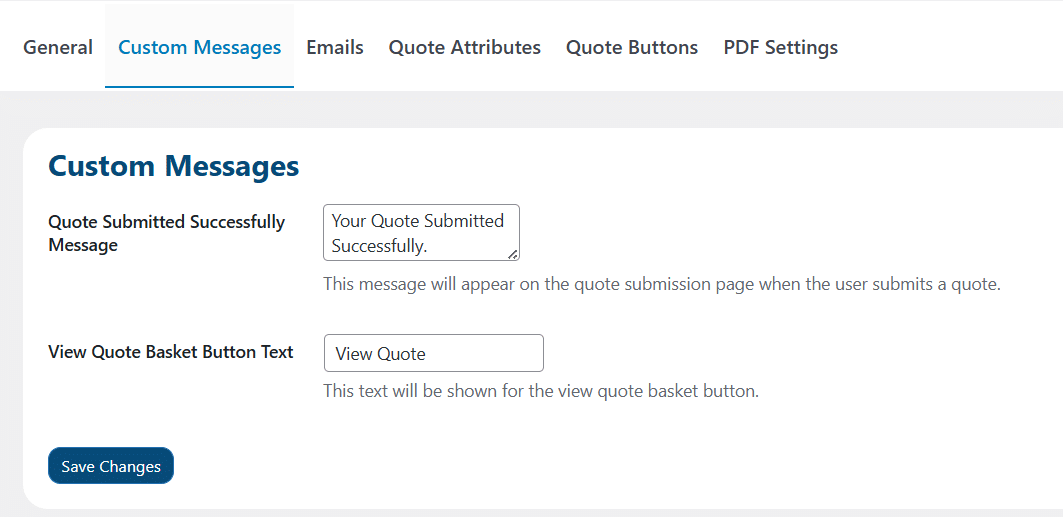
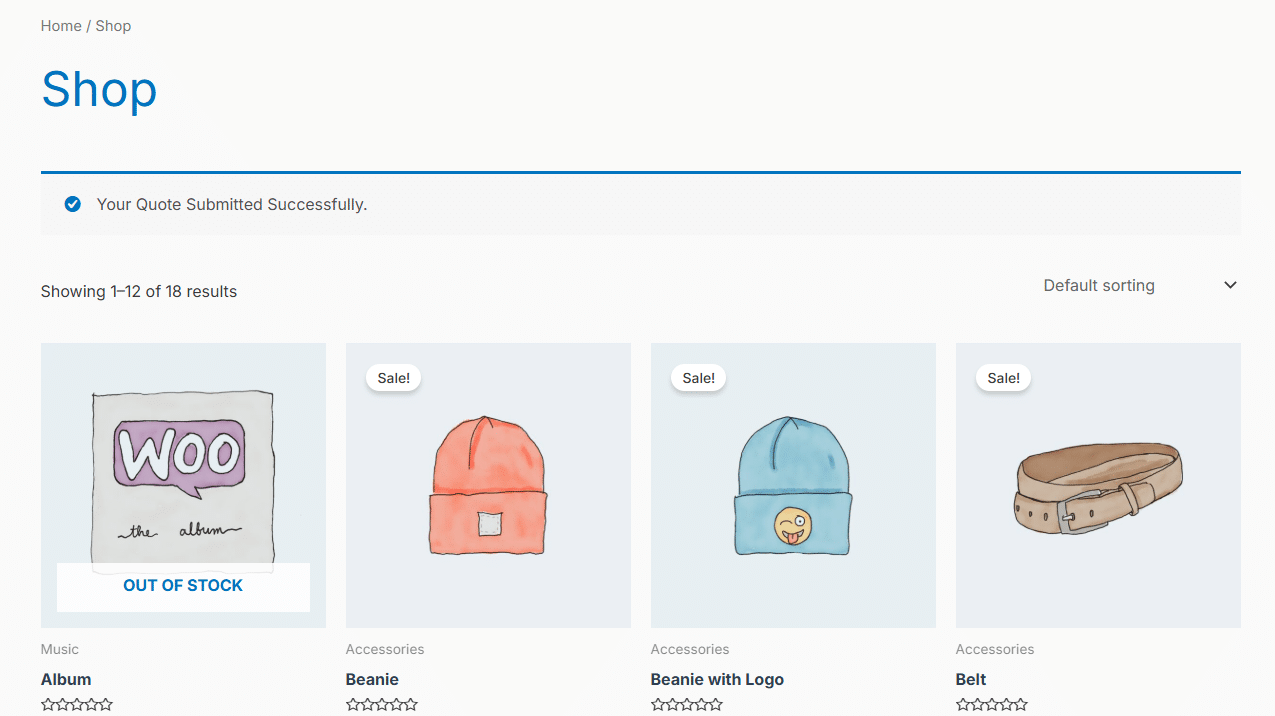
Quote Submitted Successfully Message
Here you can enter the text that will be displayed when the customer submits a quote and visits a page like the shop page.
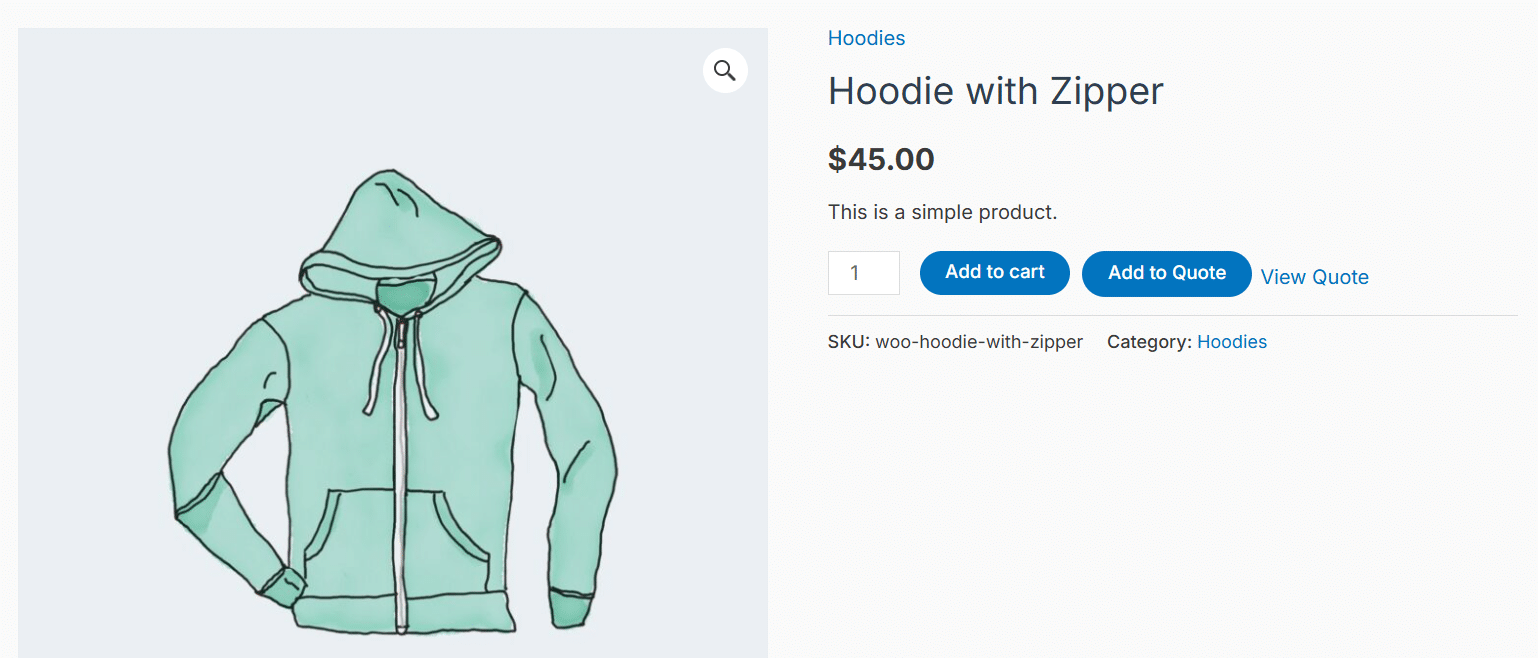
View Quote Basket Button Text
Here you can enter the text that will be displayed on the individual product page right next to the “Add to Quote” button when the customer clicks the “Add to Quote” button (when the “Enable Ajax add to Quote (Product Page)” option is checked).
Emails
In this sub-tab, you will be able to update the email-related settings of the addon based on your requirements.
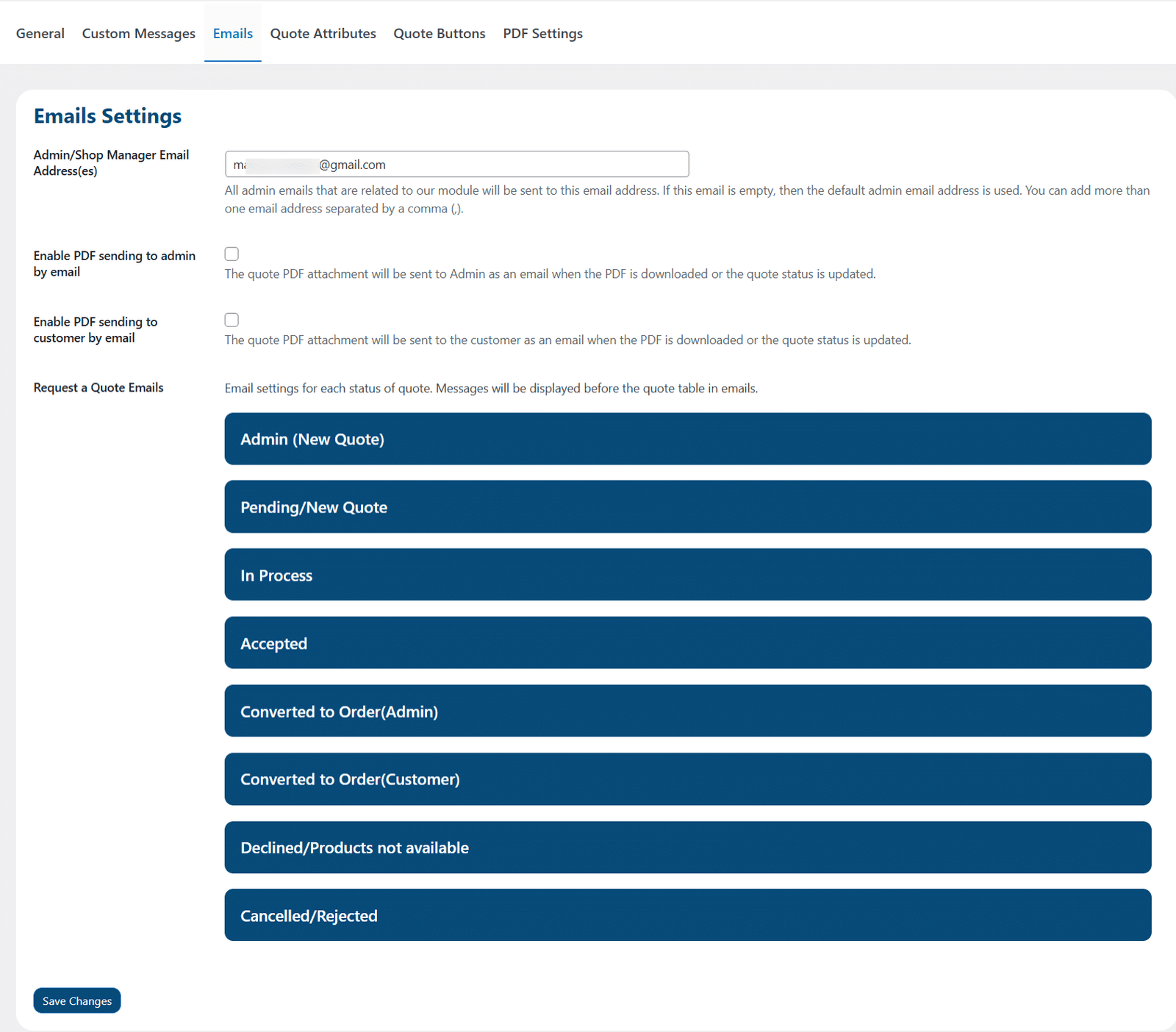
Admin/Shop Manager Email Address(Es)
Here you can enter the email addresses of all the administrators related to this module. If this email textbox is empty, then the default admin email address is used. You can add more than one email address separated by a comma (,).
Enable PDF Sending To The Admin By Email
Here, you can select whether to send administrator(s) the quote-related emails when the PDF is downloaded or the quote status is updated. If checked, then administrator(s) will be sent the respective emails when the PDF is downloaded or the quote status is updated. If unchecked, then administrator(s) will not be sent the respective emails when the PDF is downloaded or the quote status is updated.
Enable PDF Sending To The Customer By Email
Here, you can select whether to send customer(s) the quote-related emails when the PDF is downloaded or the quote status is updated. If checked, then customer(s) will be sent the respective emails when the PDF is downloaded or the quote status is updated. If unchecked, then customer(s) will not be sent the respective emails when the PDF is downloaded or the quote status is updated.
Request a Quote Emails
In this option, you can enable/disable and edit the emails that will be sent to the customer(s) and administrator(s) when a new quote is created or when an individual quote’s status is updated, or when a PDF is downloaded. The email messages will be displayed before the quote table in emails.
Note: When a PDF is downloaded (either from the administrator’s side or the customer’s side), the quote table in emails will not be sent.
- Admin (New Quote)
- Pending/New Quote
- In Process
- Accepted
- Converted to Order(Admin)
- Converted to Order(Customer)
- Declined/Products not available
- Cancelled/Rejected
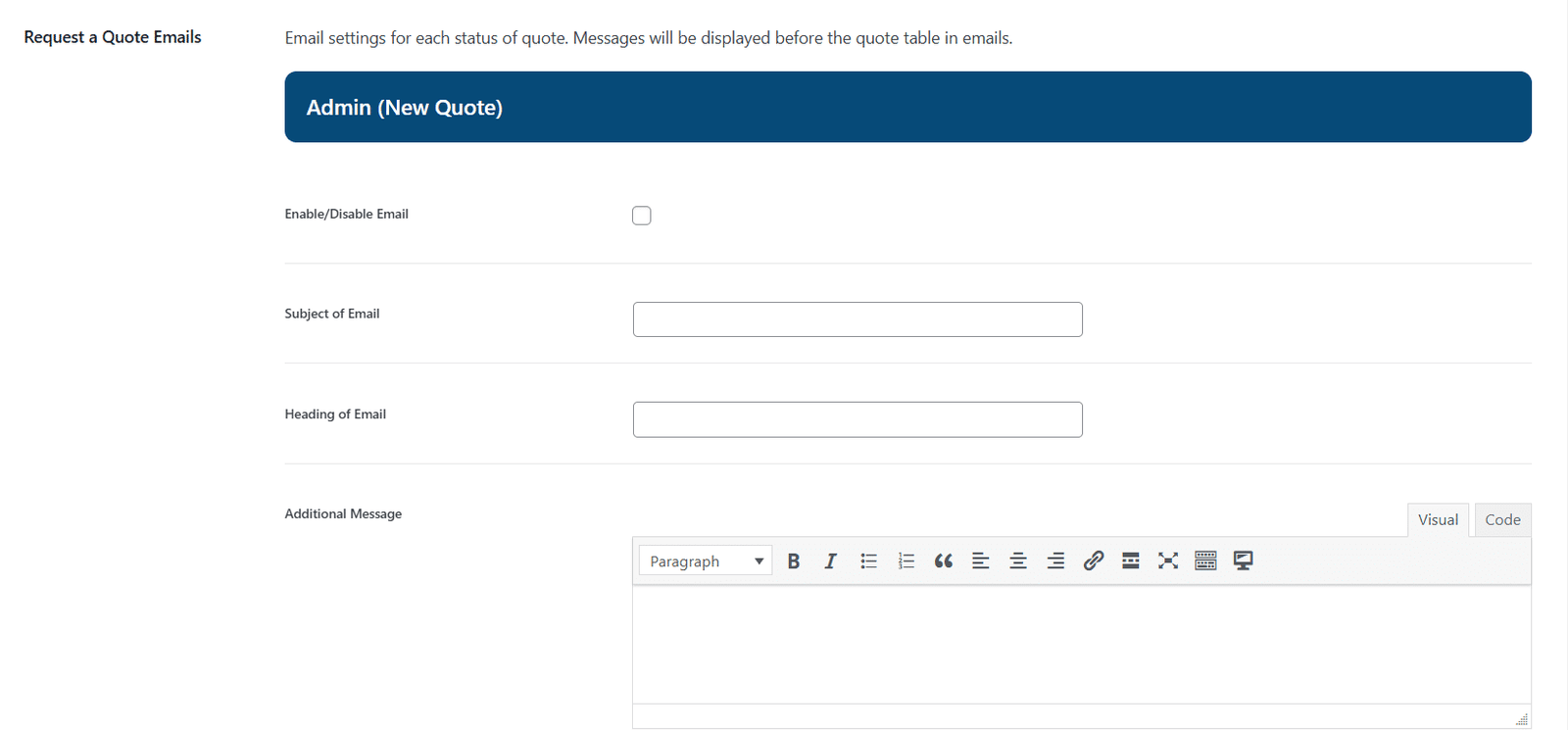
The administrator can set the following fields for all the emails:
- Enable/Disable Email
- Subject of Email
- Heading of Email
- Additional Message
Quote Attributes
In this sub-tab, you will be able to update the quote attribute-related settings of the addon based on your requirements.
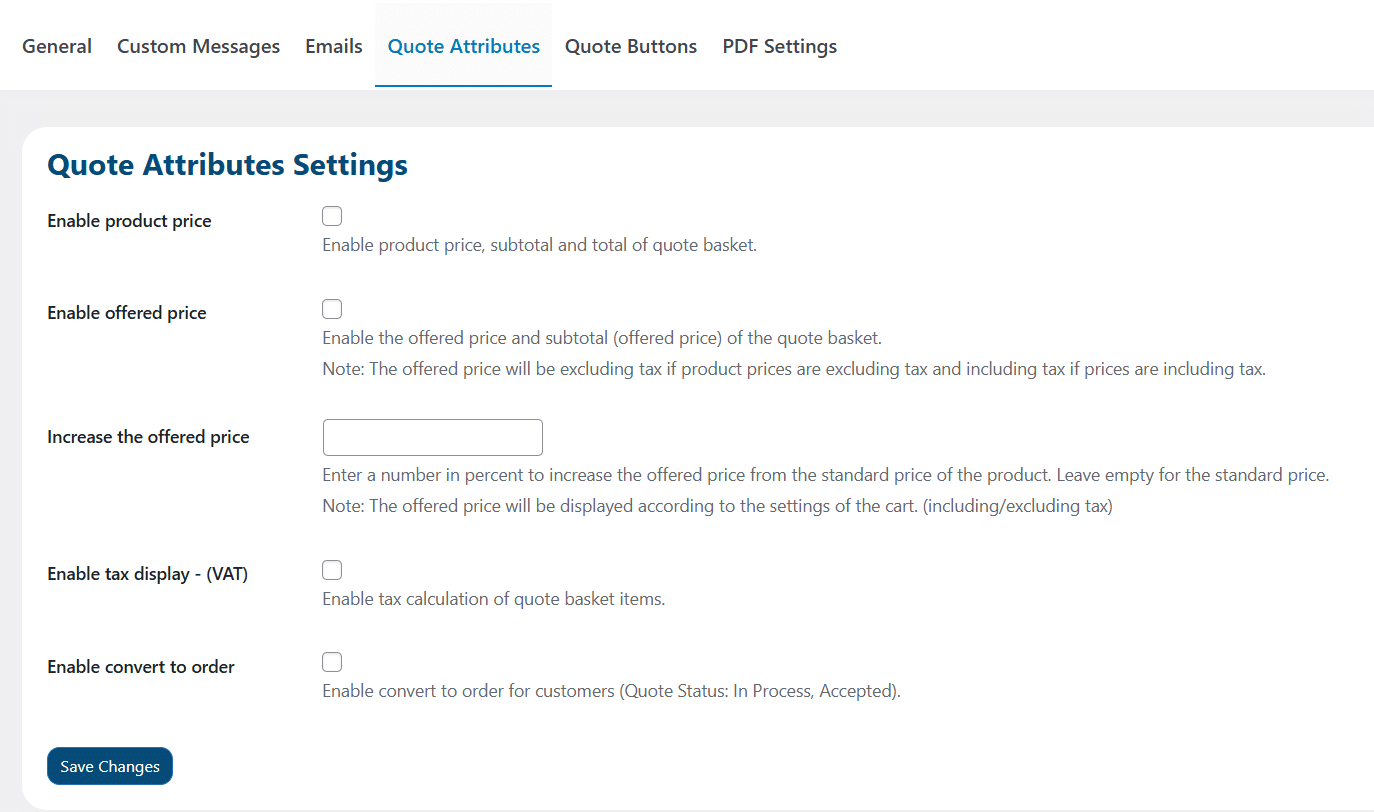
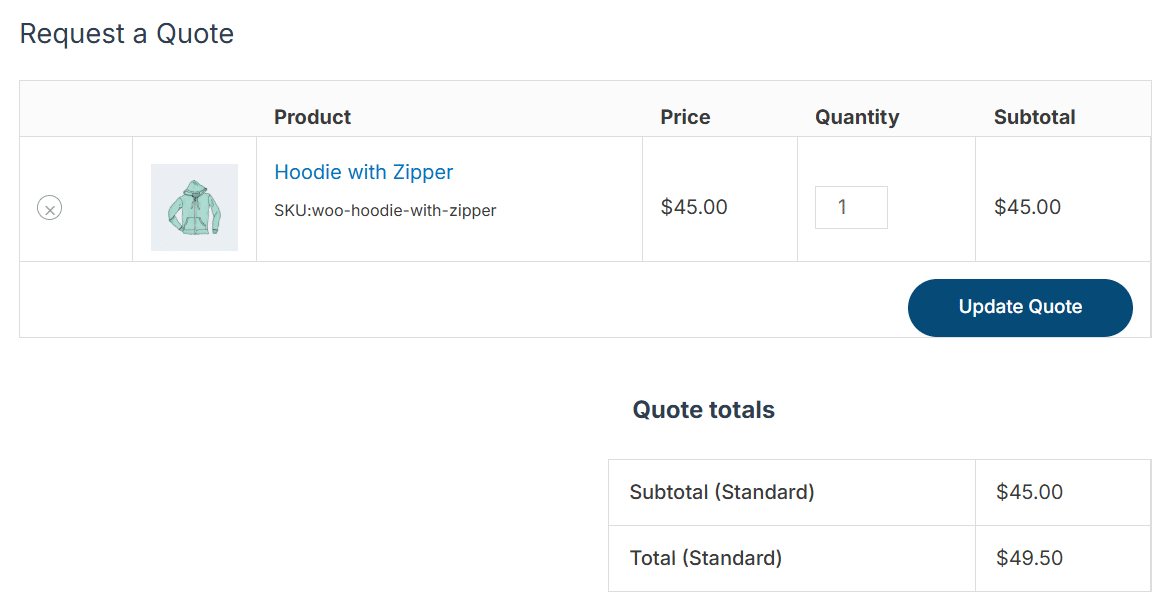
Enable The Product Price
Check this checkbox if you want to show the 2 columns “Price” and “Subtotal”, and the “Quote totals” section on the “request a quote” page.
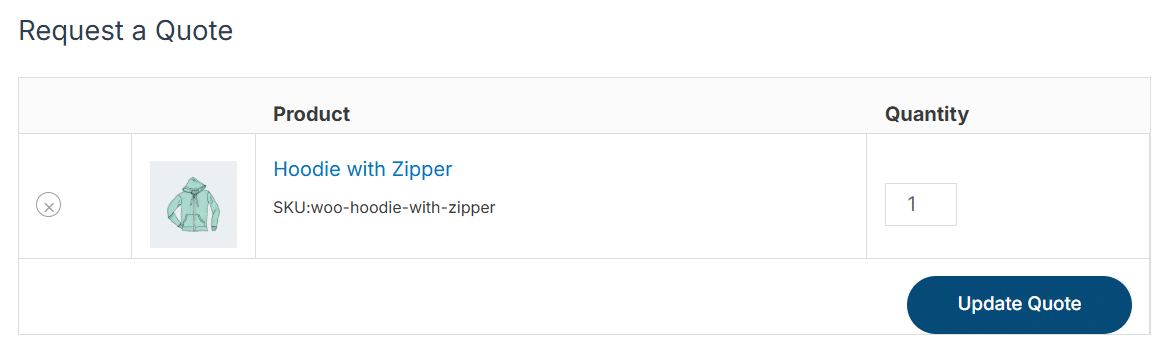
If the checkbox is unchecked, then the 2 columns “Price” and “Subtotal”, and the “Quote totals” section will not be visible on the “request a quote” page.
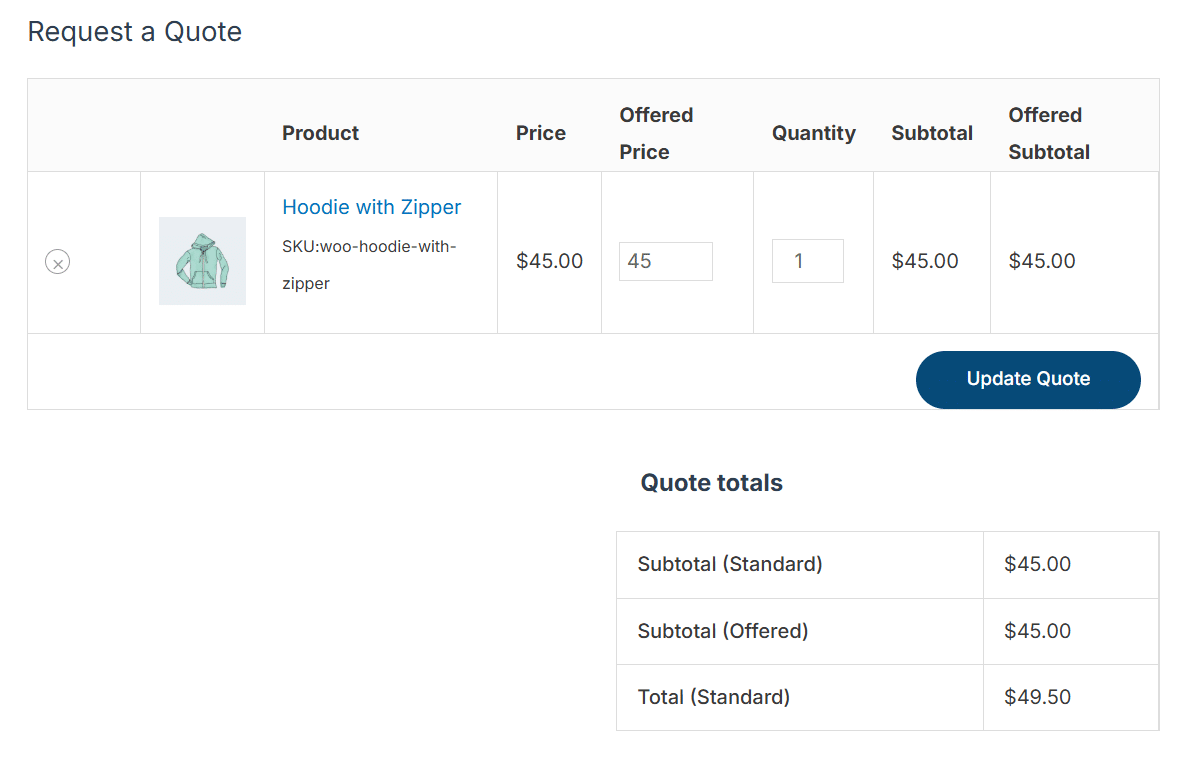
Enable The Offered Price
Check this checkbox if you want to show the 3 columns “Offered Price”, “Offered Subtotal”, and “Subtotal (Offered)” on the “request a quote” page.
If the checkbox is unchecked, then the 3 columns “Offered Price”, “Offered Subtotal”, and “Subtotal (Offered)” will not be visible on the “request a quote” page.
Increase The Offered Price
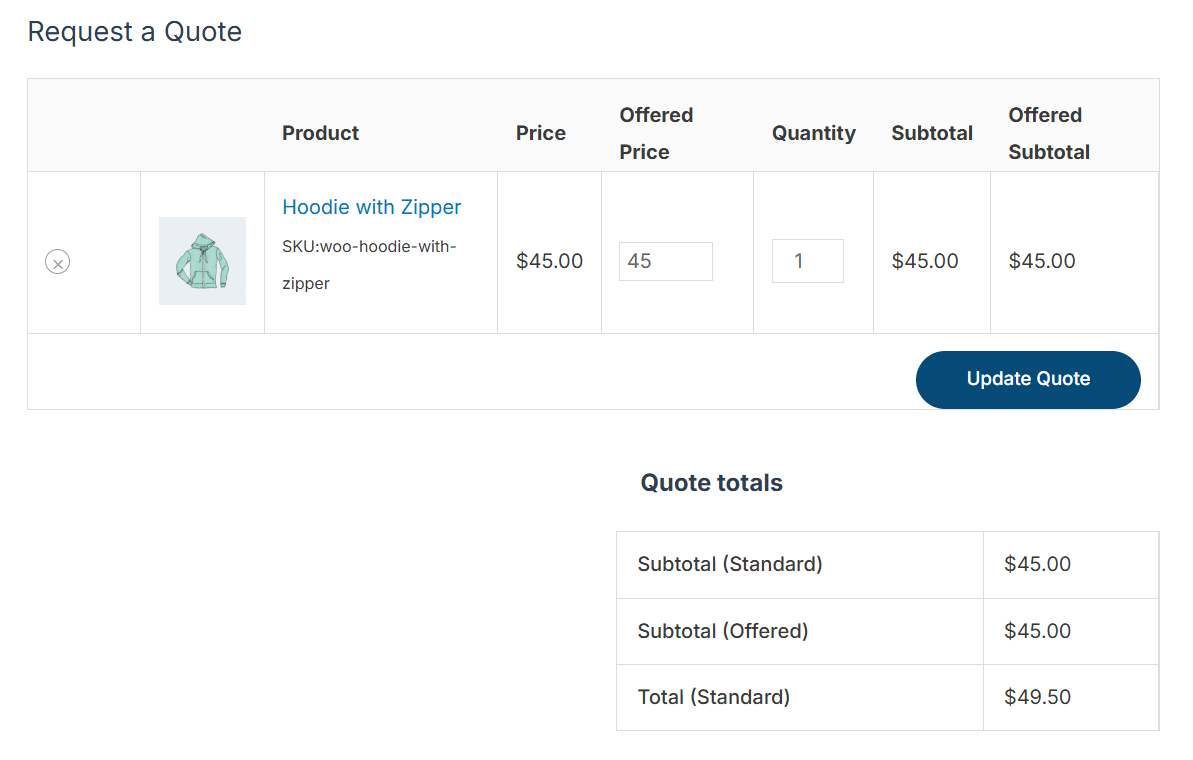
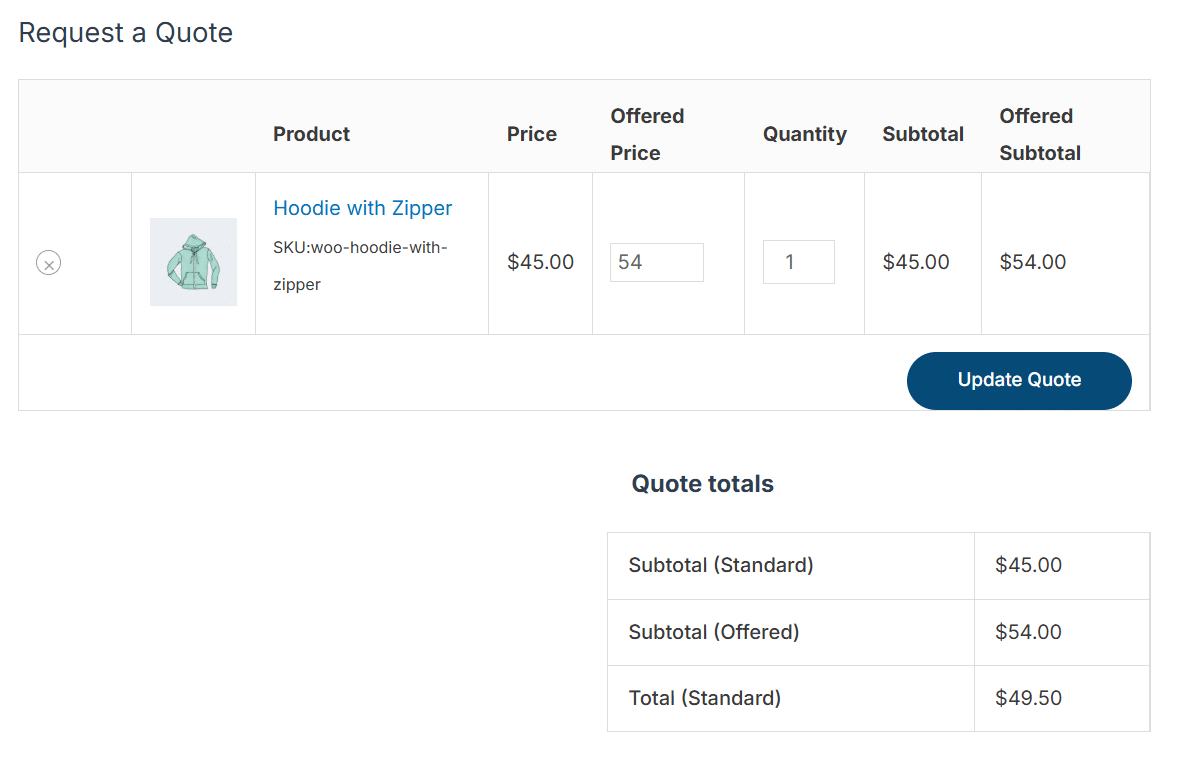
Here you can enter a number in percent to increase the offered price from the standard price of the product on the “request a quote” page (initially, when a product is added to the quote). Leave it empty for the standard price.
Note: The offered price will be displayed according to the cart’s settings (including/excluding tax).
For example, if it is set to 0%.
Hence, $45+ ($45 x 0) = $45 + $0 = $45
For example, if it is set to 20%.
Hence, $45+ ($45 x 0.2) = $45 + $9 = $54
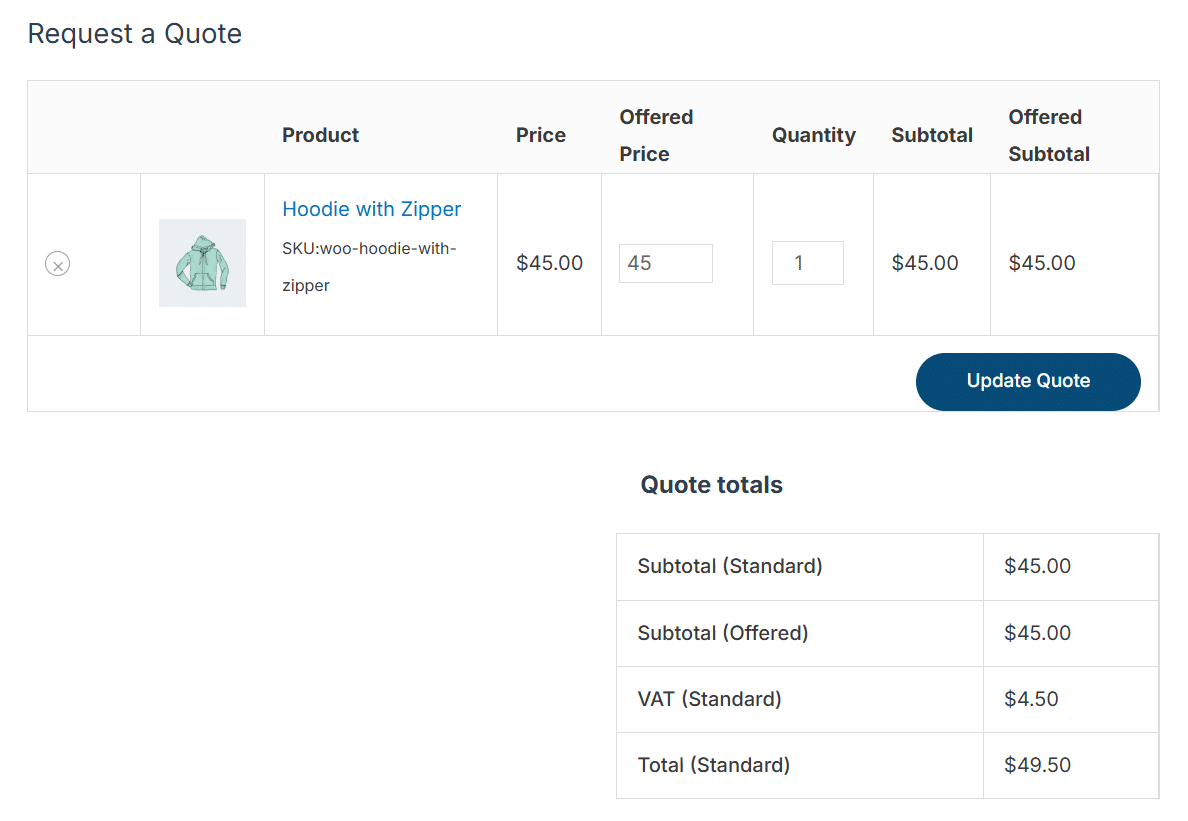
Enable Tax Display – (VAT)
Check this checkbox if you want to display the “VAT (Standard)” column on the “request a quote” page. Otherwise, the “VAT (Standard)” column will not be displayed on the “request a quote” page.
Note: To show this column, make sure you have checked the “Enable taxes” option in the WooCommerce General tab and set up taxes in the WooCommerce Tax tab, like a 10% tax in “Standard rates”.
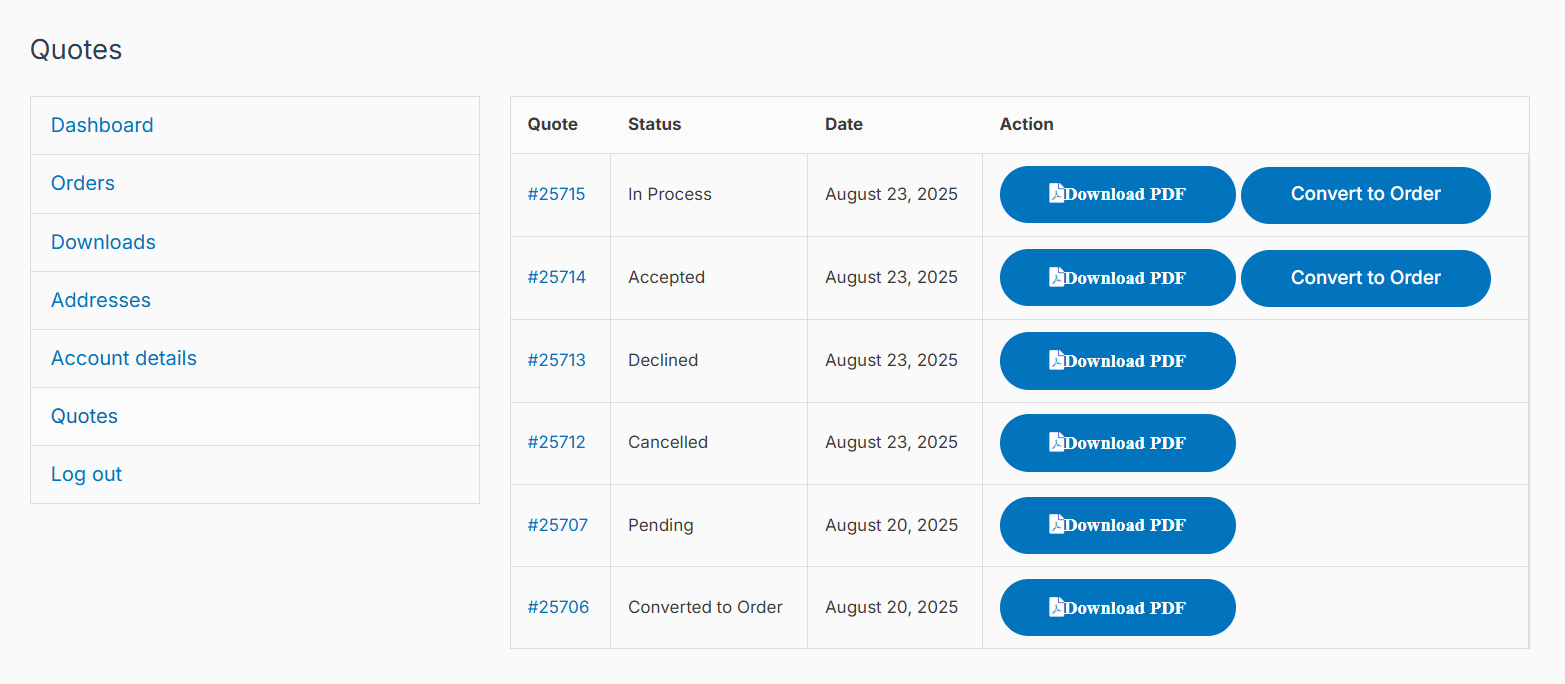
Enable Conversion To Order
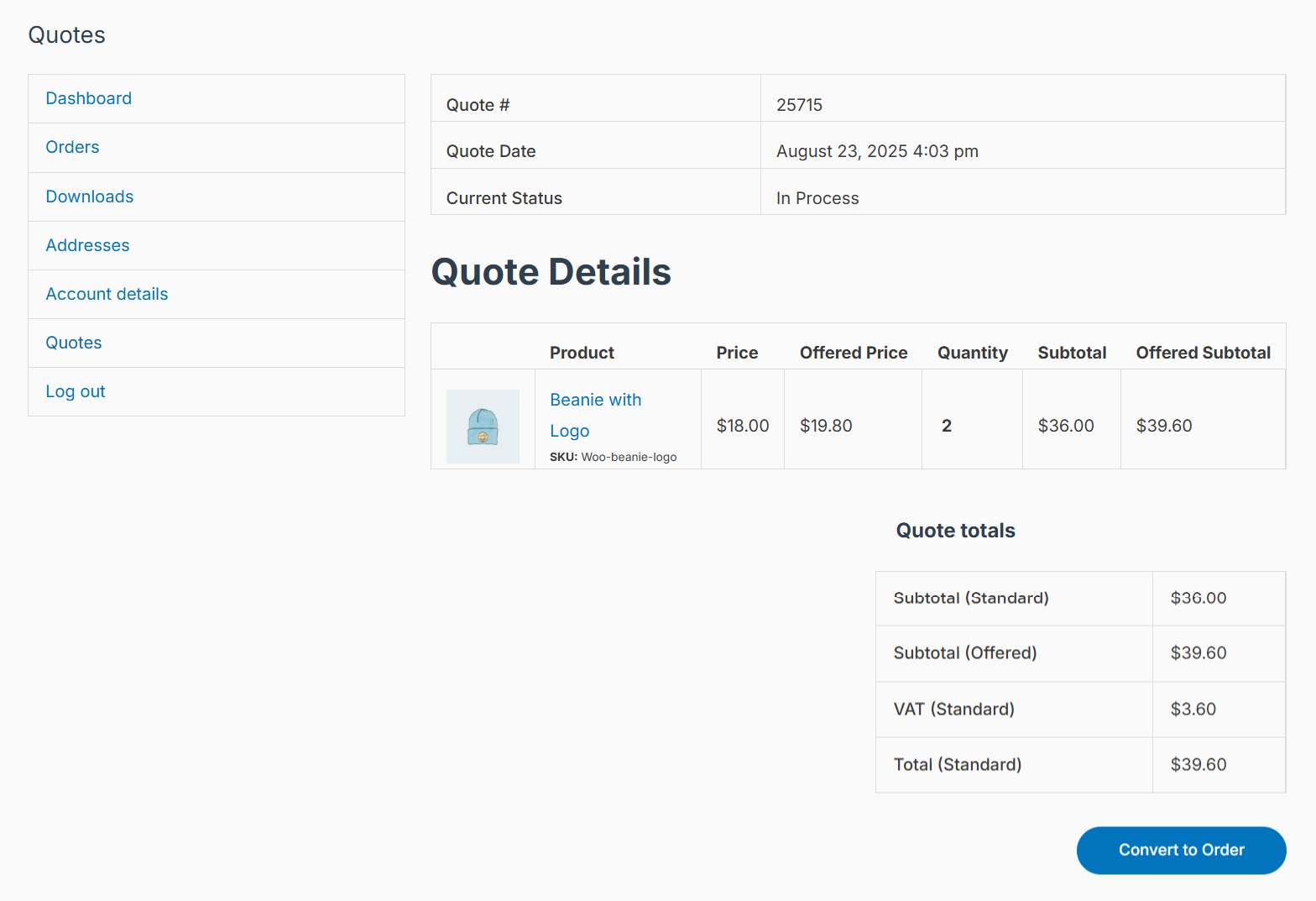
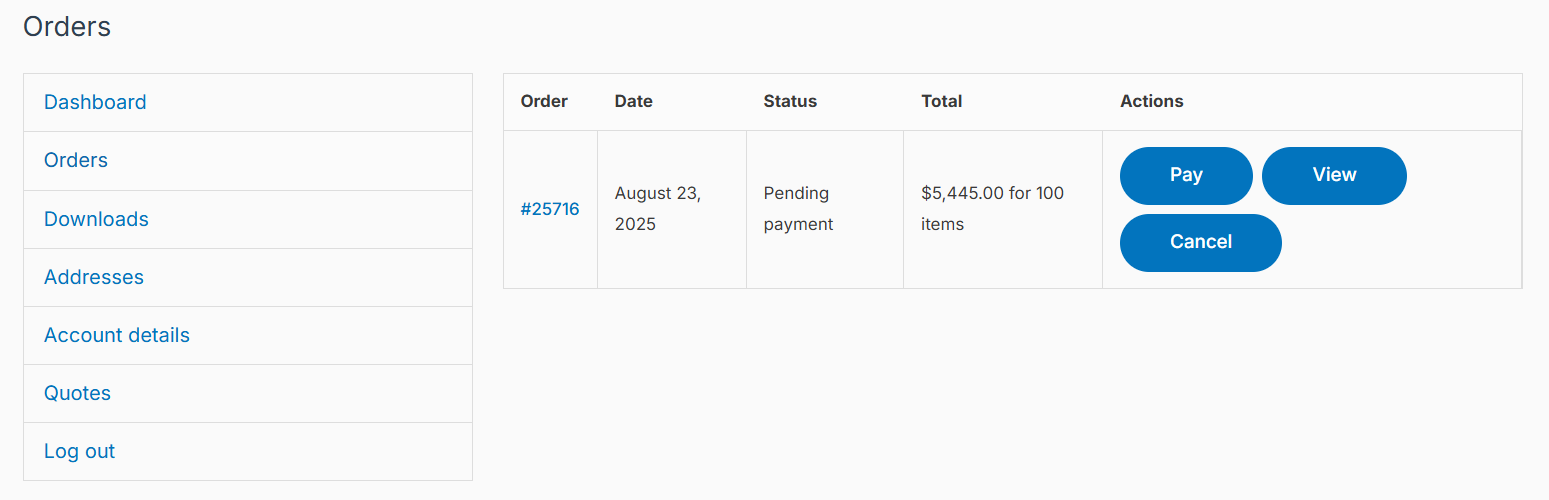
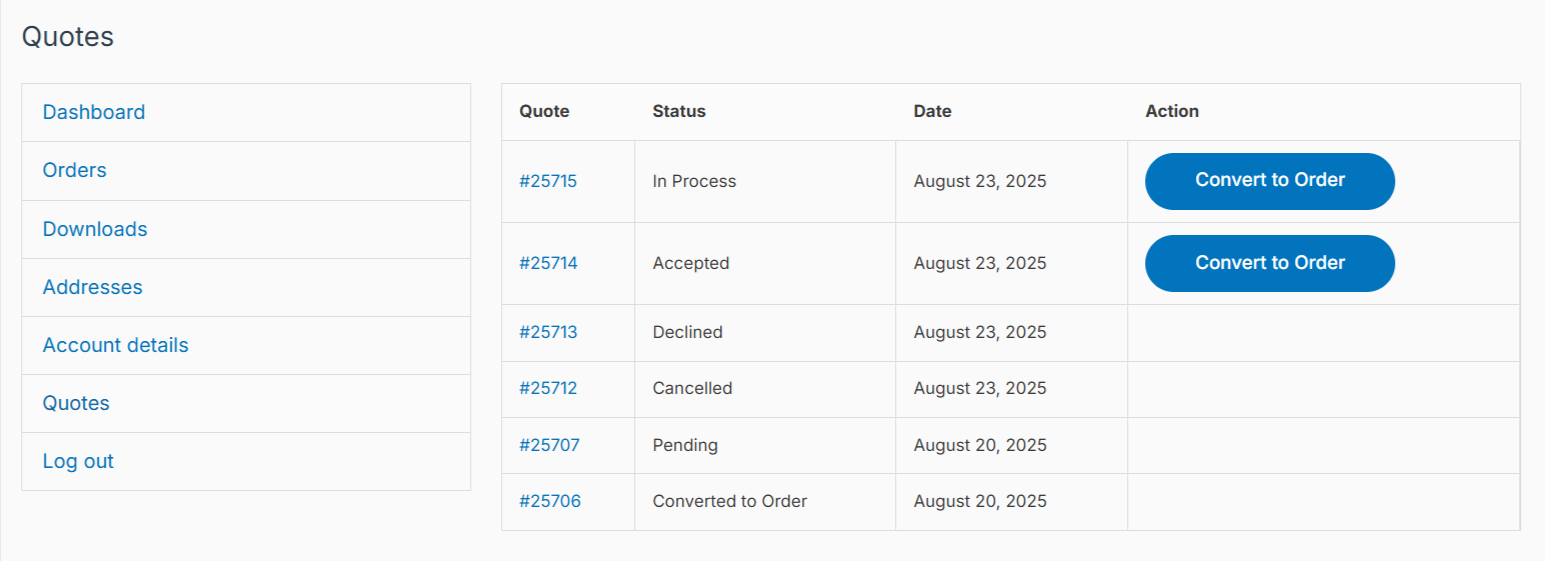
Check this checkbox if you want customers to be able to see the “Convert to Order” button on their WooCommerce Dashboard (Quotes tab) and individual quote page for their quotes whose status has been updated by the administrators to “In Process” and “Accepted”. When the customer clicks on the “Convert to Order” button, an order will be generated in the WooCommerce Orders tab, which the customer will have to pay for by clicking the “Pay” button.
If unchecked, the customers will not be able to see the “Convert to Order” button on their WooCommerce Dashboard (Quotes tab) and individual quote page for their quotes whose status has been updated by the administrators to “In Process” and “Accepted”.
Quote Buttons
In this sub-tab, you will be able to update the quote button-related settings of the addon based on your requirements.
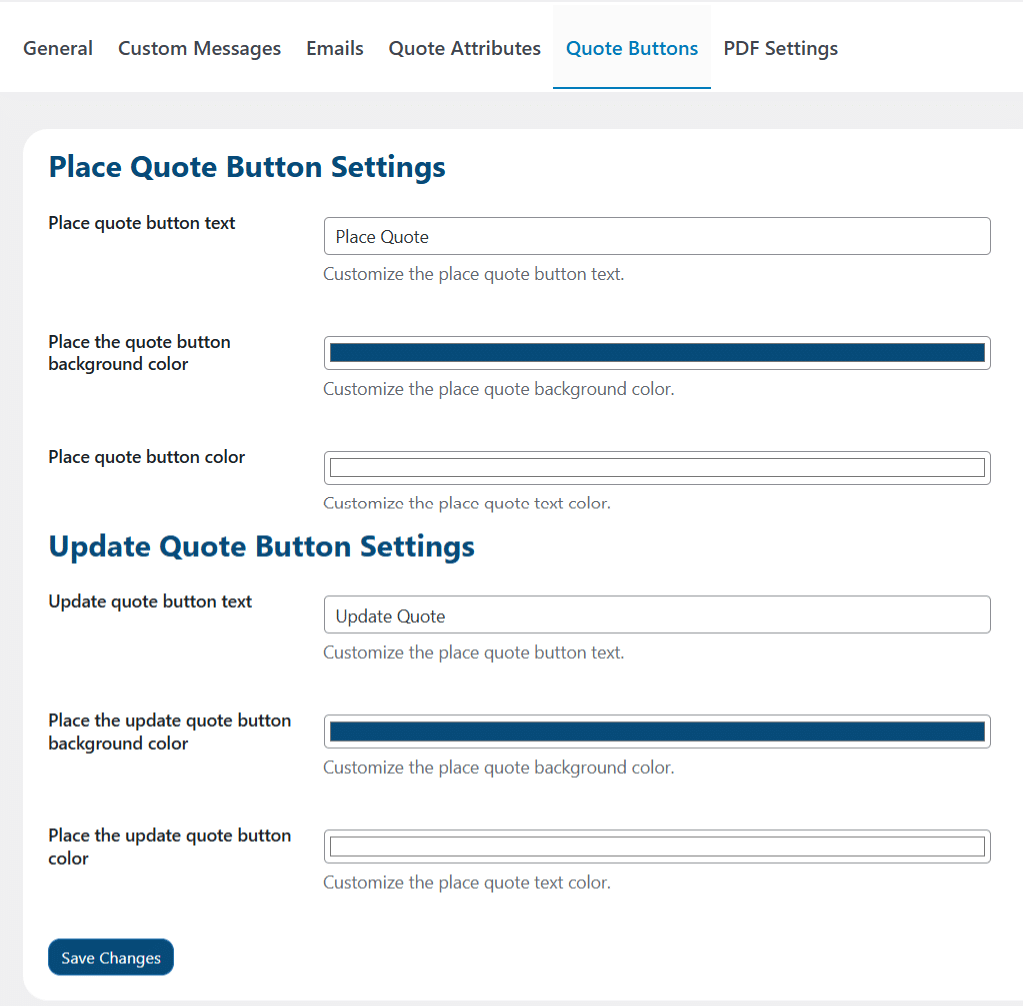
Place Quote Button Settings
Place Quote Button Text
Here you can customize the place quote button text.
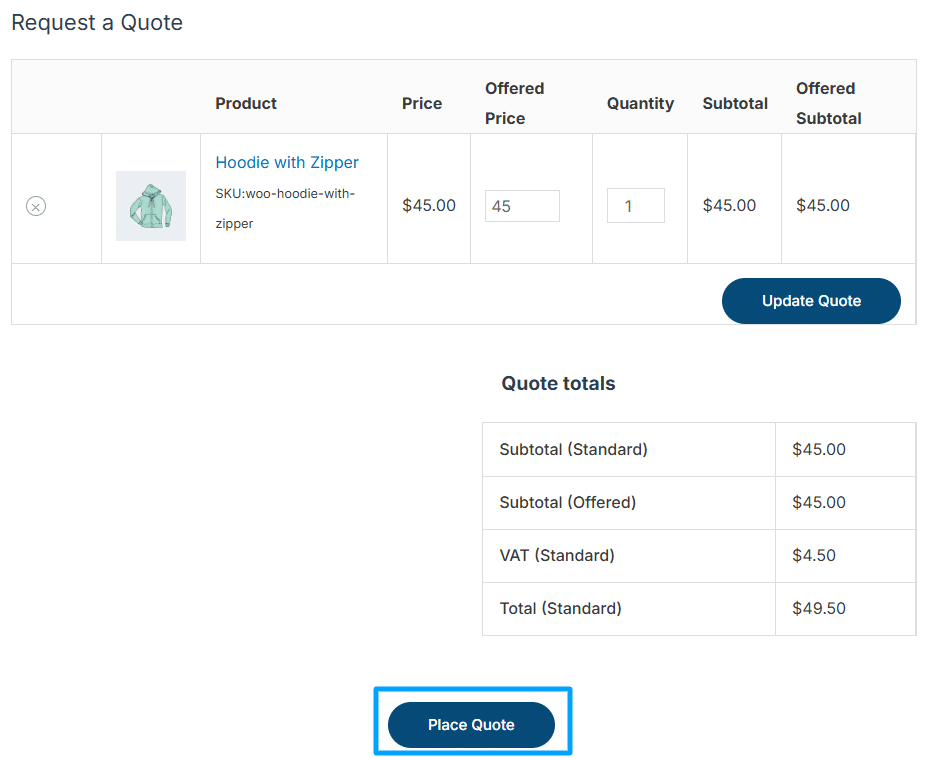
Place The Quote Button Background Color
Here you can customize the place quote background color.
Place The Quote Button Color
Here you can customize the place quote text color.
Update Quote Button Settings
Update Quote Button Text
Here you can customize the update quote button text.
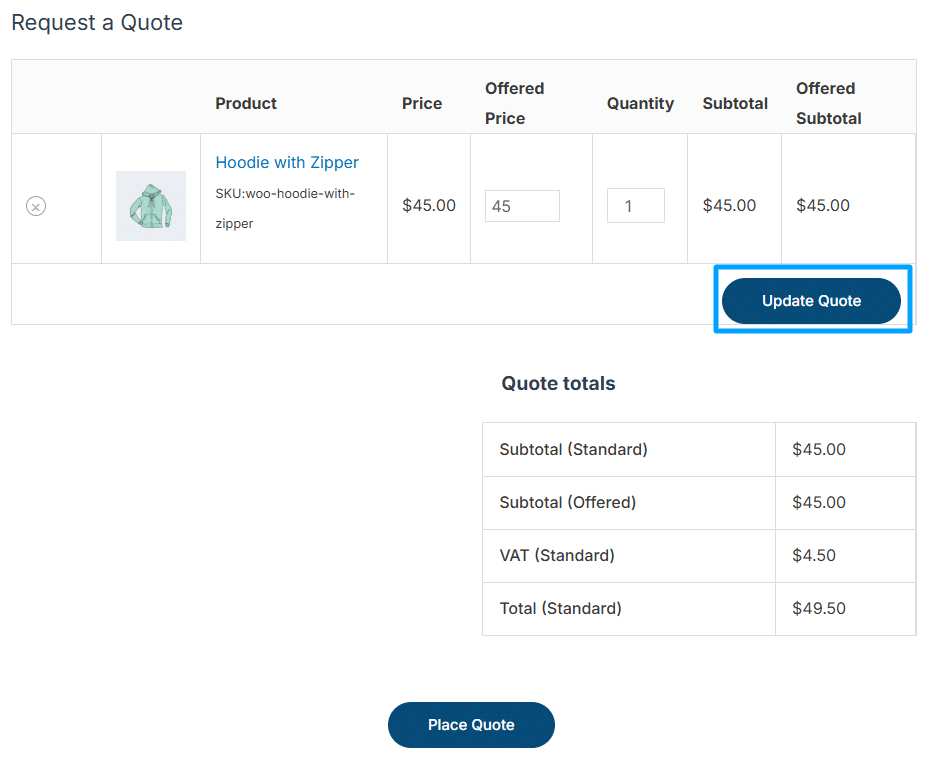
Place The Update Quote Button Background Color
Here, you can customize the update quote background color.
Place The Update Quote Button Color
Here you can customize the update quote text color.
PDF Settings
In this sub-tab, you will be able to update the PDF-related settings of the addon based on your requirements.
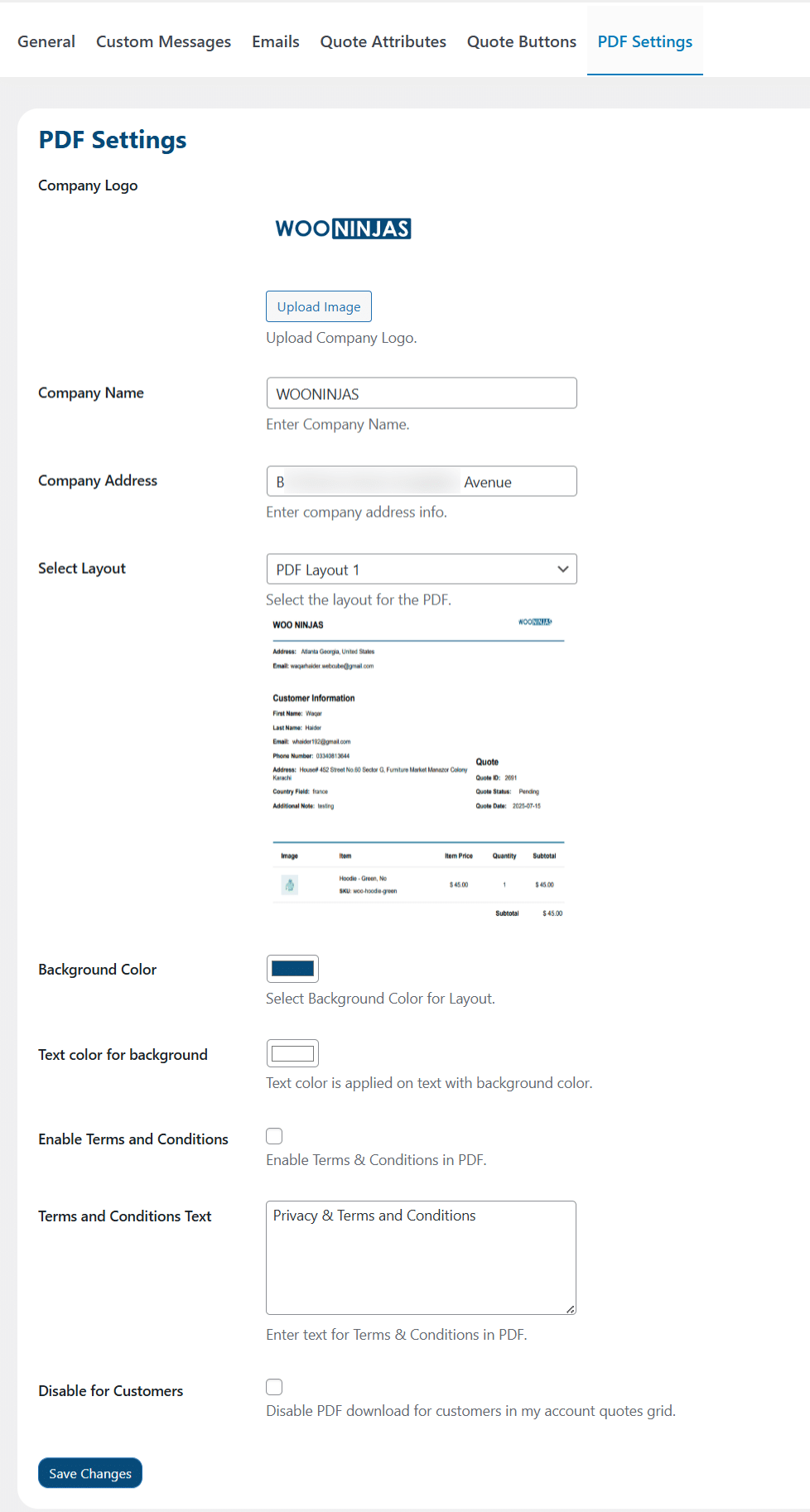
Company Logo
Here you can upload your company logo to be shown in the PDFs.
Note: Once a picture is uploaded, it cannot be deleted. It can only be updated with a new picture.
Company Name
Here, you can change your company name as it appears in the PDFs.
Note: When the plugin is activated for the first time, your website’s name will be taken as the default name for your company name. Also, this field cannot be empty. If this field is submitted empty, then the website’s name will be taken as the default name for your company name again.

Company Address
Here you can upload your company address to be shown in the PDFs and in the emails (at the bottom).
Select Layout
Here you can select any one of the three PDF Layouts available, which you want to use to send the Quote PDFs to the customers and administrators.
Background Color
Here, you can select the background color for the layout based on your requirement.
Text Color For Background
Here, you can select the text color for the layout based on your requirement.
Enable Terms And Conditions
Here you can check/uncheck the Terms & Conditions section to be printed in PDFs. If checked, the Terms & Conditions section will be printed in PDFs along with its text from the “Terms and Conditions Text” option (for all three PDF layouts). If unchecked, the Terms & Conditions section will not be printed in PDFs along with its text from the “Terms and Conditions Text” option (for all three PDF layouts).
Terms and Conditions Text
Here you can enter the text to be printed in the PDFs in the Terms & Conditions section.
Disable for Customers
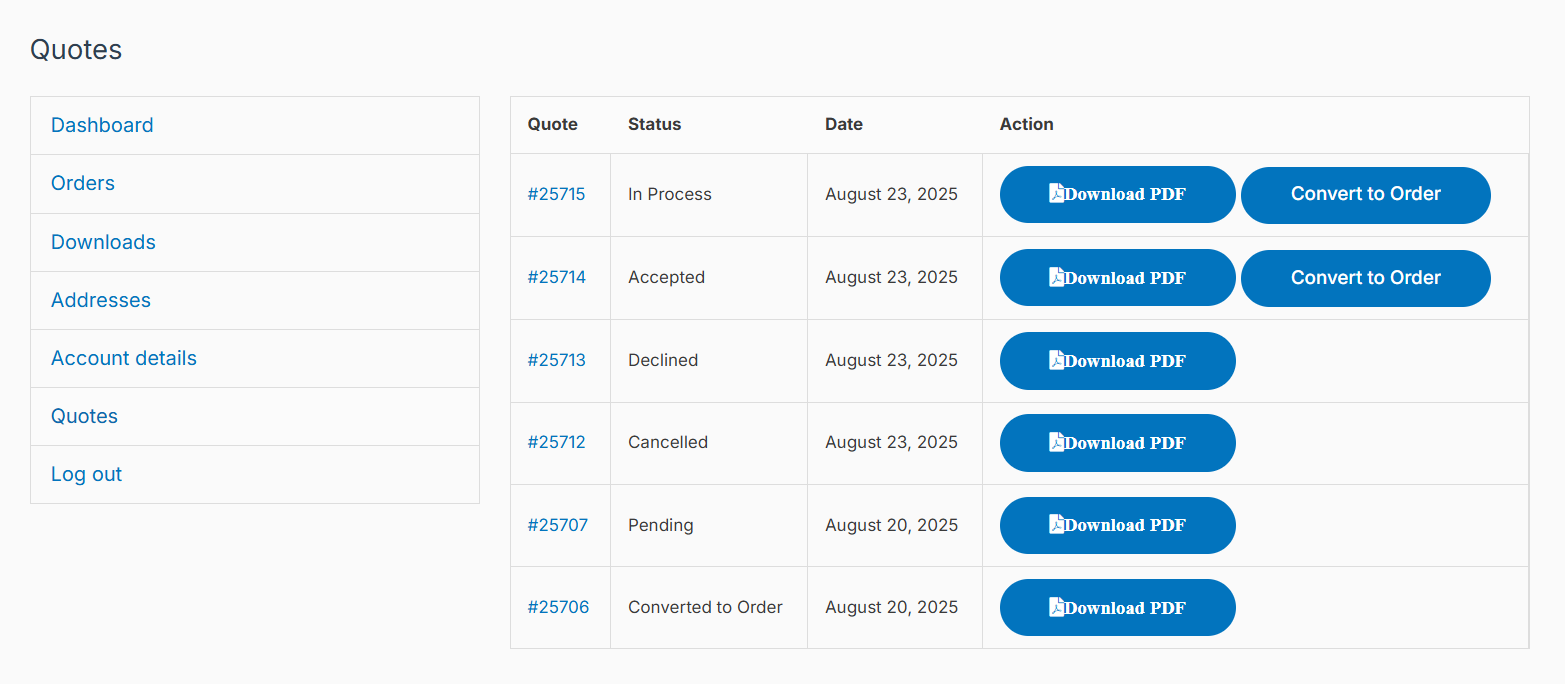
Check this option if you want the “Download PDF” button to not be visible to the customers in their WooCommerce Dashboard (Quotes tab). If unchecked, then the “Download PDF” button will be visible to the customers in their WooCommerce Dashboard (Quotes tab).
FAQ’s
1-Does “WooCommerce Request a Quote” add-on have any dependent plugin(s)?
The “WooCommerce Request a Quote” add-on requires the WooCommerce plugin to be installed before activating it.
2- When the WooCommerce address is entered in the general settings, but the “Company Address” field of the addon is left blank, which address will be used in the PDF and email (at the bottom)?
When the WooCommerce address in the general settings is not provided and the addon’s “Company Address” field is empty, then in the email, WooCommerce’s “City” and “Country / State” fields will be used, and in the PDF, the address field will not be visible.
Similarly, When the WooCommerce address in the general settings is provided and the addon’s “Company Address” field is empty then in the email, WooCommerce’s “Address line 1”, “Address line 2”, “City” and “Country / State” fields will be used, and in the PDF, the “Address line 1” field will be used.
3- When the “Company Address” box of the addon is filled in but the WooCommerce address in the general settings is left blank, whose address will be used in the PDF(s) and email(s) (at the bottom)?
When the addon’s “Company Address” field is filled, it will be given priority over the address provided in the WooCommerce General settings tab. In short, in both PDFs and Emails, the addon’s “Company Address” field text will be used regardless of whether any address is filled or not in the WooCommerce General settings tab.
4- What will happen to the previously submitted quotes (data) of the customers if I had created a quote field and used it on my request a quote form, and later deleted that field permanently?
For every previous quote that every customer has submitted, the information in that particular quote field will be entirely removed. To retrieve the full information of the previously submitted quotations, be sure to permanently delete only the quote fields whose information will no longer be required by you in the future. Otherwise, it will be impossible to recover the data for that particular field.
5- What will happen when an administrator or a customer clicks the “Download PDF” button?
When an administrator or a customer clicks the “Download PDF” button, it will send emails to both the customers and administrators based on the settings of the options “Enable PDF sending to admin by email” and “Enable PDF sending to customer by email”. These emails will have the email content based on the quote’s status and settings, along with the PDF attachment.
Changelog’s
1.0.1
- Fix: Improved Licensing Module.
1.0.0
- Initial Release.
