The WooCommerce Min Max Quantities add-on allows you to specify the minimum and maximum quantity per product or category required to make a purchase. You can also set the minimum and maximum order values (price) to make a purchase.
Video Tutorial
Watch the tutorial video below for a quick walkthrough of the add-on’s features and setup process.
For detailed instructions, please continue reading the full documentation. If you still have any questions, feel free to submit a support ticket.
Installation
- Install the Woocommerce plugin & activate it.
- Install the WooCommerce Min Max Quantities add-on and activate it.
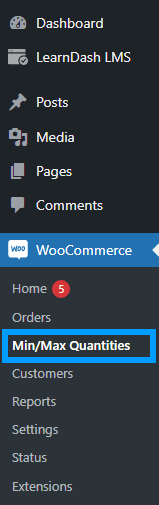
- There will be a new “Min/Max Quantities” entry within the Woocommerce menu.
Activate Your License Key
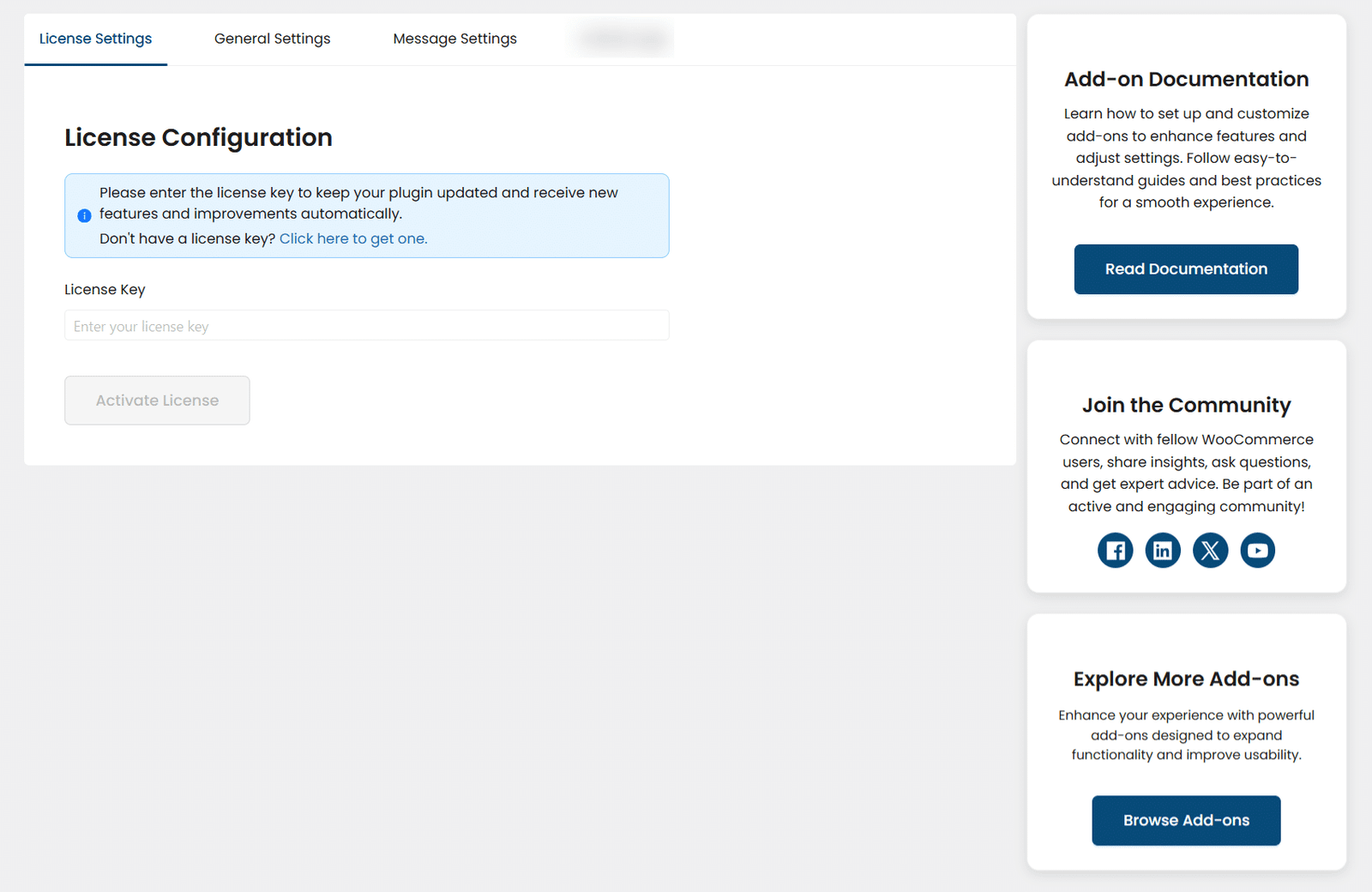
The license key can be configured from the License Settings tab, found on the “Min/Max Quantities” menu. License keys will be sent to your email address when you purchase the add-on.
Insert your license key in the field and then click on the “Activate License” button.
Settings
To access settings, navigate to the “Min/Max Quantities” submenu under the “Woocommerce” menu.
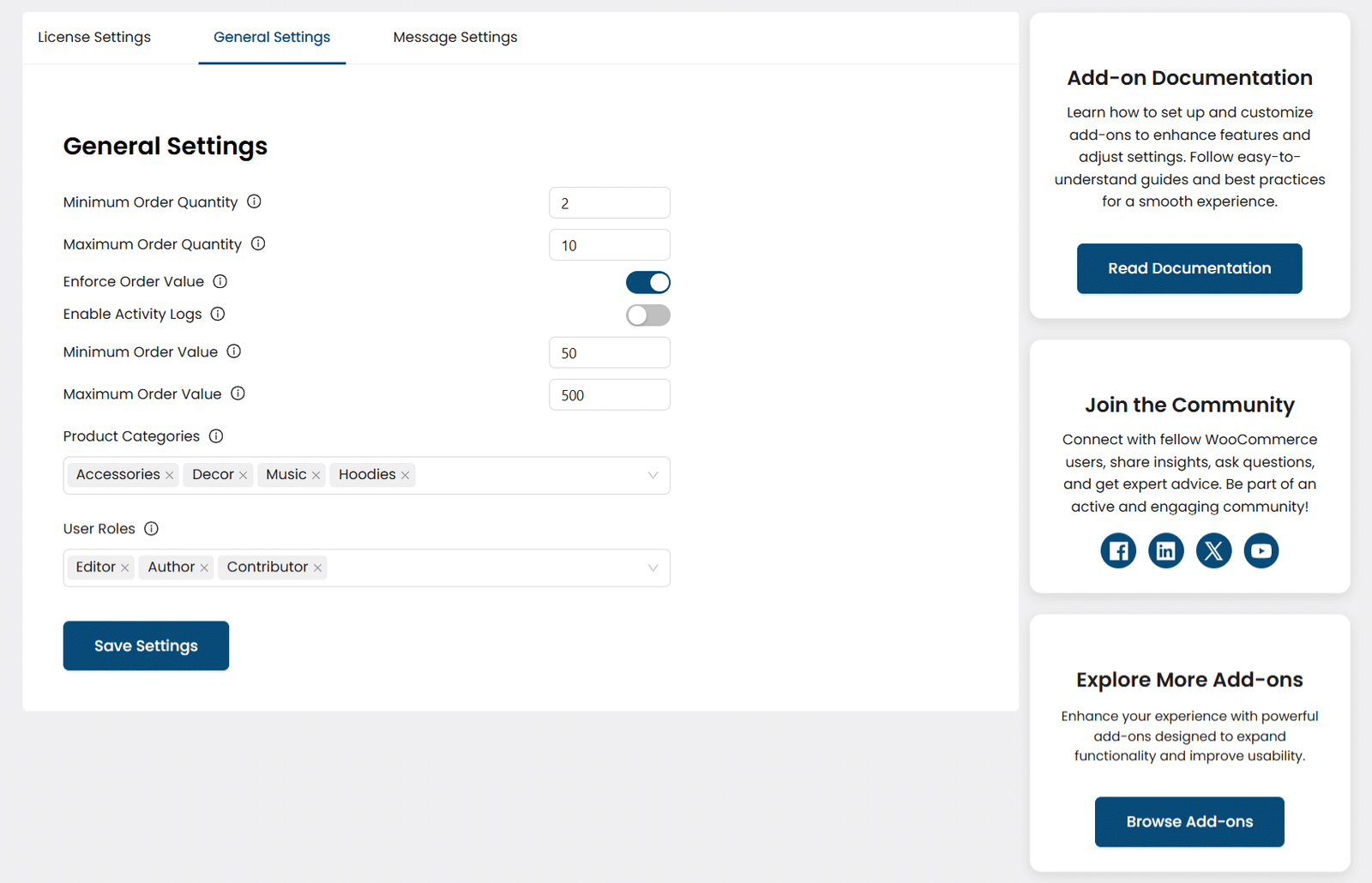
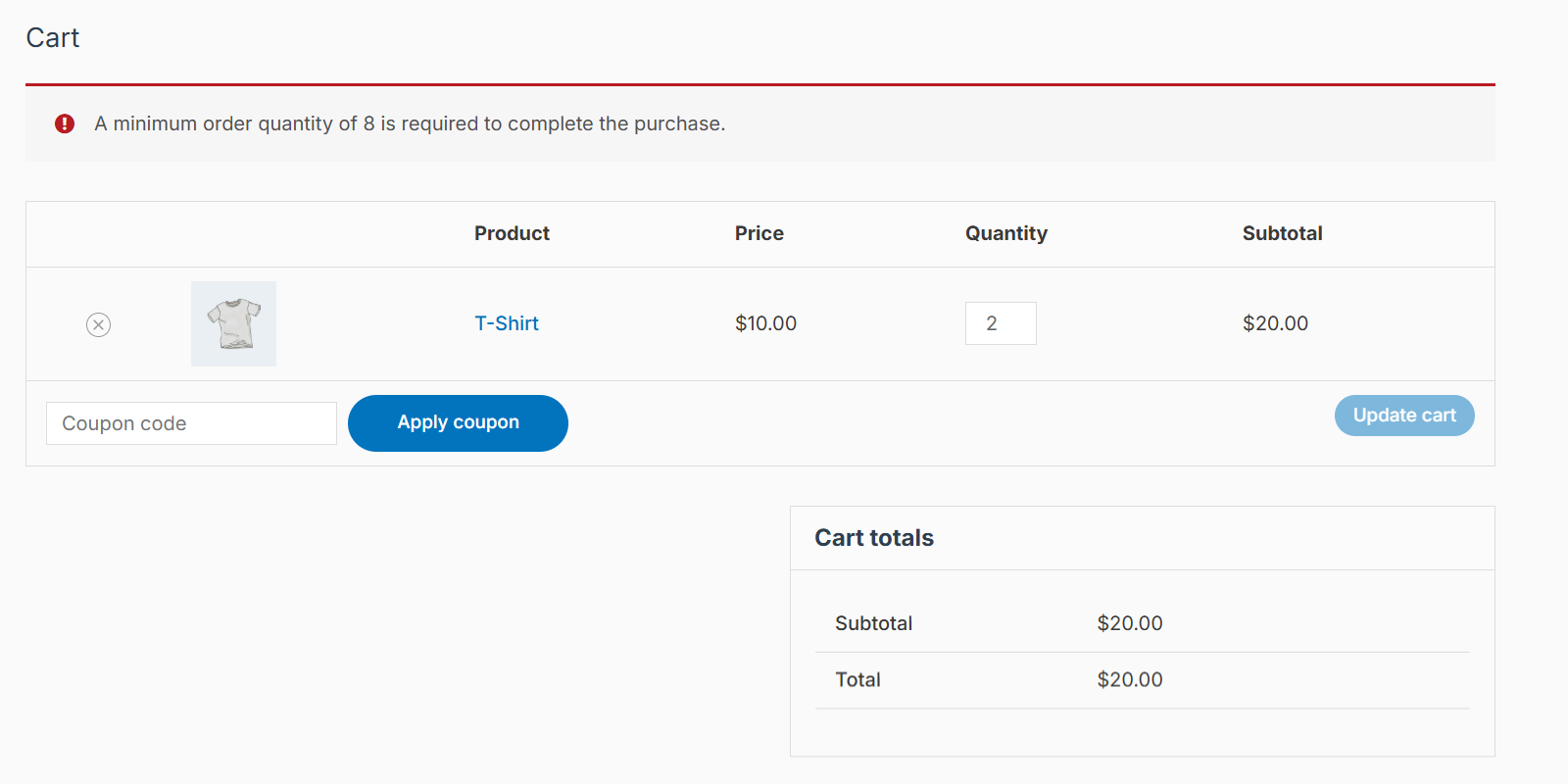
Minimum Order Quantity: In this field, you can add the Minimum order quantity required to make a purchase.
Maximum Order Quantity: In this field, you can add the Maximum order quantity required to make a purchase.
Enforce Order Value: Enable or disable this field for order value enforcement on the category and individual product level.
Enable Activity Logs: Enable or disable this field for logging of license activity in the “Activity Logs” tab. When this toggle is enabled, a new tab, “Activity Logs” will become visible.

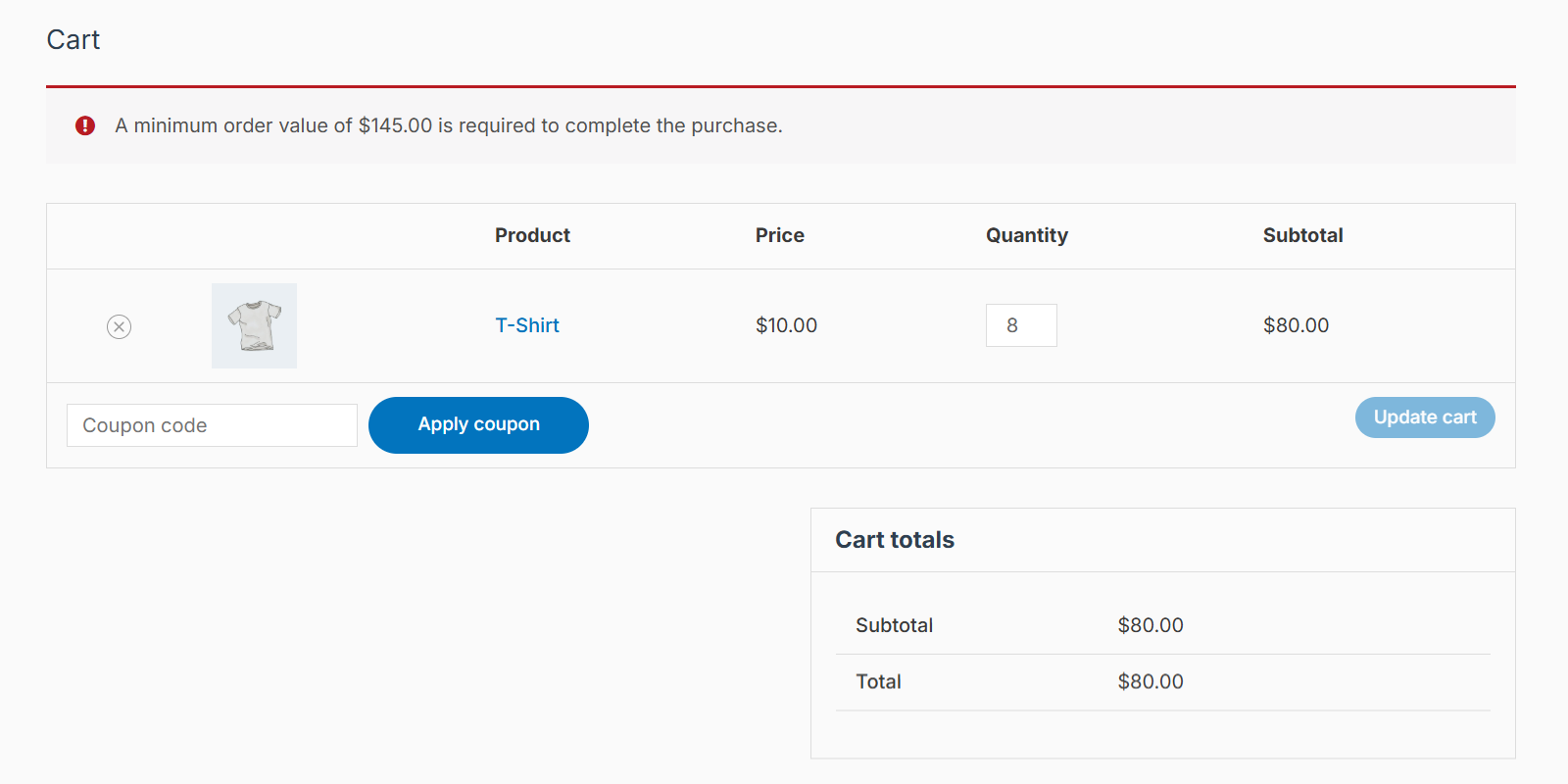
Minimum Order Value: In this field, you can add the Minimum order value required to make a purchase.
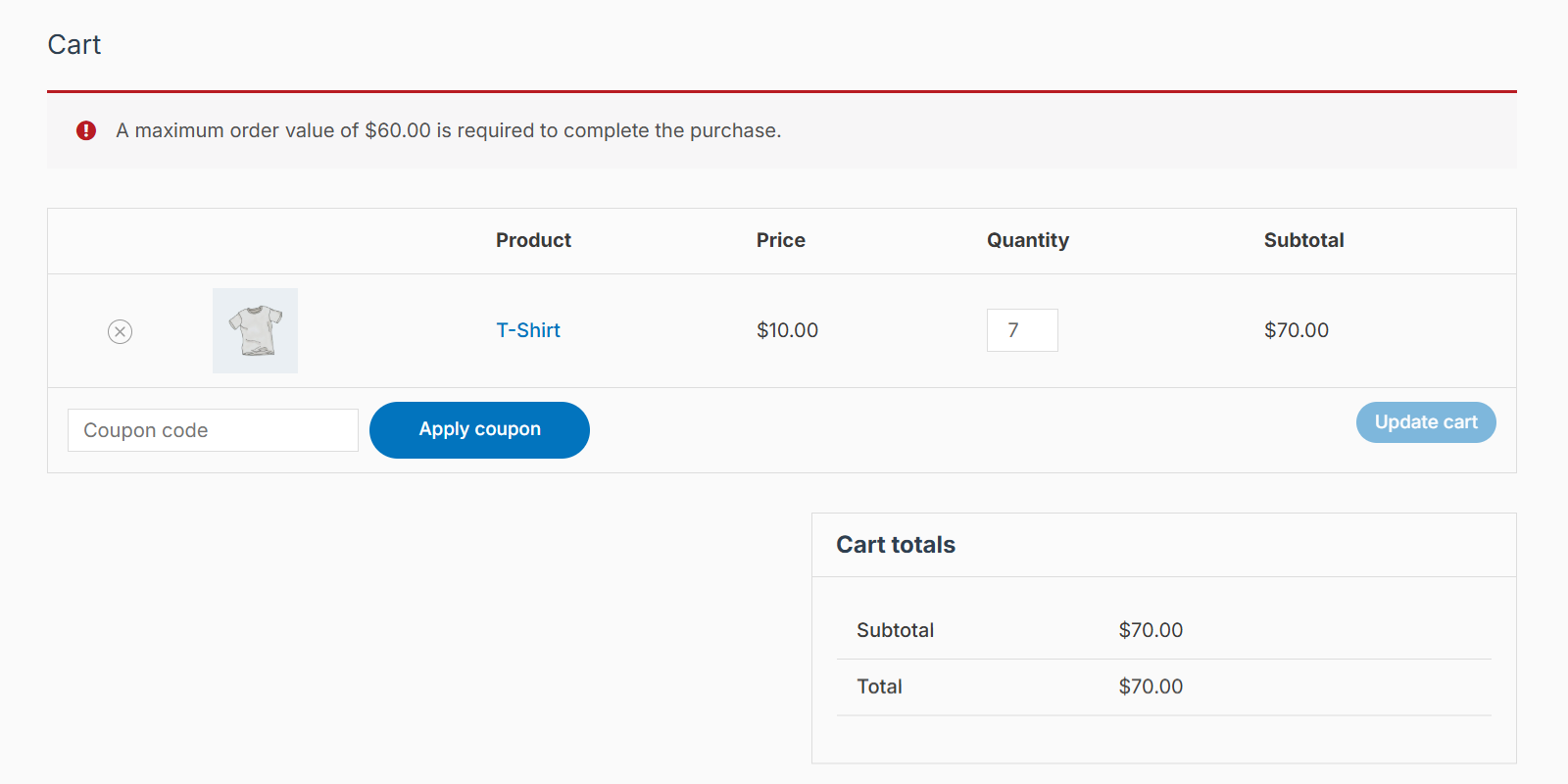
Maximum Order Value: In this field, you can add the Maximum order value required to make a purchase.
Exclude Product Categories: In this field, you can select the categories for which the Min/Max rules will exclude. If you do not want to exclude any category, then leave this field blank.
Exclude User Roles: In this field, you can select the user roles for which the Min/Max rules will exclude. If you do not want to exclude any user role, then leave this field blank.
Messages
The next tab is “Message Settings” and here you can modify all of the messages that will be triggered and show on the frontend, according to the settings.

Minimum Order Quantity – Message: Here you can modify the minimum order quantity message. To show the minimum quantity & product name, use [wmmq_min_quantity] in your message.
Maximum Order Quantity – Message: Here you can modify the maximum order quantity message. To show the maximum quantity & product name, use [wmmq_max_quantity] in your message.
Minimum Order Value – Message: Here you can modify the minimum order value message. To show the minimum order value & product name, use [wmmq_min_value] in your message.
Maximum Order Value – Message: Here you can modify the maximum order value message. To show the maximum order value & product name, use [wmmq_max_value] in your message.
Product Page
On the single product page, you will find settings related to that specific product.

Exclude Min/Max Rules: Enable this checkbox to exclude the product from all min-max global settings.
Exclude Category Rules: Enable this checkbox to exclude the product from all category rules.
Override Global Rules: By enabling this option you can override the global settings related to Maximum and Minimum order quantity.
Quantity step: The Quantity Step option lets you control how product quantities increase on the product page.
By default, the quantity counter starts at 1 and increases by 1 each time. For example, pressing the “+” button will change the quantity from 1 → 2.
If Quantity Step = 4, the counter starts at 1. The first increase will jump directly to 5 (1+4=5). The product can be added to the cart in increments of 4 from the product page.
Similarly, if Quantity Step = 5. Each increase adds 5 (1 → 6 → 11, etc.). The first increase will jump directly to 5 (1+5=6). The product can be added to the cart in increments of 5 from the product page.
Note: Use this option if you want customers to choose in increments starting from 2 onwards.
Product Category Order Requirements
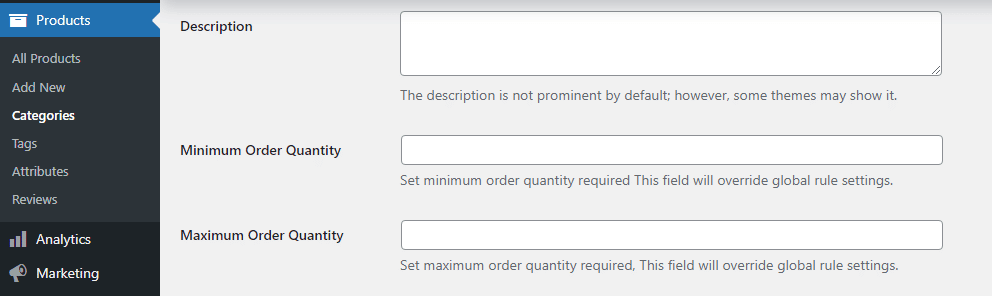
Within the Product categories, you can set a fixed minimum and maximum order quantity that will override global rule settings.
Note: On the Category listings page, you will not be able to add a category if you assign a negative value to the “Minimum Order Quantity” and “Maximum Order Quantity” fields. Leave it empty for no restrictions.
Here is what your customers will see on the front end
When the minimum order value is set:
When the maximum order value is set:
When the minimum order quantity is set:
When the maximum order quantity is set:

FAQ’s
Can I set min/max for a specific variable product?
Right now, you can only set it for single products.
Is it possible to import/export the rules?
The add-on includes support for import and export, with all product and settings data stored directly in WooCommerce meta fields.
Can we bind a product to be purchased in the set of multiples?
The functionality for requiring product purchases in sets or groups is not supported at this time.
Changelogs
1.0.8
- Fix: Improved plugin query and data interaction performance by addressing PHPCS recommendations, in line with WordPress Coding Standards.
- Fix: Resolved security vulnerabilities and strengthened overall security following WordPress Codex best practices.
- Fix: Resolved warnings on the cart and single product pages.
- Fix: Displayed frontend messages when quantity limits are exceeded.
- Fix: Implemented validation for category-based minimum and maximum quantities.
- Fix: Resolved rule conflicts and ensured appropriate messages are displayed for each use case.
1.0.7
- Fix: Updated the default messages.
1.0.6
- New: Added Quantity Incremental and Decremental Steps by specific value.
- Fix: Resolve the Security and Performance issues.
- Fix: Resolve the conflict with global and category-level.
- Fix: Resolve the conflict of priorities rules of min-max quantities.
- Fix: Updated the required tool tips for category and user exclusions in react based UI.
- Fix: Updated the maximum value higher then the minimum value.
- Fix: Fix the exclusion check inside the product level for category and global rules.
1.0.5
- New: Added React-based Admin UI.
1.0.4
- Fix: Updated the exclusion rule for category on main settings page of plugin.
- Fix: Updated the exclusion rule for users on main settings page of plugin.
- Fix: Updated the category rule implementation inside the category.
- Fix: Updated product checks for exclusion of global, category rules.
- Fix: Updated the product level rule for min-max quantity.
- New: Added the check to make order value compulsory to get checked for order value or not.
1.0.3
- Fix: Added quantity validation on products.
1.0.2
- Fix: An issue where settings were not being save in certain menu.
1.0.1
- New: Added License Module.
1.0.0
- Initial Release.
