The WooCommerce Product Filters addon enhances the functionality of your WooCommerce-powered online store by seamlessly integrating product filters onto the Shop page using a shortcode. This valuable addition streamlines the shopping experience for your customers, allowing them to easily refine and narrow down their product searches based on specific criteria.
With the WooCommerce Product Filters addon, navigating through your extensive inventory becomes more efficient and user-friendly, empowering shoppers to find exactly what they’re looking for with greater ease. Simplify the browsing process and enhance customer satisfaction with this addon that seamlessly integrates powerful filtering options into your WooCommerce store’s Shop page
Video Tutorial
Watch the tutorial video below for a quick walkthrough of the add-on’s features and setup process.
For detailed instructions, please continue reading the full documentation. If you still have any questions, feel free to submit a support ticket.
In this article, you’ll learn how to set up the WooCommerce Product Filters add-on and filter the WooCommerce products on the shop page.
- Video Tutorial
- Installation
- License
- WooCommerce Product Filter Settings
- FAQ’s
- Changelogs
Installation
- Install and activate the WooCommerce plugin.
- Install the WooCommerce Product Filters add-on & activate it.
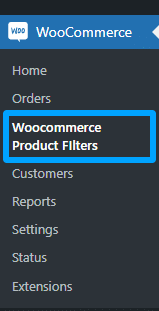
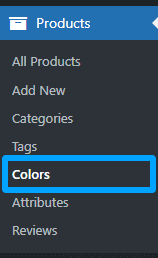
- After activation, a new “WooCommerce Product Filters” sub-menu will be added under the “WooCommerce” menu, along with another sub-tab, “Colors”, added under the “Products” menu.
License
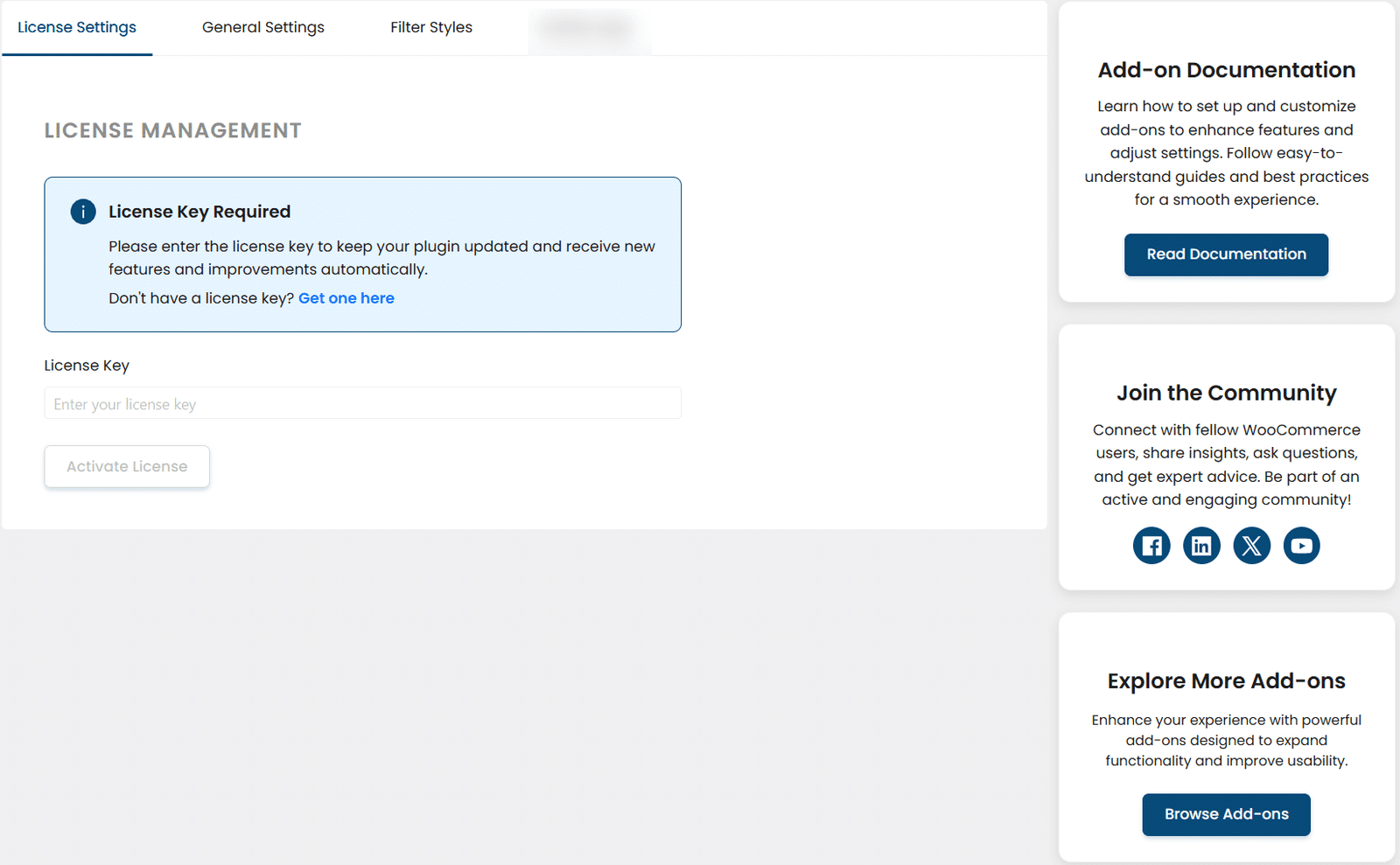
License keys can be found in the email received when you purchased the add-on. To activate your license, place your license key in the License Key field and click on Activate.
WooCommerce Product Filter Settings
General Settings
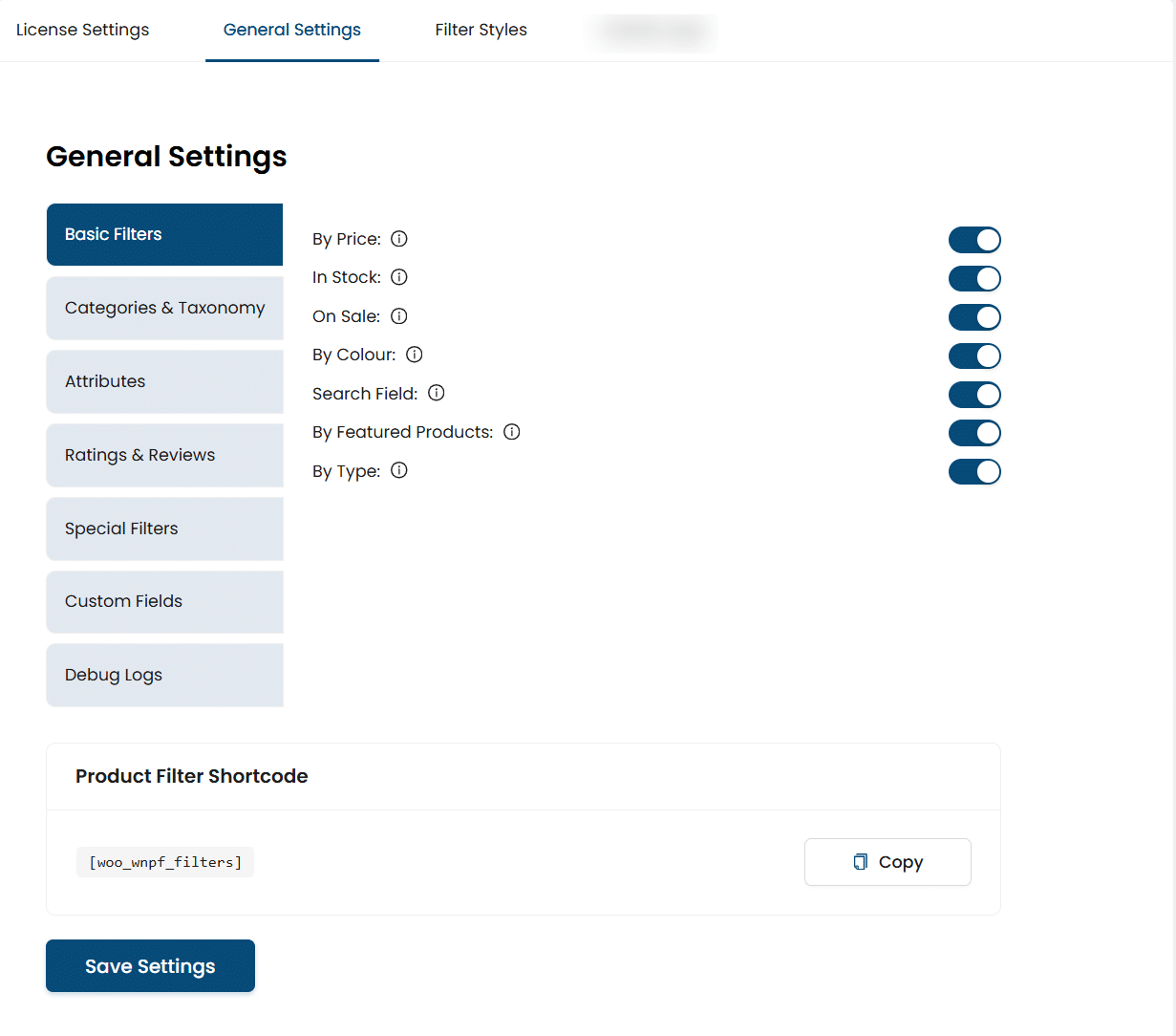
Navigate to the WooCommerce > WooCommerce Product Filters > General Settings
Basic Filters
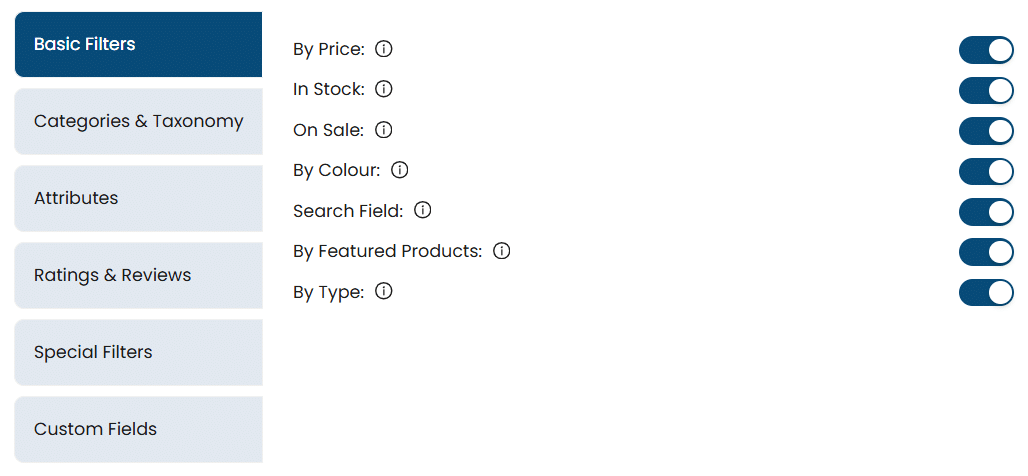
Here are all the filters available in the “Basic Filters” sub-tab.
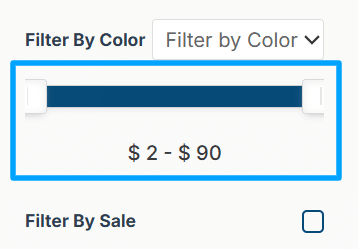
By Price
Enable the option “By Price” to show the price range filter on the frontend of the shop page. This will allow your customers to view the products available in the shop/store within their price range.
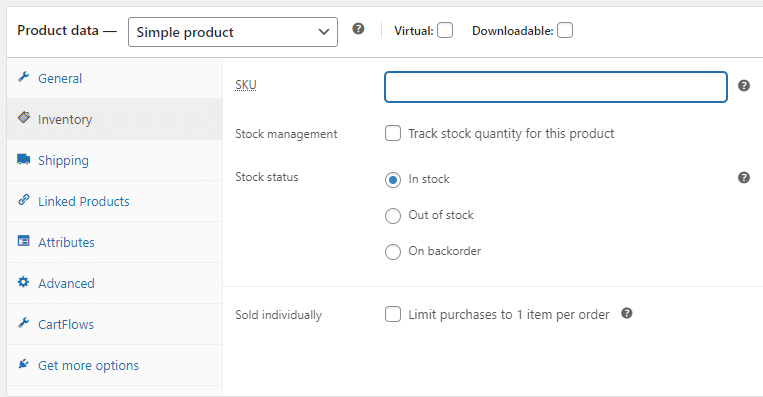
In Stock
Enable the option “In Stock” to show the products on the frontend of the shop page that are currently available for purchase.

Use it if you intend to use the “Stock” related functionality of WooCommerce Products
On Sale
Enable the option “On Sale” to show the “Products on Sale” filter on the frontend of the shop page. This filter will show all the products on sale.
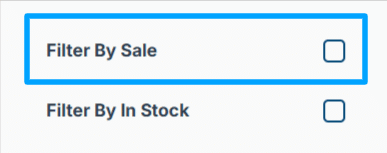
Use it if you intend to use the “Sale Price” related functionality of WooCommerce Products.

By Color
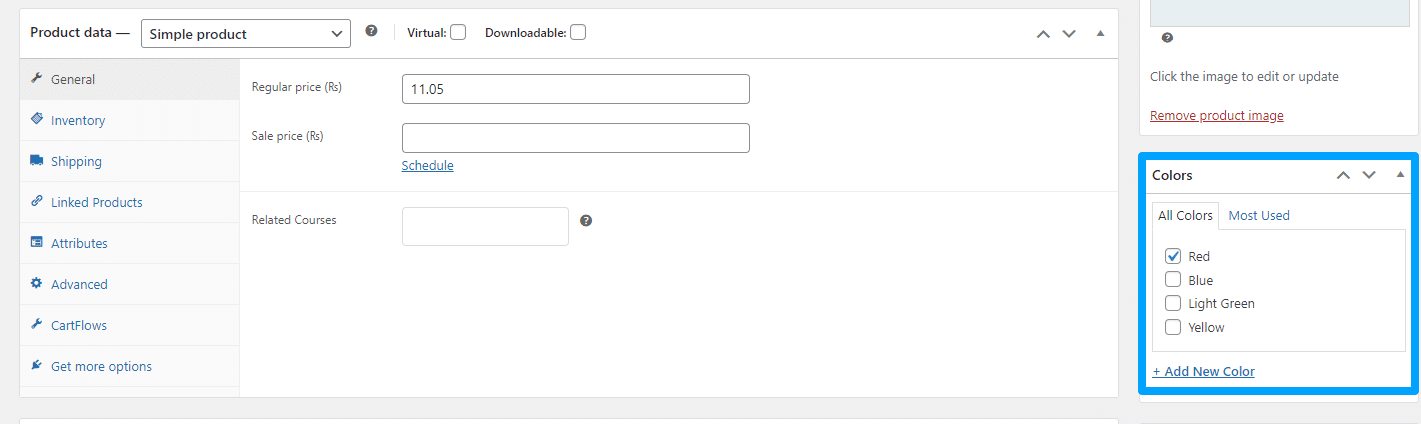
Enable the option “By Colour” to show the Color filter on the frontend of the shop page.

Use it if you intend to use the “Color Attribute” related functionality of WooCommerce Products.

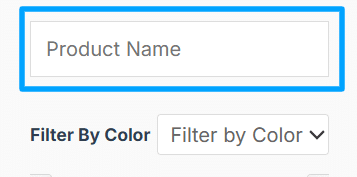
Search Field
Enable the option “Search Field” to show the “Product Title” filter on the frontend of the shop page.
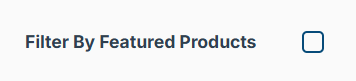
By Featured Products
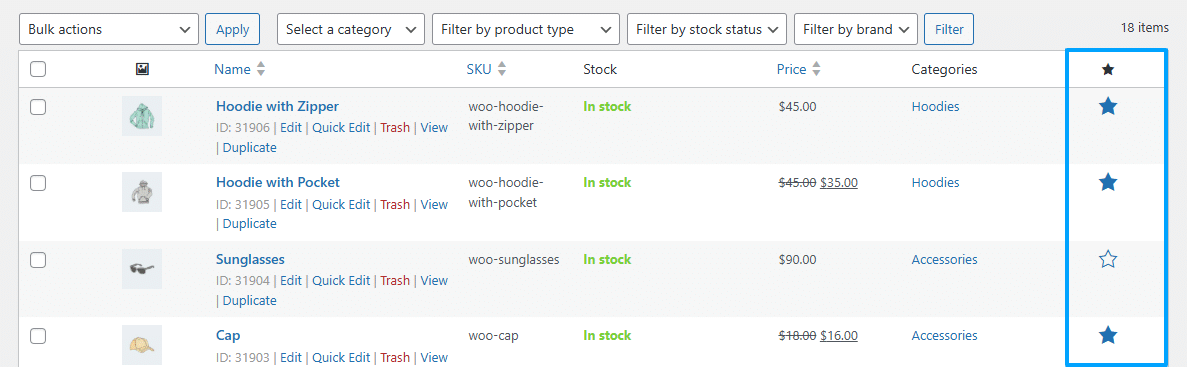
Enable the option “By Featured Products” to show the featured products filter on the frontend of the shop page.
Use it if you intend to use the “Featured” related functionality of WooCommerce Products.
By Type
Enable the option “By Type” to show the product type filter on the frontend of the shop page.

Use it if you intend to use the “product type” related functionality of WooCommerce Products.

Categories & Taxonomy
Here are all the filters available in the “Categories & Taxonomy” sub-tab.
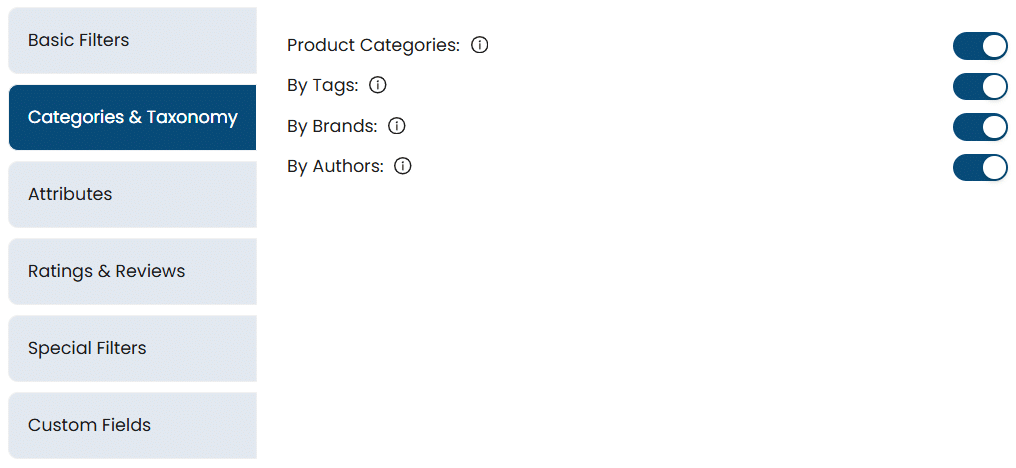
Product Categories
Enable the option “Product Categories” to show the category filter on the frontend of the shop page.
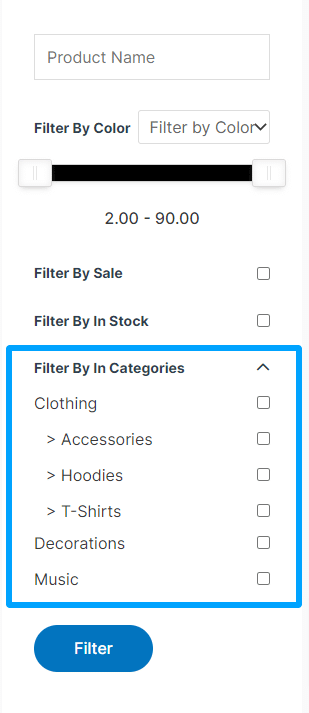

Use it if you intend to use the “Product Category” related functionality of WooCommerce Products.


By Tags
Enable the option “By Tags” to show the tags filter on the frontend of the shop page.

Use it if you intend to use the “Tags” related functionality of WooCommerce Products.
By Brands
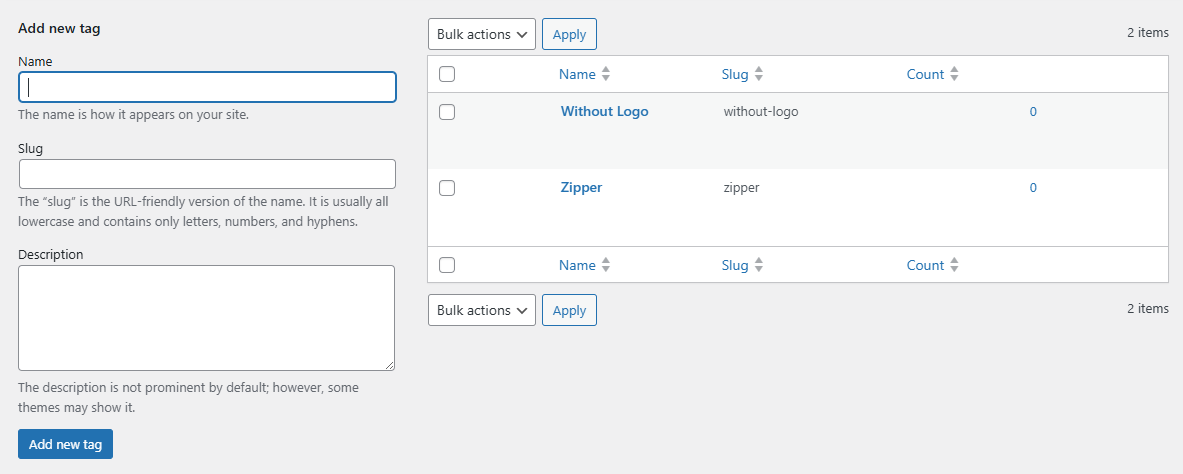
Enable the option “By Brands” to show the brands filter on the frontend of the shop page.

Use it if you intend to use the “Brands” related functionality of WooCommerce Products.

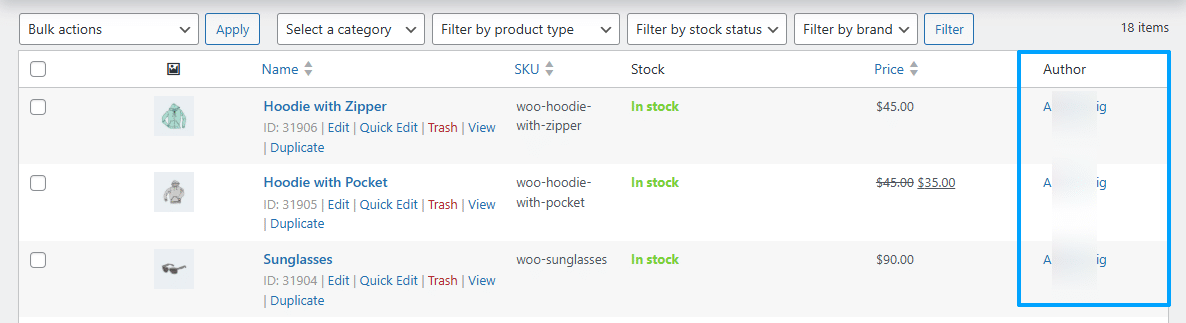
By Authors
Enable the option “By Authors” to show the product author filter on the frontend of the shop page.
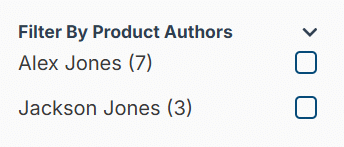
Use it if you intend to use the “Author” related functionality of WooCommerce Products.
Attributes
Here are all the filters available in the “Attributes” sub-tab.
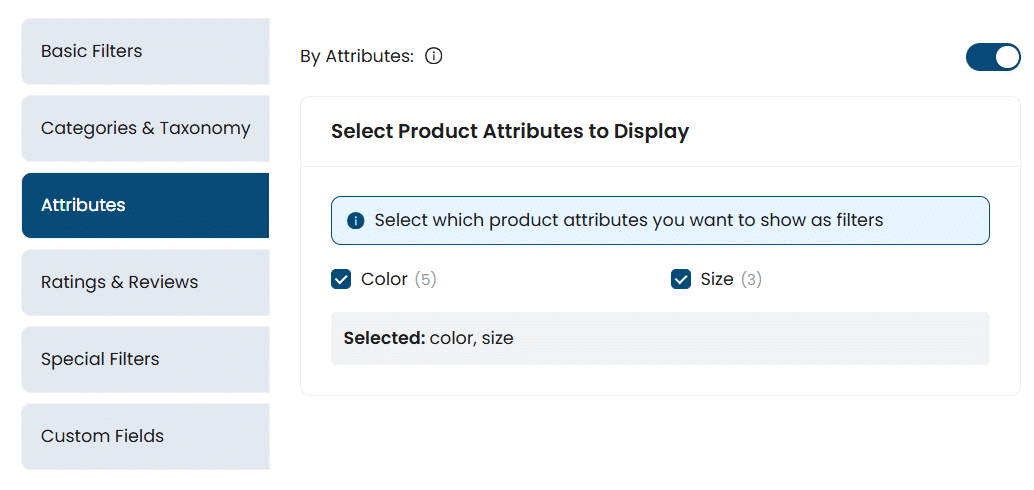
By Attributes
Enable the option “By Attributes” to show the product attributes filter on the frontend of the shop page. Here, you can select which attribute filters you want to add to the shop page.
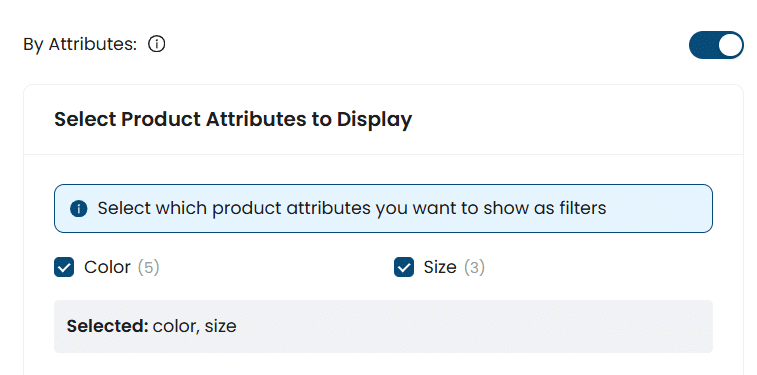

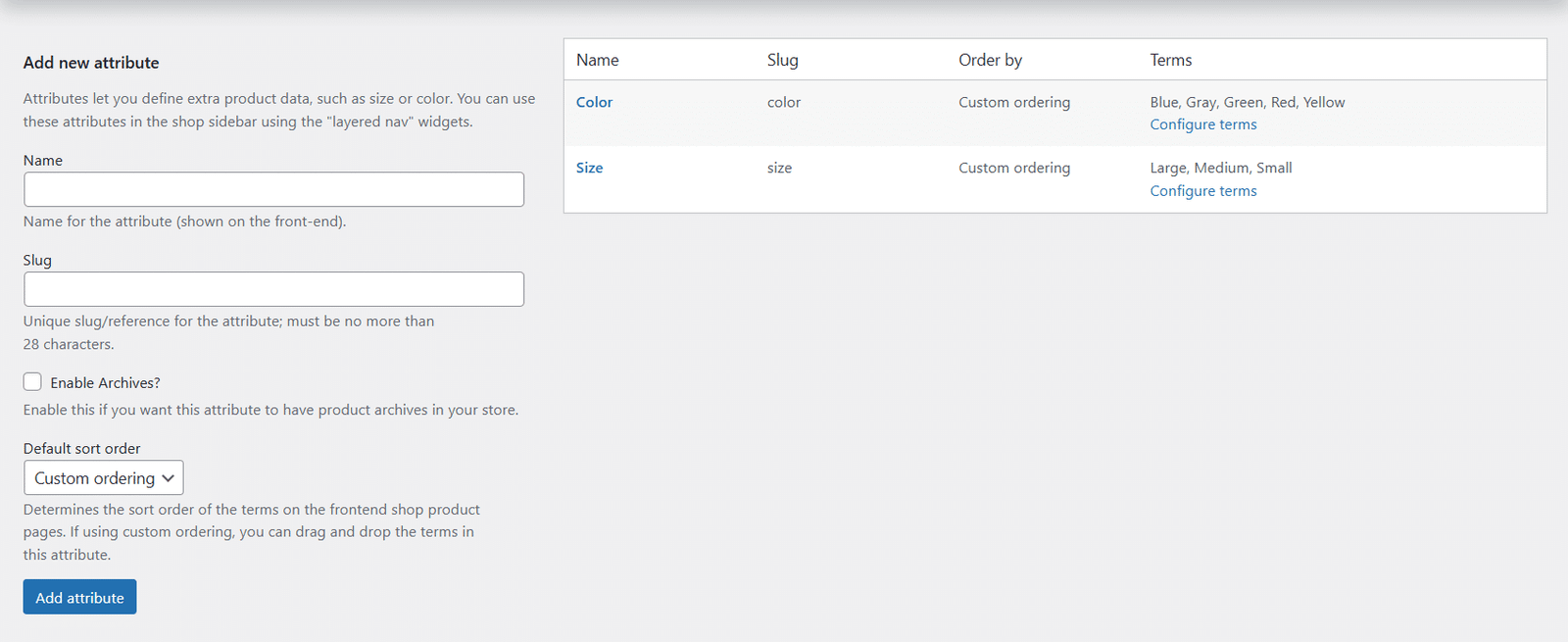
Use it if you intend to use the “Attributes” related functionality of WooCommerce Products.
Ratings & Reviews
Here are all the filters available in the “Ratings & Reviews” sub-tab

By Ratings
Enable the option “By Ratings” to show the product ratings filter on the frontend of the shop page.

Use it if you intend to use the “Ratings” related functionality of WooCommerce Products.


By Most Reviewed Products
Enable the option “By Most Reviewed Products” to show the most reviewed products (in numbers) by the customers on the frontend on the shop page in order.

By Recent Reviewed Products
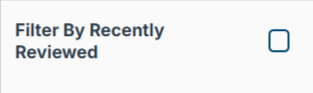
Enable the option “By Recent Reviewed Products” to show the most recently reviewed products of the respective customer in the last respective days on the frontend of the shop page. Here, you need to specify how many previous days (from today) to be included to fetch the respective products of the customer in the “Recently Reviewed Days” option.

Special Filters
Here are all the filters available in the “Special Filters” sub-tab

By New Arrivals
Enable the option “By New Arrivals” to show the new arrivals filter on the frontend of the shop page. Here, you need to specify how many previous days from today to consider a product as a new arrival product in the “New Arrival Days:” option.


Custom Fields
Here are all the filters available in the “Custom Fields” sub-tab.

By Custom Fields
Enable the option “By Custom Fields” to show the custom product fields filter on the frontend of the shop page.
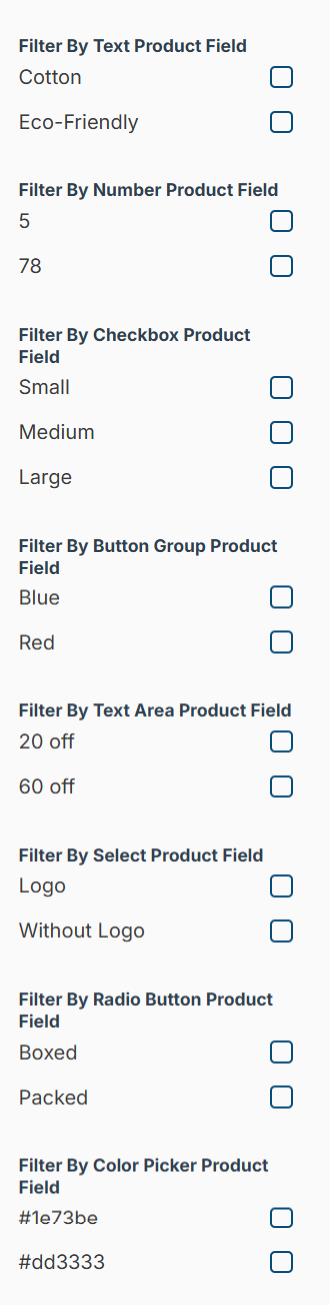
Use it, if you intend to use the “Advanced Custom Fields (ACF)” related functionality of WooCommerce Products
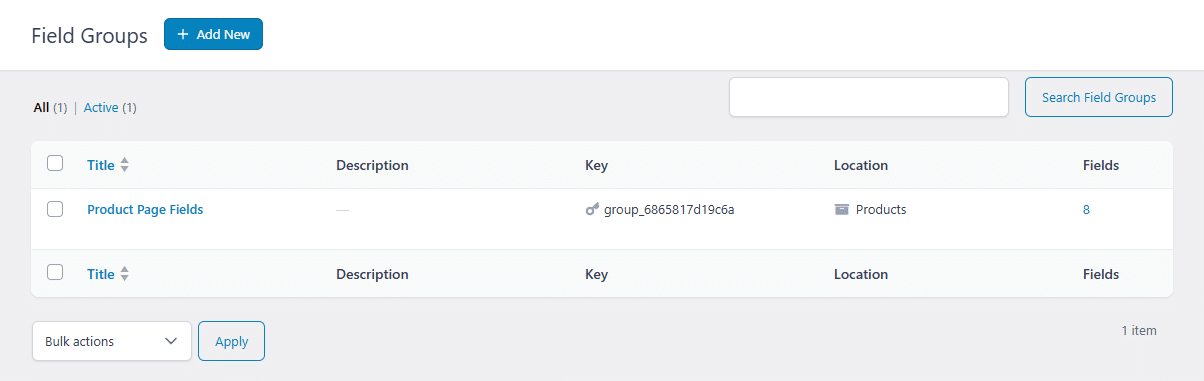
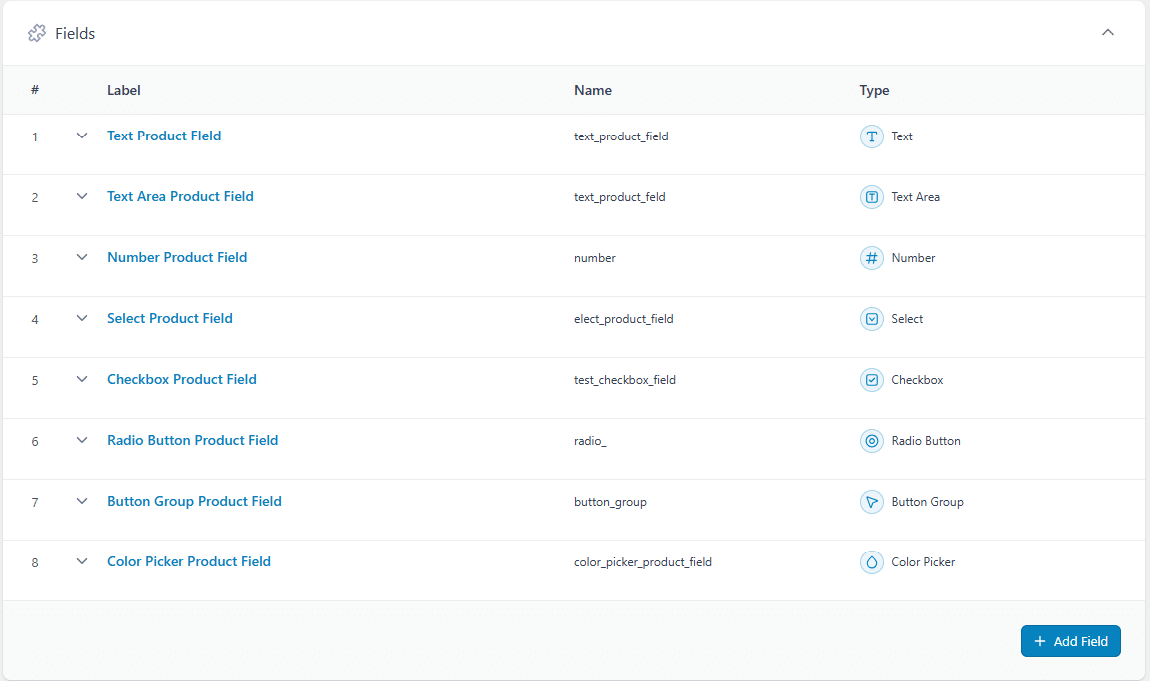
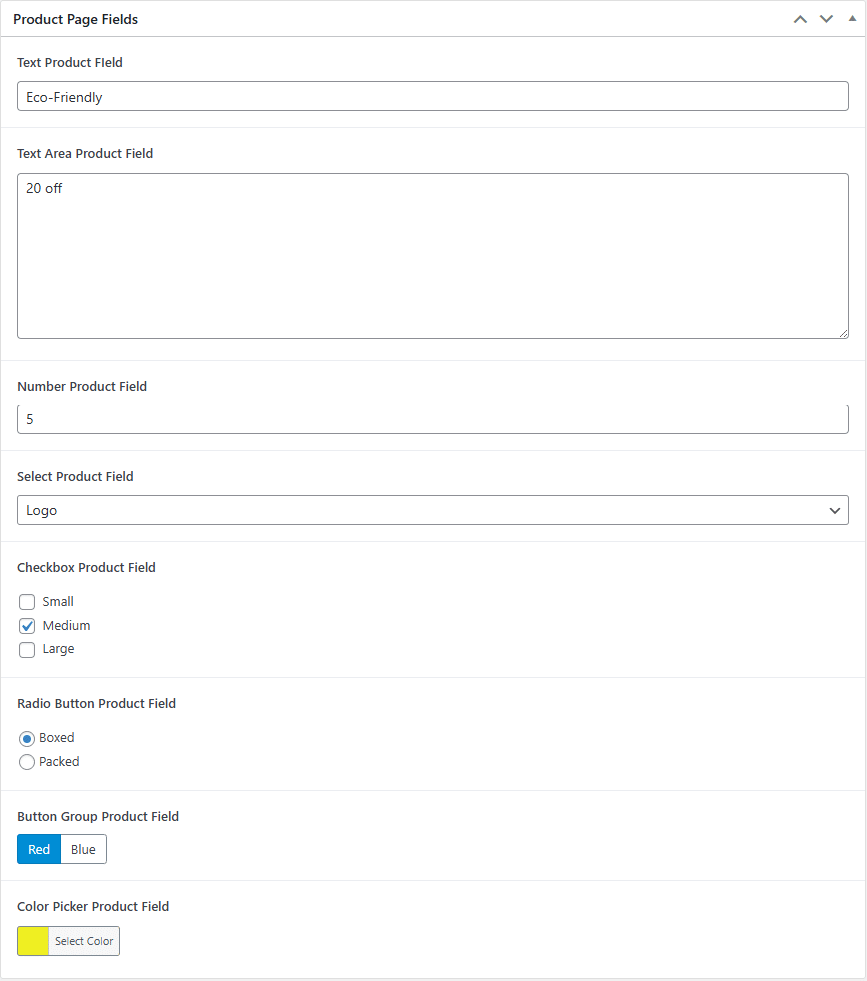
Note: Our addon is only compatible with these 8 ACF fields: Text, Text Area, Number, Select, Checkbox, Radio Button, Button Group and Color Picker.
Debug Logs
Here, all the debugging-related options of our addon will be available.
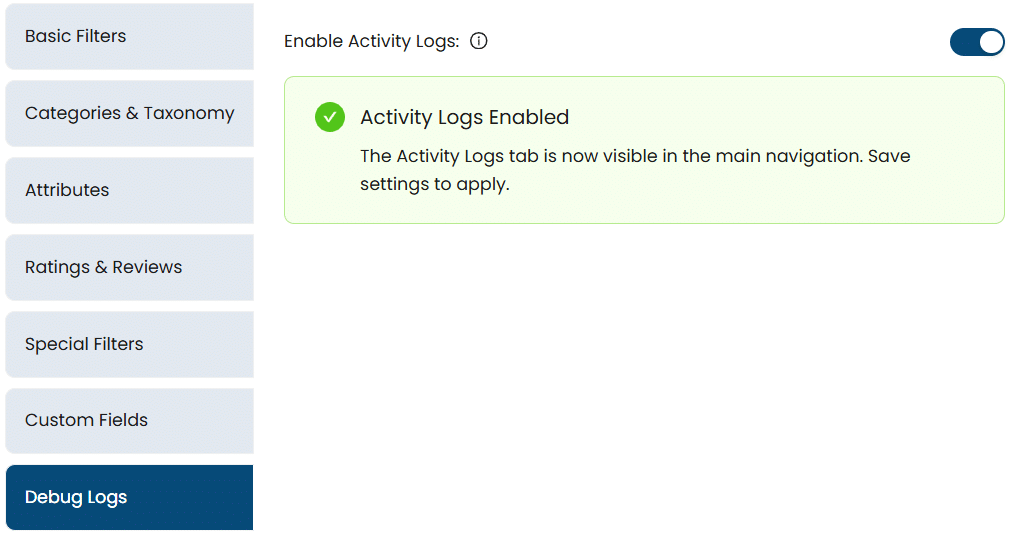
Enable Activity Logs
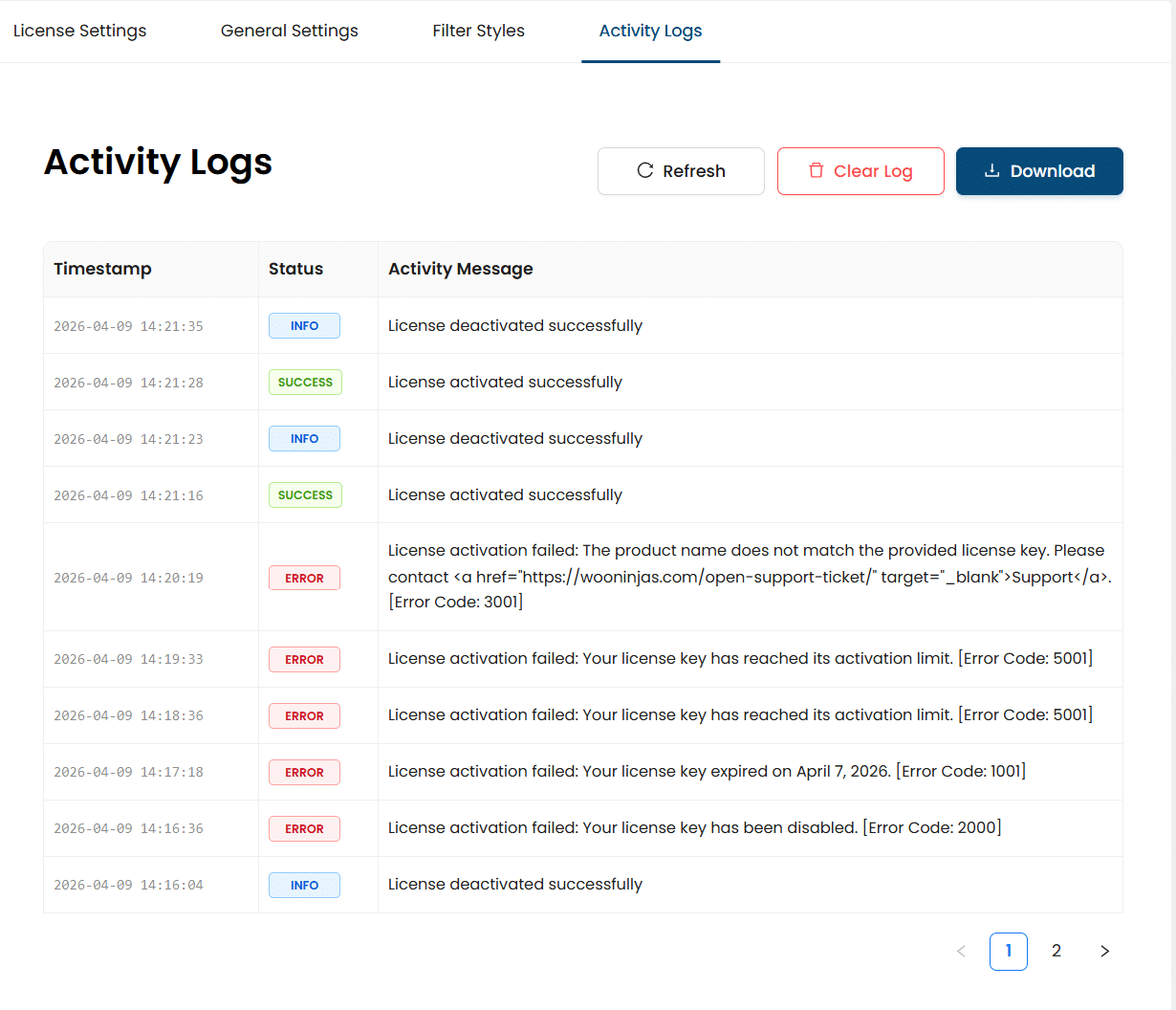
When enabled, plugin license-related activity will be logged, and an “Activity Logs” tab will appear in the main navigation. Click the “Save Settings” button to save the options settings of the “Debug Logs” tab. In the “Activity Logs” tab, the administrator will be able to view, clear, and download activity logs. The activity logs will download in a txt file.
Product Filter Shortcode
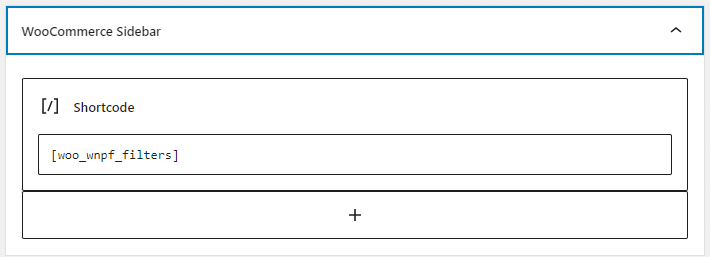
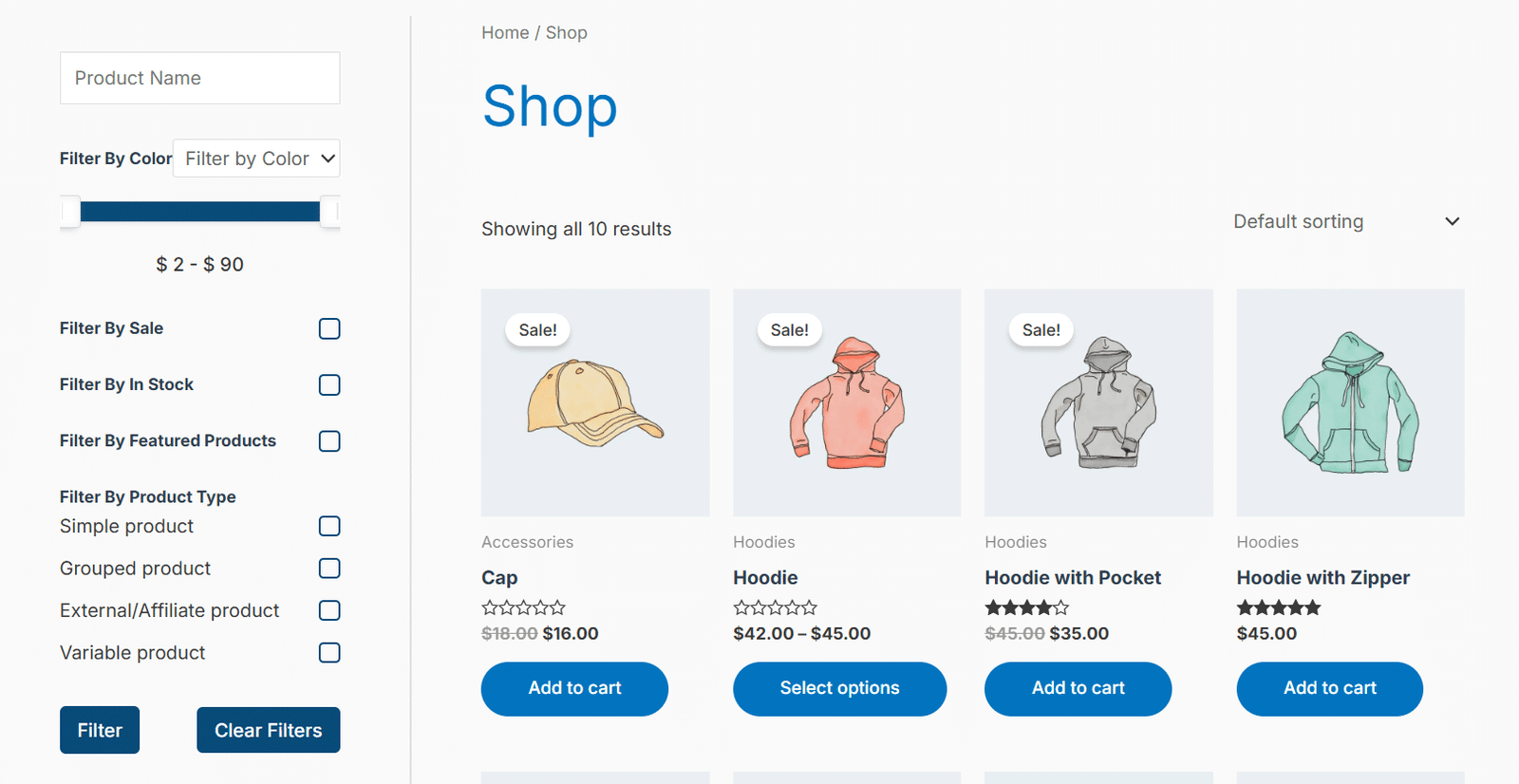
Navigate to the “Appearance” > “Widgets” sub-menu. Place the [woo_wnpf_filters] shortcode in any widget/sidebar to view the product filter and click on the “Update” button.
This is how the frontend of the shop page will look:
Filter Styles
Navigate to the WooCommerce > WooCommerce Product Filters > Filter Styles. Here, you can change the UI related settings of the product filters.

Primary Color
Here you can select the primary color of our search section fields.
If the primary color is blue.
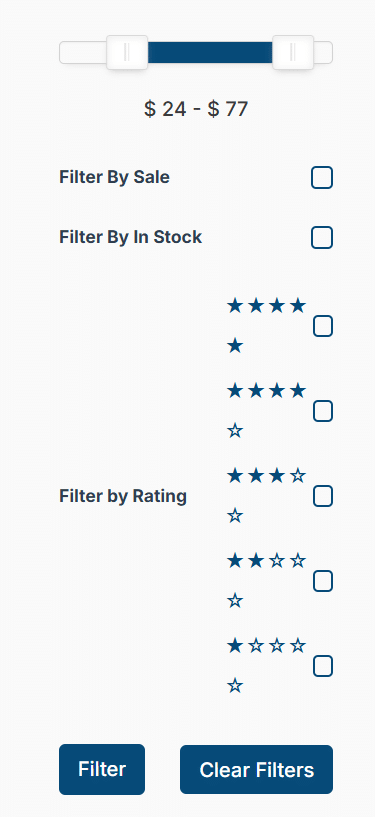
If the primary color is black

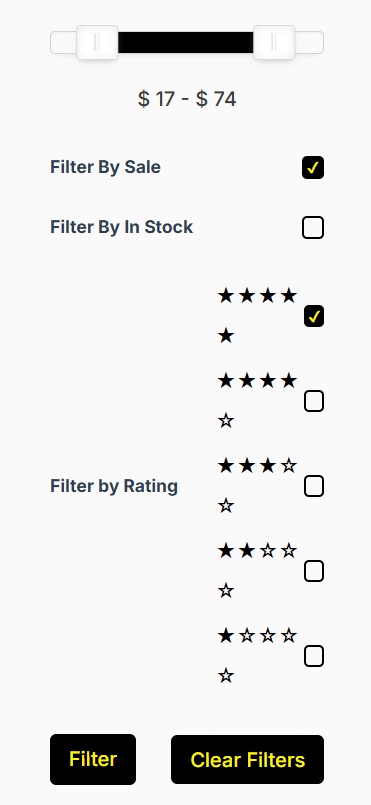
Secondary Color
Here you can select the secondary color of our search section fields.
If the secondary color is white.
If the secondary color is yellow.
Basic Filters
Here, you can change the design-related settings of the search filters found in the “General Settings > Basic Filters”.

Design for Filter by Price
Here you can select from the options:
- By Range Slider
- By Input Fields (Min/Max)


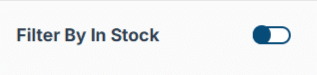
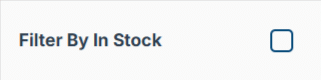
Design for Filter by Stock
Here you can select from the options:
- Toggle
- Checkbox
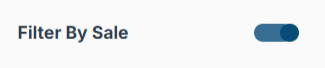
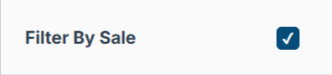
Design for Filter by On Sale
Here you can select from the options:
- Toggle
- Checkbox
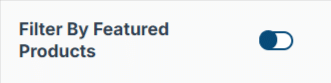
Design for Filter by Featured Product
Here you can select from the options:
- Toggle
- Checkbox

Design for Filter by Product Type
Here you can select from the options:
- Toggle
- Checkbox
- DropDown
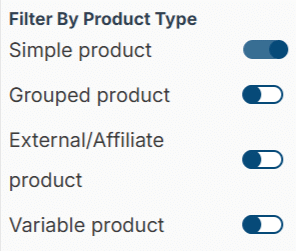
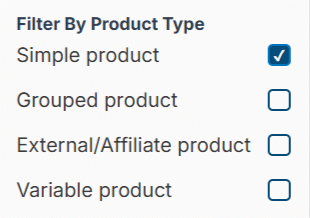

By toggling on/off the “Open Product Type Dropdown” switch, you can decide whether the options are to remain visible all the time or not. It will work for the “Toggle” and “Checkbox” options only.
If the toggle is off, the options will remain visible without any option to temporarily hide them.
If the toggle is on.

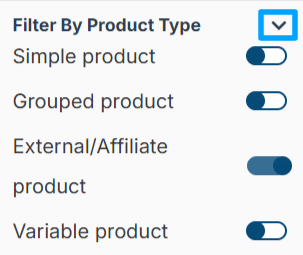
Categories & Taxonomy
Here, you can change the design-related settings of the search filters found in the “General Settings > Categories & Taxonomy”.

Design for Filter by Product Categories
Here you can select from the options:
- Toggle
- Checkbox
- DropDown
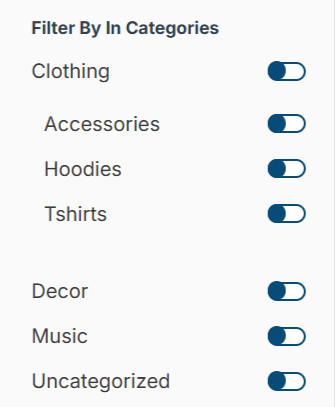
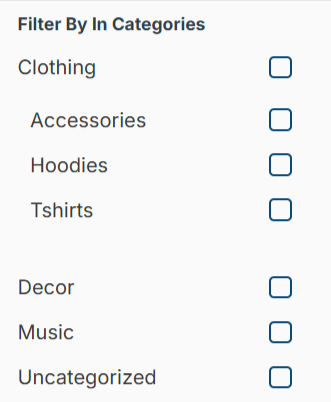

By toggling on/off the “Open the Category dropdown” switch, you can decide whether the options are to remain visible all the time or not. It will work for the “Toggle” and “Checkbox” options only.
If the toggle is off, the options will remain visible without any option to temporarily hide them.

’
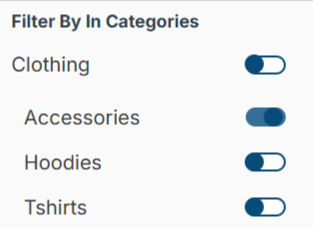
If the toggle is on.

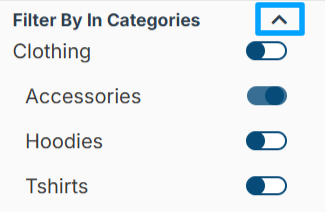
Design for Filter by Tags
Here you can select from the options:
- Toggle
- Checkbox
- DropDown
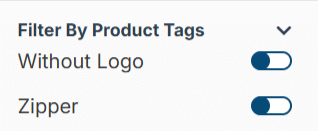
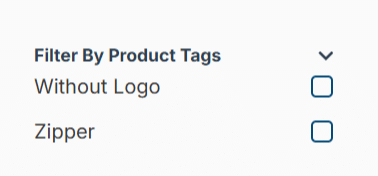
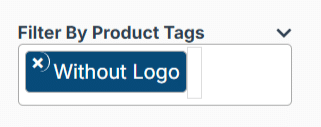
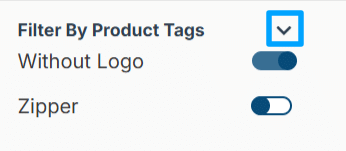
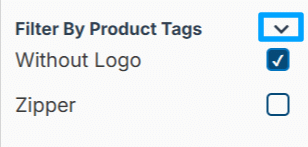
By toggling on/off the “Open the Tags dropdown” switch, you can decide whether the options are to remain visible all the time or not. It will work for the “Toggle” and “Checkbox” options only.
If the toggle is off, the options will remain visible without any option to temporarily hide them.
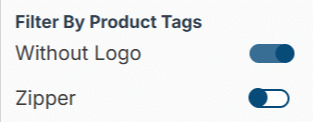
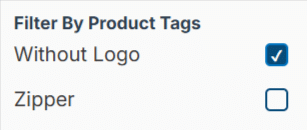
If the toggle is on.
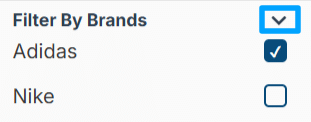
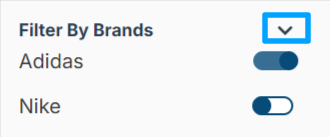
Design for Filter by Brands
Here you can select from the options:
- Toggle
- Checkbox
- DropDown
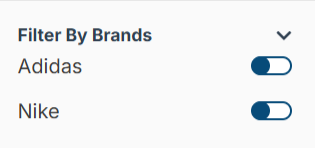

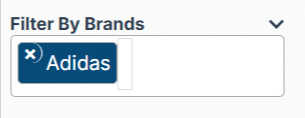
By toggling on/off the “Open the Brands dropdown” switch, you can decide whether the options are to remain visible all the time or not. It will work for the “Toggle” and “Checkbox” options only.
If the toggle is off, the options will remain visible without any option to temporarily hide them.
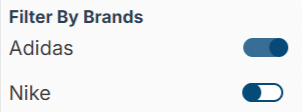

If the toggle is on.
Design for Filter by Author
Here you can select from the options:
- Toggle
- Checkbox
- DropDown
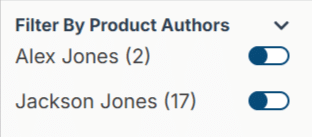


By toggling on/off the “Open the Author dropdown” switch, you can decide whether the options are to remain visible all the time or not. It will work for the “Toggle” and “Checkbox” options only.
If the toggle is off, the options will remain visible without any option to temporarily hide them.
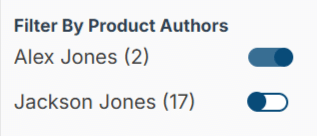
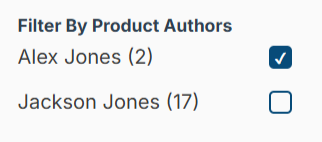
If the toggle is on.
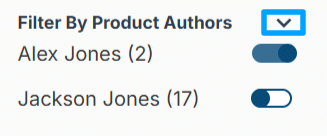

Attributes
Here, you can change the design-related settings of the search filters found in the “General Settings > Attributes”.

Here, you can set the frontend view of all the attributes created. Each attribute you have created will have its own separate record of options available here. You can select from the following options for all the attribute(s):
- Toggle
- Checkbox
- DropDown


By toggling on/off the “Open the (Attribute Name) dropdown” switch, you can decide whether the options are to remain visible all the time or not. It will work for the “Toggle” and “Checkbox” options only.
If the toggle is off, the options will remain visible without any option to temporarily hide them.
If the toggle is on.
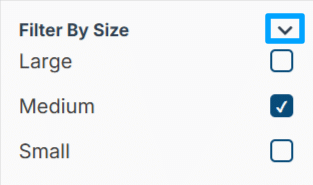

Ratings & Reviews
Here, you can change the design-related settings of the search filters found in the “General Settings > Ratings & Reviews”.
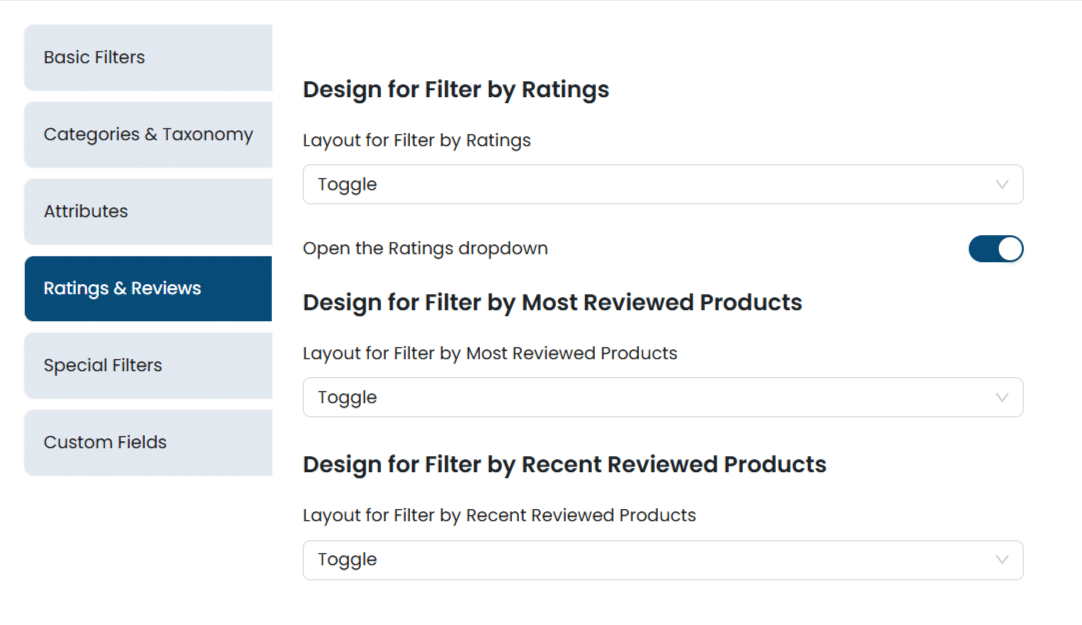
Design for Filter by Ratings
Here you can select from the options:
- Toggle
- Checkbox
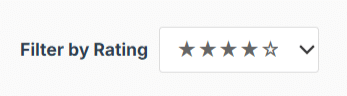
- DropDown
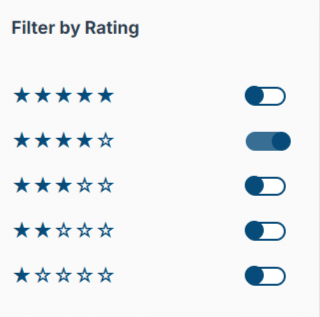

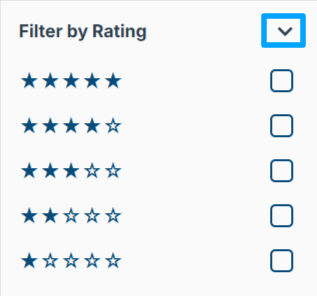
By toggling the “Open the Ratings dropdown” switch on or off, you can decide whether the options are to remain visible all the time or not. It will work for the “Toggle” and “Checkbox” options only.
If the toggle is off, the options will remain visible without any option to hide them temporarily.
If the toggle is on.

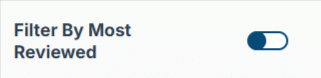
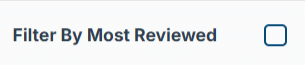
Design for Filter by Most Reviewed Products
Here you can select from the options:
- Toggle
- Checkbox
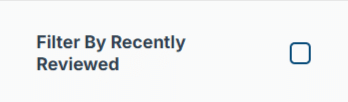
Design for Filter by Recent Reviewed Products
Here you can select from the options:
- Toggle
- Checkbox

Special Filters
Here, you can change the design-related settings of the search filters found in the “General Settings > Special Filters”.
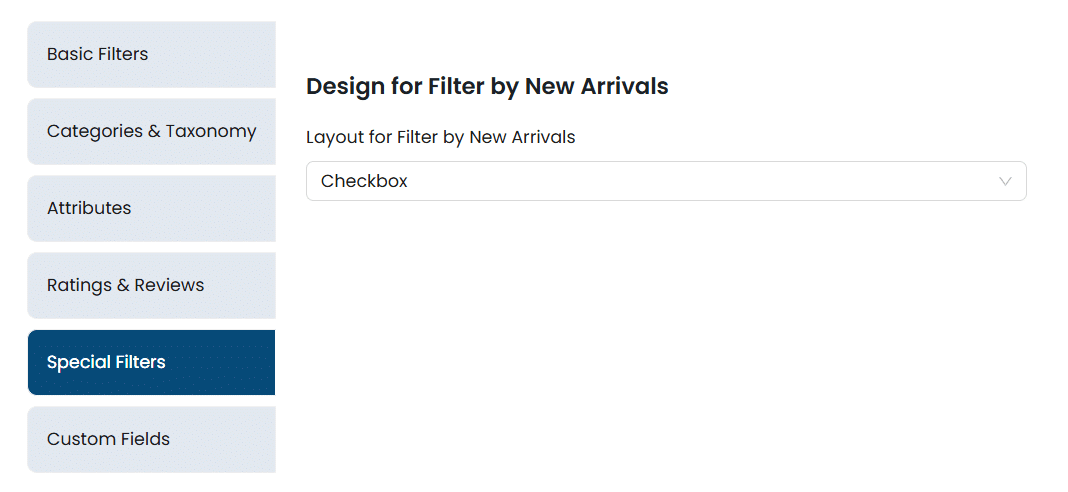
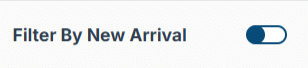
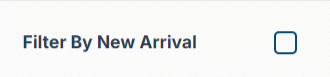
Design for Filter by New Arrivals
Here you can select from the options:
- Toggle
- Checkbox
Custom Fields
Here, you can change the design-related settings of the search filters found in the “General Settings > Custom Fields”.
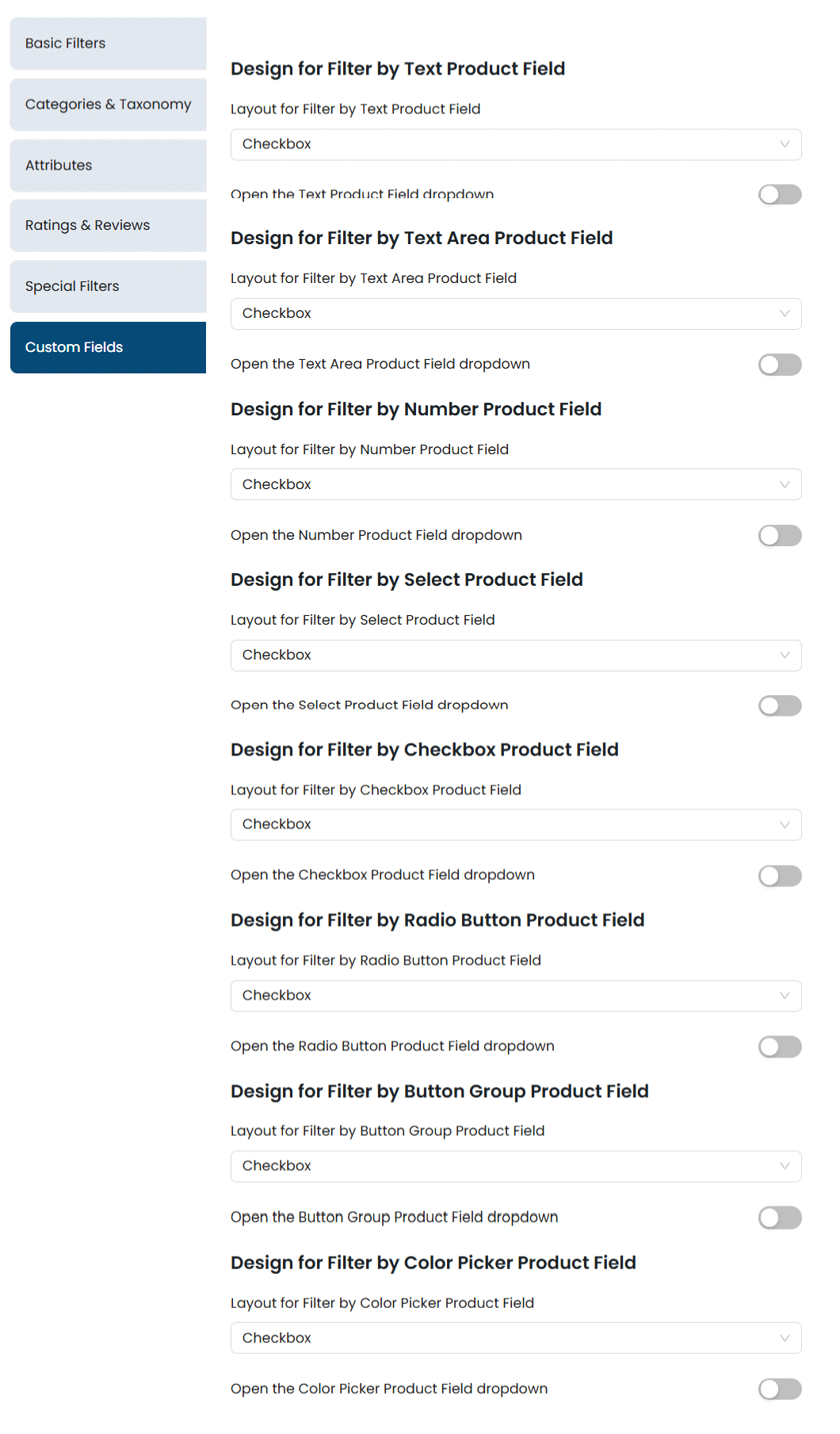
Here, you can set the frontend view of all the advanced custom fields (ACF) created. Each advanced custom field you have created will have its own separate record of options available here. You can select from the following options for all the advanced custom fields (ACF):
- Toggle
- Checkbox
- DropDown
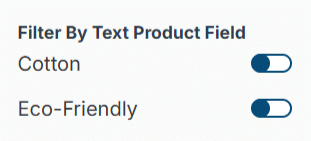
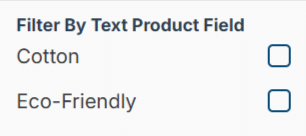

By toggling on/off the “Open the (Field Label) dropdown” switch, you can decide whether the options are to remain visible all the time or not. It will work for the “Toggle” and “Checkbox” options only.
If the toggle is off, the options will remain visible without any option to hide them temporarily.
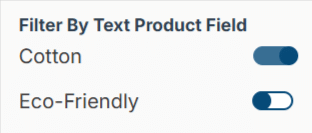
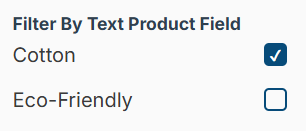
If the toggle is on.
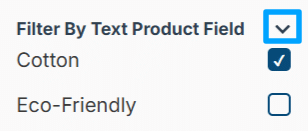
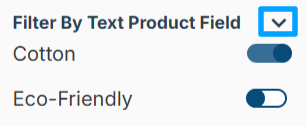
Note: The UI options (in the “Filter Styles” tab) will not work for the ACF field of “Color Picker” type. It will show the “Checkbox” UI for it only. Also, the “Open the (Field Label) dropdown” toggle option for the respective ACF field of “Color Picker” type will not work.
FAQ’s
1- Is the “Search Filter” section available with the above-mentioned product attributes only?
Note: Product Attributes are the characteristics that are connected with a product, such as color, size, or material are referred to as attributes. In other words, they can also be called its properties.
At the moment, the ‘Search Filter’ section is limited to the product attributes mentioned above.
2-Are there plans to add more search filter attributes in the later releases?
Additional product search filter attributes are planned for inclusion in future releases of this add-on for WooCommerce Products.
3-Is “Filter by Product Rating” functionality available in this addon?
There is “Filter by Rating” functionality available in this addon.
4- Does this Add-On require any external plugin on your site to work properly?
This add-on requires the WooCommerce plugin (free version) to be enabled on your site. If you want to test your site locally, please make sure to enable the above-mentioned plugin on your site.
Changelogs
1.1.9
- Fix: Fixed Licensing issues.
1.1.8
- Fix – Removed unnecessary “Filter Styles —> Debug Log”.
1.1.7
- Fix- Resolved UI alignment issues in filters and buttons.
1.1.6
- Fix- Enhanced the License Module for better performance and reliability.
- New- Added Activity logs for License Module validation to assist with monitoring and debugging.
1.1.5
- Fix- Resolved license activation and deactivation issues.
- Fix- Fixed text update behavior after license activation.
- Fix- Improved performance by optimizing slow database queries.
- Fix- Addressed security and performance recommendations identified by PHPCS.
- Fix- Updated codebase to fully comply with WordPress Codex standards.
1.1.4
- Fix: Resolve default colors and layouts for filters.
- Fix: Resolve conflicts with dropdowns across all dropdowns for toggles and checkboxes.
- Fix: Update labels and headings for all filters.
- Fix: Retain filtered values for specific filters after applying the filtration.
- Fix: Set the toggle as the default layout for all filter types.
1.1.3
- New – Added the color option to make the filters UI more attractive and compatible with the theme colors.
- New – Added the UI modification for Basic Filter in the Filter Styles tabs(Dropdown, Range Slider, Input Fields, Checkboxes and Toggles).
- New – Added the UI modification for Categories Filters in the Filter Styles tabs(Dropdown, Checkboxes and Toggles).
- New – Added the UI modification for Attributes Filter in the Filter Styles tabs(Dropdown, Checkboxes and Toggles).
- New – Added the UI modification for Ratings and Reviews Filters in the Filter Styles tabs(Dropdown, Checkboxes and Toggles).
- New – Added the UI modification for Special Filters in the Filter Styles tabs(Dropdown, Checkboxes and Toggles).
- New – Added the UI modification for Custom Fields Filters in the Filter Styles tabs(Dropdown, Checkboxes and Toggles).
- Fix – Resolve the security and performance related to WordPress codex standard.
- Fix – Reviews and Rating filtration results.
1.1.2
- New: Updated admin UI for better user experience and cleaner layout.
1.1.1
- New: Added support for currency in the price filter.
1.1.0
- New: Added filters for Tags, Brands, Featured, Authors, Attributes, Rating, Type, Custom Fields, New Arrivals, Most Reviewed, and Recently Reviewed.
1.0.1
- New: Added React-based Admin UI.
1.0.0
- Initial Release.
