WooCommerce Bookings Rental Plugin: One Tool for Every Type of Rental Business
The WooCommerce rental plugin adds date-range booking, live availability, and automatic pricing to any product.
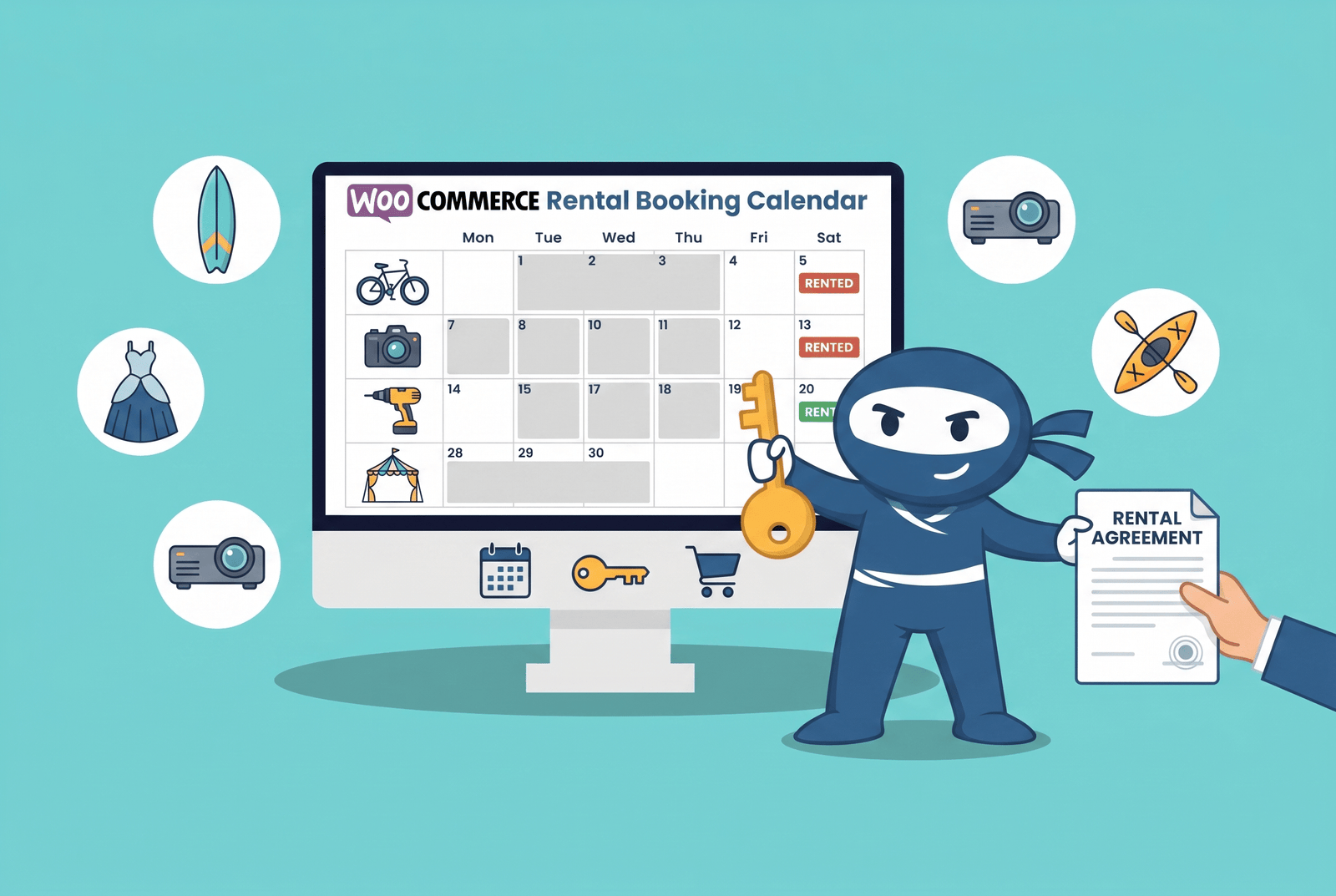
Key Insights
- A WooCommerce Bookings rental plugin treats any item as a bookable product with a live availability calendar. Customers pick dates, see the total cost calculated automatically, and complete checkout. No phone calls. No manual calendar updates.
- The buffer time setting in a WooCommerce Bookings rental product enforces the gap between one booking ending and the next beginning. Without it, a piece of equipment that needs inspection before the next hire goes out unchecked.
- Every rental creates a standard WooCommerce order record, meaning customer details, rental dates, and payment status all sit in the same dashboard. No separate rental management platform required.
- Add-on resources in a WooCommerce Bookings rental product let customers select extras at booking: insurance, delivery, accessories, or consumables. Each carries its own price and adds to the total before checkout.
A WooCommerce Bookings rental plugin turns an existing WordPress store into a booking system, where each item is a product customers reserve for a set date range. They pick dates, see the cost, and pay at checkout. No third-party marketplace sits in the middle, and no commission comes off the top. The reservation becomes a WooCommerce order, the same as any other sale.
The WooNinjas WooCommerce Bookings Add-on is the plugin that handles the parts that make rental different from retail: date-range reservations, availability calendars, add-on pricing, cancellation policies, and booking reports, all inside WooCommerce. It starts at $79 per year and works across every type of rental operation you’re likely to run.
What Kinds of Rental Business Can Run on This?
The WooCommerce Bookings rental plugin works across so many business types for one reason: it treats rental items as WooCommerce products with date-range booking built in. Anything you can sell, you can rent instead, configuring each as either a standard product (for sale) or a bookable product (for rental). A realistic cross-section of who runs it:
- Car and vehicle rental businesses are taking daily or weekly bookings online.
- Equipment rental companies rent out tools, cameras, AV gear, or construction equipment.
- Vacation property owners and holiday cottage hosts managing multi-night stays
- Bike, scooter, and outdoor gear hire shops handling short-term rentals
- Dress and costume hire services manage turnover between returns and new bookings
- Sports and event venue rental businesses are blocking out hourly or daily time slots
Each of these uses the same underlying WooCommerce booking and rental workflow. The setup differs slightly by business type, but the plugin handles them all from a single interface. You are not buying separate tools for separate rental categories.
How the WooCommerce Rental Plugin Works
When you install the WooNinjas WooCommerce Bookings Add-on, a new product type becomes available in WooCommerce. Any product you set as “Bookable” and configure with the Rental booking type gains a live availability calendar, date-range selection, and all the pricing and policy settings that go with it. From the customer’s side, the experience looks like any other WooCommerce product page, except that instead of adding to cart immediately, they pick a start date, pick an end date, choose any extras, and then check out.
Each completed rental booking in WooCommerce creates a standard order. Payment goes through the gateways you already use. Confirmation emails go out automatically. The booked dates lock in the product’s availability calendar, so no other customer can select them. When the order is cancelled or refunded, those dates open up again without your team doing anything manually.
Resources let you attach paid and unpaid add-ons to any rental product: insurance, delivery, accessories, or upgrade options. Customers select these during the booking flow, and the total updates live before they reach the payment step. The full WooNinjas Bookings documentation covers resource configuration in detail.
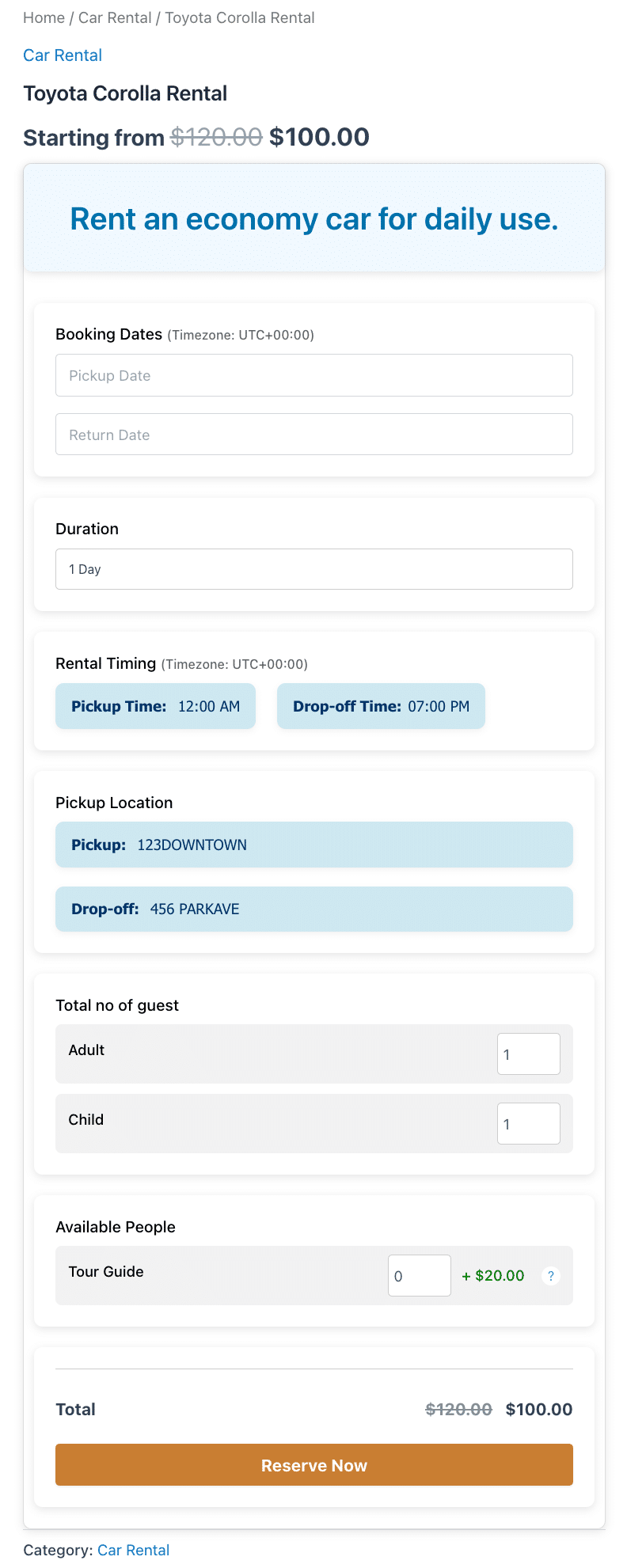
Rental booking details showing item resources, add-on services, active pricing rules, and the live-calculated total before checkout.
How Does Pricing Work for Rental Products?
Rental product pricing in the WooCommerce Bookings Add-on is set directly on each product using the standard WooCommerce pricing fields. Each bookable rental product has a Regular Price and an optional Sale Price. The sale price, when set, displays alongside the regular price and applies automatically at checkout for the duration it is active.
For businesses with multiple rental items at different price points, each product carries its own pricing configuration. A daily hire rate for a basic camera and a premium daily rate for a cinema-grade kit are simply two separate products with two separate prices.
Rate adjustments for seasonal demand or special periods are handled by updating the Sale Price on the relevant product when needed. There is no separate pricing engine for the rental booking type. Pricing is straightforward, transparent, and managed from the same product edit screen as everything else.
Running Your Rental Business from the Admin Dashboard
Your rental booking reports in WooCommerce give you a single view of every active, upcoming, and completed reservation across all your rental products. Filter by product, date range, customer name, or order number. Each record shows the rental window, customer contact, status, and a direct link to the order. At a glance, you know what is out, what is due back, and what is coming up.
Manual bookings are handled through the admin booking wizard. If a customer calls, emails, or walks in, staff create a proper WooCommerce order in a few steps: select the customer, choose the rental product, set the dates and any add-ons, and mark the payment status. The customer gets the same confirmation email as an online booking. The booking appears in your reports the same way, too.
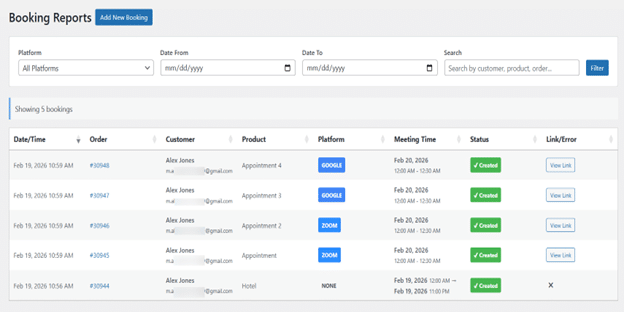
The Booking Reports dashboard shows all rental reservations with customer details, booking windows, status, and order links across every product.
Setting Up Rental Booking in WooCommerce: Step by Step
Configuration for a rental product is done from the WooCommerce product editor. Here is how it works.
Step 1: Create the Rental Product
Add a new WooCommerce product. Enter or edit the product title on the product edit page. In the Booking Options tab, select the Booking Type as Rental. This activates all rental-specific configuration fields.
Step 2: Configure the Rental Settings
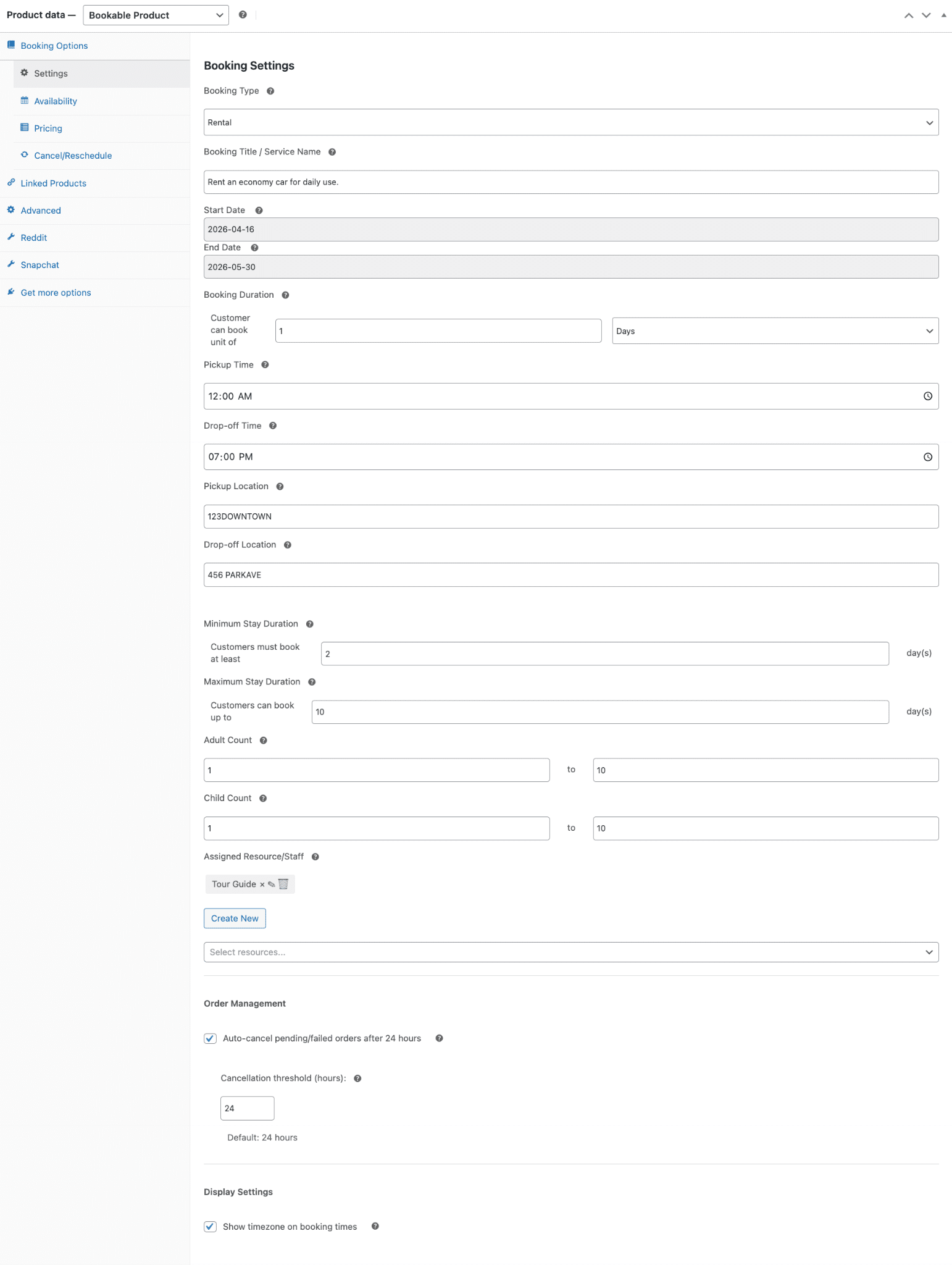
Once the Rental booking type is selected, fill in the following fields:
Looking for a Ready-Made Solution?
Explore our WordPress, WooCommerce, and LMS plugins built to extend functionality without custom development.
- Booking Title / Service Name (optional)
- Start Date
- End Date
- Booking Duration
- Pickup Time
- Drop-off Time
- Pickup Location
- Drop-off Location
- Minimum Stay Duration (minimum number of days; leave empty for no minimum)
- Maximum Stay Duration (maximum number of days; leave empty for no maximum)
- Adult Count (Min and Max fields)
- Child Count (Min and Max fields)
- Assigned Resource / Staff (optional)
- Auto-cancel pending/failed orders after 24 hours (optional)
- Cancellation Threshold (hours)
- Show Timezone on Booking Times (optional)
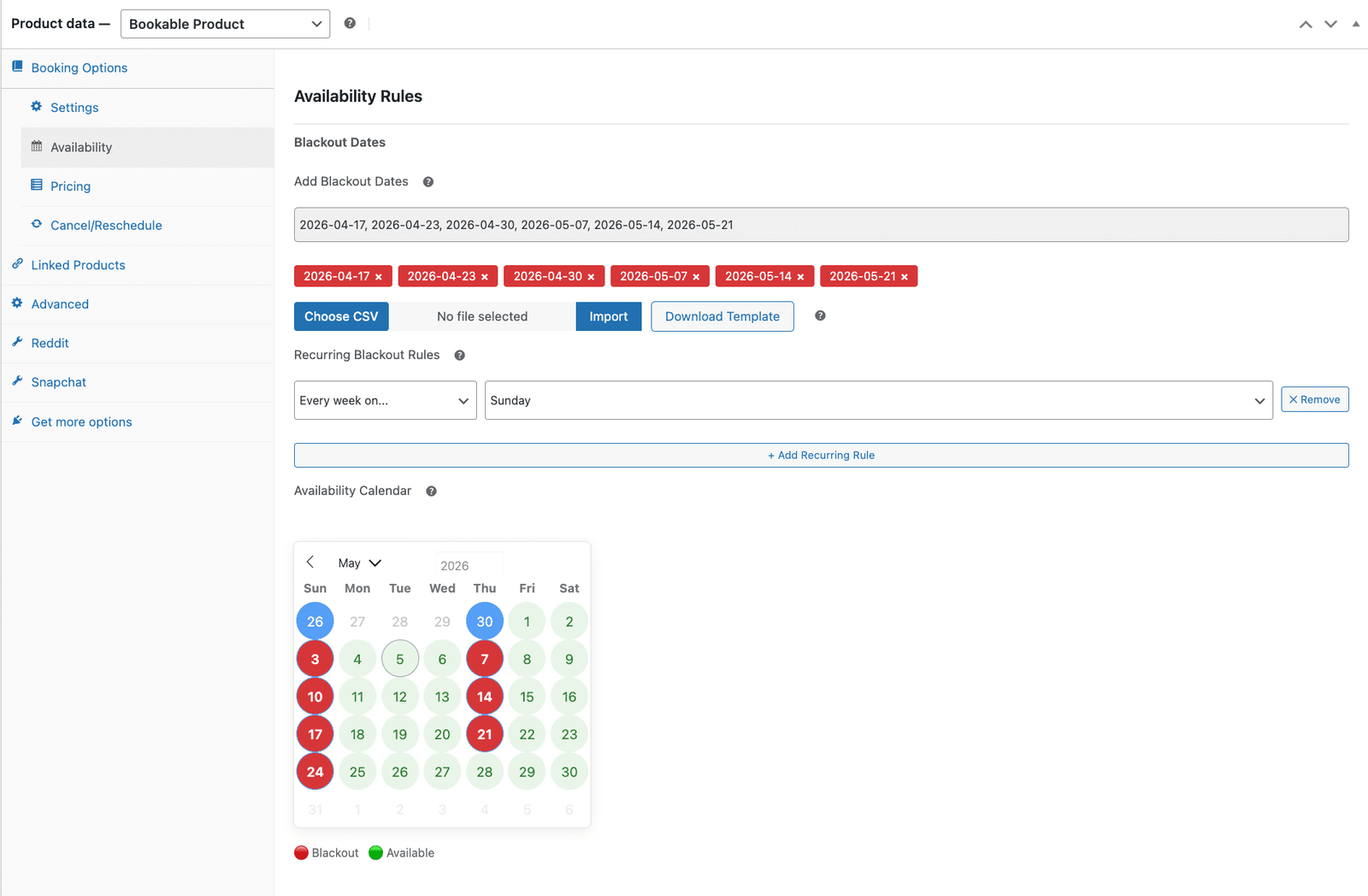
Availability tab:
- Add Blackout Dates (optional; use CSV import for multiple dates; supports recurring blackout rules by week or month)
Pricing tab:
- Regular Price
- Sale Price (optional)
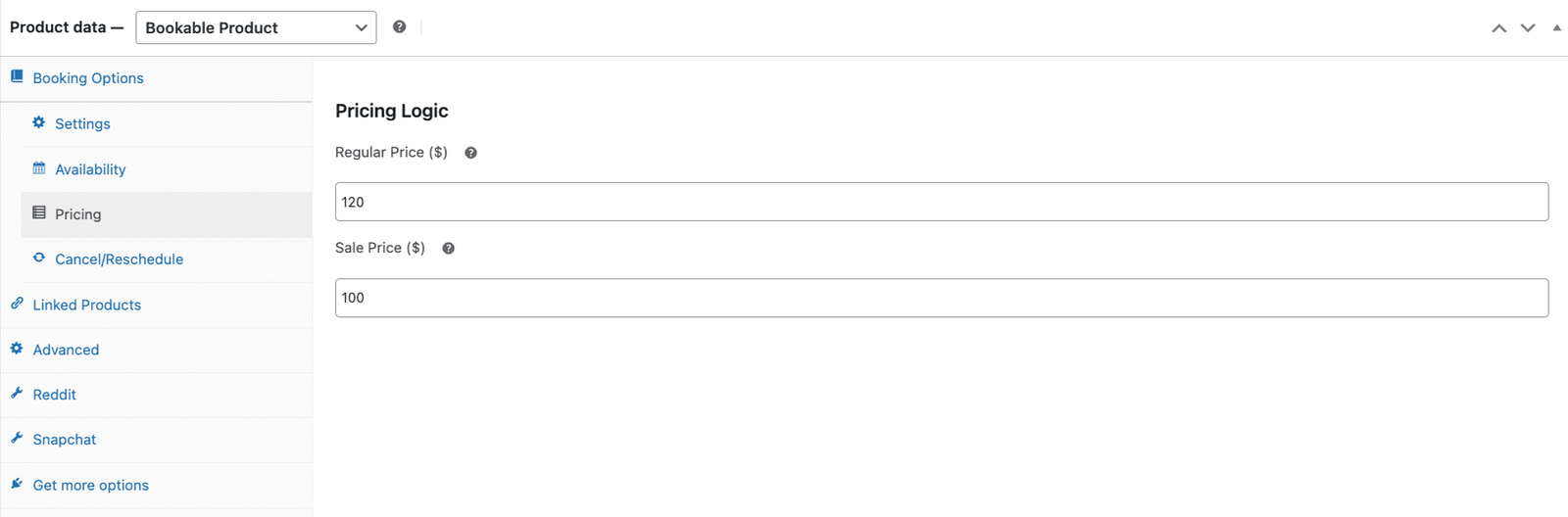
The Pricing tab shows the Regular Price and optional Sale Price fields that set the rental rate for the product.
What Renters See in Their WooCommerce Account
Every rental booking a customer makes is visible in the Bookings tab of their WooCommerce My Account area. They see the item name, rental dates, order reference, current status, and available actions. No separate login. No external portal. The same account they use for any other purchase on your store.
Active and upcoming rentals show options to view the full details, reschedule to different dates, or cancel. Cancellation shows the policy you’ve set before the customer confirms, so there are no surprises. Rescheduling enforces the original duration, so a three-day rental stays a three-day rental regardless of when they want to move it.
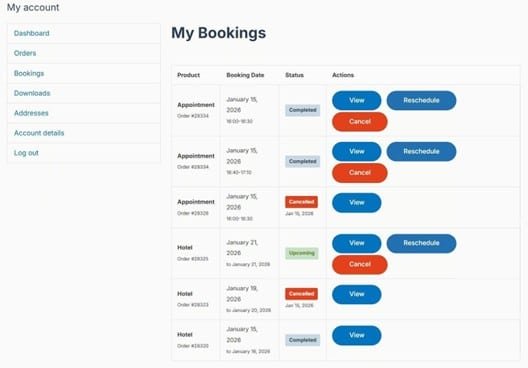
The My Bookings page shows rental reservations with status labels and self-service View, Reschedule, and Cancel actions.
Payments and Orders: Fully Inside WooCommerce
Rental payments run through your standard WooCommerce checkout. Customers see the base rate, any add-ons they’ve selected, active discounts applied line by line, and the total before confirming. They pay using whatever gateway your store already supports.
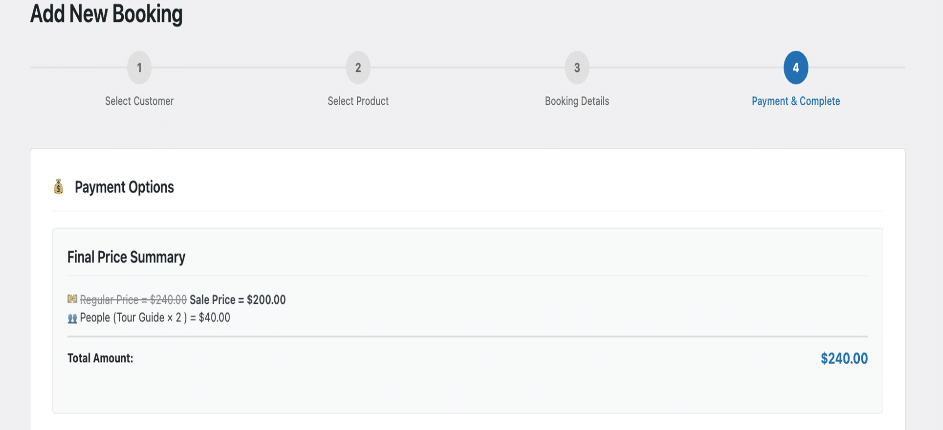
For admin-created bookings, the payment status is set manually: “Pending Payment” sends an invoice the customer can pay online, and “Paid” closes the order with a confirmation. Both routes produce the same WooCommerce order. Both appear in the same booking reports. Outstanding balances on pending and unpaid orders show a Pay button in the customer’s Orders tab so they can settle without calling you.
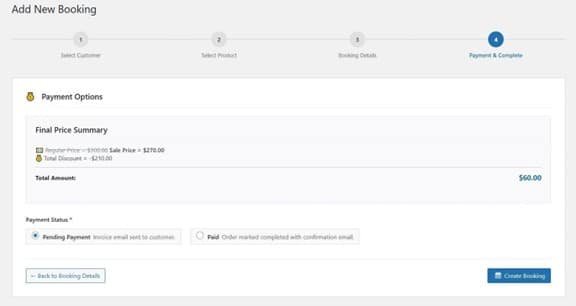
The Payment and Complete step shows the Final Price Summary with all discounts applied and the payment status options.
WooCommerce Rental Plugin: The Short Answer
A WooCommerce Bookings rental plugin adds date-range booking, live availability, and order management to any WooCommerce product. The WooNinjas WooCommerce Bookings Add-on handles all of this natively inside WooCommerce, for any rental type: vehicles, equipment, properties, gear, or anything else you hire out by the day. Every rental creates a WooCommerce order. It starts at $79 per year for a single site.
The product editor covers the standard rental setup. The catalogues with many units, mixed pricing, or an existing system to migrate from are where the work concentrates. WooNinjas has built WooCommerce Bookings rental plugin setups across vehicles, equipment, vacation properties, and more. To hand the build off, get in touch with the WooNinjas team with a description of your inventory and how you rent it, and they will scope the setup.
Pro Tip:
For rental catalogues with multiple units of the same item, such as three identical generators or five DSLR cameras, create one Bookable Product per item type and add each physical unit as a separate resource in the Settings tab. When all units are booked, the product automatically shows as unavailable. This prevents double-booking across inventory without requiring one product per unit.
Frequently Asked Questions
Can WooCommerce be used as a rental plugin?
Yes. With the WooNinjas WooCommerce Bookings rental plugin, any product in your WooCommerce store can become a rentable item with a live availability calendar, date-range booking, and automatic pricing. Rental bookings create standard WooCommerce orders, so everything is managed from the same dashboard you already use.
What types of businesses use a WooCommerce Bookings rental plugin?
Vehicle rental companies, equipment hire businesses, vacation property owners, bike and gear rental shops, costume hire services, and sports venue operators all use the WooNinjas WooCommerce Bookings Add-on for their rental operations. The same plugin handles any rental category that uses date-range booking.
Can I set blackout dates for my rental products in WooCommerce?
Yes. Each rental product in the WooCommerce Bookings Add-on supports individual blackout dates, which block specific dates from being booked. You can add dates one at a time or import multiple dates using a CSV file. Recurring blackout rules let you block the same day every week or the same date every month, which is useful for regular maintenance windows or closed days.
How do customers manage their rental bookings in WooCommerce?
Customers access their rental bookings from the Bookings tab in their WooCommerce My Account area. They can view reservation details, reschedule to different dates within the original duration, or cancel, all within the policies you have configured. Automated emails notify both the customer and your team whenever a change is made.
Can I create a rental booking manually in WooCommerce?
Yes. The WooNinjas WooCommerce booking and rental plugin includes a manual booking wizard in the admin dashboard. Staff select the customer, choose the product, set the rental dates and any add-ons, and confirm the payment status. This creates a full WooCommerce order, identical in every way to an online booking
Need Ongoing WordPress Maintenance & Support?
We handle updates, performance monitoring, security hardening, and technical fixes so your WordPress and WooCommerce site stays stable and secure.
5 LLM SEO Tools Worth Trying for Your WordPress Site in 2026
Compare the best LLM SEO tools for WordPress in 2026: Peec AI, Otterly AI, Profound, Rankability, and AthenaHQ. Find the…
Read More...
WordPress MCP Plugin vs MCP Adapter: Which One Fits Your Site
WordPress MCP Plugin vs. MCP Adapter: a plugin is fast to install, the adapter is official and built on the…
Read More...
Managing WooCommerce Products with MCP: Add, Update & Sync via AI
See how a WordPress MCP server lets AI add, update, and sync WooCommerce products, what's possible today, and where the…
Read More...
