The WooCommerce Maintenance Checklist: Everything You Need to Do in 2026
The complete WooCommerce maintenance checklist for 2026. Backups, updates, security, speed, and storefront tasks with a clear action plan.
Running a WooCommerce store requires ongoing attention. Orders, updates, payments, and customer data all depend on a site that is maintained properly. A WooCommerce store without regular maintenance has a higher risk of security issues, performance problems, and unexpected failures over time. The only variable is how expensive the failure turns out to be.
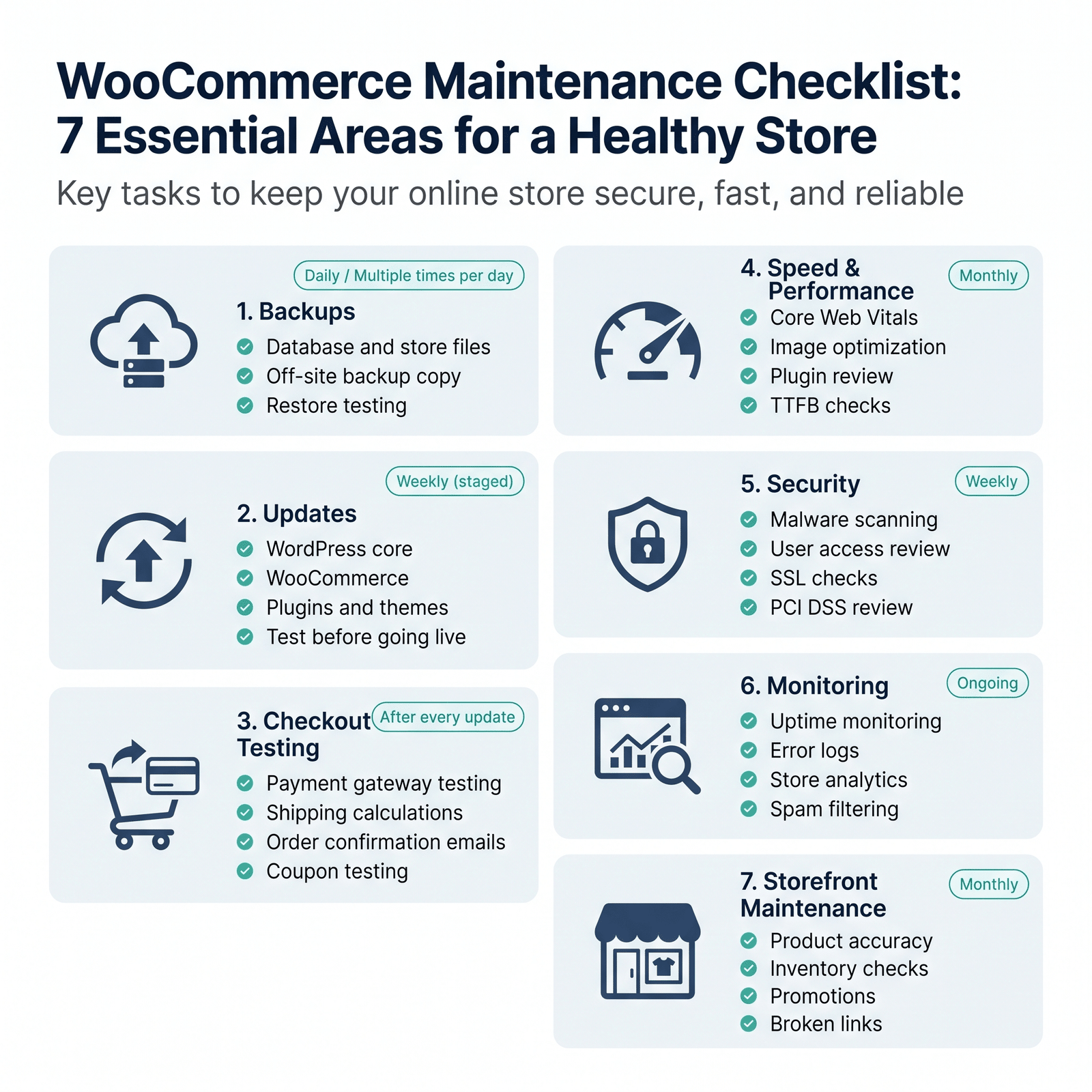
This checklist covers every area of WooCommerce maintenance that matters: backups, updates, checkout testing, speed, security, monitoring, and storefront hygiene. Each section explains what to do, how often to do it, and what goes wrong when it gets skipped. At the end, the full checklist is summarized in a single reference table you can use to build your own schedule.
If you are new to WooCommerce or are setting up a maintenance process for the first time, the WooNinjas WooCommerce services have additional context on what a healthy WooCommerce setup looks like from day one.
Why WooCommerce Stores Need More Maintenance Than Standard WordPress Sites
A standard WordPress blog needs maintenance, too, but the consequences of getting it wrong are limited. A broken blog shows an error page. A broken WooCommerce store loses orders, fails payment transactions, and potentially exposes customer data.
WooCommerce adds several layers of complexity that standard WordPress maintenance does not account for. The database changes constantly as orders come in. Payment gateway connections can silently break after plugin updates. Shipping calculations depend on a stack of rules and third-party APIs. Customer data carries legal obligations under GDPR and PCI DSS that do not apply to a content-only site.
The result is that WooCommerce maintenance needs to be more frequent, more structured, and more thoroughly tested than maintenance for a typical WordPress site. The WooNinjas guide to PCI DSS compliance covers the specific security obligations that apply to any store collecting payment information.
WooCommerce Maintenance Checklist: All 7 Areas
The table below gives the full checklist at a glance. The sections that follow explain each area in detail.
1. Backups
Backups are the foundation of every WooCommerce maintenance plan. Everything else on this list is damage prevention. Backups are your recovery option when damage happens anyway.
What a WooCommerce backup needs to include
- The full WordPress database, including all WooCommerce tables (orders, customers, product data, reviews, and coupons).
- All WordPress files: wp-content, including your theme, plugins, and uploaded media.
- Your wp-config.php and any custom configuration files.
A backup that only covers the database without the file system leaves you unable to restore a functioning site. Both components are required.
How often to back up
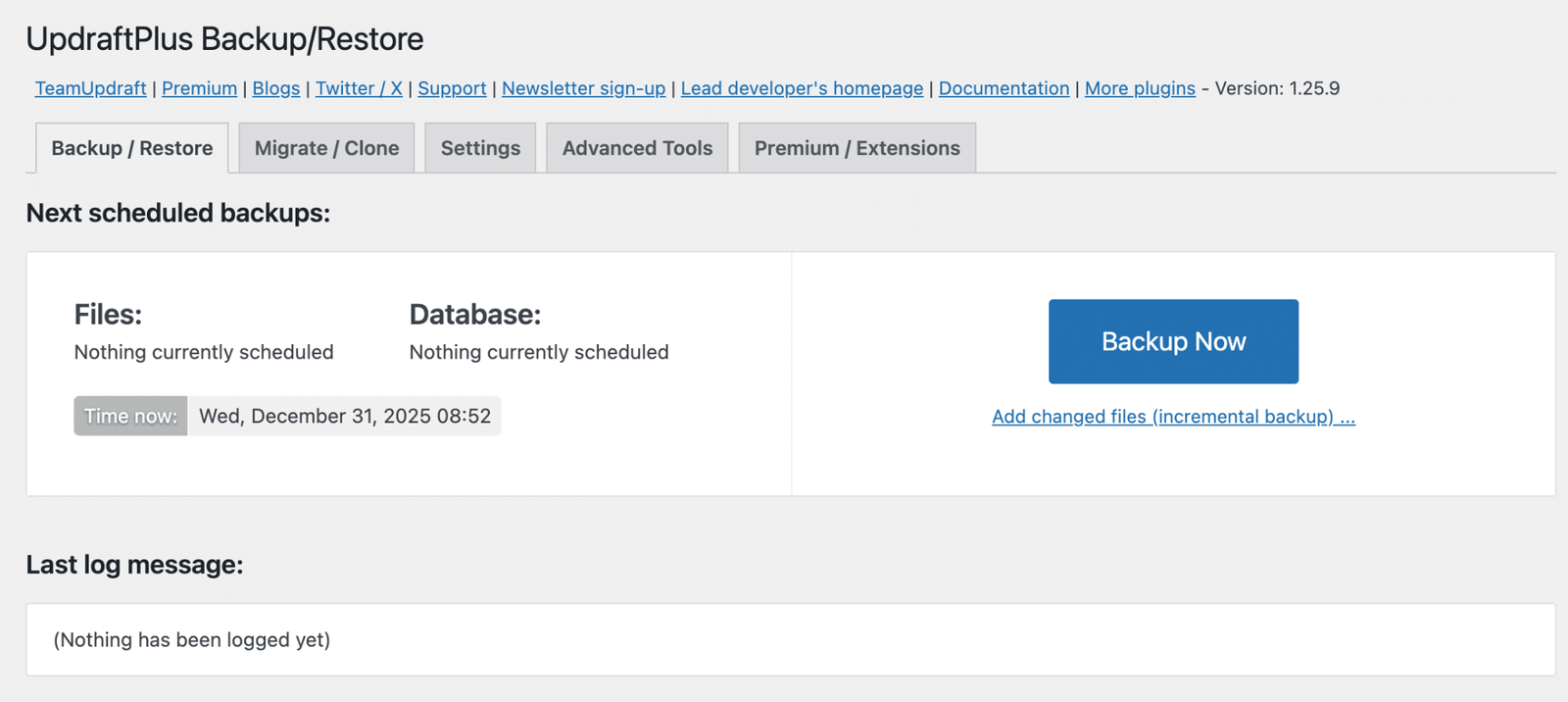
Daily backups are a good starting point for many stores that are always open. Stores with high order volume, such as those running flash sales or promotions, should consider backing up multiple times per day or using incremental backups that capture changes as they happen. A static site can use weekly backups. A store cannot.
- If you have a store with many transactions, you might want to use additional backups or incremental backups to reduce the amount of data lost.
- Incremental backups are useful for stores with frequent order, inventory, or customer data changes.
- Off-site copy: at least one backup copy should be stored away from your main hosting environment, whether that is a cloud storage service or a local drive.
- Restore test: run a restore test on a staging environment at least once per quarter to confirm your backups actually work.
The restore test is the step most store owners skip. A backup you have never tested is an assumption, not a guarantee.
2. Updates
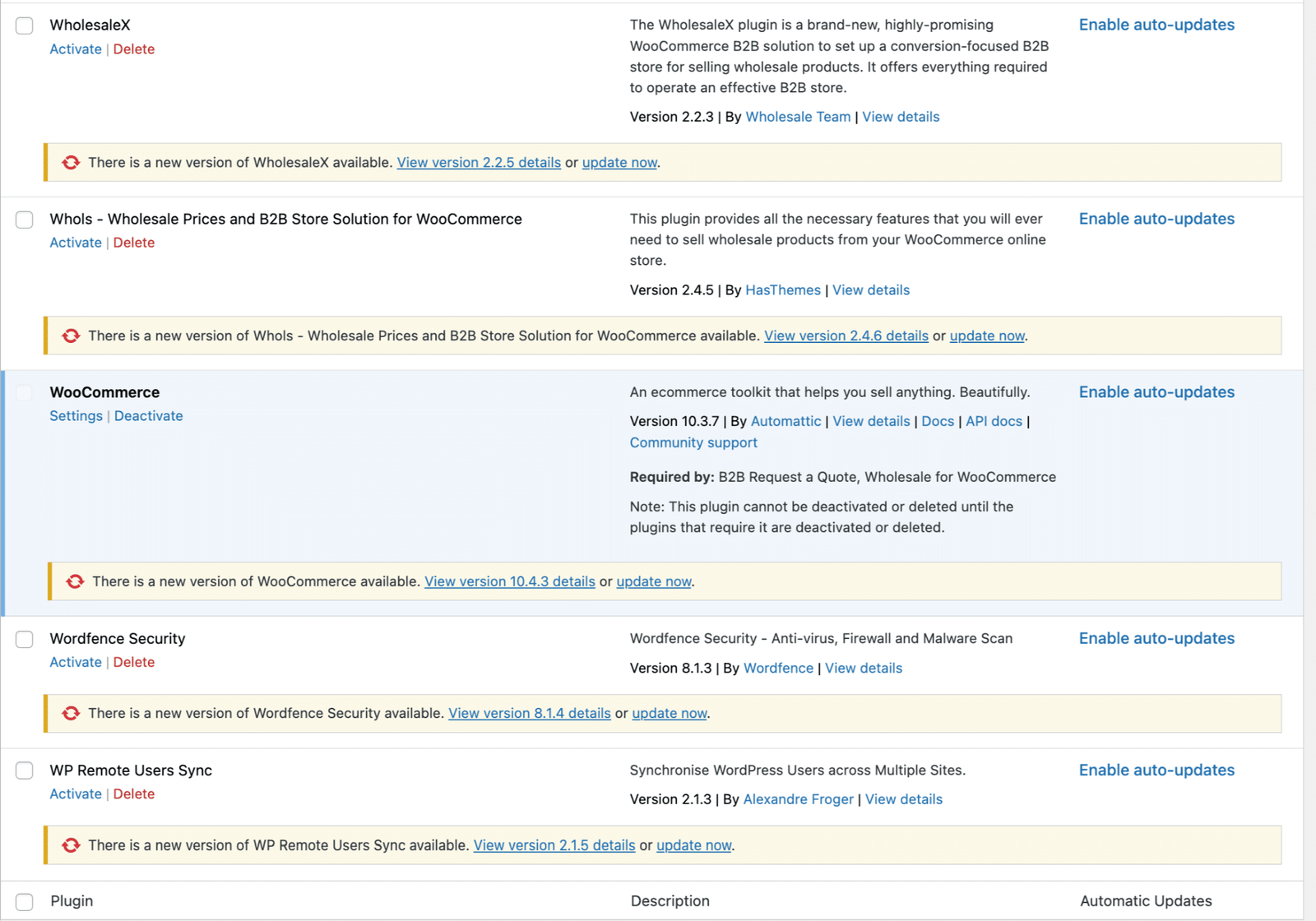
To keep WooCommerce running, you need to ensure that WordPress core, WooCommerce, your theme, and any plugins you have installed are up-to-date. Outdated software can create security risks as attackers often take advantage of known vulnerabilities in outdated components. Routine security and technical audits can identify outdated software, compatibility issues, and potential risks before they affect your store.
The answer is a workflow for staging. The update should first be pushed to a staging environment, the store should be tested thoroughly, and only then should the update be pushed to the live site.
What to update and in what order
- WordPress core first. Core updates set the foundation that everything else depends on.
- WooCommerce plugin. Update immediately after the core is confirmed stable.
- Payment gateway plugins. These have the highest risk if something breaks post-update.
- Other WooCommerce extensions and plugins, one at a time if possible.
- Theme. Update last, as theme updates sometimes reset customisations.
Updating everything at once on a live site is the fastest way to create a situation where something breaks, and you cannot tell which update caused it. The staged, sequential approach takes longer but produces a site you understand and can roll back precisely.
WooNinjas handles staged updates as part of our WooCommerce maintenance plans, with pre-push testing on a staging environment before any update goes to the live store.
3. Checkout Testing
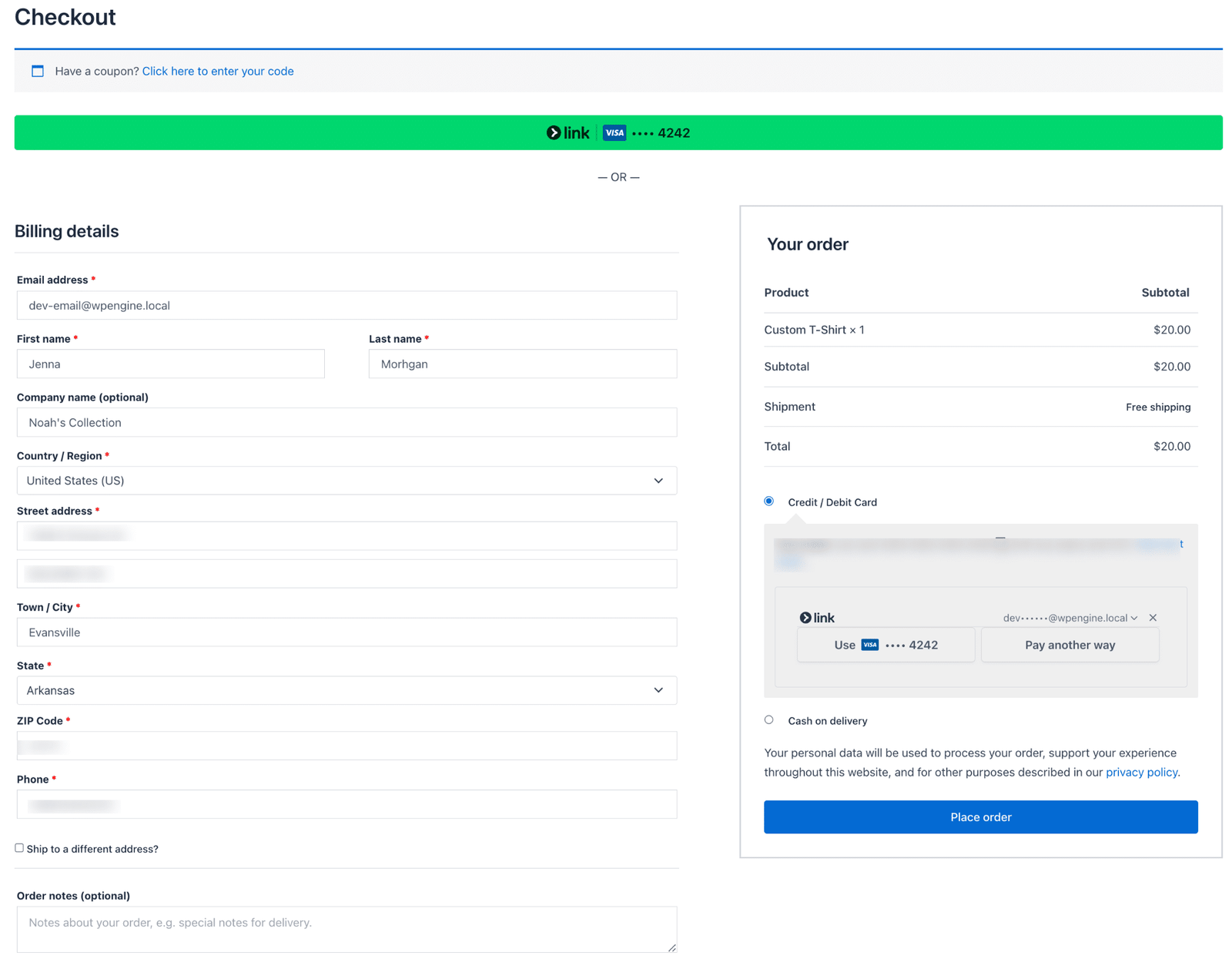
The checkout process is the most critical part of any WooCommerce store. It is also the part most likely to break silently after an update, because payment gateway failures and shipping calculation errors do not always throw a visible admin notice.
Testing the checkout after every update is not optional. A broken checkout that goes undetected for even a few hours can mean lost orders that never recover.
What to test after every update
- Add a product to the cart and proceed through checkout as a customer would.
- Verify that shipping costs are calculated correctly for at least two different shipping zones.
- Complete a test order using a sandbox or test mode on your primary payment gateway.
- Confirm that the order confirmation email is sent correctly.
- Check that the order appears correctly in the WooCommerce orders panel.
- Test any active discount codes to confirm they apply at the correct rate.
Most payment gateways provide a sandbox or test mode that lets you submit orders without processing real charges. Use it. If your payment provider does not offer a test mode, a low-value product with a trusted coupon applied is the alternative.
Looking for a Ready-Made Solution?
Explore our WordPress, WooCommerce, and LMS plugins built to extend functionality without custom development.
| If this checklist reads like a part-time job, that is because it is. Many small store owners initially manage maintenance themselves before moving to a managed solution as their operational needs increase. The WooNinjas WooCommerce maintenance plans cover every task on this checklist: daily backups, staged updates, checkout testing, security scans, speed monitoring, and monthly reporting. Ten-plus years of WooCommerce experience on every plan. |
4. Speed and Performance
Page speed directly affects conversion rates and search rankings. For a WooCommerce store, slow load times on product pages and checkout translate directly into abandoned carts and lost revenue.
Speed testing shouldn’t be something you do when a customer complains. It should be part of your monthly WooCommerce maintenance routine. Monitor Core Web Vitals: LCP, INP, CLS, additional diagnostics like TTFB and TBT can be very helpful in finding performance bottlenecks.
Monthly speed maintenance tasks
- Run a Core Web Vitals report via Google Search Console and note any pages in the Poor or Needs Improvement range.
- Check that product images are compressed and served in a modern format. Uncompressed images on product pages are the most common speed killer on WooCommerce stores.
- Audit installed plugins. Every active plugin adds to page load time. Remove any that are deactivated or unused.
- Confirm your caching configuration is active and covering the right pages. WooCommerce cart and checkout pages should be excluded from page caching.
- Use a third-party speed tool to check TTFB. A high TTFB may point to a problem with your server response, hosting, database, or backend application.
If your WooCommerce store is running slow and standard caching has not resolved it, the WooNinjas WooCommerce customization team can audit your full performance stack and identify whether the bottleneck is hosting, theme, plugins, or database queries.
5. Security
Security is where WooCommerce maintenance diverges most sharply from maintaining a standard WordPress site. The store collects customer information such as names, contact details, addresses, and order information. Handling of payment data is determined by your payment gateway settings.
SSL and HTTPS
An SSL certificate is non-negotiable for any store processing payments. Every page of your store should load over HTTPS. Check your SSL certificate expiry date monthly and set a calendar reminder for 30 days before it expires. An expired SSL certificate will cause browsers to display a security warning on your store, which will stop most visitors from proceeding.
Login and access protection
- Limit login attempts to prevent brute force attacks. Most security plugins include this as a standard feature.
- Enforce strong password requirements for all admin and editor accounts.
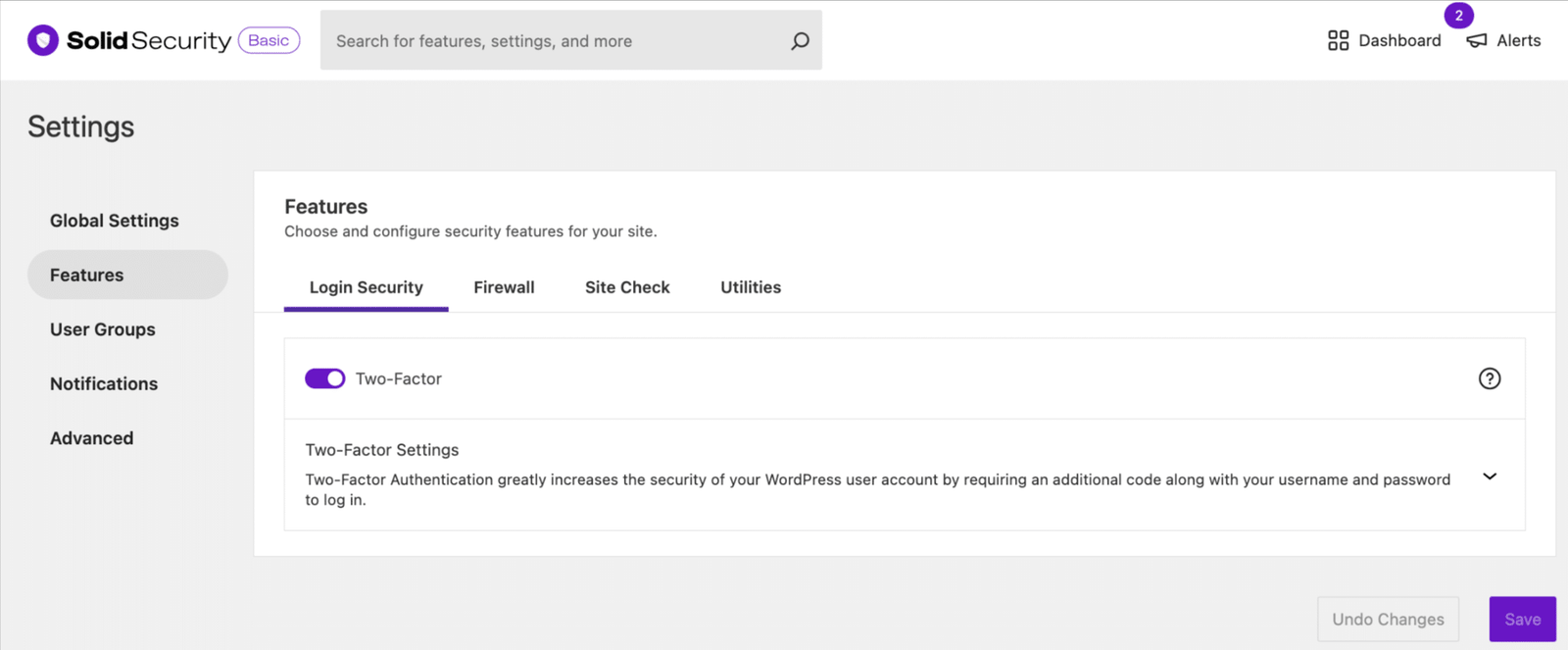
- Enable two-factor authentication on the WordPress admin account and any account with payment or order access.
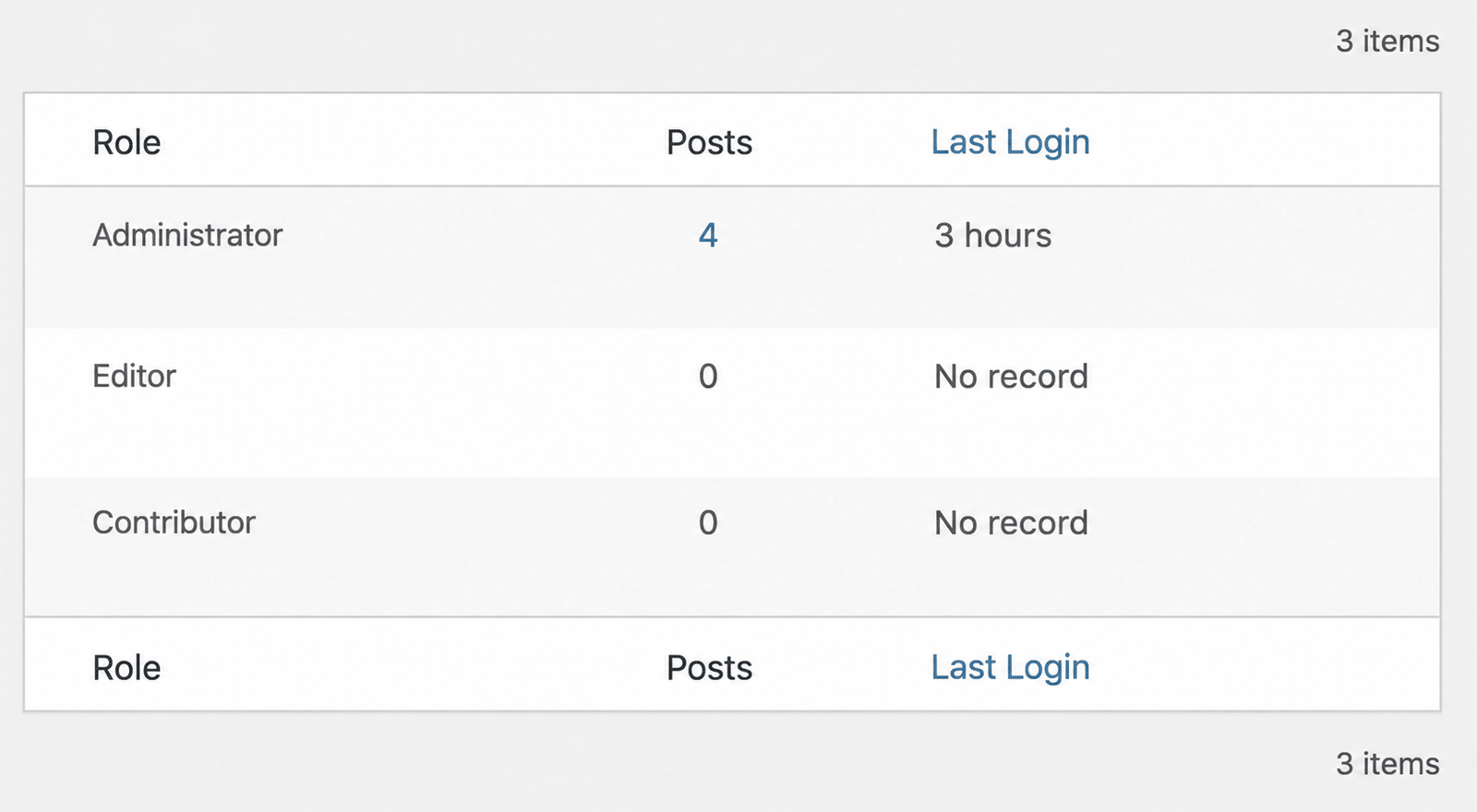
- Review the admin user list monthly. Remove any accounts that are no longer active or that belong to former contractors.
Malware scanning
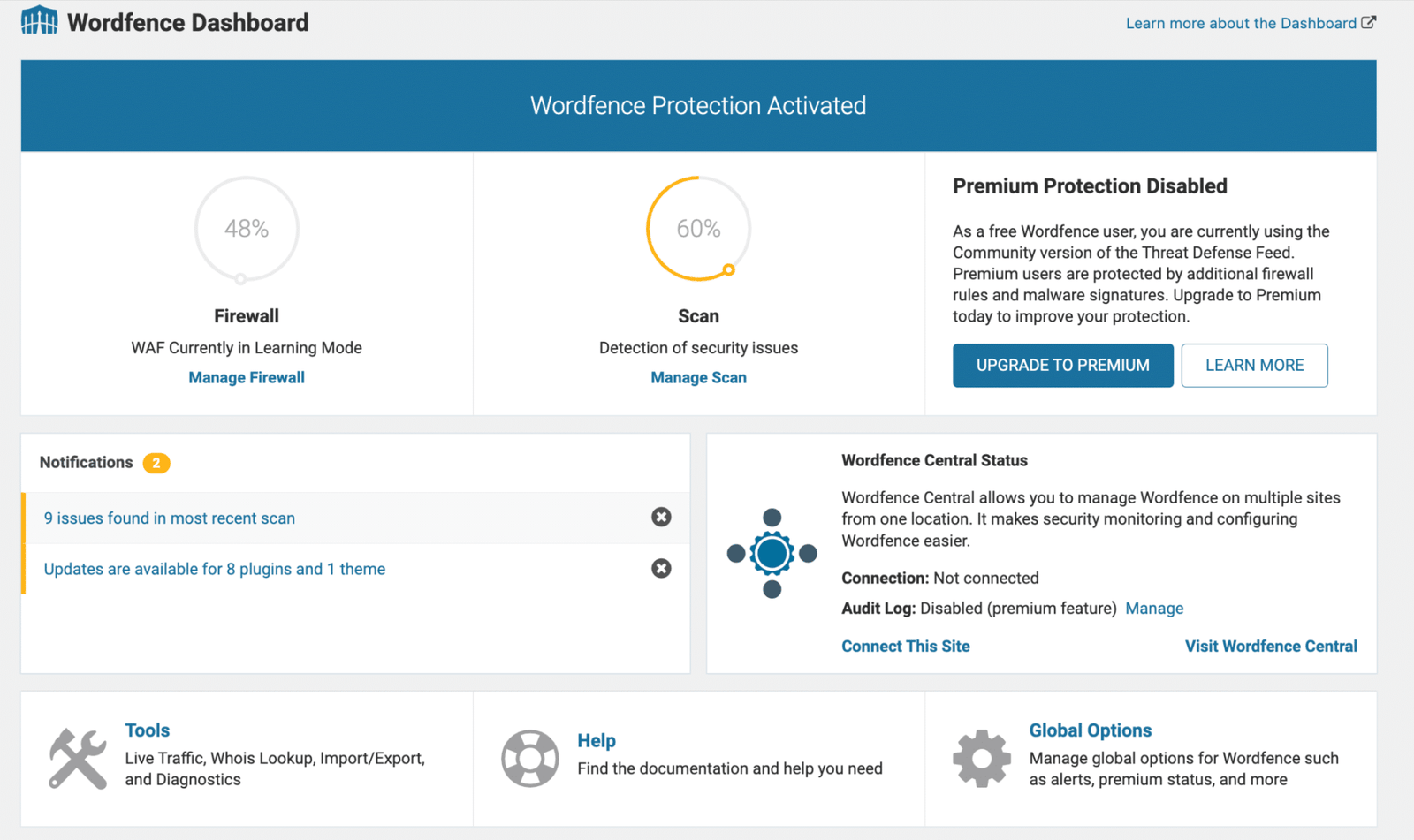
Weekly malware scans are a standard part of WooCommerce maintenance. WooNinjas handles malware scanning and remediation as part of our WordPress security services and our WooCommerce maintenance plans. For stores running an in-house process, a reputable scanning tool that runs on a schedule and alerts on detection is the minimum requirement.
PCI DSS compliance
WooCommerce documentation confirms PCI DSS applies where cardholder data is stored, processed, or transmitted. Hosted payment solutions can also be within scope. The specific requirements depend on how your store handles payment data. See the WooNinjas guide on PCI DSS for a detailed breakdown of what applies to WooCommerce stores and the steps required to achieve compliance.
6. Monitoring
Active monitoring catches problems before customers report them. The key areas to monitor on a WooCommerce store are uptime, analytics, and error logs.
Uptime monitoring
Downtime on an e-commerce store means lost orders. Uptime monitoring tools check your store at regular intervals and alert you immediately when it goes down. Most monitoring services offer free tiers with 5-minute check intervals, which is sufficient for most WooCommerce stores. Set up alerts to go to both the site owner and the development team.
Analytics
Review your WooCommerce analytics at least monthly. The metrics to watch are: conversion rate, average order value, cart abandonment rate, and refund rate. Sudden changes in any of these metrics are often the first signal that something technical has changed, a broken discount code, a checkout step that suddenly requires an extra click, or a product page that has lost its featured image after an update.
Error logs
WordPress and WooCommerce write errors to the debug log when WP_DEBUG is enabled. Review the error log weekly. Many WooCommerce issues generate logged errors well before they become visible to customers. Catching a gateway connection failure in the log is significantly cheaper than learning about it from customers who could not complete their orders.

7. Storefront Maintenance
The operational side of WooCommerce maintenance covers the store itself: product catalog accuracy, pricing, promotions, and broken links. This work does not require technical skills but requires consistent attention.
- Product page accuracy: review product descriptions, pricing, inventory counts, and images on a monthly cycle. Out-of-date product pages hurt conversion and trust.
- Discontinued products: remove or redirect products that are no longer available. A 404 on a product page that used to rank well wastes accumulated search equity.
- Promotions and discount codes: confirm all active discount codes have correct expiry dates and discount values. A sale that ended three weeks ago but still has an active coupon is a margin leak.
- Broken links: run a broken link check monthly. Broken internal links harm crawlability. Broken links to external resources like payment processor documentation or shipping provider terms also reflect poorly on the store.
- Reviews and spam: moderate product reviews monthly. Remove spam and respond to any negative reviews that warrant a public response.
| PRO TIP: Build your WooCommerce maintenance tasks into a shared team calendar rather than a personal to-do list. When you can see, schedule, and assign maintenance responsibilities to a named owner, you get them done. When they live in one person’s head or a private document, they get skipped the first time something more urgent comes up. For stores where maintenance is outsourced to an agency, ask for a monthly report that confirms every task was completed and dated. If your provider cannot show you that, find one who can. |
Conclusion
WooCommerce maintenance is not a single task; it is a recurring operational discipline. The checklist above covers every area that matters, but the value comes from executing it consistently rather than reactively.
Most store owners can handle basic WooCommerce maintenance tasks themselves when the store is small. As the store grows, the complexity and time commitment grow with it. At the point where maintenance is eating into your ability to focus on the business, a managed WooCommerce maintenance plan is almost always the more cost-effective option. WooNinjas has been maintaining WooCommerce stores for over a decade and handles every item on this checklist as part of our standard service.
| Stop doing maintenance. Start running your store. The WooNinjas WooCommerce maintenance plans are available in 6-month and annual options. Every plan includes backups at your required frequency, staged updates with pre-push testing, security scans, uptime monitoring, and a monthly report confirming every completed task. Plans are available for individual stores and are discounted for three or more sites. Need custom WooCommerce development alongside ongoing maintenance? The WooNinjas WooCommerce team handles both. Reach out via the WooNinjas contact page to discuss your store’s situation. |
Frequently Asked Questions
How often should WooCommerce maintenance be performed?
WooCommerce maintenance frequency varies depending on the task. Active stores should have regular backups, updates should be tested before being released to the live site, security checks should be performed regularly, and checkout should be tested after every major change.
Can I handle WooCommerce maintenance myself?
Yes, small stores with simple setups can do their WooCommerce maintenance. As your store grows, regular updates, security checks, performance monitoring, and testing take more time and need a structured process.
What is the most commonly skipped WooCommerce maintenance task?
Checkout testing is one of the most ignored WooCommerce maintenance tasks. Payment failures, shipping calculation issues, and coupon errors may disappear until customers attempt to place an order.
Do I need a staging site for WooCommerce maintenance?
A staging site is an essential part of a safe WooCommerce maintenance process. You can test plugin, theme, and WooCommerce updates before changing your live store.
What is the difference between WooCommerce maintenance and WordPress maintenance?
WordPress maintenance focuses on core updates, plugins, themes, backups, and security. WooCommerce maintenance includes those tasks as well as store-specific tasks such as checkout testing, payment monitoring, inventory checks, and order management.
Need Ongoing WordPress Maintenance & Support?
We handle updates, performance monitoring, security hardening, and technical fixes so your WordPress and WooCommerce site stays stable and secure.
Can You Sell Services on WooCommerce? A 2026 Complete Guide
Learn how to sell services on WooCommerce with this easy guide. Start selling consultations and digital services today.
Read More...
WooCommerce vs Shopify: The Honest 2026 Comparison
Compare WooCommerce vs Shopify based on costs, flexibility, scalability, and business needs. Find the right e-commerce platform in 2026.
Read More...
How to Build a Full-Featured B2B WooCommerce Store (2026 Guide)
Learn how to build a B2B WooCommerce store with wholesale pricing, customer roles, quote requests, and a step-by-step setup guide…
Read More...
