How to Use LearnDash Student Quiz Builder (2026 Guide)
Learn how to use LearnDash Student Quiz Builder to let students create practice quizzes from the front end.

In LearnDash, instructors typically create quizzes, and students take them. But many course creators also need a way for their learners to practice on their own without waiting for administrators to create new assessments.
The LearnDash Student Quiz Builder add-on allows students to build practice quizzes from the front end of a WordPress site. Learners can select question categories and the number of questions and generate quizzes from the existing question bank without logging in to the WordPress dashboard.
This guide explains how the add-on works, how to install and configure it, how to set up the multi-question categories system that powers quiz generation, how to manage student-created quizzes from the admin, and how to use the feature effectively in different learning contexts. It consolidates two previous posts into one complete reference.
Can Students Create Their Own Quizzes in LearnDash?
LearnDash doesn’t have a built-in feature for students to create quizzes by themselves. By default, course instructors or administrators create and administer quizzes.
This functionality is improved with the Student Quiz Builder add-on that lets students create practice quizzes from the front end. Students can select categories, set the number of questions, and create self-assessment quizzes from the questions already available in the LearnDash question bank.
What the LearnDash Student Quiz Builder Does
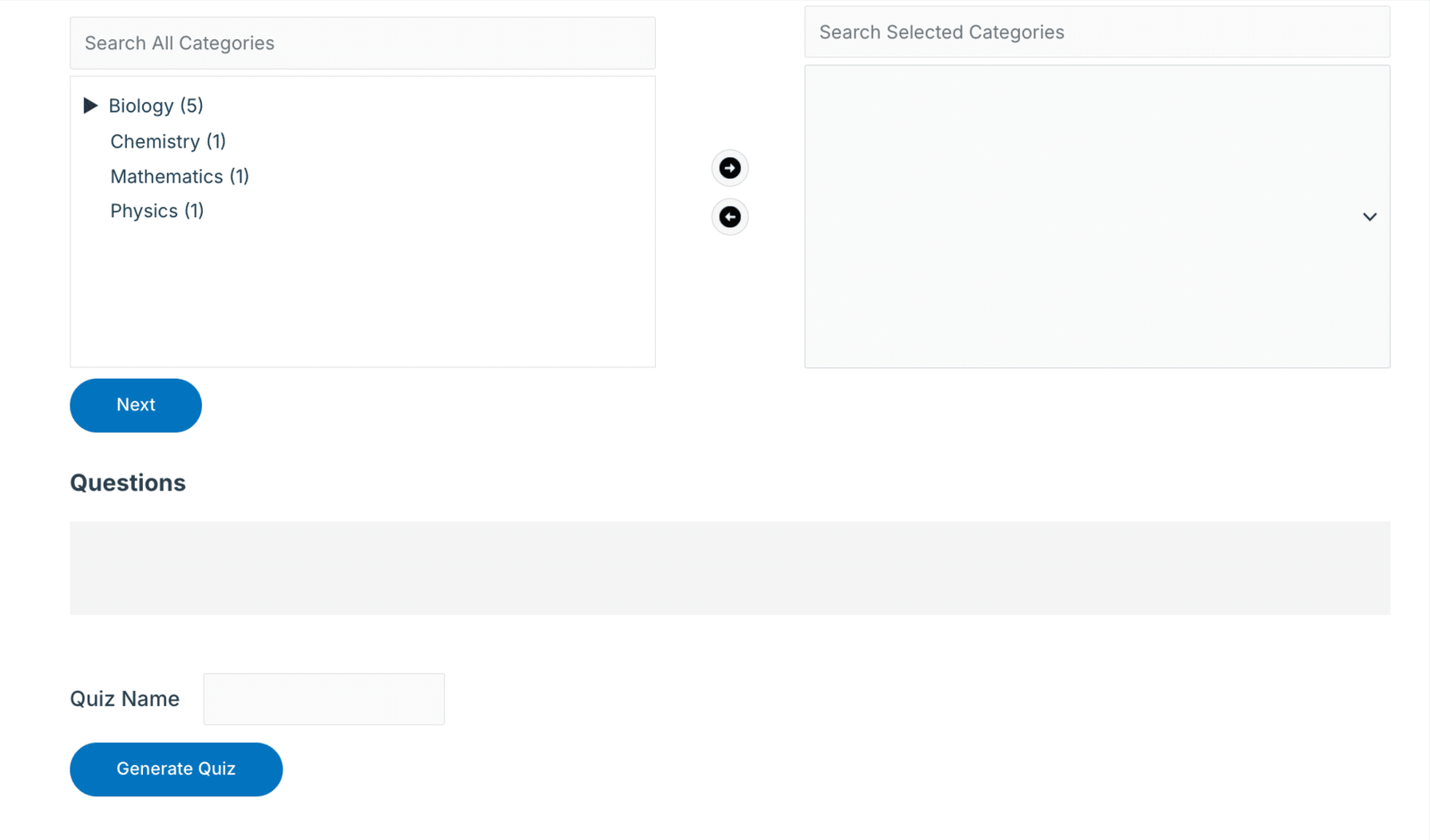
The Student Quiz Builder add-on adds a front-end quiz generation interface to any page on your LearnDash site using a simple shortcode. Once the page is live, a logged-in student can:
- Select one or more question categories from a dropdown.
- Specify how many questions they want in the quiz.
- Click Generate Quiz.
- Take the quiz immediately and review their answers for self-assessment.
The system draws questions randomly from the categories selected. Students never see the admin panel, never touch quiz settings, and cannot affect the question bank itself. The quiz builder is read-only from the student side: it generates a quiz from your existing content and presents it for practice.
The Student Quiz Builder add-on is available from the site and requires an active LearnDash installation and a prepared question bank before students can start generating quizzes. It is built and maintained by WooNinjas and is compatible with current LearnDash versions.
Why Let Students Build Their Own Quizzes
Practice will help you remember things
Having to take and build a quiz makes students pull information from memory, which is much more effective for retention than just re-reading notes. By choosing the categories they want to practice, students are making a conscious decision about where their gaps are, making the retrieval exercise more targeted.
Graded assessments are not the same as low-pressure practice.
Quizzes created with the front-end builder are practice quizzes, not formal assessments. It enables students to play with their self-assessments without any risk and promotes more frequent and honest self-assessment. Test quizzes expire after 24 hours and do not keep a permanent record. They really are throwaway tools for daily review.
Useful for any kind of learning
- Certification and Test Prep Courses: Students focus on the topic areas they struggle with most, rather than retaking full practice exams.
- Academic Courses (school or university): Module-by-module practice quizzes created from chapter categories aid students in preparing for exams in an organized manner.
- Compliance and corporate training: employees have the option to self-test on specific policy areas, bypassing the need for instructor-led training. Actual Quizzes: Training managers can view saved statistics to monitor engagement.
Before You Start: What You Need
- An active LearnDash installation on WordPress.
- A populated LearnDash question bank. The quiz builder draws from existing questions; it does not create new ones.
- The LearnDash Student Quiz Builder add-on, available through WooNinjas’ LearnDash add-ons collection.
- Multi-question categories configured in your question bank (covered in Step 3 below). Without categories, the builder has nothing to filter by.
Step 1: Install and Activate the Add-On
- Log in to your WordPress admin dashboard and follow the official plugin installation process.
- Go to Plugins > Add New > Upload Plugin.
- Select the .zip file downloaded from WooNinjas and click Install Now.
- Click Activate once installation completes.
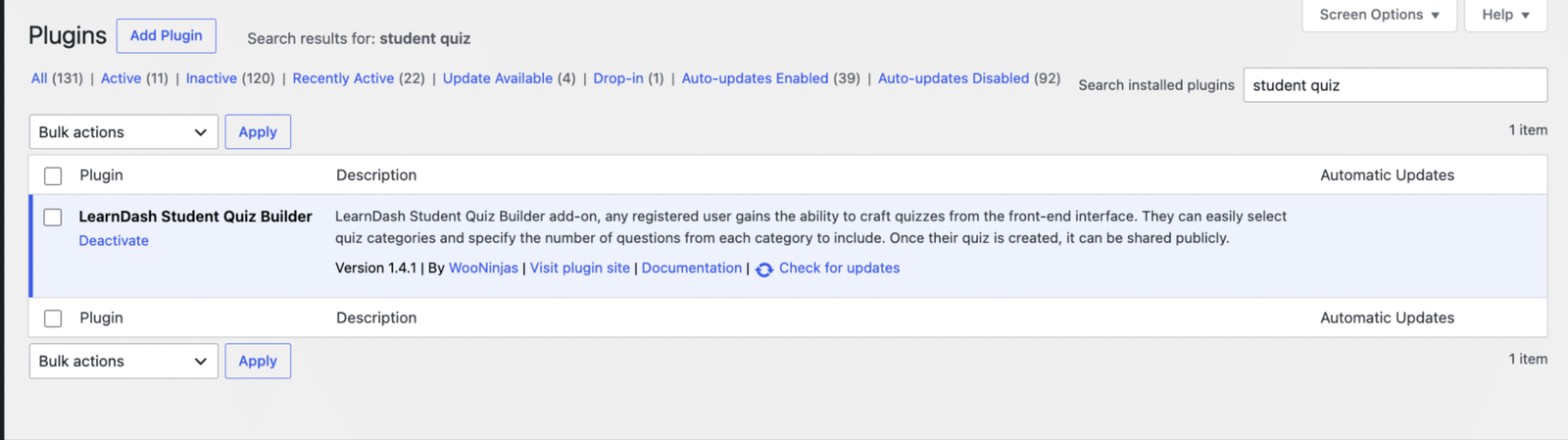
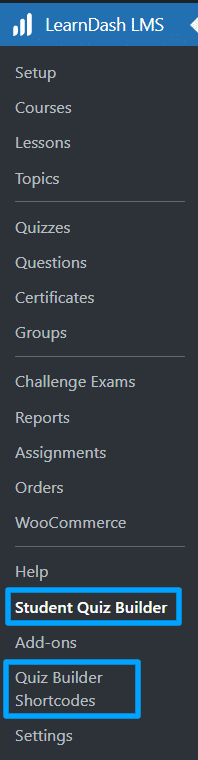
- Navigate to LearnDash LMS > Student Quiz Builder in the sidebar to confirm the add-on is active and enter your license key.
Step 2: Create the Front-End Quiz Builder Page
The student-facing quiz builder is delivered via a shortcode. Add the shortcode to any WordPress page to make the quiz builder available at that URL. The basic shortcode is:
| [ld_student_quiz_builder] |
- Go to Pages > Add New.
- Give the page a clear title visible to students (for example, Practice Quiz Builder or Build a Practice Quiz).
- Add the shortcode to the page content area.
- Publish the page.
- Link to the page from your course navigation, student dashboard, or sidebar so students can find it
Restricting categories per page using shortcode parameters
On multi-course sites, you may want to place a quiz builder on each course page, showing only that course’s categories. The shortcode accepts a categories parameter that limits which Multi-Question Categories appear in the builder:
Replace the slugs with the actual slugs of your multi-question categories. Students using this page only see the specified categories in the dropdown, rather than your full question bank. This is especially useful for large sites where a student studying one course should not see categories from unrelated courses.
Step 3: Configure Multi-Question Categories
The LearnDash Student Quiz Builder replaces standard LearnDash question categories with its own Multi-Question Categories system. This separate taxonomy allows administrators to create a deeper hierarchy and organize questions by course, module, topic, or difficulty level.
Enable Multi-Question Categories
11. Go to:
LearnDash LMS → Questions in the WordPress sidebar.
12. In the Actions dropdown (top-right of the Questions screen), select:
Multiple Question Categories
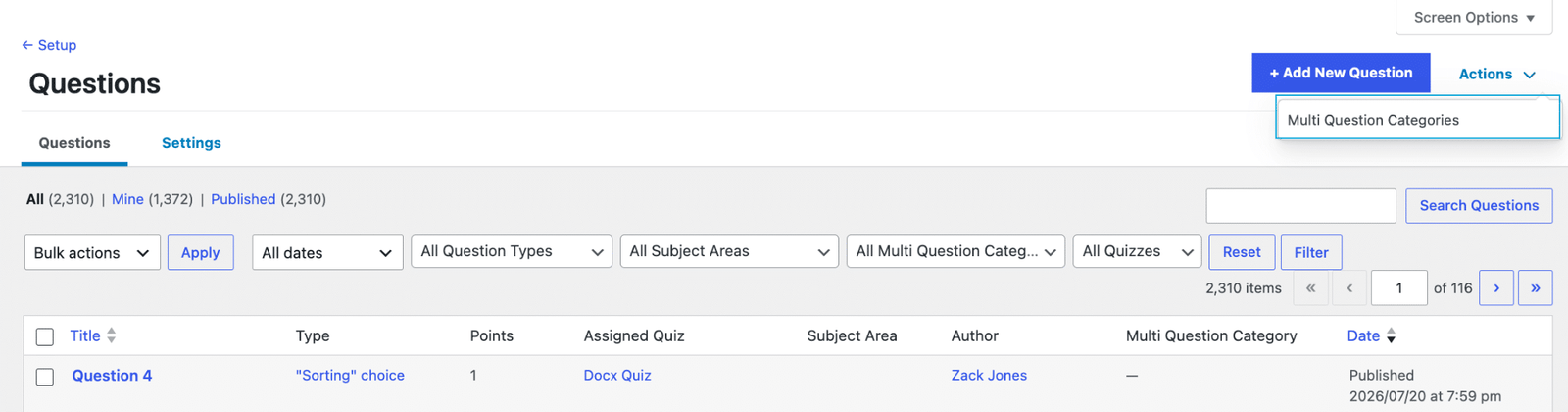
13. Save the setting.
14. After enabling it:
- The multi-question category taxonomy becomes active.
- Go to:
LearnDash LMS → Student Quiz Builder → Categories - You will now see options to create:
- Parent categories
- Child categories
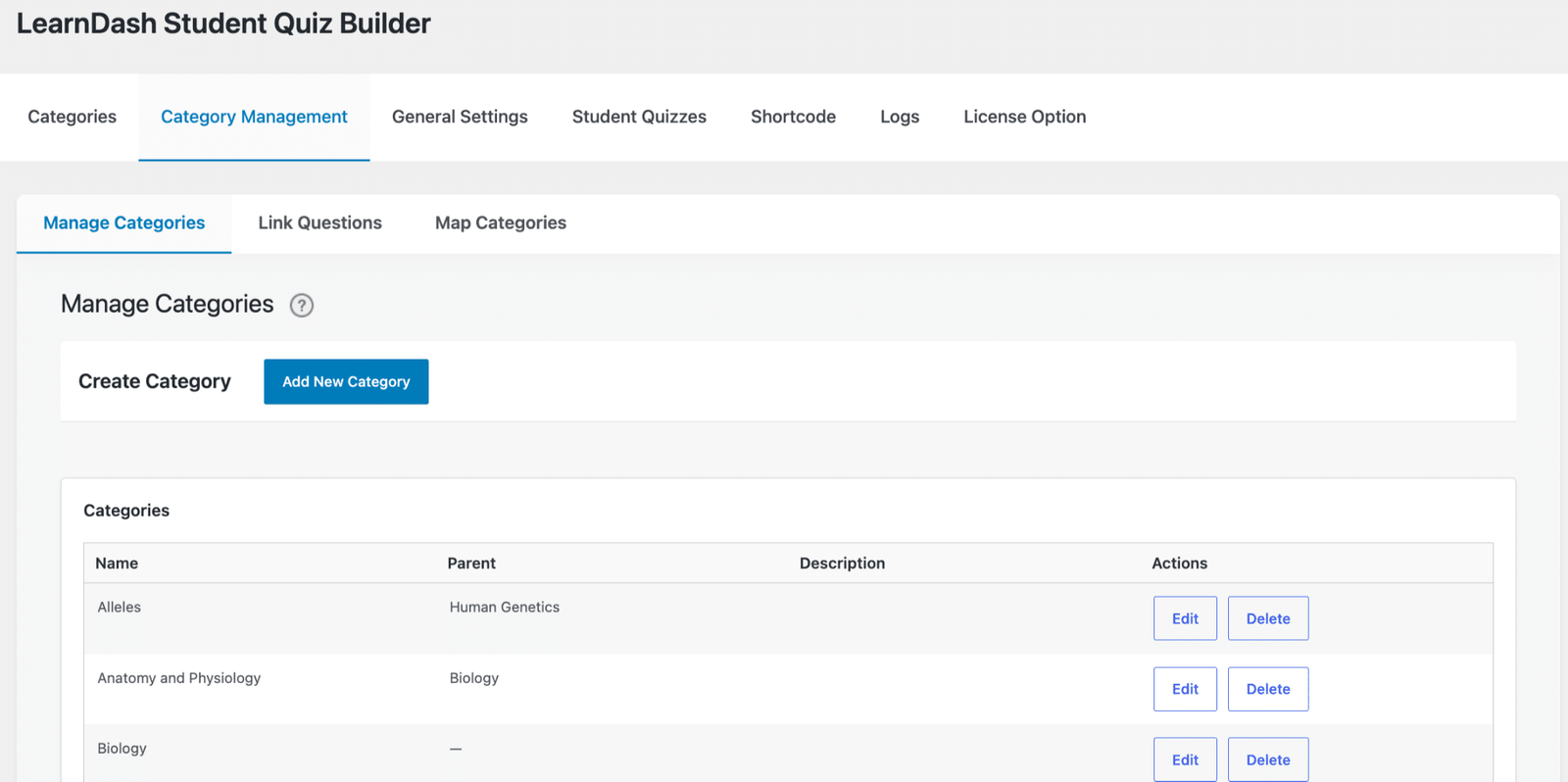
Create your category structure.
Multi-question categories support a parent–child hierarchy. A parent category might represent a course or module; child categories represent specific topics or difficulty levels within it. This hierarchy appears in the student-facing builder as a nested dropdown so students can navigate to the specific level they want to practice.
- Go to LearnDash LMS > Student Quiz Builder > Categories.
- Click Add New Category. Enter the category name and, if applicable, select a parent category.
- Repeat for each category and subcategory in your question bank.
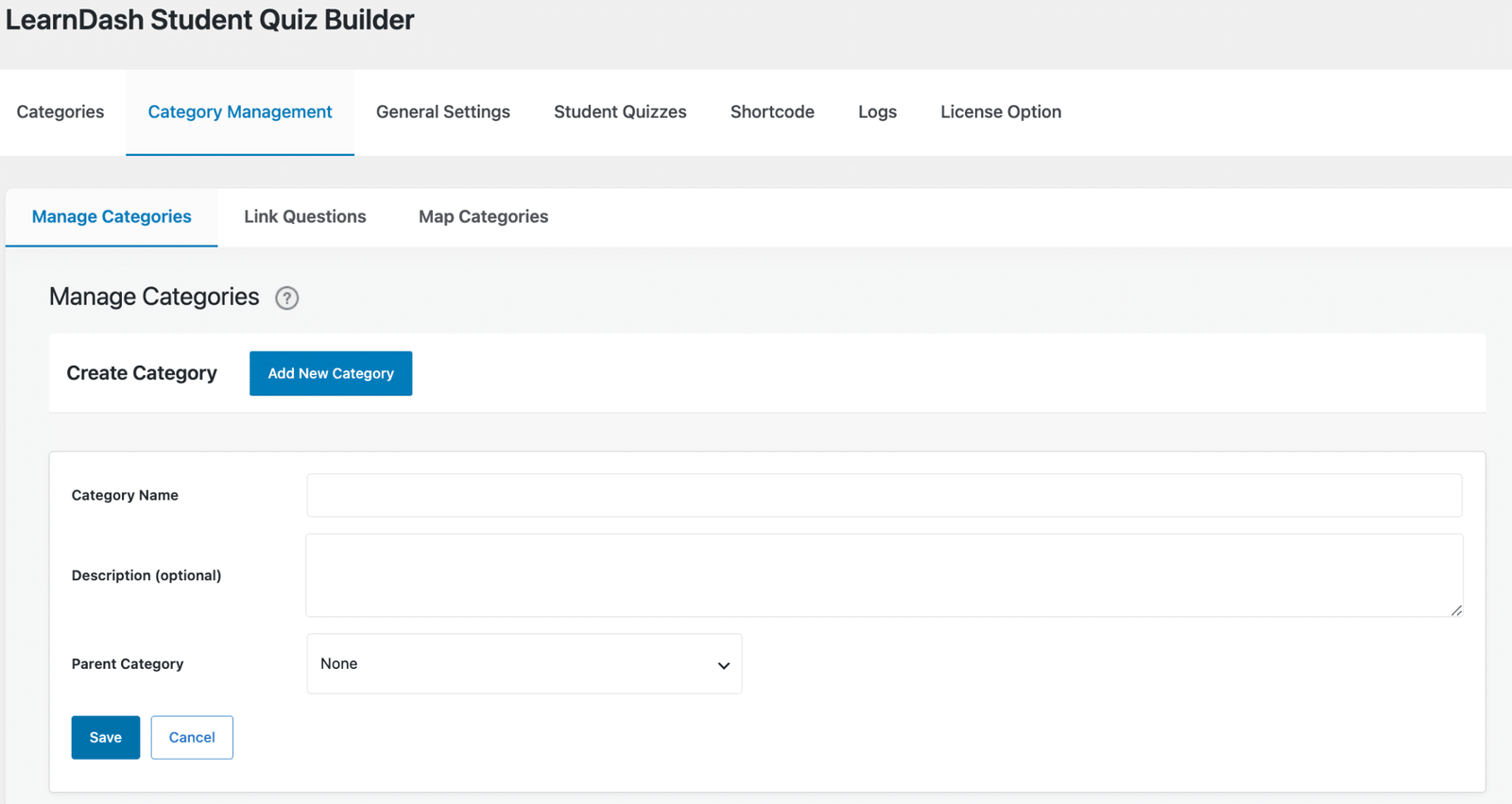
Use naming that makes sense to students, not to administrators.
For example:
Poor structure:
- Set A
- Module 3
- Questions 2026
Better structure:
Biology Course
- Cell Structure
- Beginner Questions
- Advanced Questions
Clear categories help students create quizzes that match their learning goals.
Assign Multi-Question Categories to questions.
- Go to LearnDash LMS > Questions.
- Open the edit screen for each question.
- Find the Multi-Question Category meta box on the right side of the editor.
- Select one or more categories for the question. A single question can belong to multiple categories, which allows it to appear in quizzes built from any of its assigned categories.
- Save the question.
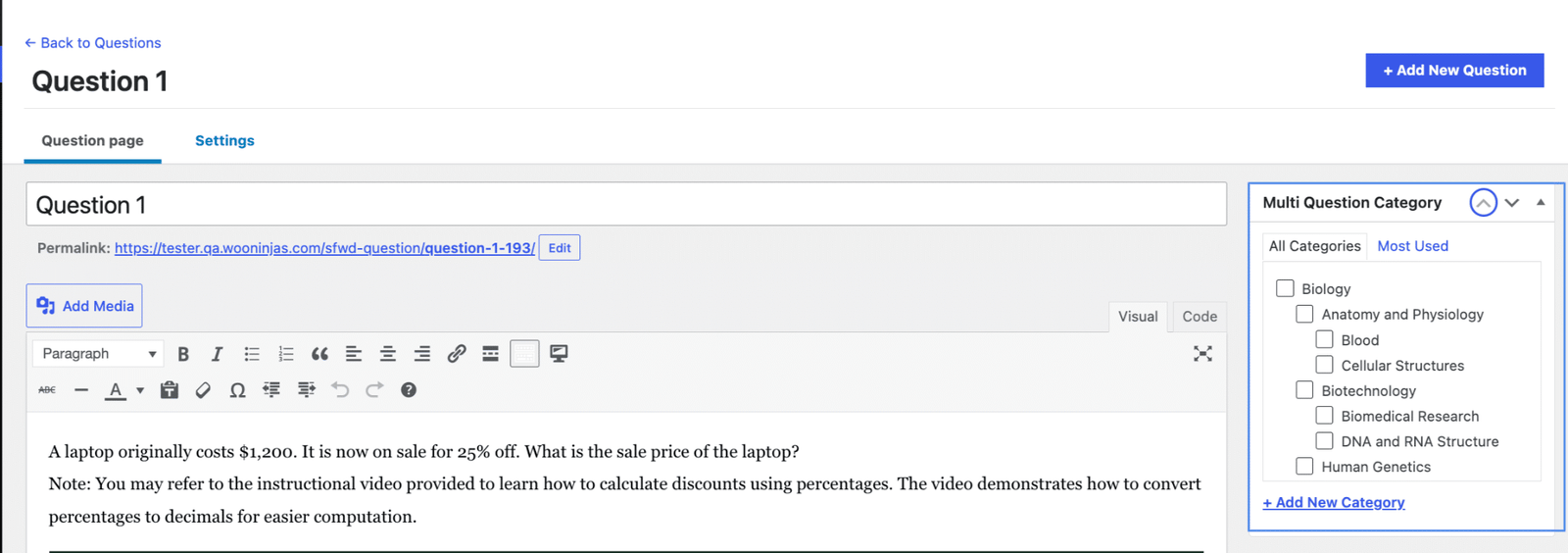
For large question banks, you can also map standard LearnDash categories to Multi Question Categories in LearnDash LMS > Student Quiz Builder > Category Management. This syncs questions from existing LearnDash category assignments into the Multi-Question Category system automatically, saving time if your question bank is already organized by standard categories.
Step 4: Test the Student Experience
Before making the quiz builder available to real students, test the full flow using a test student account. Log in as a student (not as admin), navigate to the quiz builder page, select a category, specify a question count, and generate a quiz.
Looking for a Ready-Made Solution?
Explore our WordPress, WooCommerce, and LMS plugins built to extend functionality without custom development.
- Verify that the correct categories appear in the dropdown based on your configuration.
- Confirm that generating a quiz produces the expected number of questions from the correct category.
- Check that the quiz takes correctly and shows results after submission.
- Test the shortcode category filter if you are using restricted category pages.
| Need help extending your LearnDash setup? WooNinjas helps course creators customize LearnDash websites, improve learning workflows, and build additional LMS functionality. If your quiz requirements go beyond the default feature set, our LearnDash customization services can help create a solution based on your course structure and learner needs. |
Test Quizzes vs Real Quizzes
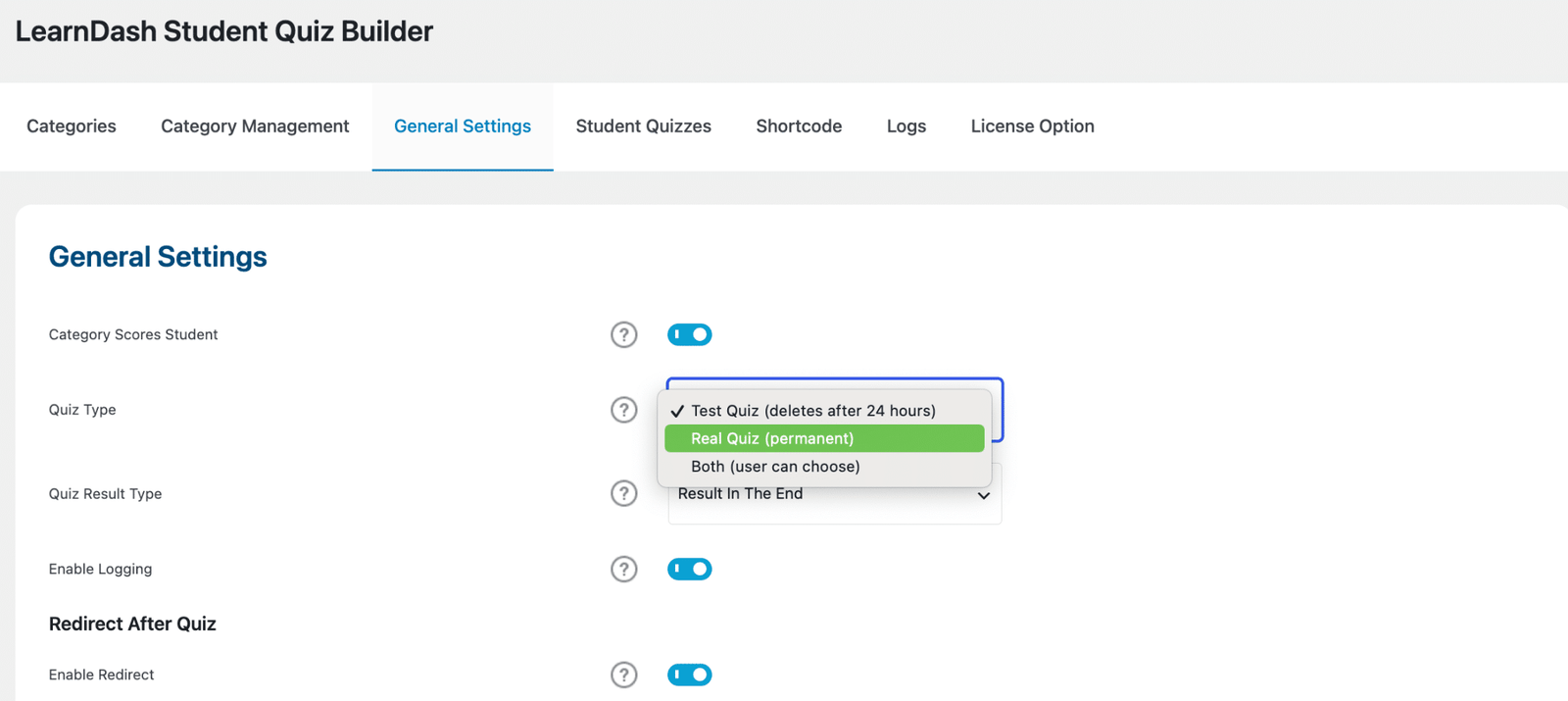
The LearnDash Student Quiz Builder supports two quiz types, and students choose which to create when generating a quiz:
Test Quiz
A test quiz expires automatically after 24 hours. It is designed for low-stakes daily practice where the student wants to test themselves without leaving a permanent record. Expired test quizzes are removed automatically from the admin dashboard. Students who want to practice the same topic again simply generate a new test quiz. This is the recommended default for routine self-assessment.
Real Quiz
A real quiz is saved permanently and includes full statistics. The student’s score, time taken, and question-level results are stored and visible from the admin dashboard. Real quizzes are useful when you want students to track their progress over a period of time, or when training managers need evidence of engagement with specific topics. Real quizzes remain in the admin panel until manually deleted.
Managing Student-Created Quizzes From the Admin
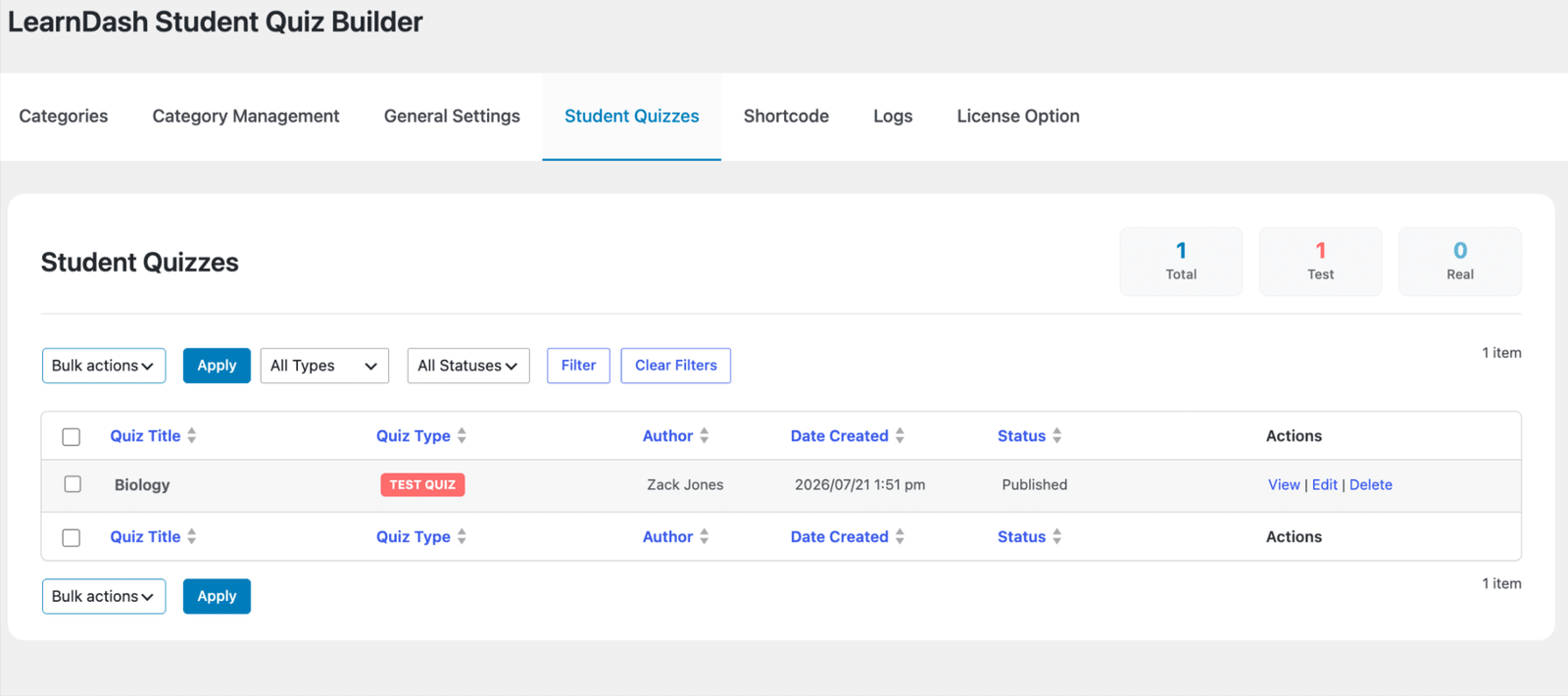
All student-created quizzes, both Test and Real, are visible from LearnDash LMS > Student Quiz Builder in the WordPress admin. From this dashboard, administrators can:
- View all quizzes created by students across the site.
- Filter quizzes by status: Published, Private, Pending, or Draft.
- View, edit, or delete individual quizzes.
- Distinguish between Test Quizzes (which expire) and Real Quizzes (which are saved).
Note on front-end limitations: Students cannot view their quiz statistics from the front end. Stats are only visible to administrators in the back end. Students also cannot edit or delete quizzes they have created once submitted. If a student creates a quiz using a public setting, the quiz is accessible to anyone with the URL. Quiz visibility cannot currently be controlled at the student level from the front end.
LearnDash Student Quiz Builder Limitations
The quiz builder extends LearnDash quiz functionality, but it works within the existing structure of your LMS.
Some limitations to consider:
- Students need an existing question bank to generate quizzes.
- The quality of generated quizzes depends on your category organization.
- Student-created quiz history and analytics are managed from the WordPress dashboard.
- Custom reporting or advanced student dashboards may require additional development.
Educator Best Practices
Build a structured question bank before enabling the feature
The quiz builder is only as useful as the question bank behind it. Build out your question bank before enabling the feature for students. A category with three questions produces predictable, repetitive quizzes. Aim for at least 20 to 30 questions per leaf category to ensure varied output across repeated attempts.
Align categories with how students think, not how you think
Students navigate your category structure when building quizzes. Design the hierarchy around their mental model of the course, not your internal tagging conventions. Chapter and topic names are more useful than content types or internal codes.
Add instructions on the quiz builder page.
The shortcode renders a functional interface but no explanatory text. Add a brief introduction above the [ld_student_quiz_builder] shortcode explaining what students can do, which categories are available, and what the difference between a test quiz and a real quiz is. Students unfamiliar with the feature will not know these distinctions without guidance.
Place quiz builders near the relevant course content
A quiz builder placed on a generic student dashboard page is harder to use than one placed on the specific course page for which it is relevant. Consider placing course-specific quiz builder pages that are accessible from within each course, using the categories shortcode parameter to limit the categories to that course only.
Use during revision periods and exam preparation.
The quiz builder is most valuable during targeted revision. Promote it actively during review weeks, before exams, or at the end of each module. Students are far more likely to use a tool they have been explicitly pointed to with a clear reason.
| PRO TIP: Create your multi-question categories before you add questions to your quiz bank. Choose a structure that reflects your course flow, e.g., Course > Chapter > Topic > Difficulty Level. It makes it easier for students to create useful quizzes and also makes it easier for you to manage content as your LMS grows. |
Conclusion
The LearnDash Student Quiz Builder gives learners a simple way to create practice quizzes based on their own learning needs. When combined with a well-organized question bank and clear category structure, it can help students practice specific topics, review course material, and prepare more effectively without relying only on instructor-created assessments.
If you want to add this functionality to your LearnDash site, you can start by downloading the extension and setting it up with your existing courses. For more advanced requirements, such as custom quiz workflows, integrations, or LearnDash improvements, the WooNinjas team can help you plan and build the right solution for your LMS.
Ready to let students create their own practice quizzes? Download the LearnDash Student Quiz Builder add-on and add a front-end quiz creation experience to your LearnDash website.
| Ongoing Maintenance for a Reliable LearnDash Experience Keeping your LearnDash setup updated helps prevent compatibility issues and keeps your courses running smoothly. WooNinjas maintenance plans include updates, security monitoring, and regular checks to keep your LMS stable as it grows. For custom improvements or technical support, you can also contact the WooNinjas team for assistance with your LearnDash website. |
Frequently Asked Questions
Can a student create a quiz in LearnDash with admin access?
No, students don’t need to reach the WordPress admin settings to create practice quizzes from the front end with their LearnDash account.
Where do test quizzes sit in LearnDash?
Test quizzes are automatically deleted after 24 hours. They are made for fast, low-stress practice.
Can I determine which questions students will use for quizzes?
Yes, use multi-question categories and shortcode filters to show specific question groups per course or subject.
Do students have access to their quiz history and statistics?
No, students can view their quiz results upon completion, but detailed quiz statistics are only accessible in the WordPress admin dashboard.
What are Multi-Question Categories in the LearnDash Student Quiz Builder?
Multi-Question Categories help sort questions by topic, module, or difficulty so students can create more targeted practice quizzes.
Does LearnDash have a student quiz builder built-in?
No. LearnDash doesn’t have front-end student quiz creation. This functionality is added by the LearnDash Student Quiz Builder add-on.
Need Ongoing WordPress Maintenance & Support?
We handle updates, performance monitoring, security hardening, and technical fixes so your WordPress and WooCommerce site stays stable and secure.

What MCP for LMS Actually Does on Your Course Platform
Connect AI assistants to your LMS with MCP for LMS. See how LearnDash, Moodle, Canvas, and Docebo compare, and what…
Read More...
Moodle to LearnDash: What Actually Transfers and What You’ll Rebuild
A step-by-step Moodle to WordPress migration guide. See what moves to LearnDash, what you rebuild, how long it takes, and…
Read More...
LMS Migration: Move Courses, Users, and Learner Data Safely
Planning an LMS migration? Learn how to move courses, users, and data safely with a step-by-step guide from WooNinjas.
Read More...
