Moodle to LearnDash: What Actually Transfers and What You’ll Rebuild
A step-by-step Moodle to WordPress migration guide. See what moves to LearnDash, what you rebuild, how long it takes, and when to hire a professional.
Quick Answer
Moodle content doesn’t import directly into LearnDash. LearnDash’s migration add-on only supports plugins like LearnPress, Tutor LMS, Sensei, and LifterLMS. Courses, users, and roles can transfer with the right tools, but quizzes and progress data usually need manual work. Migration takes days for a small site, weeks for a large one.
Moodle has a huge share of the world’s online courses, and for good reason. It’s free & open source, around for twenty years, and it handles serious assessment work.
But over time, Moodle can start to feel like more work than it’s worth. Updates can cause problems, the interface feels outdated to learners, and Moodle isn’t great for creating pages that sell your courses. That’s when moving from Moodle to WordPress migration starts to look appealing.
If you’ve made it, you’re probably considering that exact move: Keep patching Moodle or shift your course to LearnDash on WordPress. This guide covers the complete process. What moves cleanly, what you’ll have to fix, how long it takes, and where people get confused.
This guide specifically focuses on Moodle to WordPress migration. If you’re also considering Teachable or TalentLMS, check out our guide to migrating from Moodle, Teachable, or TalentLMS to LearnDash. Here, we focus only on Moodle and the challenges that come with moving it to WordPress.
Note: A Moodle to LearnDash migration isn’t a one-click import. Some data can transfer with the right setup, while other parts may need manual work. Knowing what to expect upfront can help you avoid surprises later.
Moodle to LearnDash Migration at a Glance
Here’s what you’re actually dealing with before we get into the steps.
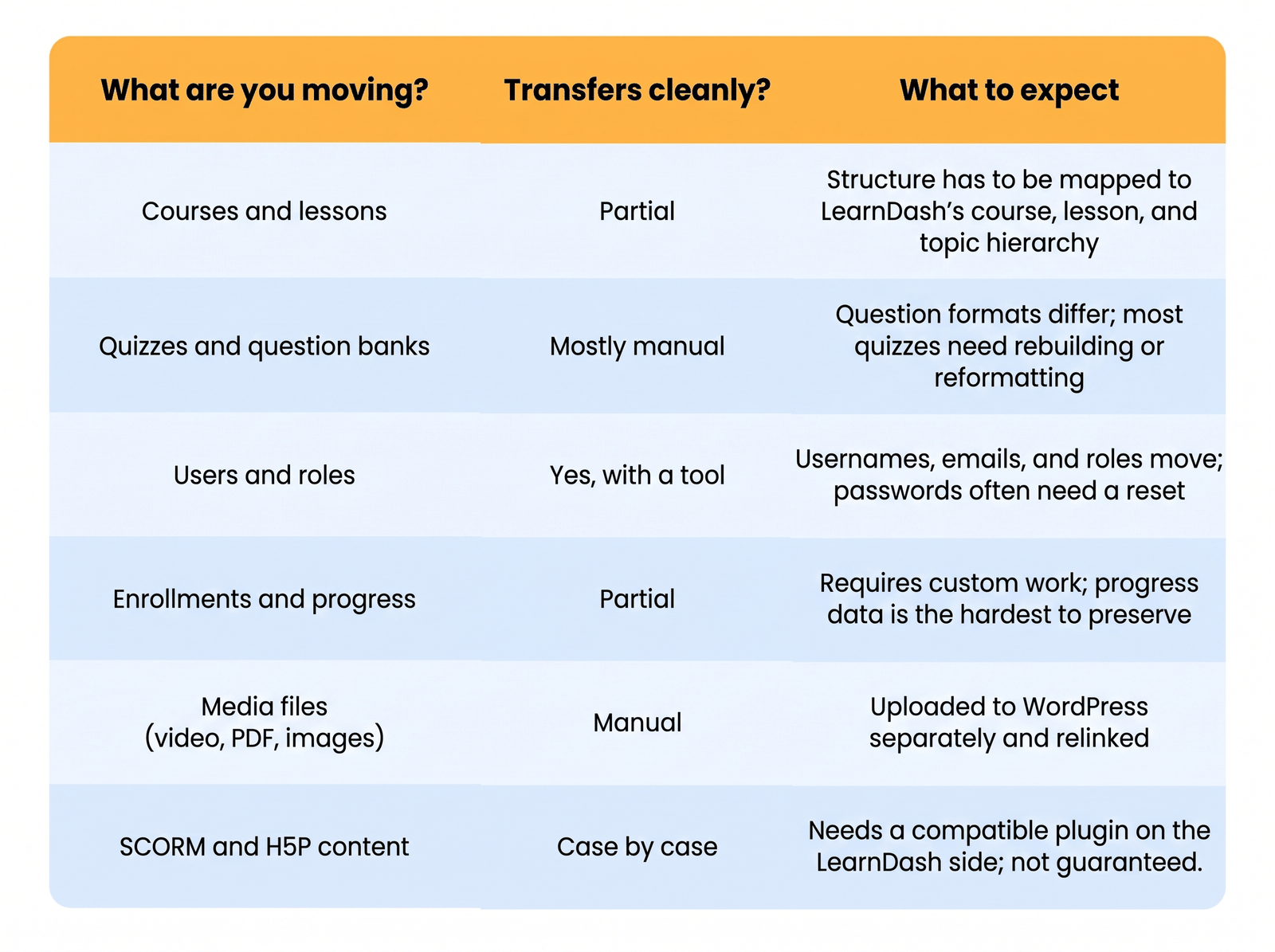
Treat this table as your planning checklist. The rest of the guide explains how to handle each row.
Why Course Creators Move From Moodle to LearnDash
Moodle is not bad software, to stop using it only makes sense if you know what you’re giving up.
What Moodle Still Does Well
Moodle takes assessment seriously. Its question types and grading logic go deep, and it can track a learner through a full competency system. Twenty years of teachers asking for features built that depth.
It also handles compliance content well. If you run SCORM packages, Moodle’s reporting gives you the audit trail a regulated industry needs. And it costs nothing to license.
If you have someone who knows Moodle well and isn’t leaving, and your courses are very difficult on formal grading, staying put might be the better call.
Where LearnDash Wins
The main problem with Moodle isn’t the teaching tools. It’s everything around them, hosting, updates, maintenance, and fixing plugins when things break. What starts as a free platform can become expensive to maintain.
Moodle can also feel dated and complicated for learners, especially without custom design.
LearnDash runs on WordPress, which gives you access to thousands of plugins, developers, and design options. That makes a Moodle to WordPress migration more flexible when you need new features without building everything from scratch. Liquid Web makes this point in their comparison of LearnDash and Moodle: because LearnDash focuses on the LMS, while WordPress handles the rest of your website.
Moodle was not really built for selling courses. Things like course catalogs, landing pages, and instructor profiles are easier to manage with WordPress. If selling your courses is important, a Moodle to WordPress migration can give you more control.
LearnDash also works with tools like LearnDash with WooCommerce for selling courses, MemberPress for memberships, and Mailchimp or FluentCRM for email marketing. This flexibility is a big reason many course creators choose to migrate to LearnDash.
What’s Actually Different Between Moodle and LearnDash
If you are moving anything, it helps to know the two platforms are built for different use cases, they organize courses differently, and the functionality and features that are different are the reason a Moodle to WordPress migration takes actual work instead of a single click.
Course Structure
Moodle organizes courses into sections and activities. You get a lot of freedom, but the structure is informal. Two Moodle courses can be laid out in completely different ways.
LearnDash is stricter. It uses a fixed hierarchy: courses, then lessons, then topics, with quizzes attached wherever you need them.
When you move over, you have to decide how your Moodle sections map onto that hierarchy. A Moodle “topic” might become a LearnDash lesson. An activity might become a topic. There’s no automatic answer, so plan this before you touch any content.
User Roles
Moodle has its own set of roles: teacher, non-editing teacher, student, and manager. They only mean something inside Moodle.
LearnDash runs on WordPress, so it uses WordPress roles plus its own, like Group Leader. A Moodle teacher isn’t automatically a WordPress author or a LearnDash group leader, so you’ll match each role to its closest equivalent during the move.
Most user data does transfer with the right tool. Usernames, emails, and roles come across. Passwords often don’t, so you’ll usually send a reset link after the move.
Where Content Lives
Moodle keeps everything in one place. Courses, files, users, and grades all sit inside Moodle itself.
LearnDash splits content across WordPress and its plugins. LearnDash handles the courses. WordPress handles pages and media. Other plugins handle payments or memberships.
That split is why the marketing side of your site gets easier on WordPress. But it also means your content ends up in more than one place, so a Moodle to WordPress migration includes moving files into the media library and relinking them, not just importing a course file.

Can You Directly Import Moodle Into LearnDash?
No, there’s no option that brings a Moodle course straight into LearnDash, and it’s worth clearing that up rather than wasting time looking for one.
A lot of people assume LearnDash’s own migration tool handles this. It doesn’t, the LearnDash Migration add-on only moves content from other WordPress-based LMS plugins.
So the LearnDash Migration add-on is off the table for a Moodle move. That leaves you a few real options:
- Manual rebuild. Export your Moodle content, then recreate courses, lessons, and quizzes inside LearnDash by hand. Slow, but you control the result.
- CSV or partial import. Export users and some structured data from Moodle as CSV files, import those into WordPress, and rebuild the rest manually.
- Custom migration. Use custom scripts to move courses, users, and progress data into LearnDash. This is how larger sites keep enrollment and progress intact without hours of manual work.
The right option depends on how much content and student data you need to move. A Moodle to WordPress migration is a rebuilding process, not a one-click import.
Moodle to LearnDash Pre-Migration Checklist
Most migration problems come from poor preparation. Do these four things before you start.
Phase 1: Audit What You Have
Make a list of everything in your Moodle site:
- Number of courses and lessons in each
- Quizzes and question banks
- Assignments and certificates
- Students and instructors
- Groups or cohorts
- SCORM or H5P content
This tells you the real size of the job. A site with 5 courses is a weekend. A site with 200 courses, thousands of users, and graded quizzes is a project.
Phase 2: Decide What to Keep
You don’t have to move everything. Old courses, outdated lessons, and content nobody uses can stay behind. A migration is a good excuse to clean house. Less content means less work and a tidier LearnDash site at the end.
Phase 3: Back Up Your Moodle Site
Never start without a backup. If something breaks, you want a safe copy to restore.
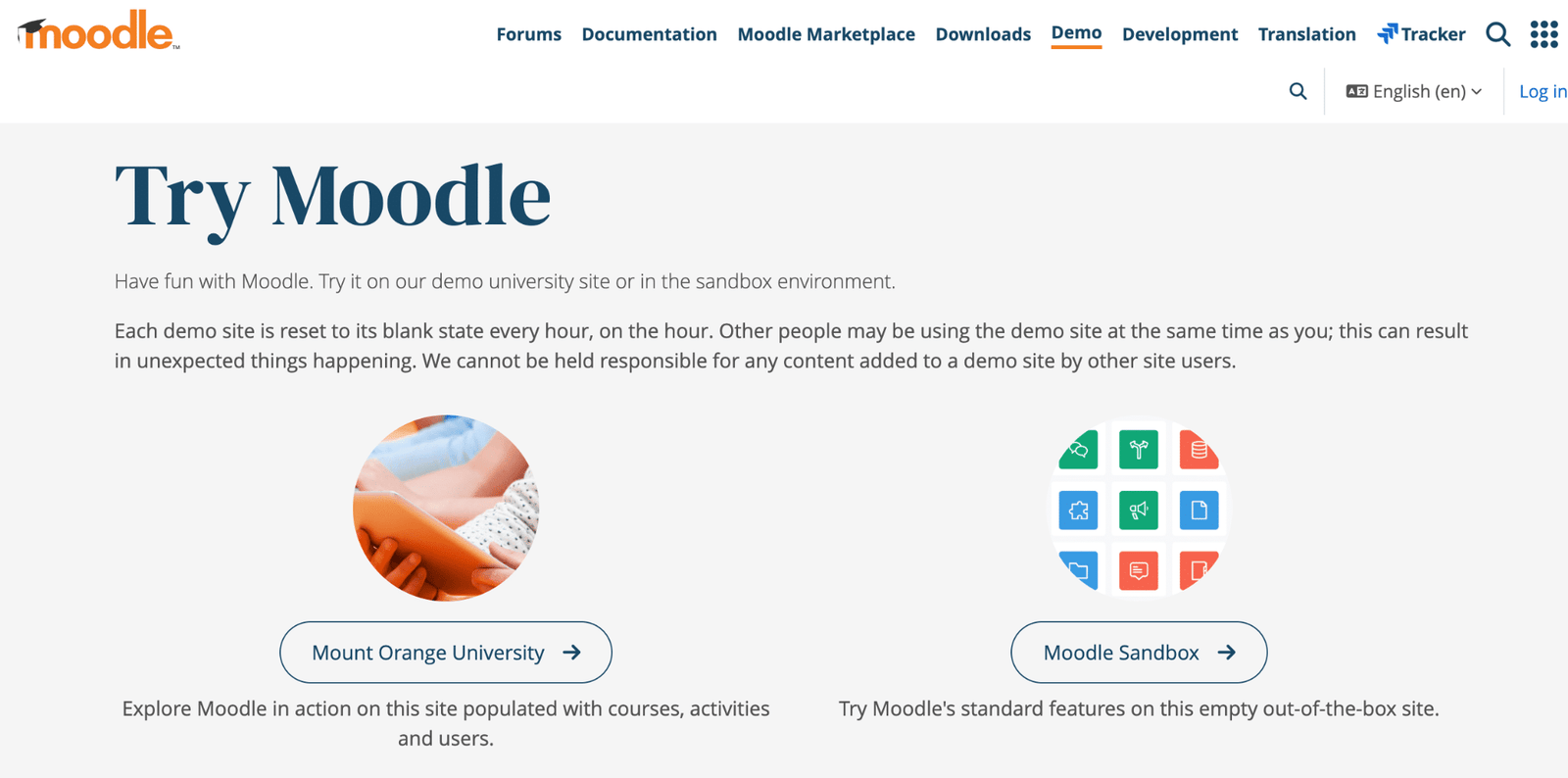
Moodle can export a course as a backup file, called an .mbz file, straight from the course settings. Moodle’s own guide on course backup walks through the options. Back up the full site too, not just individual courses, so you have everything if you need it.
Phase 4: Set Up Your LearnDash Site
Get the destination ready before you move a single file. You’ll need:
- Reliable WordPress hosting
- WordPress installed
- The LearnDash plugin installed and activated
- A theme built for online courses
- Plugins for security, backups, and caching
If you’d rather not build this from scratch, a LearnDash website setup gets the base environment ready so you can focus on the content. A clean, working LearnDash install is the starting line for the actual Moodle to WordPress migration, which is next.
Step-by-Step: How to Migrate From Moodle to LearnDash
Here’s the full step-by-step Moodle to WordPress migration process.
Looking for a Ready-Made Solution?
Explore our WordPress, WooCommerce, and LMS plugins built to extend functionality without custom development.
Step 1: Export Your Moodle Content
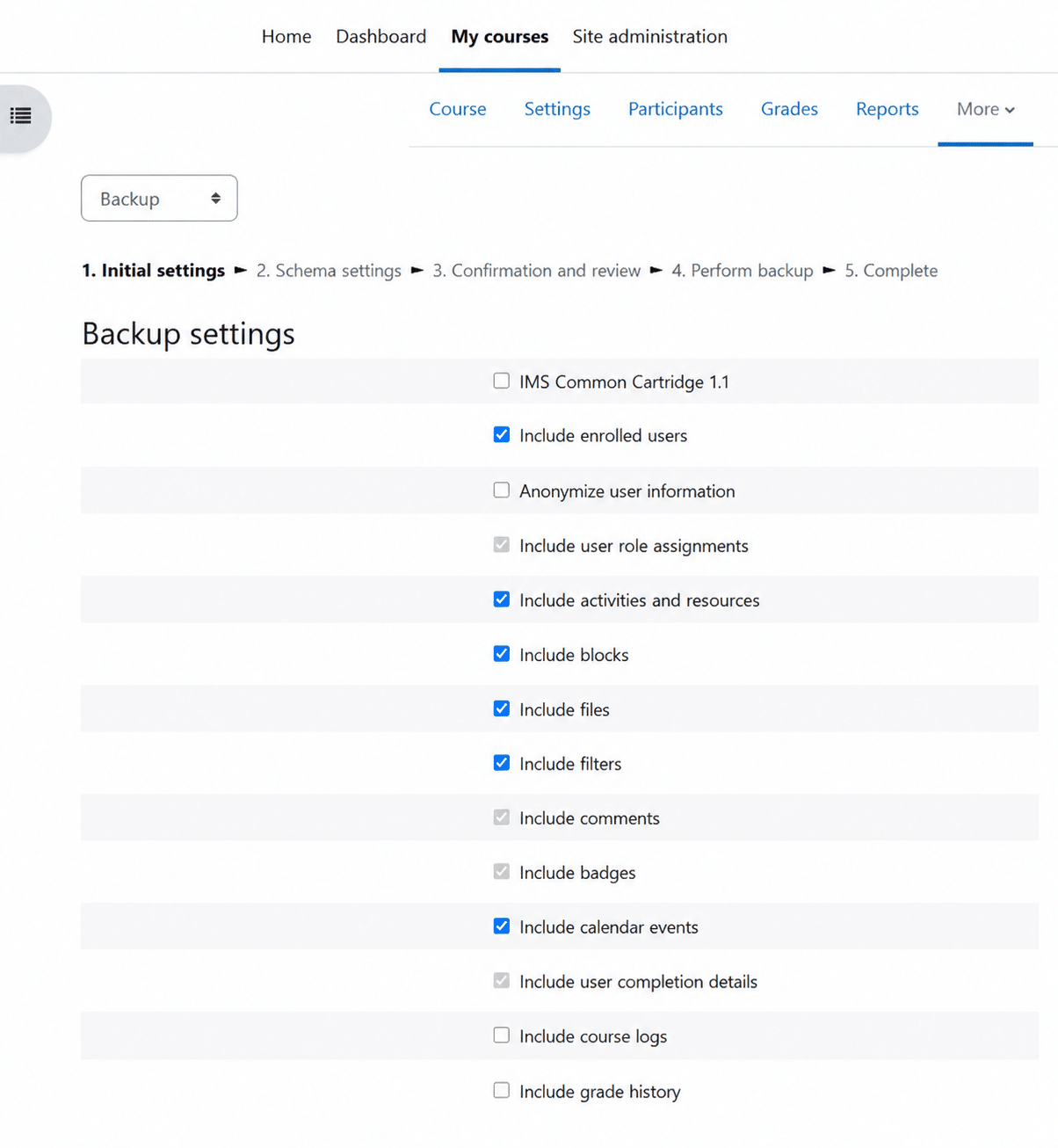
Go to Moodle, export each course as an .mbz backup file from the course setting, and download your user list as CSV. Export your videos, PDFs, and images too.
An .mbz file is made for restoring Moodle sites, not importing into WordPress. LearnDash can’t open it directly. You use it to extract your Moodle content, then move that content into WordPress.
Step 2: Set Up and Configure LearnDash
If you did the prep, LearnDash is already installed. Now configure it. Set your course structure defaults, payment options, and access settings before you add content, so you’re not reworking them later.
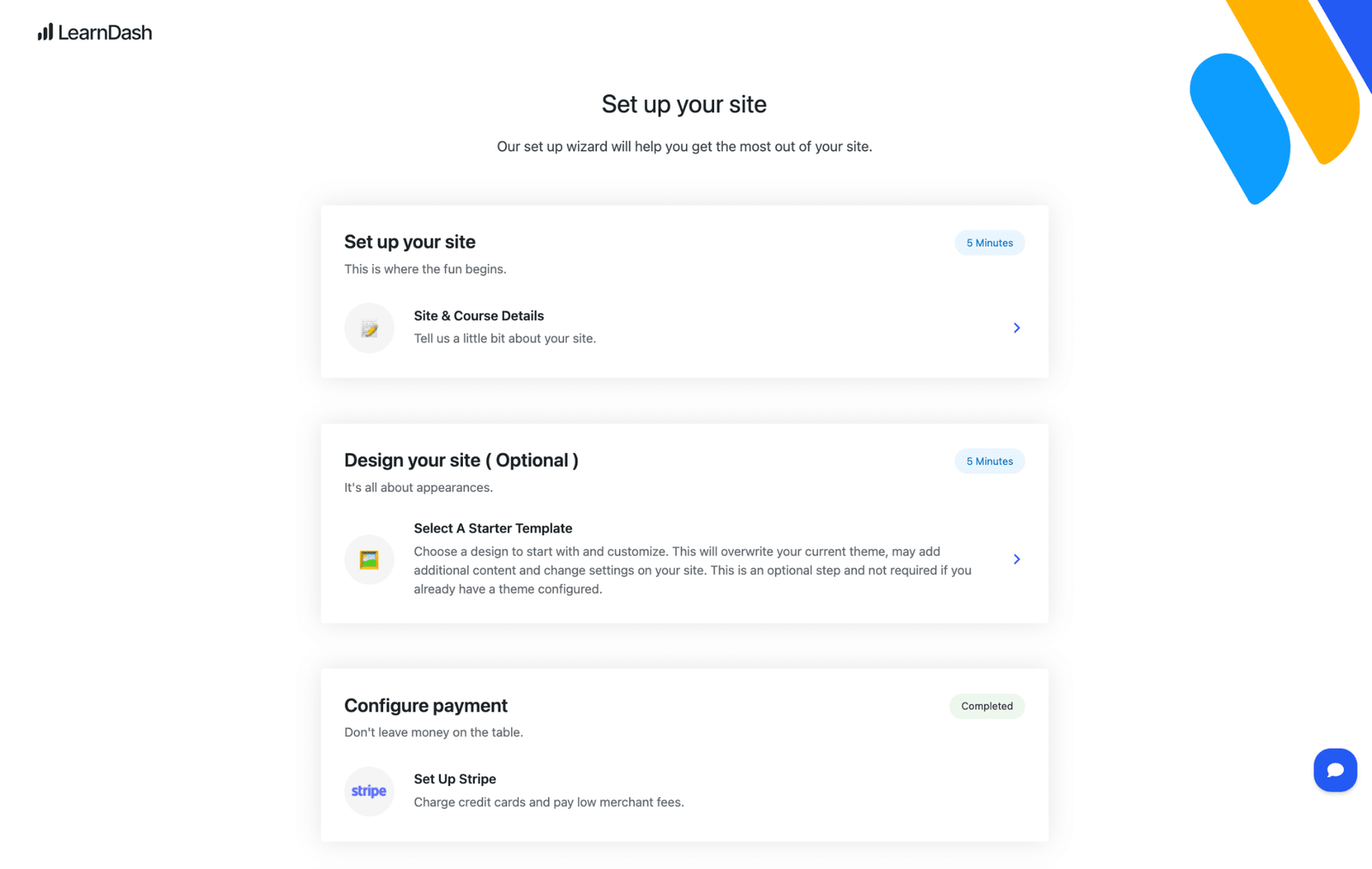
Getting these settings right early saves real time. A proper LearnDash configuration covers course progression, quiz behavior, and how learners move through a course. Lock these down first.
Step 3: Plan Your Course Hierarchy
Before rebuilding, map one Moodle course to LearnDash. Decide which sections become lessons, which activities become topics, and where quizzes will go. Use a simple spreadsheet to plan it out. This keeps the rebuild faster and more consistent.
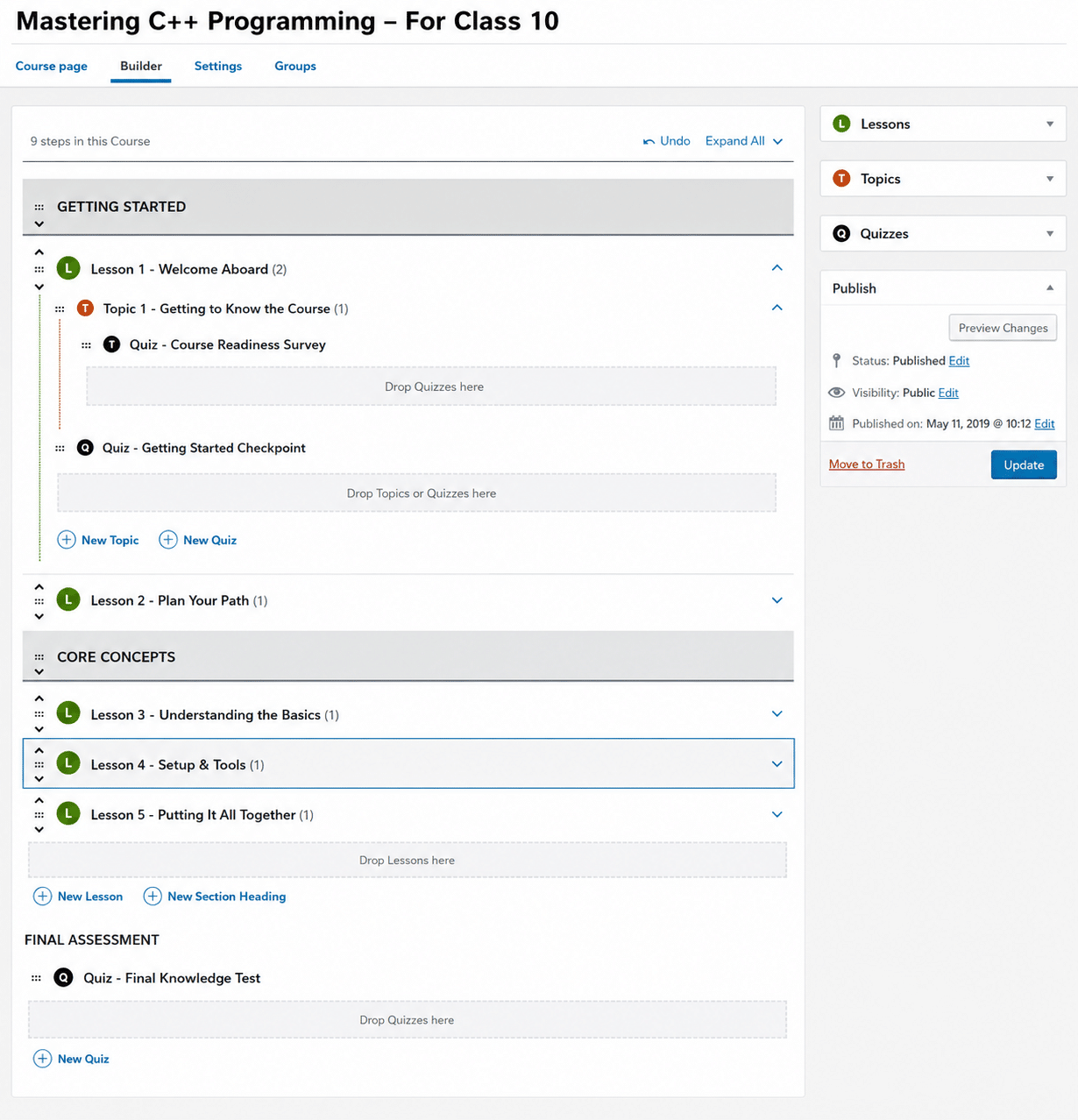
Step 4: Rebuild Your Course Content
Now build your courses in LearnDash using your map. Add the lessons, topics, text, and media, then link everything properly.
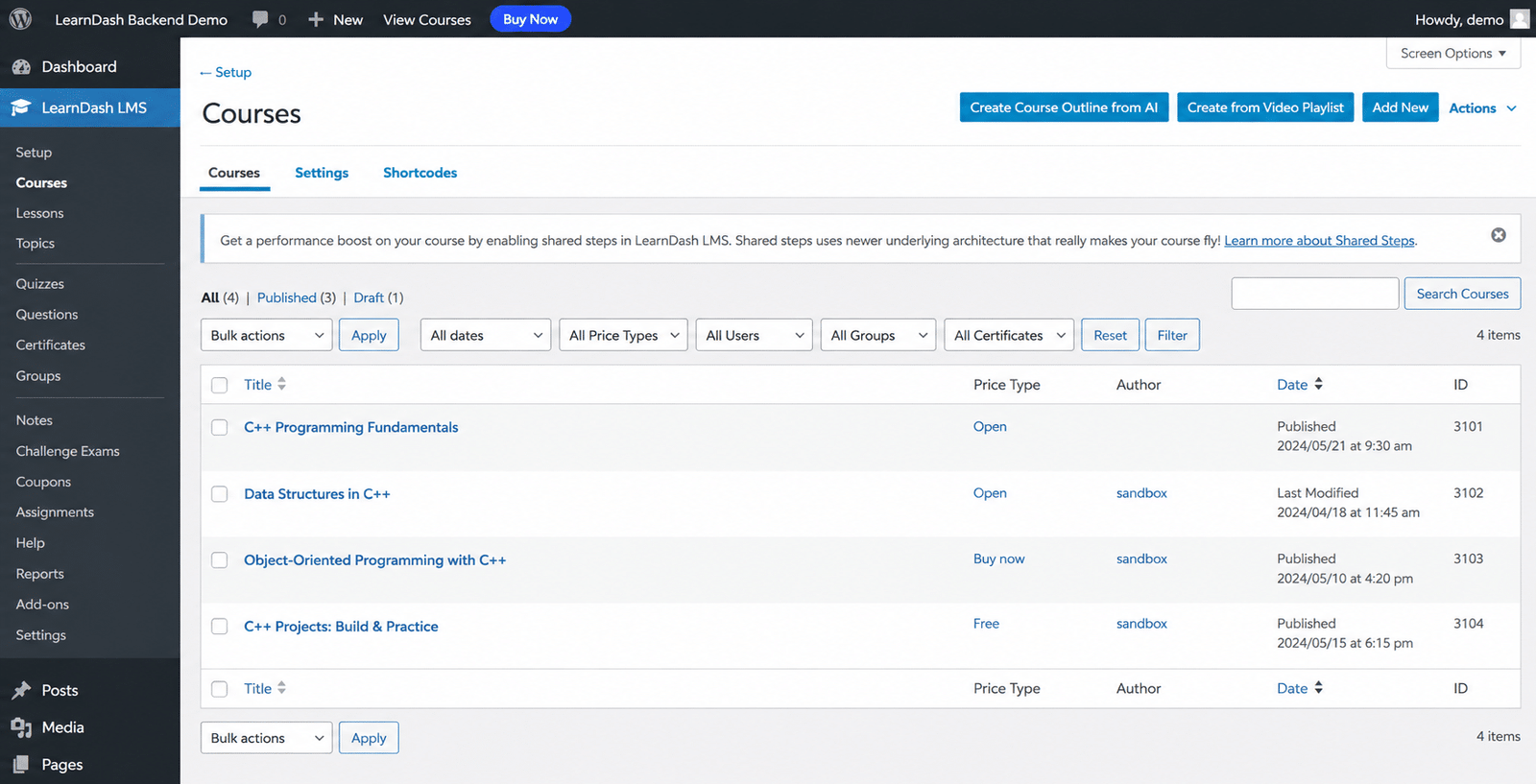
This is usually the most time-consuming step. If you have lots of content, work through one course at a time to avoid missing anything.
Step 5: Rebuild Your Quizzes
Moodle quizzes don’t transfer cleanly to LearnDash, so you’ll need to rebuild them. Recreate each quiz and add the questions and answers manually.
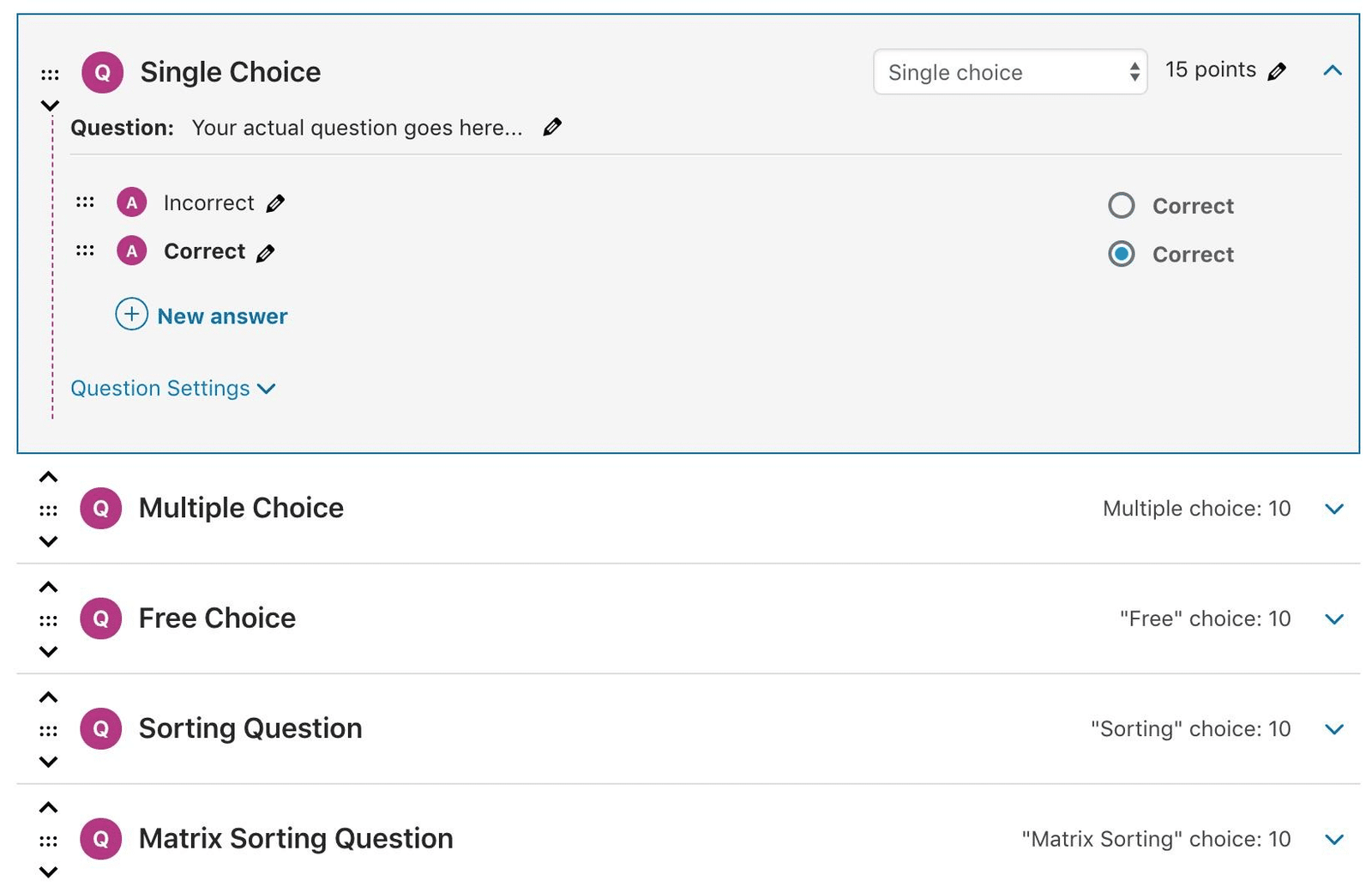
It takes time, but it’s also a good chance to remove outdated questions and clean things up. We’ll cover quizzes in more detail below since they’re one of the trickiest parts of a Moodle to WordPress migration.
Step 6: Migrate Users and Enrollments
Import your Moodle user list into WordPress using a CSV import tool or a user-import plugin. Usernames, emails, and roles come across. Passwords usually don’t, so send a password reset email after the import so learners can set new logins.
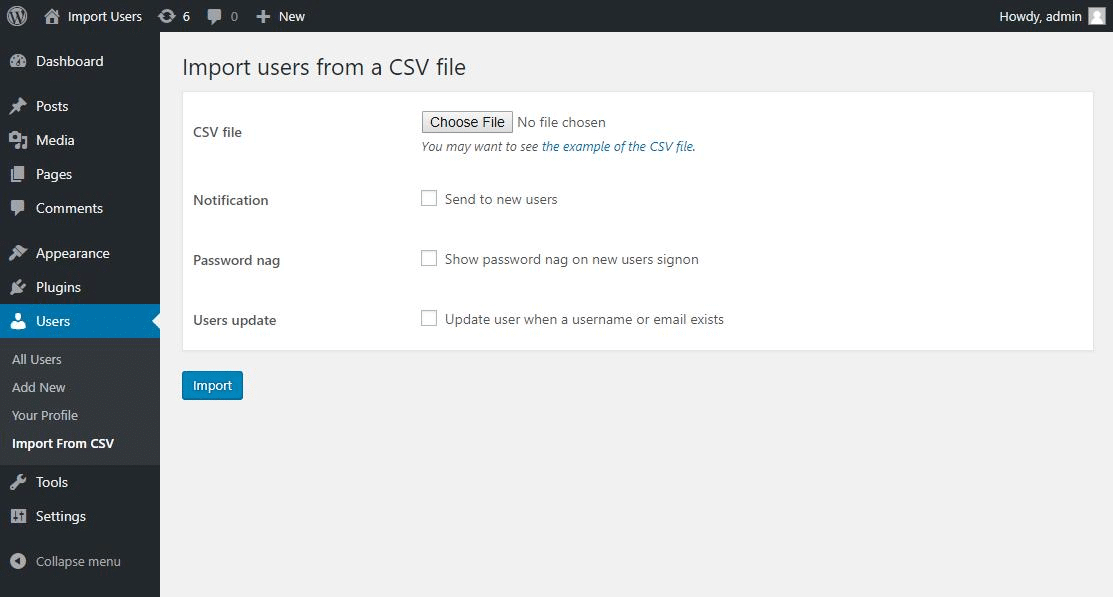
Then assign each user to the right courses. On a small site you can do this by hand. On a large one, you’ll want a tool or a script to match enrollments in bulk.
Step 7: Handle Course Progress Data
Progress data is the hardest piece to keep. How far each learner got, which lessons they finished, and their quiz scores. None of this moves with a simple export.
Developers have written custom SQL and PHP scripts to carry Moodle enrollment and progress data into LearnDash for years, so it’s a solved problem, just not a simple one. It takes custom work. If keeping progress matters, this is the step most likely to need a professional. If your courses are short or your learners can restart without much loss, you might skip it and save yourself the effort.
Step 8: Restore and Check as You Go
Moodle’s own course restore process is worth understanding even here, because it shows why .mbz files stay locked to Moodle and why your LearnDash rebuild is a fresh build rather than a restore. After each course, check it before moving to the next. Catching a broken link or a missing file early beats finding fifty of them at launch.
That’s the full Moodle to WordPress migration in order. The rest of this guide covers the parts that normally take people up.
Quizzes Are the Hardest Part
If a migration is going to waste your time, quizzes are usually where it happens.
Moodle’s quiz engine is detailed. It has question types, grading rules, and questions that don’t have exact matches in LearnDash. So there’s no clean way to lift a Moodle quiz and drop it into LearnDash. You rebuild it.
Some question types carry over in spirit. Multiple choice, true/false, matching, and short answer all have LearnDash equivalents. You re-enter them, but the format exists. The trouble starts with Moodle’s more specialized types, like calculated questions or certain drag-and-drop formats. Some of those have no direct match, so you either rebuild them a different way or drop them.
Here’s how the common types line up:
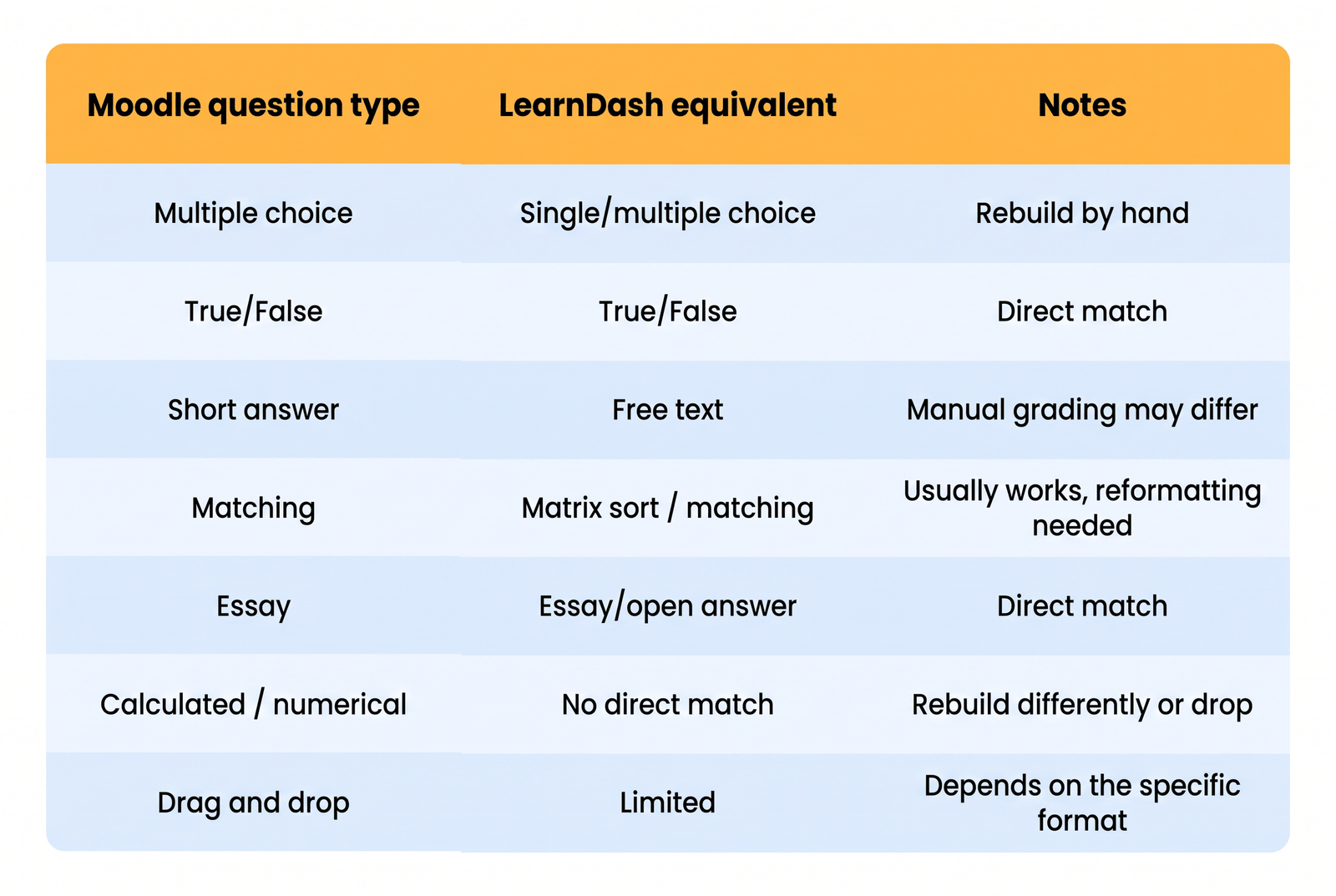
The safe move is to check your own quizzes during planning, not on launch day. Flag anything unusual in your Moodle question types. If a lot of your quizzes use formats LearnDash can’t match, that changes your timeline.
What Happens to SCORM, H5P, and Other Content
If your Moodle courses rely on SCORM packages or H5P activities, this needs checking before you commit to a date, because neither one moves into LearnDash on its own.
LearnDash doesn’t read SCORM or H5P out of the box, so you’ll need an add-on to make that content work after the move. SCORM support usually comes through a plugin like GrassBlade or Tin Canny, which lets LearnDash play your packages and report completion the way Moodle did.
H5P has its own WordPress plugin, but interactive content built inside Moodle often has to be recreated rather than transferred, since the two platforms store it differently.
Whether your packages carry over depends on how they were built and which version you’re running, so test one or two early instead of assuming the whole library will work. Compliance training is the case to watch most closely. If an auditor depends on your completion reports, confirm that SCORM tracking works in LearnDash before you switch anything off in Moodle. Getting this wrong during a Moodle to WordPress migration can break the exact records you’re required to keep.
Manual Migration vs. Hiring a Professional
At some point you decided to migrate the site yourself, it comes to the size of your site and how much your student data is worth.
This guide breaks down the Moodle to LearnDash migration into four approaches: manual, partial CSV, native rebuild, and custom migration. The first three you can handle in-house. The last one usually needs a developer.
When Manual Migration Makes Sense
Small site, simple quizzes, and progress you can afford to reset? Do it yourself. You spend the time rebuilding by hand, but you keep control and pay nothing. This works when the site is small enough that the work stays manageable.
When to Bring in a Professional
Once you have graded quizzes, thousands of users, and progress data that has to exist, the job moves past what manual work handles well. That’s where custom scripts and professional help cut data loss and downtime.
One test worth running first, from moving off Moodle, if the migration doesn’t pay for itself within about three years, it’s a want, not a plan. For a business-critical site, professional help is usually cheaper once you count your own time.
This is the work we do. Our Moodle to LearnDash migration service moves your courses, users, enrollments, and progress while keeping your data intact or you can get a migration quote based on your course and user count.
Testing Before You Launch
Don’t launch the site to learners until you’ve checked it end-to-end testing and makes what separates a clean launch from a flood of support emails.
Go through this before you go live:
- Open every course, lesson, and topic to confirm the content is there and formatted right
- Take each quiz yourself and check that scores record correctly
- Complete a course to confirm certificates generate
- Log in as a test user to confirm accounts and roles work
- Run a test purchase through your payment gateway if you sell courses
- Check that any migrated progress data shows up correctly
- Ask a few real students or team members to click through before launch day
Fix what the testing turns up, then launch. If you’d rather not manage ongoing checks and updates yourself after launch, a LearnDash maintenance service keeps the site stable once your Moodle to WordPress migration is done.
Key Takeaways
- A Moodle to WordPress migration is always a rebuild, never a one-click import.
- LearnDash’s own migration add-on doesn’t support Moodle. It only covers LearnPress, Tutor LMS, Sensei, and LifterLMS.
- Course content, users, and roles can move with the right tools. Quizzes and progress data need manual work or custom scripts.
- Moodle and LearnDash structure courses differently, so plan your hierarchy before you rebuild.
- Quizzes and SCORM content cause the most trouble. Test them early, not on launch day.
- Small sites can move in a few days. Large sites with graded quizzes and progress data take weeks.
- Test everything on a staging site before you go live.
Conclusion
A Moodle to WordPress migration takes planning, not luck. Your courses, users, and roles can move with the right tools, but quizzes, SCORM content, and progress data need manual work or custom scripts. Knowing which parts transfer and which parts you rebuild is what separates a clean move from a broken one.
The size of your site decides the rest. A few courses with simple quizzes are a weekend job you can handle yourself. Hundreds of lessons, graded quizzes, and progress records that must survive the move are where doing it alone stops being worth the hours and the risk.
That’s where we come in. Our Moodle to LearnDash migration service moves your courses, quizzes, users, and progress into LearnDash while keeping your data safe. Once you’re live, our WordPress maintenance service keeps the new site updated, backed up, and secure. If you want to talk through your setup first, contact us and we’ll help you scope it.
FAQs
Can I directly import Moodle into LearnDash?
No. There’s no tool that imports a Moodle course straight into LearnDash. LearnDash’s own migration add-on only works with other WordPress LMS plugins like LearnPress, Tutor LMS, Sensei, and LifterLMS, not Moodle. Moving from Moodle means exporting your content, then rebuilding courses and quizzes in LearnDash by hand or with custom scripts.
What Moodle data can be migrated to LearnDash?
Most of it can move, but not all in the same way. Course structure, lesson text, and media can be recreated in LearnDash. Users, emails, and roles transfer with an import tool. Quizzes usually need rebuilding, and progress data needs custom work. Passwords often don’t carry over, so learners reset them after the move.
Can I migrate Moodle users, enrollments, and course progress to LearnDash?
Users and enrollments can move using CSV imports or a migration tool. Course progress is harder. How far each learner got and their quiz scores don’t transfer with a normal export, so preserving that data takes custom SQL or PHP work. If keeping progress matters, this is the part most likely to need a developer.
How long does a Moodle to LearnDash migration take?
It depends on your site’s size and how much data you need to keep. A small site with a few courses and simple quizzes can be done in a couple of days. A large site with hundreds of lessons, graded quizzes, thousands of users, and progress data that has to survive can take a few weeks, since most of that time goes into rebuilding quizzes and moving enrollment and progress records.
What happens to Moodle quizzes, SCORM, and H5P content after migration?
Quizzes don’t transfer cleanly, so you rebuild them in LearnDash. Common question types like multiple choice and true/false have equivalents, but some specialized Moodle formats don’t. SCORM and H5P content needs a compatible plugin, such as GrassBlade or Tin Canny for SCORM, to work in LearnDash. Test this content early, especially if you rely on completion reports for compliance.
Need Ongoing WordPress Maintenance & Support?
We handle updates, performance monitoring, security hardening, and technical fixes so your WordPress and WooCommerce site stays stable and secure.
Plugin Not Working in WordPress? Here’s Why
Is your plugin not working in WordPress? Here are the 7 most common causes and fixes for plugin conflicts, errors,…
Read More...
WordPress SEO Consultant, Freelancer, or Agency: What Each Costs
Hiring SEO help gets expensive fast. See what an SEO consultant, freelancer, or agency really costs before picking one for…
Read More...
AEO vs. SEO: How to Get Your WordPress Site Cited in AI Answers
AEO vs. SEO explained in simple terms, plus the schema, content, and site fixes that help your WordPress site show…
Read More...
