With the LearnDash Certificate Manager add-on, the administrator can effortlessly manage certificates, including manual approval, reset options, and comprehensive archive settings. Moreover, the administrator can unlock new possibilities by enabling certificates for lessons, topics, and assignments.
In this article, you’ll learn how to set up the LearnDash Certificate Manager add-on and enable the manual and automatic certificate assignment in LearnDash, including certificate reset and viewing all the previously earned certificates in the certificate archive.
Video Tutorial
Watch the tutorial video below for a quick walkthrough of the add-on’s features and setup process.
For detailed instructions, please continue reading the full documentation. If you still have any questions, feel free to submit a support ticket.
Installation:
- The LearnDash plugin should be installed & active.
- Install the LearnDash Certificate Manager add-on & activate it.
- After activation, a new “LearnDash Certificate Manager” sub-menu will be added under the LearnDash menu.

LearnDash Certificate Manager Settings
Please note that if you are using a cache plugin, purge the cache after every update (after updating the course, certificate, add-on settings, etc.).
License:
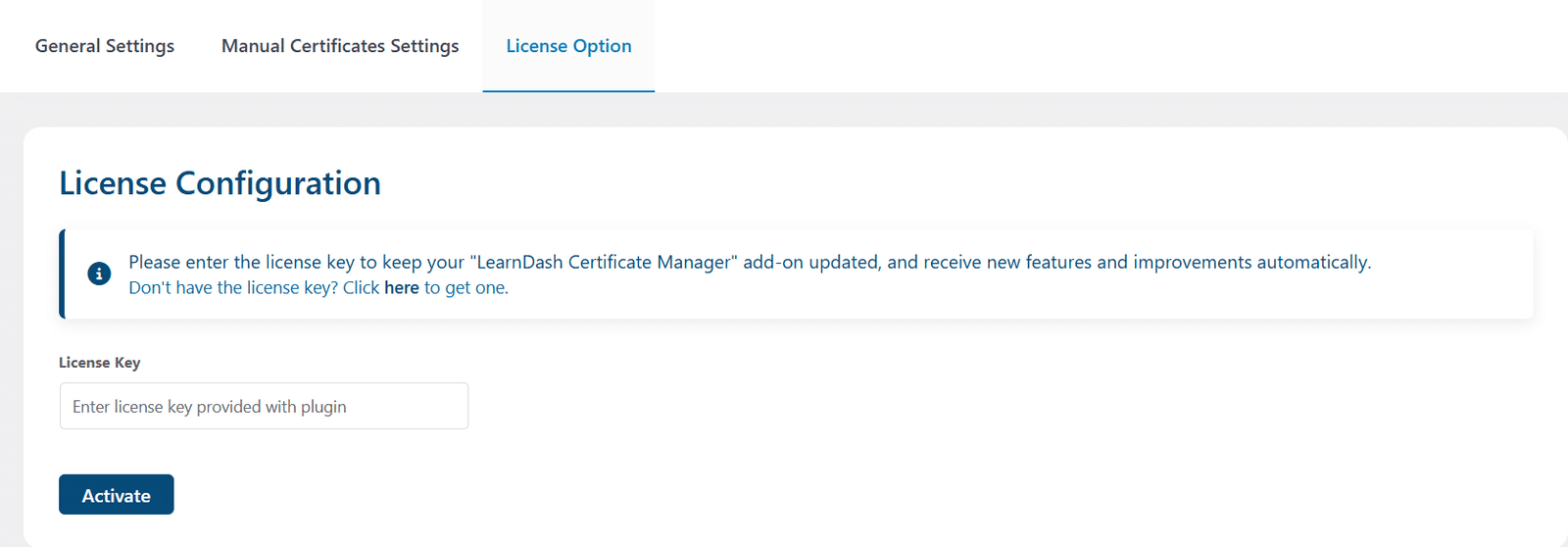
License keys can be found in the email received when you purchased the add-on. To activate your license, navigate to the LearnDash LMS> LearnDash Certificate Manager > License Option tab, place your license key in the License Key field, and click on Activate.
General Settings:
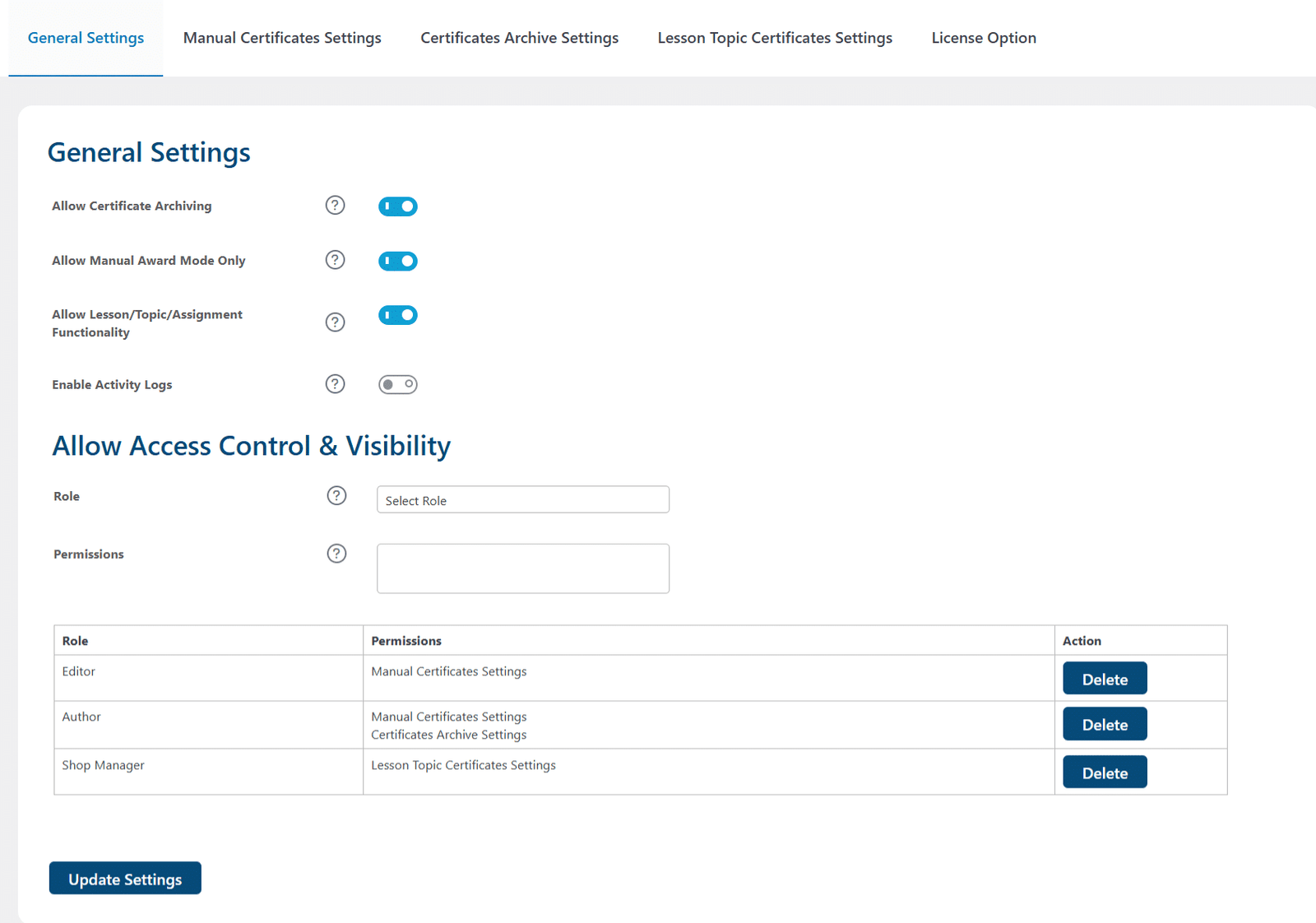
Allow Certificate Archiving
Enable this option to allow Archive Certificate Functionality. When you enable it, a new tab, “Certificates Archive Settings,” will become visible.
Allow Manual Award Mode Only
Enable this option to allow Manual Award Functionality. When you enable it, the manual flow for our addon will start working on both the frontend pages (group, course, lesson, topic, and quiz) and in the “Manual Certificates Settings” tab. When the “Allow Manual Award Functionality Only” option is enabled, 4 sub-tabs will be visible (General, Manual Award Certificates, Certificates Reports, Reset Certificates) in the “Manual Certificates Settings” tab.
In the manual flow, when a student completes a group, course, lesson, topic, or quiz with a certificate assigned in their settings tab, a certificate assignment entry is created in the “Manual Certificates Settings > Certificate Reports” tab for the administrator(s) to assign certificates manually. Meanwhile, students will receive a message in their group, course, lesson, topic, or quiz page.
Note: The options in the Manual Certificates Settings > “General” and Manual Certificates Settings > “Manual Award Certificates” tabs will only be visible and work when the “Allow Manual Award Functionality Only” option is enabled. Since not all options in both tabs will work, neither tab will be visible on the administrator’s side.
When the “Allow Manual Award Functionality Only” option is disabled, the automatic flow for our addon will start working on both the frontend pages (group, course, lesson, topic, and quiz) and in the “Manual Certificates Settings” tab. When the “Allow Manual Award Functionality Only” option is disabled, 3 sub-tabs will be visible (Select Courses/Quizzes/Users, Certificates Reports, Reset Certificates) in the “Manual Certificates Settings” tab.
In the automatic flow, when a student completes a group, course, lesson, topic, or quiz with a certificate assigned in their settings tab, a certificate record entry is created in the “Manual Certificates Settings > Certificate Reports” tab for the administrator(s) to view. This helps the administrator(s) keep a record of the date each student completed the group, course, lesson, topic, and quiz. Also, in the “Manual Certificates Settings > Select Courses/Quizzes/Users” tab, the administrator can select the respective course(s), quizzes, and users on whom he wants the manual functionality to run.
In short, the administrator can view the certificate records generated in the “Certificates Reports” tab and use the “Reset Certificates” tab to remove/revoke those certificates (course, lesson, topic, and quiz). Meanwhile, student will receive their respective certificates (group, course, lesson, topic or quiz) immediately.
Allow Lesson/Topic/Assignment Functionality
Enable this option to allow Lesson/Topic/Assignment Functionality. When you enable it, a new tab, “Lesson Topic Certificates Settings” will become visible.
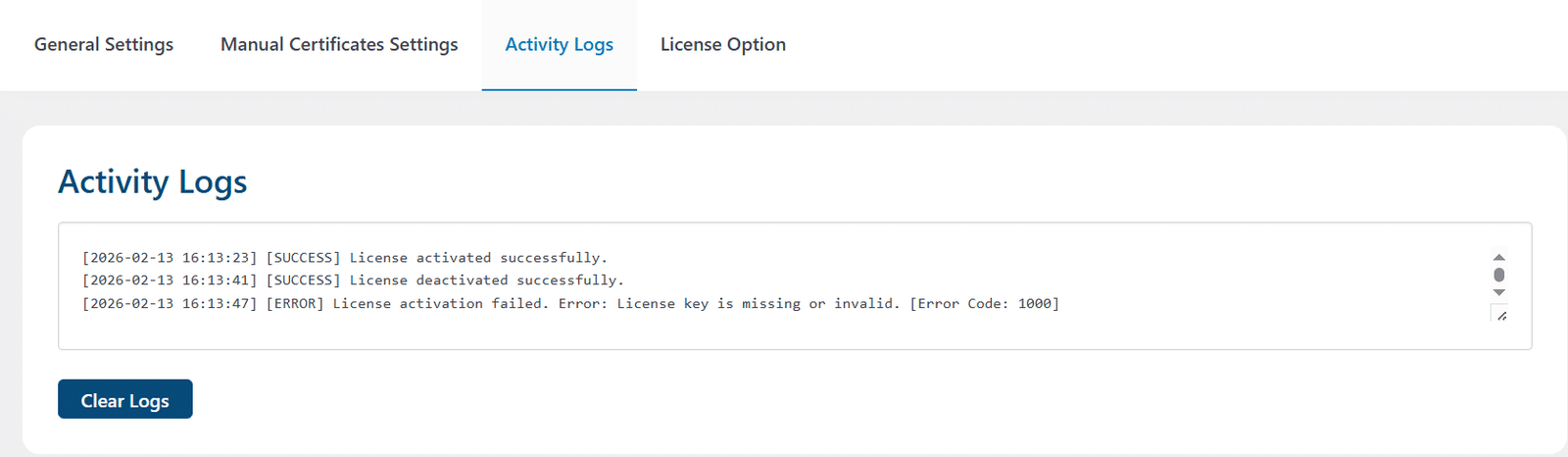
Enable Activity Logs
Enable this option to log license activity and validation errors for tracking. When this option is enabled, a new tab “Activity Logs” will become available on the frontend.
Allow Access Control & Visibility
In this section, you can select which user role(s) can see which respective addon tabs in their WordPress dashboards.
Role
From the “Role” dropdown, you can select the respective user role whose permission you want to add/update.
Permissions
From the “Permissions” dropdown, you can select which add-on tabs the respective user role will be allowed to access/view on their WordPress dashboards. Finally, click the “Update Settings” button to save the changes.
Manual Certificates Settings:
Select Courses/Quizzes/Users:
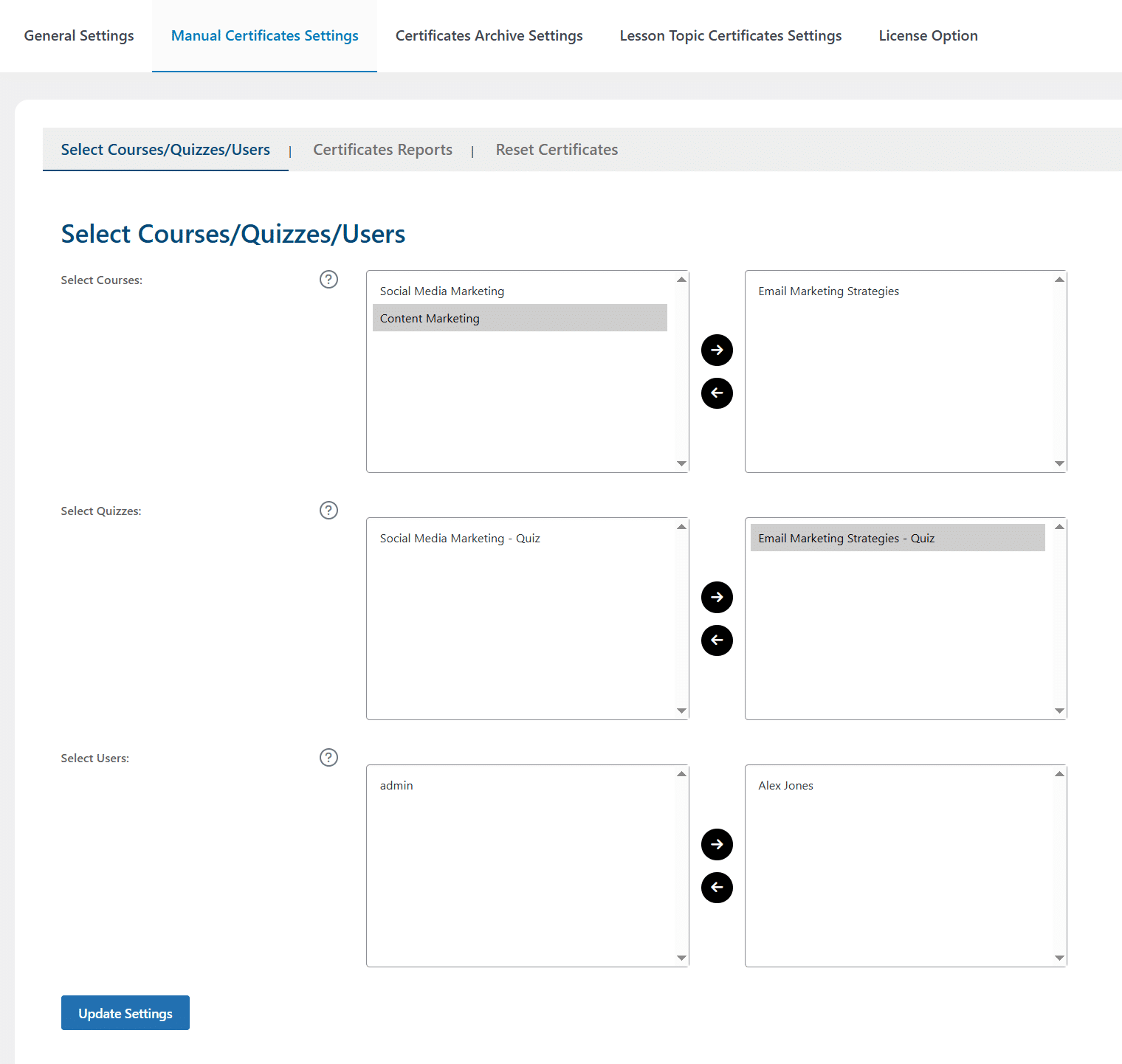
To use both the manual and automatic flow functionality, the course, quizzes, and users are moved to the appropriate columns. The respective course, quizzes, and users will see the manual certificate assignment message on the frontend. The administrator will regularly have to assign certificates to the respective users using the “Certificates Reports” tab. Once a certificate has been assigned, its record will be removed from the “Certificates Reports” tab.
Select Courses:
Here, you can select courses for assigning certificates manually.
Select Quizzes:
Here, you can select quizzes for assigning certificates manually.
Select Users:
Here, you can select users for assigning certificates manually.
General Settings:
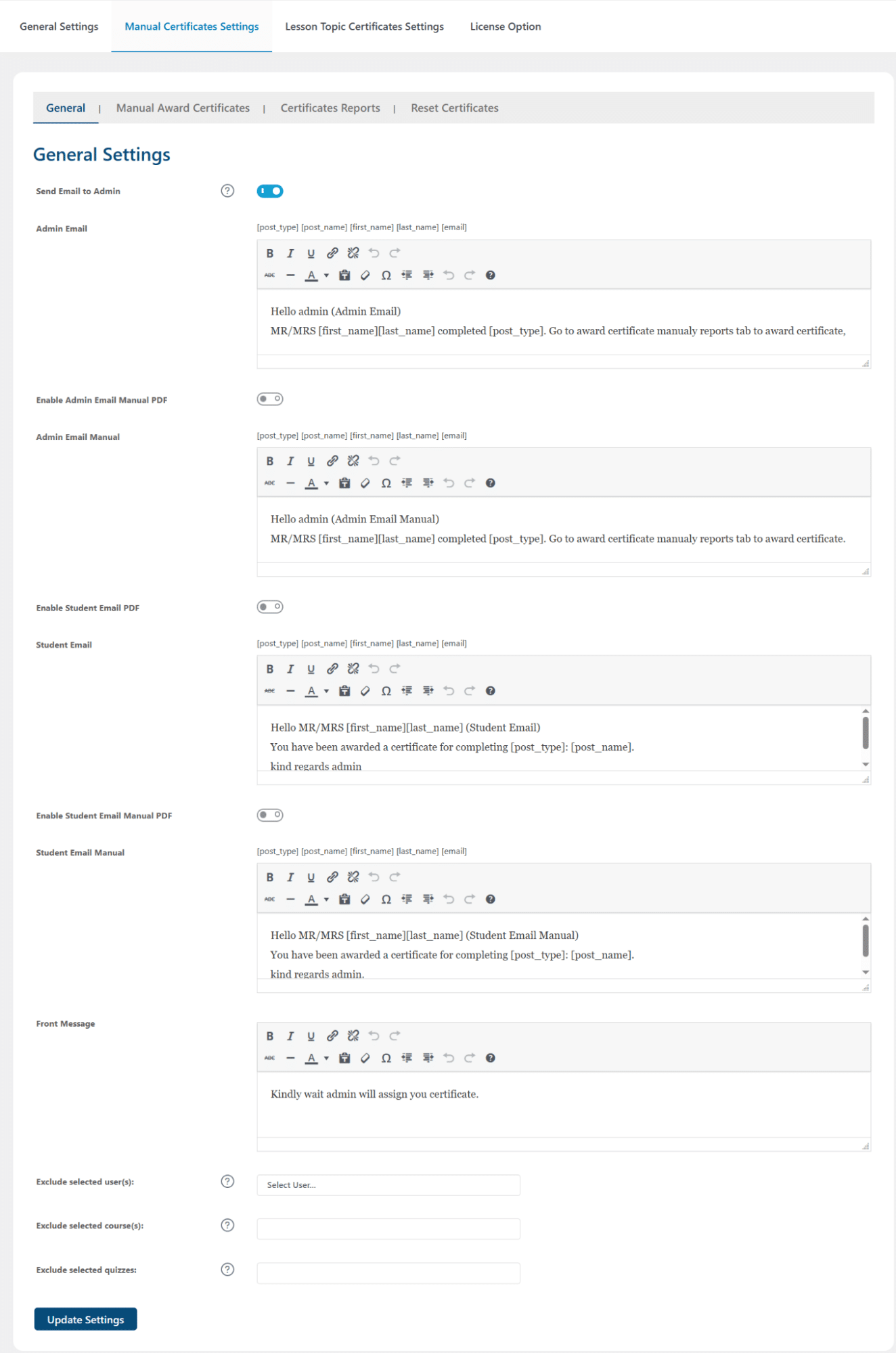
There are the following options available:
Send Email to Admin:
Enabling this option will send an email to the administrator when the user completes a course or quiz. Finally, click on the “Update Settings” button.
Admin Email:
Here, the administrator can write the message that the administrator will receive in their email. Finally, click on the “Update Settings” button.
Enable Admin Email Manual PDF:
Here, the administrator can choose whether the administrator will receive the selected certificate in their email or not. If enabled, a pdf of the respective selected certificate will be added to the email as an attachment. Finally, click on the “Update Settings” button.
Admin Email Manual:
Here, the administrator can write the message that the administrator will receive in their email. Finally, click on the “Update Settings” button. This email will be sent every time the administrator manually assigns a certificate to any student(s)/learner(s) using the “Manual Award Certificates” tab.
Enable Student Email PDF:
Here, the administrator can choose whether the students/learners will receive the selected certificate in their email or not. If enabled, a pdf of the respective selected certificate will be added to the email as an attachment. Finally, click on the “Update Settings” button.
Student Email:
Here, the administrator can write the message that the students/learners will receive in his/her email. Finally, click on the “Update Settings” button.
Enable Student Email Manual PDF:
Here, the administrator can choose whether the students/learners will receive the selected certificate in their email or not. If enabled, a pdf of the respective selected certificate will be added to the email as an attachment. Finally, click on the “Update Settings” button.
Student Email Manual:
Here, the administrator can write the message that the students/learners will receive in his/her email. Finally, click on the “Update Settings” button. This email will be sent (only when the “Email Notification” option in the “Manual Award Certificates” tab is enabled) to all the student(s)/learner(s) when the administrator manually assigns a certificate to any student(s)/learner(s) using the “Manual Award Certificates” tab.
Front Message:
Here, the administrator can write the message the students/learners will see on the frontend in the notification section of individual group/course/lesson/topic pages till a certificate has not been assigned/approved by the administrator. Finally, click on the “Update Settings” button.
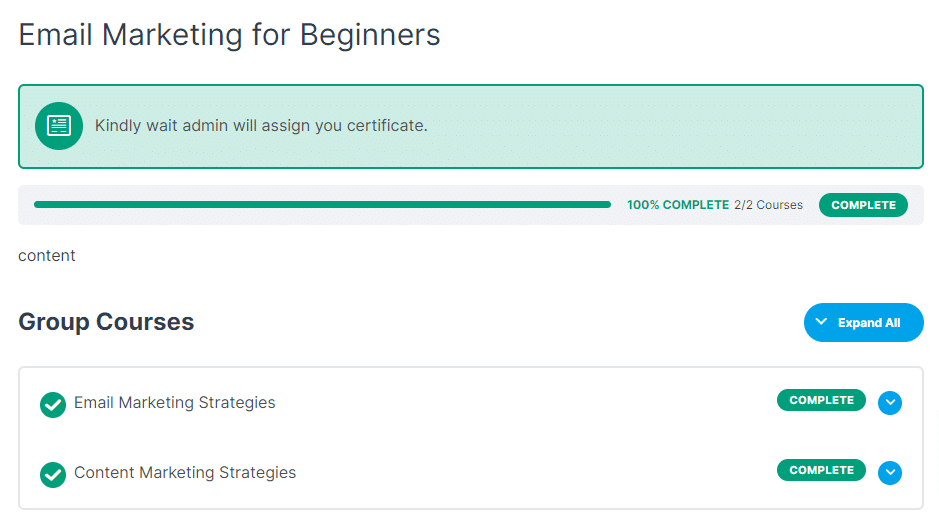
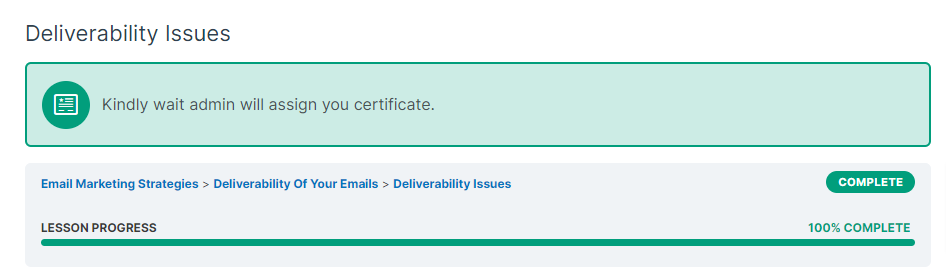
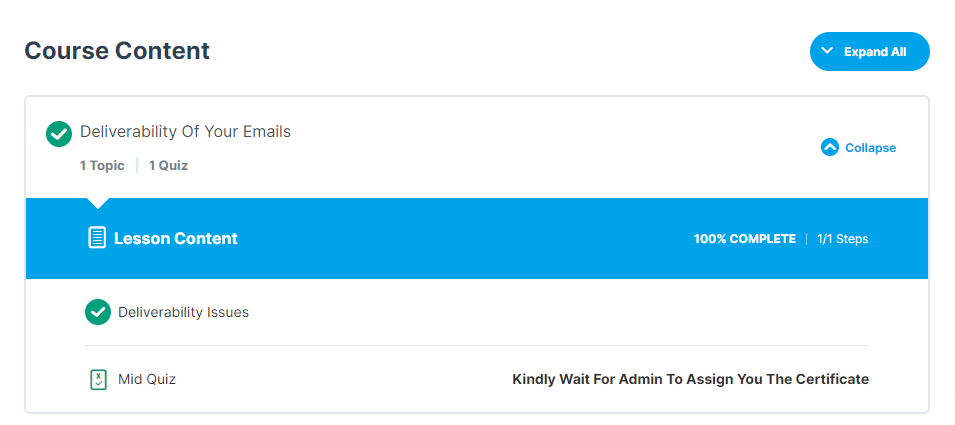
This is how the message will look on the frontend pages.
Group Page
Course Page

Lesson Page

Topic Page
Note: If the administrator has not assigned a Quiz Certificate in the backend, learners/students will see a message only on the respective course page.
Course Page
Exclude Selected users:
Here, the administrator can select the Users for whom the certificates will be assigned automatically (on whom the manual certificate assignment functionality will not work). Finally, click on the “Update Settings” button.
Exclude Selected courses:
Here, the administrator can select the Courses for which the certificates will be assigned automatically (for whom the manual certificate assignment functionality will not work). Finally, click on the “Update Settings” button.
Exclude Selected quizzes:
Here, the administrator can select the Quizzes for which the certificates will be assigned automatically (for whom the manual certificate assignment functionality will not work). Finally, click on the “Update Settings” button.
Manual Award Certificates:
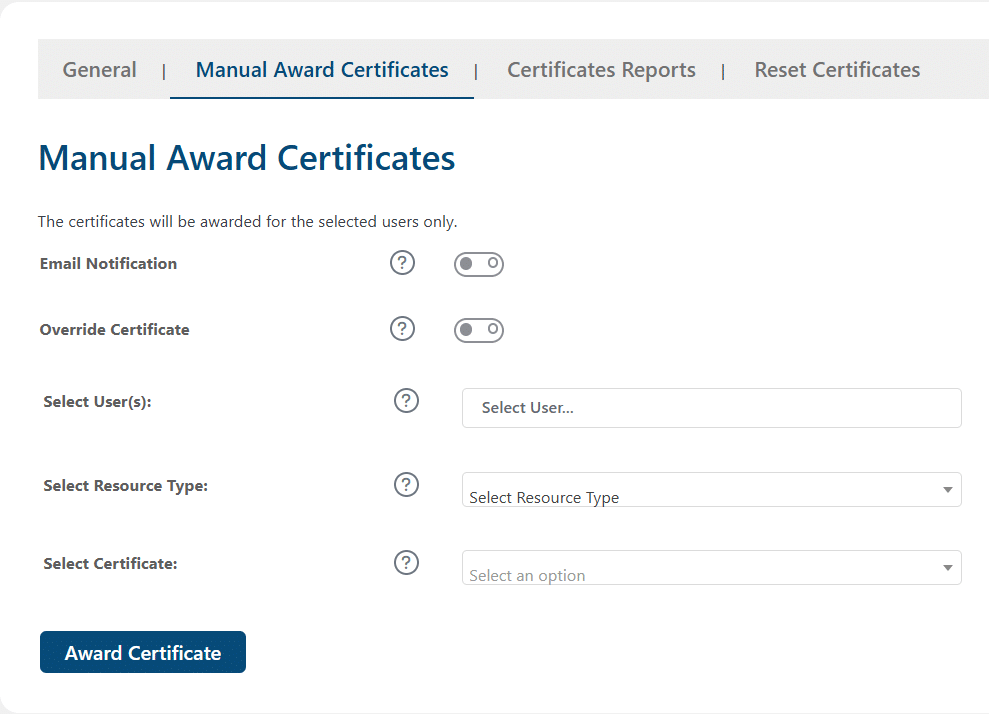
In this tab, the administrator will be able to manually assign certificates to student(s)/learner(s) regardless of whether they have completed the group, course, lesson, topic, and quiz.
Please note that for an administrator to assign a certificate manually, the respective student(s)/learner(s) must first have access to the corresponding group, course, lesson, topic, and quiz; otherwise, the certificate will not be assigned. Also, if no certificate is assigned to any user (not even a single one), the administrator’s email will not be sent either. The email content of the “Admin Email Manual” option will be sent to the administrator.
Similarly, if a certificate is manually (successfully) assigned/overridden to a student/learner (at least a single one), only then will the student/learner’s email be sent. The “Student Email Manual” option’s email content will be sent to the student/learner when the “Email Notification” option is enabled.
To assign the certificate, select from the following options as follows:
Email Notification
Enable this option to send an email notification to the selected user(s) who are being assigned the respective certificate. If this option is disabled, the selected user(s) who are being assigned the respective certificate will not receive any email. ”Student Email Manual” option’s content will be sent to the user(s). This is an optional step.
Override Certificate
Enable this option to override any previously earned certificate for the user(s). If disabled, the certificate will not be awarded to user(s) who have already received it. This is an optional step.
Select User(s):
Here, the administrator can select the user(s) to award a respective certificate.
Select Resource Type:
Here, the administrator can select the resource type of certificate to award. The administrator can select from the following resource types:
- Group (To award a certificate to user(s) in regards to a group)
- Course (To award a certificate to user(s) in regards to a course)
- Lesson (To award a certificate to user(s) in regards to a lesson)
- Topic (To award a certificate to user(s) in regards to a topic)
- Quiz (To award a certificate to user(s) in regards to a quiz)
Select Group: / Select Course: / Select Lesson: / Select Topic: / Select Quiz:
Here, the administrator can select the respective group/course/lesson/topic/quiz for which they want to award the certificate.
Select Certificate:
Here, the administrator can select the respective certificate to be assigned to the selected group, course, lesson, topic, or quiz.
Certificate Reports:
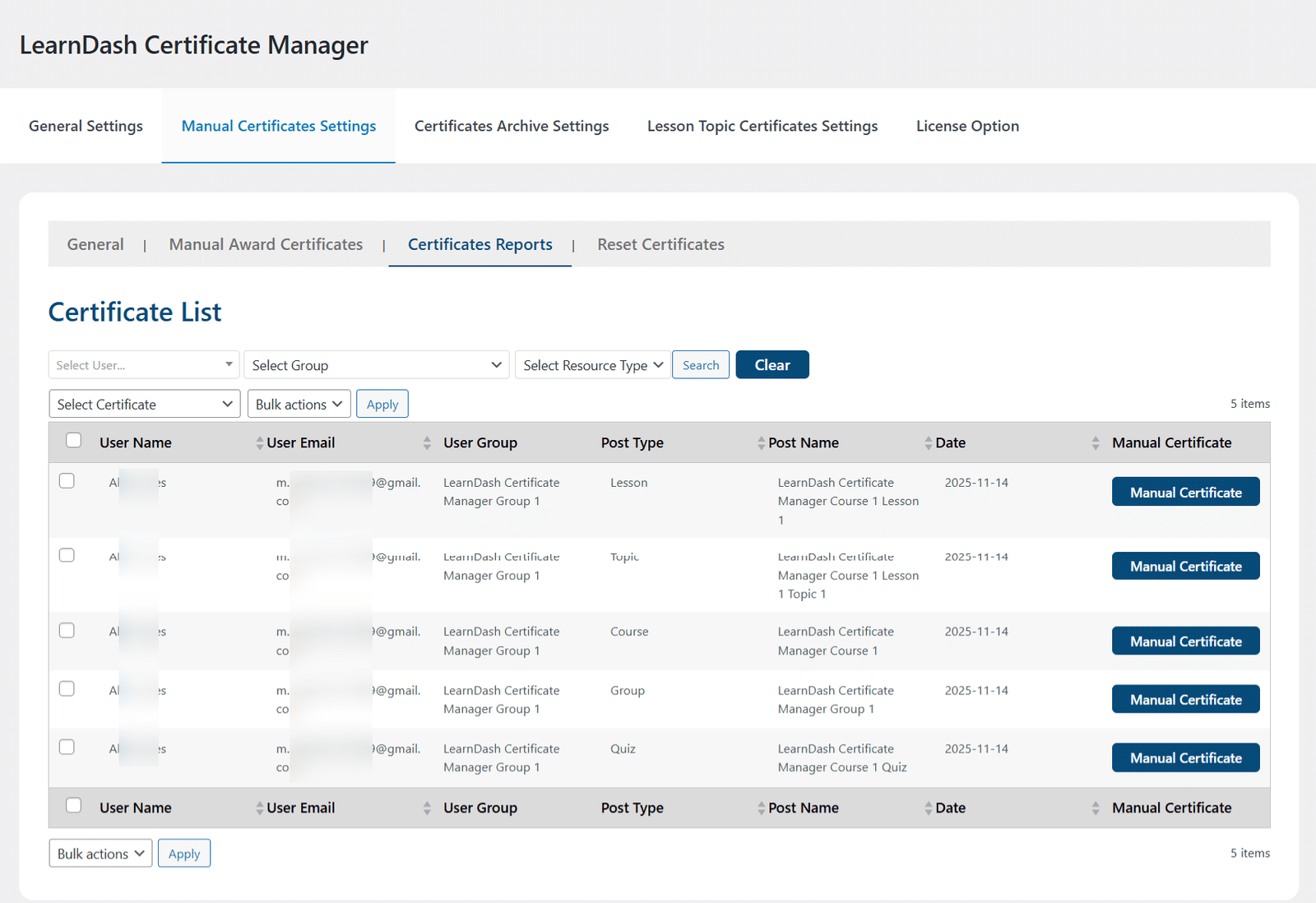
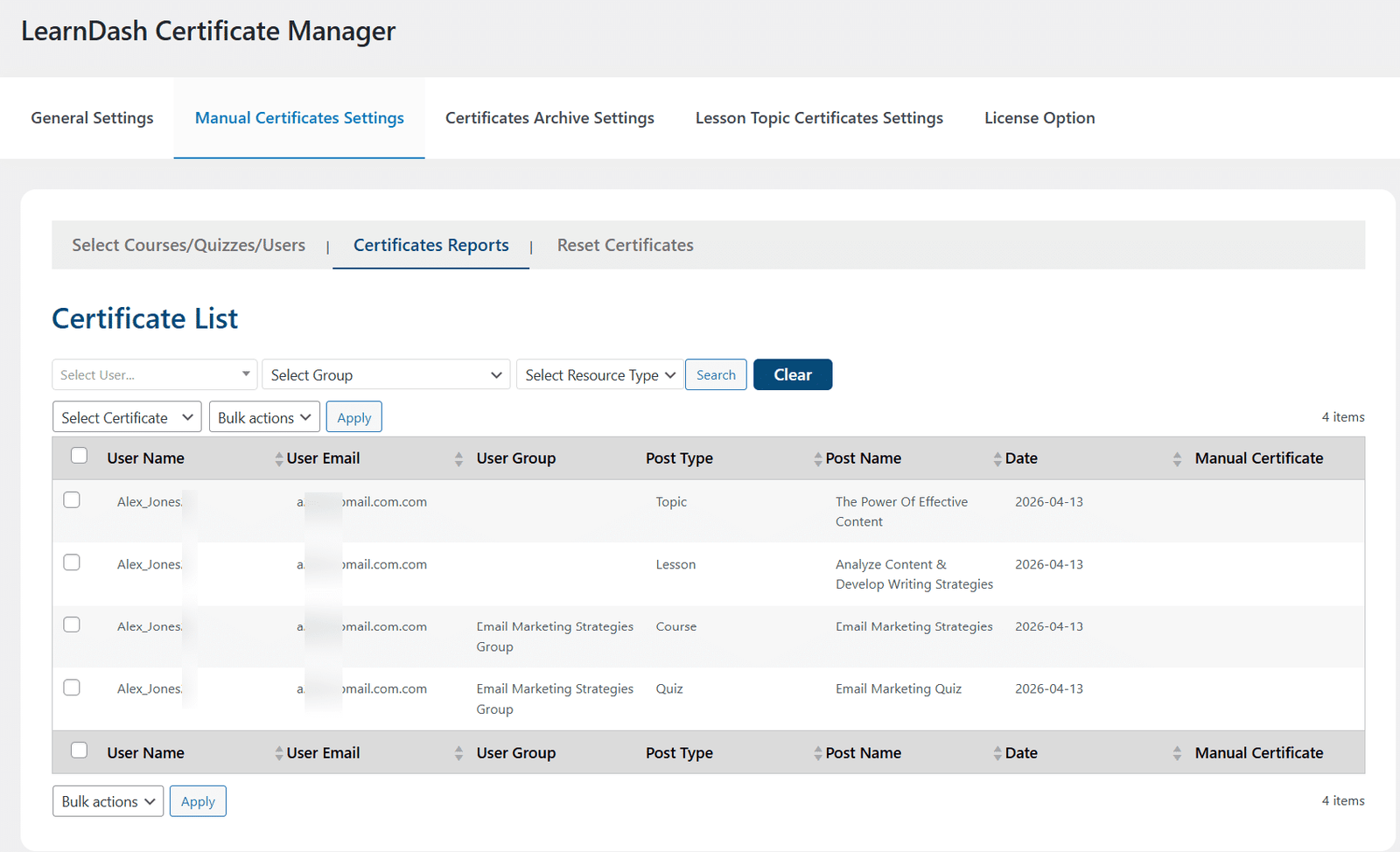
Here in the manual flow, the admin will be able to see a list of all the groups/ courses/ lessons/ topics/ quizzes for which the admin has not yet assigned a certificate manually. He will be able to filter the certificates by User name, Resource type, and Group. Finally, click on the “Search” button to filter the records. Additionally, you can click the “Clear” button to see all the records again.
The administrator will have the option to either assign the default certificate (which he assigned to the respective group/ course/ lesson/ topic/ quiz in the Settings tab) or assign another certificate by clicking the “Manual Certificate” button. Then select the certificate (the administrator wants to assign) from the dropdown and finally click the “Award” button.
Similarly, in the automatic flow (when the “Allow Manual Award Functionality Only:” option is disabled), the administrator will be able to only view the records of certificates the students/learners have been awarded and filter/search them.
Reset Certificates:

The administrator can also permanently delete all the course data of specific user(s) (Resetting the user’s progress as well) by toggling on the “Permanently Delete Course Data” option. When the toggle is enabled, all the progress the respective user(s) have made on all their courses will be deleted.
To do it, the administrator can select the respective user(s) whose progress needs to be reset. Toggle on the “Permanently Delete Course Data” option. Finally, click on the “Update Settings” button.
Also, the administrator can reset the certificates for the selected Users/ Courses/ Lessons/ Topics/ Quizzes.
To do it, the administrator can select the respective Users/ Courses/ Lessons/ Topics/ Quizzes to be reset. Finally, click on the “Update Settings” button.
Certificates Archive Settings:
General Settings:
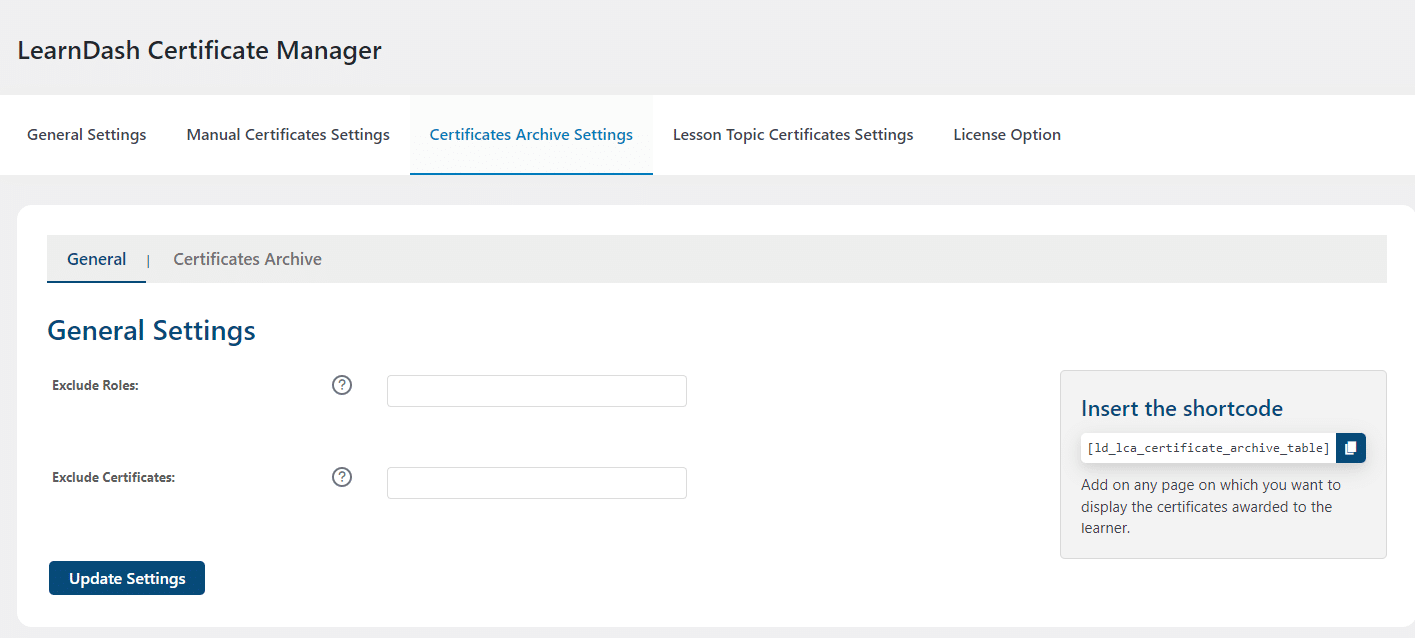
There are the following two options available:
Exclude Roles:
Here, the administrator can select the User roles for which the certificates will not be displayed on the frontend. Finally, click on the “Update Settings” button.
Exclude Certificates:
Here, the administrator can select the Certificates that will not be displayed on the frontend for any user. Finally, click on the “Update Settings” button.
Shortcodes
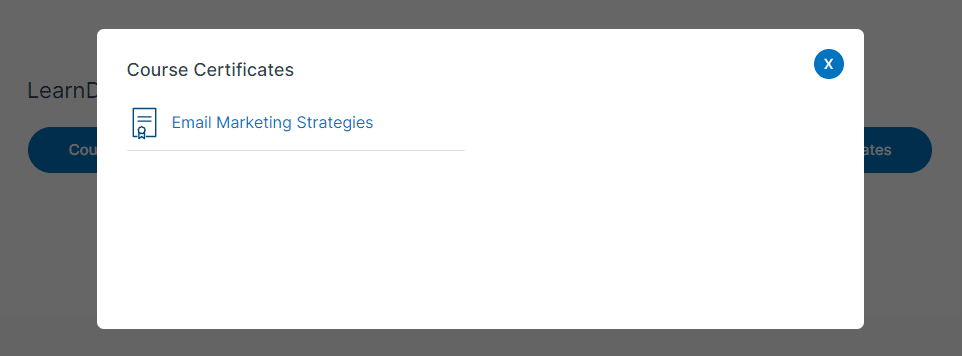
You can place the following shortcode to display archived certificates.
- [ld_lca_certificate_archive_table] > Insert this shortcode on any page on which you want to display the certificates awarded to the learners.
This is how the shortcode will look on the frontend:

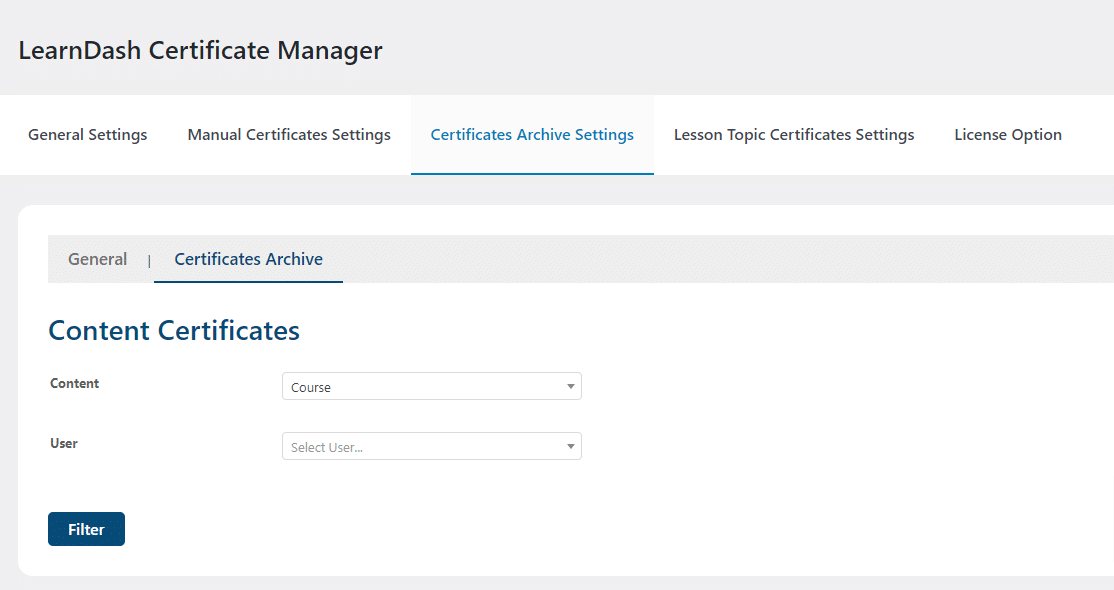
Content Certificates:
Here, the administrator will be able to see all the certificates earned by any specific user by filtering his/her Certificate category (Group/ Course/ Lesson/ Topic/ Quiz) and User name. Finally, click the “Filter” button.
Archive Certificates:

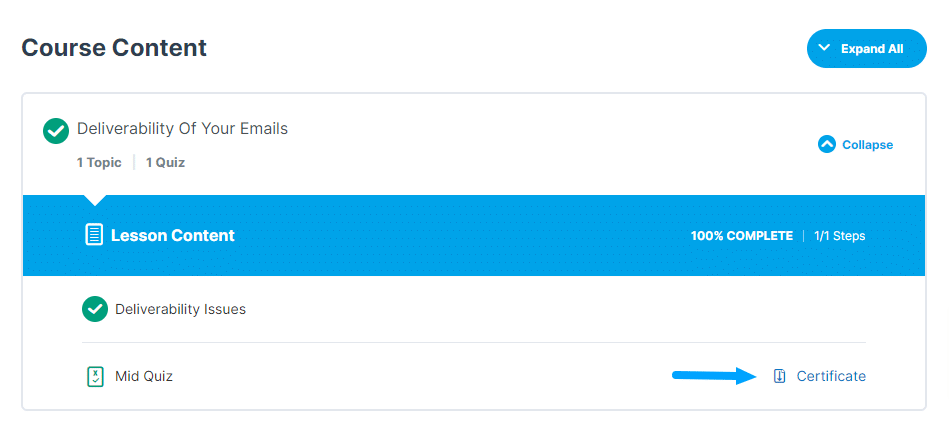
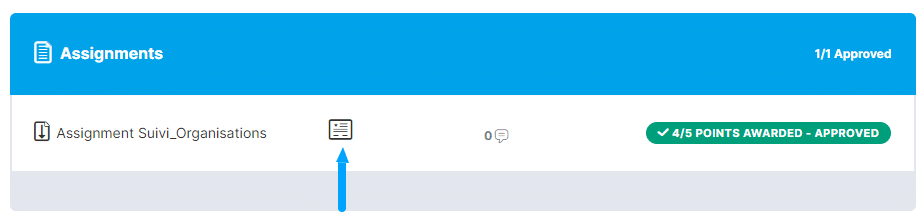
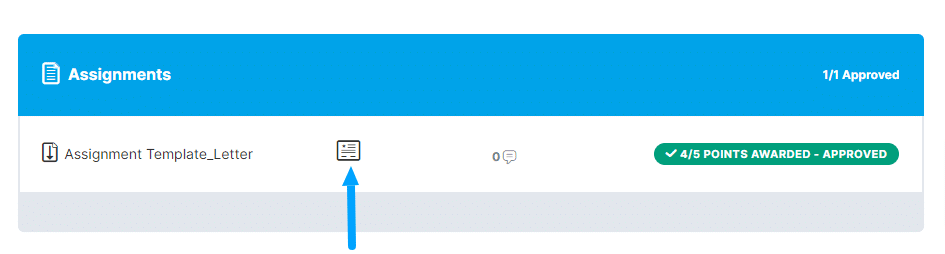
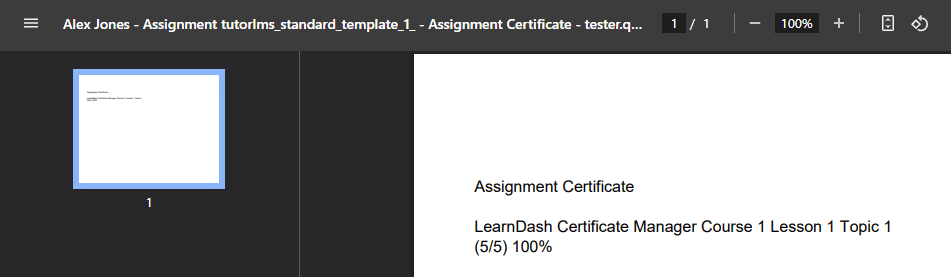
Note: Assignment Certificates are assigned automatically and cannot be viewed using the shortcode [ld_lca_certificate_archive_table] or by the administrator in the backend. They can be accessed by the students on the respective course/ lesson/ topic pages of those assignments on which they were submitted.
Course Page
Lesson Page
Topic Page
Lesson Topic Certificates Settings:
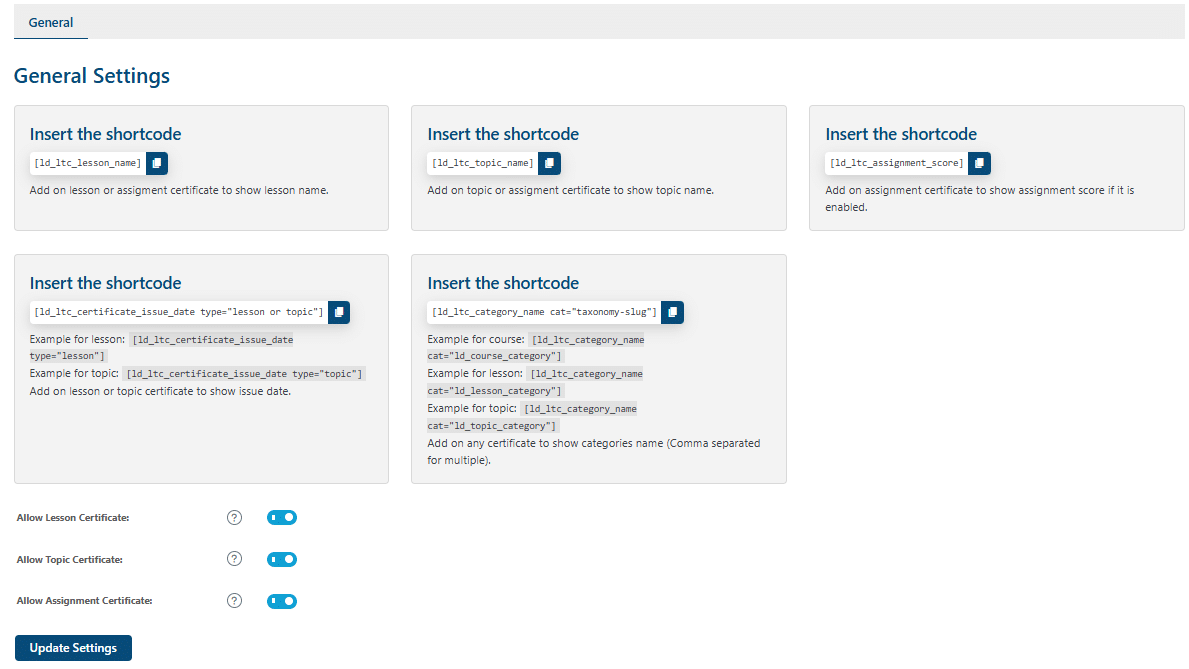
There are 3 following options available:
Allow Lesson Certificate:
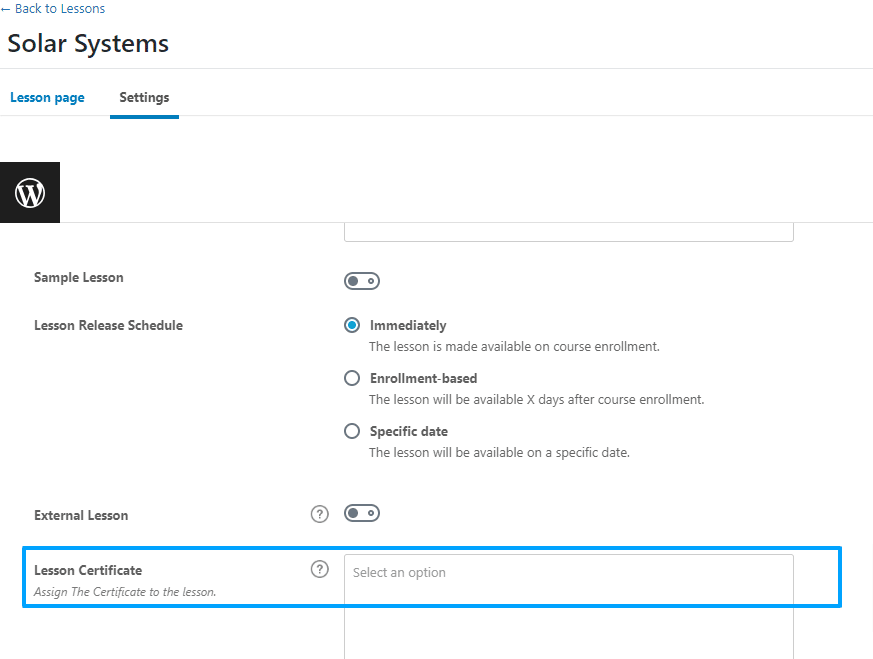
Enable this option and click on the “Update Settings” button if you want to allow Lesson Certificates. When you enable this option, a field “Lesson Certificate” will become available in any lesson’s edit page, allowing the administrator to assign a certificate to the course’s lesson upon completion.
Allow Topic Certificate:
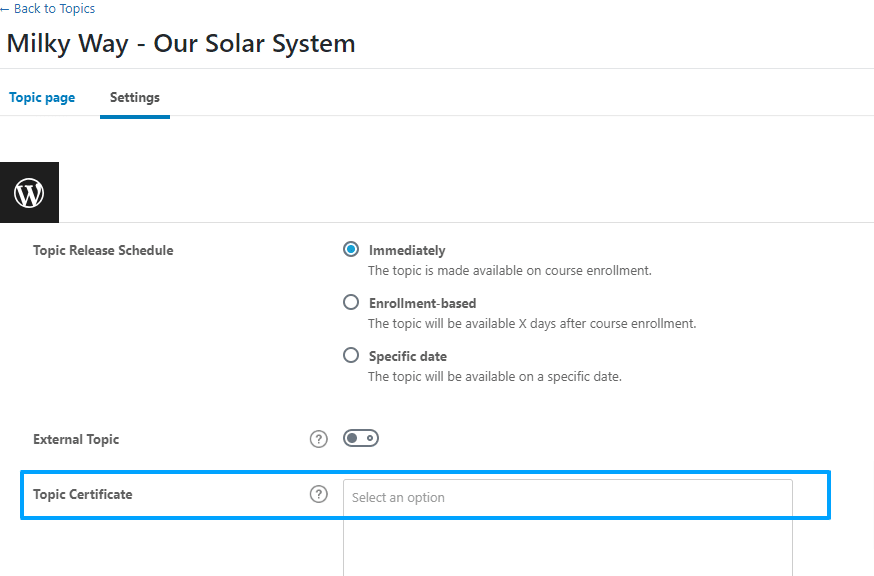
Enable this option and click on the “Update Settings” button if you want to allow Topic Certificates. When you enable this option, a field “Topic Certificate” will become available on any topic’s edit page, allowing the administrator to assign a certificate to the course’s topic upon completion.
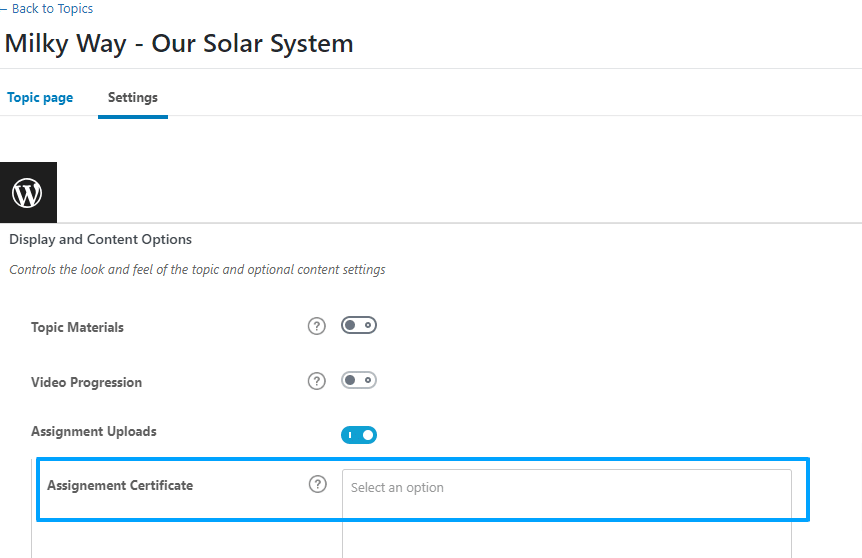
Allow Assignment Certificate:
Enable this option and click on the “Update Settings” button if you want to allow Assignment Certificates. When you enable this option, a field “Assignment Certificate” will become available on any lesson’s/topic’s edit page in the “Assignment Uploads” option, allowing the administrator to assign a certificate to any course’s assignment on any lesson/topic upon completion.
Shortcodes
This feature has the following shortcodes:
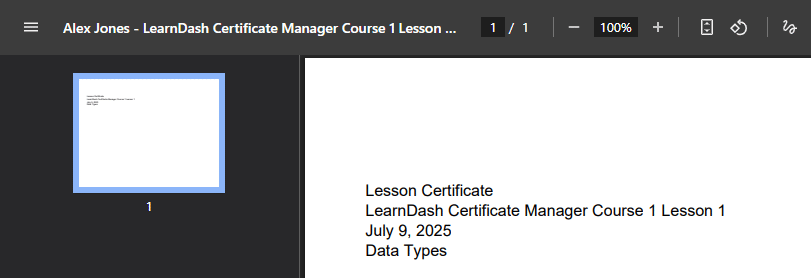
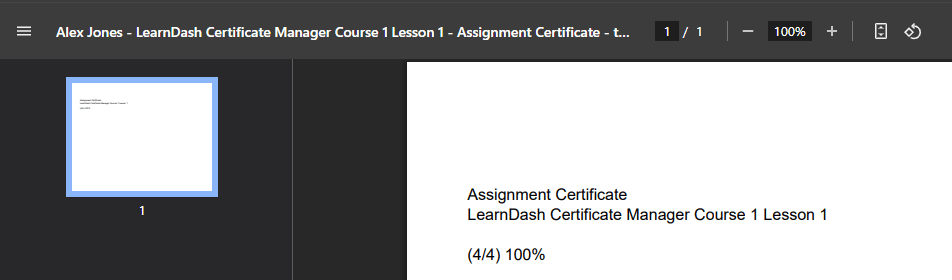
- [ld_ltc_lesson_name] > Insert this shortcode on any lesson or assignment certificate on which you want to display the lesson name.
- [ld_ltc_topic_name] > Insert this shortcode on any topic or assignment certificate on which you want to display the topic name.
- [ld_ltc_assignment_score] > Insert this shortcode within any assignment certificate to display the assignment score (if it is enabled).
- [ld_ltc_certificate_issue_date type=”lesson”] > Insert this shortcode within any lesson certificate to display the lesson completion date.
- [ld_ltc_certificate_issue_date type=”topic”] > Insert this shortcode within any topic certificate to display the topic completion date.
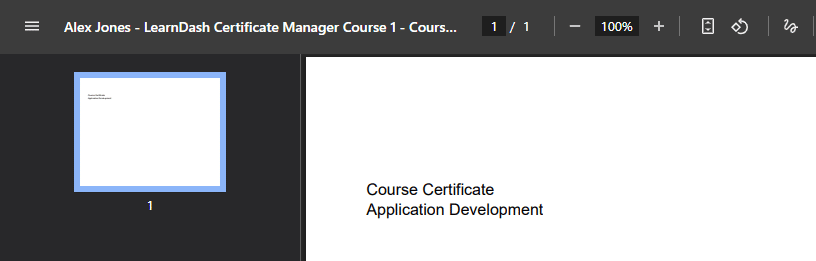
- [ld_ltc_category_name cat=”ld_course_category”] > Insert this shortcode within any course certificate to display the respective course’s category(s).
- [ld_ltc_category_name cat=”ld_lesson_category”] > Insert this shortcode within any lesson certificate to display the respective lesson’s category(s).
- [ld_ltc_category_name cat=”ld_topic_category”] > Insert this shortcode within any topic certificate to display the respective topic’s category(s).

BuddyBoss Compatibility
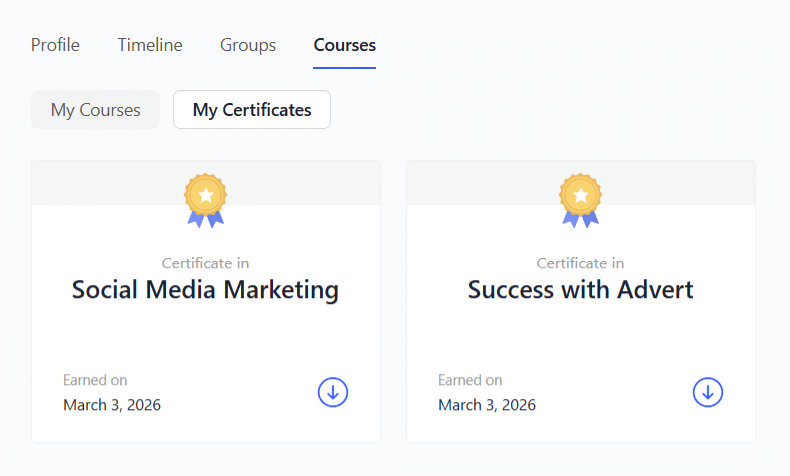
The addon is compatible with the “My Certificates” tab of BuddyBoss’s User Profile. It will show the user’s group, course, lesson, topic, and quiz certificates, and will work with both the automatic and manual flows of our addon. To show the “My Certificates” tab of BuddyBoss’s User Profile, the steps are as follows:
- Install the BuddyBoss Theme.
- Install the BuddyBoss Platform plugin.
- Navigate to the “BuddyBoss → Integrations→LearnDash” tab and enable the “My Courses Tab” option.
Widget
You can place the “LearnDash Certificate Archive Table” widget to display archived certificates. Insert the widget on any page on which you want to display the certificates awarded to the learners. It will work like the “[ld_lca_certificate_archive_table]” shortcode.

FAQ’s
1- Why are the LearnDash Assignment Certificates not available on the archive frontend, archive admin backend, and manual certificates?
Currently, the assignment certificate is not compatible with the archive certificate module and manual certificate module of the addon, but in future updates, we will consider including it.
Are there any time logs being maintained for when the admin assigns a certificate in the backend?
No, currently, no time logs are being maintained for when the admin assigns a certificate in the backend.
3- What is the functionality of the “Reset Certificates”?
The “Reset Certificates” functionality deletes the record(s) of any assigned certificate through the manual assignment functionality. It does not allow the administrator to reassign a certificate to any particular record(s).
4- Will the “Group certificate reset” and “Reassign Certificates” functionality be made available in the future?
Yes, it is possible in future updates, although we don’t have plans for it at the moment.
5-Does the LearnDash Certificate Manager plugin have any dependent plugin(s)?
Yes, LearnDash Certificate Manager requires the LearnDash LMS plugin to be installed before activating it.
6- Does it works with the LearnDash Multi Certificates add-on?
Currently, the LearnDash Certificate Manager add-on is not compatible with the LearnDash Multi Certificates.
7- Can I manually assign certificates while still using automatic certificate assignment?
The LearnDash Certificate Manager allows administrators to manually assign certificates without disabling the automatic certificate flow, as long as the “Allow Manual Award Functionality Only” option is disabled.
When this option is disabled:
- LearnDash’s default automatic certificate assignment works as expected.
- Certificates earned through course completion appear normally.
- Administrators can additionally manually assign certificates when needed from the “Manual Certificates Settings” tab.
8- What does the “Allow Manual Award Functionality Only” option do?
The “Allow Manual Award Functionality Only” setting controls whether certificates are assigned automatically, manually, or both. Its state directly affects how certificates are handled and displayed.
When this option is disabled
- LearnDash’s automatic certificate assignment is active.
- Certificates are automatically awarded upon completion.
- Awarding Certificates Manually is also available as an additional option.
When this option is enabled
- The add-on switches to a fully manual certificate workflow.
- Automatic certificate assignment is disabled.
- Users will see a message indicating that their certificate is pending.
- Administrators must manually assign certificates from the “Certificates Reports” tab.
- This setting overrides the automatic flow and may affect which certificates appear.
To ensure consistent certificate behavior, choose this setting based on whether you prefer an automatic, manual, or hybrid certificate workflow.
Changelogs
1.2.11
- New: Implemented pagination on the Manual Certificates settings tab for improved management of courses, quizzes, and users.
- Fix: Resolved security vulnerabilities and enhanced overall performance.
1.2.10
- Fix: Fixed an issue where toggled needed to be enabled for awarding manual certificates in automatic flow.
1.2.9
- New: Added a new block to support block editor “LearnDash Certificate Archive Table”.
1.2.8
- New: Added compatibility with buddyboss theme.
1.2.7
- New: Added an option to enable certificate attachment in emails for Manual Award mode.
- Fix: Improved Licensing Module.
1.2.6
- New: Added search functionality for Courses, Quizzes, and Users to improve usability and navigation.
- Fix: Resolved security vulnerabilities and enhanced overall performance.
- Fix: Corrected issues with labels and tooltips to ensure clearer and more consistent messaging.
1.2.5
- New: Added select Courses/Quizzes/Users sub menu tab in manual certificates settings tab.
- New: Added functionality to include Courses/Quizzes/Users in manual flow to apply certificate restrictions and show manualy awarded certificates.
- Fix: Fixed course showing manual flow message in automatic flow.
- Fix: Fixed group showing manual flow message in automatic flow.
1.2.4
- Fix: Addressed security vulnerabilities and improved overall performance.
1.2.3
- Fix: Fixed issue with “Allow manual award functionality only” showing previous certificates.
1.2.2
- New: Introduced admin access and visibility controls, enabling administrators to assign granular permissions to specific user roles.
1.2.1
- Fix: Resolved an issue where course and quiz certificate icons were not displaying in the profile widget.
- Fix: Corrected the missing “Download Certificate” button on course pages for users or courses excluded in manual assignment flows.
- Fix: Ensured report entries are properly removed when manually awarding and overriding existing certificates.
- Fix: Fixed an issue preventing certificates from appearing in the certificate archive shortcode and backend certificate archives.
- Fix: Addressed various minor text and display inconsistencies.
1.2.0
- New: Introduced an intuitive Admin Interface that allows administrators to manually assign certificates to users directly from the dashboard.
- New: Implemented automated email notifications to inform users whenever a certificate is manually assigned or awarded.
- New: Added certificate override functionality – enabling administrators to replace previously earned certificates with manually awarded ones.
- Fix: Resolved general performance issues and introduced several code optimizations for improved stability and efficiency.
1.1.1
- Fix: Fixed incorrect certificates showing issue on [ld_lca_certificate_archive_table] shortcode.
1.1.0
- New: Removed the existing toggle dependency for certificate handling.
- New: Renamed the option from “Allow manual award functionality” to “Allow manual award functionality only” for clearer understanding.
- New: When the toggle is disabled, certificates are automatically awarded and the “Revoke Certificate” option is available.
- New: When the toggle is enabled, certificates are not auto-awarded; the admin must manually award them.
- New: Added backward compatibility so all certificates generated before activating the add-on still have the “Revoke Certificate” option.
- New: Added a “Progress Reset” checkbox in the Reset Certificate tab to allow admins to reset learner progress along with the certificate if desired.
1.0.7
- New: Expanded compatibility to include older PHP versions.
1.0.6
- Fix: Fixed email compatibility with LearnDash Certificate Verify And Share.
- Fix: Fixed certificate URL issues.
1.0.5
- New: Added support for shortcodes to display the certificate issue date and associated categories directly on the certificate.
1.0.4
- Fix: Fixed an issue where certificate links were not redirecting to the correct certificate pages.
1.0.3
- New: Added compatibility with LearnDash Certificate Verify And Share.
1.0.2
- Fix: Resolved an issue where the certificate URL was not displaying correctly on the profile page.
- Improvement: Enhanced overall performance and implemented various optimizations.
1.0.1
- Fix: Fixed license validation issue.
1.0.0
- Initial Release.
