With the WP Document Library add-on, you can seamlessly manage and display your WordPress documents with intuitive ease, enhancing both organization and accessibility.
In this article, you’ll learn how to set up the WP Document Library add-on.
Video Tutorial
Watch the tutorial video below for a quick walkthrough of the add-on’s features and setup process.
For detailed instructions, please continue reading the full documentation. If you still have any questions, feel free to submit a support ticket.
- Video Tutorial
- Installation
- License
- Categories
- Libraries
- Library Tags
- Add New Documents
- All Documents
- Settings
- Shortcodes
- WP Document Libraries Widget
- WP Document Widget
- WP Document Libraries Upload Widget
- How to show document library(s)/category(s) on a Group (LearnDash Compatibility)
- How to show document library(s)/category(s) on a Course (LearnDash Compatibility)
- FAQ’s
- Changelogs
Installation
- Install the WP Document Library add-on & activate it.
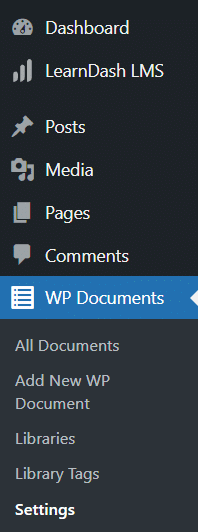
- After activation, a new menu “WP Documents” will be added.
License
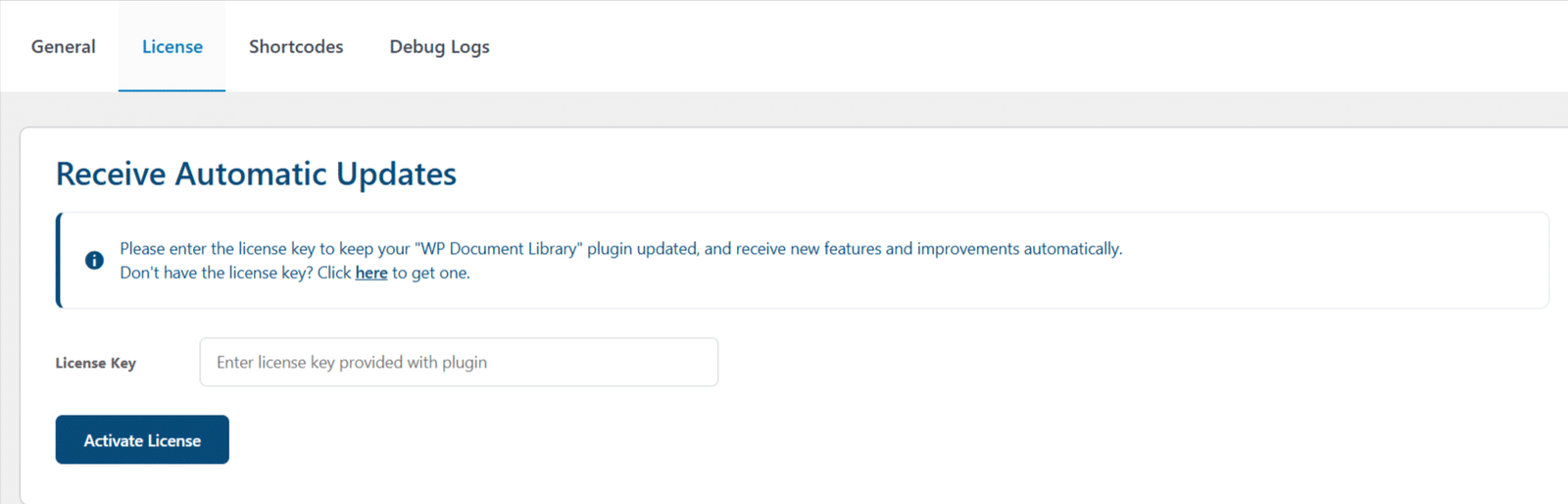
License keys can be found in the email received when you purchased the add-on. To activate your license, place your license key in the License Key field and click on the “Activate License” button.
Categories
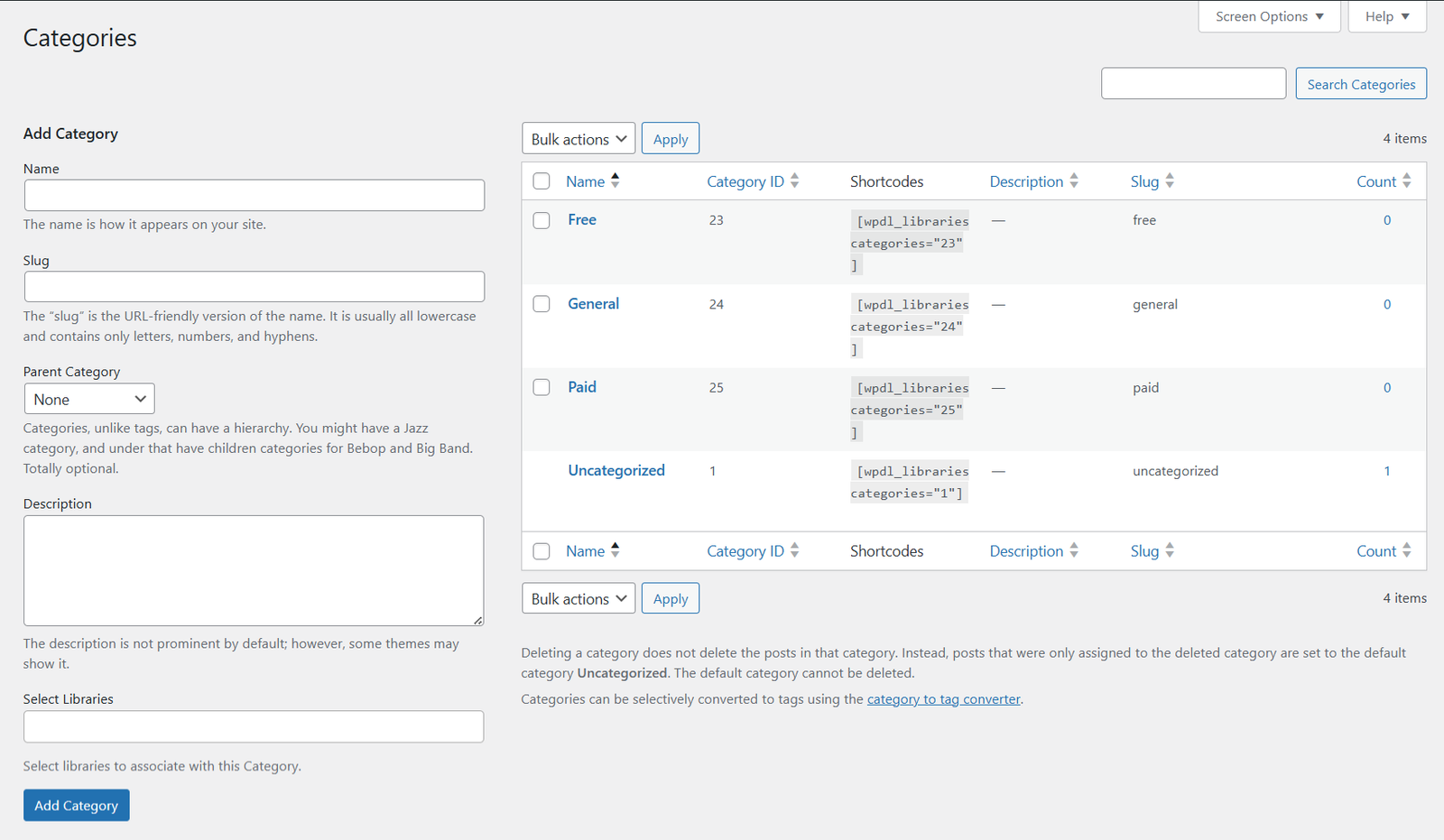
Navigate to WordPress “Posts” menu and go to “Categories” submenu. Here, you can add the Name of the Category, its slug, its Parent Category (if there is one), its description, and select any libraries (already created). Finally, click the “Add Category” button. The child category shortcodes will also be available/visible for child categories.
Libraries
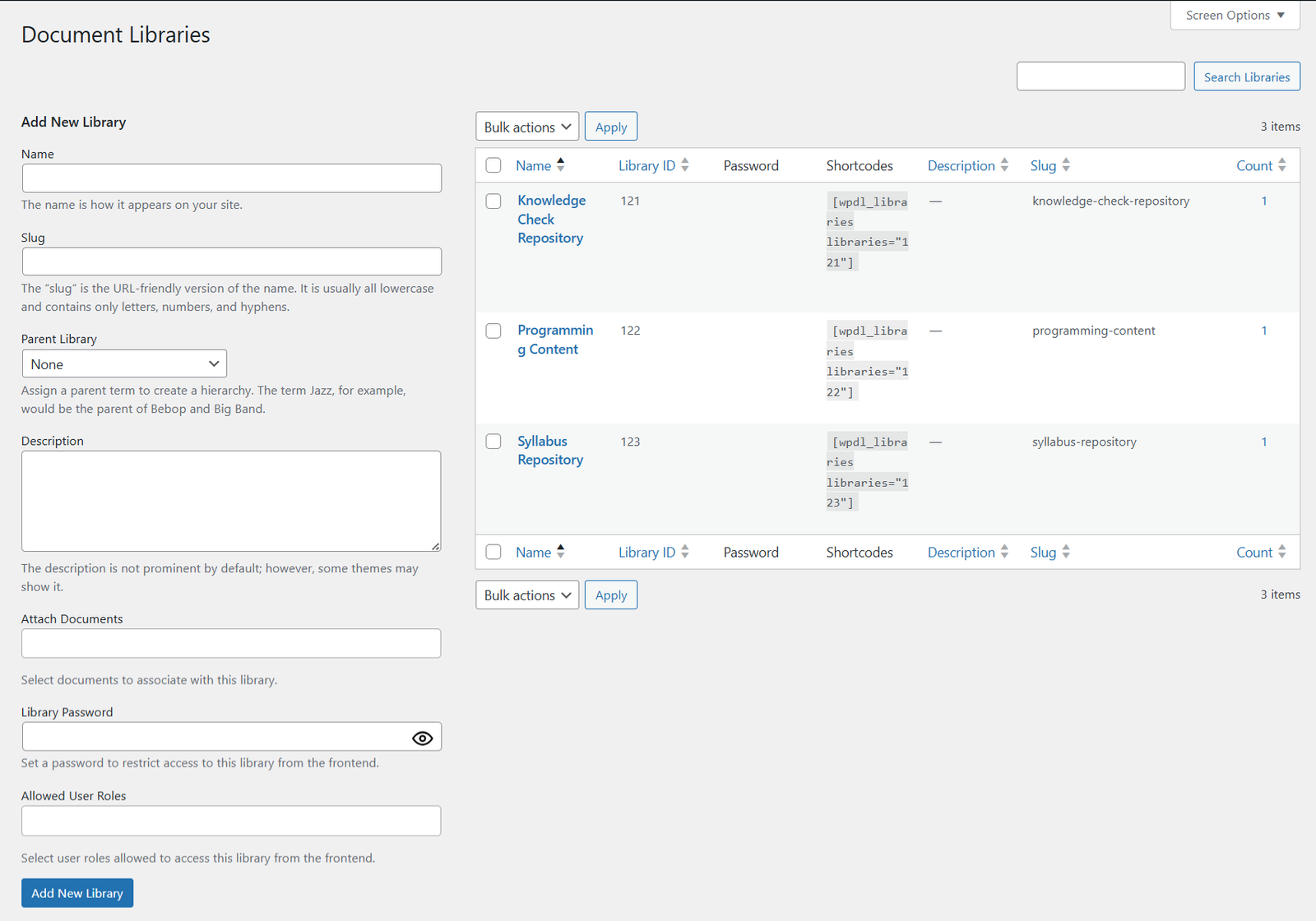
To create a new library for the documents, navigate to the “WP Documents” menu and then click on the “Libraries” sub-menu.
Add the Name of the Library, its slug, its Parent Library (if there is one), its description, and attach any documents (already created). Finally, click the “Add New Library” button.
Also, if the “Enable Libraries Restriction” option is checked, then 2 more fields will also become visible (“Library Password” and “Allowed User Roles”) on the Document Libraries page and Library edit page. The library shortcodes will not be available for the child libraries; they will only be available for the parent libraries (level 1 – at the top).
Library Tags
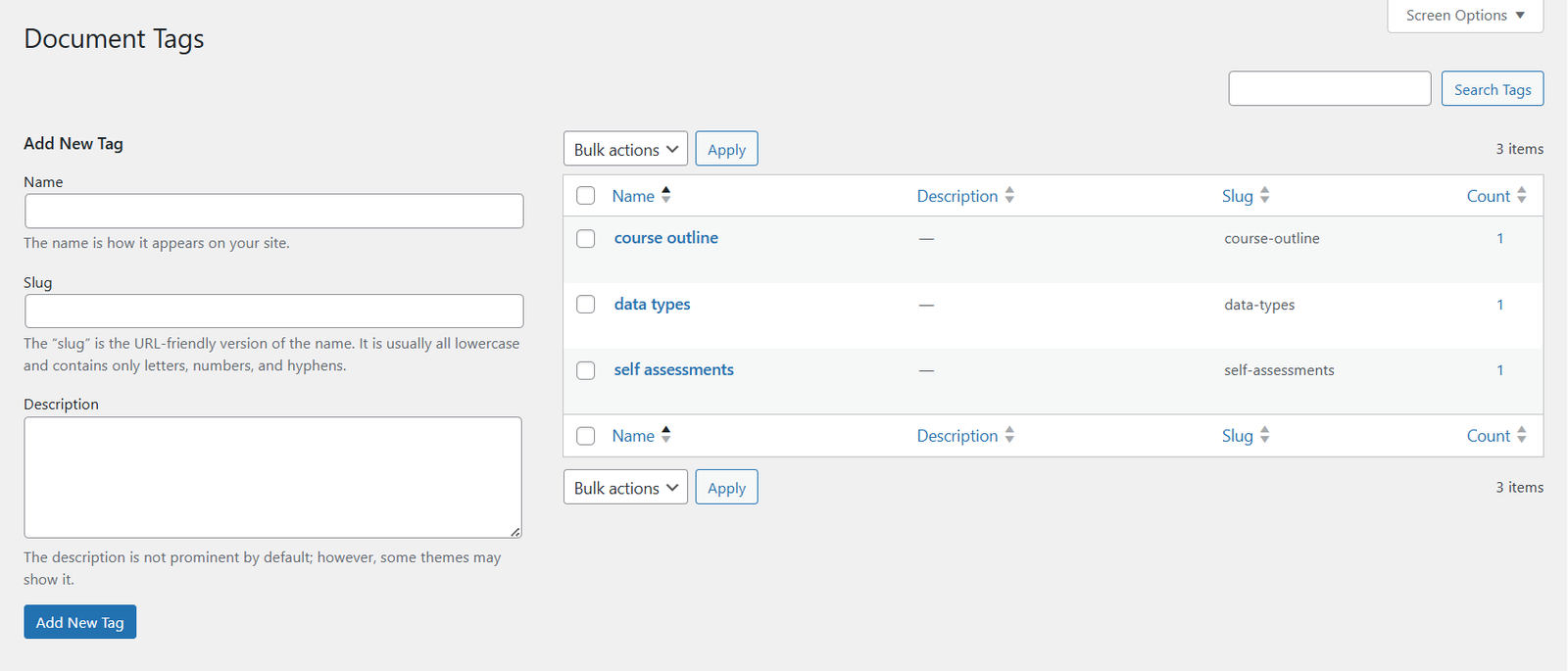
To create a new library tag for the documents, navigate to the “WP Documents” menu and then click on the “Library Tags” sub-menu.
Add the Name of the Library Tag, its slug, and its description. Finally, click the “Add New Tag” button.
Add New Documents
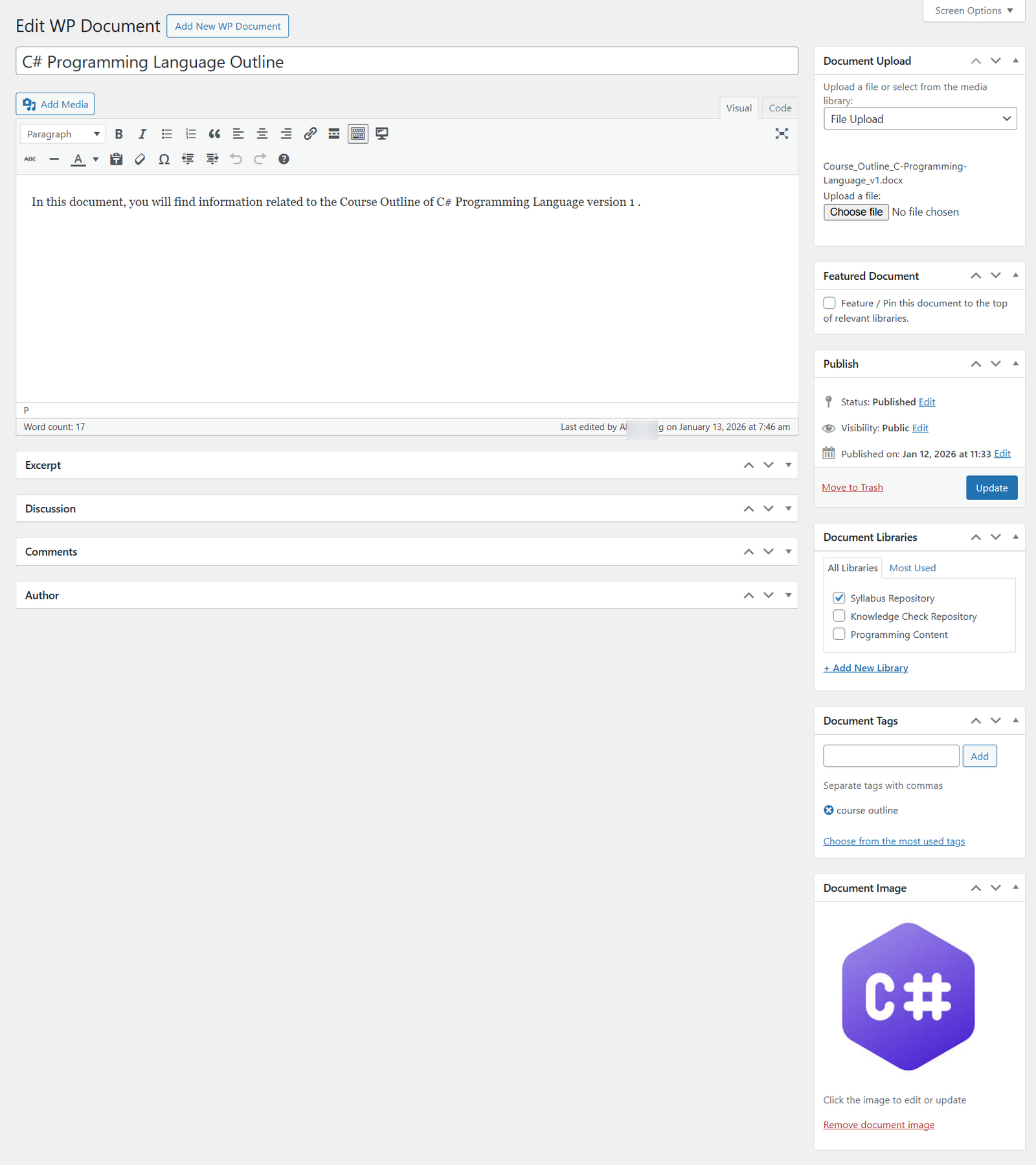
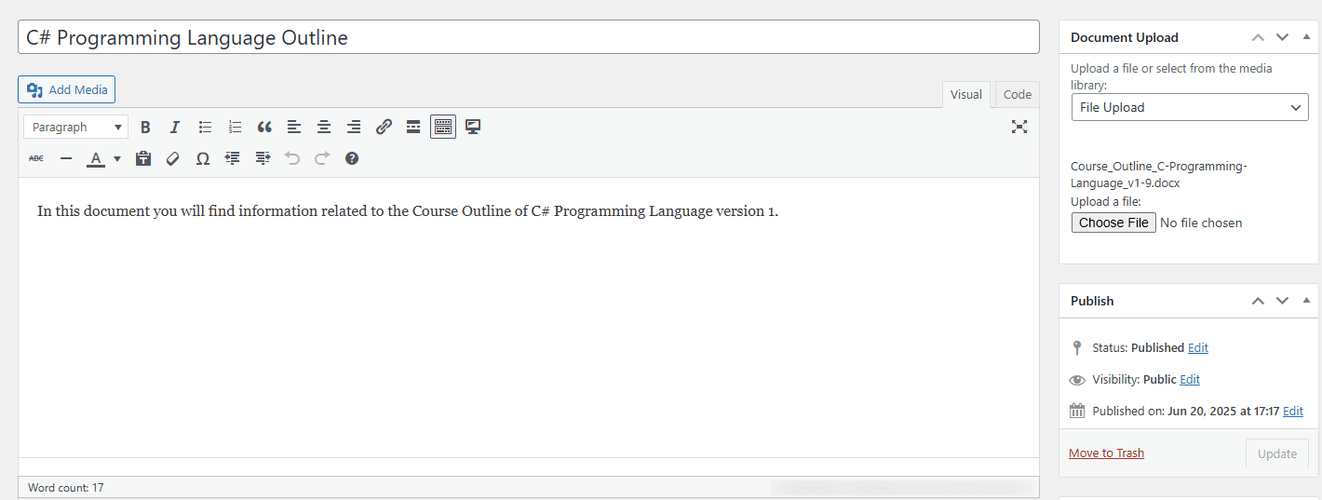
To add a new document, navigate to the “WP Documents” menu and then click on its “Add New WP Document” sub-menu.
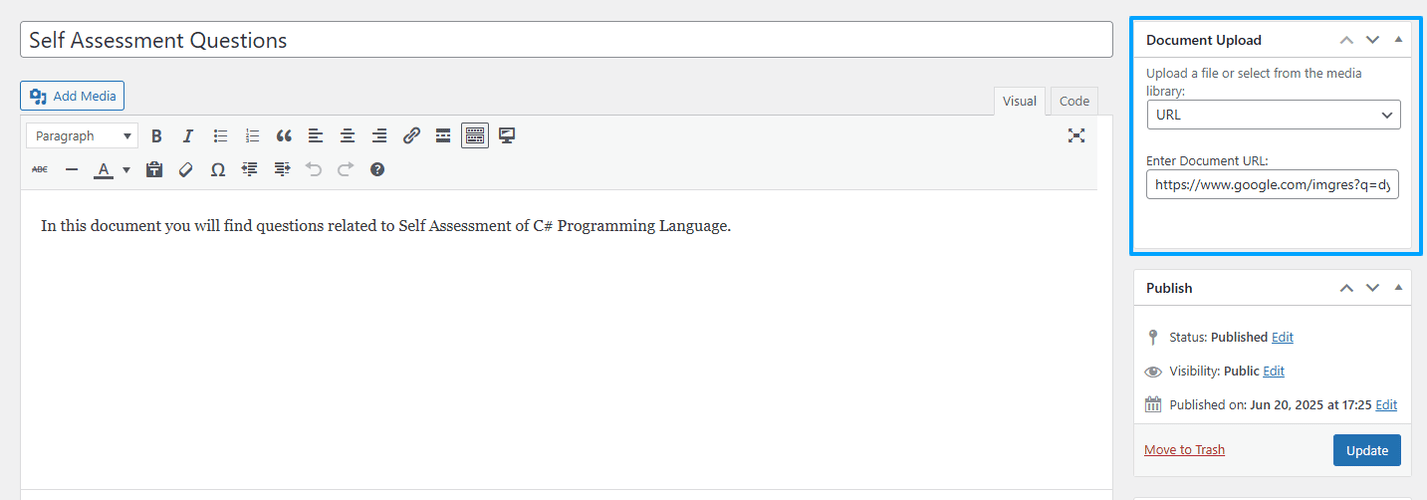
Here, add the Title, Description, Document Libraries, Document Tags, and Document Image. From the Document Upload meta box, upload the file (File Upload), or if it is already uploaded, then you can select it from the media library (Select from Library) or enter its URL (URL). You can also select whether to feature/pin this document to the top of relevant libraries by checking the checkbox in the “Featured Document” meta box; this is an optional step. If the “Featured Document” meta box is checked, then the respective document will show at the top of the respective library in which it is linked/attached to the frontend user(s). Once done, click on publish.

All Documents
Navigate to the “WP Documents” menu and then click on its “All Documents” sub-menu. Here you will see all the documents you have added.
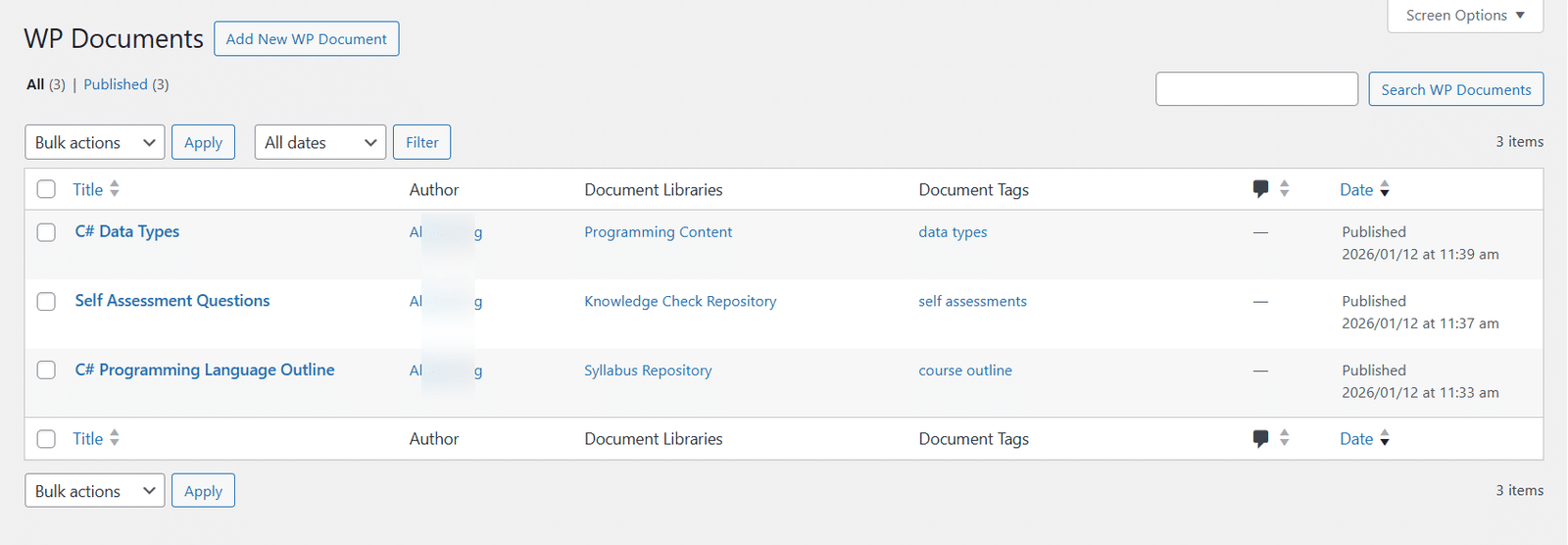
Settings
General
Here you can change the general settings.
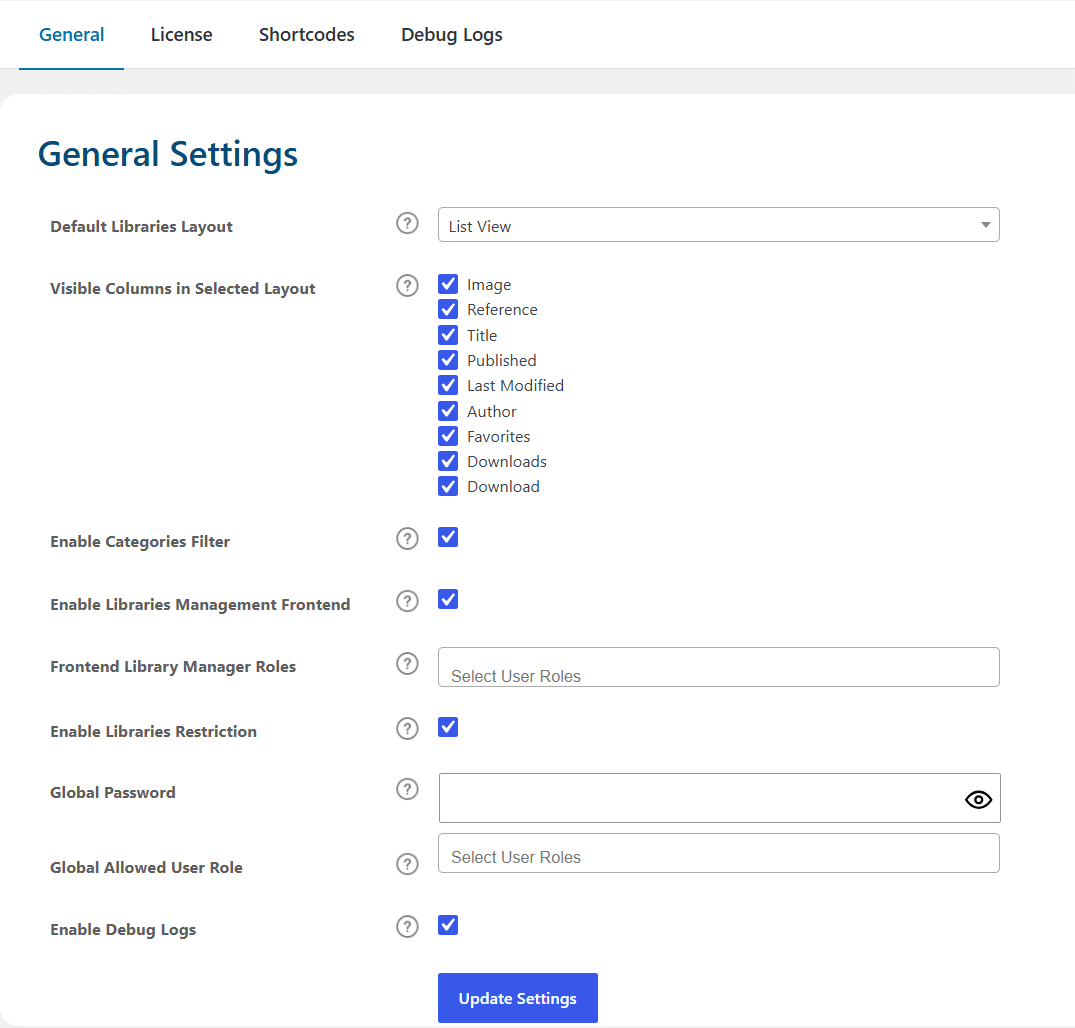
Default Libraries Layout
You can choose the default layout style for document libraries. You can select from the following options:
- List View
- Grid View
- Folder View
Visible Columns in Selected Layout
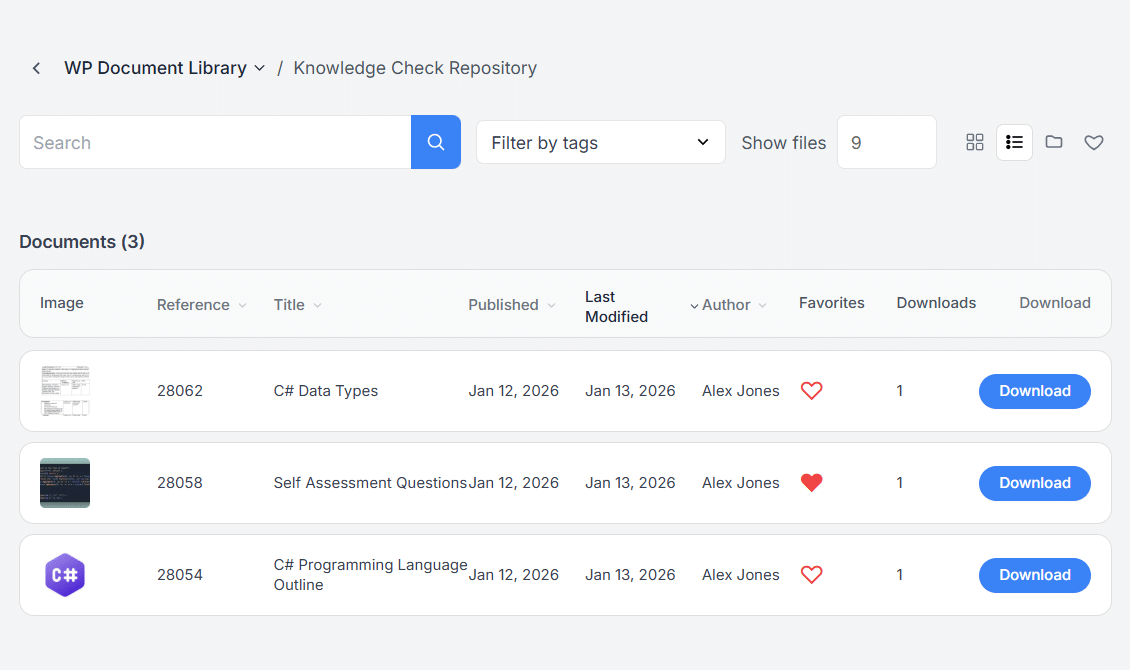
You can choose to hide specific columns from the selected layout by unchecking their respective checkboxes. You can choose to show (by checking)/hide (by un-checking) the following columns:
- Image
- Reference
- Title
- Published
- Last Modified
- Author
- Favorites
- Downloads
- Download
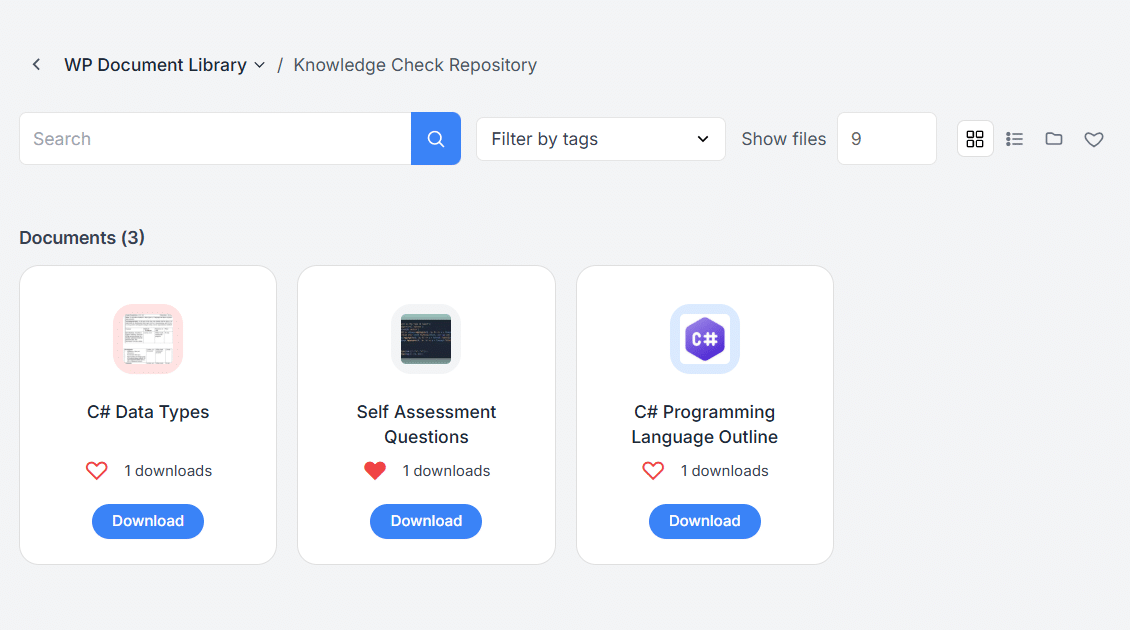
Note: All disabled columns are not visible in grid view, regardless of whether they are checked or not.
Enable Categories Filter
You can choose to enable the categories filter for the groups and courses.
- If checked, on the group/course settings tab, the “Select Document Categories” option will become available.
- If disabled, the “Select Document Categories” option will disappear, and the “Select Document Libraries” option will appear (By Default).
Note: The “Uncategorized” category option will not appear in the filter option on the frontend of any course page, group page.
Enable Libraries Management Frontend
You can choose to enable library upload from the frontend.
- If enabled, then the “WP Libraries Upload” shortcode will show in the “Shortcodes” tab and will work on any frontend page (placed on) for all user roles.
- If disabled, then the “WP Libraries Upload” shortcode will not show in the “Shortcodes” tab and will not work on any frontend page (placed on) for all user roles.
Frontend Library Manager Roles
You can select the user roles allowed to manage libraries from the frontend. Administrators always retain access. This option will become visible when the “Enable Libraries Management Frontend” option is enabled.
Enable Libraries Restriction
You can choose to enable restrictions on libraries. When this option is checked, 2 new fields will become visible regarding “password” and “allowed user roles” in the “WP Libraries Upload” shortcode (if working on the frontend), “Libraries” sub-menu, and individual library edit page. You can set passwords and user role restrictions for individual libraries.
Global Password
You can set a global password for document library access (optional). If this text field is filled, then this password restriction will be applied to the “WP Document Shortcode #2” shortcode without the “libraries/categories” attribute ([wpdl_libraries]) and the widget (WP Document Libraries). You can view the password by clicking on the “Eye” Icon.
If this text field is empty, then this password restriction will not be applied to the “WP Document Shortcode #2” shortcode without the “libraries/categories” attribute ([ldl_libraries]) and the widget (WP Document Libraries).
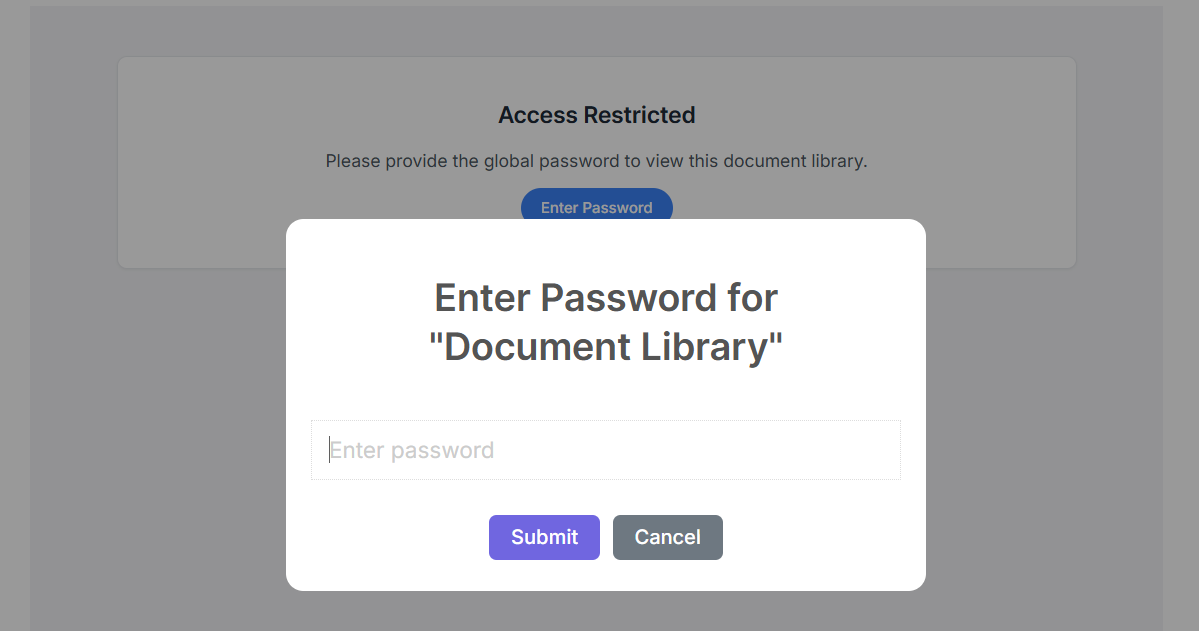
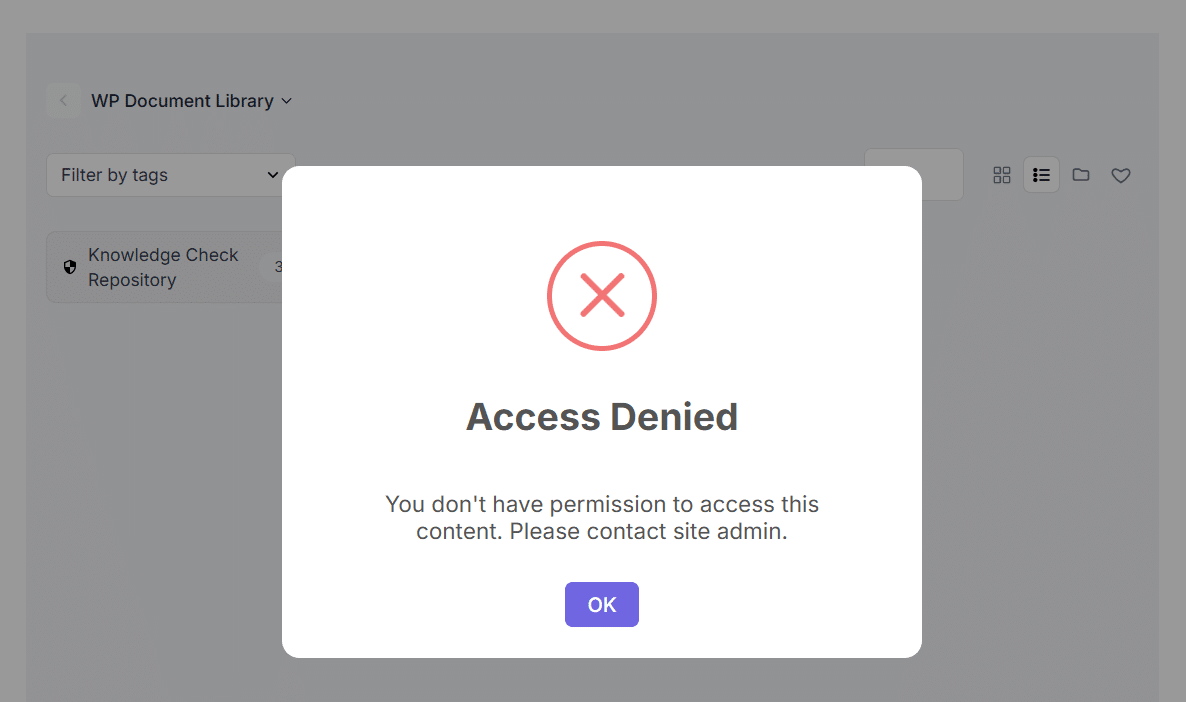
Similarly, if a library has a password set to access it, the users will be asked to enter the library’s password when they click on the library’s folder icon to access it. This restriction will be applied to “WP Document Shortcode # 2” With the libraries/categories attribute.
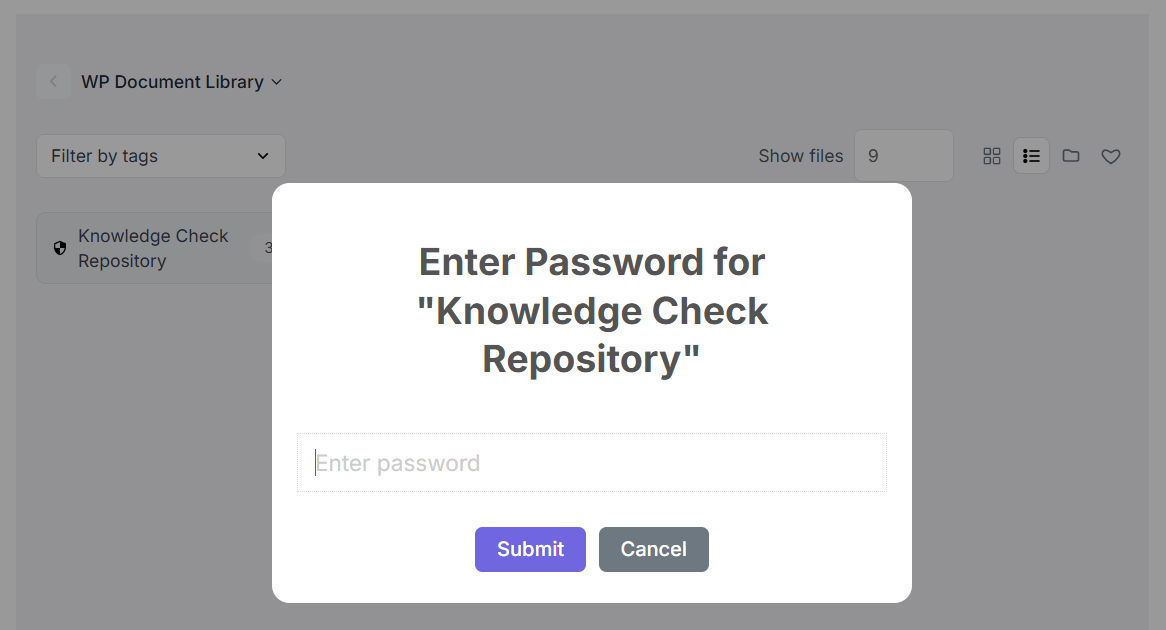
Global Allowed User Role
You can select the user role(s) allowed to access the document library globally (optional). If a user role is selected, then this user role restriction will be applied on the “WP Document Shortcode #2” shortcode without the “libraries/categories” attribute ([wpdl_libraries]), the widget (WP Document Libraries), and only the user role(s) selected will be able to access the library content/documents. If the “Global Password” text field is also filled, then only the selected user role(s) will be asked to enter the global password to access the library content/documents. Others will be shown the Access Denied pop-up.
Similarly, if no user role is selected, then the user role restrictions will not be applied on the “WP Document Shortcode #2” shortcode without the “libraries/categories” attribute ([wpdl_libraries]), the widget (WP Document Libraries) and all the user role(s) will be able to access the library content/documents.
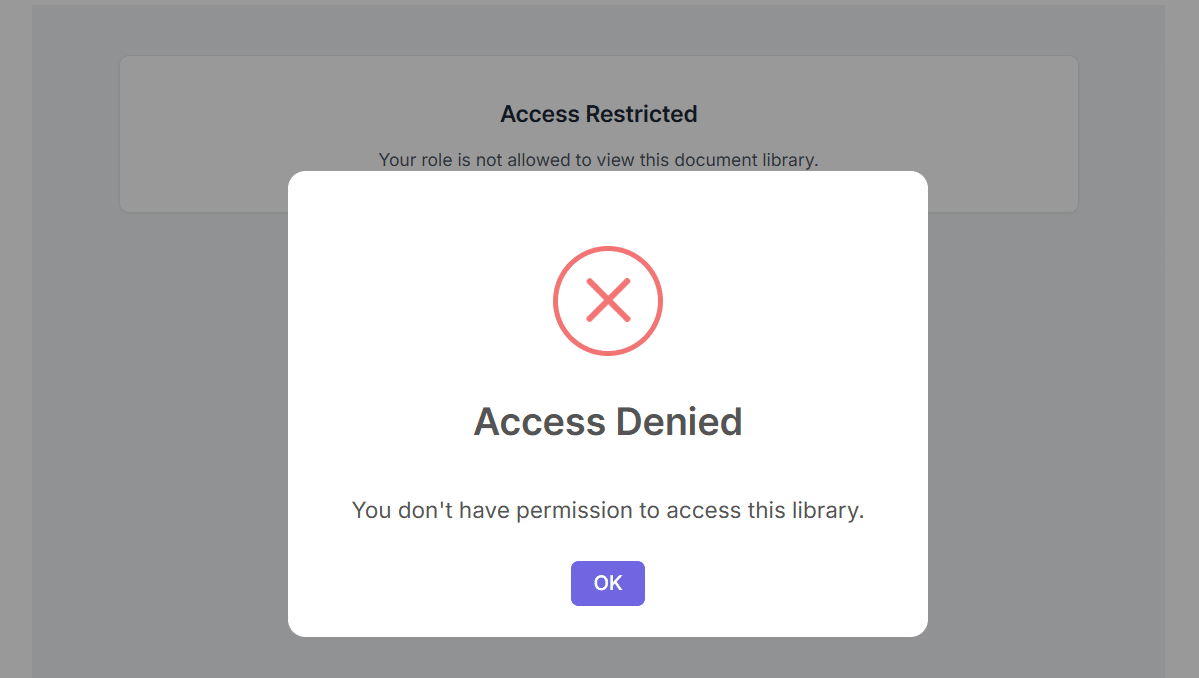
Similarly, if a library has a user role set to access it, the user’s user role will be checked when they click on the library’s folder icon to access it. This restriction will be applied to “WP Document Shortcode #2” With the libraries/categories attribute.
Enable Debug Logs
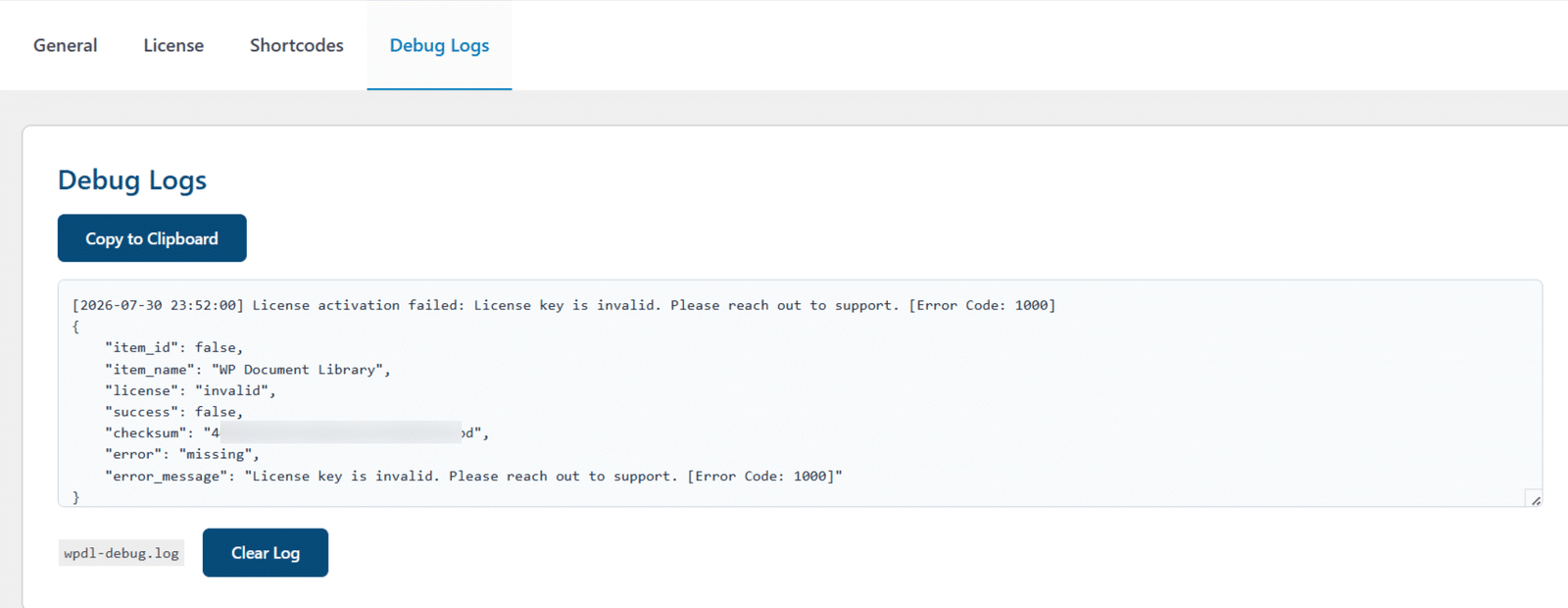
You can enable this option to log license-related activities in the “Debug Logs” tab. When this option is enabled, a new tab “Debug Logs” will become visible.
Shortcodes
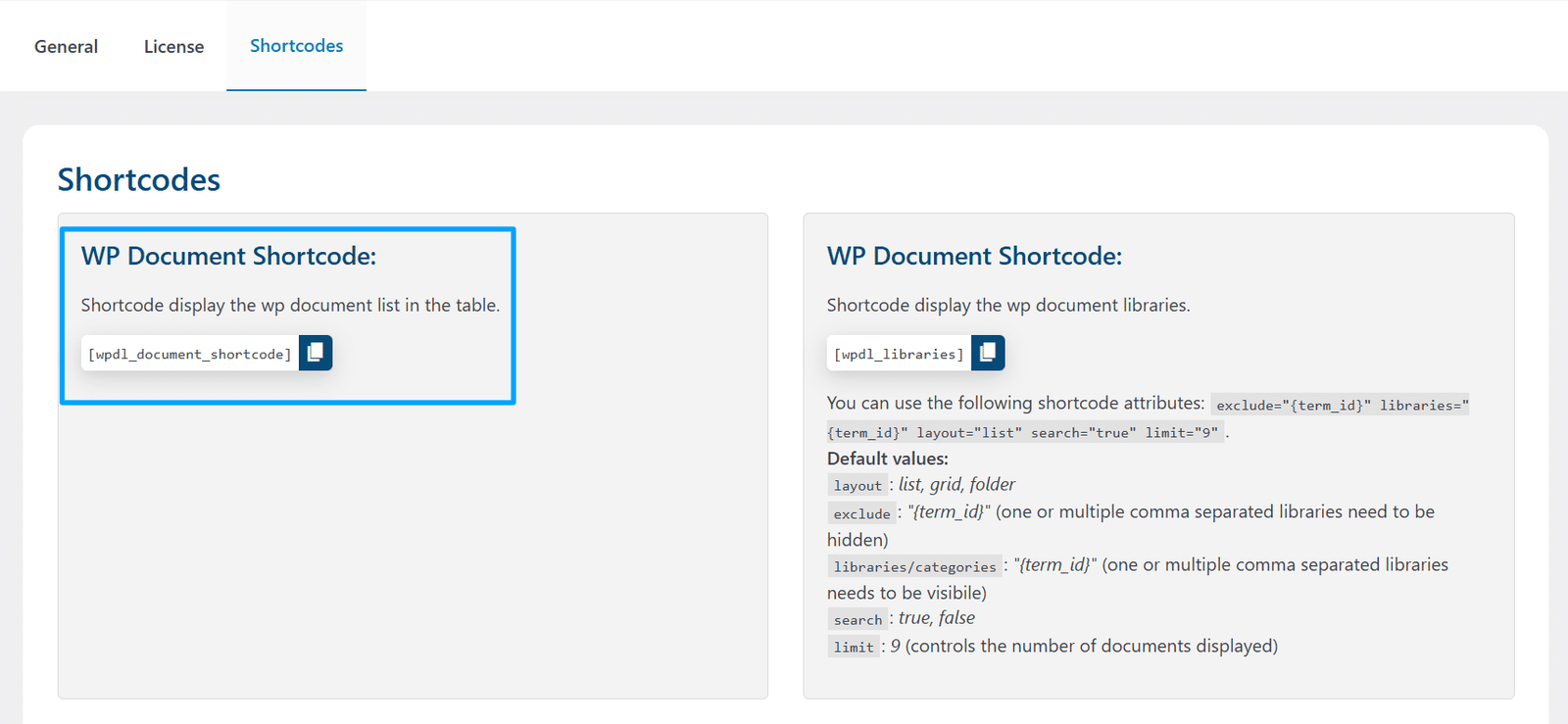
WP Document Shortcode #1
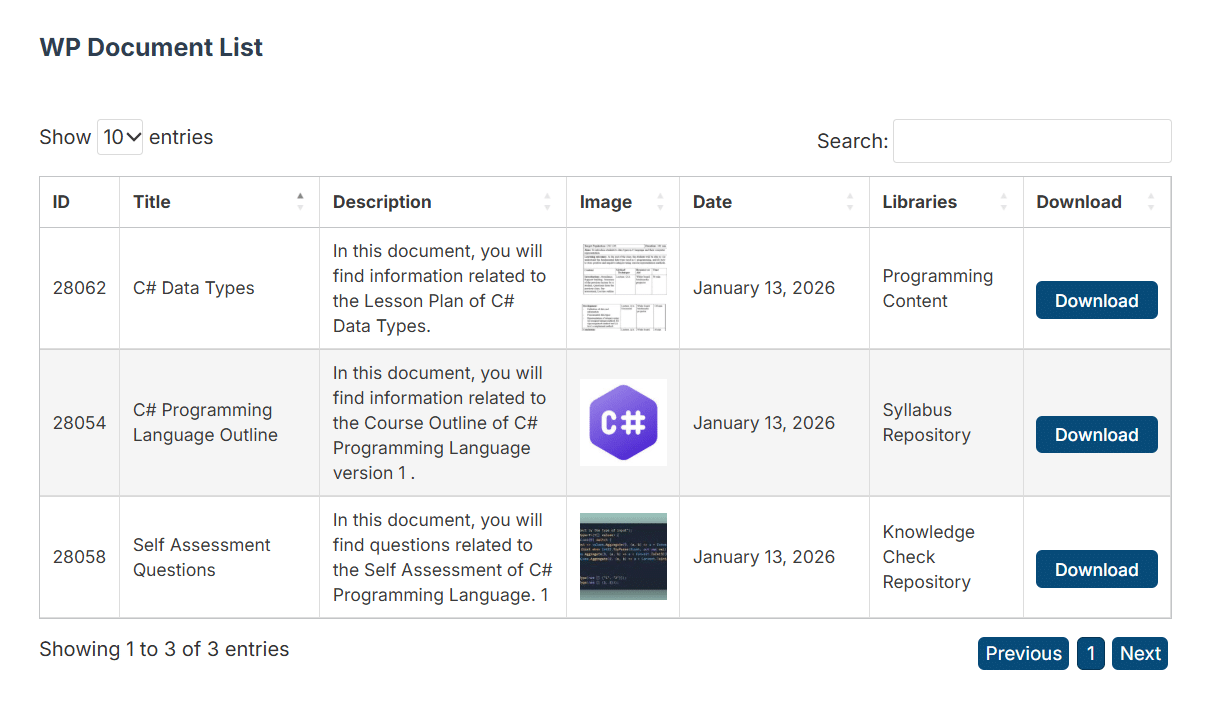
Place the shortcode on the page where you want to display the list of all WP Documents, in the form of a table.
This is how the page will look on the front end.
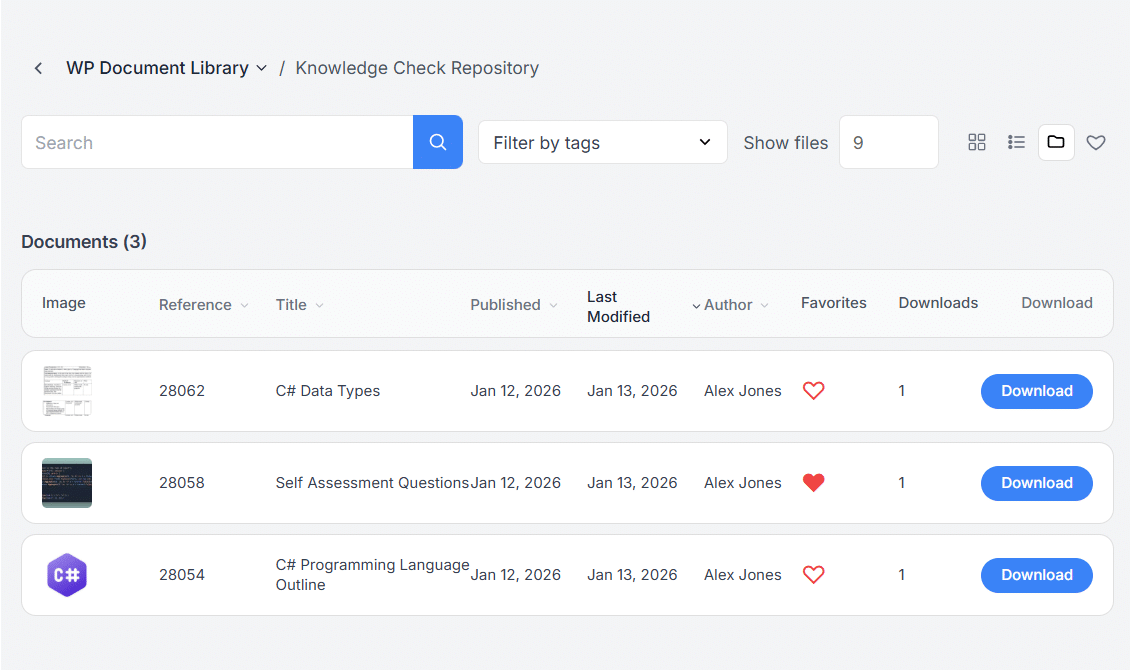
WP Document Shortcode #2
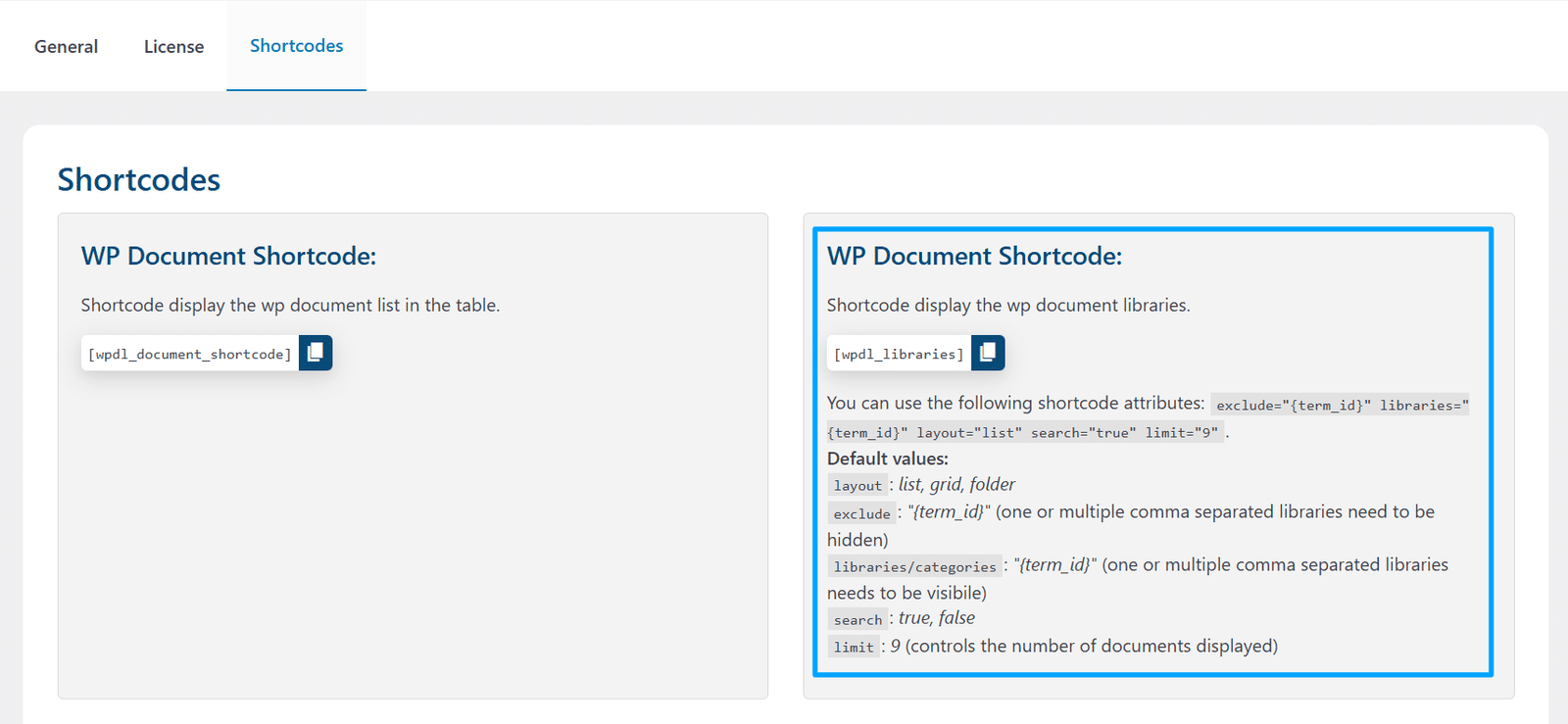
Place the shortcode on the page where you want to display the WordPress document libraries.
Attributes
1- layout
Select the layout in which you want to display the library(s)/category(s) you want. You can choose anyone from the 3 options (list, grid, folder). This attribute will override the default layout for the specific shortcode.
2- exclude
You can exclude whichever child library(s)/category(s) of the parent library(s)/category(s) you don’t want to include. If there are many, then you can provide them separated by a comma.
3- libraries / categories
You can include whichever library(s)/category(s) you want to show to the users. If there are many, then you can provide them separated by a comma.
4- search
Select whether you want the library/category to be searchable or not. The library/category is by default searchable. You can choose anyone from the 2 options (true, false)
5- limit
You can select how many document records you want to show on a single page.
Note: If you are using the folder view, then kindly note that the folder hierarchy must be kept in mind, as you cannot show the child library of any parent library without including its parent library ID in the “libraries” attribute. Also, the default layout of the shortcode and visible columns will be set from the “General” tab of our addon.
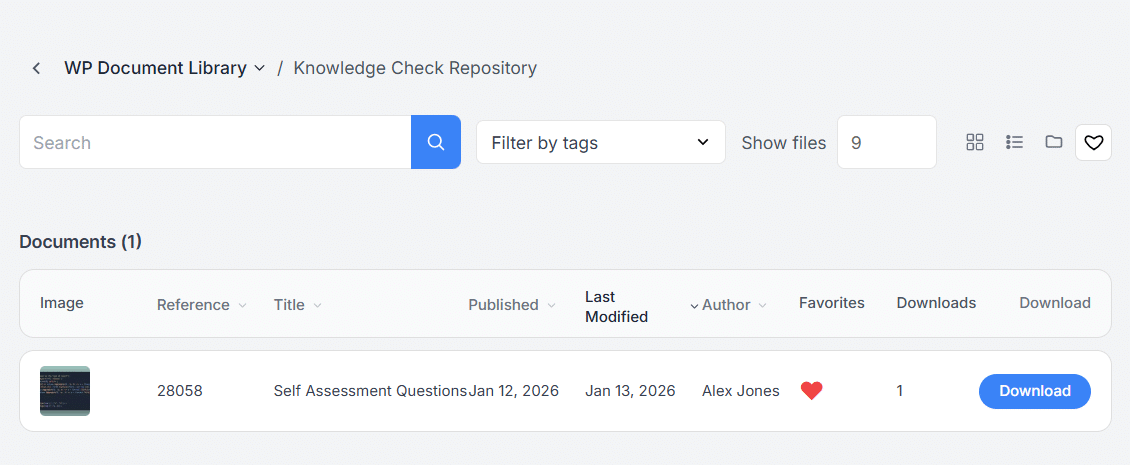
This is how the page will look on the front end.
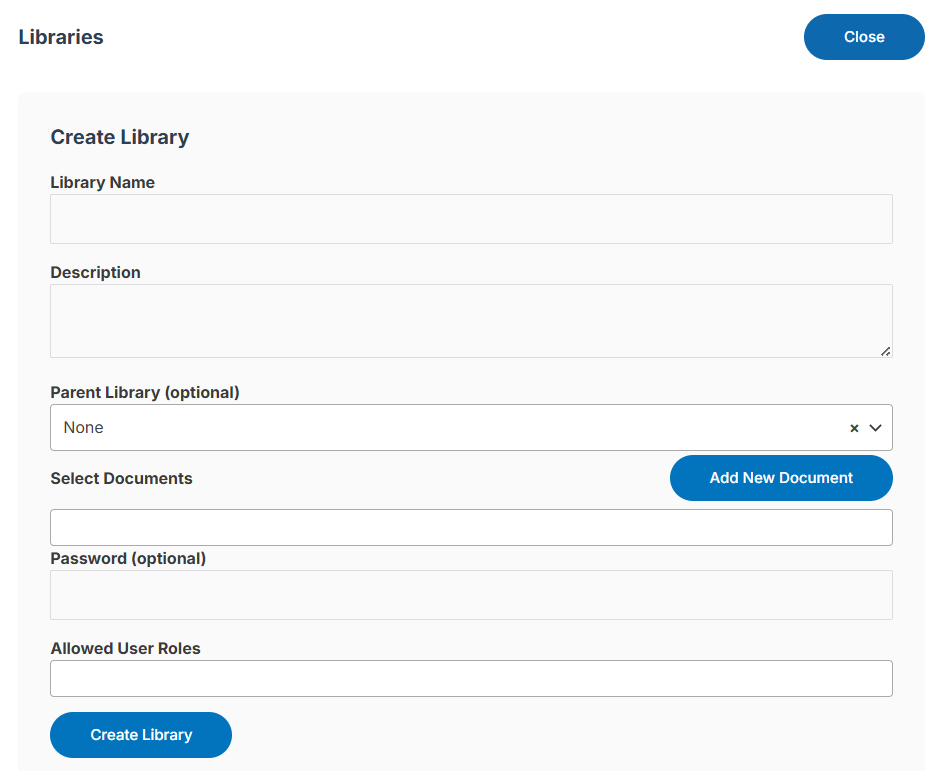
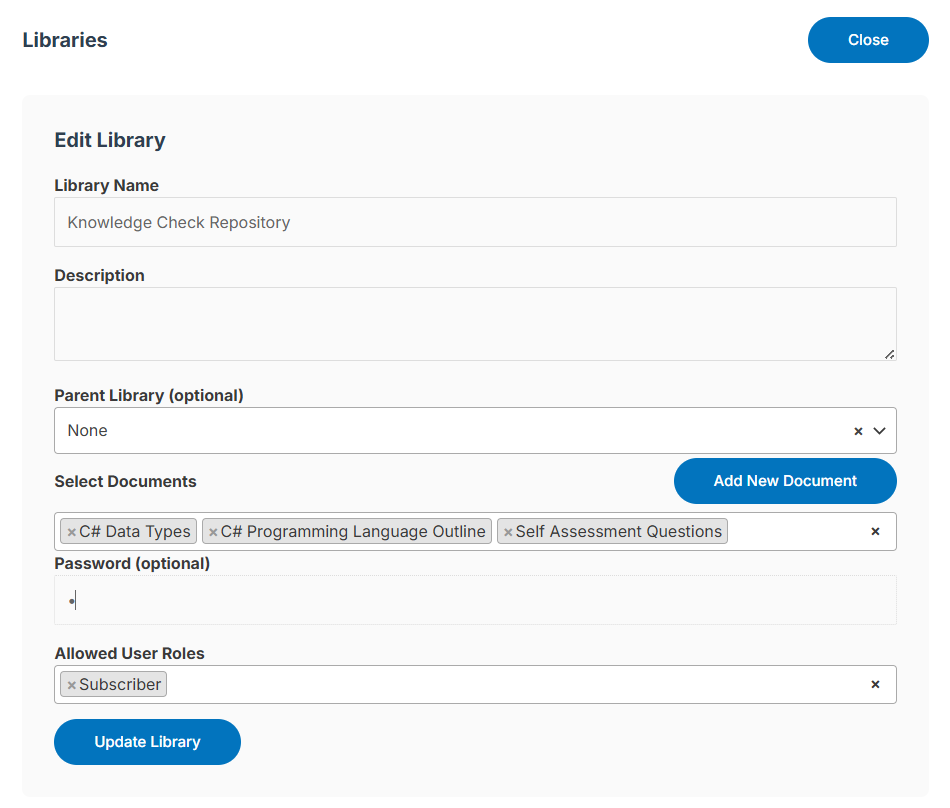
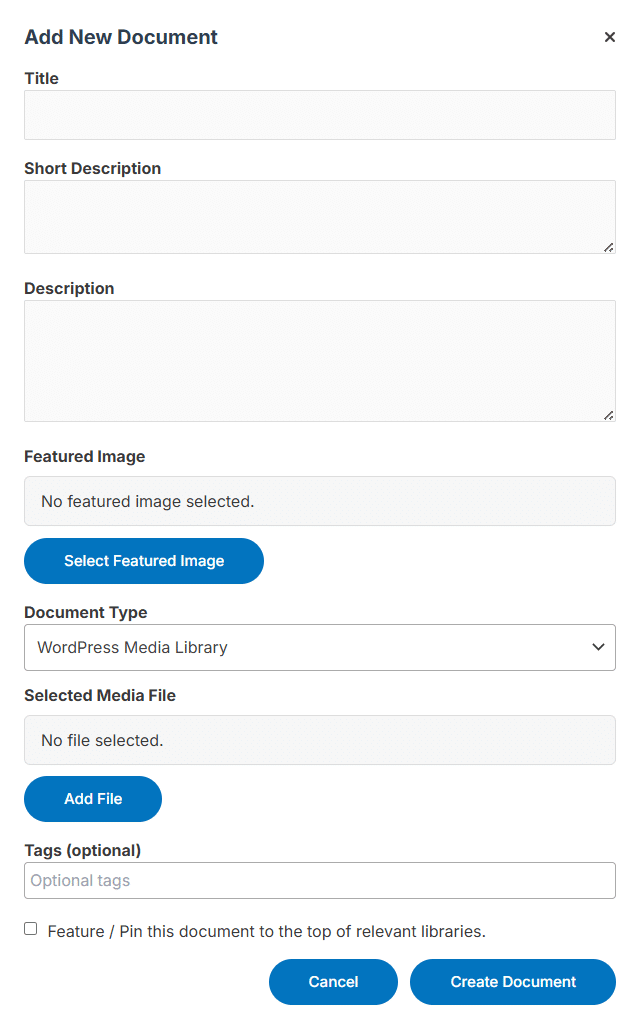
WP Libraries Upload
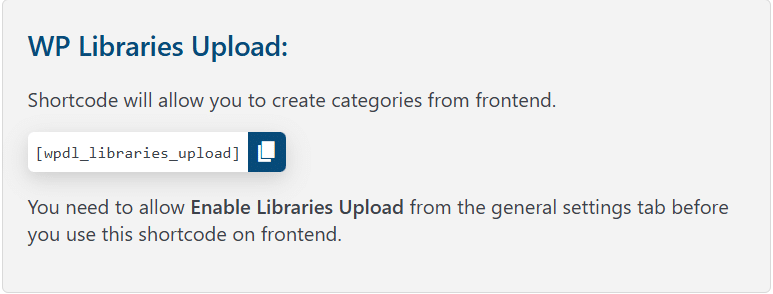
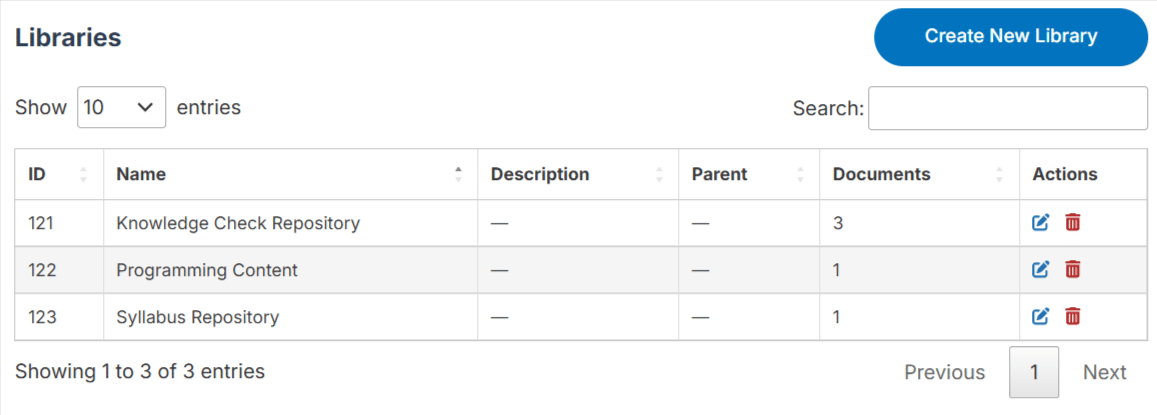
This shortcode will be available when the “Enable Libraries Upload” option is checked in the “General” tab. It allows administrator (always) and any other selected users of any user role to create document libraries from any frontend page (placed on). It shows a list of all the libraries already created. You can create, edit, delete, and search libraries. You can also create a new document and add it to a library.
Note: The “Password (optional)” and “Allowed User Roles” fields will become visible only when the “Enable Libraries Restriction” option in the “General” tab is enabled.
This is how the page will look on the front end.
WP Document Libraries Widget
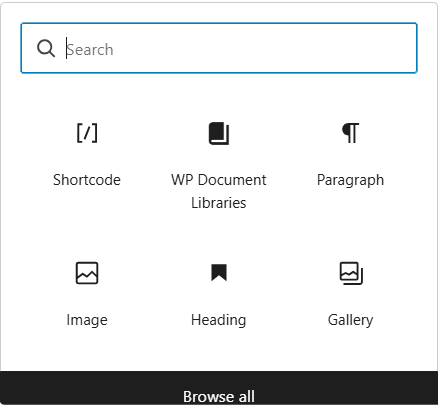
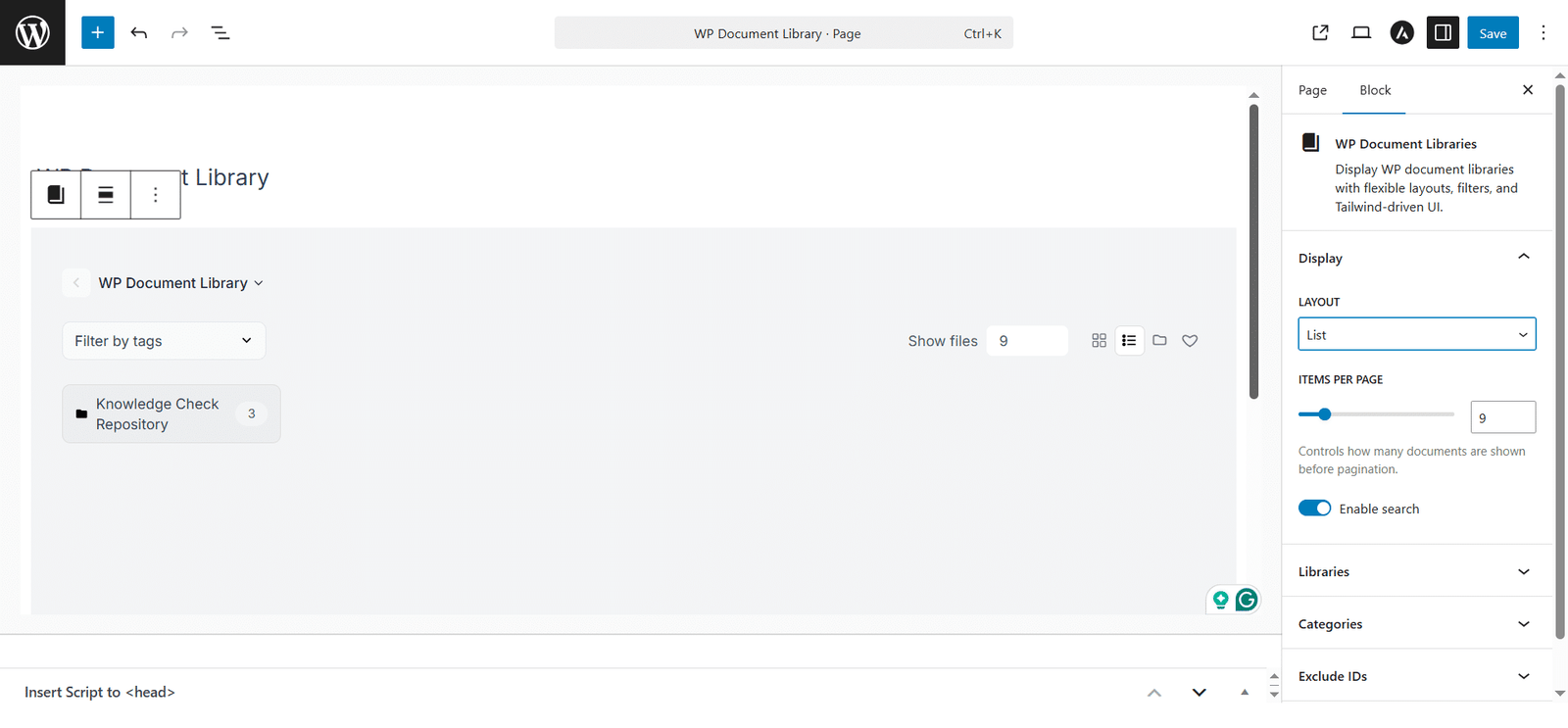
To add the document library widget, first navigate to any page and search for a widget by the name “WP Document Libraries” in the block editor. Here you can select from the following options to display the respective libraries you want to show to the users:
- Layout
You can select from the options (List, Grid, and Folder).
- Items per page
Select how many documents should be visible on a single page.
- Enable search
Enable the toggle if you want users to be able to search the document by entering its name.
- Limit to libraries
Select which libraries should be visible on the frontend to the users by their names.
- Limit to categories
Select which categories should be visible on the frontend to the users by their names.
- Categories/Libraries IDs to exclude
Select which libraries/categories (including child libraries/categories) should not be visible on the frontend to the users by their respective library/category ID(s).
WP Document Widget
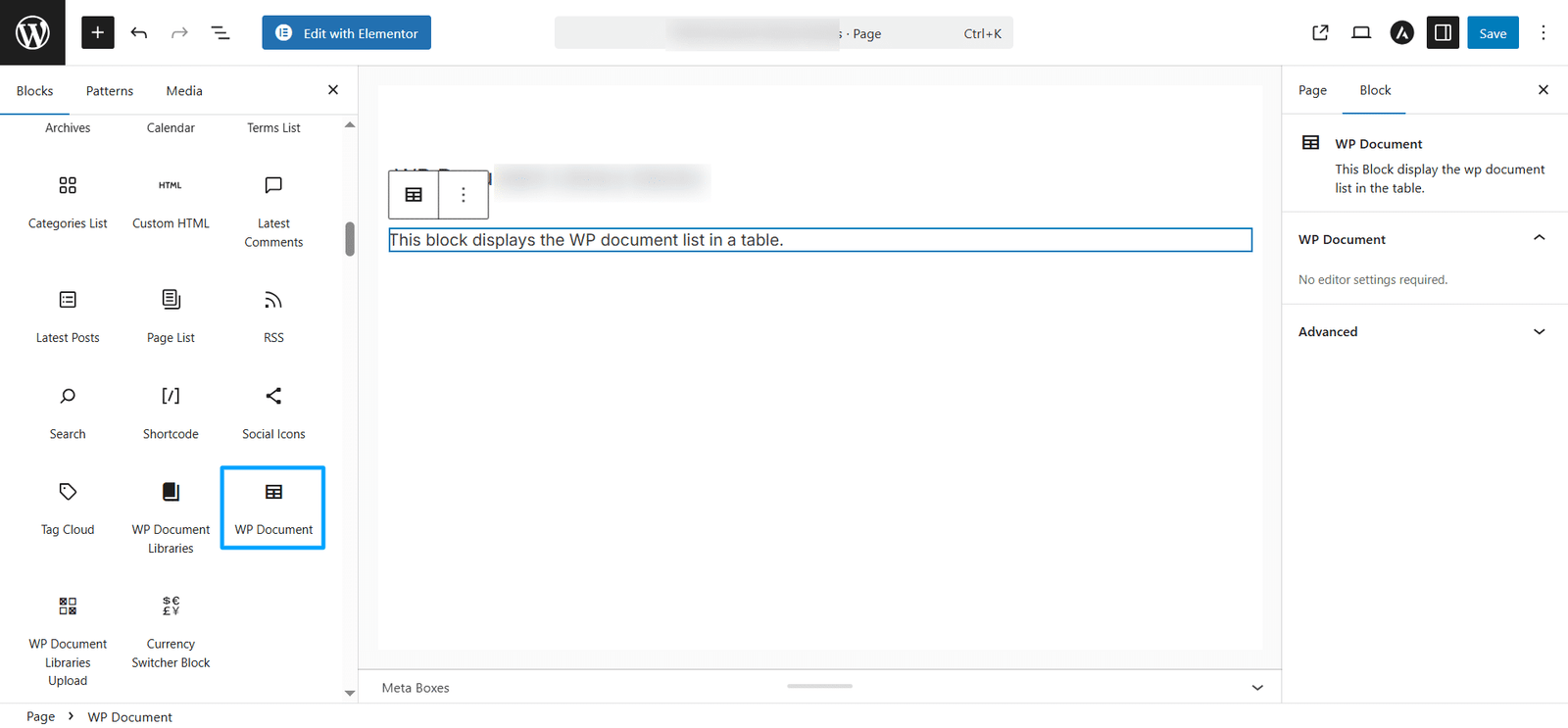
To add the WP document library widget, first navigate to any page and search for a widget by the name “WP Document” in the block editor. It will work like the “[wpdl_document_shortcode]” shortcode on the frontend.
WP Document Libraries Upload Widget
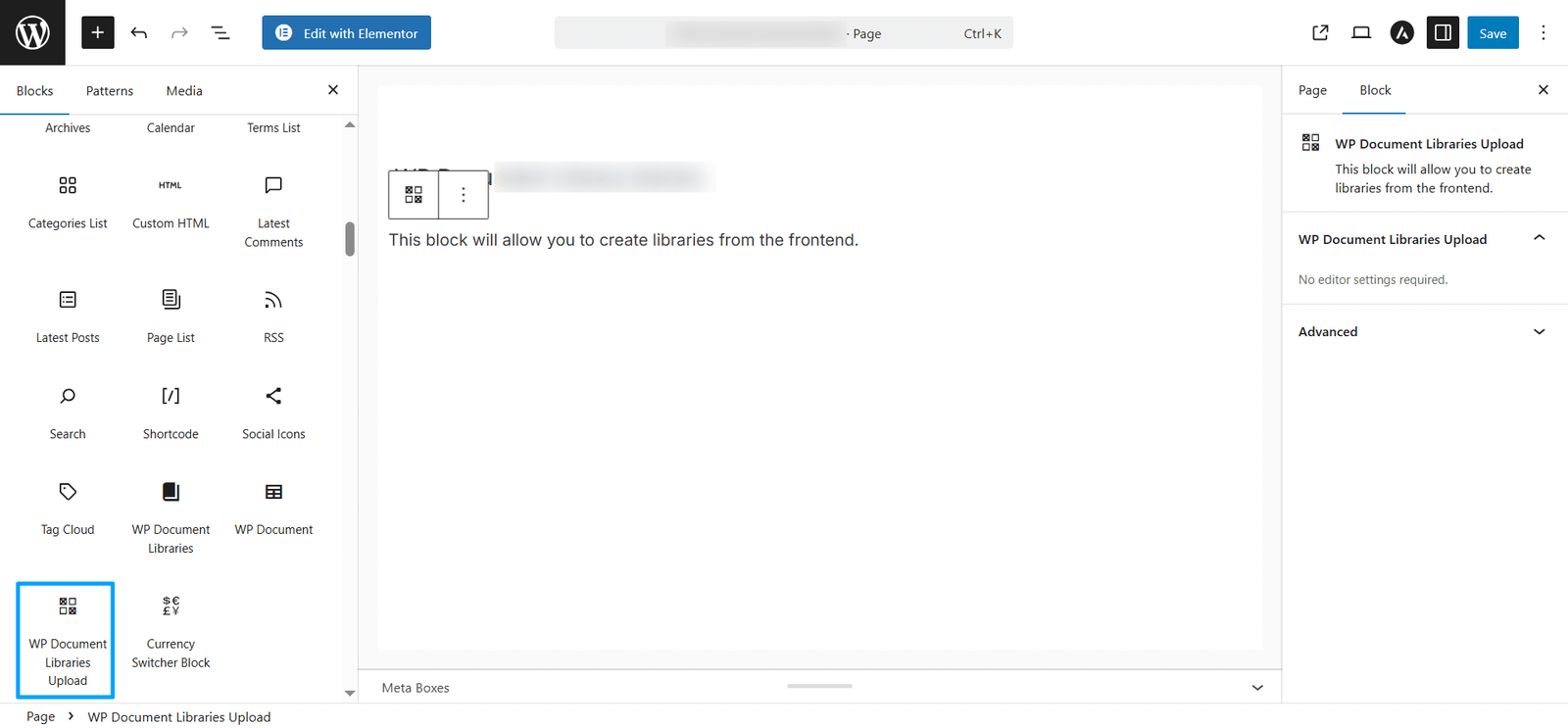
To add the document library widget, first navigate to any page and search for a widget by the name “WP Document Libraries Upload” in the block editor. It will work like the “[wpdl_libraries_upload]” shortcode on the frontend.
How to show document library(s)/category(s) on a Group (LearnDash Compatibility)
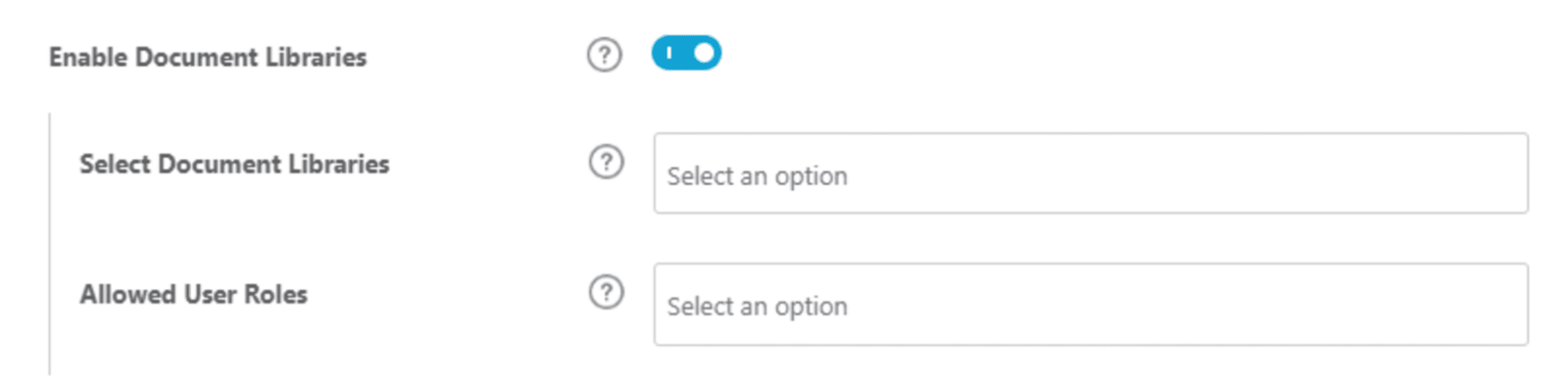
Here are the steps to show the library(s)/categories on a respective group:
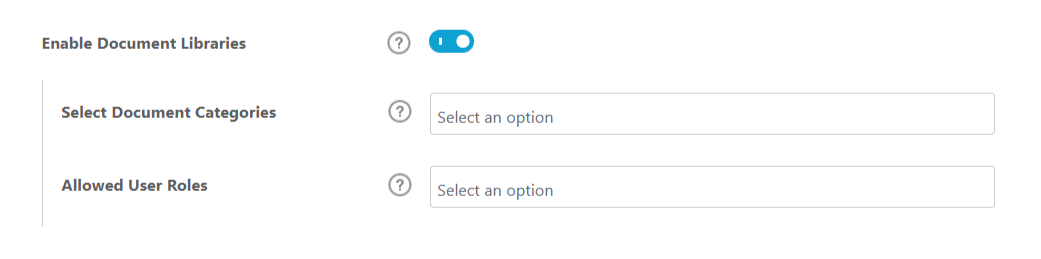
1- Navigate to the settings tab of the respective group and enable the “Enable Document Libraries” option.
2- Select the respective library(s) in the “Select Document Libraries” option or the respective category(s) in the “Select Document Categories” option. If nothing is selected, then all the document records will be visible.
3- Select the respective user roles of the users you want to be able to view the respective selected libraries/categories in the “Allowed User Roles” option. If nothing is selected, then users of all the user roles will be able to view the selected library(s)/category(s).
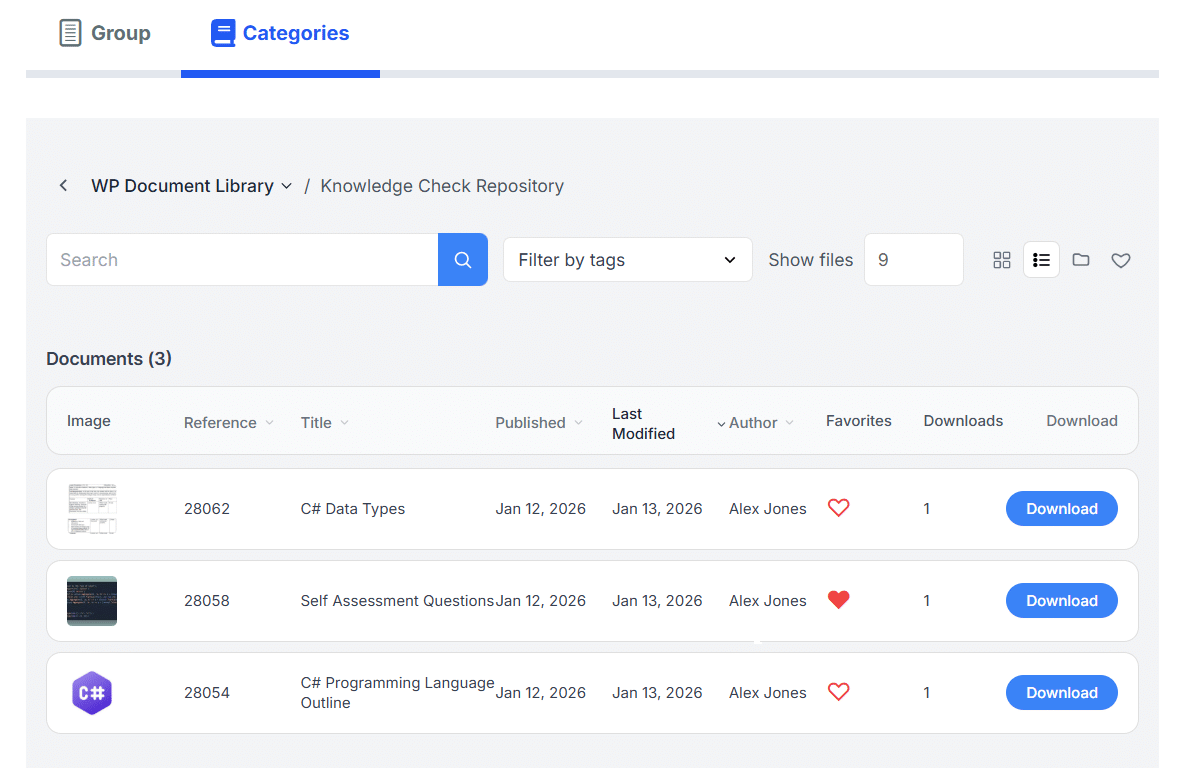
Note: The default layout of the “Libraries/Categories” tab and visible columns will be set from the “General” tab of our addon.

How to show document library(s)/category(s) on a Course (LearnDash Compatibility)
Here are the steps to show the library(s)/category(s) on a respective course:
1- Navigate to the settings tab of the respective course and enable the “Enable Document Libraries” option.
2- Select the respective library(s) in the “Select Document Libraries” option or the respective category(s) in the “Select Document Categories” option. If nothing is selected, then all the document records will be visible.
3- Select the respective user roles of the users you want to be able to view the respective selected libraries/categories in the “Allowed User Roles” option. If nothing is selected, then users of all the user roles will be able to view the selected library(s)/category(s).
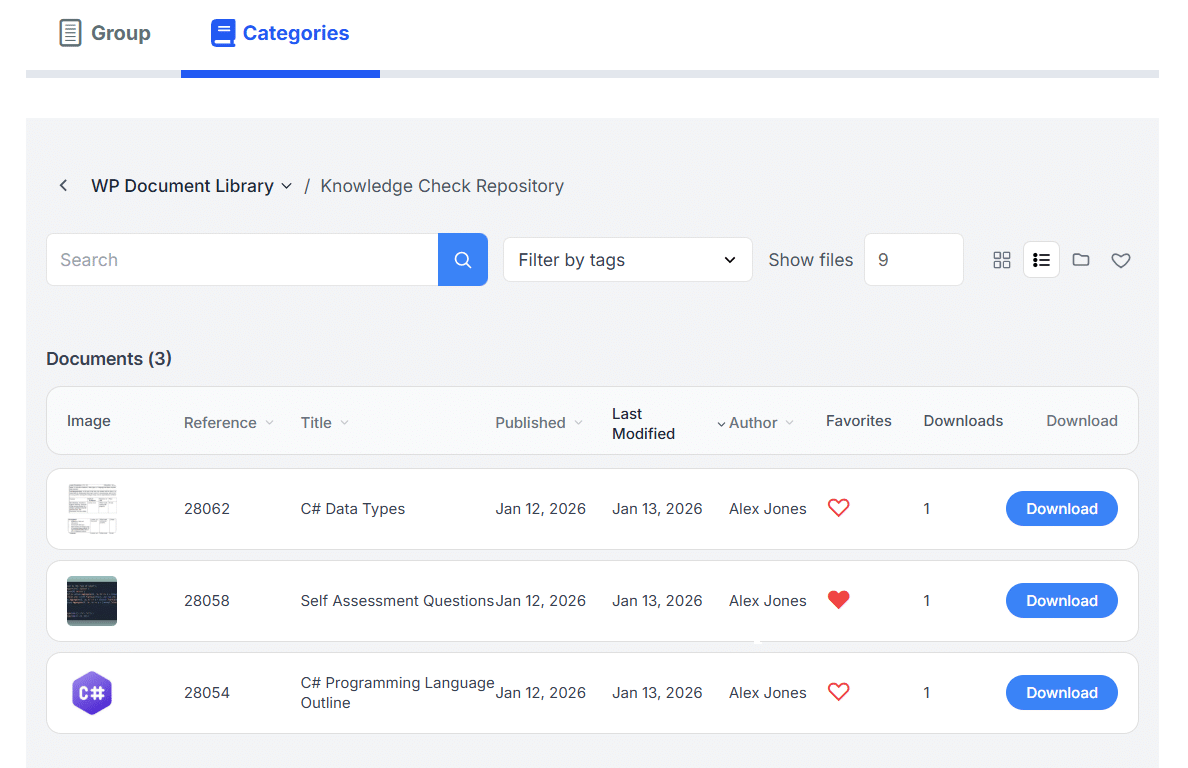
Note: The default layout of the “Libraries/Categories” tab and visible columns will be set from the “General” tab of our addon.

Updating from Learndash Document Library
When updating from the LearnDash Document Library Version 1.0.3, kindly note that major changes have been implemented in WP Document Library Version 2.0.0, including database-related changes. Some examples of such changes are as follows:
- Previously, documents could be directly attached to the categories; now, libraries are attached directly to the categories.
- Password and user role restrictions could be assigned individually to categories; now, it is no longer possible.
- Documents can no longer be filtered on the frontend by WordPress Tags.
Note: Make sure to review all the changes made in the updated addon on a staging site before updating the plugin on your main site.
When updating, if you have decided to delete all you previously created categories, libraries, and library tags and start with a fresh installation, then click the “Delete Data & Start Fresh” button. It will delete all the database records/entries that exist in the previously including all the data from the LearnDash Document Library Version 1.0.3 addon, such as categories, tags, libraries, library tags, addon settings, and previously created documents.
Similarly, if you have decided to keep your previously created documents, then while the “LearnDash Document Library” is still activated on your site, click the “Migrate Existing Data” button, and your documents will be migrated successfully. However, as mentioned above, the database structure has been changed significantly, so make sure to link the documents with their respective libraries, library tags, and categories to see the correct number of documents on the frontend.

FAQ’s
1- Does the “WP Document Library #1” Shortcode work on any page?
The “WP Document Library #1” Shortcode will work on any page it is placed on.
2- Does the addon support Grid view on the front end?
The addon does support the Grid view on the front end for the WP Document Shortcode #2.
3-Are there any filter attributes available for the WP Document Shortcode #2?
There is a filter attribute available for the WP Document Shortcode #2. It is the “Library Tags” filter. It will filter documents in the respective/selected library based on the selected tag.
4- Is the document feature available on any widget?
The document feature is available in the widget as well, under the name “WP Document Libraries”.
5- Does this Add-On require any external plugin on your site to work properly?
This add-on does not require any other plugin to be activated on your site. However, we have added compatibility with the “LearnDash LMS” plugin. If you want to show the documents in the course and group page, then please make sure to enable the “LearnDash LMS” plugin on your site to view the respective options in the group/course edit page in the settings tab.
Changelogs
3.0.0
- New: Added Stripe payment gateway support for selling paid documents and libraries.
- New: Added a Payment Integration tab to the plugin settings, allowing administrators to configure Stripe API keys, webhooks, and other payment-related settings.
- New: Added configurable payment settings for documents and libraries, allowing content to be designated as free or paid.
- New: Added support for one-time payments as well as recurring subscription plans with flexible billing intervals.
- New: Added free trial support for both documents and libraries.
- New: Added the `[wpdl_checkout]` shortcode to provide a dedicated checkout experience for users purchasing paid content.
- New: Added the `[wpdl_thankyou]` shortcode for displaying the post-purchase confirmation and order details.
- New: Added the `[wpdl_library_downloads]` shortcode to display a user’s available library downloads.
- New: Added the `[wpdl_user_dashboard]` shortcode to provide users with a centralized dashboard for managing their documents, libraries, and purchases.
- Fix: Redesigned the UI for the `[wpdl_document_shortcode]` and `[wpdl_libraries]` shortcodes for an improved user experience.
- New: Added multiple filtering and sorting options to `[wpdl_document_shortcode]` to make documents easier to find and organize.
- New: Added an admin Orders dashboard for viewing and managing customer orders and payment-related information.
- New: Enhanced the overall document and library purchasing workflow, including access management for free, paid, subscription-based, and trial content.
- New: Added support for setting a selected library as the root folder, allowing students to access and navigate the library directly without requiring access to its parent library.
- New: Added a Navigation Lock option, allowing administrators to prevent students from navigating to or viewing parent or sibling libraries.
- New: Added support for restricting students to only the selected library’s child libraries and documents when Navigation Lock is enabled.
- New: Added frontend document upload permissions, allowing administrators to grant document upload access to specific users.
- Fix: Fixed issues with library access restrictions and permission handling.
- Fix: Resolved minor UI issues and improved overall interface consistency.
2.0.4
- Fix: Improved Licensing Module.
2.0.3
- New: Updated “wpdl_libraries_upload” shortcode to manage libraries from frontend.
- New: Added controll in general settings to restrict the access of libraries management to specific user roles.
2.0.2
- New: Added block editor support for “wpdl_document_shortcode” shortcode.
- New: Added block editor support for “wpdl_libraries_upload” shortcode.
2.0.1
- Fix: Resolved security vulnerabilities and enhanced overall performance.
2.0.0
- New: Added “WP Document Libraries” block to add block directly instead of shortcode.
- New: Added favorite documents support. Users can add documents in favorites list.
- New: Added support for pinned documents.
- New: Added support to view documents on site instead of downloading.
- New: Improved UI to improve site speed and reduced usage of server resources.
- New: Added libraries support in categories.
- New: Removed documents support from categories.
1.0.3
- New: Added support for private document libraries.
- New: Added support for password and user roles to restrict libraries/categories.
- New: Added frontend upload functionality for selected user roles.
- Fix: Enhanced UI/UX for access settings and document restriction workflows.
1.0.2
- New – Added option to create the document library for specific groups.
- New – Added option to create the document library for specific courses.
- New – Added option to create the document library for specific user roles.
- New – Added three layouts for the document library with runtime layout switching capabilities.
1.0.1
- New – Minor UI changes in document shortcode.
1.0.0
- Initial Release.
