LearnDash Affiliate Program: The Complete Setup Guide
Affiliates are one of the most affordable ways to grow a course business. They do the marketing to their own audience, and you only pay when someone signs up. No...
Affiliates are one of the most affordable ways to grow a course business. They do the marketing to their own audience, and you only pay when someone signs up. No upfront ad spend. No wasted impressions. And no minimum commitment. The affiliate takes on nearly all the risk.
The catch is that LearnDash doesn’t track affiliate referrals on its own. AffiliateWP, the most common affiliate plugin for WordPress, tracks WooCommerce purchases by default, not LearnDash enrollments. You need a connector to bridge the two, and this guide walks through exactly how.
Why AffiliateWP Is the Right Fit for a LearnDash Affiliate Program
AffiliateWP runs affiliate registration, link generation, tracking, commissions, and payouts from one WordPress dashboard. For a LearnDash site, three things make it the practical choice.
It’s WordPress-native. Your affiliate data, commission history, and payout records stay in your database, and no third-party platform is holding your affiliate relationships hostage.
It handles both WooCommerce and LearnDash. The base plugin tracks WooCommerce purchases. The AffiliateWP LearnDash connector extends that to native LearnDash enrollments, which matters if you sell courses without a WooCommerce store.
Payouts are flexible. AffiliateWP supports PayPal natively, and the Stripe Payout add-on handles scheduled bank transfers for sites that need something more hands-off.
How Do You Set Up a LearnDash Affiliate Program?
The setup breaks into two parts: install AffiliateWP, then connect it to LearnDash.
Step 1: Install & Configure AffiliateWP
Install AffiliateWP from the plugin directory or your AffiliateWP account. The setup wizard covers currency, registration settings, and a default commission rate. Treat that default rate as a placeholder. You’ll set course-specific rates later.
Turn on affiliate registration and decide whether it’s open to anyone or requires manual approval. For most LearnDash affiliate programs, manual approval wins. It lets you check affiliates before handing them tracking links and payout access.
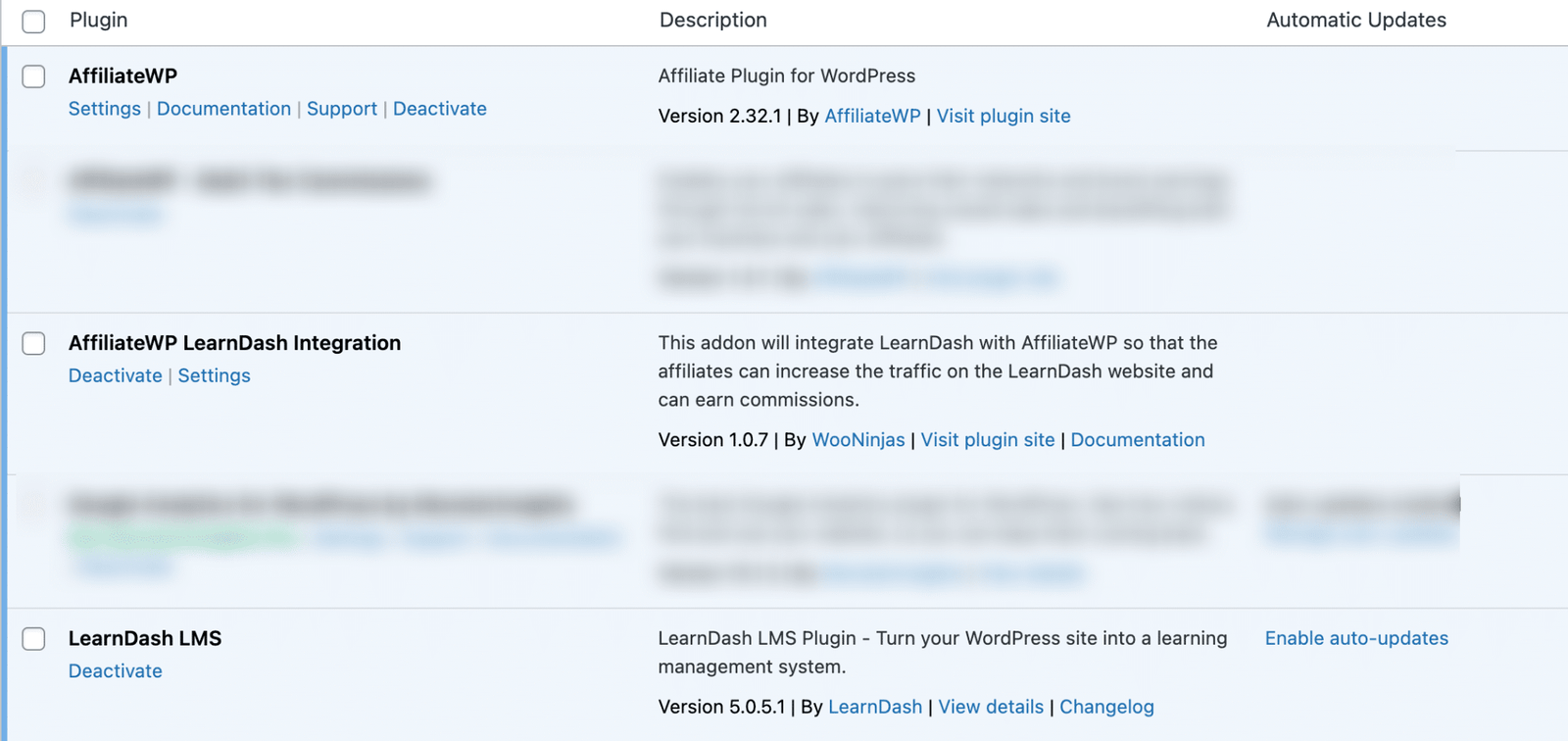
Step 2: Connect AffiliateWP to LearnDash
Install the AffiliateWP LearnDash connector. This creates a new tracking trigger: when someone enrolls in a course through an affiliate link, AffiliateWP logs the referral and queues the commission. Without it, AffiliateWP only fires on WooCommerce purchases.
Head to the Connectors tab in AffiliateWP settings and confirm LearnDash shows as active. Test it by creating a sample affiliate account, generating a link for a free course, and enrolling with a separate test account. Check that the referral shows up in the reports.
What Commission Structure Works Best for LearnDash Courses?
AffiliateWP supports three commission types, and picking the right one matters more than the rate itself.
- Flat rate — a fixed payout per enrollment. Simple to explain to affiliates and easy to budget for.
- Percentage — a cut of the course price. Scales automatically as your pricing changes and rewards affiliates more for higher-ticket courses.
- Recurring — for subscription courses sold through WooCommerce Subscriptions, affiliates earn on every renewal, not just the first sale.
Set course-specific rates from the individual LearnDash course settings. Use this option when your courses sit at very different price points, or when you want to push affiliate promotion toward specific courses.
[DESIGN BRIEF: Screenshot placeholder — LearnDash course settings panel showing the AffiliateWP commission rate field under standard course access settings. Generic demo install, back-end admin view. Crop tight to the commission field so it’s legible at blog width.]
How Do You Set Up Automatic Payouts for Affiliates?
Most LearnDash affiliate programs turn into a monthly chore when it comes to payout management. The few affiliates are allowed to pay manually by PayPal. It eats real time every month past twenty active affiliates.
Looking for a Ready-Made Solution?
Explore our WordPress, WooCommerce, and LMS plugins built to extend functionality without custom development.
AffiliateWP’s PayPal mass payments export creates a file that is uploaded to PayPal to allow for multiple payouts at once. Set a payout threshold, usually $25, to reduce small transactions.
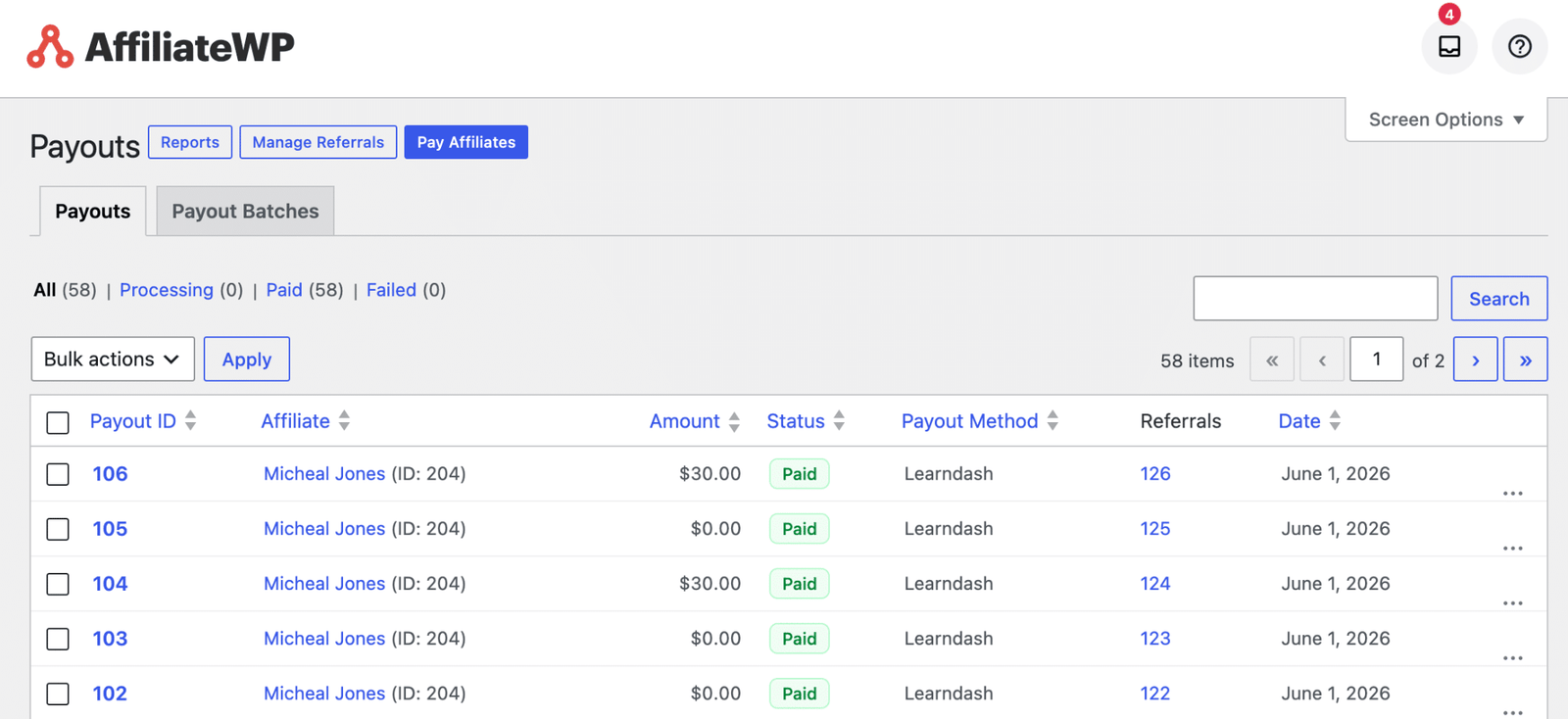
The Stripe Payout add-on eliminates the manual step altogether. Connect Stripe, select a schedule (weekly or monthly), and eligible payments are paid out automatically. Your site never has direct access to the banking info, because affiliates enter their bank info through Stripe’s onboarding flow. This is most important for subscription courses where affiliates make money every month and manual processing quickly becomes error-prone.
What Is Premium Lecture Gating and Why Does It Work?
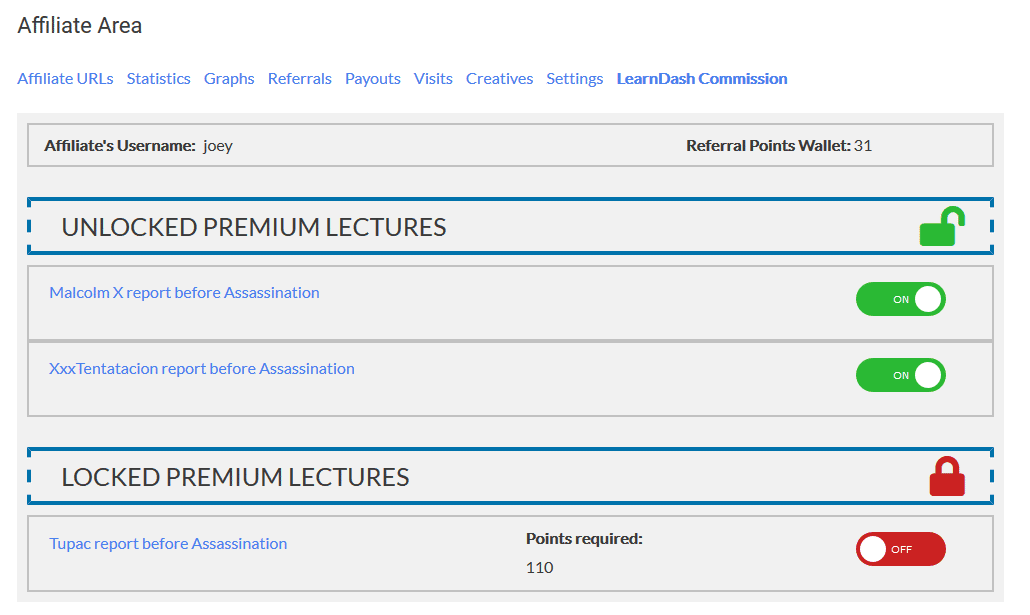
Standard affiliate programs give affiliates a link and a commission rate. Premium lecture gating gives them something a competitor’s link can’t offer.
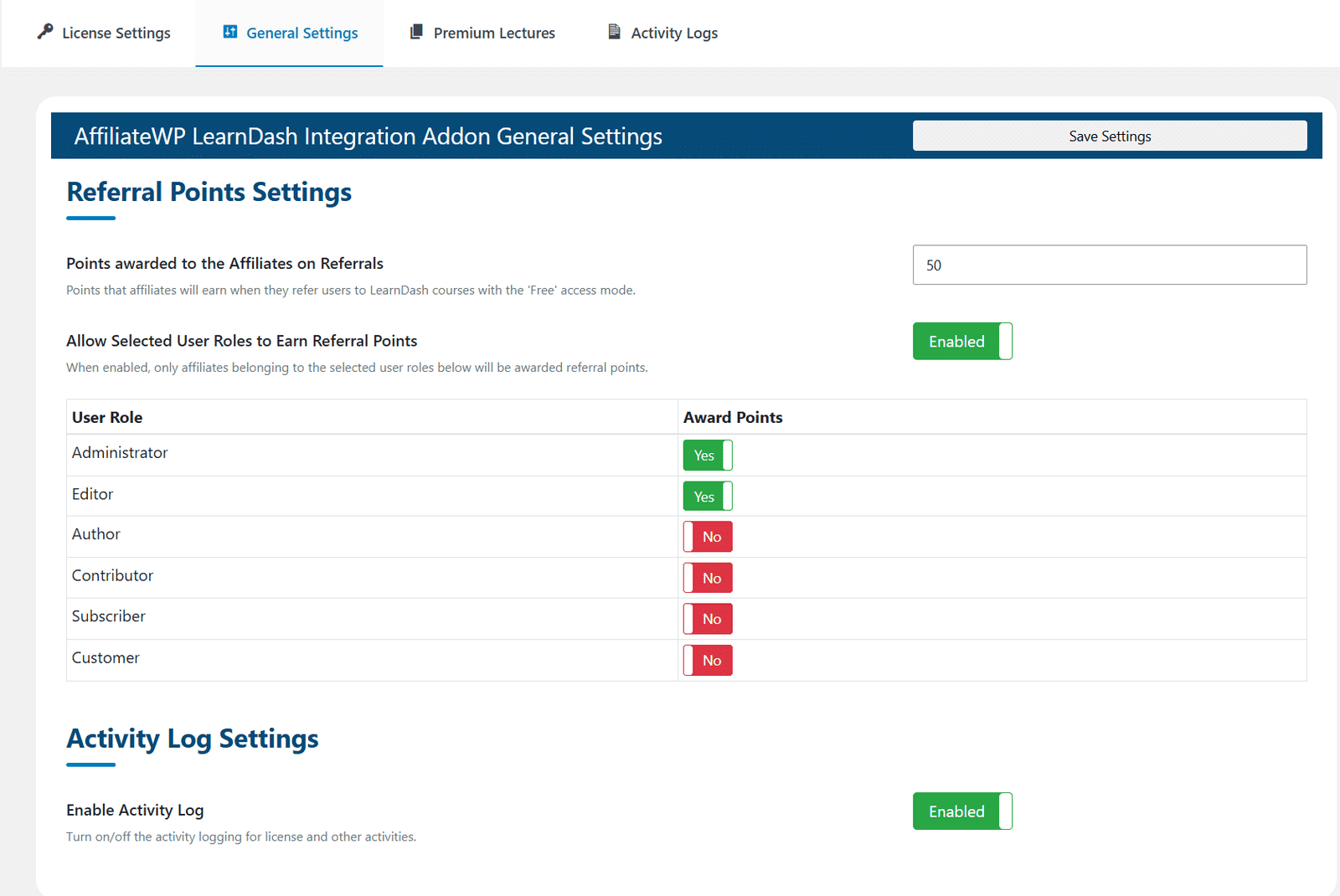
Select a couple of premium lessons within a course and set them to affiliate-only. Those lessons are available to students who sign up via an affiliate link. Students who buy directly don’t see them. This is exactly the mechanic behind AffiliateWP’s premium lecture unlocking for LearnDash: referral points unlock lessons that behave like any other LearnDash lesson but stay exclusive to affiliates. That’s a legit, specific reason for an affiliate to choose your course over a similar course.
This is especially helpful in competitive niches, where you have multiple providers selling similar courses. Bonus lessons on advanced applications, case studies or Q&A recordings give affiliates a true promotion angle, not just a discount code.
How Do You Recruit Affiliates for a LearnDash Course?
A LearnDash affiliate program is only as effective as the affiliates in it. One affiliate with a genuinely engaged audience beats fifty with unrelated traffic.
- Past students: the most credible affiliates already finished your course. Set up an automatic email after course completion inviting them to apply.
- Niche bloggers and newsletter writers: offer a complimentary enrolment for an honest review, then invite them in if they find real value.
- Professional communities: LinkedIn groups and industry forums full of your target students are already doing informal referrals. Give them a link to make it official.
- Complementary course creators: a photography instructor and a photo-editing instructor can send students to each other without competing.
According to BigCommerce’s affiliate marketing guide, programs that recruit affiliates with an existing audience overlap and convert noticeably better than programs that recruit on volume alone.
Key Takeaways
- To create a LearnDash affiliate program, you need the AffiliateWP LearnDash connector (the base plugin only tracks WooCommerce by default).
- By manually approving affiliate registrations, you protect your tracking links and payout process from poor-quality sign-ups.
- Once you have over twenty affiliates, automatic payouts via Stripe or PayPal mass payments save you a day a month in payout management.
- Premium lecture gating provides your top affiliates with a real incentive to choose your course over the competition.
- Recruit past students and niche creators first. Audience overlap beats raw affiliate count every time.
- A closed beta of five to ten affiliates catches tracking and payout bugs before they cost you credibility at scale.
- For dashboard styling, custom fields, or workflow changes, see AffiliateWP customization when the default setup doesn’t fit your program.
Set Up Your LearnDash Affiliate Program This Week
Doing affiliate programs well is hard work: recruiting, reviewing performance, adjusting commissions, and processing payouts on time. WooNinjas’ AffiliateWP service does the technical build; you just need to manage the program. You don’t need to configure plugins.
All aspects of AffiliateWP installation, integration with LearnDash, commission setup, automated payouts, and dashboard design are part of the service. There is a set budget, defined scope, and due date for every project. View our AffiliateWP development services or Contact us for a project scope.
FAQs
Do I need WooCommerce to run a LearnDash affiliate program?
No, the AffiliateWP LearnDash connector tracks course enrollments directly without WooCommerce. If your site sells via LearnDash’s built-in Stripe or PayPal checkout, you can run a full affiliate program. Sites already using WooCommerce can track both types of purchase side-by-side.
What commission rate should I set?
There’s no fixed correct number. Digital course commissions typically run 20 to 50 percent. Higher-priced courses can sustain lower percentages and still pay out well per referral. The most common starting point is 30 percent, adjusted up for strategic affiliates and down once the program has a stable base.
How do I prevent affiliate fraud?
AffiliateWP flags self-referral through shared IP or account detection, holds commissions for review before approval, and sets a minimum payout threshold that discourages fake referrals for small amounts. Turn on manual approval for commissions above a set threshold and review any affiliate with an unusually high conversion rate.
Can affiliates promote one course instead of my whole catalog?
Yes. AffiliateWP generates course-specific tracking links, not just site-wide ones. An affiliate who finished your advanced course can promote that course alone, credited only for enrolments into it. You can also set different commission rates per course to prioritize the ones you want affiliates pushing.
Can AffiliateWP reverse a commission if a student requests a refund?
Yes, if a refund is processed, AffiliateWP can automatically reject or void a pending commission so you don’t lose money on a failed sale. The system is only effective when the commission status is “Unpaid” or “Pending” during your refund window and not immediately approved. Set the commission approval delay to match your refund policy (usually 14-30 days). Enrollments that are refunded in that time frame will not pay. Commissions already paid must be manually adjusted.
Need Ongoing WordPress Maintenance & Support?
We handle updates, performance monitoring, security hardening, and technical fixes so your WordPress and WooCommerce site stays stable and secure.
What MCP for LMS Actually Does on Your Course Platform
Connect AI assistants to your LMS with MCP for LMS. See how LearnDash, Moodle, Canvas, and Docebo compare, and what…
Read More...
Moodle to LearnDash: What Actually Transfers and What You’ll Rebuild
A step-by-step Moodle to WordPress migration guide. See what moves to LearnDash, what you rebuild, how long it takes, and…
Read More...
LMS Migration: Move Courses, Users, and Learner Data Safely
Planning an LMS migration? Learn how to move courses, users, and data safely with a step-by-step guide from WooNinjas.
Read More...
