WooCommerce Event Booking: How to Sell Tickets and Manage Registrations for Any Event
Set up WooCommerce event booking to sell tickets, manage capacity, and take registrations for any event. Configure workshops, seminars, and more with WooNinjas.

WooCommerce event booking is ticketing and registration run inside a WooCommerce store, where each event is a bookable product with a fixed attendance cap, its own schedule, and pricing. Attendees register through the product page, pay at checkout, and the event closes once the cap is reached. Each registration becomes a WooCommerce order, with attendee details, extras, and payment status in one place.
Whether a workshop sells out in two hours with no waiting list, a seminar headcount cannot be confirmed without counting inbox replies, or a night-before cancellation requires someone to manually process a refund and fill the vacant spot, each scenario points to the same gap: a poorly configured WooCommerce Bookings setup that lacks automatic handling of capacity, registration, and payment. Fortunately, the WooNinjas WooCommerce Bookings Add-on addresses these challenges. The following guide explains how to configure it for any event type, including capacity management, recurring event scheduling, tiered pricing, add-on resources, and attendee self-service through the standard WooCommerce account.
Why Event Organisers Run Registrations Through WooCommerce
Events as WooCommerce bookable products
Paid events are a large market: Statista valued worldwide ticket sales for music events at over $31 billion and sports events at around $34 billion in 2024. When an event is configured as a Bookable Product in WooCommerce, it gains a live registration calendar, a hard attendance cap, time-slot scheduling, and automatic confirmation emails. Attendees register through the product page, pay through the standard checkout, and receive a confirmation. The event slot updates its remaining capacity immediately. No manual count management. No reply-to-register inbox.
Because WooCommerce Bookings runs inside WooCommerce, every registration creates a standard order. Attendee contact details, payment records, and any add-on selections sit in the same customer database as the rest of the store. There is no separate event registration platform to log into, no CSV export to reconcile, and no external tool subscription draining budget alongside the WooCommerce licence.
The event types this covers.
The WooCommerce Bookings setup works for any event where attendance is limited, and pre-registration is required:
- Business workshops and training days with a fixed room capacity
- Professional seminars with separate standard and VIP registration products
- Cooking, art, and craft classes are running as ticketed one-day events
- Networking evenings and industry meetups with a venue headcount
- Conferences and corporate training with multiple session products across a day
- Charity fundraising dinners with a table booking model
- Community events, theatre performances, and ticketed exhibitions
The product structure and Slots Per Event settings reflect the event’s actual logistics.
Configuring Event Capacity and Booking Product Setup
The Slots Per Event setting: the attendance cap
Set the attendance cap for each WooCommerce Bookings product using the Slots Per Event setting in the Booking Options > Settings tab of the Bookable Product. Enter the exact maximum number of attendees the event can accommodate. For example, set the value to 16 for a workshop with 16 available places. Once customers confirm all 16 registrations for that time slot, WooCommerce automatically removes the event from the availability calendar. As a result, no further registrations can be made through the front-end booking flow.
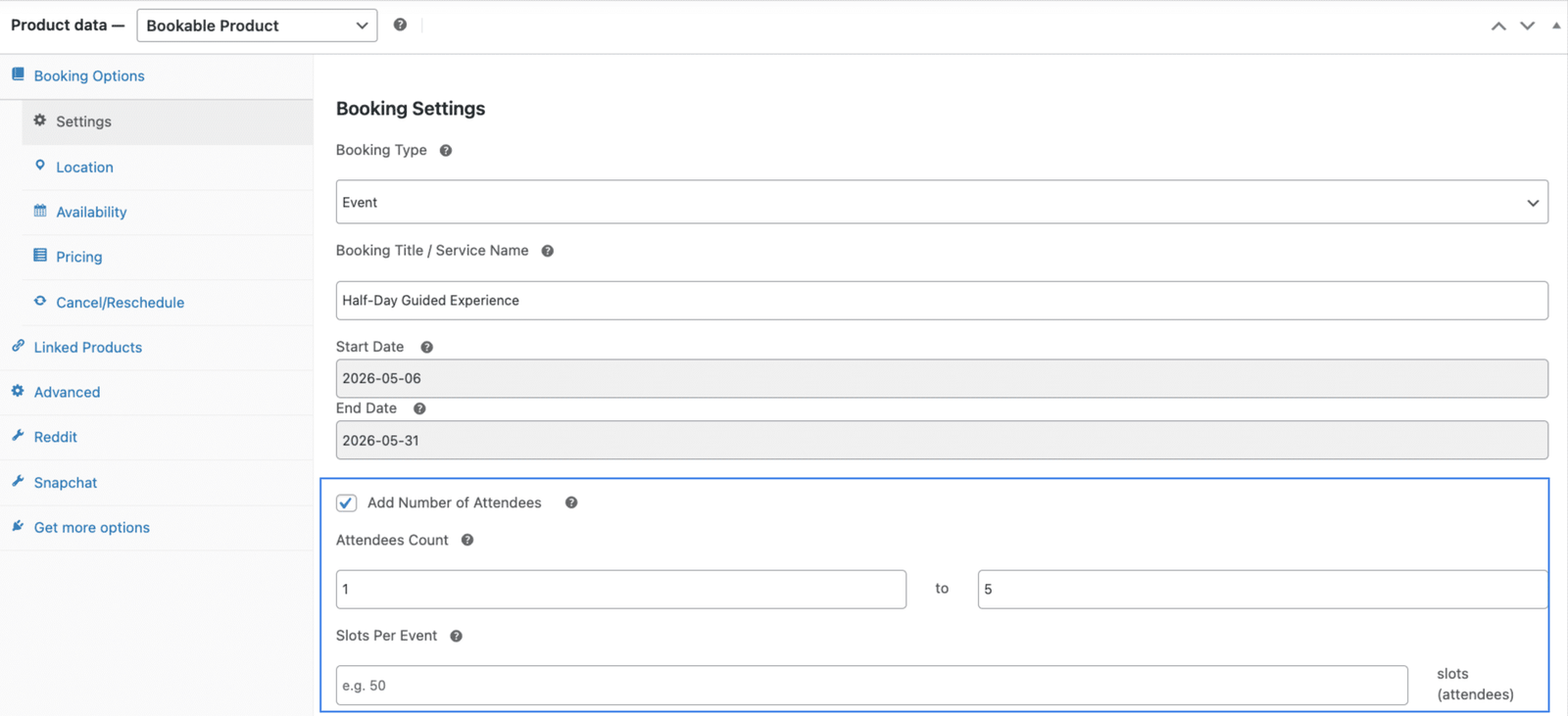
In the Booking Settings tab, with the Booking Type set to Event and the Slots Per Event field highlighted, the attendance cap is enforced at registration.
This is not an approximate limit or a soft cap that staff can override. It is enforced by the Add-on at the point of registration. The 17th prospective attendee attempting to register for a sold-out event will not see the slot as available. The organiser does not need to monitor registrations and close bookings manually.
Configuring an Event Bookable Product
After installing the WooNinjas WooCommerce Bookings Add-on, configure each event as a separate Bookable Product. Go to Products > Add New. In the Product Data box, set the product type to Bookable Product. In the Booking Options Settings tab, set the Booking Type to Event. Fill in the following fields:
- Booking Title / Service Name (optional)
- Start Date
- End Date
- Add Number of Attendees (optional)
- Attendees Count (Min and Max fields; optional)
- Slots Per Event (total number of seats available per event day)
- Assigned Resource/Staff (optional)
- Auto-cancel pending/failed orders after 24 hours (optional)
- Cancellation Threshold (hours)
- Show Timezone on Booking Times (optional)
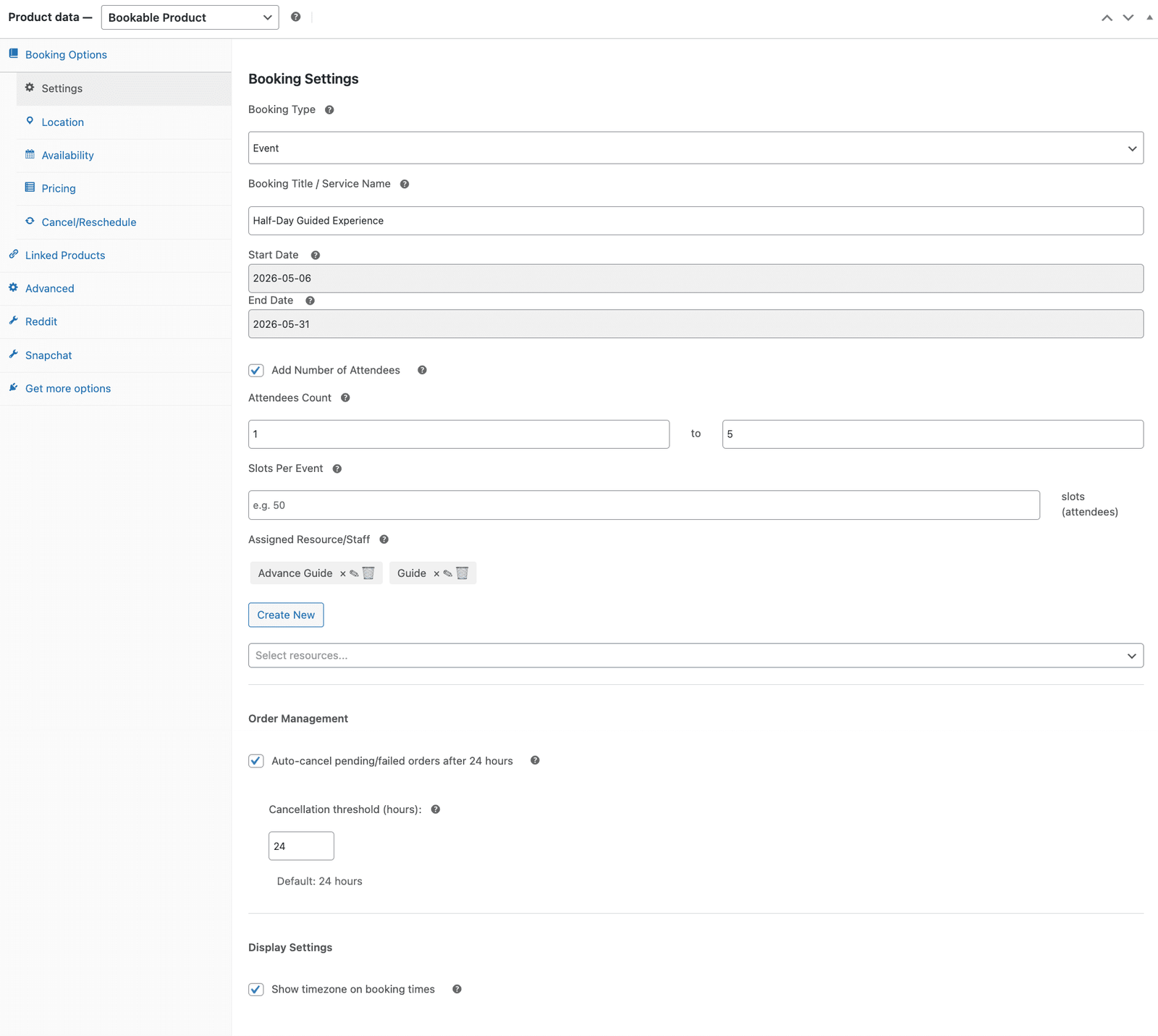
The full event Booking Settings tab, showing the title, dates, attendee count, Slots Per Event, assigned staff, and the auto-cancel order management option.
- Location Type (in the Location tab: physical or virtual)
- Physical Location (in the Location tab)
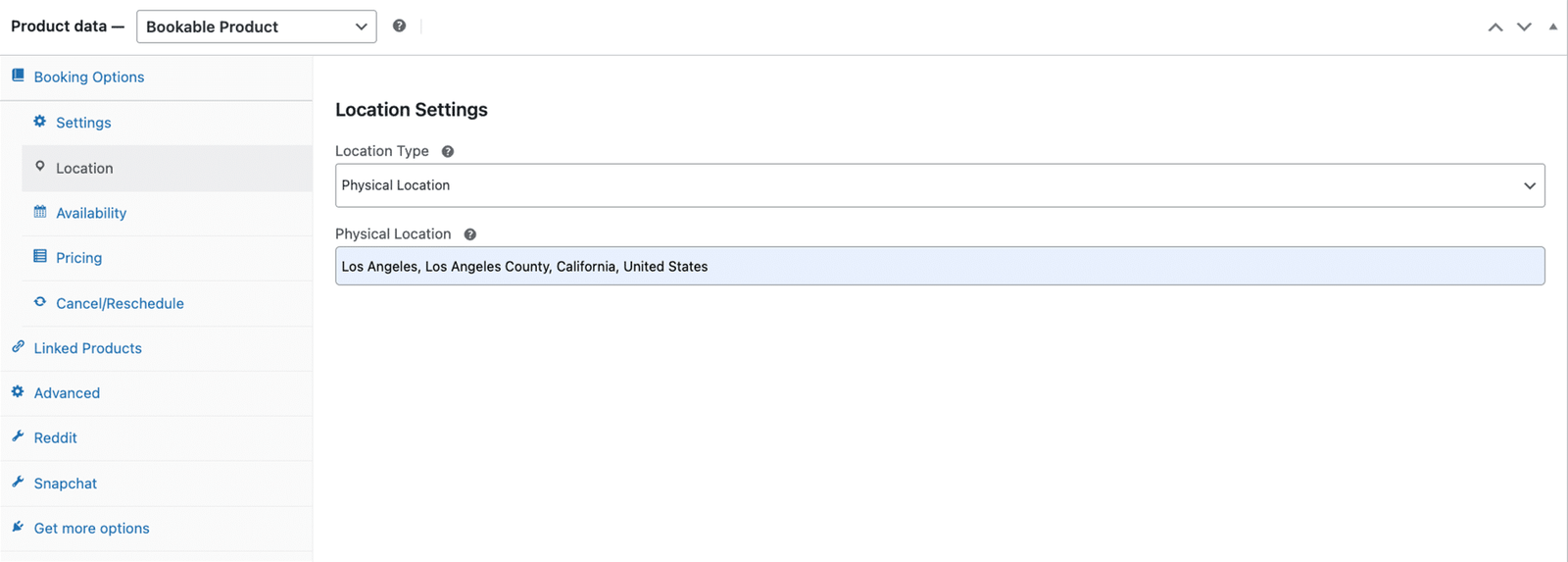
The Location Settings tab is set to Physical Location, with the venue address entered for an in-person event.
- Available Days (in the Availability tab)
- Available Time Range (in the Availability tab)
- Blackout Dates (in the Availability tab; optional)
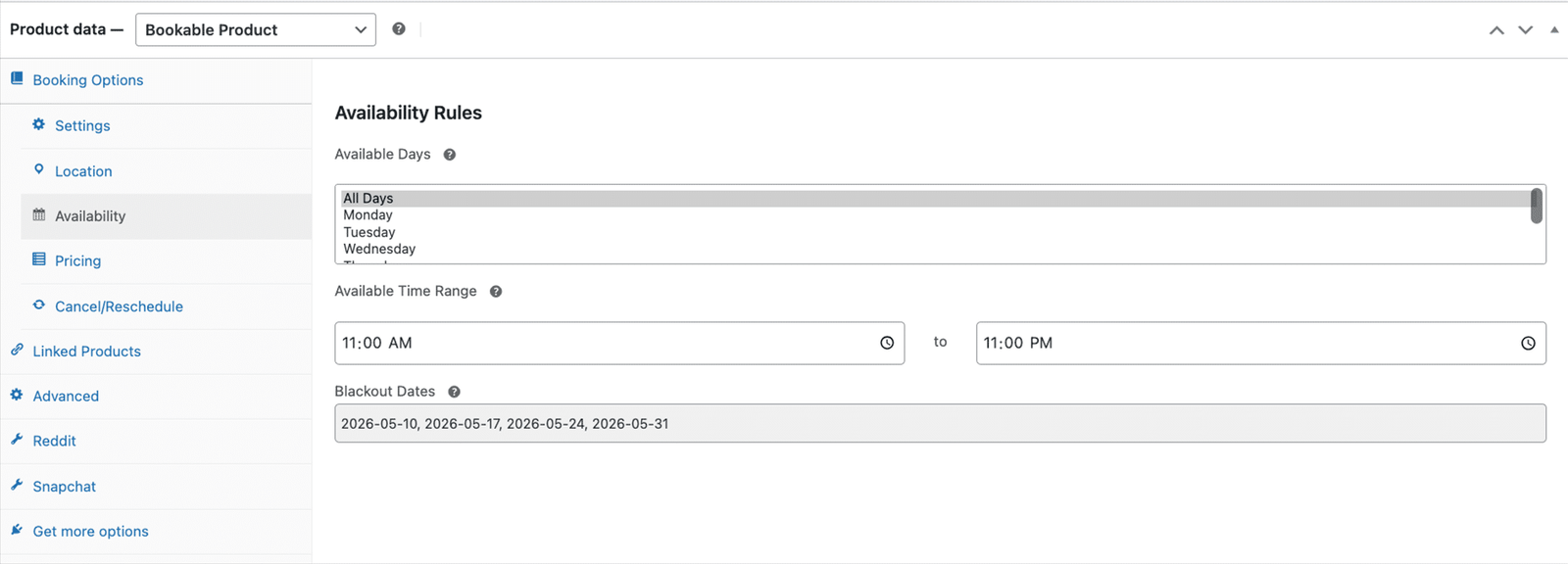
The Availability Rules tab, with the available days selector, the daily time range, and the blackout dates that block specific days.
- Regular Price (in the Pricing tab)
- Sale Price (in the Pricing tab; optional)
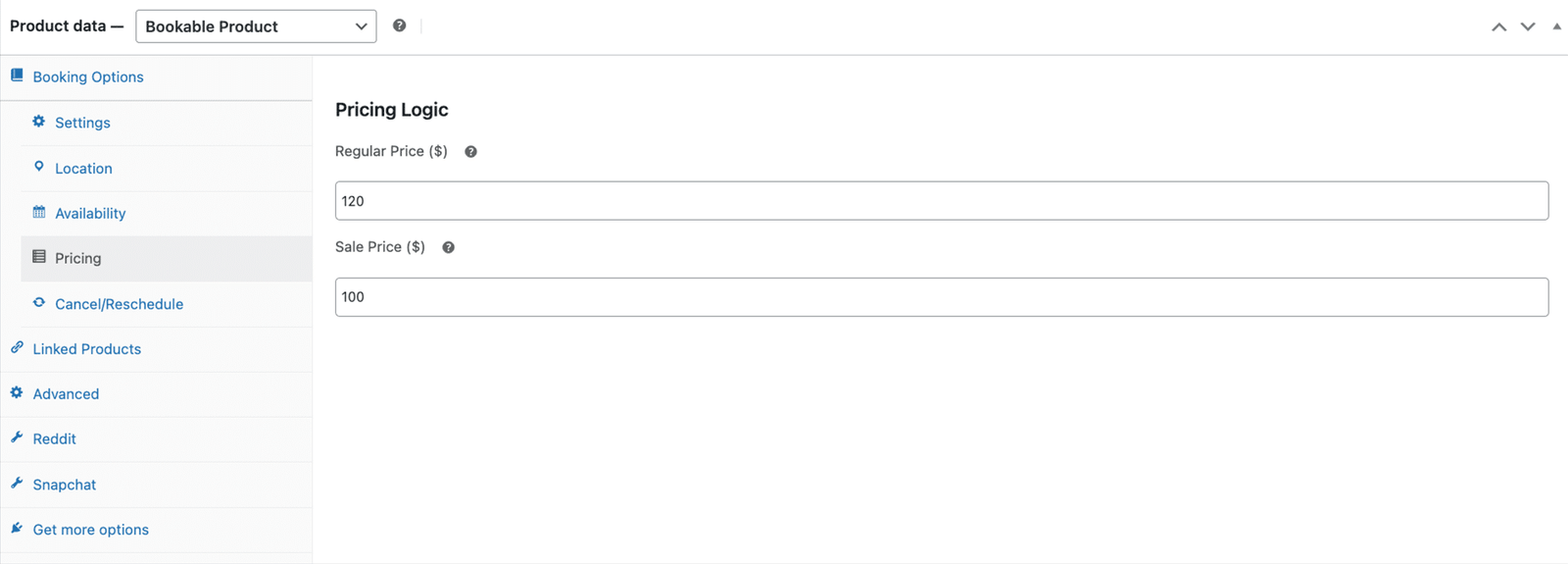
The Pricing tab, where the Regular Price sets the base registration fee, and an optional Sale Price applies a promotional rate.
Press the Publish/Update button on the product page after making any changes.
Recurring Events and Multi-Date Scheduling
Configuring Recurring Events
Recurring events are configured by creating a separate Bookable Product for each occurrence. Set the Start Date and End Date for each event product. Configure the Available Days and Available Time Range in the Availability tab. Each occurrence tracks its own registrations and Slots Per Event capacity independently.
Each configured time slot is treated as a separate bookable occurrence, with availability and capacity enforced according to the product settings. A fully booked session does not affect availability for other scheduled dates, allowing attendees to clearly see which dates are open for registration.
Managing multiple sessions within a single event day
Each session is configured as a separate Bookable Product with its own Start Date, End Date, Available Time Range, and Slots Per Event value. Attendees select which session they want from the event catalogue. Each session tracks its own registrations independently.
For events spanning multiple days where attendees register for the whole event rather than individual sessions, configure the Bookable Product with a slot duration matching the total event length. A two-day conference running from 9 am to 5 pm on both days is set to a 960-minute slot. The attendee books the full event in one registration.
Pricing for Event Registrations
Pricing for each event Bookable Product is set in the Pricing tab. Configure a Regular Price as the base registration fee. An optional Sale Price can be set to offer a promotional rate. When a Sale Price is active, it displays alongside the regular price on the product page.
For events with multiple registration categories, such as Standard and VIP, configure each as a separate Bookable Product with its own Slots Per Event cap, Regular Price, and availability window. For example, a VIP product capped at 20 spots fills independently of a Standard product capped at 150. As a result, reporting remains clean for each product, and attendees can clearly choose their preferred registration option during booking.
Payment is processed through the standard WooCommerce checkout. Every registration creates a WooCommerce order with the full price breakdown.
Event Add-Ons and Attendee Extras
Configuring add-ons as booking resources
Resources configured in the Booking Options > Settings tab of an event Bookable Product allow optional paid extras to be presented to attendees during the registration flow. For events, practical add-ons include:
- Workshop materials: printed workbooks, USB drives with course content, tool kits
- Catering upgrades: lunch inclusion, dietary preference add-ons, drinks packages
- Networking add-ons: post-event dinner tickets, drinks reception access
- Recording access: video recording of the session sent after the event
- Certificate or accreditation: formal completion certificate for professional development events
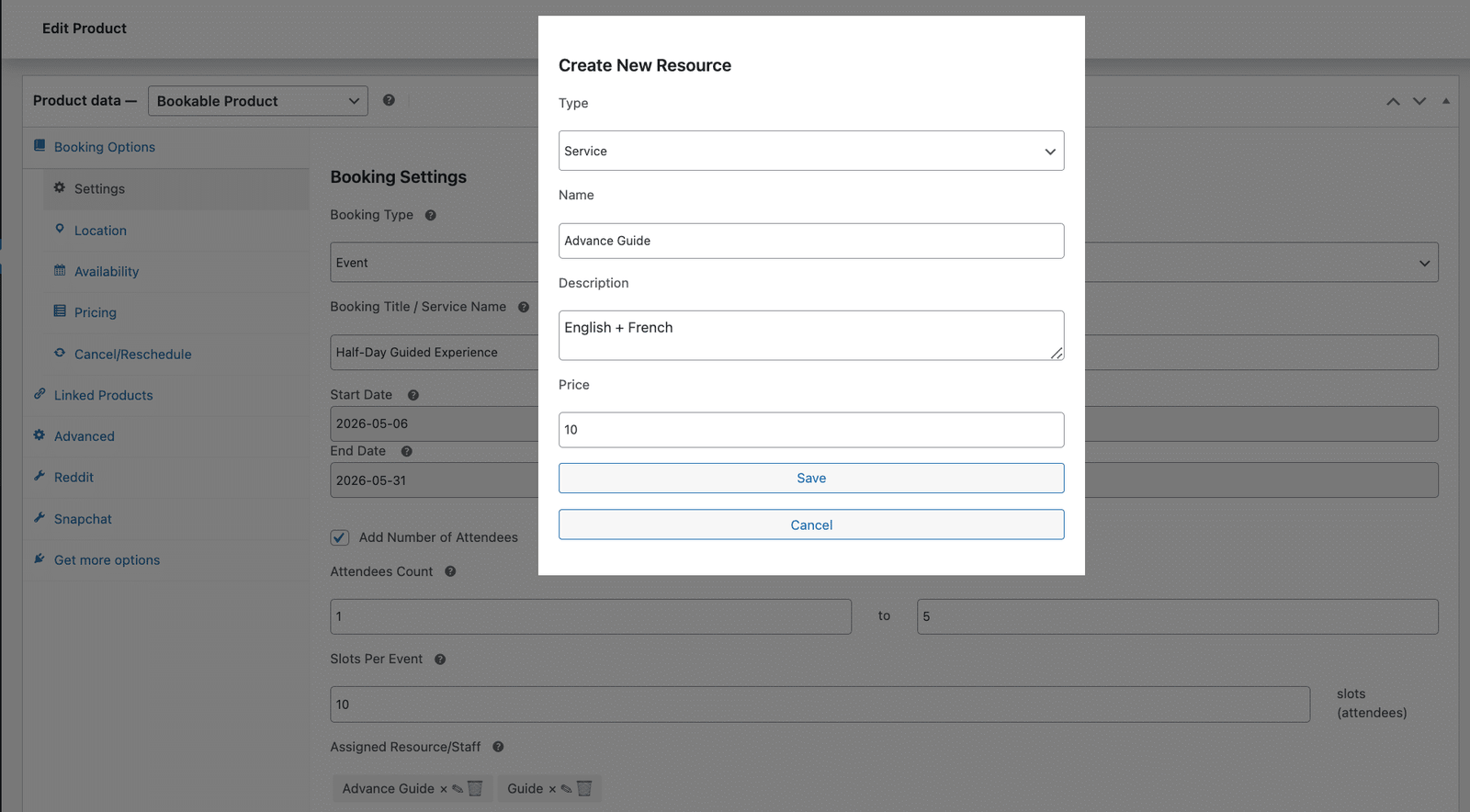
The Create New Resource dialog, where an optional extra or staff resource is given a name, description, and price before being attached to the event.
Looking for a Ready-Made Solution?
Explore our WordPress, WooCommerce, and LMS plugins built to extend functionality without custom development.
Each resource includes its own name and price. During the registration process, attendees can select the resources they want, and the total updates instantly before checkout. In addition, resources configured at no extra charge, such as a standard event programme, name badge, or welcome pack, appear as included items in the booking summary. As a result, attendees can clearly see what their registration fee covers before completing their purchase.
Included items in the registration confirmation
Every WooCommerce Bookings confirmation email lists the event details, registration date, selected add-ons, included items, and the full price breakdown. Attendees can view a complete record of their registrations and everything included in their booking. This helps reduce pre-event questions about what is covered and sets clear expectations before arrival.
What Does the Admin Dashboard Show an Event Organiser?
Booking Reports as an event registration view
The Booking Reports section in the WooCommerce menu shows every WooCommerce Bookings registration across all event products. Filter by product, date/time, booking status, or customer name. Each record shows the event name, session date and time, number of places, current status, and a direct link to the WooCommerce order. For event organisers managing multiple events simultaneously, filtering by product and date range produces a clean registration list per event.
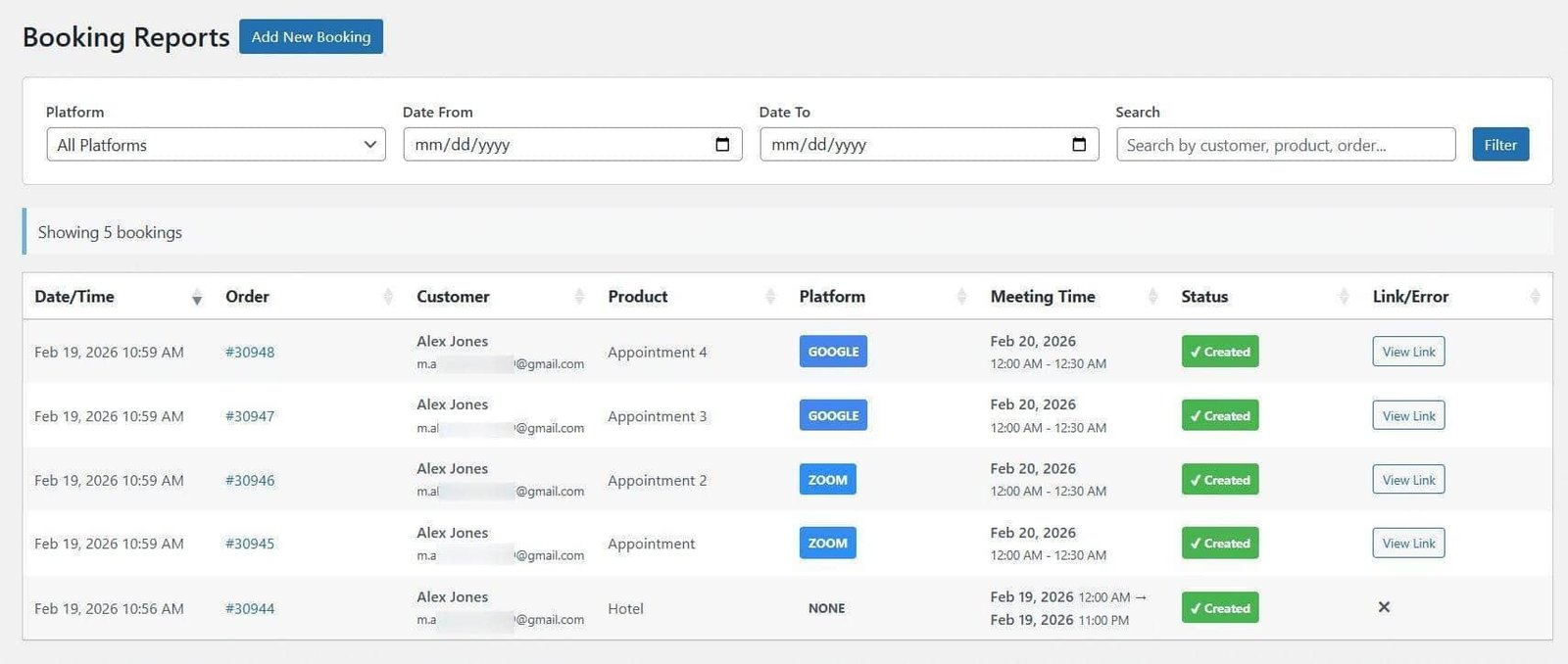
The Booking Reports dashboard shows bookings filterable by platform, date, and customer, each row showing the product, customer, session time, status, and a direct order link.
Manual registrations for phone and door bookings
Attendees registering by phone, at the door, or through a corporate purchase order need the same booking record as online registrants. Manual registrations are created through WooCommerce > Booking Reports > Add New Booking. Select the attendee account or create a new customer record, choose the event product and session, configure any add-ons, and set the payment status. The attendee receives the same confirmation email as an online registrant, and the event’s remaining capacity updates immediately.
The Attendee Experience: Registering and Managing Event Bookings
How attendees register through WooCommerce
Attendees register for a WooCommerce Booking from the event product page. First, they select their preferred session from the availability calendar, choose any optional extras from the configured resources, and specify the number of attendees if per-person pricing applies. Next, they review the registration total and complete the payment through the WooCommerce checkout. Once the payment is confirmed, they receive an immediate booking confirmation. Meanwhile, the event’s remaining capacity automatically updates for all subsequent visitors to the product page.
Attendee self-service through My Account
Attendees access all their WooCommerce Bookings from the Bookings tab in their My Account area. Each registration shows the event name, session date and time, number of places, status, and available actions. For upcoming events, attendees can view their full registration details, request a reschedule to a different session date if permitted, or initiate a cancellation within the policy window.
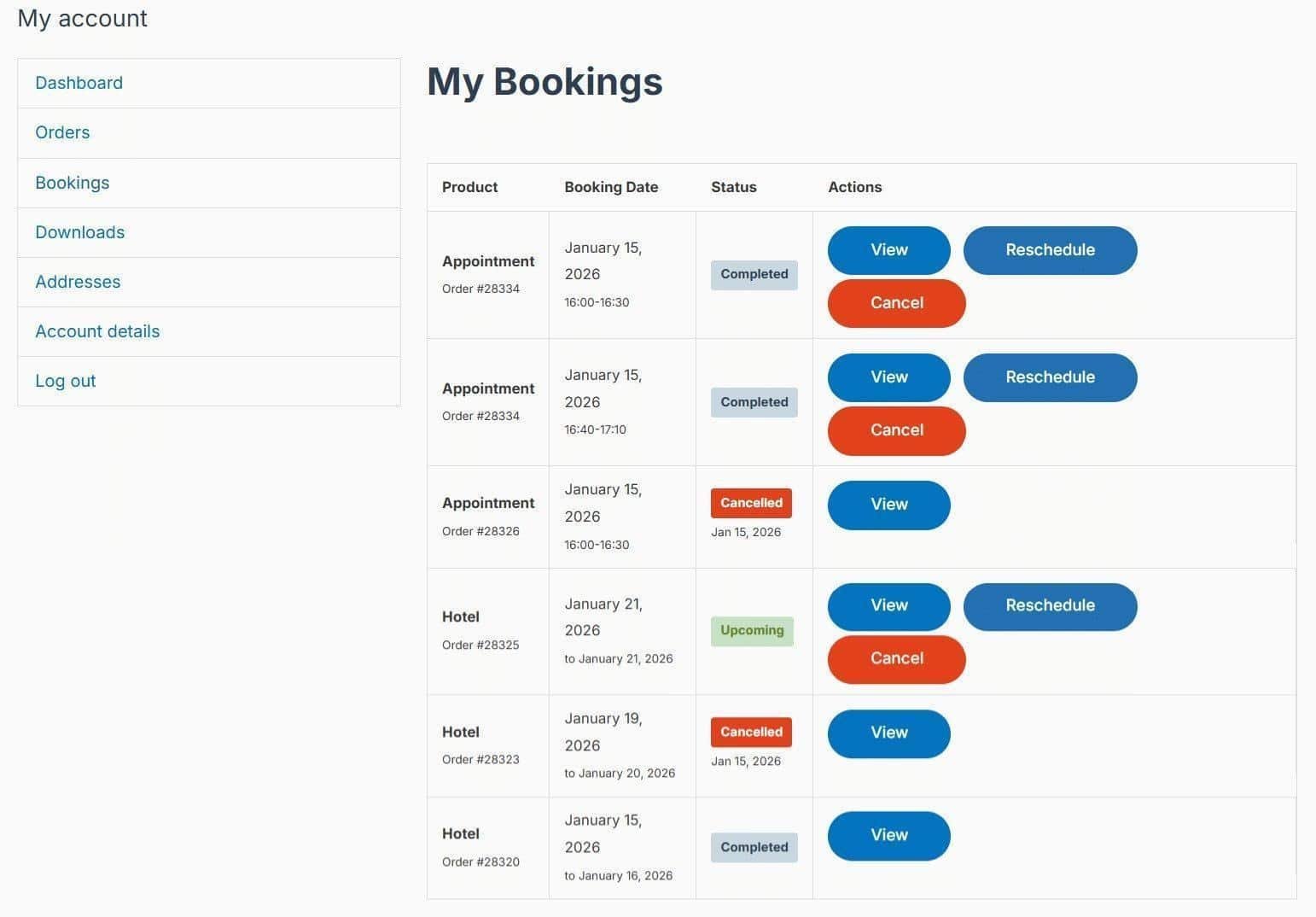
The attendee’s My Bookings page shows each reservation with its product, booking date, status, and the View, Reschedule, and Cancel actions.
Cancellation Policy for Event Bookings
Configuring event cancellation rules
Cancellation policy for each WooCommerce Bookings product is configured in the Cancellation settings of the Bookable Product settings. The cancellation deadline specifies how many days or hours before the event start time an attendee may cancel. After that deadline, the Cancel button disappears from the attendee’s account.
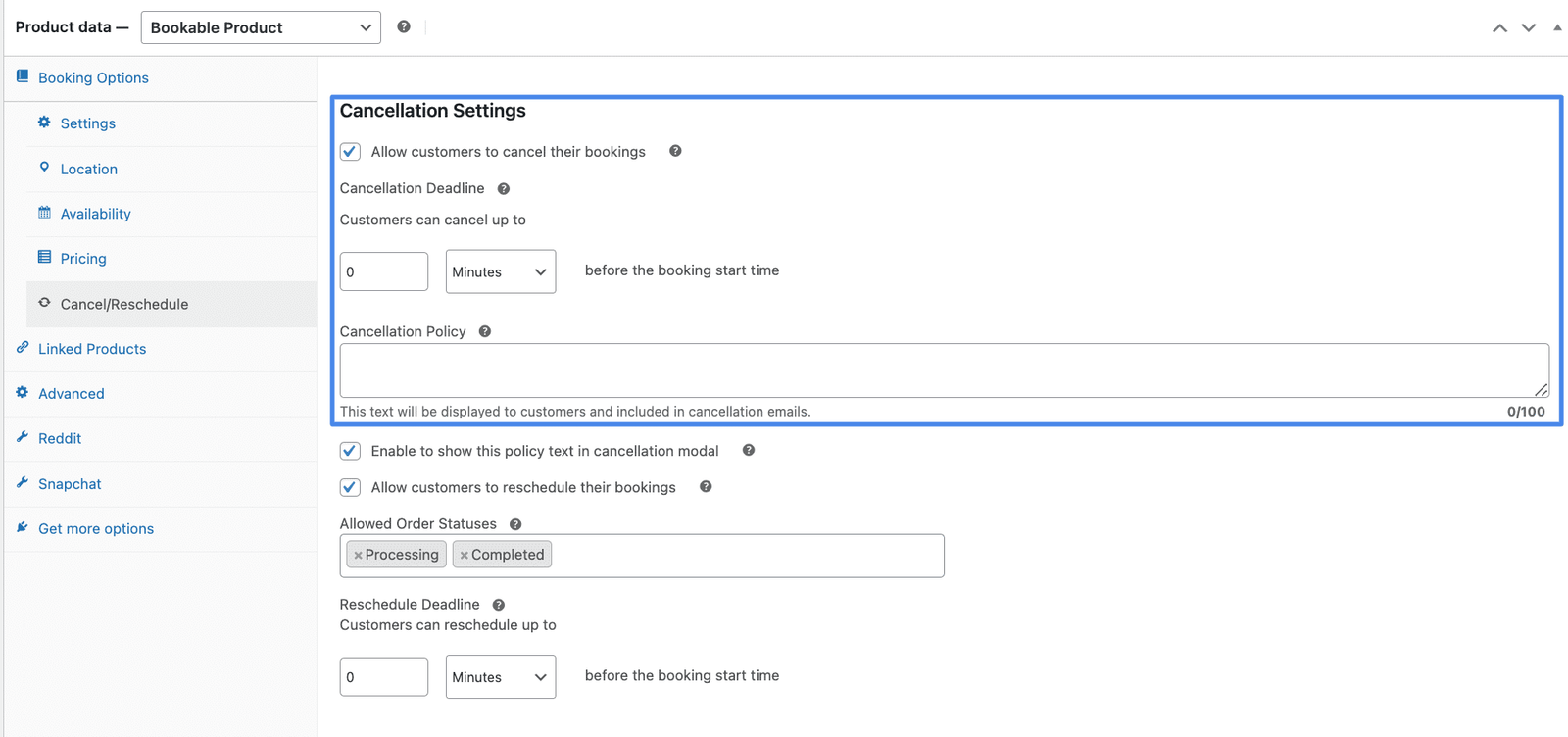
The Cancel/Reschedule tab with the cancellation settings highlighted: the cancel-permission toggle, the deadline before start time, and the policy text shown to attendees.
For events with catering commitments or venue headcount guarantees, a non-refundable policy within 5 to 7 days of the event date is appropriate and reflects the organiser’s actual costs. The cancellation confirmation modal displays the stated policy clearly before the attendee confirms. If the attendee cancels within the allowed window, the registration places return to the event’s capacity immediately, making them available to new registrants.
Rescheduling between event sessions
The Cancellation settings also control attendee rescheduling. Where the same event runs multiple sessions, the Reschedule Deadline specifies how far in advance of the session the attendee may request a date change. Allowed Order Statuses controls which order states display the Reschedule button. When a reschedule is confirmed, the original session regains one place, and the new session loses one. The process is self-service through the attendee’s My Account area, requiring no admin intervention.
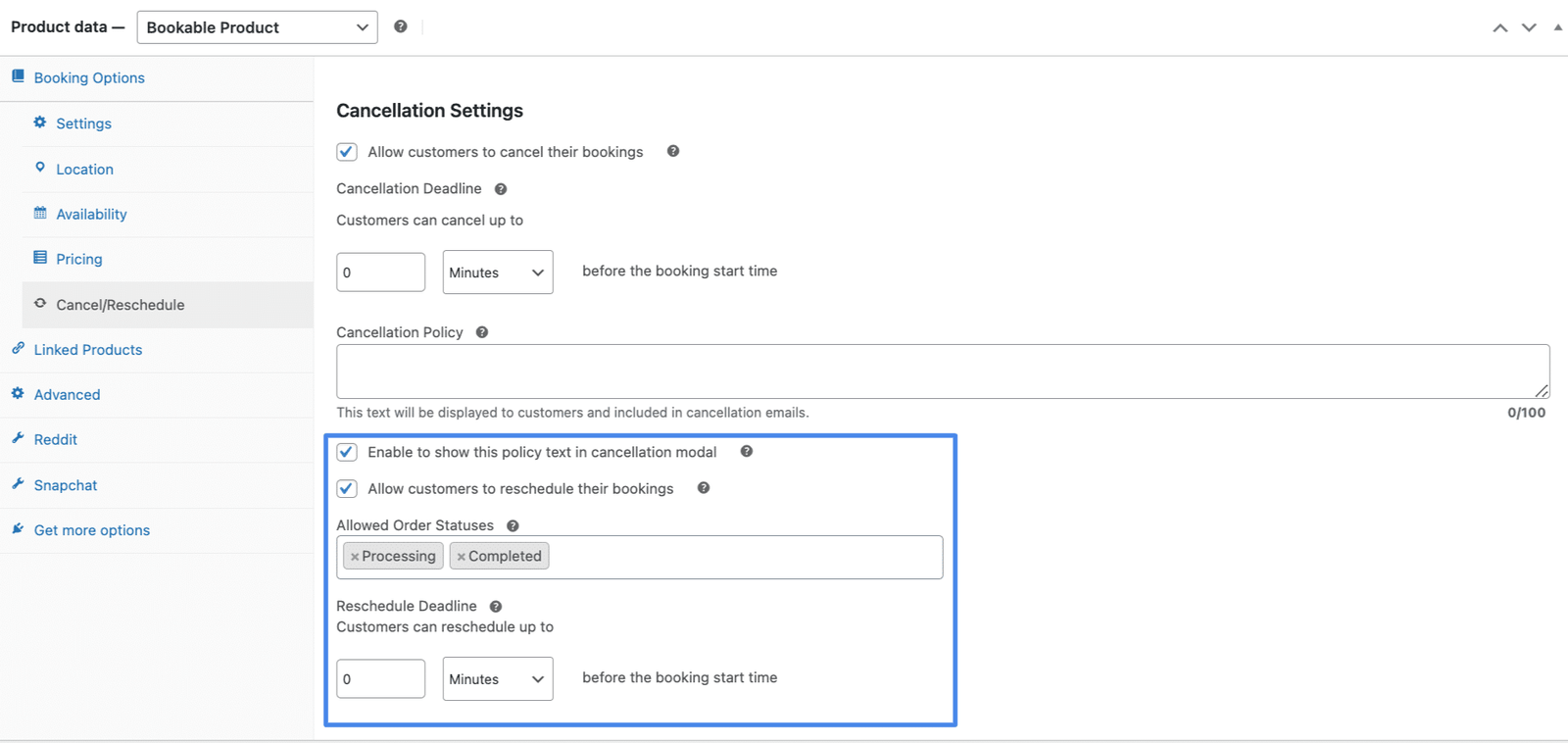
The same tab with the reschedule settings highlighted: the reschedule-permission toggle, the order statuses that allow it, and the deadline before start time.
Payment Processing for Event Registrations
How WooCommerce processes event registration payments
Every WooCommerce Bookings registration is processed through the standard WooCommerce checkout. During checkout, WooCommerce processes payments through the payment gateways configured in the store settings, while the WooNinjas WooCommerce Bookings Add-on manages booking logic and availability. Additionally, attendees see a complete price breakdown, including the base registration fee, any selected add-ons, and the total amount due before they complete their purchase.
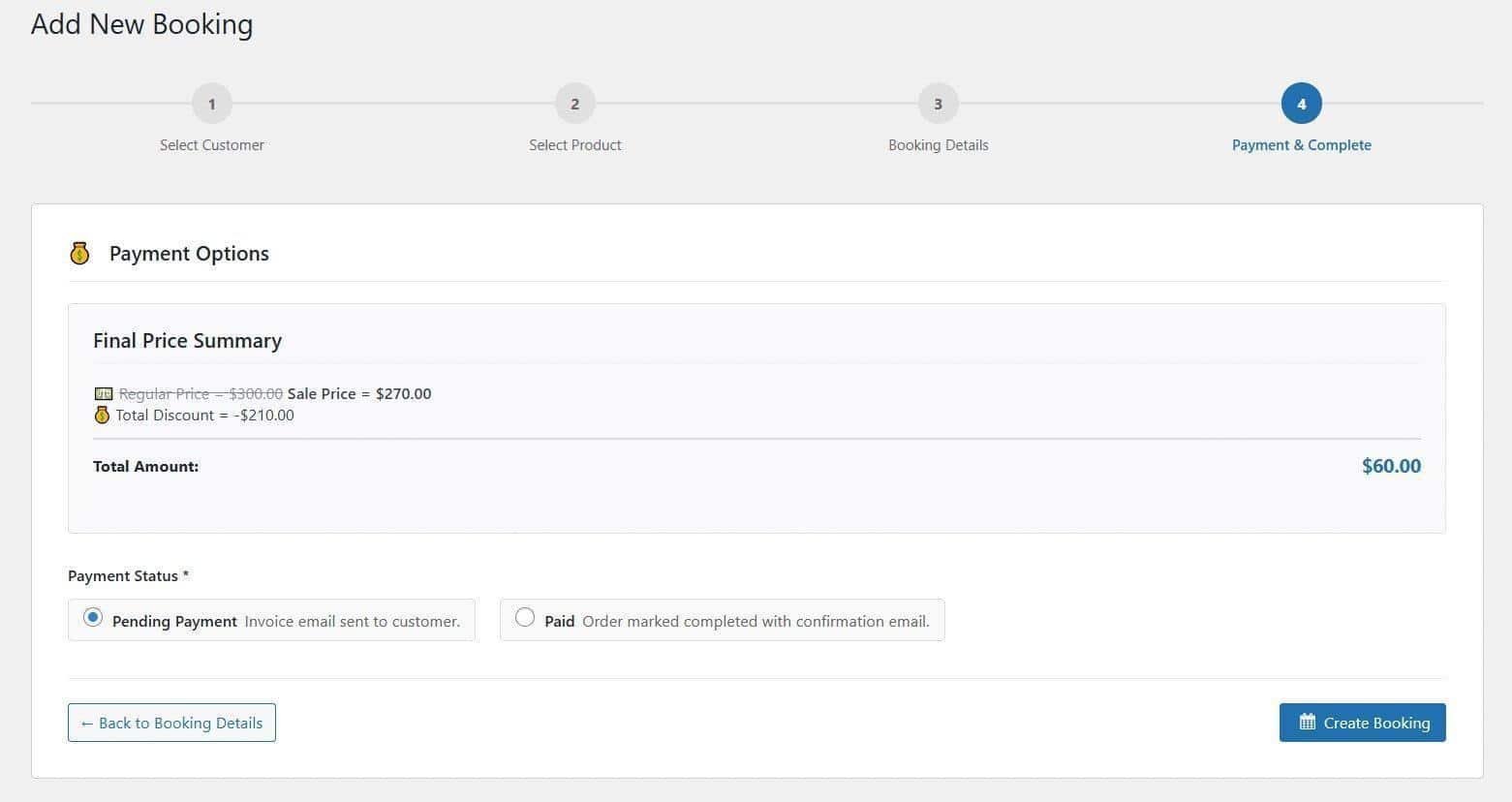
The Payment and Complete step shows the final price summary with any discount applied and the pending or paid status options before the booking is created.
WooCommerce Event Booking: The Technical Summary
WooCommerce event booking uses the Event booking type in the WooNinjas WooCommerce Bookings Add-On, with each event configured as a Bookable Product. Set the attendance cap using the Slots Per Event setting in the Booking Options > Settings tab. WooCommerce automatically closes the event once customers book all available slots. Create recurring events and separate registration tiers as individual products, each with its own attendance cap, schedule, and price. Set the regular and optional sale prices in the Pricing tab, add optional extras as resources, and configure cancellation and reschedule deadlines for each product. Every registration creates a WooCommerce order, and attendees manage their bookings from the My Account Bookings tab.
Add-on starts at $79/year. Full documentation at the WooCommerce Bookings documentation. Further reading on event ticket setup at Selling Event Tickets with WooCommerce.
A multi-session conference or a full event program is where capacity, pricing, and scheduling setup take real planning. The WooNinjas development team configures WooCommerce Bookings systems for workshop providers, conference organizers, training companies, and community event managers. From recurring event schedules to tiered pricing structures and group registration flows, WooNinjas handles the full setup. Contact the WooNinjas team here, and they will review your event program’s specific requirements.
Pro Tip
For WooCommerce Bookings event products with multiple session options, configure each session as a separate Bookable Product with its own Start Date, End Date, Available Time Range, and Slots Per Event cap. Each session tracks its own registrations independently. A sold-out morning session does not affect afternoon availability, and reporting stays clean per session.
Frequently Asked Questions
Can WooCommerce handle event ticket sales and registrations?
Yes. The WooNinjas WooCommerce Bookings Add-on configures any event as a Bookable Product using the Event booking type. Attendance capacity is enforced through the Slots Per Event setting in the Settings tab. When the cap is reached, the event slot closes automatically. Every registration creates a WooCommerce order. The Add-on starts at $79/year.
How do I limit the number of attendees for a WooCommerce event?
Set the attendee capacity using the Slots Per Event setting in the Booking Options > Settings tab of the WooCommerce Bookings product. Specify the maximum number of registrations the event can accept. Once customers book all available slots, WooCommerce automatically marks the event as unavailable in the booking calendar.
Does WooCommerce Bookings support recurring events?
Yes. For recurring events, create a separate Bookable Product for each occurrence and set the Start Date and End Date for each. Configure the Available Days and Available Time Range per product. Each occurrence operates independently with its own Slots Per Event capacity. A sold-out occurrence does not affect registration for other dates.
Can I set a Sale Price for event registrations in WooCommerce?
Yes. Each event Bookable Product has a Regular Price and an optional Sale Price in the Pricing tab. Therefore when a Sale Price is active, it displays alongside the regular price and applies at checkout. For events with multiple registration categories, configure each as a separate Bookable Product with its own price and Slots Per Event cap.
How does cancellation work for WooCommerce Bookings?
Cancellation rules are configured in the Cancellation settings of each WooCommerce Bookings product. First the cancellation deadline sets how many hours or days before the event start time an attendee may cancel, then the confirmation modal displays the organiser’s stated policy before the attendee confirms. Cancelled registration places return to the event’s available capacity immediately. The Cancellation settings also control rescheduling deadlines and permitted order statuses for the Reschedule button.
Need Ongoing WordPress Maintenance & Support?
We handle updates, performance monitoring, security hardening, and technical fixes so your WordPress and WooCommerce site stays stable and secure.
5 LLM SEO Tools Worth Trying for Your WordPress Site in 2026
Compare the best LLM SEO tools for WordPress in 2026: Peec AI, Otterly AI, Profound, Rankability, and AthenaHQ. Find the…
Read More...
WordPress MCP Plugin vs MCP Adapter: Which One Fits Your Site
WordPress MCP Plugin vs. MCP Adapter: a plugin is fast to install, the adapter is official and built on the…
Read More...
Managing WooCommerce Products with MCP: Add, Update & Sync via AI
See how a WordPress MCP server lets AI add, update, and sync WooCommerce products, what's possible today, and where the…
Read More...
