The TutorLMS Progress Reset add-on allows administrators to reset progress for any given TutorLMS course. You can selectively reset progress for users, topics, and courses to suit your requirements.
The add-on can not only reset the user’s progress for completed courses, but it can also reset partial course progress. Our add-on is also capable of deleting data for user quiz attempts. Importantly, the addon only impacts users with existing progress, leaving those with zero progress unaffected.
Video Tutorial
Watch the tutorial video below for a quick walkthrough of the add-on’s features and setup process.
For detailed instructions, please continue reading the full documentation. If you still have any questions, feel free to submit a support ticket.
Follow the steps below to install, configure and reset courses’ progress using this add-on.
Installation
- Install and activate the TutorLMS plugin.
- Install and activate the TutorLMS Pro plugin.
- Install and activate the TutorLMS Progress Reset add-on.
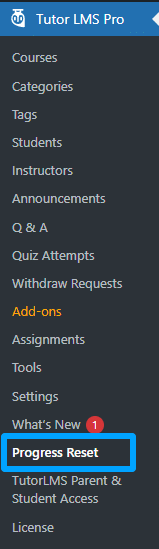
- A new “Progress Reset” menu will be added to the “Tutor LMS Pro” menu.
Configure License Key
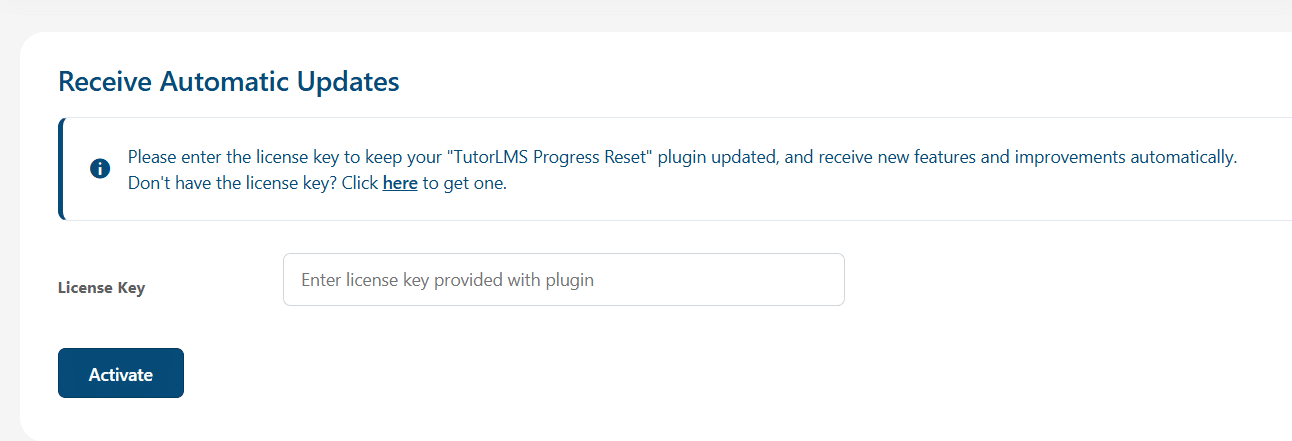
To activate your License, click on the “Progress Reset” menu located under the TutorLMS Pro menu and navigate to the “License Option” tab. Next, add the product license you received via email when purchasing the add-on to the corresponding field and click Activate.
General Settings
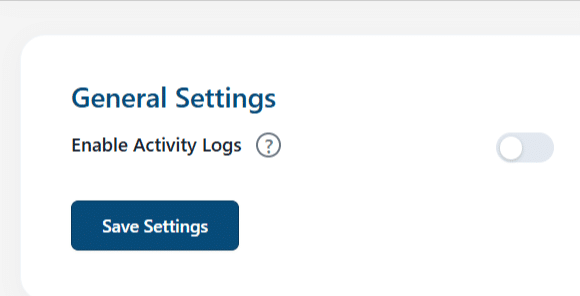
In this tab, you can find all the settings related to our addon’s general settings.
Enable Activity Logs
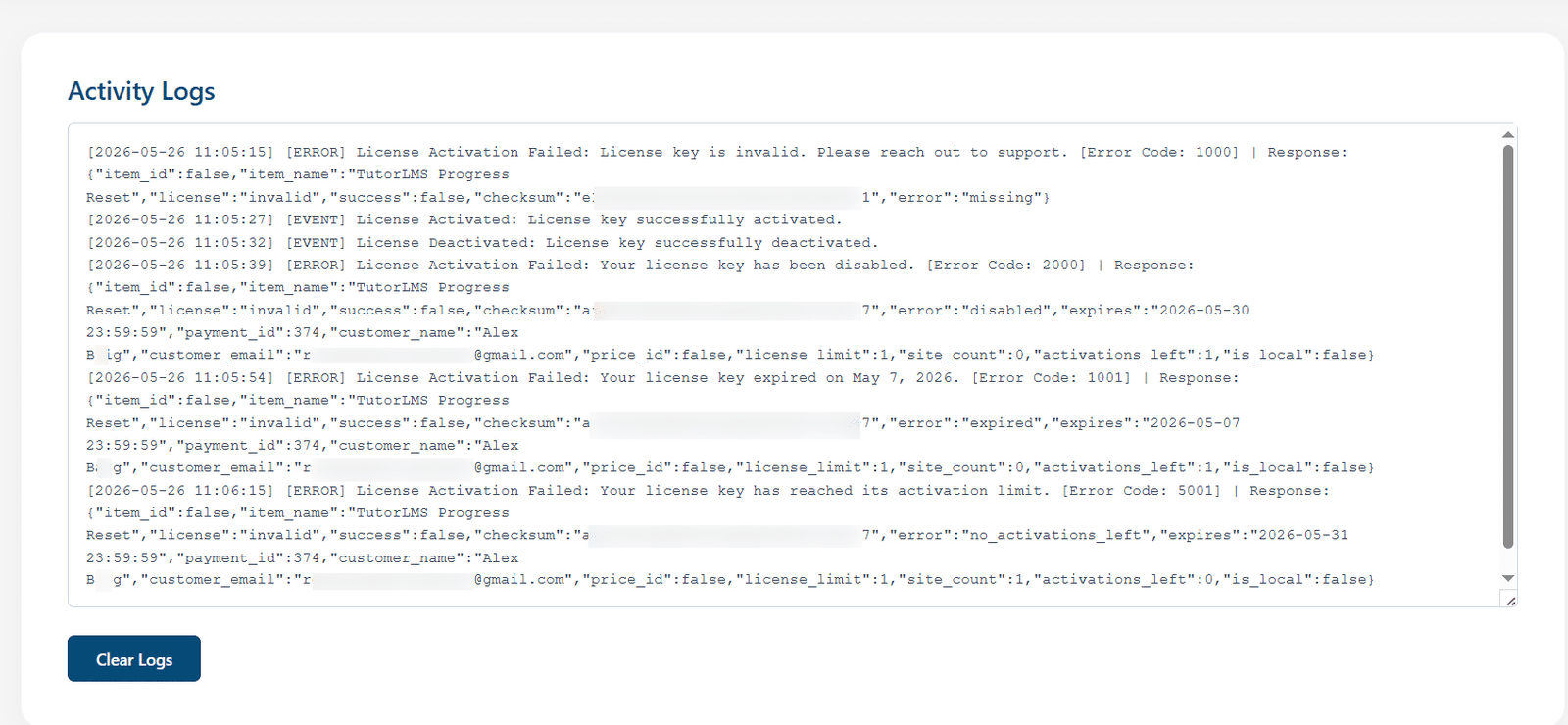
Enable this option to log and view the activity logs for licensing activation. When this option is enabled, a new “Activity Logs” tab will become visible.
Progress Reset Settings
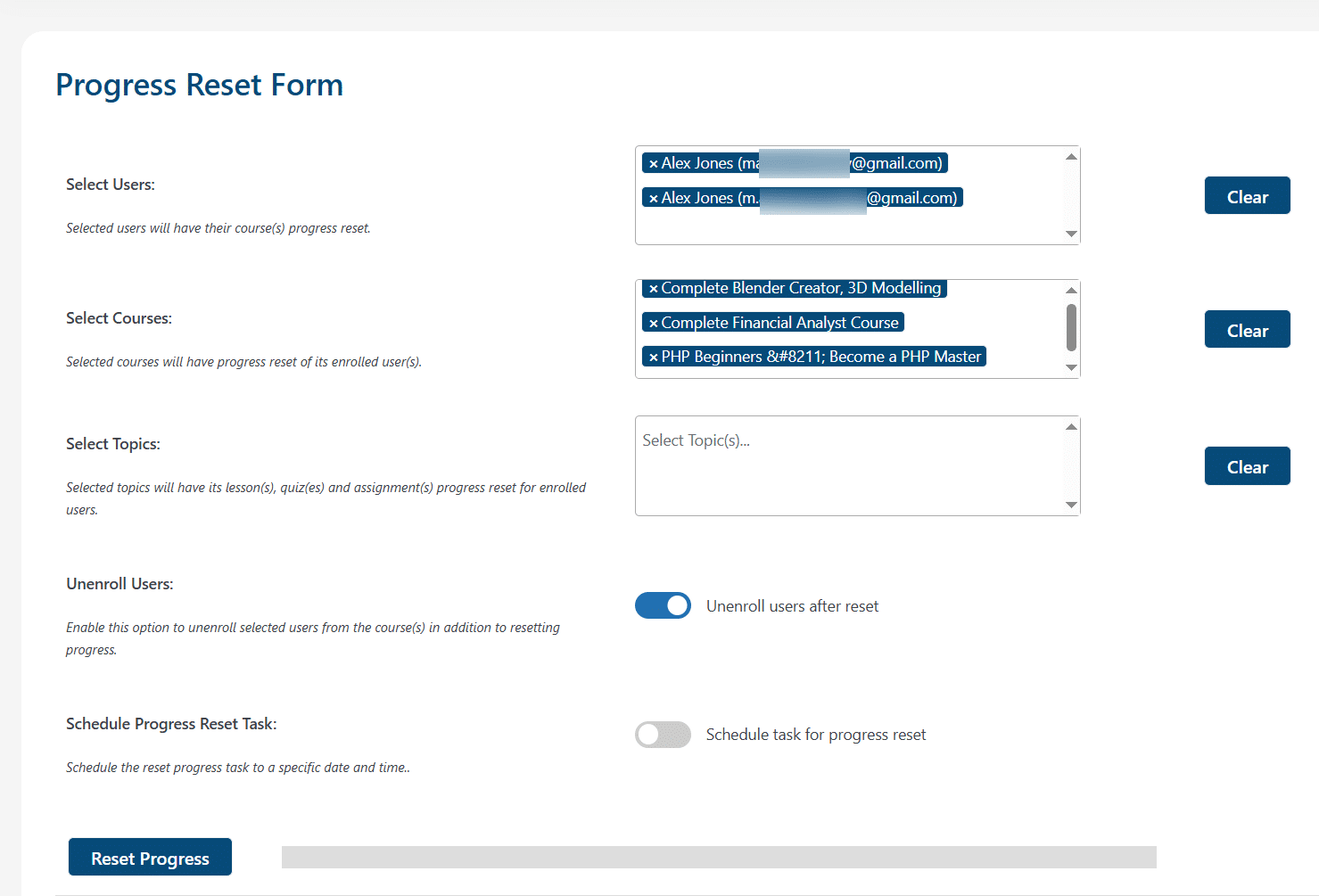
For resetting the progress for the selected Users/Courses/Topics, the steps are as follows:
- Select the Respective Users/Courses/Topics whose progress you would like to reset.
- Click on the respective selector box and enter the first 3 letters of the respective Users/Courses/Topics whose progress you would like to reset. The respective Users/Courses/Topics whose first 3 letters match will be fetched in a dropdown. Select the one you want from the dropdown.
- Switch the “Unenroll Users:” option toggle on if you want the user(s) to be un-enrolled from the respective courses, as well along with resetting their progress. If you do not want to un-enroll the user(s) from their courses them keep the toggle off.
- Switch the “Schedule Progress Reset Task:” option toggle on if you want to schedule the reset progress task. To create a schedule of progress reset task, you need to provide a task name, data and time of first execution and the interval based on which the schedule will be executed. The following interval options are provided as follows:
- No Repeat (Single Event) – It will only be executed once.
- Hourly
- Twice Daily
- Once Daily
- Once Weekly
- Once Monthly
- Once Quarterly
- Once Annually
- Click on the respective clear buttons if you want to clear the respective selector boxes of the Users/Courses/Topics.
- Finally, click on the “Reset Progress” button.
Note: If a topic(s) is selected in its respective selector box, then the “Unenroll Users:” option toggle will get disabled automatically if it was enabled by the administrator before, and will remain disabled until the topic’s selector box is emptied again.
- You will be shown a warning message. Click on “Ok” to continue.

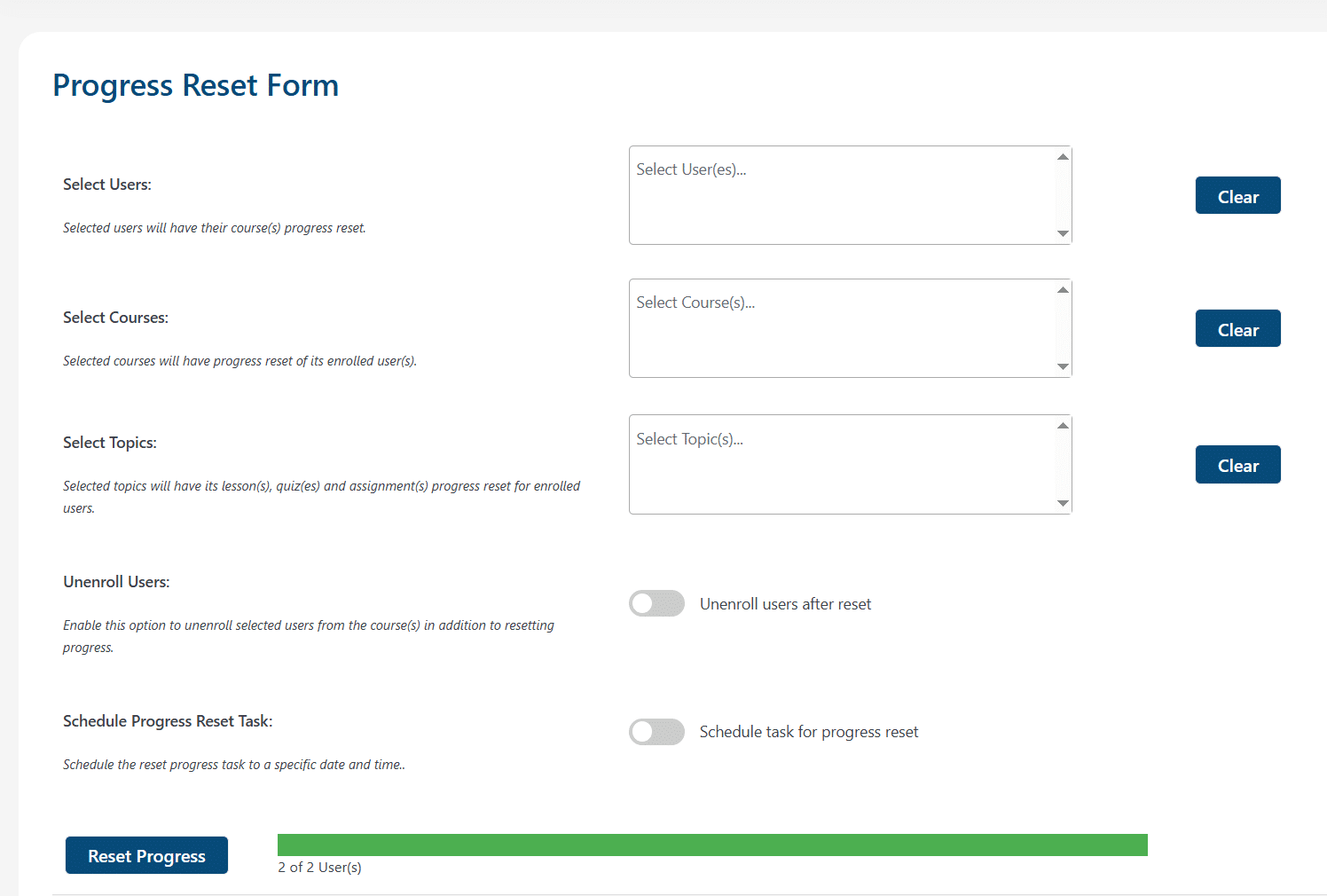
- After a successful progress reset, the total number of users whose progress has been reset will be listed under the progress bar.
Schedules
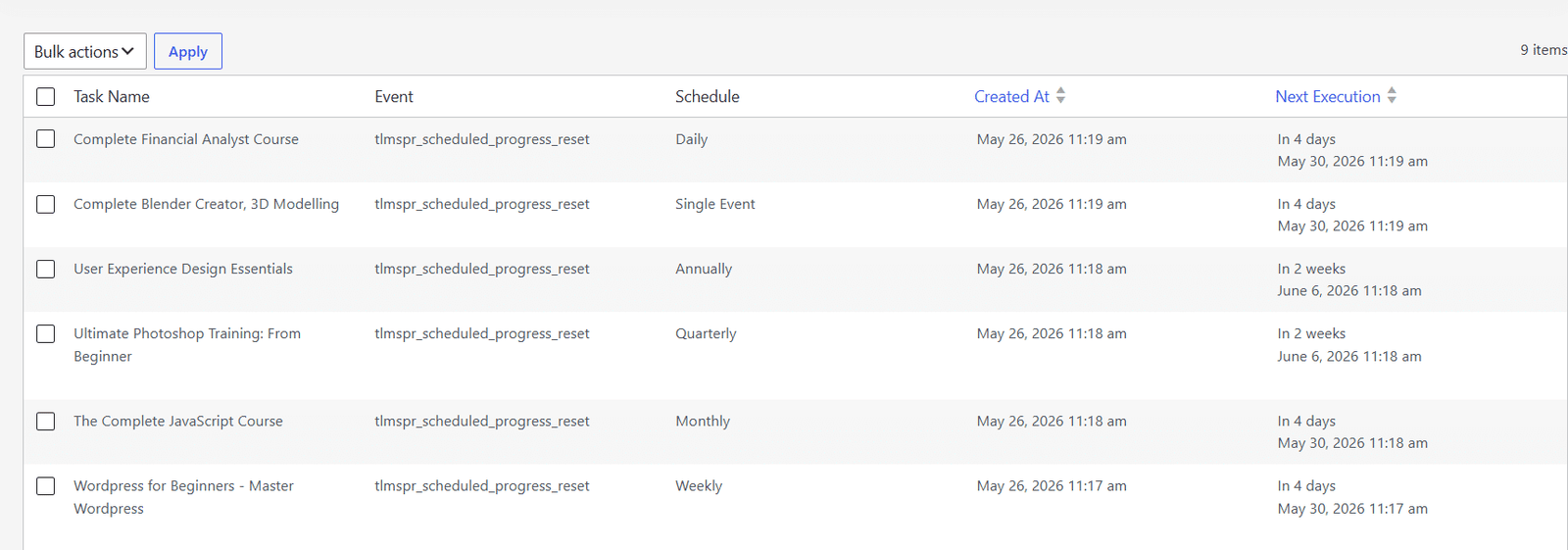
This tab displays all of the scheduled progress resets. Here, you can manually execute and delete the scheduled tasks for progress reset if required. Other than viewing the schedule table, you can execute the tasks by hovering over the task name and clicking on “Execute Now”.
FAQs
1. Will Enrolled Students That Haven’t Started A Course Yet Be Affected By The Reset?
The add-on will ignore those users whose progress is zero.
2. Will any reset emails or reports be sent to the admin?
No reset emails or reports will be sent to the admin. The admin will only see a notification message of how many of all the users were affected after clicking the “Reset Progress” button.
3- Will any reset emails or reports be sent to the respective students (whose progress has been affected)?
No reset emails or reports will be sent to the respective students. When they revisit the course pages on the frontend, they will be able to see that all their progress has been erased.
4. Is the “TutorLMS Progress Reset” plugin dependent on any plugin?
Yes, the “TutorLMS Progress Reset” plugin is dependent on the “TutorLMS” and “TutorLMS Pro” plugins.
5-If there are 2 users with the same display name, how will the admin differentiate them on the Specific User field on the Progress Reset page?
In the Specific User’s field, the usernames will be displayed with the email addresses associated with the display names to differentiate between the users.
Changelogs
1.0.7
- Fix: Sanitized the license notice output using WordPress-approved HTML filtering.
1.0.6
- Fix: Improved Select All behavior for user, course, and topic AJAX selectors.
- Fix: Handled scheduled reset actions before admin page output to prevent redirect/header issues.
- Fix: Improved scheduled reset execution notices with the executed task name.
1.0.5
- New: Added General Settings page.
- New: Added Activity Log feature.
- Fix: Improved licensing module.
1.0.4
- Fix: Fixed security and performance issues.
- Fix: Fixed minor UI issues.
1.0.3
- New: Added scheduled progress reset feature to schedule task for progress reset.
1.0.2
- New: Added Unenroll feature to unenroll user from courses.
1.0.1
- New: Update UI from admin side.
1.0.0
- Initial Release.
