The Advanced JSON-LD Schema Generator lets administrators create structured data from a visual form instead of writing JSON-LD by hand. The generated JSON-LD can be saved as a reusable schema template, copied, tested, and inserted into the front end of the site.
The plugin is useful when a site needs custom schema for articles, breadcrumbs, events, FAQs, how-to content, jobs, local businesses, organizations, people, products, recipes, videos, and website search markup.
Installation
1. Log in to the WordPress admin dashboard.
2. Go to Plugins > Add New.
3. Click Upload Plugin.
4. Choose the plugin ZIP file.
5. Click Install Now.
6. After installation finishes, click Activate Plugin.
After activation, a new admin menu item named Advanced Schema appears in the WordPress dashboard. It has two submenus:
- All Templates
- Add New Schema Template
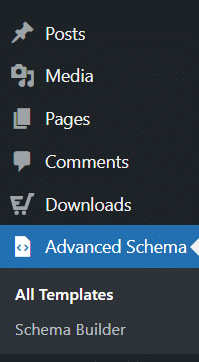
Advanced JSON-LD Schema Generator – Main Menu
All Templates
Here, you can view saved schema templates, search templates, edit templates, or move templates to Trash.
You can also click on the “Schema Builder” button to create a new template.
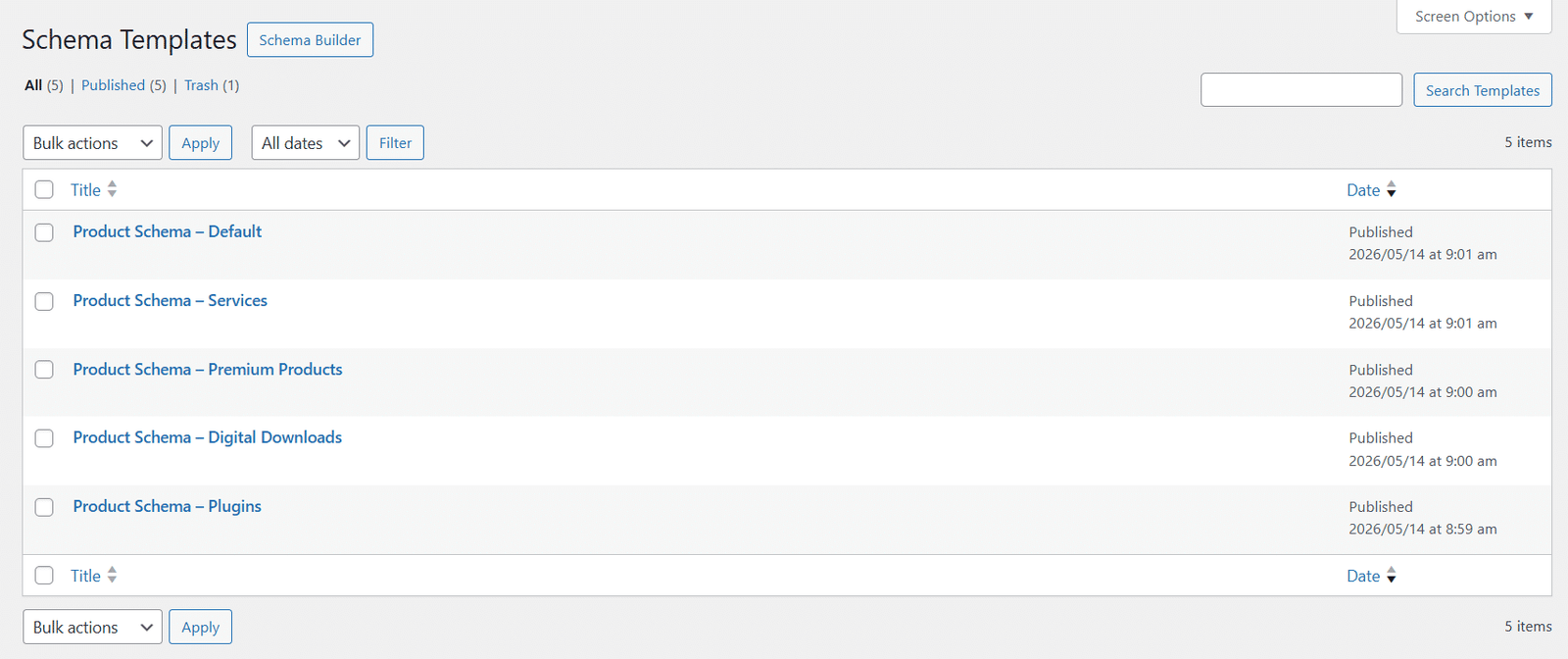
Advanced JSON-LD Schema Generator – All Templates
Edit, or Remove Templates
Edit a Template
1. Navigate to Advanced Schema > All Templates.
2. Click the template title.
3. Update the form fields, placement settings, or template title.
4. Click Save or Update.
Remove a Template
1. Navigate to Advanced Schema > All Templates.
2. Hover over the template title.
3. Click Trash.
4. Clear any cache and test the affected page to confirm the schema is no longer printed.
Schema Builder
Here, you can open the Schema Builder and create a new schema template. A template has the following areas:
| Builder Area | Purpose |
| Schema selector | Choose the type of Schema.org markup you want to create. |
| Form panel | Enter details such as title, URL, image, author, address, offer, rating, steps, or other schema-specific fields. |
| JSON-LD preview | Shows the generated JSON-LD script as the form is completed. |
| Action buttons | Test in Google, open Schema.org Validator, copy code, save the template, or reset the form. |
| Apply Schema panel | Connect the saved schema template to a post type or content item. |
Schema Types Included
You will find a total of 14 Schema Types in the plugin, and you can select any as per your type.
| Schema Type | Best Used For |
| Article | Blog posts, news articles, guides, and editorial content. Includes Article, NewsArticle, and BlogPosting options. |
| Breadcrumb | Pages that need a BreadcrumbList trail. |
| Event | Online, offline, or mixed events with date, time, location, performer, and ticket offers. |
| FAQ Page | Pages with visible questions and answers. |
| How-to | Step-by-step instructional content. |
| Job Posting | Job listing pages. |
| Local Business | Physical business locations, offices, or stores. |
| Organization | Company or brand identity markup. |
| Person | Author, team member, expert, or profile pages. |
| Product (Simple) | Standard product pages with offer, rating, and review fields. |
| Product (WooNinjas) | Advanced product schema designed for WooNinjas-style software products with aggregate offers and plan-level pricing. |
| Recipe | Recipe pages with ingredients, cooking time, nutrition, steps, ratings, and reviews. |
| Video | Pages with video content that need VideoObject markup. |
| WebSite | Website identity and sitelinks search box markup. |
Access the schema generators via their specific categories: Content & Navigation, Product & Media, or Business, Events & People.
FAQs
Does this plugin write JSON-LD for me?
Yes. You fill in the form fields, and the plugin creates the JSON-LD output in the preview panel.
Can I use more than one schema template on the same page?
Yes, but only when each schema type has a real purpose and does not duplicate another schema source. Duplicate or conflicting markup can create validation issues.
Does this plugin guarantee Google rich results?
No. The plugin creates structured data. Google decides whether a page qualifies for rich results.
Can I test schema before saving?
Yes. Use the Google icon for Google Rich Results Test and the code braces icon for Schema.org Validator.
Can I copy the generated code?
Yes. Use the copy button to copy the full script tag.
Can I use this with WooCommerce products?
Yes. Use Product (Simple) or Product (Advanced). Check that another plugin is not already outputting product schema for the same product page.
Does automatic schema output work on archive pages?
No. The current output logic runs on singular content only.
Can non-admin users create schema templates?
The current AJAX save and lookup actions require manage_options, so administrator access is recommended.
Changelogs
1.0.0
- Initial Release.
