The LearnDash Assignments Deadline add-on allows course instructors and administrators to set deadlines for lesson and topic assignments. Once a date is set as a deadline, it is displayed to the user, and a notification is sent when the submission deadline approaches.
Video Tutorial
Watch the tutorial video below for a quick walkthrough of the add-on’s features and setup process.
For detailed instructions, please continue reading the full documentation. If you still have any questions, feel free to submit a support ticket.
- Video Tutorial
- Installation
- License Configuration
- Configure Assignment Deadlines
- Approve Assignments
- Email Notifications
- General Settings
- FAQ's
- Changelogs
Installation
- Install the LearnDash plugin & activate it.
- Install and activate the LearnDash Assignments Deadline add-on.
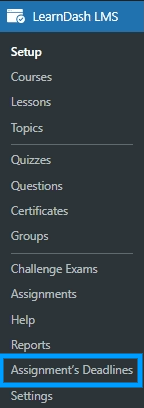
- After activating the add-on, you will see the “Assignment’s Deadlines” sub-menu.
License Configuration
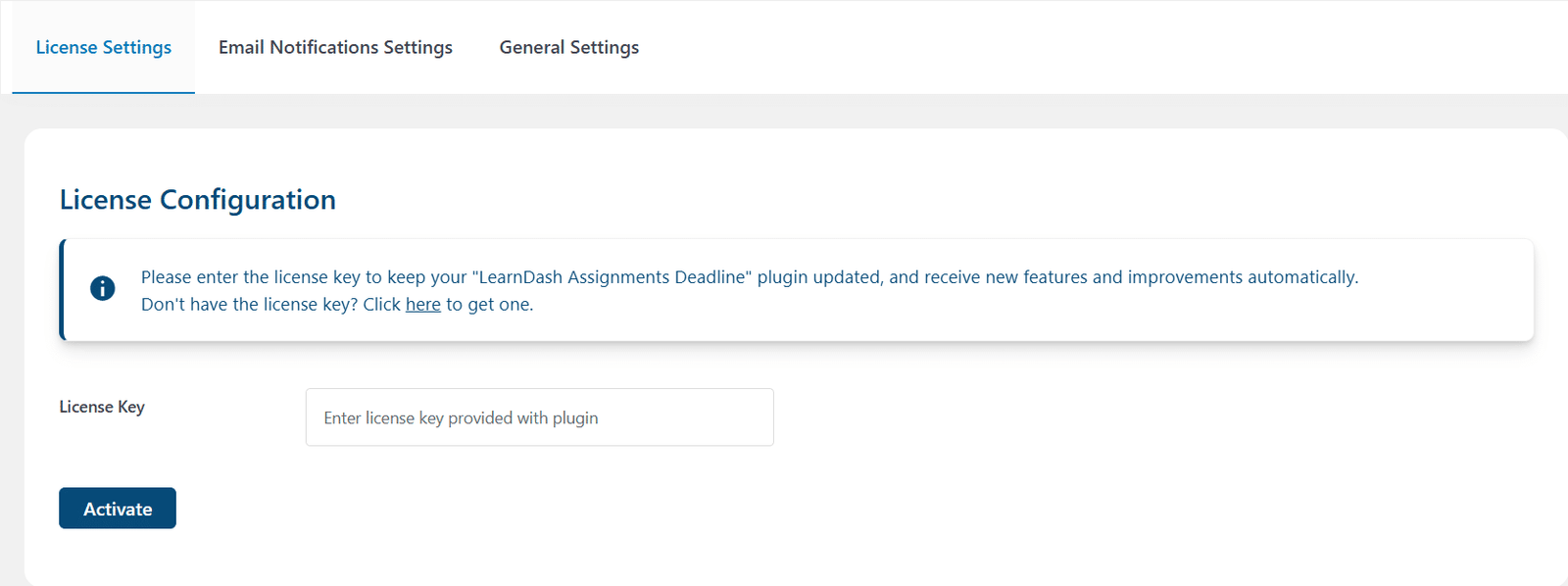
Go to LearnDash LMS > Assignment’s Deadlines and select the License Settings tab. Then, enter the License Key in the corresponding field.
Configure Assignment Deadlines
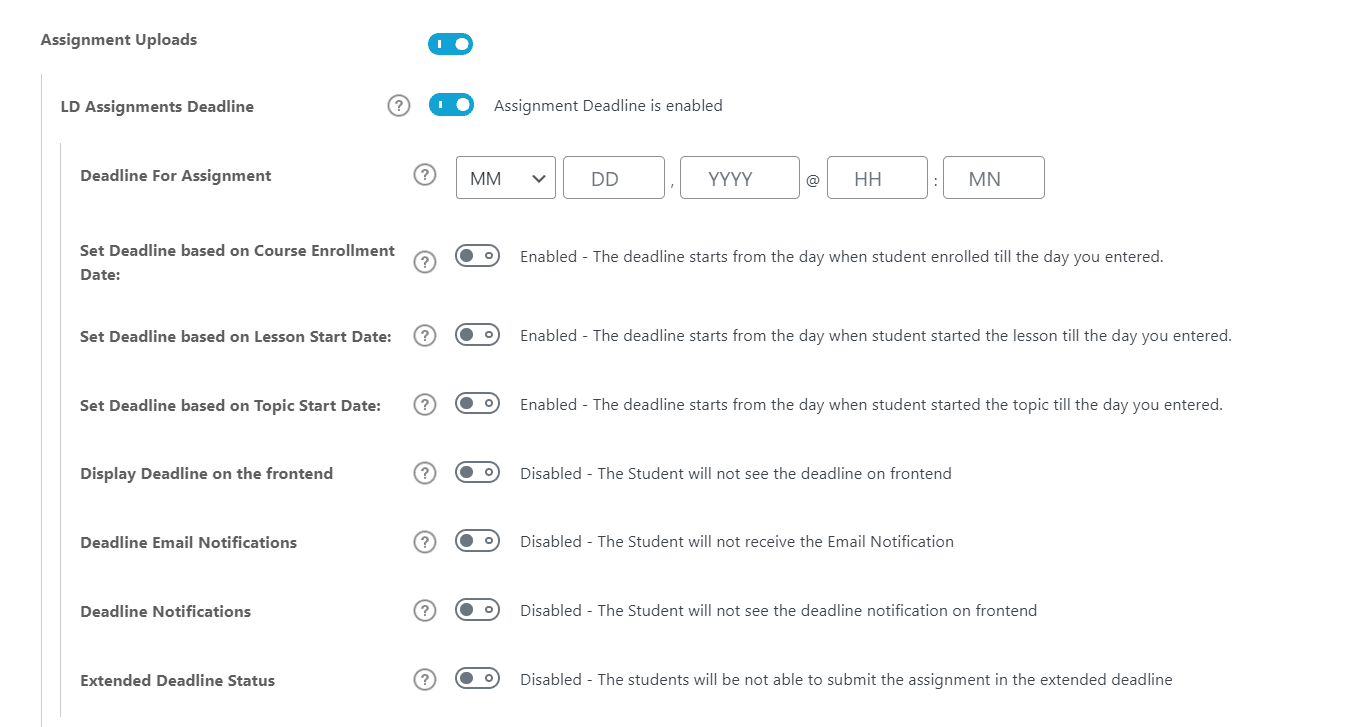
Navigate to LearnDash LMS > Lessons/Topics, and select the specific lesson or topic you want to set an assignment deadline for. Then go to the lesson’s o topic’s Settings and enable the “Assignments Uploads” option.
Comments
By enabling the “Comments” option, students will be able to see the assignment’s comment box on the front-end. This will allow the students to be able to add comments on the assignment section.
If this option is disabled, the students will be able to submit the assignment without the need to add a comment in the assignment’s comment box.

If the “Comments” option is enabled, this is what your students will see from the frontend:
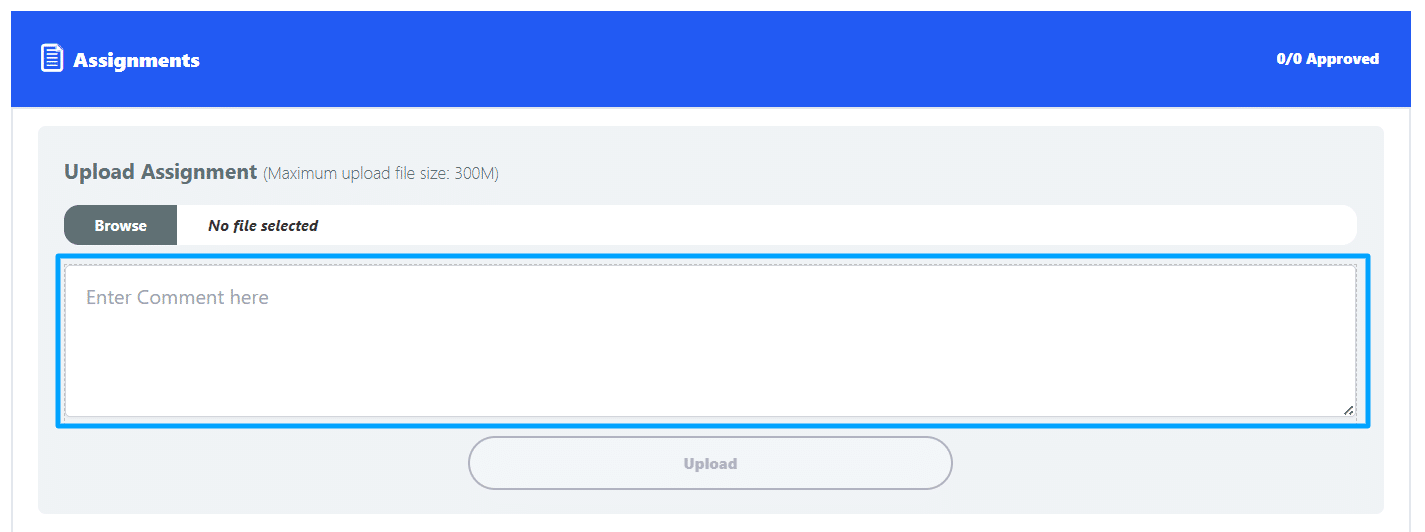
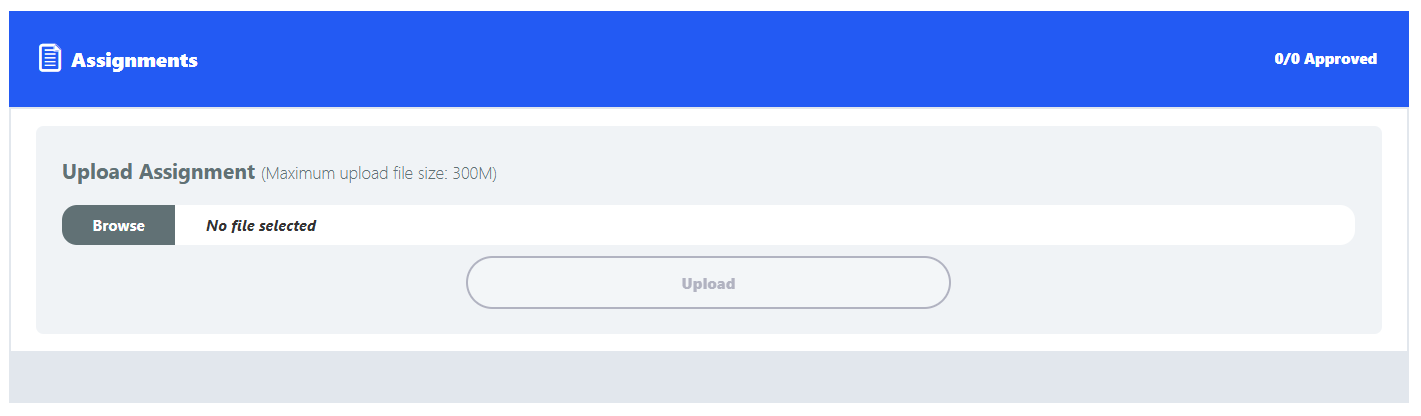
If the “Comments” option is disabled, this is what your students will see from the frontend:
Deadline for Assignments
From the “Deadline for Assignments” field below, you can set a deadline for the assignment submission. The deadline is set to a specific date and time. The enrollee won’t be able to upload his/her assignment after the deadline.

Note: The Assignment Deadline date shown to the student(s) on the lesson and topic pages is based on a hierarchy as follows:
a) Top priority will be given to “Set Deadline based on Topic Start Date:”
b) 2nd priority will be given to “Set Deadline based on Lesson Start Date:”
c) 3rd priority will be given to “Set Deadline based on Course Enrollment Date:”
d) The last priority will be given to the “Deadline For Assignment” option.
In the lesson edit page, you can select only 1 of the 3 options at a time, based on which the assignment deadline will be set for any student on the frontend.
In the topic edit page, you can select only 1 of the 4 options at a time, based on which the assignment deadline will be set for any student on the frontend.
Set Deadline based on Course Enrollment Date
Here you can set the deadline that will start from the day the student enrolled in the course till the day you enter.

Set Deadline based on Lesson Start Date
Here you can set the deadline that will start from the day when the student started the lesson till the day you enter.

Set Deadline based on Topic Start Date
Here you can set the deadline that will start from the day when the student started the topic till the day you enter.

Note: This option will only be visible within the Topic assignments.
Display Deadline on the frontend
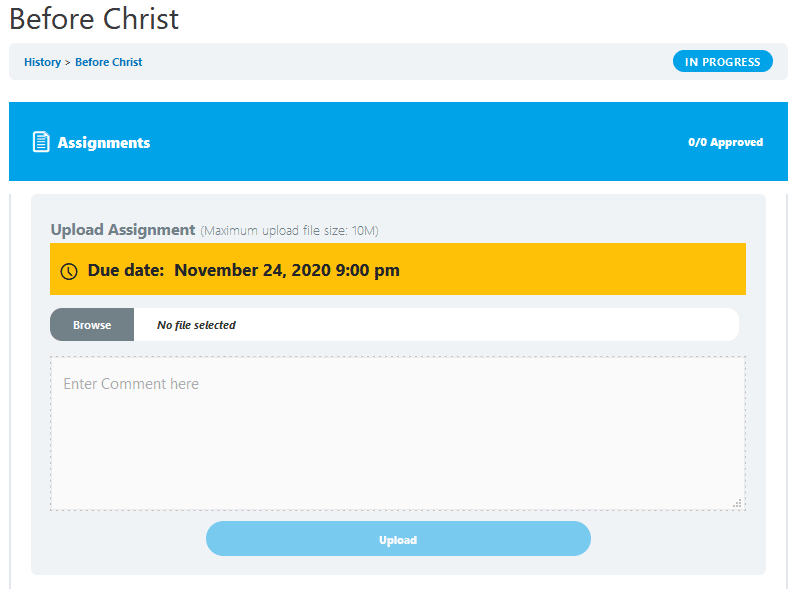
By enabling the “Display Deadline on the frontend” option, students will be able to see the assignment’s deadline on the front-end, on top of the submission box. They will also be able to add comments on the assignment section.

This is what your students will see from the frontend:
Deadline Email Notifications
By enabling the “Deadline Email Notifications” option, students will receive an email when the assignment deadline ends or is updated, when the extended deadline starts, and when the assignment is approved.

Deadline Notifications
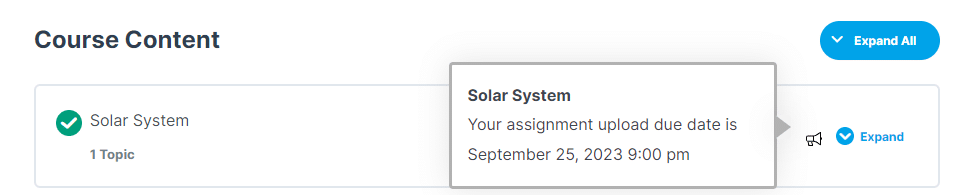
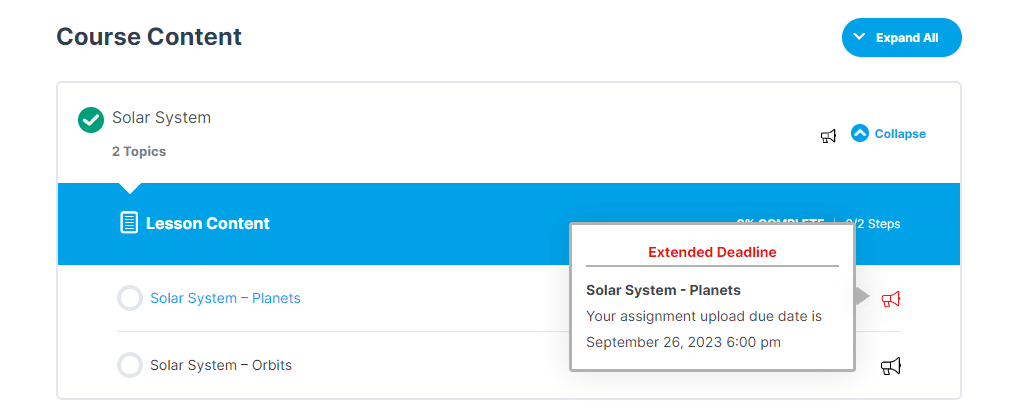
When the “Deadline Notifications” option is enabled, students will see a deadline notification on the front-end when the assignment’s deadline approaches.

This is what your students will see on the front-end:
Standard Deadline:

Extended Deadline:
Display When Due Date is ahead
You can configure how many days before the deadline the notification should be displayed in the “Display When Due Date is ahead” field.

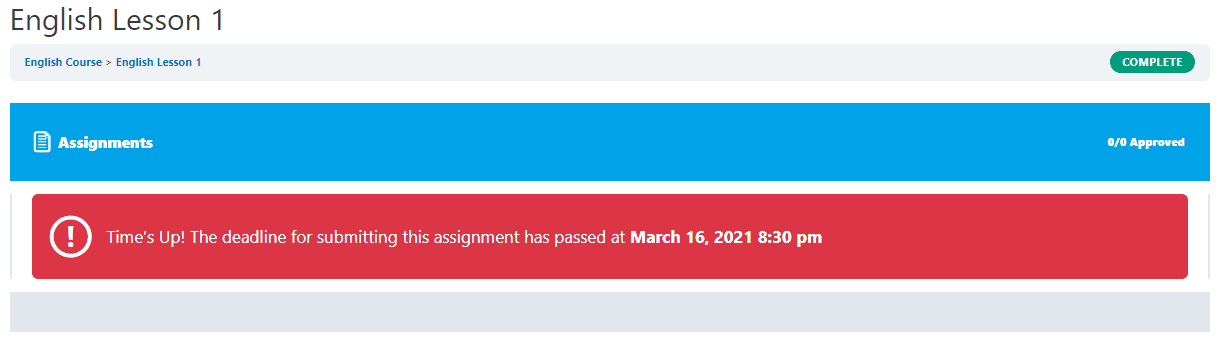
This is what students will see if the assignment deadline is missed:
Extended Deadline Status
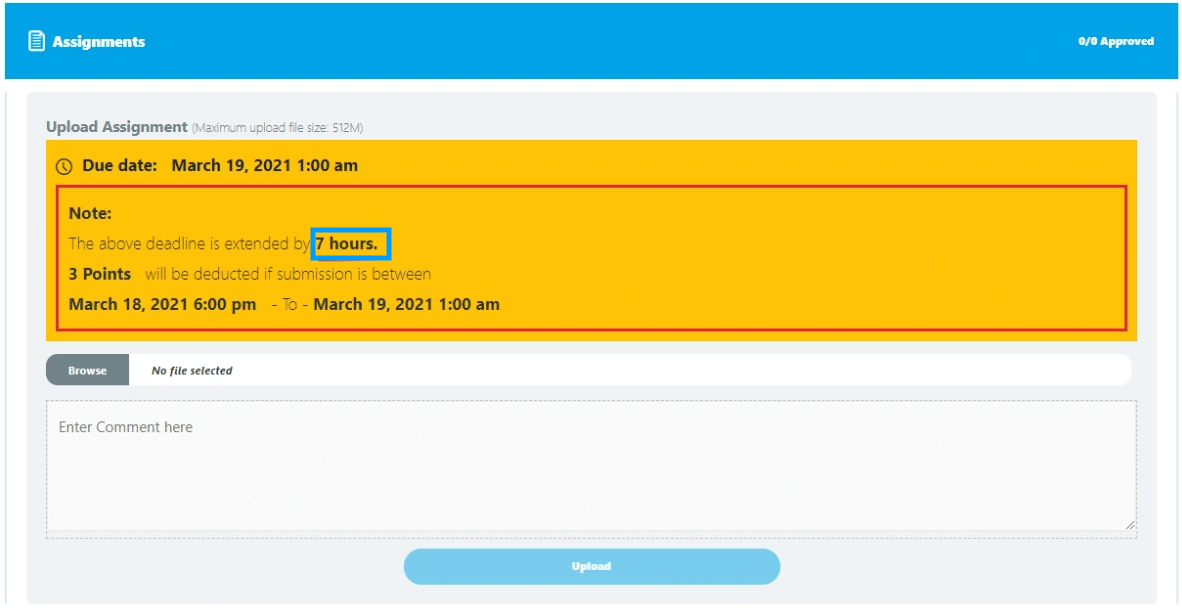
Enabling the “Extended Deadline Status” will enable students to submit their assignments after the deadline has passed, in an extended deadline period. This period is set to a specific number of hours after the deadline.

Extended deadline hours
Next, enter the hours you want to extend the deadline by in the “Extended deadline hours” field.

Your students will be able to see information about available time extensions on the front-end:
Extended Deadline Points Deduction
You can also deduct points from a student’s score when they submit an assignment in the extended deadline period by enabling the “Extended Deadline Points Deduction” option.
Note: This option only works if points are enabled on the assignment uploads.

Extended deadline points
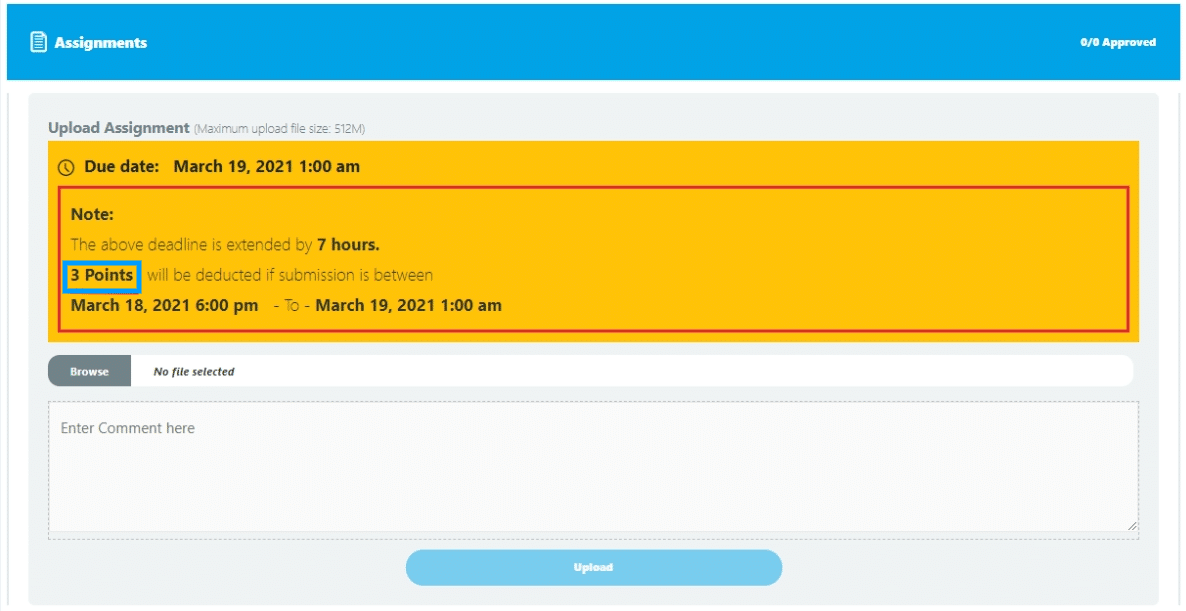
Next, in the “Extended deadline points” field enter the number of points to be deducted from the assignment points when the assignment is submitted in the extended deadline period.
Note: Make sure the number of points is less than the assignment’s max-points.

Your students will be notified of the corresponding point deduction on the front-end:
Finally, configure the other assignment setting options according to your needs and click on Update.
Approve Assignments
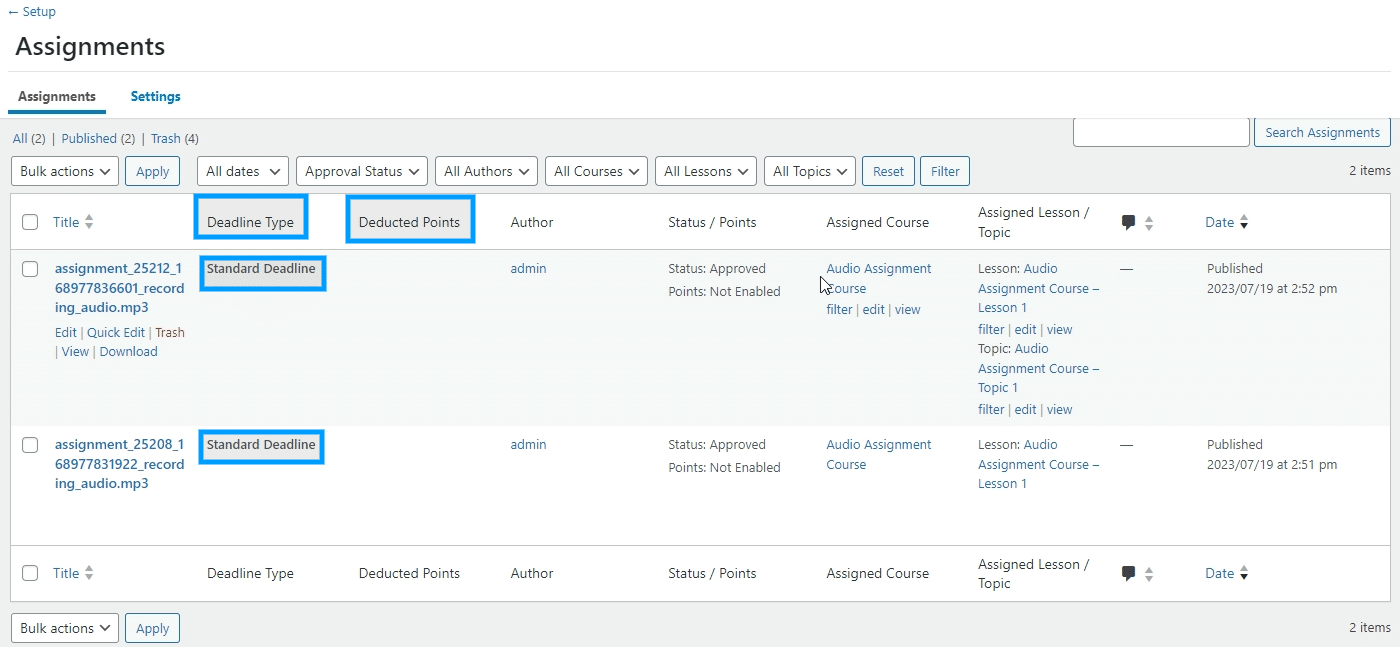
Navigate to LearnDash > Assignments from the WP Dashboard. All the submitted assignments will be listed there. The submissions in the extended deadline will have the “Extended Deadline” and “Points to be deducted” labels added to them, with the automatic point deductions applied when this feature is configured.
Email Notifications
Navigate to Learndash LMS > Assignment’s Deadline > Email Notifications Settings. Here you will find the individual settings of different email notifications.
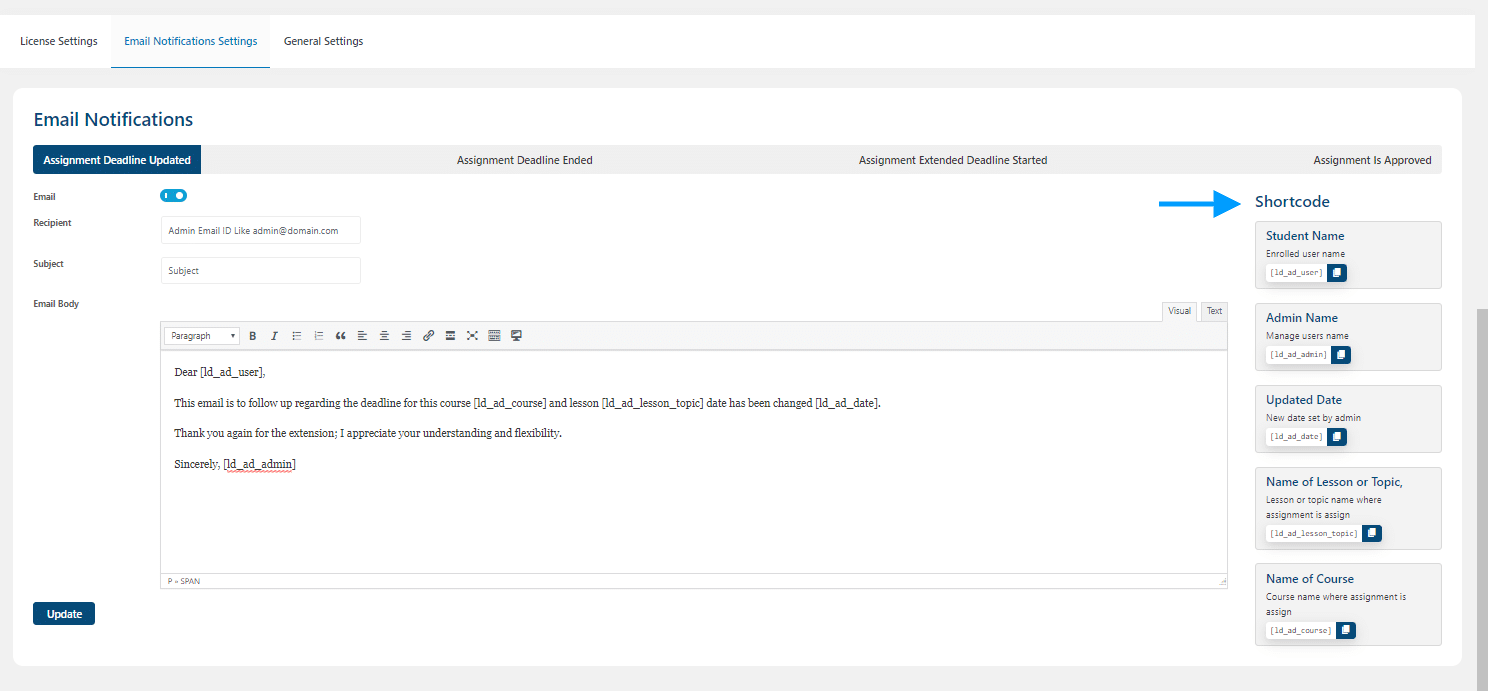
Shortcodes
- Assignment Deadline Updated
There are 5 shortcodes available for the “Assignment Deadline Updated” email template.
- [ld_ad_user] > This shortcode displays the enrolled user name.
- [ld_ad_admin] > This shortcode displays the Admin Name.
- [ld_ad_date] > This shortcode displays the Updated Deadline Date set by the admin.
- [ld_ad_lesson_topic] > This shortcode displays the name of the lesson or topic for a given assignment.
- [ld_ad_course] > This shortcode displays the name of the course for a given assignment.
- Assignment Deadline Ended
There are 4 shortcodes available for the “Assignment Deadline Ended” email template.
- [ld_ad_ended_user] > This shortcode displays the enrolled user name.
- [ld_ad_ended_date] > This shortcode displays the starting date of the assignment.
- [ld_ad_ended_lesson/topic] > This shortcode displays the name of the lesson or topic for a given assignment.
- [ld_ad_ended_course] > This shortcode displays the name of the course for the given assignment.
- Assignment Extended Deadline Started
There are 4 shortcodes available for the “Assignment Extended Deadline Started” email template.
- [ld_ad_extended_user] > This shortcode displays the enrolled user name.
- [ld_ad_extended_hours] > This shortcode displays the extended hours, added by the admin.
- [ld_ad_extended_lesson/topic] > This shortcode displays the name of the lesson or topic for a given assignment.
- [ld_ad_extended_course] > This shortcode displays the name of the course for the given assignment.
- Assignment Approved
There are 4 shortcodes available for the “Assignment Is Approved” email template.
- [ld_ad_assignment_user] > This shortcode displays the enrolled user name.
- [ld_ad_assignment_link] > This shortcode displays the assignment details.
- [ld_ad_assignment_lesson/topic] > This shortcode displays the Name of the lesson or topic for a given assignment.
- [ld_ad_assignment_course] > This shortcode displays the name of the course for a given assignment.
Email Settings
- Assignment Deadline Updated
Click on the “Assignment Deadline Updated” and its setting will open.
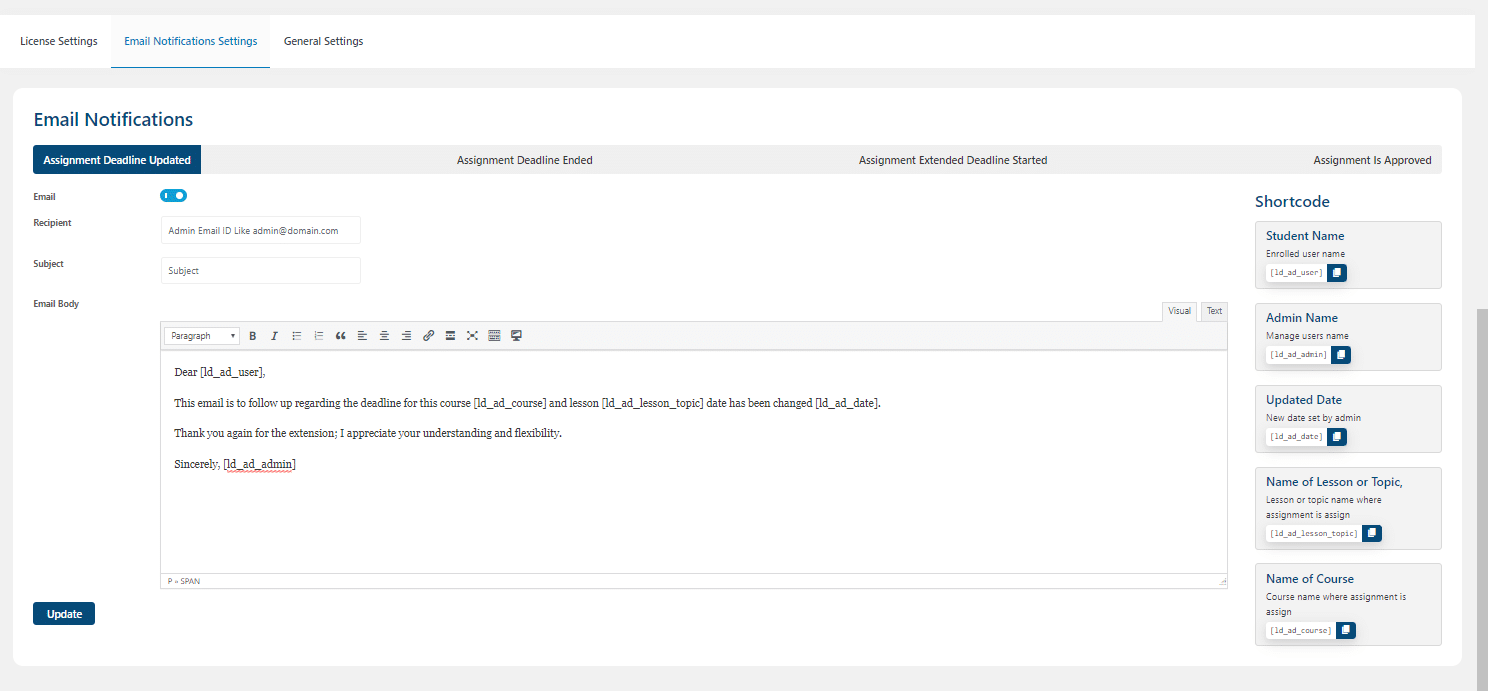
Email: From here, you can enable or disable the “Assignment Deadline Updated” email by turning on or off the toggle.
Recipient: In this field, you can add the recipient email, and if you leave it blank, then the site admin email will automatically be used for the recipient.
Subject: Here you can add a subject line for the email.
Email Body: Within the email body, a template is available, which you can edit and add/remove the email text from.
- Assignment Deadline Ended
Click on the “Assignment Deadline Ended” and its setting will get open.
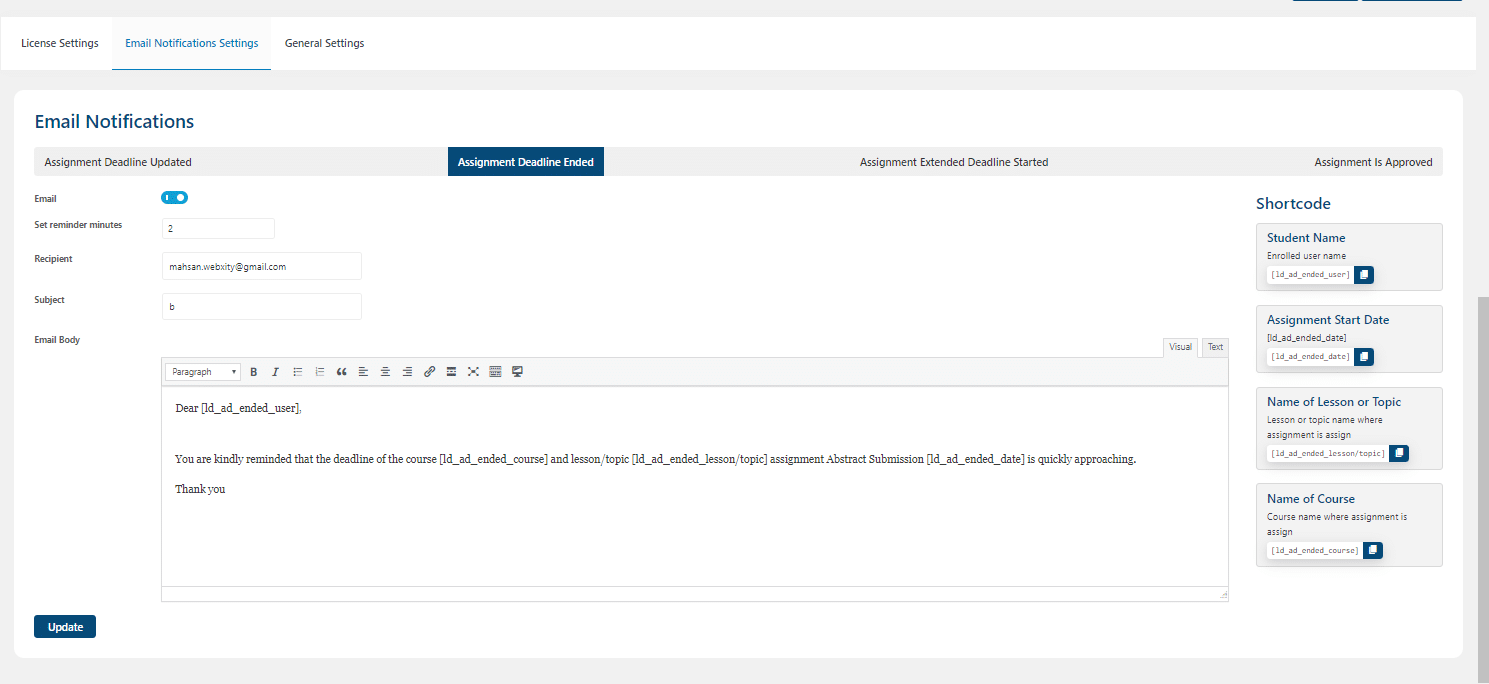
Email: From here, you can enable or disable the “Assignment Deadline Ended” email by turning on or off the toggle.
Set reminder minutes: Here, you can set the number of minutes before which the email should be sent.
Recipient: In this field, you can add the recipient email, and if you leave it blank, then the site admin email will automatically be used for the recipient.
Subject: Here you can add a subject line for the email.
Email Body: Within the email body, a template is available, which you can edit and add/remove the email text from.
- Assignment Extended Deadline Started
Click on the “Assignment Extended Deadline Started” and its setting will open.
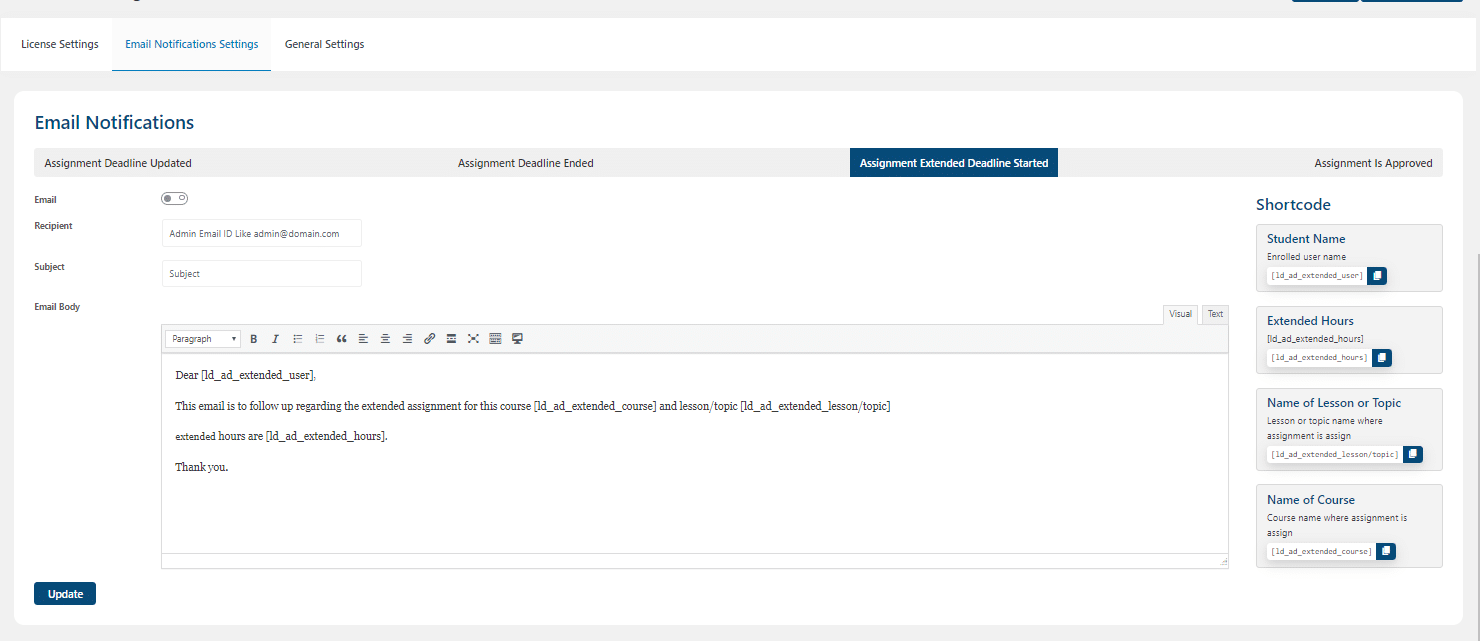
Email: From here, you can enable or disable the “Assignment Extended Deadline Started” email by turning on or off the toggle.
Recipient: In this field, you can add the recipient email, and if you leave it blank, then the site admin email will automatically be used for the recipient.
Subject: Here you can add the subject line for the email.
Email Body: Within the email body, a template is available, which you can edit and add/remove the email text from.
- Assignment Is Approved
Click on the “Assignment Is Approved” and its settings will open.
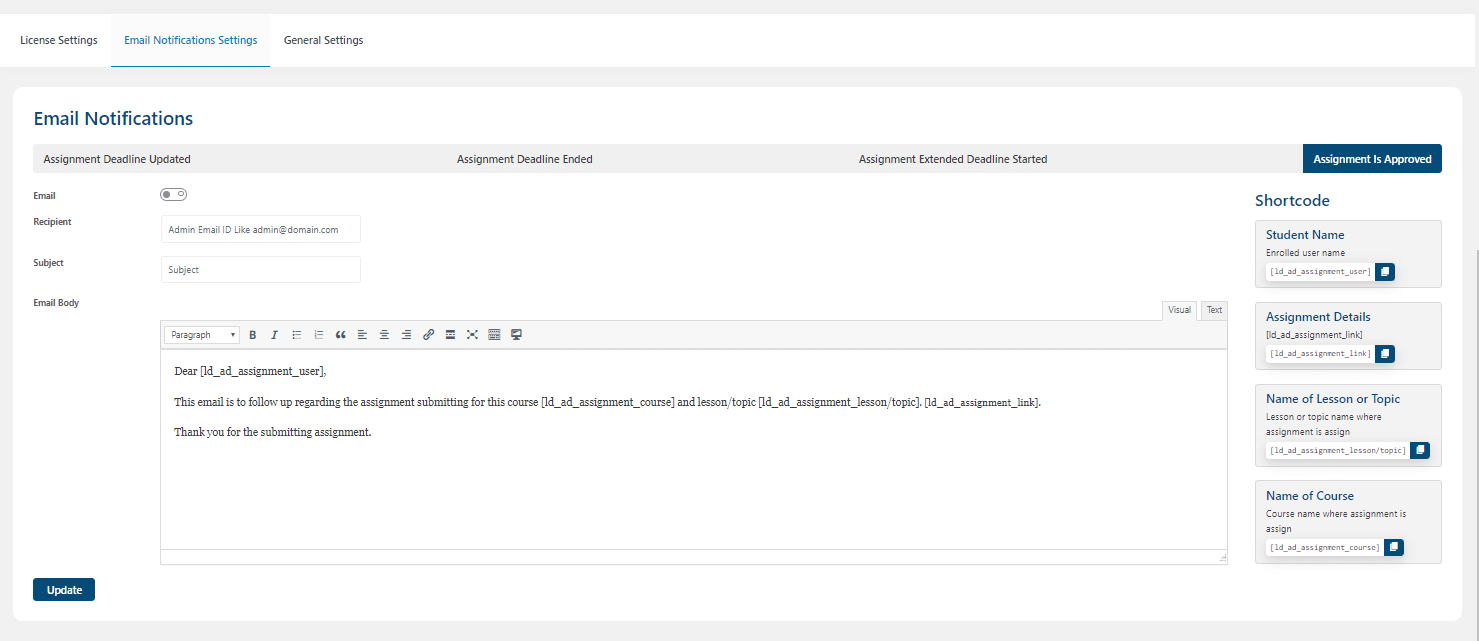
Email: From here, you can enable or disable the “Assignment is Approved” email by turning on or off the toggle.
Recipient: In this field, you can add the recipient email, and if you leave it blank, then the site admin email will automatically be used for the recipient.
Subject: Here you can add the subject line for the email.
Email Body: Within the email body, a template is available, which you can edit and add/remove the email text from.
General Settings
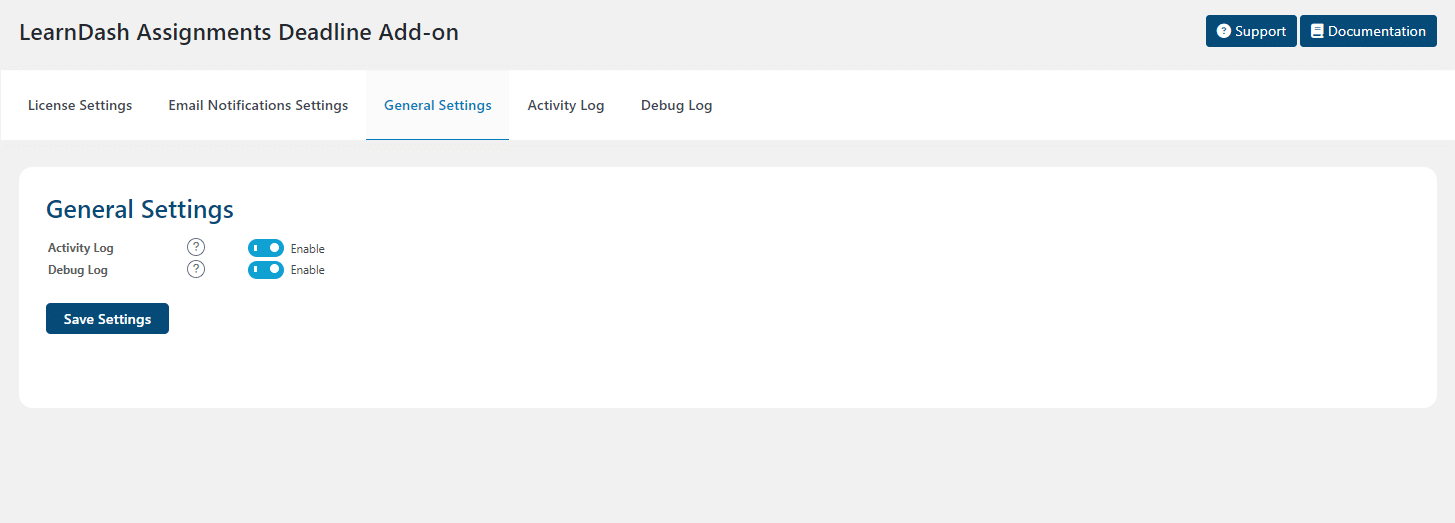
Navigate to LearnDash LMS > Assignment’s Deadline > General Settings to access the Activity and Debug logs settings. Here, you can enable or disable the Activity and Debug logs by toggling the respective switches. Don’t forget to click “Save Settings” to apply your changes.
Activity Log
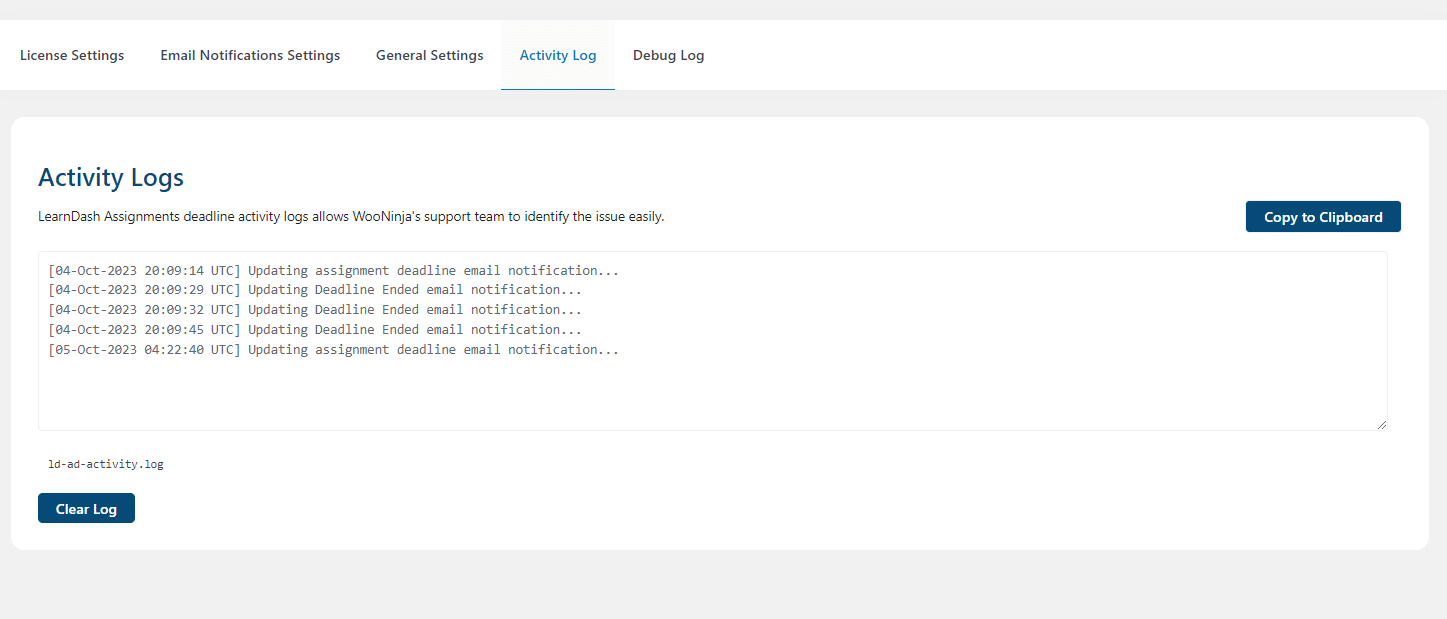
To access the activity log feature, navigate to LearnDash LMS > Assignment’s Deadline > Activity Log.
Enabling this feature will create a log of actions taken within the addon. These actions are recorded, making it simpler for the WooNinja’s support team to identify and resolve any issues efficiently. Here you will be able to clear and copy the activity log. Additionally, you will be able to find the “ld-ad-activity.txt” file in the “(Your Website Name) \wp-content\uploads” directory.
Debug Log
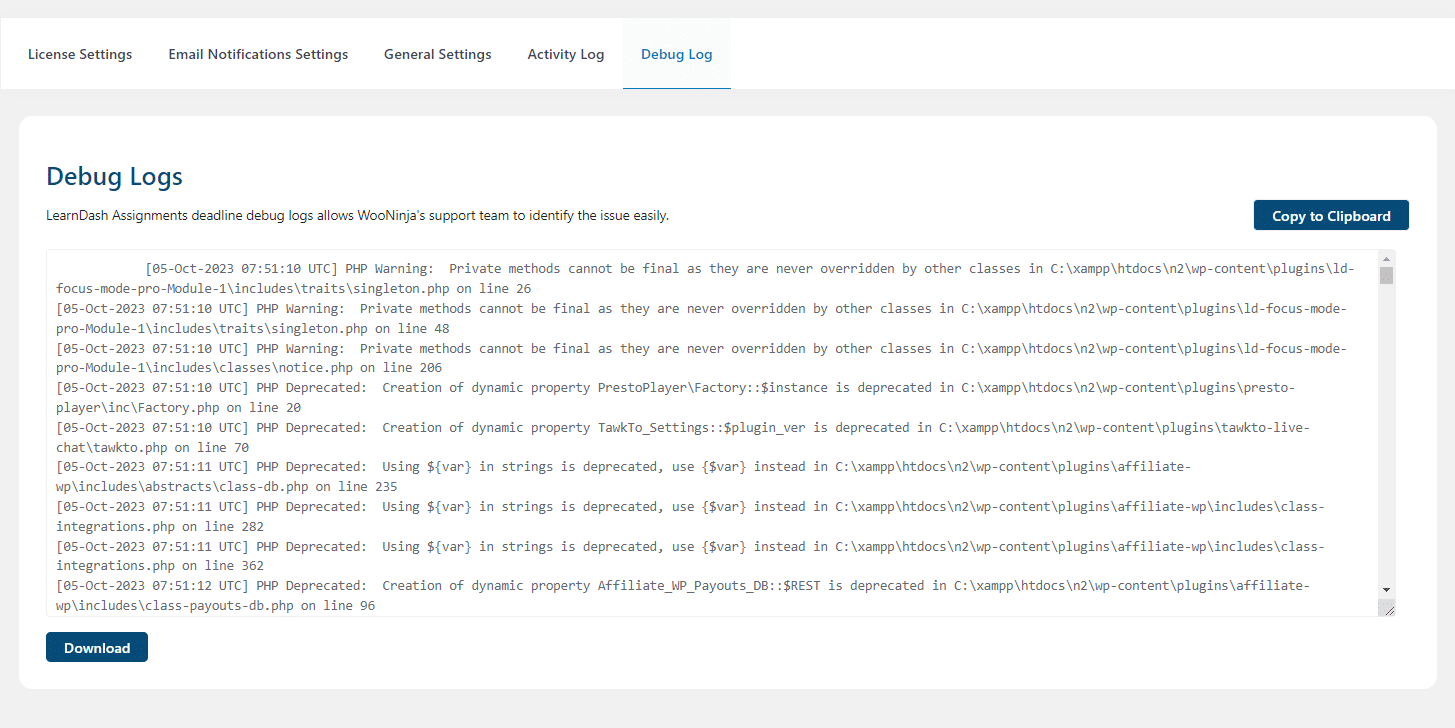
To access the debug log feature, navigate to LearnDash LMS > Assignment’s Deadline > Debug Log.
If you see the text “Debug log file not found.” in the text area section, then kindly follow the following steps to enable the “WordPress Debug” feature on your respective website:
- Navigate to the “wp-config.php” file and open it.
- Paste the following code in the file:
if ( ! defined( ‘WP_DEBUG’ ) ) {
define( ‘WP_DEBUG’, true );
define( ‘WP_DEBUG_LOG’, true );
define( ‘WP_DEBUG_DISPLAY’, false );
} - 3- Finally, save the file.
Enabling this feature will create a by default WordPress-generated log. These logs will record all the errors and warnings, making it simpler for the WooNinja’s support team to identify and resolve any issues efficiently. Here you will be able to copy and download the debug log in a .txt file.
FAQ’s
Why is the assignment deadline notification still displayed after the assignment has been submitted?
The notification continues to be displayed due to the remaining assignment submission retries.
Why is there no assignment upload box on the Lesson which contains other topics?
In order to submit the assignment for the lesson, the corresponding topics need to be completed first.
Can a student complete the lesson if the assignment deadline was missed?
Yes, students will just be required to complete the topics and then the lesson will autocomplete if this lesson does not have any quiz.
How does the assignment deadline priority work?
Our add-on uses a priority order to determine which assignment deadline applies. The system checks the following options in order, and the first one that is enabled will be used:
- Set Deadline based on Topic Start Date
Highest priority. If this option is enabled, it will always be used regardless of the status of any other settings. - Set Deadline based on Lesson Start Date
If the Topic-based deadline is not enabled, the system will apply the Lesson-based deadline next. - Set Deadline based on Course Enrollment Date
If both Topic-based and Lesson-based deadlines are disabled, the Course Enrollment date will be used. - Deadline For Assignment
Lowest priority. This option only applies if all three options above are disabled.
Changelogs
1.4.0
- Fix: Improved Licensing Module.
- Fix: Added Documentation link in plugin row meta.
1.3.9
- Fix: Fixed security and performance issues.
1.3.8
- Fix: Fixed minor issues.
1.3.7
- Fix: Fixed minor issues.
- Fix: Fixed security and performance issues.
1.3.6
- New: Added compatibility with LearnDash Modern templates.
- Fix: Fixed security and performance issues.
1.3.5
- New: Added an option to enable or disable the comments box in Lesson and Topic settings.
1.3.4
- Fix: Deprecated warnings in license handler and plugin updater.
1.3.3
- New: Set Deadline based on Course Enrollment Date.
- New: Set Deadline based on Lesson Start Date.
- New: Set Deadline based on Topic Start Date:
1.3.2
- New: Added Activity Logs.
- New: Added New Debug Logs.
1.3.1
- New: Added Debug Logs tab.
- Improvement: UI upgraded.
1.3.0
- New: Emails Notifications.
- New: Emails Templates with useful shortcodes.
- New: Email Notifications on assignment date updated or extended.
- New: Email Notifications on assignment deadline ended.
- New: Email Notifications on assignment extended deadline started.
- New: Email Notifications on assignment approved.
- Fix: The “Display Deadlines on Frontend” issue has been fixed.
- Fix: PHP warnings issues has been fixed.
- Fix: The Assignment extended deadline points deduction issue has been fixed.
- Fix: License minor issues has been fixed.
1.2.1
- Fix: The disabling assignments is not working correctly issue has been fixed.
- Fix: The points deduction is not working issue has been fixed.
- Fix: The system Time is not correct issue has been fixed.
- Fix: The assignment deadline is showing “test” text issue has been fixed.
- Fix: The “Click for Help!” is not showing text for 2 options issue has been fixed.
1.2.0
- New: The multi-language translation support has been added.
- Fix: The extended deadline issue has been fixed.
- Fix: The deadline for next month’s issue has been fixed.
1.1.0
- New: The extended deadline hours settings.
- New: The extended deadline points deduction settings.
- Improvement: The deadline messages display with extended deadline details.
- Improvement: The PHP 8 Support is added.
- Fix: The LearnDash 3.0 Theme UI issues.
- Fix: The LearnDash Legacy Theme UI issues.
- Fix: Fixed the not logged user notifications issue.
- Fix: Fixed the extended deadline points deduction issue.
- Fix: Fixed the “Take this course” user meta update issue.
- Fix: Fixed the PHP fatal errors on frontend.
1.0.0
- Initial Release.
