How to Generate Images for WordPress Using AI
A practical guide to generating AI images for WordPress, covering the main tools, prompt writing, optimization, and legal considerations.
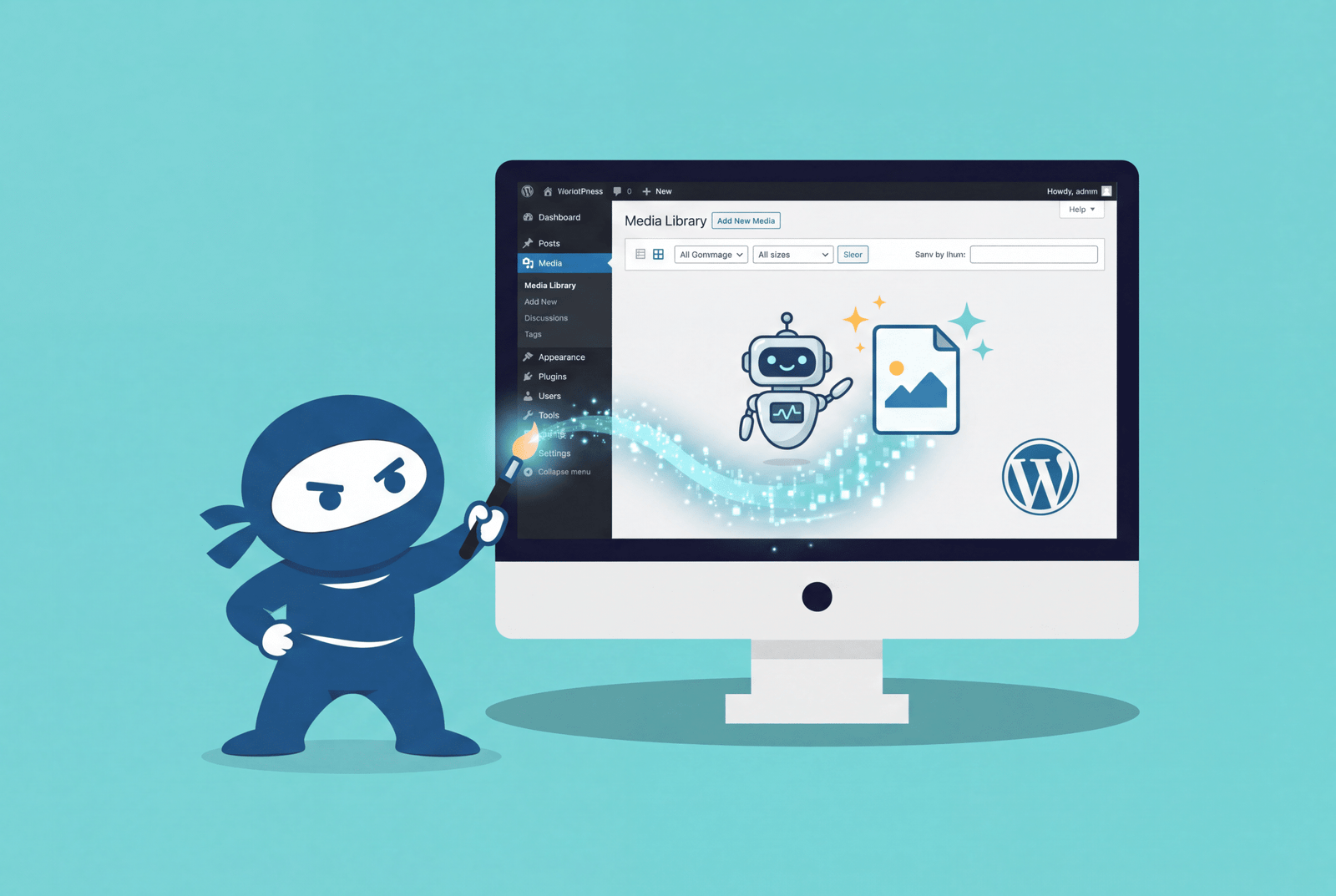
If you publish content on WordPress regularly, you’ve likely experienced the same struggle more than once. You need an image for a post, stock photos often look stale, and hiring a designer for every article isn’t practical. Over the last couple of years, AI image tools have emerged as a viable option. You can now create custom visuals from a text prompt, often without leaving your WordPress dashboard.
The downside is that it isn’t just one tool or one button. Several AI models support these plugins, each with its own strengths. Understanding their differences helps you choose something that fits your workflow.
Quick Comparison of AI Image Options for WordPress
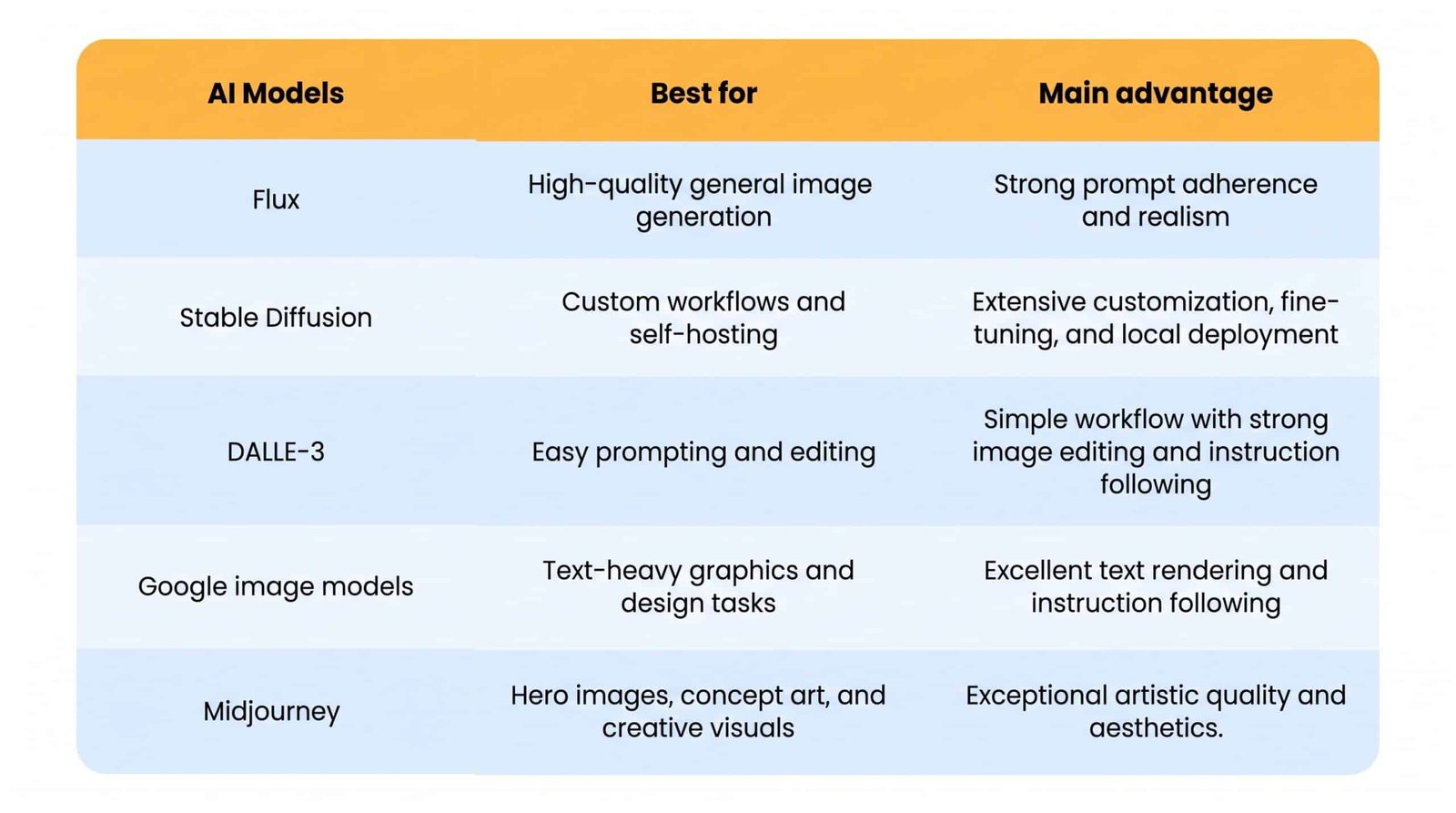
The AI Models Behind Most WordPress Plugins
Most of the AI image workflows for WordPress are based on a handful of major image-generation platforms and model families. Knowing these categories will help you avoid picking a tool that doesn’t serve your needs.
1. Flux
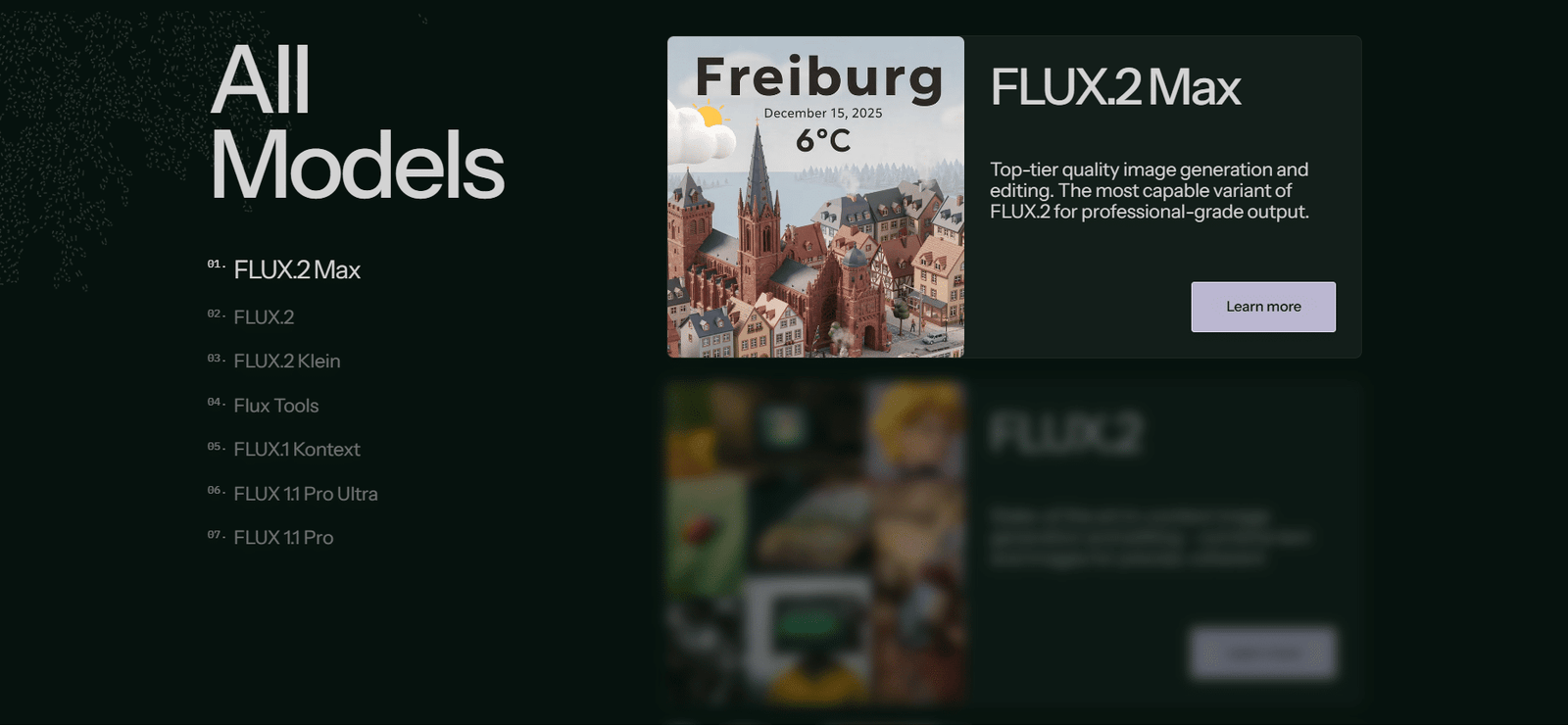
Flux was built by Black Forest Labs as an open-weight model, which means developers can run it on their own servers instead of paying API fees per image to a third-party service. It is particularly effective at following complex prompts and generating readable text within images and creates readable text in images better than many competing models, making it a preferred choice for WordPress plugins that focus on high-quality, budget-friendly image generation.
2. Stable Diffusion
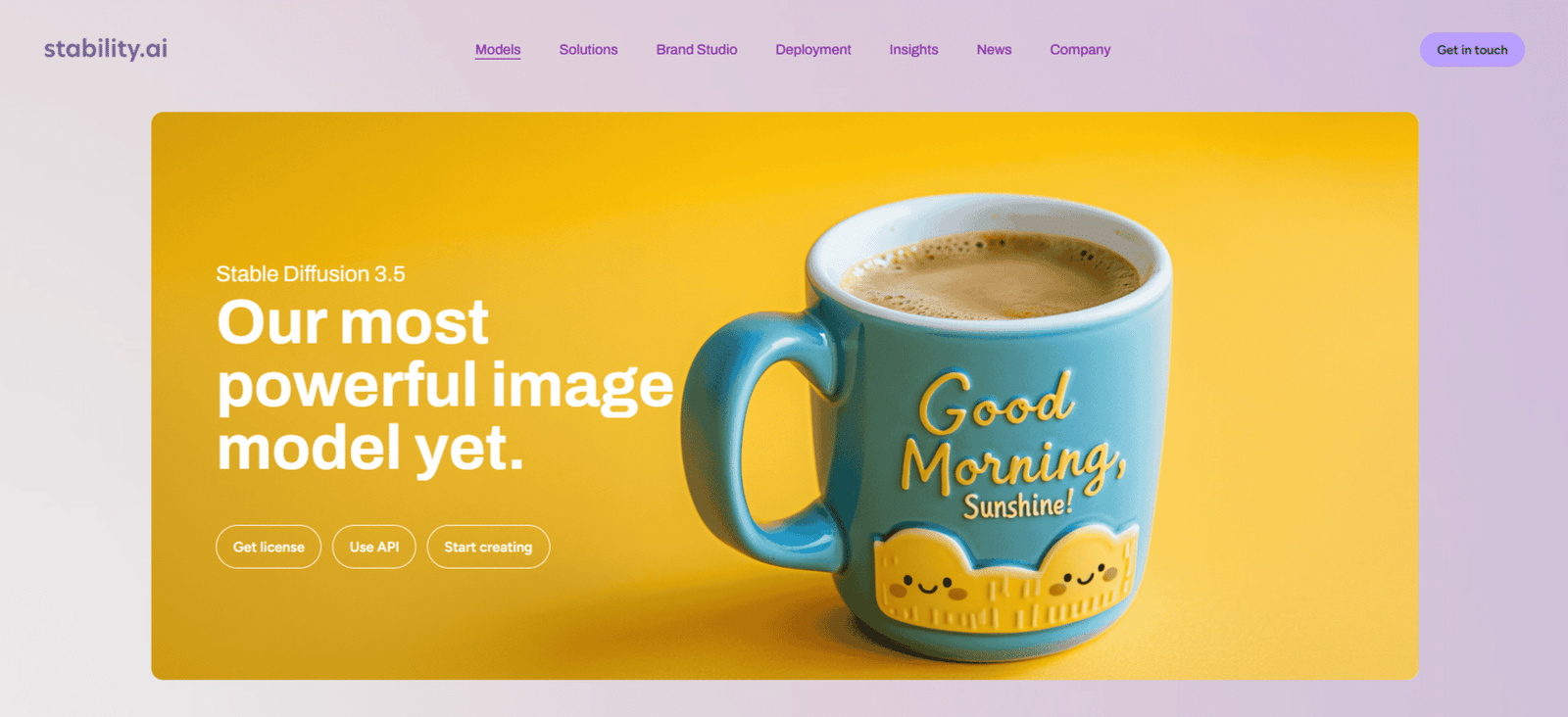
Stable Diffusion (including the SDXL and SD3 model families) is an open-weight model that allows self-hosting and extensive customization. It has advanced features like ControlNet for precise composition and direction and fine-tuning options for a consistent brand style in blog posts and marketing materials. If you are keen to learn more about how these models work, you can read the technical documentation on the Stability AI Developer Platform.
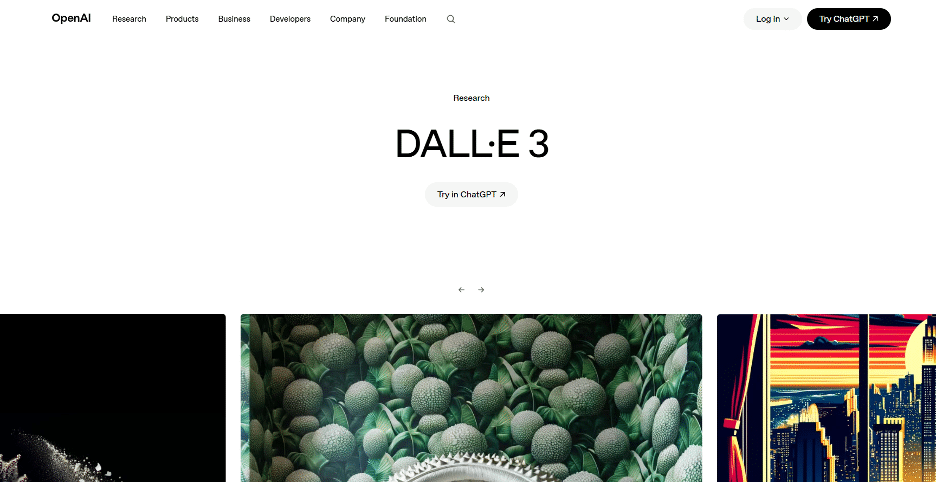
3. DALL-E 3
DALL-E 3 built by OpenAI, powers many premium WordPress plugins on the market. It responds well to plain, conversational prompts instead of technical syntax. It often creates clean vector-style illustrations and flat-design graphics that fit corporate or SaaS blogs. For technical details, we keep returning to the OpenAI DALL-E API documentation as our reference.
4. Nano Banana Pro
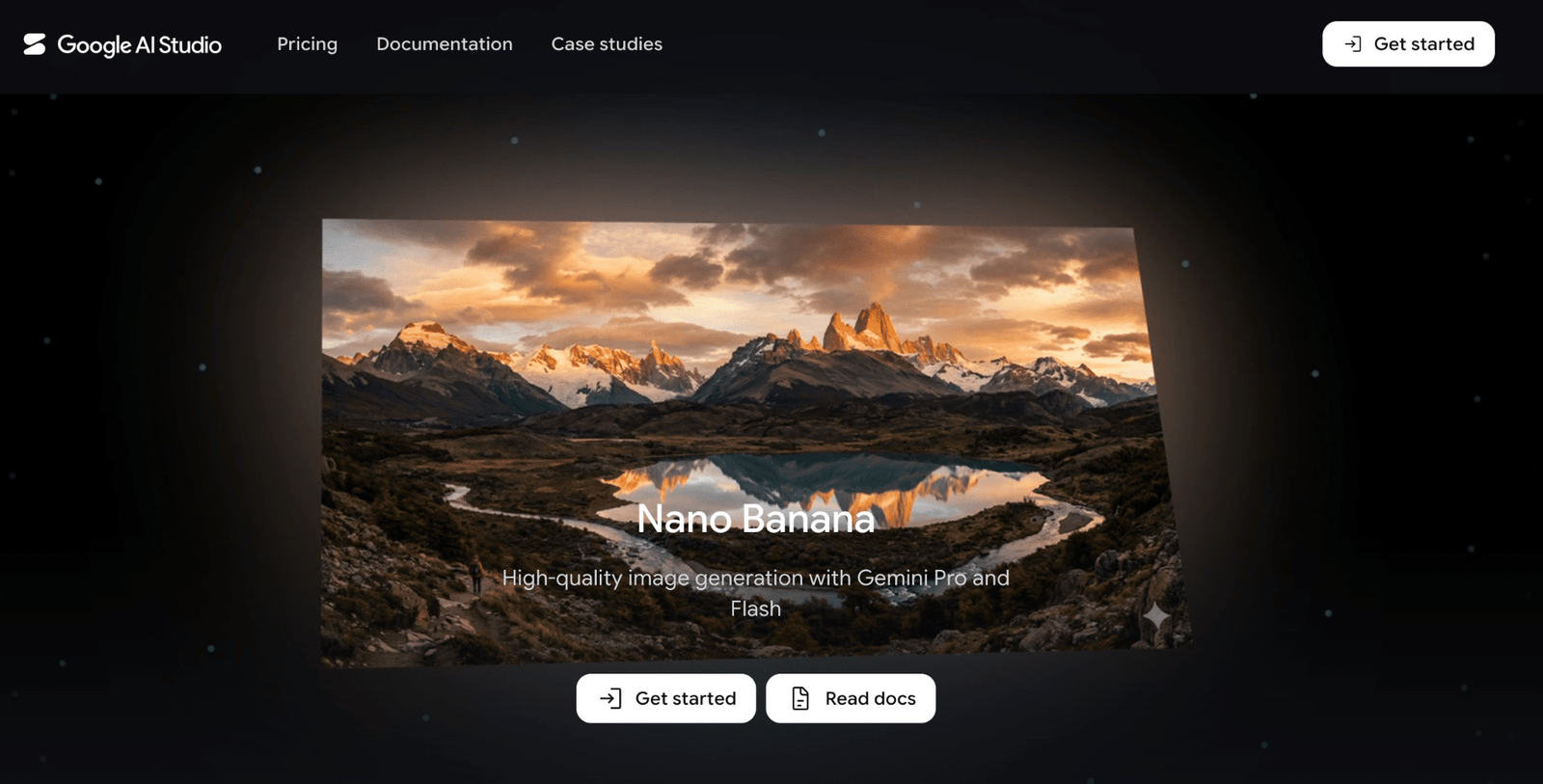
Nano Banana Pro, Google’s latest image model, is particularly strong at rendering readable text, following detailed instructions, and maintaining character consistency across multiple images. These strengths make it well suited for diagrams, UI mockups, educational graphics, and other visuals that contain text. The Google AI for Developers Nano Banana documentation explains what it can and cannot do.
5. Midjourney
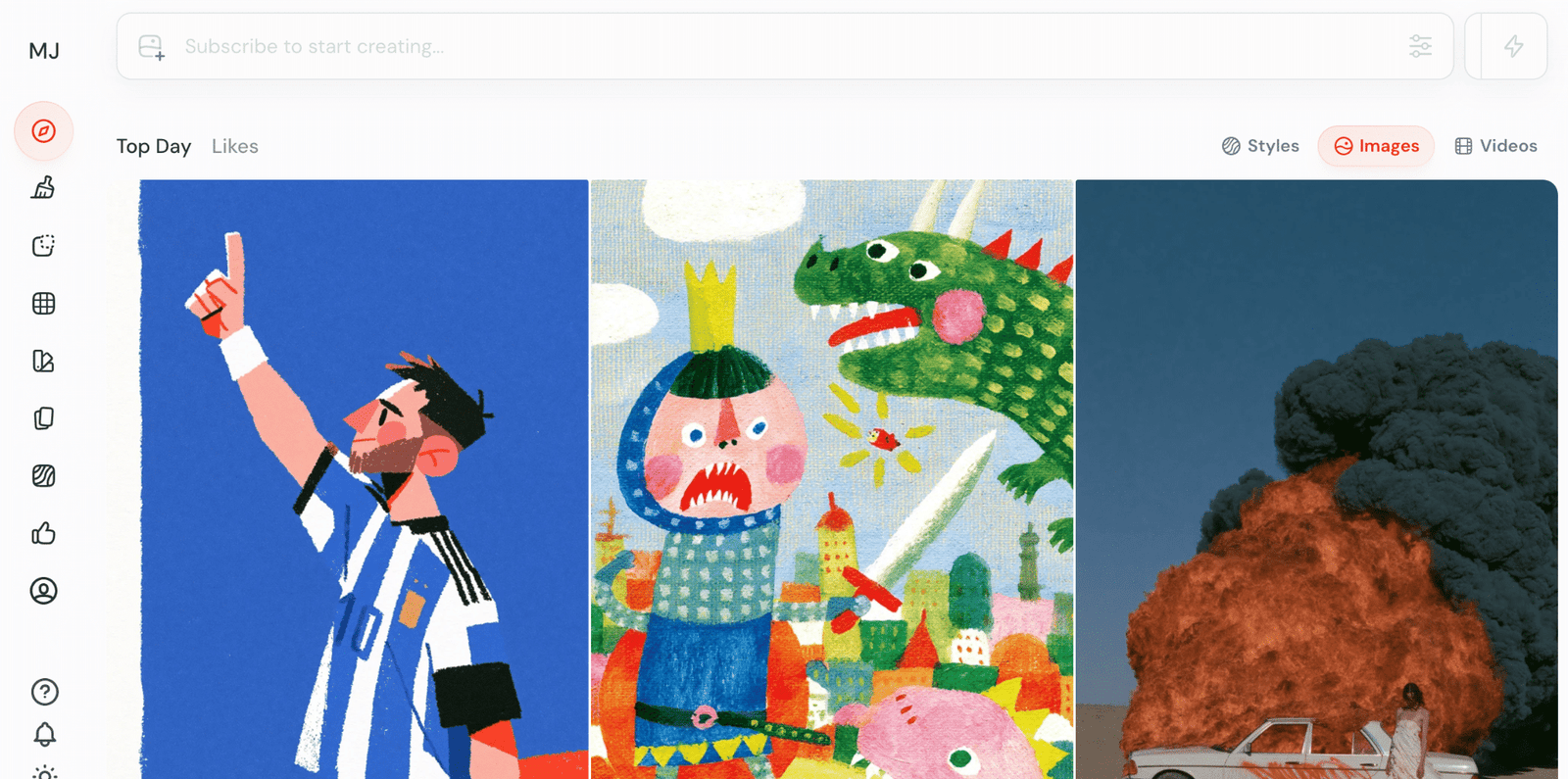
Midjourney still creates some of the most photorealistic and artistically detailed images available, but it does not have an official public API. This means there is no dependable plugin that can pull Midjourney images straight into your media library. You would generate the image on the Midjourney website or through Discord, download it, and then upload it manually. This process works for the occasional hero image but isn’t practical for high-volume publishing.
Generating Images Without Leaving the WordPress Editor
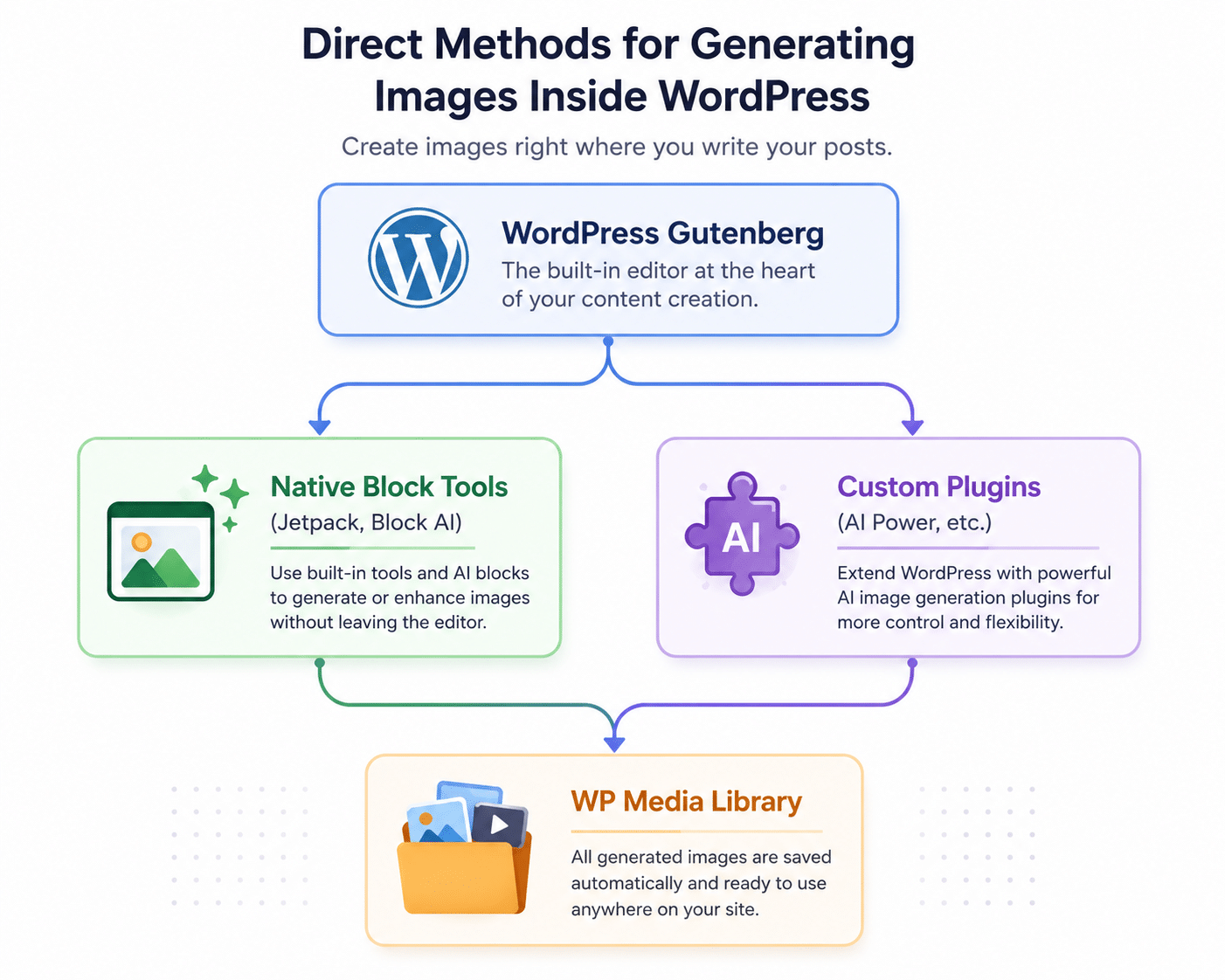
- At the core is the WordPress Gutenberg editor, which supports two main approaches to AI image generation.
- The first is to use native tools. Plugins like Jetpack AI Assistant allow you to generate or enhance images directly in the editor, so you don’t need to leave the app.
- The second approach involves dedicated image generation plugins. Other options include WooNinjas Featured Image Generator, AI Puffer (formerly GPT-3 AI Power), and Imajinn AI, which provide various features such as automatic creation of featured images, multiple AI models, and more control over the image creation process.
1. WooNinjas Featured Image Generator
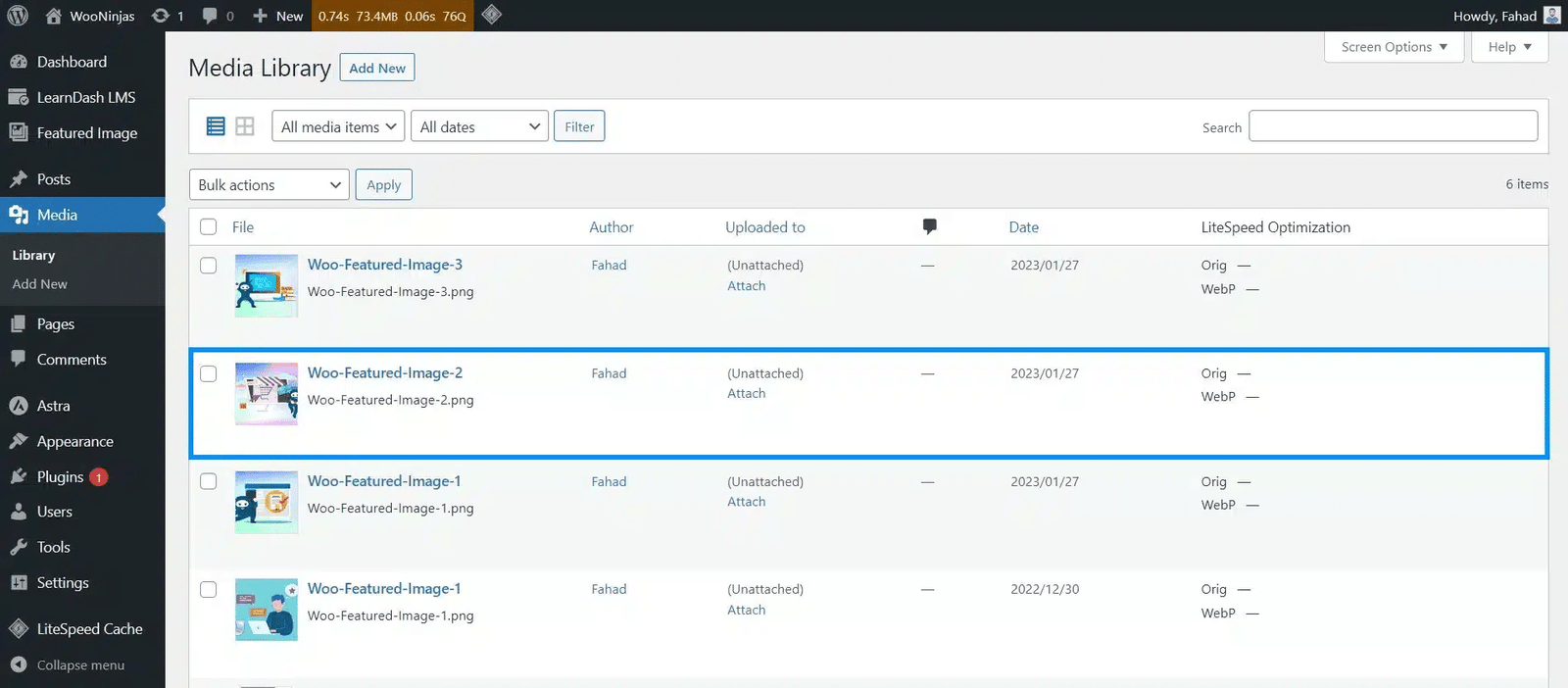
If you are a regular content publisher, then WooNinjas Featured Image Generator makes it easier to create featured images without going outside WordPress. The plugin creates AI-powered featured images right from your post, so you don’t have to search stock photo libraries or switch between multiple AI tools.
It integrates with the WordPress publishing workflow, so you can review, edit, optimize, convert to WebP, and give descriptive alt text to images you generate before they go live. It’s a great choice for blogs and businesses that produce content often and want to automate featured image creation but still want to keep their workflow consistent.

2. The Jetpack Assistant
Automattic, the team behind WordPress.com, built image generation directly into its Jetpack plugin suite. If you already have Jetpack running on your site, you can use the Jetpack AI Assistant block right inside the Gutenberg editor without installing anything extra.
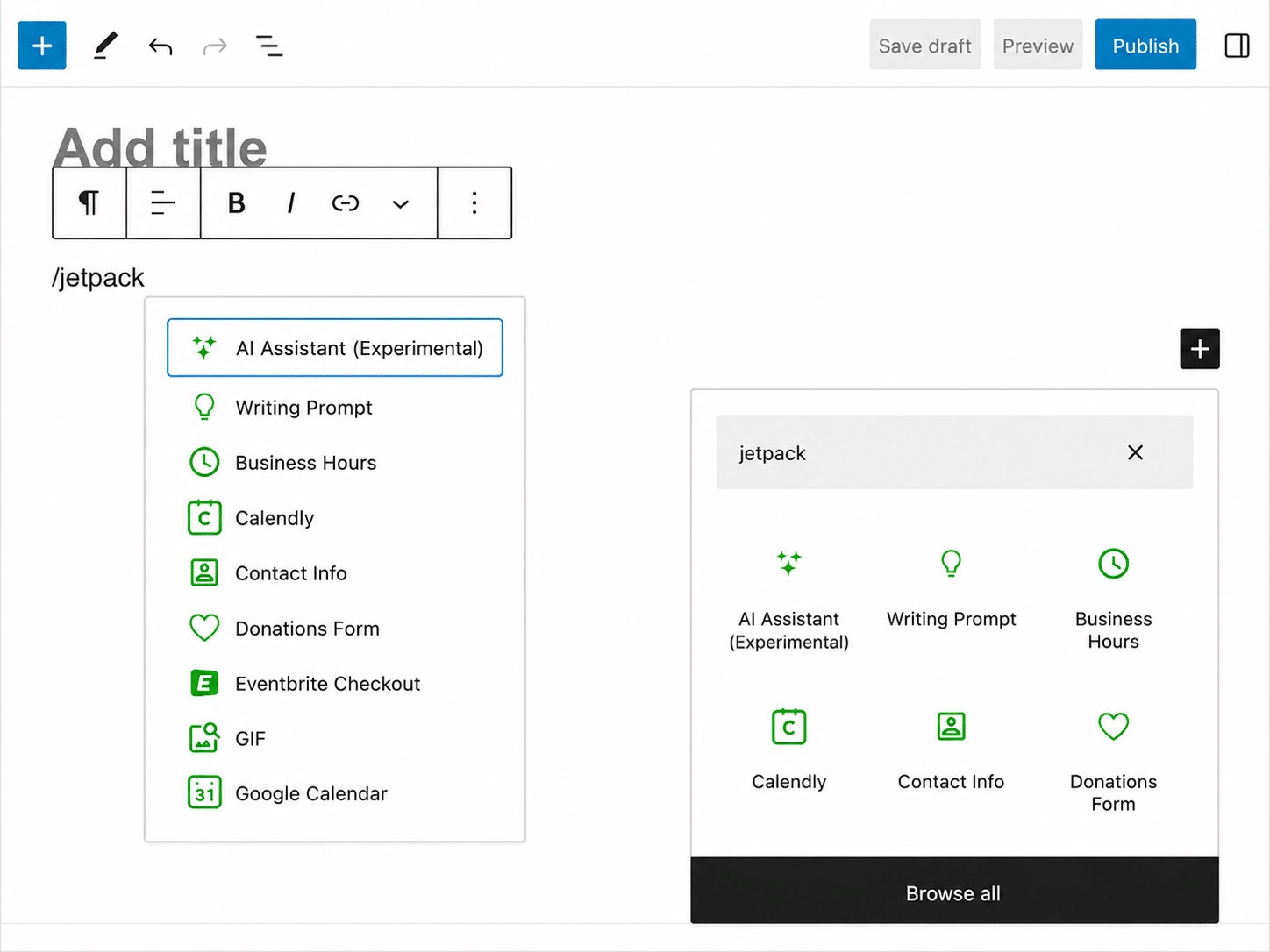
You type a prompt directly into a page block, pick a style like realistic, watercolor, or vector, and Jetpack returns a set of options you can save to your media library with one click. The processing happens on cloud-based models rather than your server, so it doesn’t slow down your hosting even if you’re generating several images in a row.
3. AI Puffer (formerly GPT3 AI Power)
The AI Puffer plugin connects your site to OpenAI, Stable Diffusion, and Pexels. It lets you generate images in bulk, auto-create featured images based on your post’s title, and even use AI to write alt text.

4. Imajinn AI
Imajinn is a solid option for running Stable Diffusion. It provides a clean interface right inside the WordPress Media Library, so you can generate assets without opening the block editor.

Writing Prompts That Actually Work
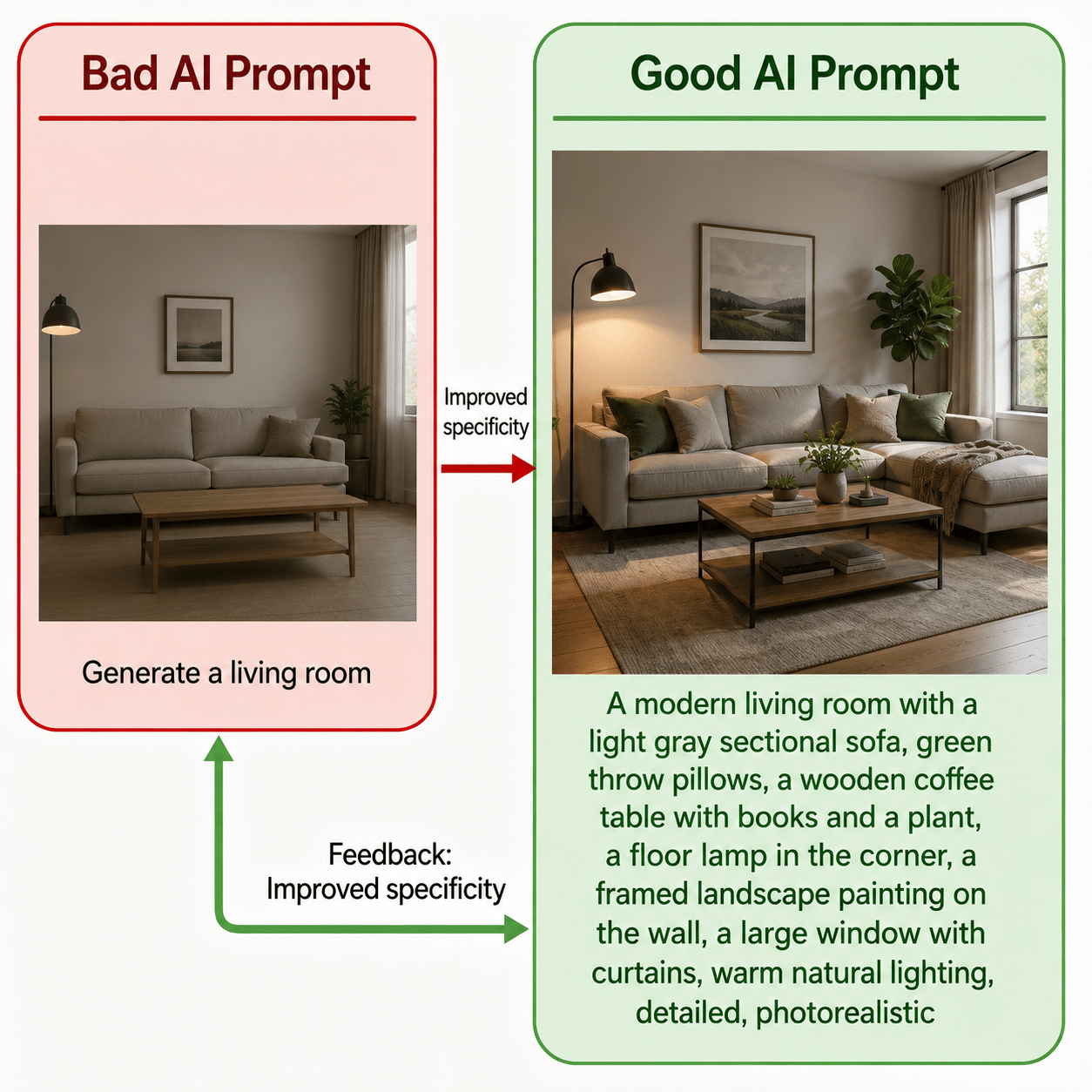
A vague prompt leaves the AI with too much to figure out. If you type “a dog,” you will get something unpredictable in terms of style, background, and lighting. A strong prompt generally includes four elements: the subject, the style or medium, the composition and lighting, and the color palette.
Here’s what that looks like in practice for a few common use cases.
For a flat vector illustration suited to a tech or SaaS blog: “A flat vector illustration of a person working at a desk, surrounded by floating gear and setting icons. Clean shapes, solid background, pastel color palette, and minimalist style.”
For a realistic product shot on a lifestyle blog: “A top-down workspace shot. An open leather notebook, a modern ceramic coffee mug, and a green succulent plant on a light oak wood table. Soft morning sunlight from the side, sharp focus, professional photography.”
For a playful 3D render: “A 3D render of a golden key lock, claymation style, glossy finish, isolated on a solid light-blue background, soft studio lighting.”
None of these need to be complicated. They just need to be specific enough that the model isn’t filling in gaps you didn’t mean to leave open.
Keeping AI Images From Slowing Down Your Site
This part is often skipped, which is usually why a site slows down after adding AI visuals. Most generators export large, uncompressed PNG or JPEG files that are much bigger than what a blog post actually needs.
Convert these to WebP or AVIF before they go live. WebP files are usually about 30% smaller than a JPEG of the same quality. A plugin like Converter for Media can handle that conversion automatically as soon as an image is uploaded. Resizing is just as important. A featured image rarely needs to be wider than 1200 pixels, so if your AI tool exports something at 4096 by 4096 pixels, crop it down first.
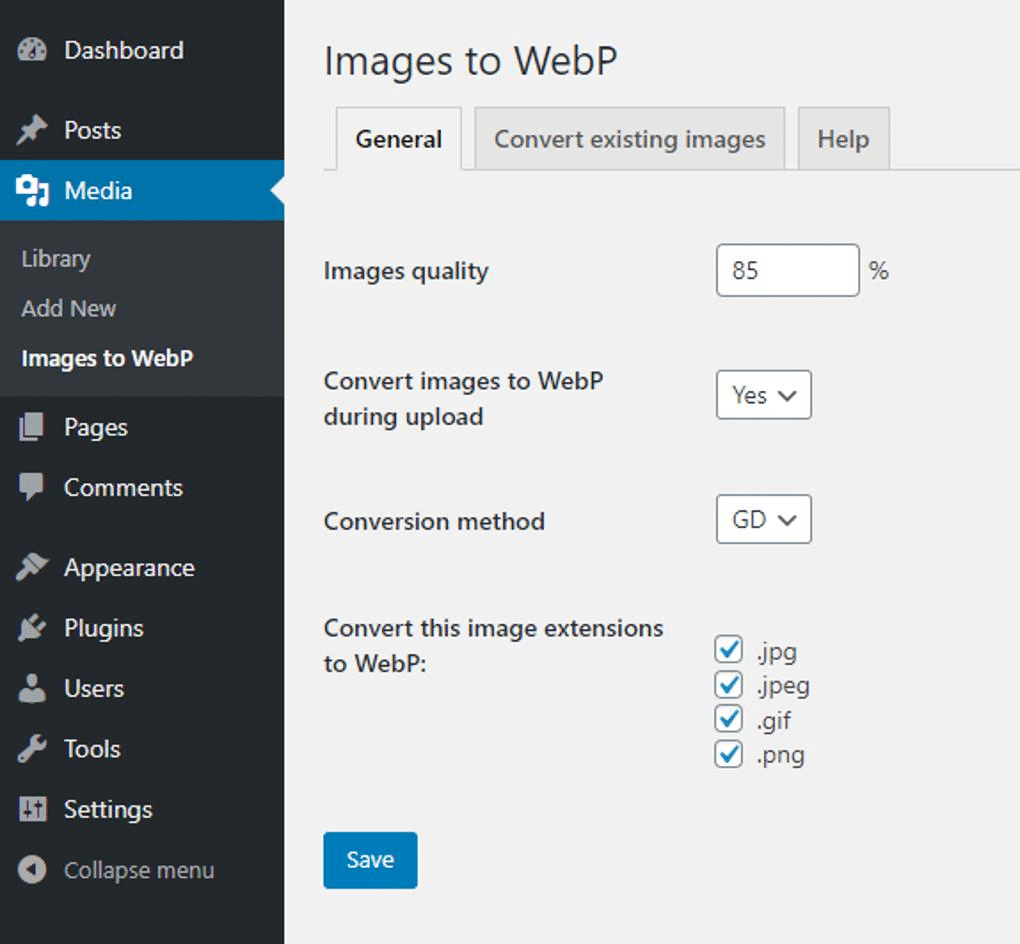
The overall flow should look something like this:
- The AI generator produces the raw PNG or JPEG.
- The file gets uploaded to the WordPress Media Library.
- An image optimizer resizes and converts it.
- The finished WebP or AVIF version is what visitors actually load.
That last step is where we quietly solve most performance issues. Our plugin development team regularly handles setups like that, since a store with 200 product images and no conversion pipeline will feel sluggish no matter what host it’s on.
Alt Text and Accessibility
Search engines can analyze images to some extent, but descriptive filenames, surrounding context, and appropriate alt text still help clarify an image’s purpose. Screen-reader users rely on suitable text alternatives when an image conveys meaningful information.
Looking for a Ready-Made Solution?
Explore our WordPress, WooCommerce, and LMS plugins built to extend functionality without custom development.
For example:
<!– Bad –>
<img src=”ai-image.jpg” alt=”AI image generated for blog post” />
<!– Good –>
<img src=”coffee-mug-on-desk.webp” alt=”Top-down view of a blue ceramic coffee mug on a light wood desk next to a closed notebook” />
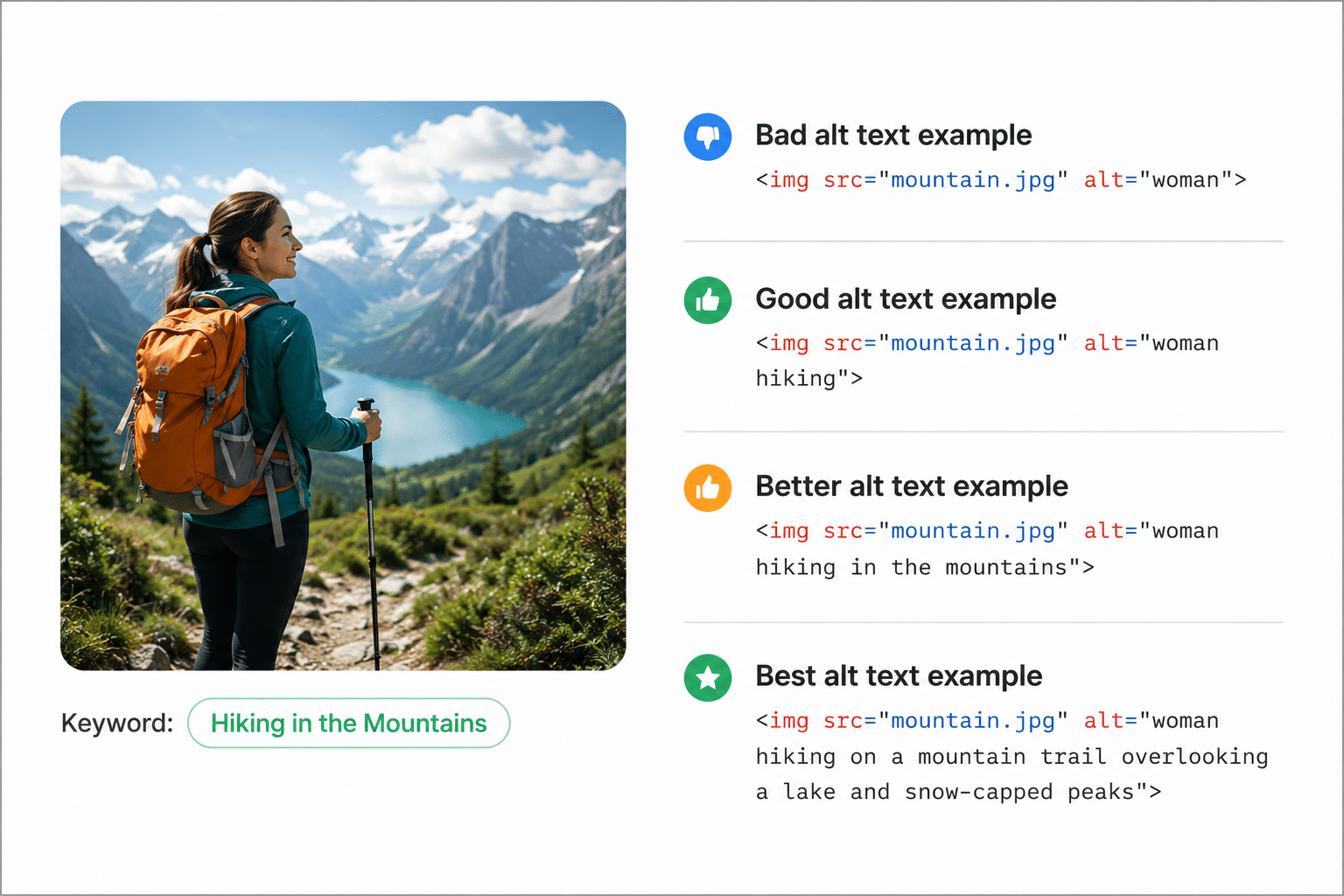
If you publish frequently and prefer not to write alt text for every image, a service like Alt Text AI can scan your uploads and generate descriptions using vision models. It’s not perfect, but it’s a good starting point that you can improve on for each post.
What the Law Actually Says
Google doesn’t penalize websites for using AI-generated images. The ranking algorithms focus on how useful and high-quality a page is, not on where the visuals come from, whether they are taken by a camera or made by a model. If an image genuinely helps readers understand the content and makes the page clearer, it can positively impact your rankings, just like a stock image would. Google makes this clear on the Google Search Central Blog.
Copyright is where things get complicated. Under current U.S. law and similar international rules, purely AI-generated images can’t be copyrighted because they lack a human author. In practice, this means if you create a custom image for your homepage, someone else could legally copy it and use it on their own site, leaving you with few options.
There’s also the issue of how these models were trained. Some were developed using copyrighted images without the original owners’ permission, which adds a risk for anyone running a commercial site. If that’s a concern, look for engines trained on licensed or public-domain material. The Adobe Firefly overview, for example, states that Firefly is trained on Adobe Stock and public-domain images, making it a better option for commercial use.
Putting It Into Practice
There’s nothing complicated about the process. Select a plugin that suits your workflow and the types of images you most need. Take some time to set up your preferred tools and prompt templates before you start publishing to maximize the benefits. You can use the WooNinjas Featured Image Generator, Jetpack, or AI Puffer.
After you’ve created your images, be sure to optimize them before adding them to your site. Resize them to match your layout, convert them to WebP or AVIF, and write descriptive alt text. These small changes make the page more accessible and faster.
For WordPress, you can use the WooNinjas Featured Image Generator to automate the creation of featured images. It creates featured images from your posts automatically so you can create and manage visuals without leaving your WordPress workflow. Get started by downloading the plugin.
FAQs
Which AI image generator works best for a WordPress blog?
It depends on what you’re making. DALL-E 3 works well with simple English prompts and clear illustrations. Nano Banana Pro is better for creating detailed charts, diagrams, or graphics with extensive text. If you need to maintain brand consistency, a customized Stable Diffusion setup offers you more control.
Can I use Midjourney images on my WordPress site?
Yes, but not with a direct plugin. Since Midjourney does not have a public API, you must create the image in Discord or in its web app, then upload the file manually to your Media Library.
Do AI-generated images affect WordPress SEO?
Not directly. What really hurts SEO is publishing large files with unclear alt text. Convert images to WebP, resize them to fit your layout, and write clear alt text. That solves most of the issue.
Can I copyright an image I generated with AI?
Not under current U.S. copyright law. Since these images do not have a human author, they cannot be copyrighted. This means others can legally reuse them without permission.
Can I automatically generate featured images for WordPress posts?
Yes. Plugins such as WooNinjas Featured Image Generator can create AI-generated featured images directly from your WordPress content, reducing the need to search for stock photos or use external design tools before publishing.
What’s the quickest way to generate an image without leaving the editor?
The Jetpack AI Assistant block allows you to enter a prompt, select a style, and save the result directly to your media library in Gutenberg. This is the quickest way to go from an idea to a published image.
Are AI-generated images safe to use commercially?
It depends on the tool. Engines trained on licensed or public-domain material, such as Adobe Firefly, are the safer option for commercial projects. Always check the tool’s terms of use before using an image in paid advertising or brand assets.
Need Ongoing WordPress Maintenance & Support?
We handle updates, performance monitoring, security hardening, and technical fixes so your WordPress and WooCommerce site stays stable and secure.
Plugin Not Working in WordPress? Here’s Why
Is your plugin not working in WordPress? Here are the 7 most common causes and fixes for plugin conflicts, errors,…
Read More...
WordPress SEO Consultant, Freelancer, or Agency: What Each Costs
Hiring SEO help gets expensive fast. See what an SEO consultant, freelancer, or agency really costs before picking one for…
Read More...
AEO vs. SEO: How to Get Your WordPress Site Cited in AI Answers
AEO vs. SEO explained in simple terms, plus the schema, content, and site fixes that help your WordPress site show…
Read More...
