Organize your LearnDash question bank by assigning multiple categories to a single question. What’s best, quiz building is easier than ever since you’ll be able to create category-based and random quizzes where questions are automatically drawn from the selected categories.
Video Tutorial
Watch the tutorial video below for a quick walkthrough of the add-on’s features and setup process.
For detailed instructions, please continue reading the full documentation. If you still have any questions, feel free to submit a support ticket.
Installation
- Install and activate the LearnDash plugin.
- Install and activate the LearnDash Multi Question Categories.
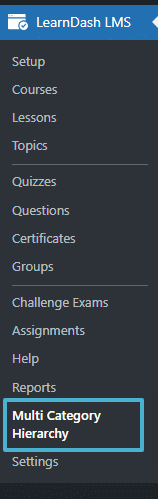
- A New Multi-Category Hierarchy menu will be added to the LearnDash menu.
Settings
Categories
All the categories created using this add-on will be listed under the Categories tab. If you click on any category from this list, you will be redirected to the list of questions belonging to the selected category.
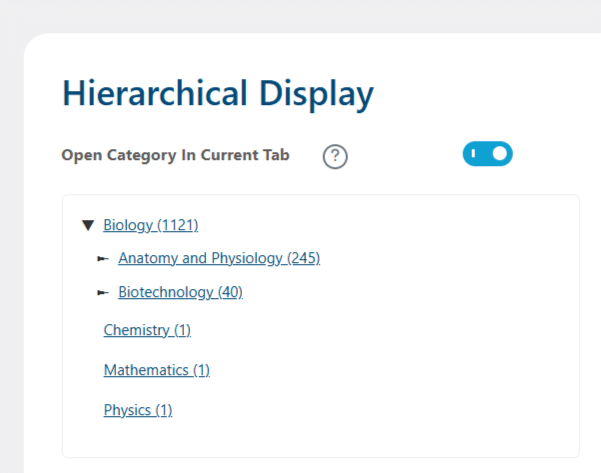
Note: The page opens in a new tab by default. You can enable the “Open category on current tab” option if you want to open the list of questions on the same page.
Category Management
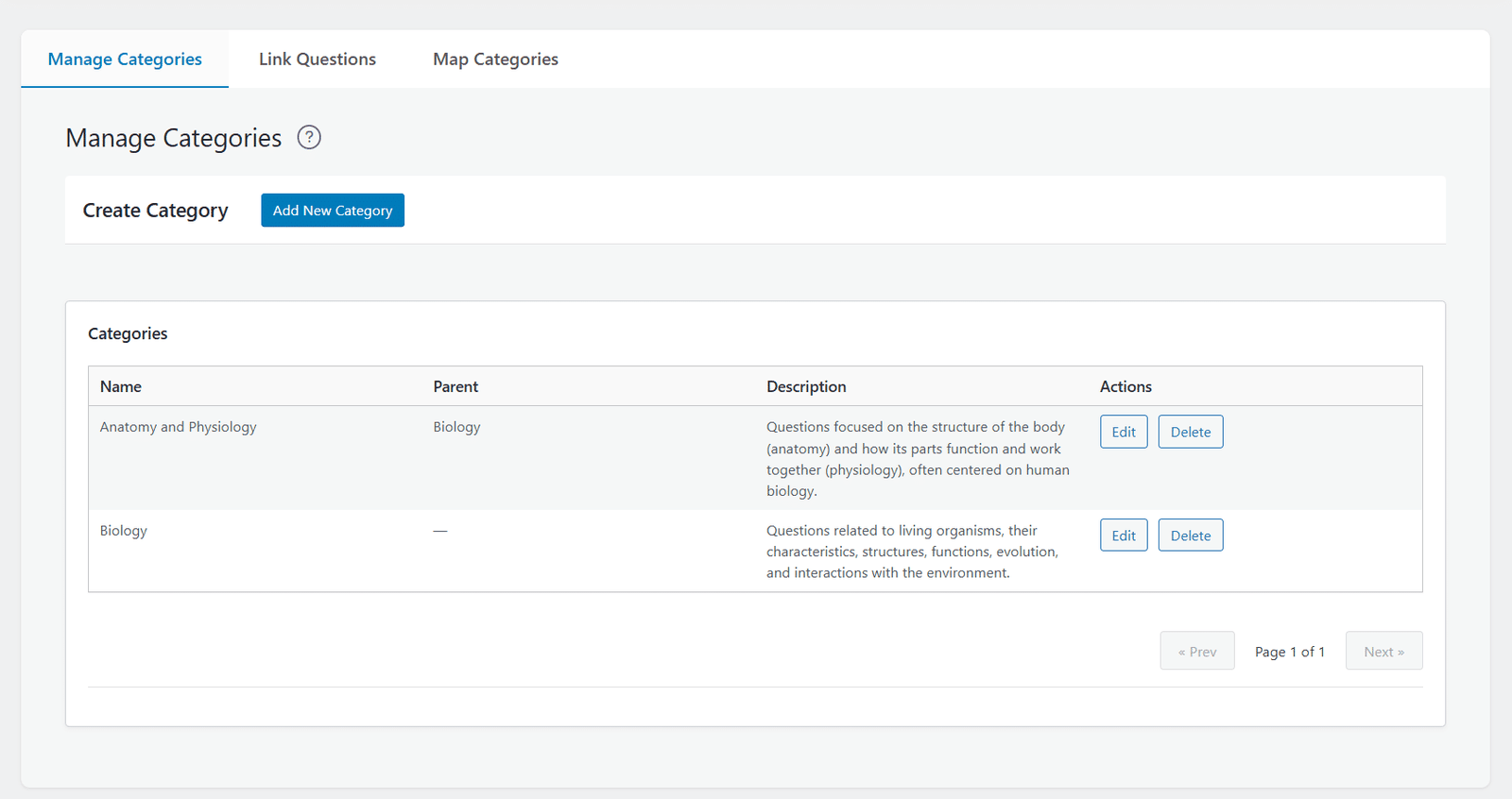
Manage Categories
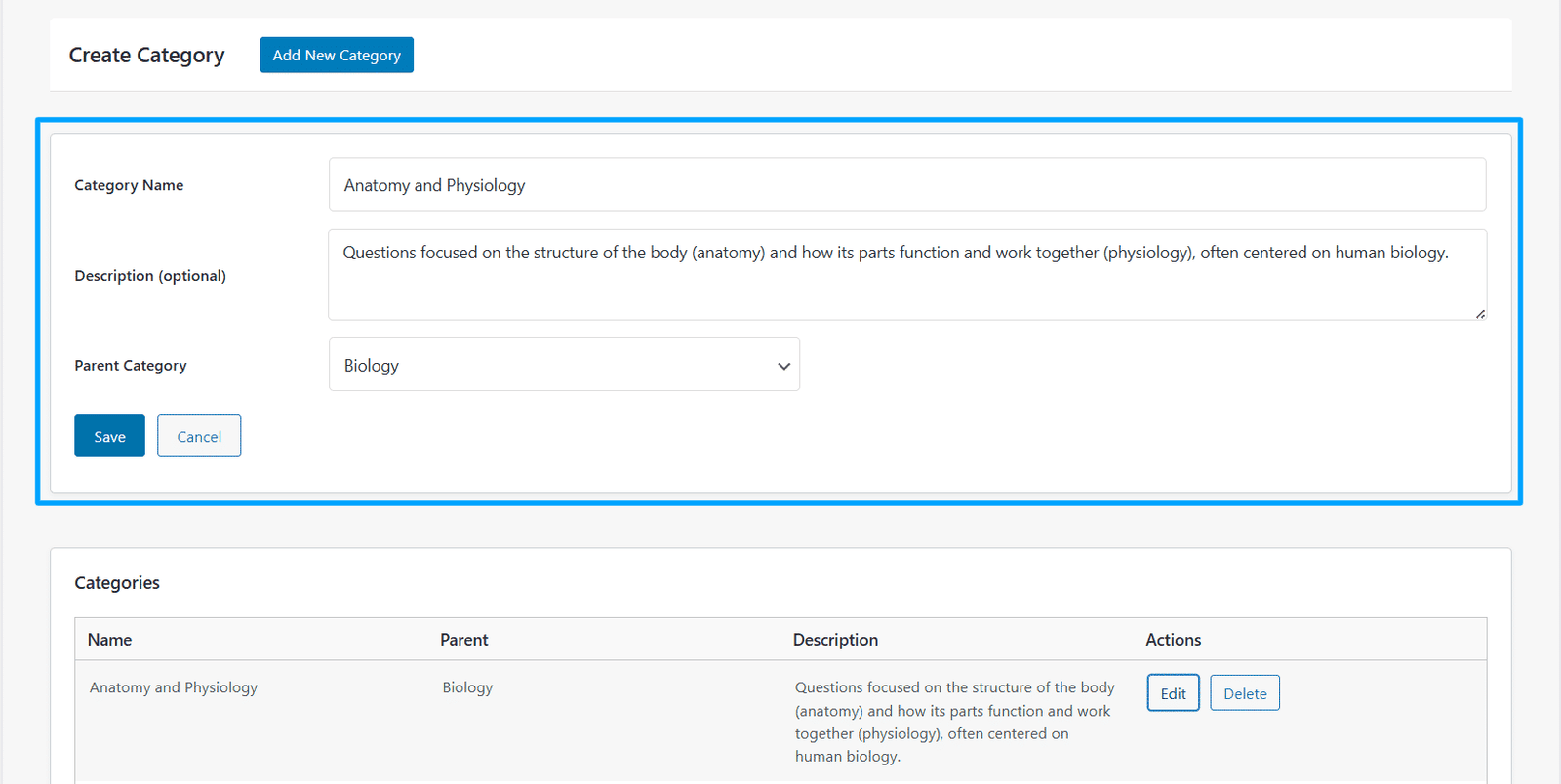
In this sub-tab, the administrator can view, create new categories (using the “Add New Category” button), edit existing ones (using the “Edit” button), or delete those they no longer need (using the “Delete” button). The administrator can add/edit the following information regarding the question categories in the “Category Information” section:
- Category Name
- Description (optional)
- Parent Category
After creating a new category or after editing any previously added category’s information, make sure to click the “Save” button to update the categories.
Link Questions
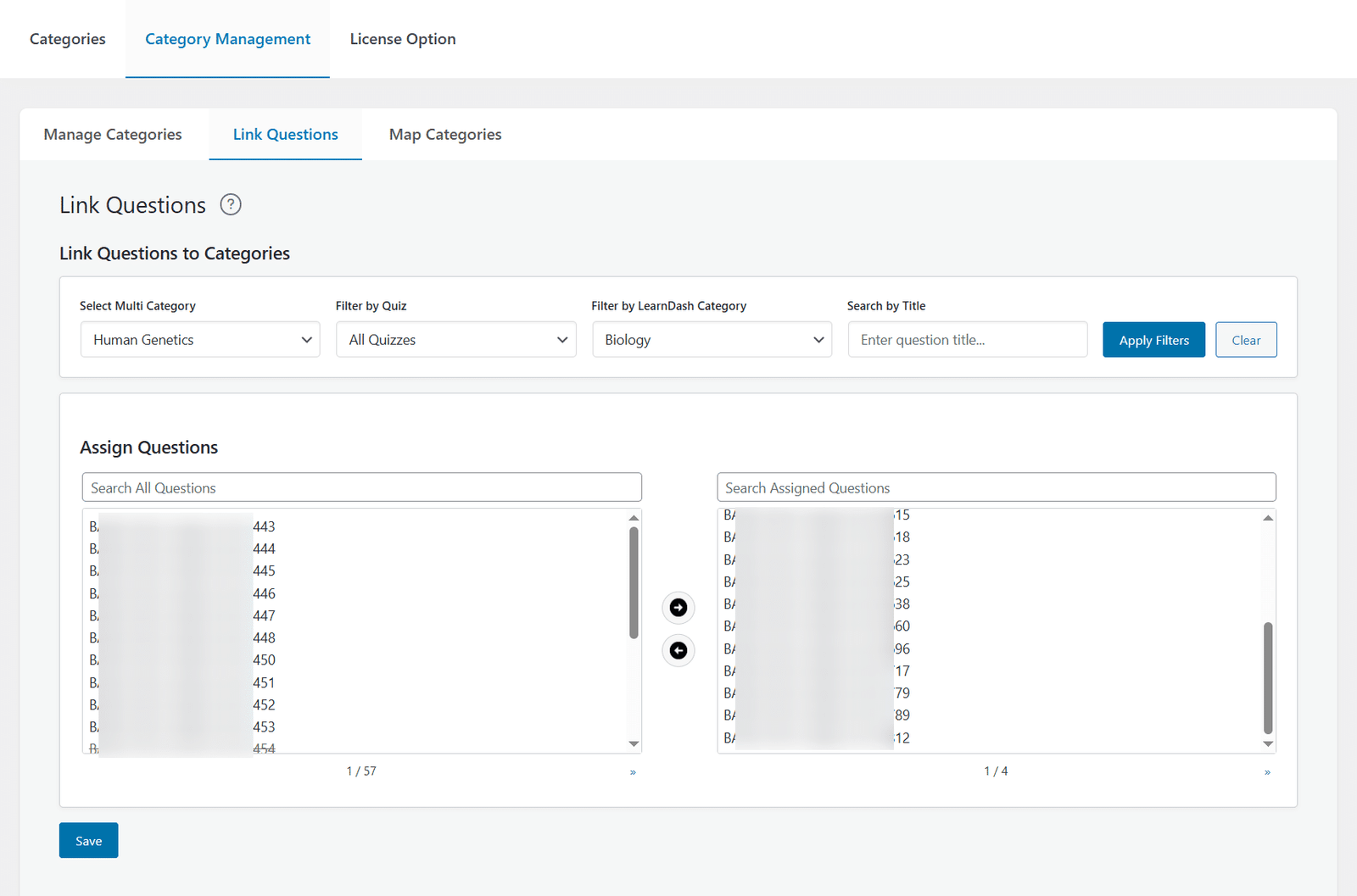
In this sub-tab, the administrator can search and filter questions (based on Quiz, LearnDash Category, and Question Title), then assign them to one or more multi-question categories (categories from our addon).
To link individual questions to a multi-question category, the steps are as follows:
- Select a multi-question category in the “Select Multi Category” dropdown.
- Filter the question list based on the 3 filters provided (Quiz, LearnDash Category and Question Title).
- When the “Apply Filters” button is pressed, in the “Assign Questions” section, the left selection box will be filled with questions based on the 3 filters and the right selection box will be filled with questions assigned to the multi-question category selected.
- Move the questions from the left selection box to the right selection box to assign them to the multi-question category selected. Similarly, to remove any question assigned to the multi-question category (selected), move the questions from the right selection box to the left selection box.
- Finally, click the “Save” button to update the question records assigned to the multi-question category.
- Clicking the “Clear” button will reset all the options selected in the dropdowns, along with both the selection boxes.
Map Categories
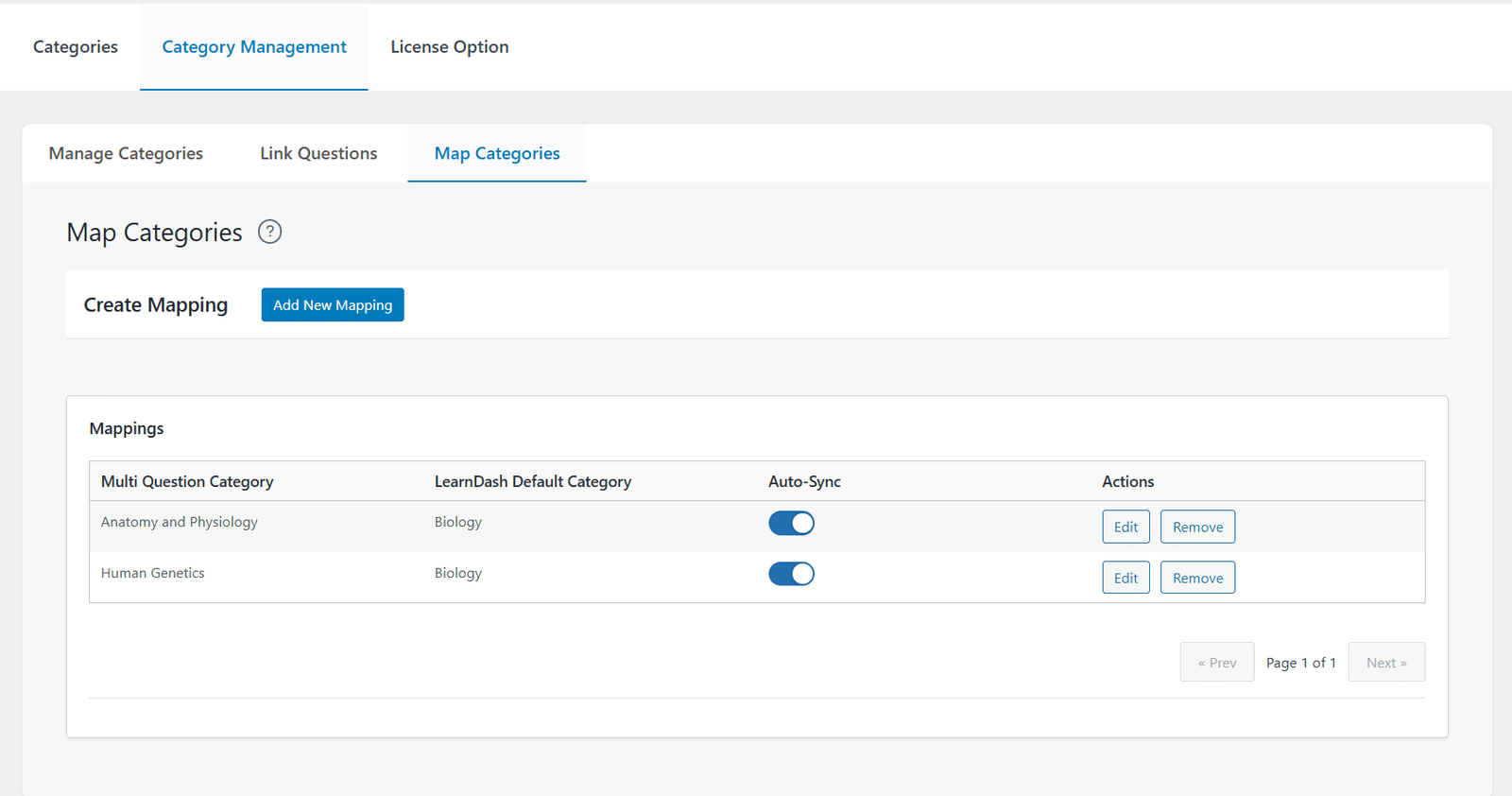
In this sub-tab, the administrator can create (using the “Add New Mapping” button), edit (using the “Edit” button), and remove (using the “Remove” button) mappings between “Multi Question Categories” and “LearnDash Default Categories”. With the Auto-Sync toggle enabled, questions added to a LearnDash category are automatically synced (added) to the corresponding Multi-Question Category.
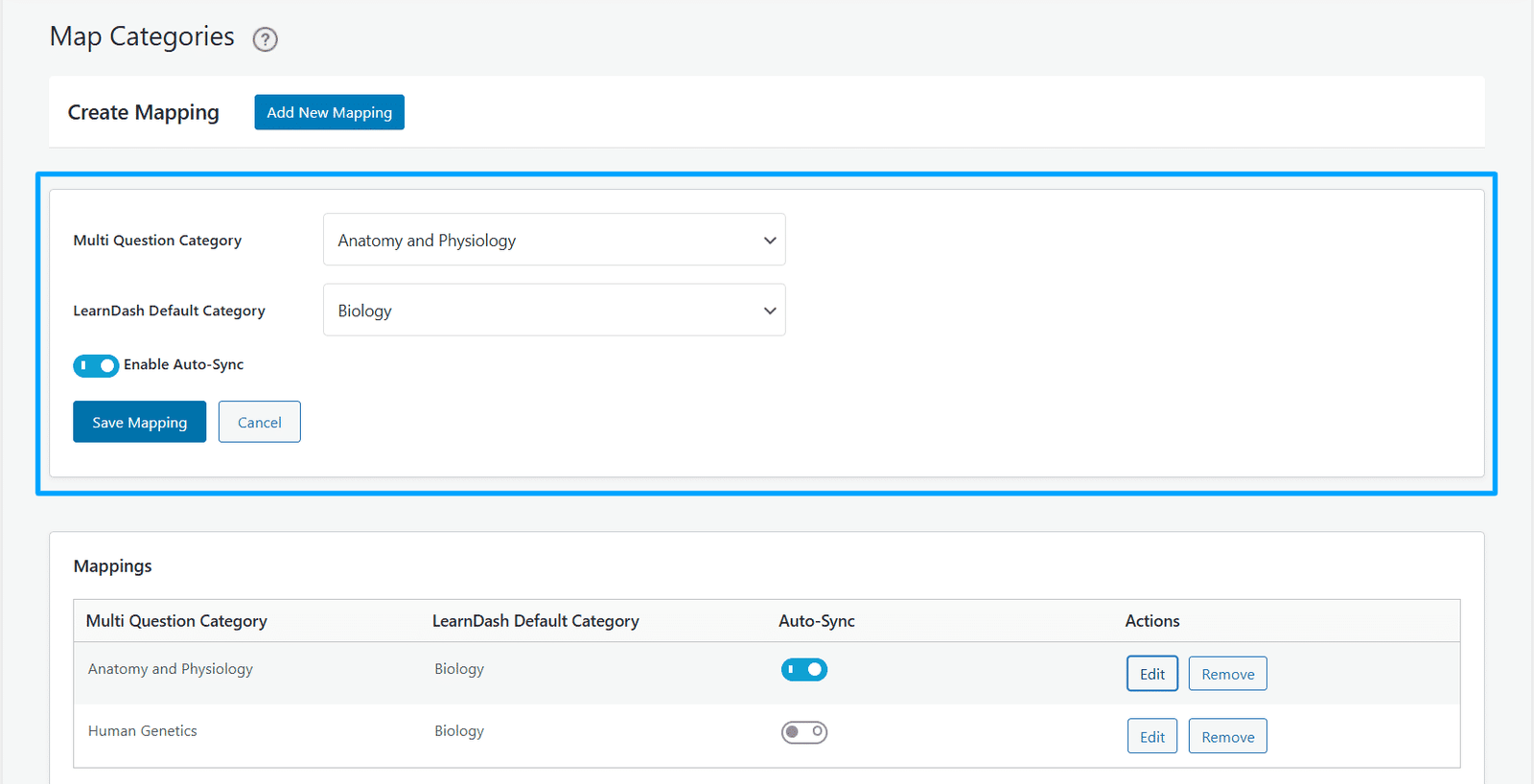
The administrator can add/edit the following information regarding the question categories mapping in the “Mapping” section:
- Multi Question Category
- LearnDash Default Category
- Enable Auto-Sync
After creating a new category or after editing any previously added category’s information, make sure to click the “Save Mapping” button to update the category’s mapping information.
Whenever a LearnDash Default Category is assigned to a question, it will check and update the Multi-Question Categories that are mapped with it and have the “Auto-Sync” option enabled. However, kindly note that if the LearnDash Default Category is unselected from the question edit page, the question will not be removed from the respective mapping Multi-Question Categories.
Note: One Multi-Question Category (From our addon) can be mapped with only one LearnDash Default Category at a time, but a LearnDash Default Category can be mapped with multiple Multi-Question Categories at the same time.
General Settings:
You can configure the add-on’s general settings in this tab.
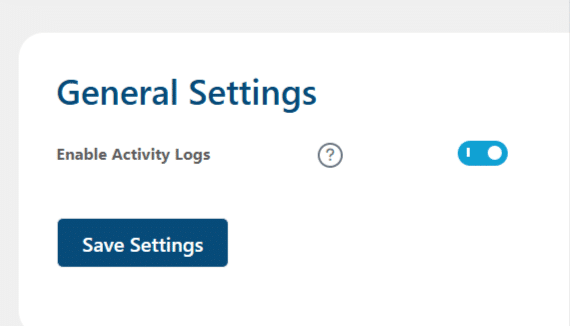
Enable Activity Logs
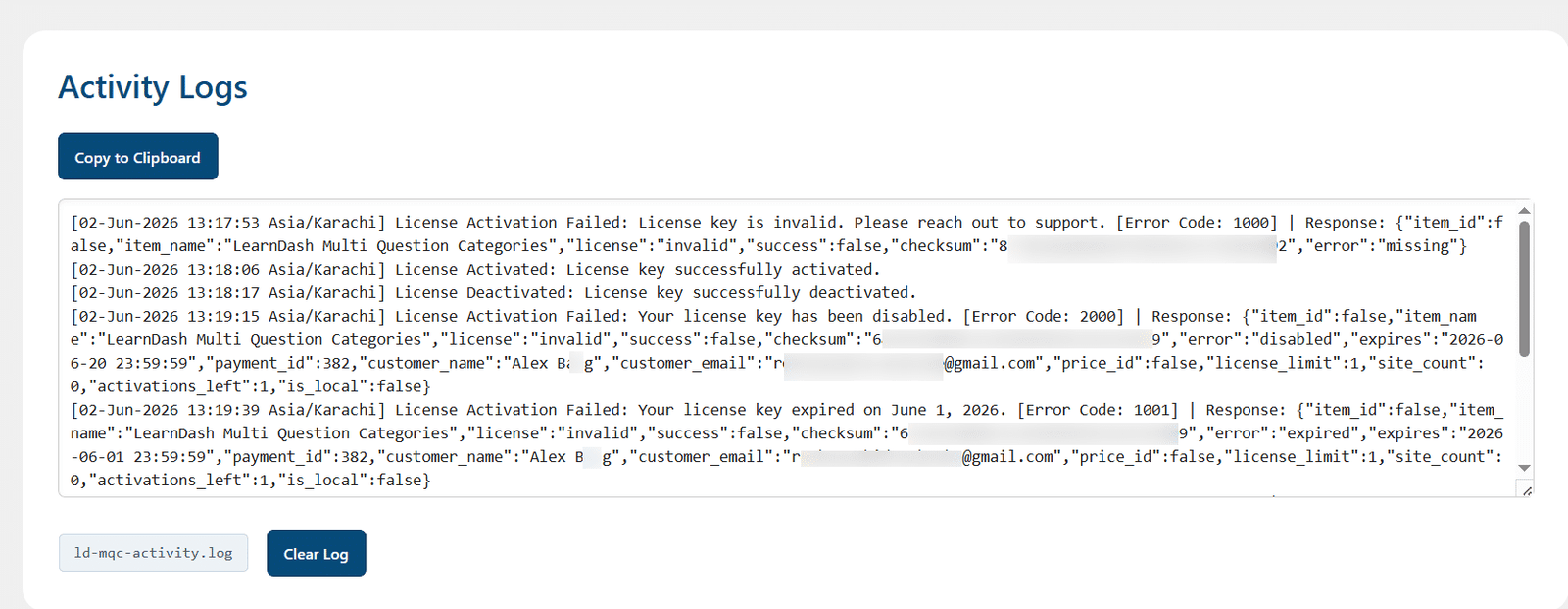
Enable this option to track and log license activation related activities.
License
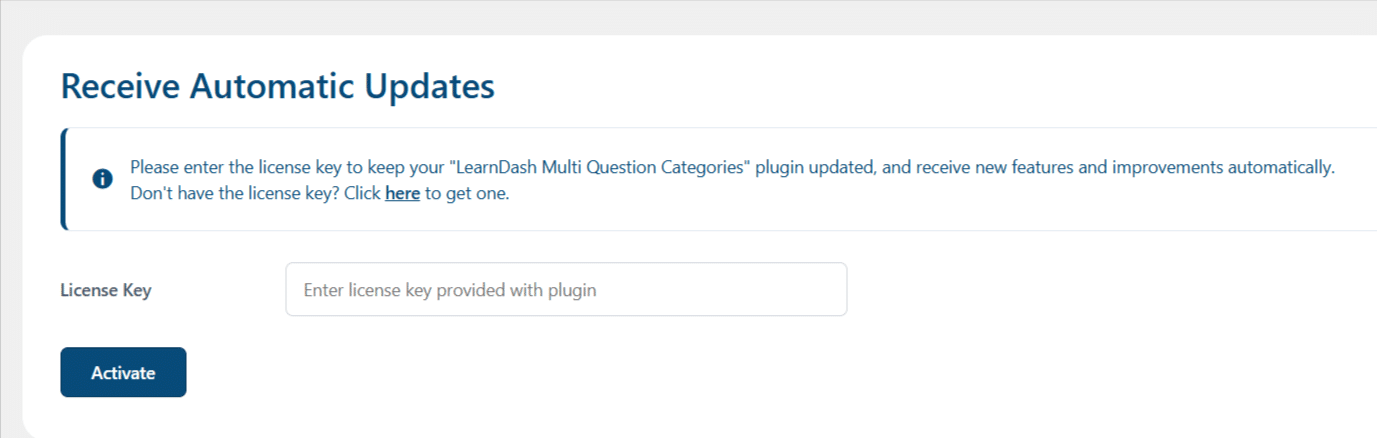
You can configure the add-on’s license key from the “License Option” tab. Enter a valid license key in the corresponding field to receive automatic updates for this add-on.
Creating Question categories
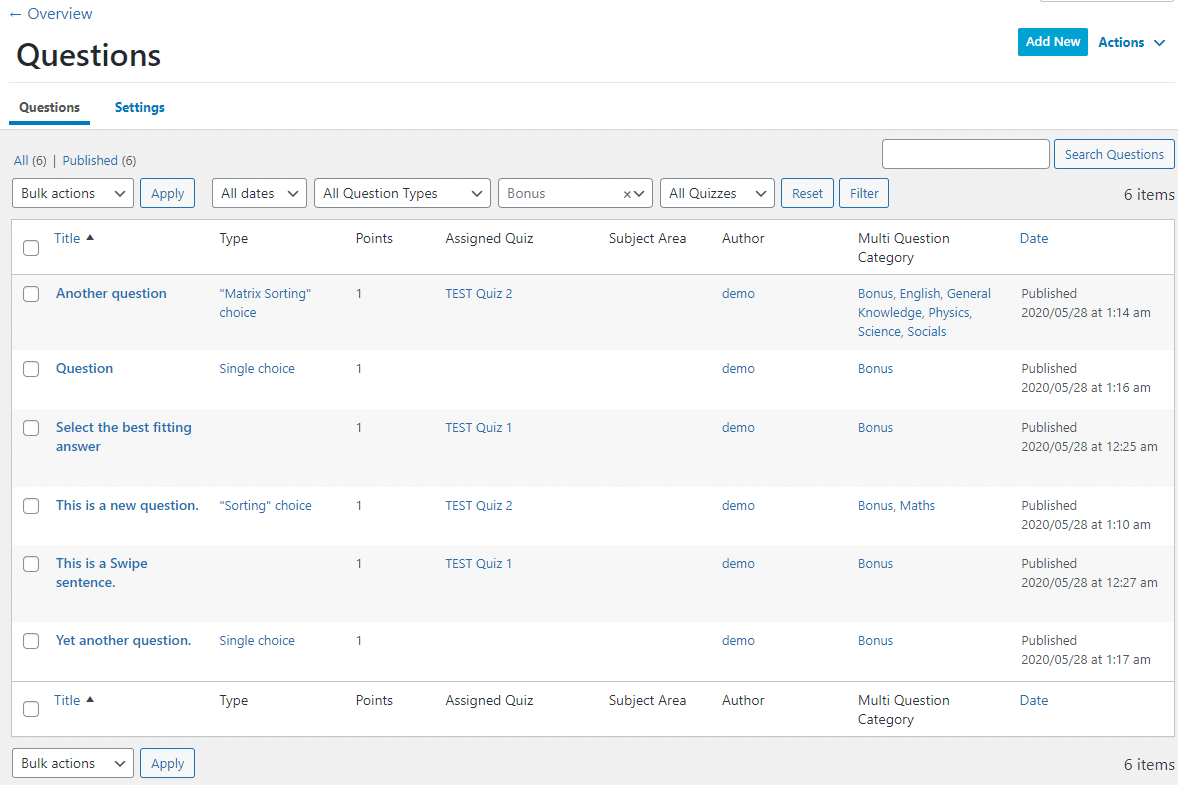
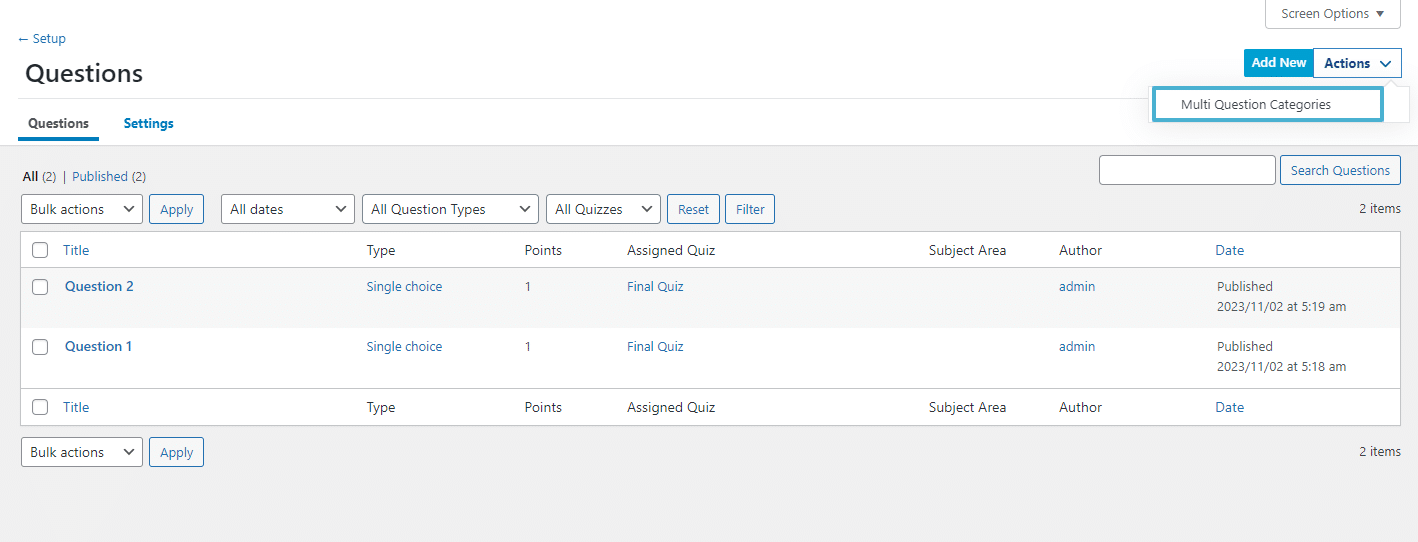
- Navigate to “Questions” from the LearnDash menu and select the “Multiple Question Categories” option from the Action dropdown menu on the top right.
- Enter the category’s name, description and select a parent category, if any.
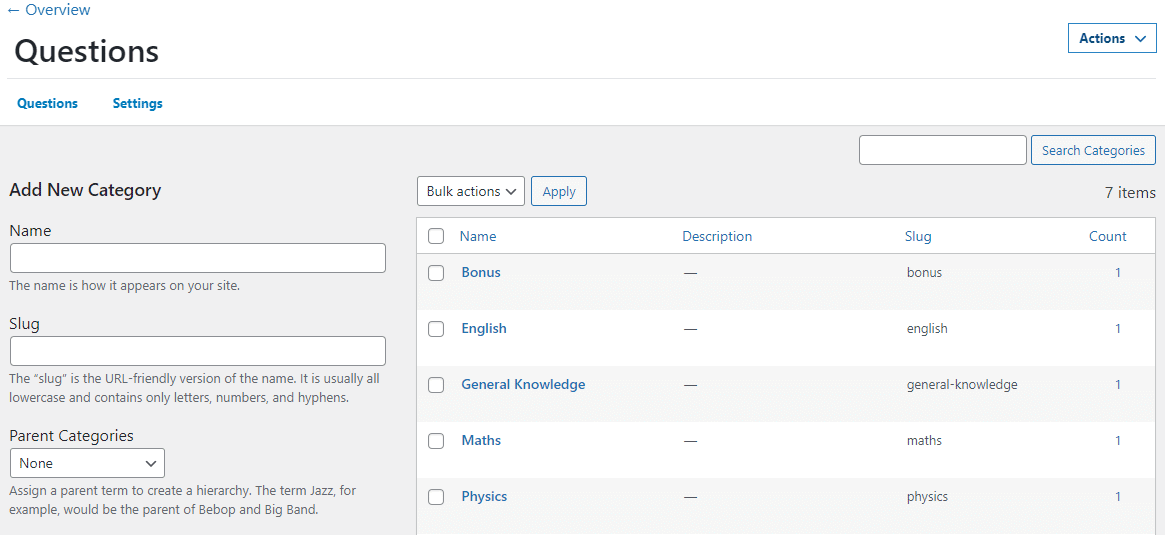
- Click the “Add new category” button.
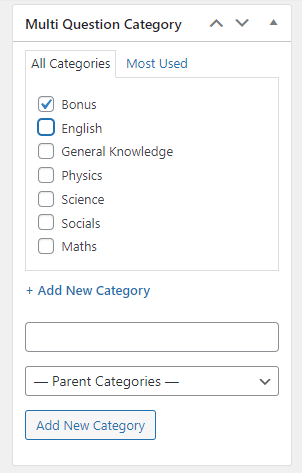
You can also create categories by navigating to any question and using the “Multi Question Category” meta-box displayed on the right.
Assigning Question categories
- Select the question you want to categorize from the LearnDash Question menu.
- Select the desired category for the question. You can select more than one category for a single question.
- Click update.
Previewing Questions
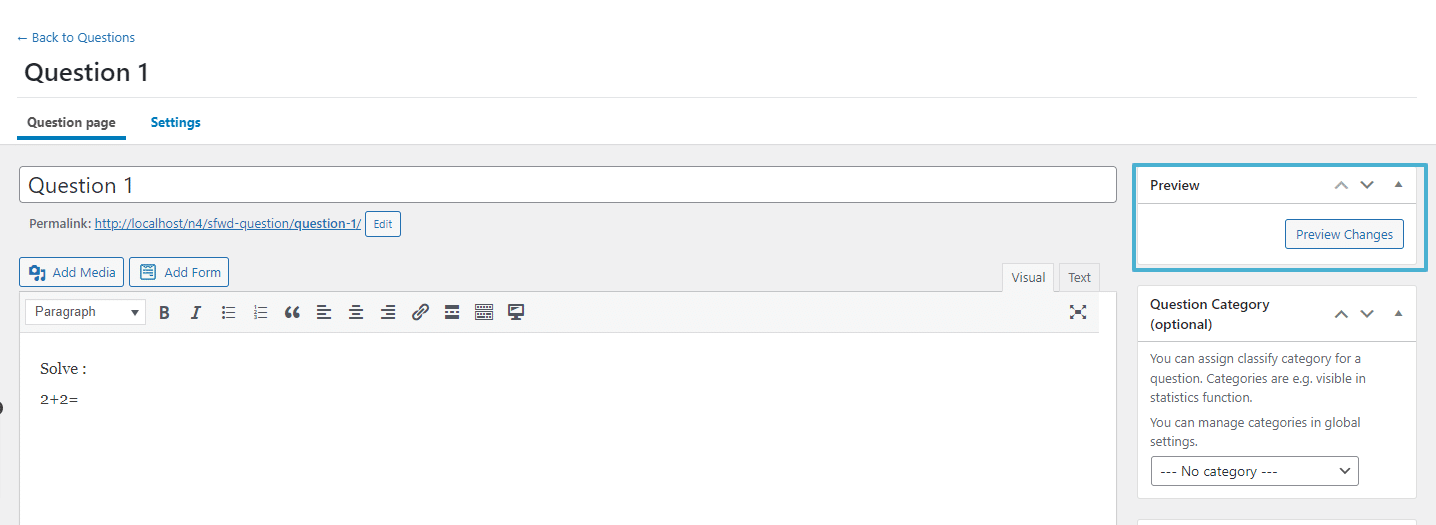
You can preview the question just by clicking on the “Preview Changes” button, available on the individual question pages.
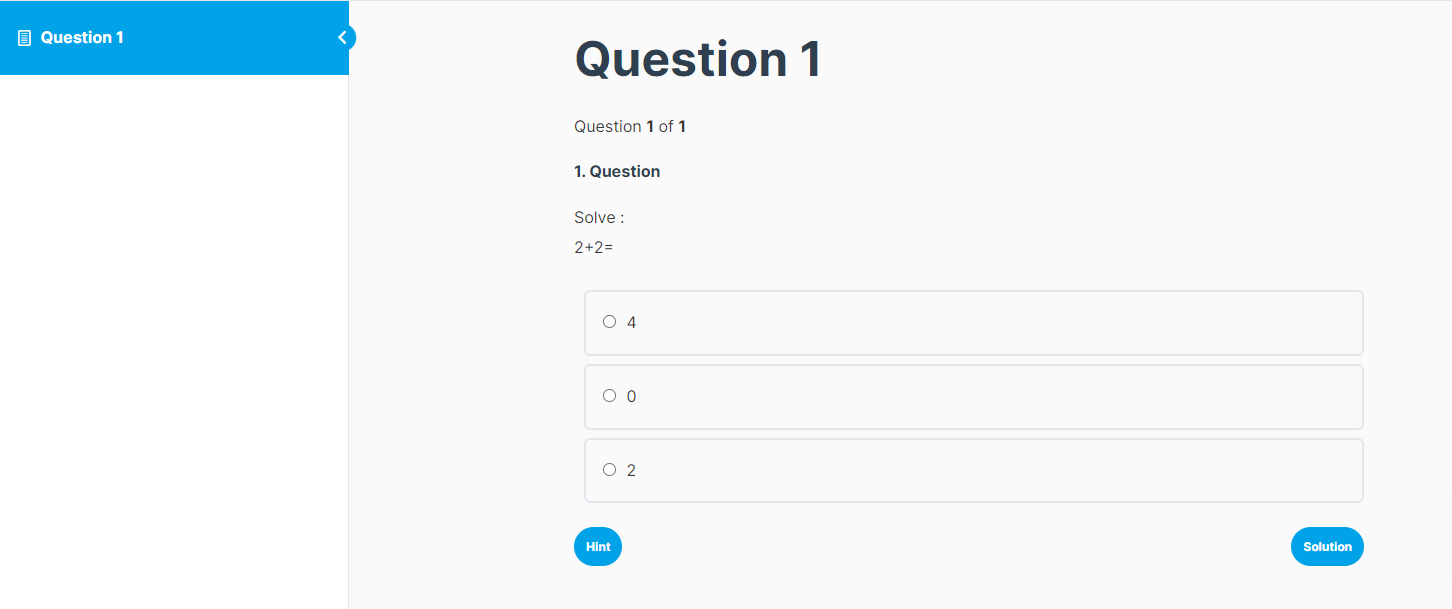
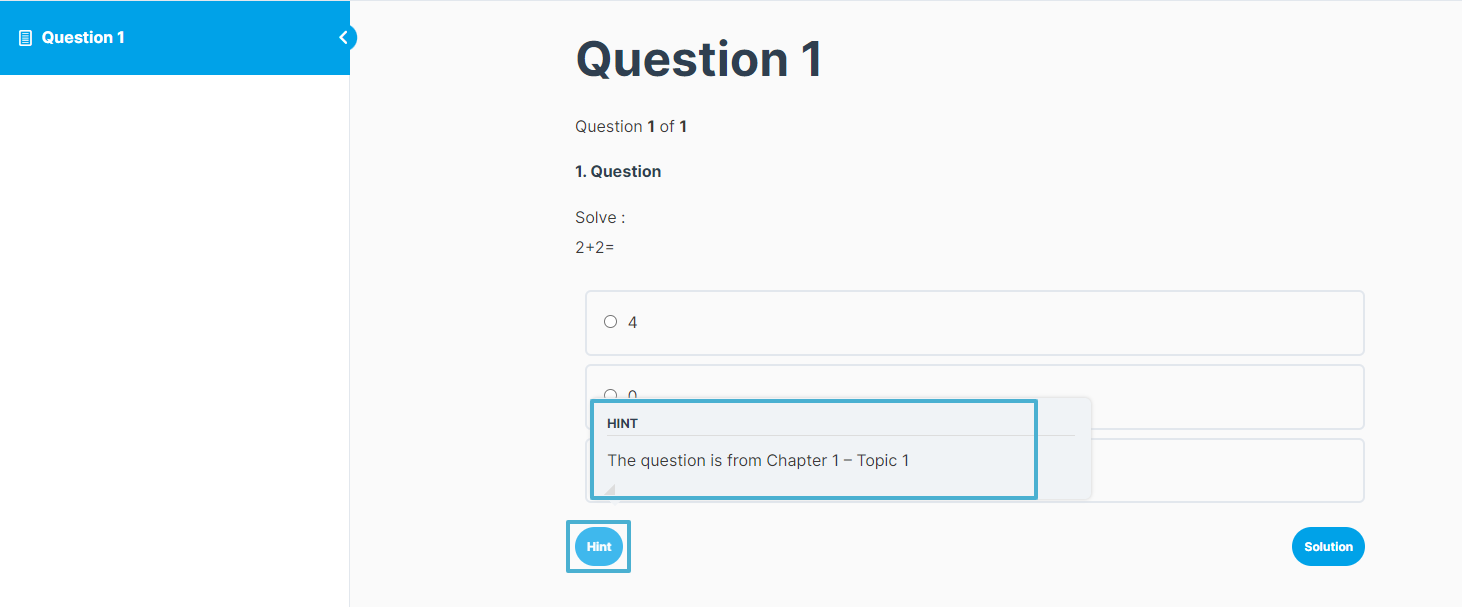
By clicking on the “Hint” button available on the left side, below the question, you can preview the hint.
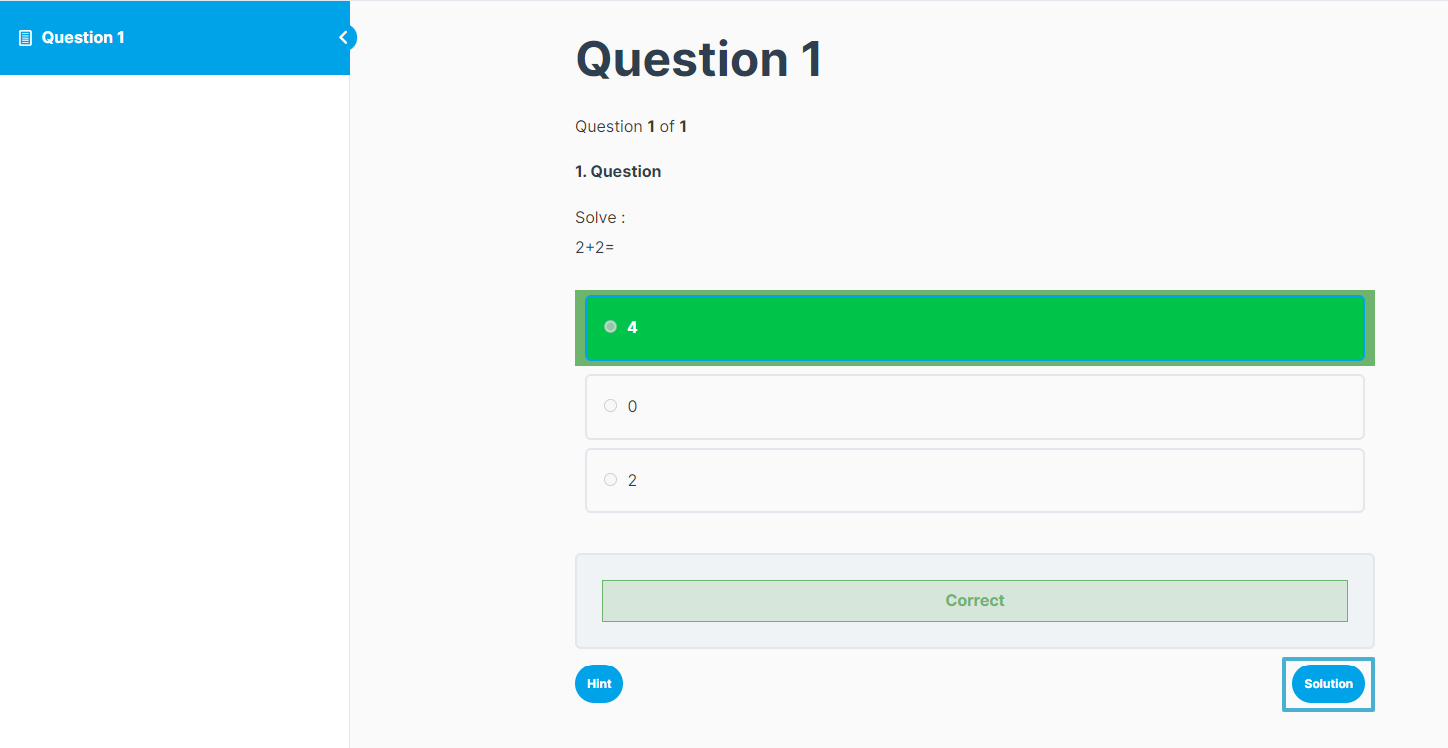
You can preview the solution just by clicking on the “Solution” button, available on the right side, below the question.
Creating Category-Based Quizzes:
This add-on allows you to create quizzes based on the assigned question categories. Quizzes can be created to include questions from one or multiple question categories, as selected.
- Navigate to LearnDash Quizzes and select “Add New”.
- Scroll to the“Multi Questions per Category” metabox, where you’ll find an option “Do Not Set Multi Categories Questions” along with the list of all the question categories.
- If you enable the “Do Not Set Multi Categories Questions” checkbox, then you can display the questions available only within the “Builder” tab. Meanwhile, by disabling this checkbox, you can select the number of questions to include in the quiz from each displayed category.
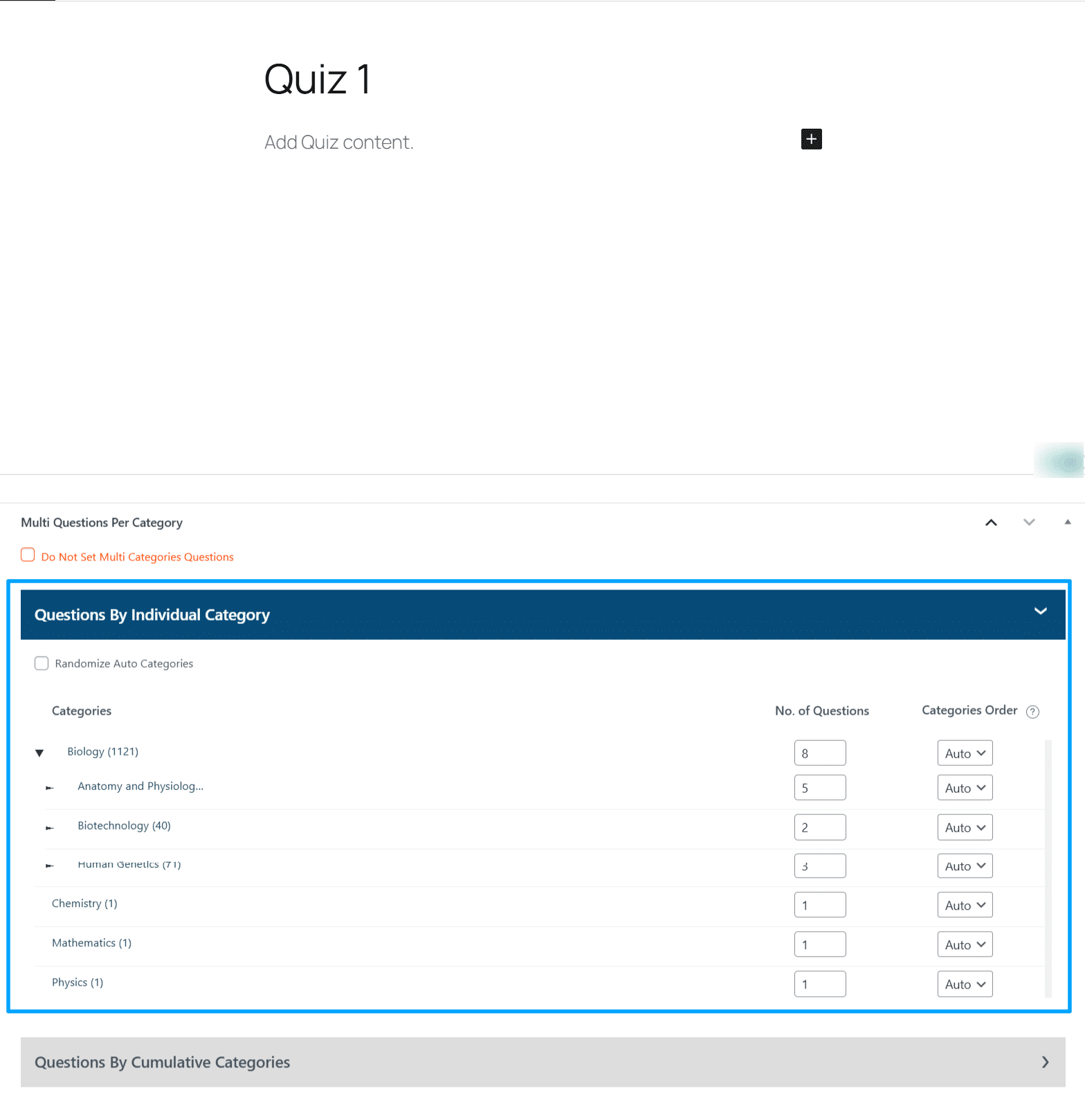
- If you select fewer questions than a category contains, questions are chosen randomly for each quiz attempt.
- Choose Auto if the question order doesn’t matter. Select a number to fix where that category appears in the quiz.
- Example: With categories A (top), B (middle), and C (bottom—set to order 1), Category C always appears first. Categories set to Auto follow the hierarchy order after that.
- Enable Randomize Auto Categories to randomize the order of all Auto categories in every attempt. Example outcomes: C → A → B or C → B → A
Creating Quizzes by Randomizing Questions
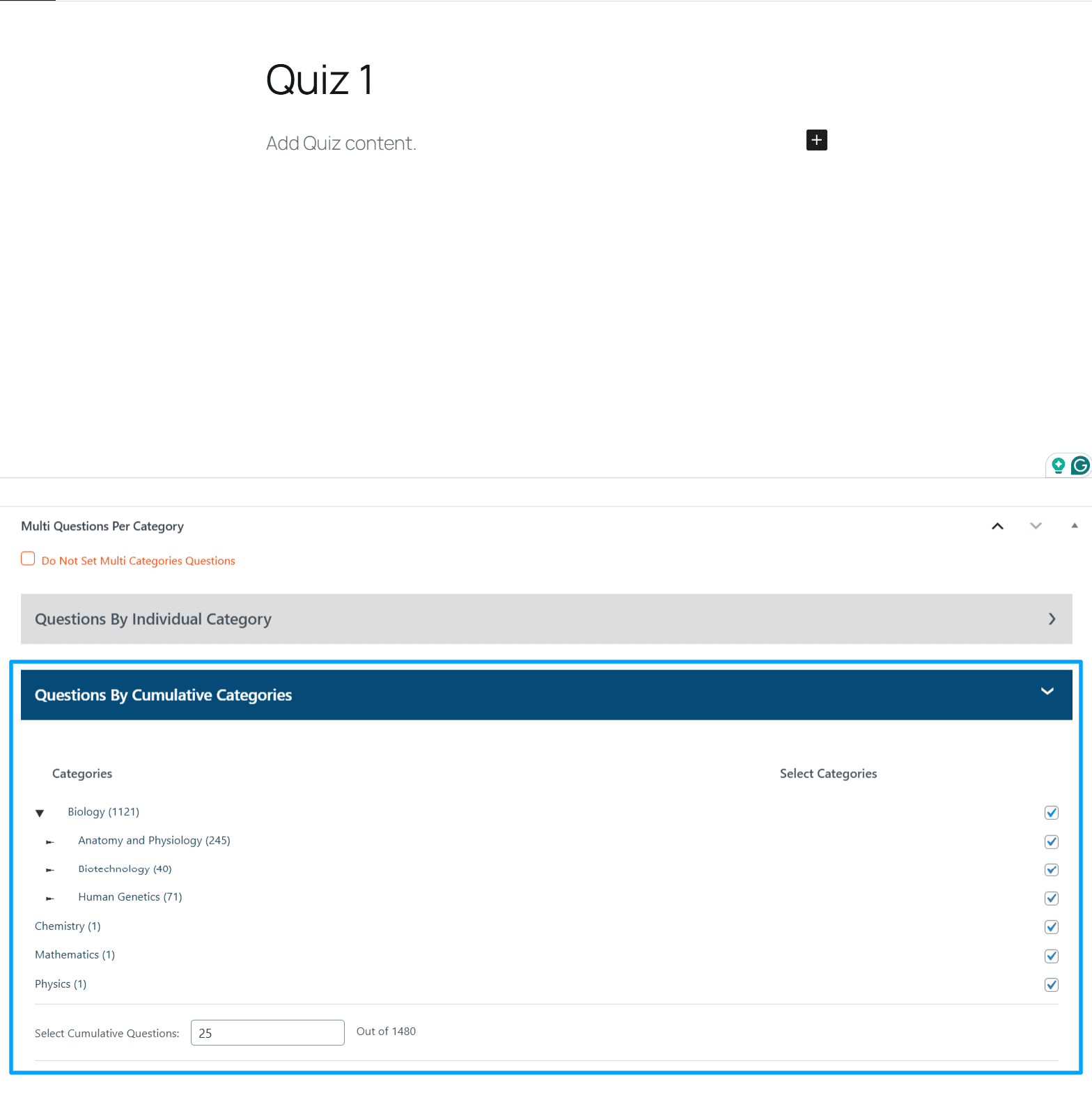
This add-on allows you to create quizzes with randomly selected questions from selected categories.
Note: Using the multiple-question category quiz feature disables the default LearnDash Quiz Builder. The questions added or ordered through the quiz builder will not be displayed on the front-end.
FAQ’s
Why are questions not visible under multiple categories listing when the category is selected from the “Question Category” meta box?
The “Question Category” meta-box is used with the default Question category functionality of LearnDash. You’ll have to use the “Multi Question Category” meta-box to correctly use the add-on.
How do I use the questions in the quiz from the LearnDash quiz builder without disabling/deleting this add-on?
You can use the default LearnDash Quiz builder if you set the question counters as “0” in front of the categories on the “Multi Questions per category” meta box on the Quiz edit page.
There are no categories displayed when we navigate to LearnDash LMS >Multi Category Hierarchy?
The categories will be available and visible on the navigation path when there are multi categories configured.
Can we delete the already created Multi Question Categories?
Yes, you can certainly remove multi-question categories. To do this, follow these steps:
- Navigate to LearnDash LMS in the left-hand menu and click on Questions.
- Under Actions, you will find Multi Question Categories, click on it.
- Hover your mouse cursor over the category you want to delete.
- A Delete button will appear. Click on it to remove the category
Are there any limitations to LearnDash Multi-Question Categories?
Certainly. When dealing with parent-child categories, it’s advised to assign each question to only one category. Selecting multiple categories for a question, such as being in both the child and parent category, will impact the count for both categories. Consequently, this may lead to unexpected behavior in the display of questions on the front end.
How can I hide the LearnDash Multi-Question Categories to reflect on the results page?
To hide the LearnDash Multi Question Categories from the result page, you can use the following snippet:
add_filter( 'ldmqc_use_learndash_cat_on_result', 'show_learndash_cat_results' );

function show_learndash_cat_results() {

    return true;
}
What is the difference between the Cumulative question categories and the Regular question categories.
- Questions By Individual Category: Here you can select the number of questions from each category (both parent and child categories). On the front end, the questions from each selected category will be displayed.
- Questions By Cumulative Categories: Here you cannot select the number of questions from each category. You will choose a category including all of its questions, and then depending on the value you set in the “Select Cumulative Questions” field, the random questions will display from all categories.
Can I link existing LearnDash question categories to this add-on’s categories?
Our add-on uses a separate categorization system that’s different from LearnDash’s built-in question categories. LearnDash supports only parent categories while our add-on allows you to create both parent and child categories for better question organization. Because of this difference, existing LearnDash question categories cannot be synced or automatically linked within our add-on.
Changelogs
1.6.3
- Fix: Limited randomized question interception to quiz submission and completion requests, preventing interference with the LearnDash admin editor, quiz builder, and post saves.
- Fix: Preserved questions added manually through the LearnDash quiz builder when category-based quiz settings are saved.
- Fix: Added every question from selected category pools to the quiz builder while retaining the configured per-category counts for runtime selection.
- Fix: Restored manually added questions from LearnDash question data when they are unavailable in the current randomized question collection.
1.6.2
- Fix: Kept randomized question draws consistent throughout quiz loading, scoring, completion, and statistics processing to prevent intermittent scoring mismatches.
- Fix: Preserved manually added quiz questions when saving through either the LearnDash quiz builder or the multi-category settings.
- Fix: Prevented duplicate questions and corrected requested question counts when manual questions also belong to selected category pools.
- Fix: Randomized manual and category-selected questions together in the final quiz order.
1.6.1
- Fix: Correctly decoded HTML entities in category names when saving and displaying them across category management, quiz selection, and results interfaces.
1.6.0
- New: Added a “Lock Randomized Questions” option that preserves each learner’s randomized question draw and saved answers when Quiz Saving is enabled.
- Fix: Filtered saved quiz resume data to the current question draw and remapped question and review states when randomized questions are not locked.
- Fix: Scoped general-settings help toggles to their corresponding setting row and corrected the description layout.
1.5.8
- Fix: Improved Licensing Module.
1.5.7
- Fix: Fixed category management mapping actions to use the correct localized labels.
- Fix: Improved quiz category checkbox styling compatibility in the admin interface.
1.5.6
- Fix: Preserved manually added quiz questions when updating multi-category question selections.
1.5.5
- Fix: Fixed minor UI issue.
1.5.4
- Fix: Fixed quiz question caching to prevent scoring mismatches.
1.5.3
- Fix: Fixed Multi Language compatibility.
1.5.2
- Fix: Resolved minor textual inconsistencies across the interface.
- Fix: Enhanced security measures and optimized overall performance.
1.5.1
- Fix: Fixed metabox display issue in block editor on Quiz page tab.
1.5.0
- New: Added “Manage Categories” feature to create and organize hierarchical question categories with parent-child relationships.
- New: Added “Link Questions” feature to assign questions to multiple categories with filtering by quiz, LearnDash category, or title.
- New: Added “Map Categories” feature to create mappings between Multi Question Categories and LearnDash Default Categories with auto-sync support.
- Fix: Fixed an issue where the UI for the multi-category tab in quizzes was not displaying before saving the quiz.
1.4.9
- New: Added a feature to set the order of categories or randomize category questions within the Individual Category settings.
1.4.8
- Fix: Fixed an issue where changing quiz settings sometimes removed manually added questions from the quiz builder.
- Fix: Fixed an issue where adding multi-category questions removed manually added questions from the quiz builder.
1.4.7
- Fix: Fixed minor issue.
1.4.6
- Fix: Resolved an issue where the license message was not displaying correctly.
- Fix: Fixed a CSS conflict with LearnDash Advanced Quizzes.
1.4.5
- Fix: Resolved an issue where the number of questions was not displaying correctly for multiple categories.
1.4.4
- Fix: Resolved an issue where multi-category questions were not being saved correctly for admins.
1.4.3
- Fix: Resolved an issue where multi-category questions were not being saved correctly.
1.4.2
- Fix: Fixed Fatal errors.
1.4.1
- Fix: Fixed Fatal error caused by missing category ID.
- Fix: Fixed minor bug.
1.4.0
- New: Added compatibility with the LearnDash Student Quiz Builder plugin.
- Fix: Fixed the categories tab toggle button.
1.3.10
- Fix: Fixed the issue where updated question data was not shown to the user.
1.3.9
- Fix: Fixed the issue with checkbox and quiz category alignment.
1.3.8
- New: Added shortcode to send the multi-question categories in the quiz email.
- Fix: Fixed the statistics not recording issue.
- Fix: Fixed the warnings issue on adding a new quiz.
- Fix: Fixed the issue where the default category was not displaying correctly.
1.3.7
- Fix: Fixed the issue of scroll not working on quiz edit page.
1.3.6
- New: Added hook to show LearnDash categories on the results page.
1.3.5
- Fix: Fixed questions not updating after updating the quiz from backend.
1.3.4
- Fix: Fixed Issue with the old question meta.
1.3.3
- Fix: Fixed Issue of quiz page not saving.
- Fix: Fixed Issue of wrong question number.
- Fix: Fixed UI issues.
1.3.2
- Fix: Fixed issue with default LearnDash save and randomization functionality.
- Fix: Fixed fatal error on old quizzes edit screen.
1.3.1
- Fix: Fixed the issue of individual category and show result after every question.
1.3.0
- New: Added questions by cumulative categories.
1.2.8
- Fix: Fixed empty Category issue.
1.2.7
- Fix: Fixed Category and Subcategory hierarchy expend issues.
1.2.6
- Fix: Fixed the “Display results after each submitted answer” bug.
1.2.5
- Fix: Fixed parent-child categories linking issue.
1.2.4
- Update: Patch.
1.2.3
- Fix: Fixed LD Quiz questions and Multi categories questions mixups
1.2.2
- Fix: Fixed custom category results when multiple users attempt quizzes simultaneously.
- Fix: Fixed text domain and wrapped texts in translation function.
1.2.1
- Fix: Fixed Fatal error on saving any Meta box.
1.2.0
- New: Added solution message in question preview with HTML support.
- Fix: Fixed quiz score issue in custom categories.
1.1.1
- New: Added checkbox in the quiz builder to disable multi categories questions.
- Fix: Fixed quiz points issues due to random feature.
- Fix: Fixed question preview public access.
1.1.0
- New: Added question preview feature.
1.0.2
- Fix: Fixed missing quiz Start button when the user is not logged in.
- Fix: Fixed license check requests once in 24 hours instead of every page load.
1.0.1
- Fix: Fixed number of questions error in the quiz.
1.0.0
- Initial Release.
