WooCommerce Equipment Rental: How to Rent Out Tools, Gear, and Equipment Directly From Your WordPress Store
Set up WooCommerce equipment rental for tools, AV gear, party equipment, and more. Manage availability, pricing, and returns with the WooNinjas Bookings Add-on.

WooCommerce equipment rental is a hire-by-the-day booking run inside a WooCommerce store, where each item is a bookable product with its own daily rate, availability calendar, minimum and maximum hire period, and buffer time for inspection between rentals. Customers pick pickup and drop-off dates, add any accessories, and pay at checkout, with the total worked out from the daily rate times the duration. Each rental becomes a WooCommerce order, with the customer’s details and dates on record.
Phone calls to check availability, double-bookings nobody catches until pickup day, damage disputes with no record from the original booking: these are the gaps a rental business runs into without a proper WooCommerce Bookings system in place. What follows is how to configure the WooNinjas WooCommerce Bookings Add-on for any equipment rental business, including the Rental booking type setup, duration-based pricing, minimum and maximum rental period enforcement, inventory management through resources, buffer time between rentals, and cancellation policy configuration.
Why Equipment Rental Businesses Use WooCommerce for Online Bookings
The specific requirements of equipment rental
Equipment rental is a large and growing market: Market Research Future valued the global rental equipment sector at about $335 billion in 2024. It also has different requirements for service booking or accommodation booking. A rented item is a physical asset with a location, a condition, and a finite number of units. When it goes out on a rental, it is unavailable to every other customer until it comes back. When it comes back, it needs to be inspected and prepared before the next hire. The booking system needs to reflect all of that automatically.
The WooNinjas WooCommerce Bookings Add-on handles this through the Rental booking type, configured in Booking Options > Settings tab. Each piece of equipment becomes a Bookable Product with its own rental calendar, duration rules, and availability window. The daily rate multiplies automatically by the rental duration at checkout. Payment is handled by WooCommerce‘s standard checkout. Every completed rental creates a WooCommerce order with the customer’s details, rental dates, and full price breakdown.
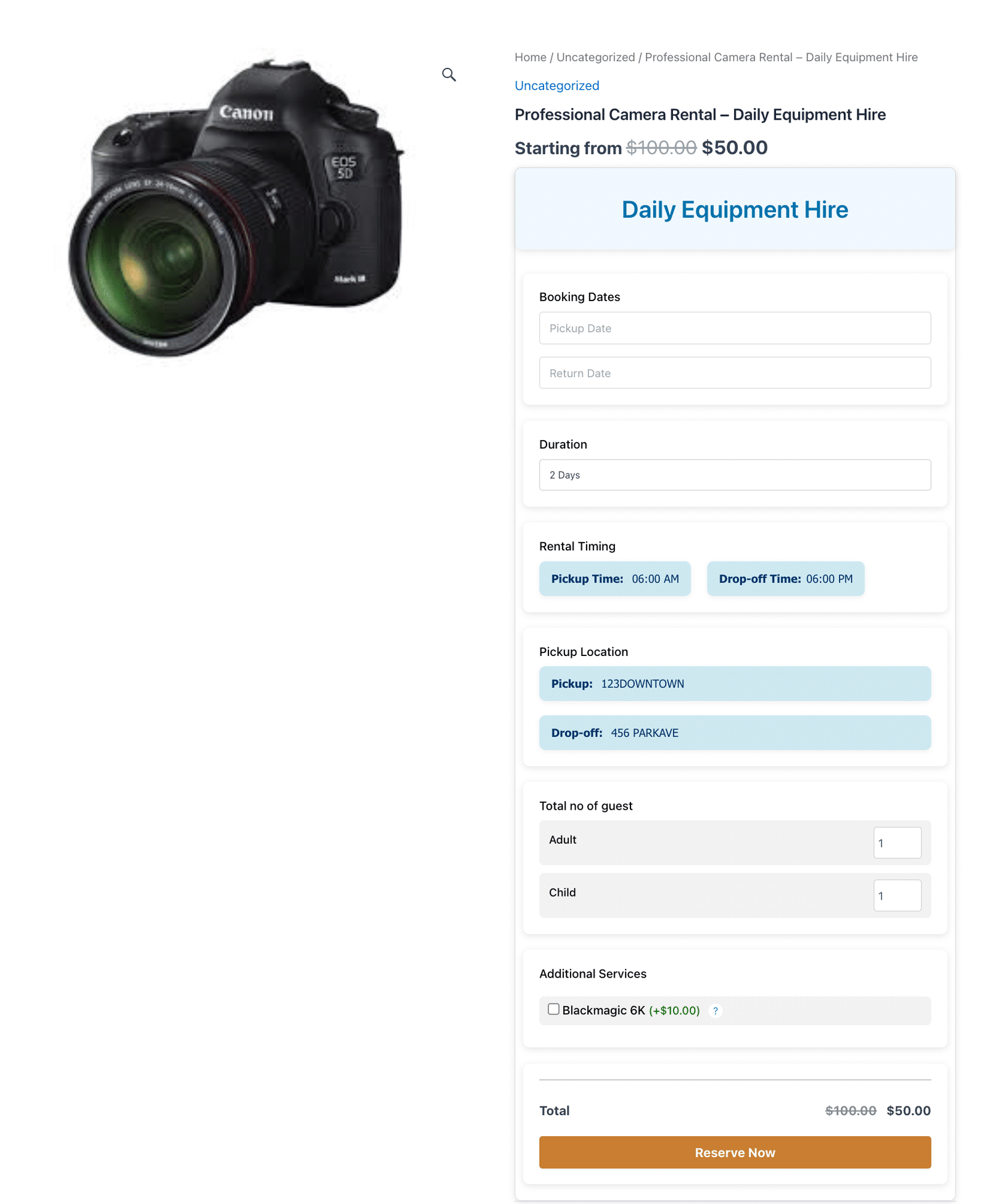
A client-facing equipment rental product page, with pickup and return dates, duration, pickup and drop-off times and locations, an optional accessory add-on, and the live total before Reserve Now.
The equipment categories this covers
The WooCommerce Bookings Rental booking type applies across any category of rentable physical asset:
- Construction and power tools (generators, drills, compressors, excavators)
- Audio-visual and photography gear (projectors, lighting rigs, cameras, microphones)
- Party and event equipment (marquees, tables, chairs, catering equipment, sound systems)
- Sports and outdoor gear (kayaks, bikes, camping equipment, ski gear)
- Musical instruments (pianos, PA systems, guitar amplifiers)
- Medical and mobility equipment (wheelchairs, crutches, CPAP machines)
- Industrial machinery is hired by the day or week
Each category has its own per-day rate, its own minimum rental period, and its own preparation requirements between bookings. All are configured from the same product editor.
Setting Up an Equipment Rental Product in WooCommerce
Configuring the Rental booking type
Each piece of equipment or equipment category is configured as a separate Bookable Product in WooCommerce. Go to Products > Add New. Set the product type to Bookable Product from the Product Data dropdown. Inside Booking Options > Settings tab, set the Booking Type to Rental.
Key fields to configure in the Settings tab for each rental product:
- Booking Title / Service Name (optional)
- Start Date
- End Date
- Booking Duration
- Pickup Time
- Drop-off Time
- Pickup Location
- Drop-off Location
- Minimum Stay Duration (minimum number of days for the rental)
- Maximum Stay Duration (maximum number of days; leave empty for no maximum)
- Adult Count (Min and Max fields)
- Child Count (Min and Max fields)
- Assigned Resource/Staff (optional)
- Auto-cancel pending/failed orders after 24 hours (optional)
- Cancellation Threshold (hours)
- Show Timezone on Booking Times (optional)
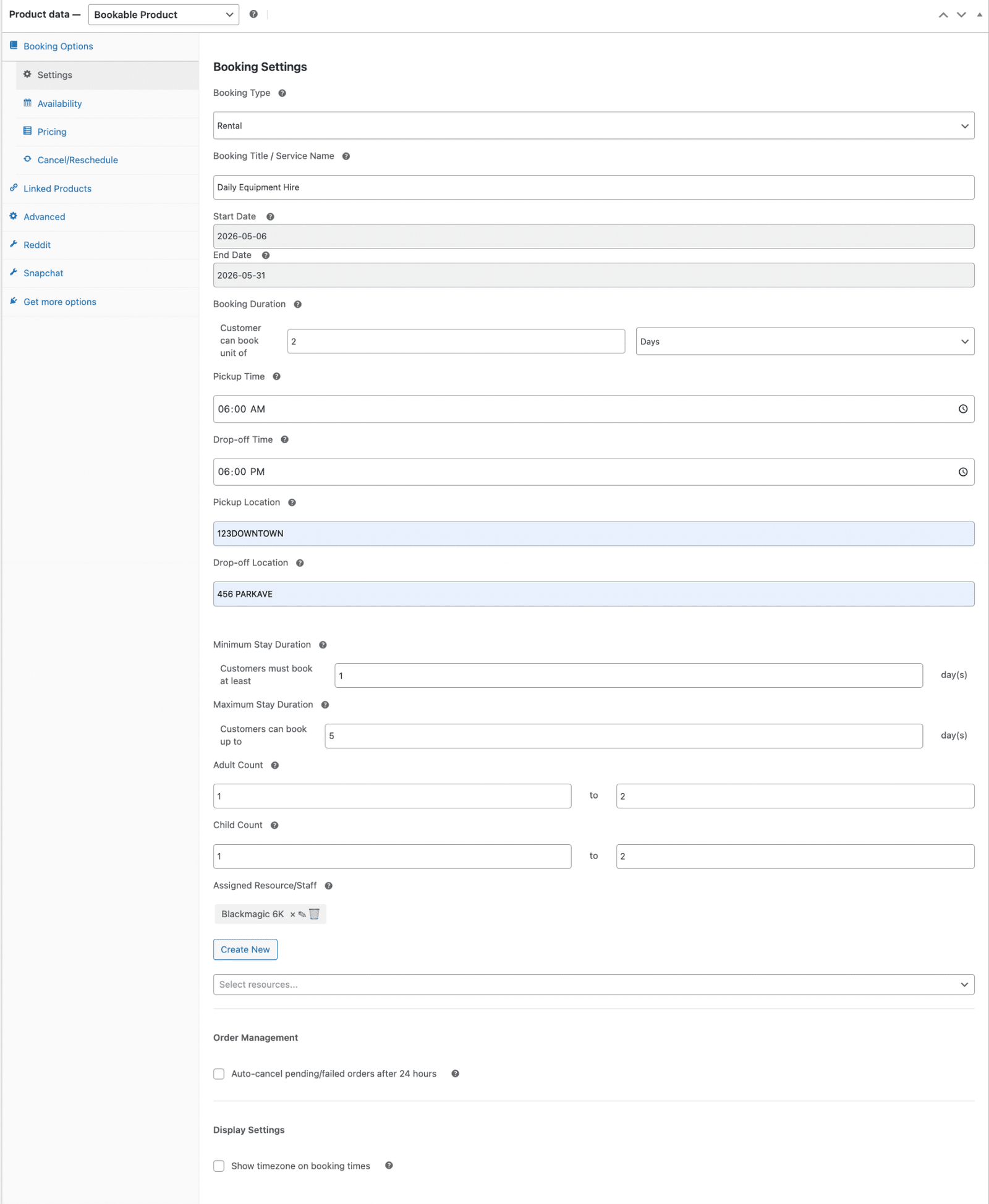
The Booking Settings tab with the Booking Type set to Rental, showing the title, dates, daily duration, pickup and drop-off details, minimum and maximum stay, and the assigned resource.
Availability Rules
- Blackout Dates (optional): block individual dates when the item cannot be hired. Import multiple dates via CSV.
- Recurring Blackout Rules (optional): set repeating unavailability patterns such as every Monday or every December 25th.
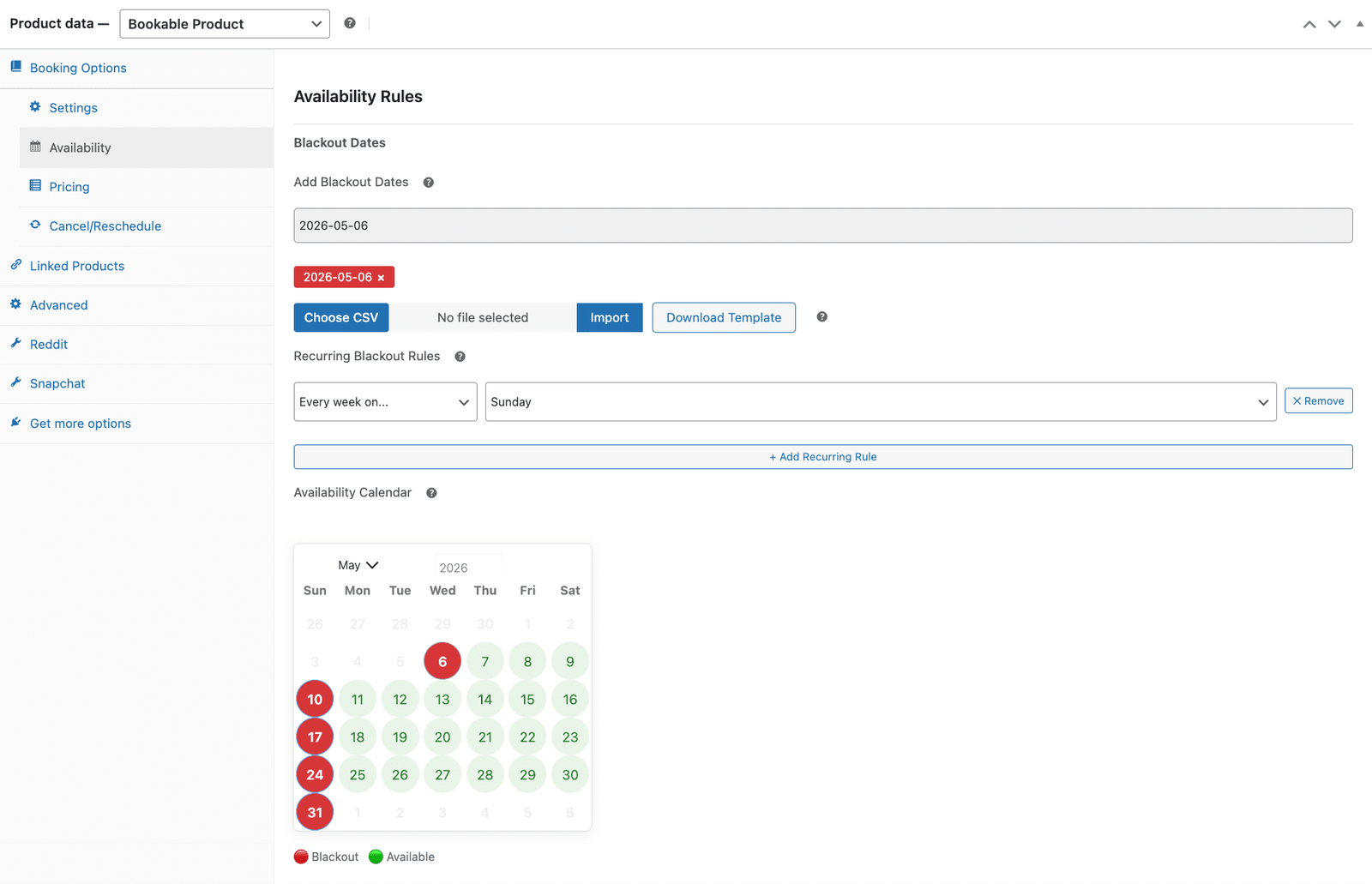
The Availability Rules tab, with single blackout dates, CSV import, recurring blackout rules, and the live availability calendar showing blocked dates in red and available dates in green.
- Cancellation Deadline: Set how many hours before the start date customers can cancel.
- Cancellation Policy Text sent to customers in cancellation emails and shown in the cancellation modal.
- Enable showing policy text in cancellation modal (optional)
- Allow Customers to Reschedule Their Bookings (optional)
- Allowed Order Statuses: Which order statuses show the Reschedule button?
- Reschedule Deadline: Set how many hours before the start date customers can reschedule.
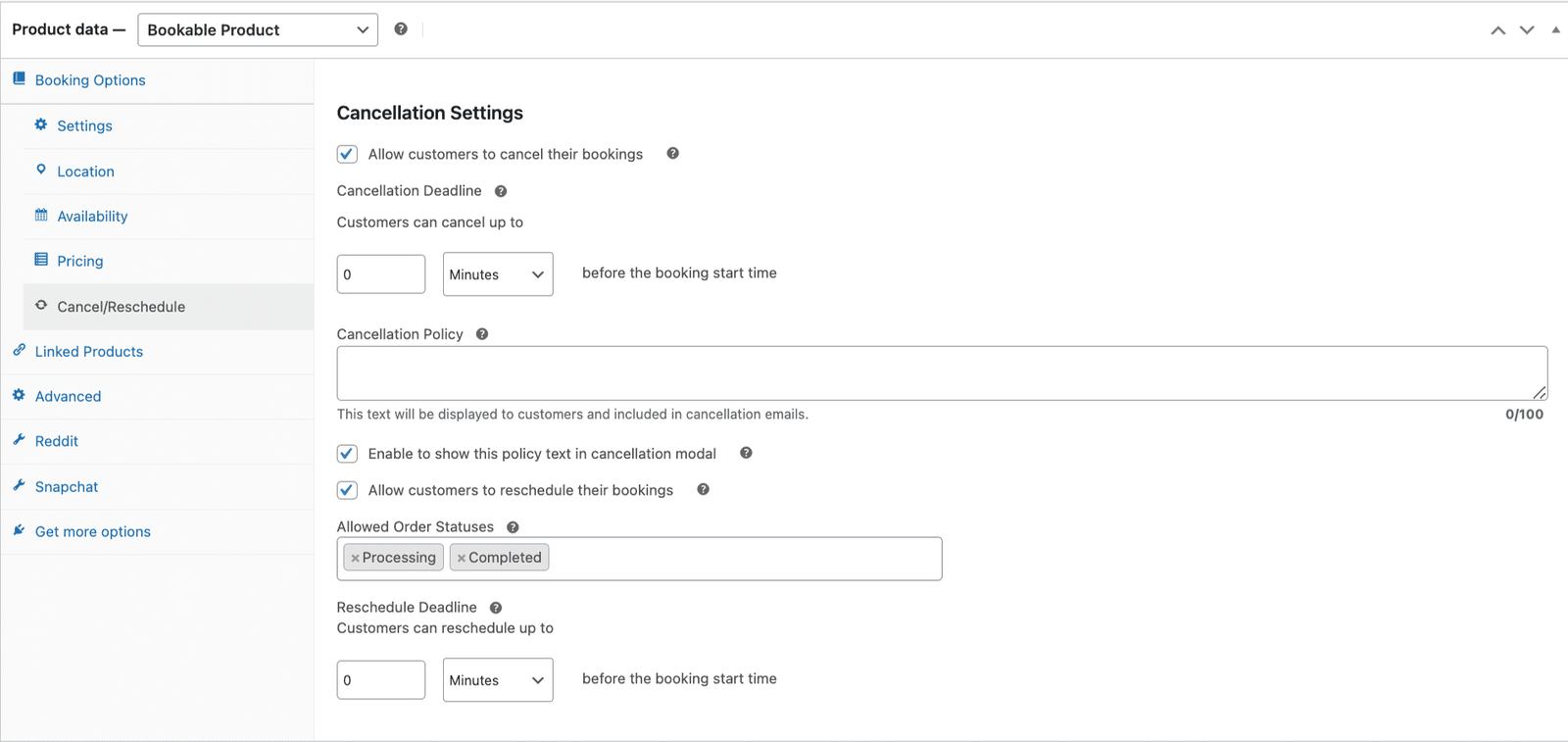
The Cancel/Reschedule tab, where the cancellation deadline, policy text, and reschedule settings are configured for the rental product.
Make sure to press the Publish/Update button on the product edit page after making any changes.
Duration-Based Pricing for Equipment Rental
How rental pricing is calculated automatically
Pricing for a WooCommerce Bookings product is configured in the Pricing tab of the Bookable Product settings. Set the Regular Price as the daily hire rate. The Add-on multiplies this rate by the number of days the customer selects at booking. A generator hired at $80 per day for 4 days produces a total of $320 at checkout. No manual calculation. No post-booking invoice.
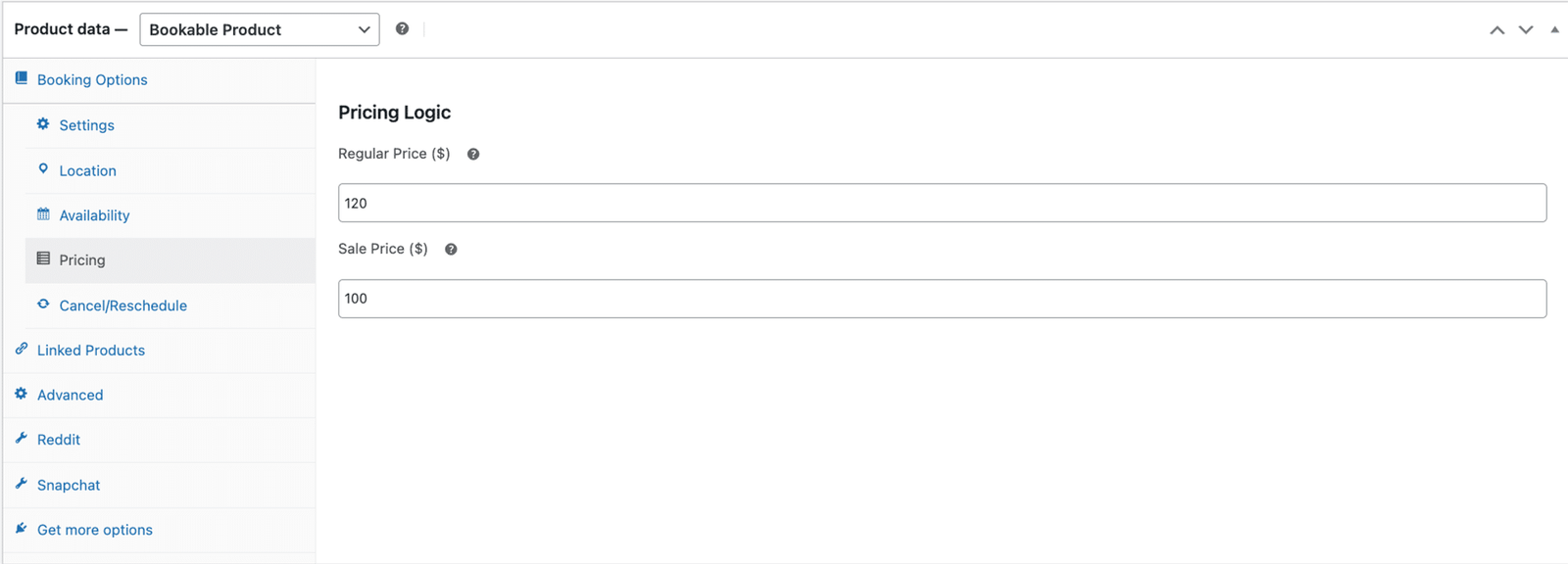
The Pricing tab, where the Regular Price sets the daily hire rate, and an optional Sale Price applies a promotional rate.
Set a Sale Price in the Pricing tab for promotional hire rates, whether for introductory pricing on new items, clearance rates on older stock, or seasonal promotions. When a Sale Price is active, the standard rate is displayed struck through alongside the reduced rate on the product page.
Buffer Time and Inventory Management
Buffer time between equipment rentals
The Buffer time in a WooCommerce Bookings product adds a mandatory gap after a rental ends, before the same item becomes available for the next booking. For most rental categories, this gap is non-negotiable. A returned generator needs a fuel check and an electrical test before going out again. A returned camera kit needs a sensor clean and a lens inspection. Also a returned marquee needs a structural check and a clean.
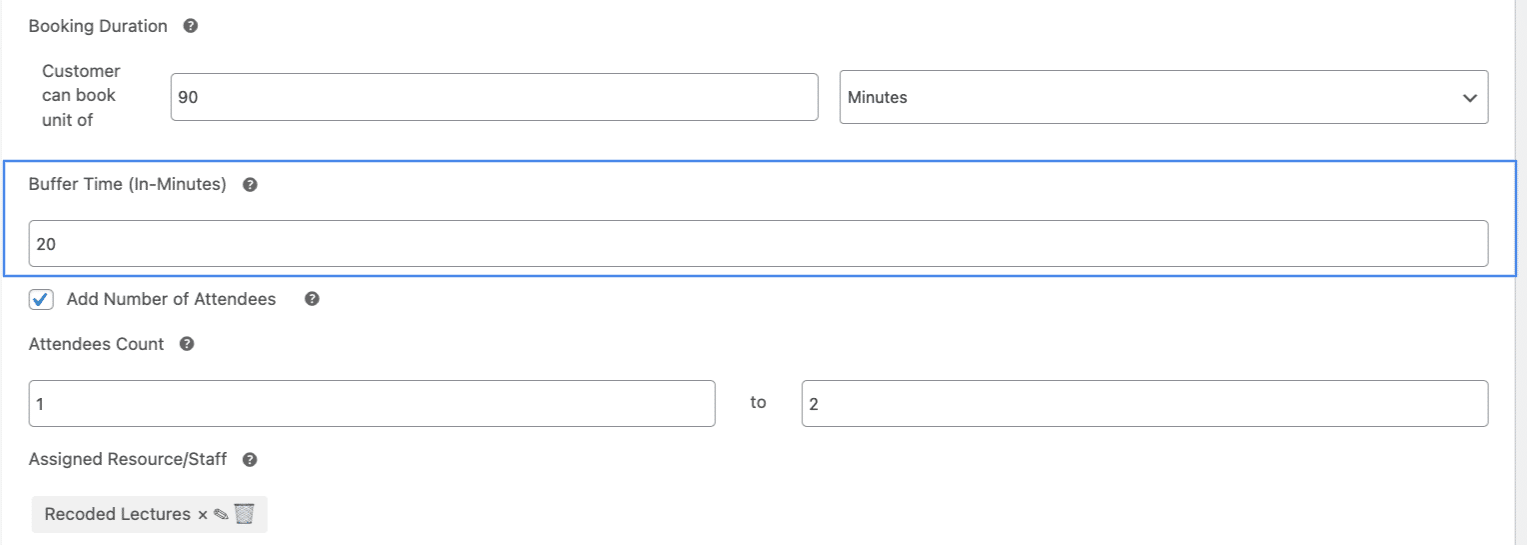
The Booking Settings tab with the Buffer Time field highlighted shows the gap enforced after each rental before the item becomes available again.
Buffer time is configured in the Booking Options > Settings tab of each Bookable Product. Enter the gap in hours or days, depending on the equipment type and preparation requirements. A 1-day buffer after every hire gives the business a full working day to inspect, service, and re-prepare the item before it is next available for rental. The availability calendar enforces this gap automatically and does not display the buffer period as a bookable window.
Managing multiple units of the same item
When a business rents multiple identical units of the same item, each unit is added as a separate resource in the Booking Options > Settings tab of the shared Bookable Product. Each resource represents one physical unit. Customers booking from the product page see the item’s live availability reflecting the total number of units available. When all units are booked for a requested date range, the item shows as unavailable.
Resources in the Add-on carry a name and a price. For identical units of the same item, each resource is given a distinguishing name (Unit 1, Unit 2, or a serial number) and the same price as the base rate. This approach prevents double-booking across the inventory without requiring a separate product per unit, keeping the catalogue manageable even for larger rental fleets.
Managing a WooCommerce Bookings rental catalogue with a large or complex inventory? Multi-unit inventory configuration, custom pricing structures for hire tiers, and blackout date management across a large catalogue all benefit from specialist setup. The WooNinjas development team configures WooCommerce Bookings systems for businesses of every scale. Get in touch with the WooNinjas team here, and they will review your inventory and rental requirements.
Availability Control: Blackout Dates and Service Windows
Blocking unavailable dates for equipment maintenance
Use the Availability tab in each WooCommerce Bookings product to control when customers can book an item. Create single blackout dates for specific periods of unavailability, such as scheduled servicing or pre-committed hires that were not entered through WooCommerce. Bulk CSV import handles larger batches of unavailable dates in one step. Recurring blackout rules automate repeating closures, such as blocking every Monday for workshop maintenance or closing every December 25th.
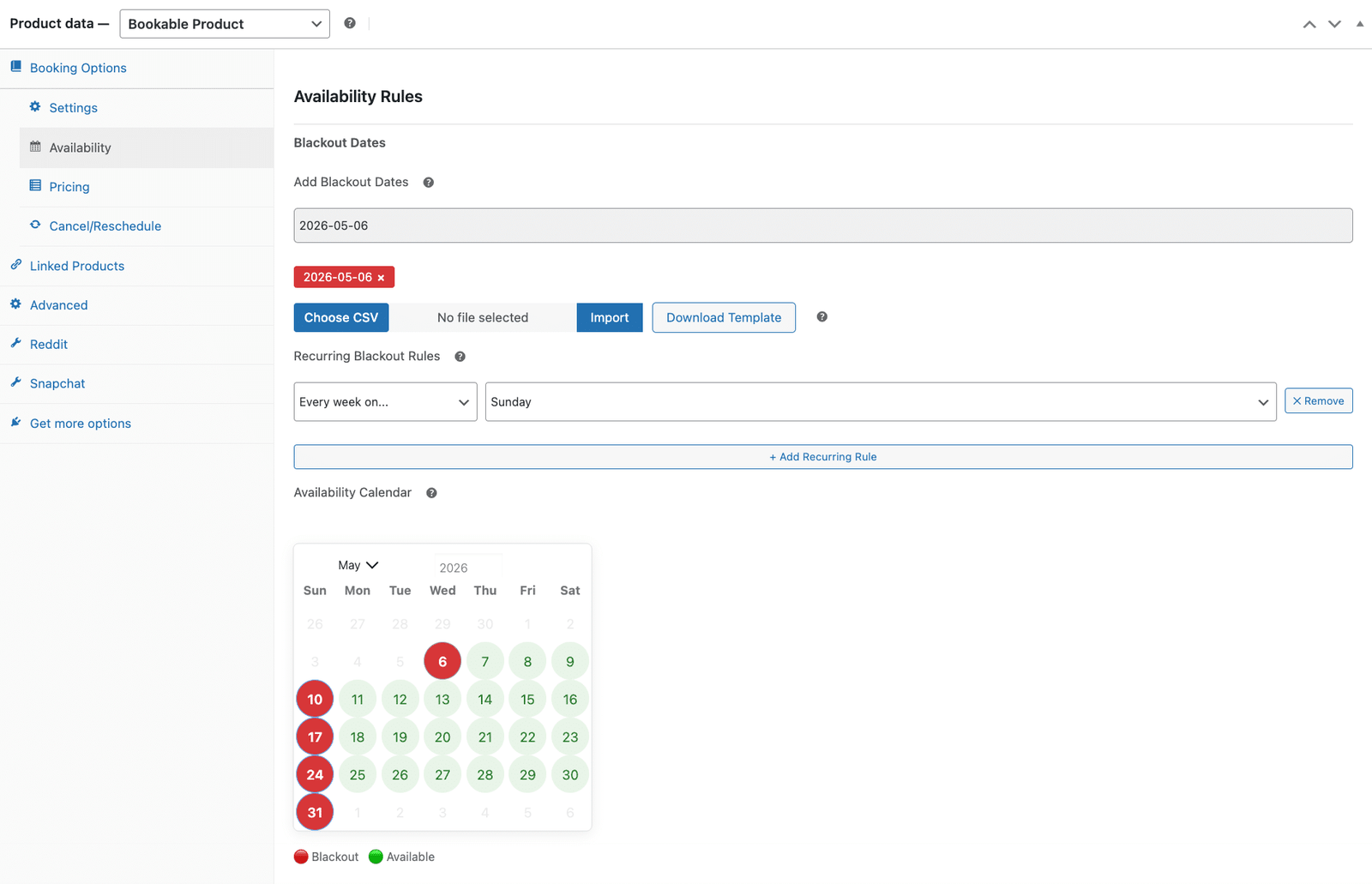
The Availability Rules tab again, where blackout dates and recurring rules block the dates an item cannot be hired.
The live Availability Calendar preview in this tab shows blocked dates in red and available dates in green. Use it to verify all rules are applying as expected before publishing the product. Any date that should not appear available to customers can be blocked here without affecting other products in the catalogue.
Looking for a Ready-Made Solution?
Explore our WordPress, WooCommerce, and LMS plugins built to extend functionality without custom development.
Availability Settings and Booking Windows
Availability settings in the Booking Options Settings tab determine when customers can select rental dates. Businesses can define available days, time ranges, and blackout dates to control when customers can make bookings and prevent last-minute or impractical reservations.
For equipment that requires preparation before dispatch, restricting same-day availability ensures sufficient time for inspection, setup, and logistics. Similarly, define availability only as far into the future as needed to maintain better control over scheduling and inventory planning, especially when managing multiple rental units or preparing for seasonal demand.
Equipment Extras and Accessory Add-Ons
Configuring rental accessories as resources
Configure resources in the Settings tab of a WooCommerce Bookings Bookable Product to offer optional paid accessories alongside the main item. Customers select them during the booking flow, and the total updates before checkout. For equipment rental businesses, practical examples include:
- Camera rental: spare battery pack, memory card upgrade, tripod hire, lens filters
- Generator hire: cable extensions, fuel canister, earth spike kit
- Marquee hire: flooring panels, lighting package, sidewall additions, heating unit
- PA system hire: additional microphones, speaker stands, mixing desk upgrade
- Bike hire: helmet, lock, pannier bags, child seat
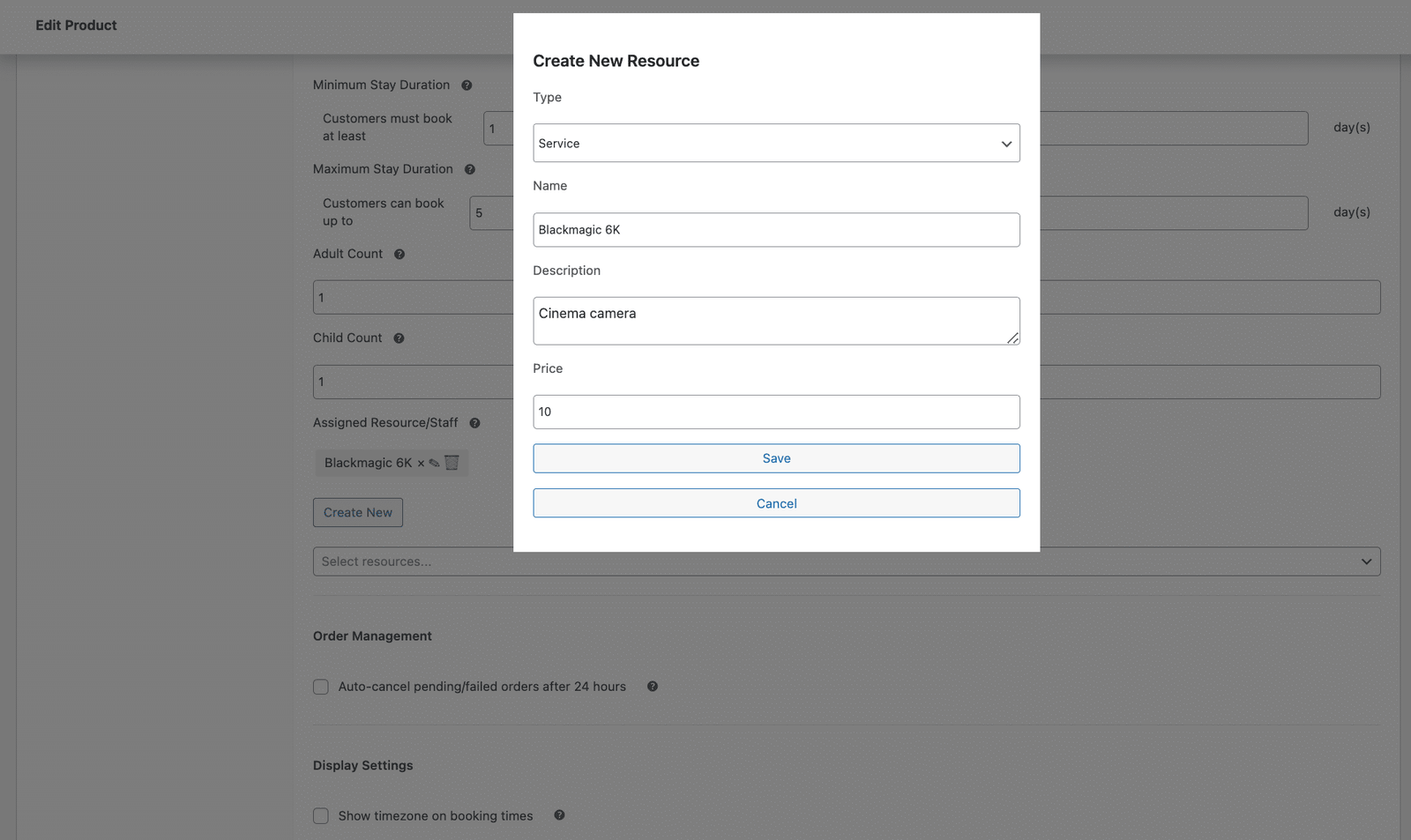
The Create New Resource dialog, where an accessory or unit is added with a name, description, and price before being attached to the rental product.
Each resource carries its own name and price. Items included at no extra cost, such as a standard carry case or a cleaning kit, are configured as zero-price resources and appear in the booking summary as included items. This communicates clearly what comes with the hire before the customer confirms.
Cancellation Policy for Equipment Rental Bookings
Why rental cancellation policies need clear deadlines
When a customer cancels an equipment hire with less than 24 hours’ notice, the business is left with an item sitting in the depot that could have been hired to another customer. As a result, the business loses revenue that is often impossible to recover within the same booking window, especially for specialist equipment or high-value assets. Enforcing clear cancellation deadlines helps protect against these losses.
Configure the cancellation policy for each WooCommerce Bookings product in the Cancellation settings of the Bookable Product. Set the cancellation deadline to specify how many hours before the rental start date customers can cancel. Once the deadline passes, WooCommerce removes the Cancel button from the customer’s account. If a customer cancels before the deadline, WooCommerce immediately returns the dates to the availability calendar.
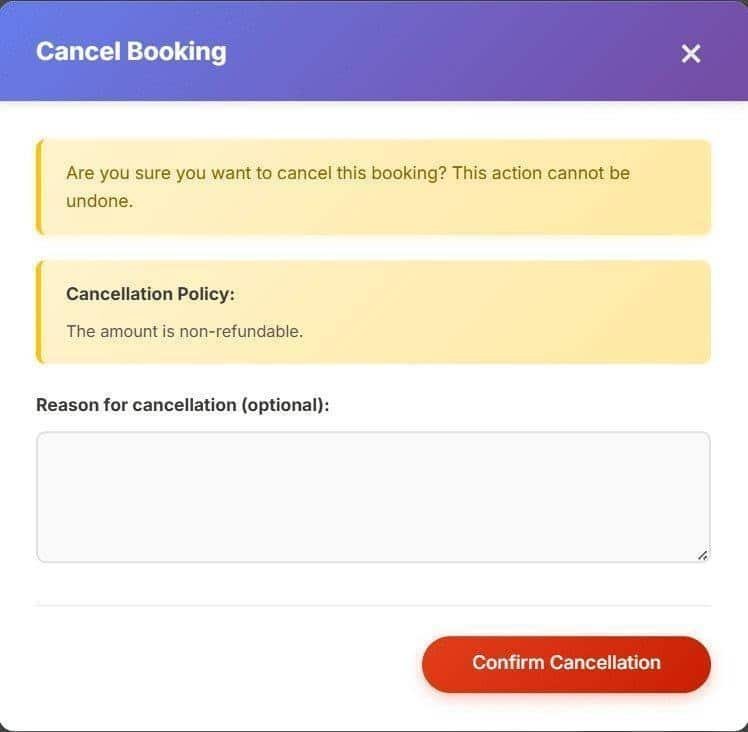
The Cancel Booking modal displays the rental’s stated cancellation policy and prompts for an optional reason before the customer confirms the cancellation request.
Rescheduling rental bookings
The Cancellation settings also control customer rescheduling. The Reschedule Deadline specifies how far in advance of the rental start date a customer may request a date change. Allowed Order Statuses controls which order states display the Reschedule button in the customer account. When a reschedule is confirmed, the original dates return to the availability calendar, and the new dates are blocked.
What Does the Admin Dashboard Show a Rental Business?
Booking Reports as a rental inventory overview
The Booking Reports section in the WooCommerce menu provides a real-time view of every WooCommerce Booking across all products. Filter by product, date/time, booking status, or customer name. Each record shows the customer, the rental item, the pickup and drop-off dates, the rental duration, the current order status, and a direct link to the WooCommerce order.
For equipment rental businesses managing a large catalogue, the ability to filter by product and date range turns Booking Reports into a practical inventory calendar. Filter for a specific item over the next 30 days, and the system shows exactly which dates are booked, which are available, and which have buffer periods pending.
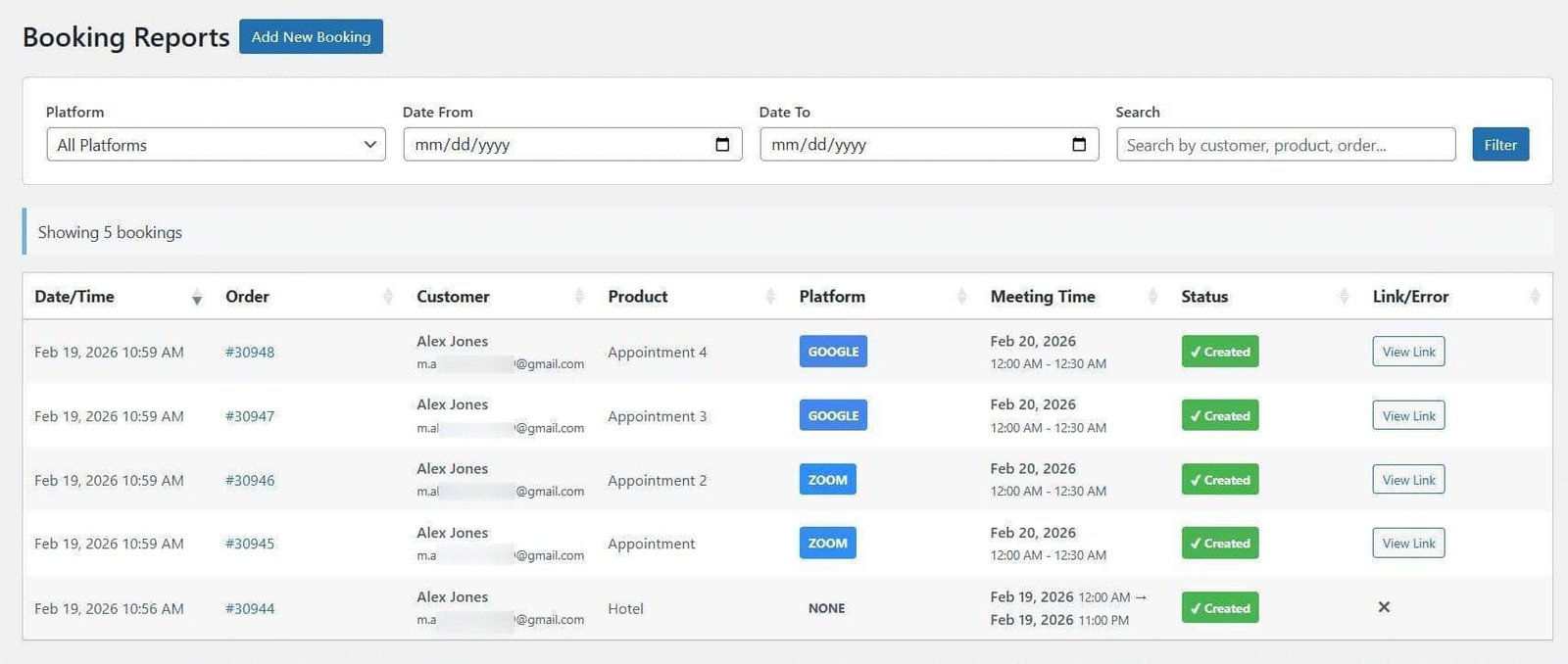
The Booking Reports dashboard shows bookings filterable by platform, date, and customer, each row showing the product, customer, date range, status, and a direct order link.
Manual bookings for phone and walk-in hires
Phone reservations and walk-in customers require the same rental record as online bookings. Manual rentals are created through WooCommerce > Booking Reports > Add New Booking. Select the customer, choose the rental product, set the pickup and drop-off dates, configure any accessory resources, and set the payment status. The customer receives the standard booking confirmation email, and the rental dates are blocked in the availability calendar immediately.
The Customer Experience: Booking and Managing Equipment Rentals Online
How customers hire equipment through WooCommerce
Customers book a WooCommerce Bookings from the product page. They select their pickup and drop-off dates from the live availability calendar, choose any optional accessories from the configured resources, and review the total rental cost before proceeding to the WooCommerce checkout. The total is calculated automatically from the daily rate multiplied by the rental duration. Payment is processed through the standard WooCommerce checkout.
Customer self-service through My Account
Customers access all their WooCommerce Bookings from the Bookings tab in their My Account area. Each hire is listed with the item name, pickup and drop-off dates, any selected accessories, the current status, and available actions. For upcoming rentals, customers can view the full booking details, request a reschedule within the policy rules, or initiate a cancellation. The cancellation modal displays the rental’s stated policy before the customer confirms.
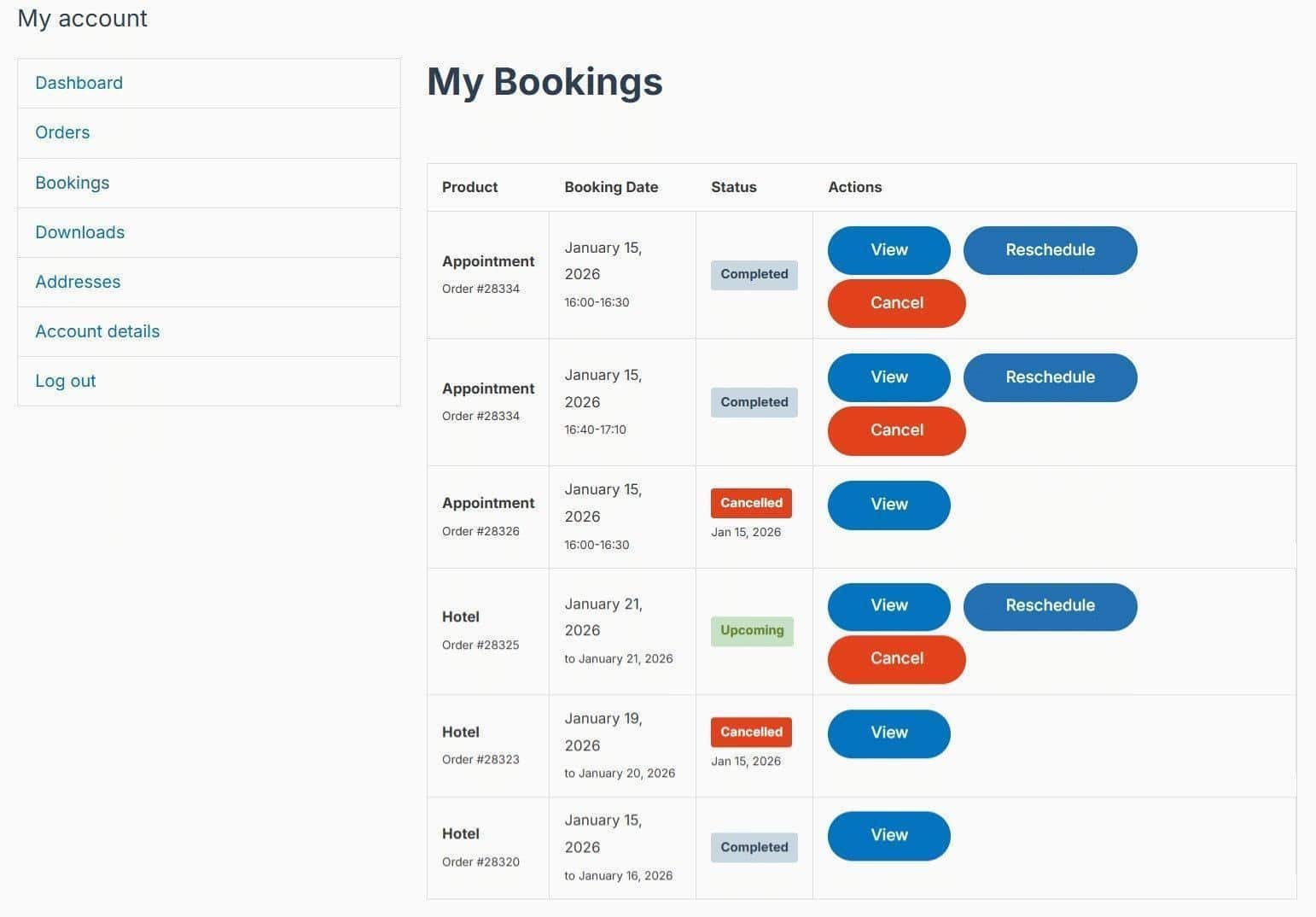
The customer’s My Bookings page shows each reservation with its product, booking date, status, and the View, Reschedule, and Cancel actions.
WooCommerce Equipment Rental: The Technical Summary
WooCommerce equipment rental uses the Rental booking type in the WooNinjas WooCommerce Bookings Add-on, with each item configured as a Bookable Product. Set the base daily rate in the Pricing tab, and the plugin automatically multiplies it by the rental duration at checkout. Configure the minimum and maximum hire periods, pickup and drop-off details, and buffer time between rentals in the Booking Options > Settings tab. Manage multiple identical units as separate resources to prevent double-booking, use blackout dates and recurring rules to block unavailable days, and configure cancellation and reschedule deadlines for each product. Every rental creates a WooCommerce order, and customers manage hires from the My Account Bookings tab.
Add-on starts at $79/year. Full documentation at the WooCommerce Bookings documentation.
A large or complex rental catalogue is where the multi-unit inventory and pricing setup takes real planning. The WooNinjas development team configures WooCommerce Bookings systems for tool hire companies, AV rental businesses, event equipment providers, and specialist hire fleets of all sizes. From multi-unit inventory management to duration pricing rules and cancellation enforcement, WooNinjas handles the full setup. Contact the WooNinjas team here, and they will review your rental catalogue and configuration requirements.
Pro Tip
For a WooCommerce Bookings catalogue with multiple units of the same item, such as three identical generators or five DSLR cameras, create a single Bookable Product per item type and manage each unit as a separate resource in the Booking Options > Settings tab. Each resource represents one physical unit. When all units are booked for a date range, the product disappears from the availability calendar. This prevents double-booking across your inventory without requiring a separate product per unit.
Frequently Asked Questions
Can WooCommerce handle equipment rental bookings?
Yes. The WooNinjas WooCommerce Bookings Add-on includes a dedicated Rental booking type configured in Booking Options > Settings tab. You can set up each rental item as a Bookable Product with its own availability calendar, daily rate, minimum and maximum hire duration, buffer time, and cancellation rules. WooCommerce processes the payment through its standard checkout. The Add-on starts at $79/year.
How does pricing work for WooCommerce Bookings?
Pricing for a WooCommerce Bookings product is set as a daily rate in the Pricing tab of the Bookable Product settings. The Add-on multiplies this rate by the number of rental days the customer selects. The total appears in the booking summary before checkout. You can configure long-hire discounts as duration-based rules in the Advanced Rules tab, applying a fixed-amount or percentage reduction when the hire reaches a specified number of days.
How do I prevent double-booking of the same equipment in WooCommerce?
The WooNinjas WooCommerce Bookings Add-on prevents double-booking through real-time availability tracking. When a rental is confirmed, the plugin immediately locks the dates and prevents any further bookings for that period. For businesses with multiple units of the same item, you can configure each unit as a separate resource in the Settings tab, so the product becomes unavailable only after customers have booked all units.
Can I add a buffer time between equipment hires in WooCommerce?
Yes. Buffer time is configured in the Booking Options > Settings tab of each WooCommerce Bookings product. Enter the gap in hours or days. The Add-on adds this gap automatically after each rental ends, before the next booking can begin. The buffer period does not display as a bookable window on the availability calendar.
How does cancellation work for WooCommerce Bookings rental bookings?
Cancellation policy is configured in the Cancellation settings of each Bookable Product. The cancellation deadline specifies how many hours before the rental start date a customer may cancel. After that deadline, the Cancel button is no longer visible in the customer account. When a customer cancels within the allowed window, the confirmation modal displays the rental’s stated policy before they confirm, and the dates return to the availability calendar immediately.
Need Ongoing WordPress Maintenance & Support?
We handle updates, performance monitoring, security hardening, and technical fixes so your WordPress and WooCommerce site stays stable and secure.
5 LLM SEO Tools Worth Trying for Your WordPress Site in 2026
Compare the best LLM SEO tools for WordPress in 2026: Peec AI, Otterly AI, Profound, Rankability, and AthenaHQ. Find the…
Read More...
WordPress MCP Plugin vs MCP Adapter: Which One Fits Your Site
WordPress MCP Plugin vs. MCP Adapter: a plugin is fast to install, the adapter is official and built on the…
Read More...
Managing WooCommerce Products with MCP: Add, Update & Sync via AI
See how a WordPress MCP server lets AI add, update, and sync WooCommerce products, what's possible today, and where the…
Read More...
