WooCommerce Class Booking: How to Take Registrations for Any Class or Course Online
Set up WooCommerce class booking for workshops and courses. Manage registrations, class sizes, and payments with the WooNinjas WooCommerce Bookings Add-on.

WooCommerce class booking is registration and scheduling for classes and courses run inside a WooCommerce store, where each class is a bookable product with an enrollment cap, a timetable, and an assigned instructor. Students see live availability, register, and pay at checkout, and a class that fills closes itself. Each registration becomes a WooCommerce order, in the same place as the rest of the store’s sales.
Stale availability on a class that closed weeks ago, registrations scattered across two spreadsheets and an inbox, a sold-out workshop that still shows as open: these are the friction points a store runs into without a properly configured WooCommerce Bookings system. What follows is how to set up the WooNinjas WooCommerce Bookings Add-on for any class-based business, from single-session workshops to structured multi-week courses. It covers class size, the single-course vs session-by-session product decision, instructor scheduling, online delivery, and student self-service.
Why WooCommerce Is the Right Platform for Class Booking
Classes as WooCommerce bookable products
When a class is configured as a Bookable Product in WooCommerce, it gains a live enrollment calendar, a registration cap, configurable scheduling through availability rules, an assigned resource/Staff, and automatic confirmation. Students register through the product page, pay through the standard checkout, and receive a confirmation. The class slot reflects the reduced availability immediately. No manual list management. No back-and-forth to confirm registration.
Because WooCommerce Bookings runs natively inside WooCommerce, student registration records, payment history, and any course material purchases sit in the same customer account. Reporting across all class products is available through a single Booking Reports view. There is no external enrollment platform to sync with and no separate database to reconcile at the end of the month.
The class types this covers
- Cooking and baking classes with a kitchen capacity limit.
- Art and ceramics workshops with equipment constraints.
- Photography masterclasses, both studio-based and online.
- Language courses meet weekly over a fixed term.
- Music lessons offered as individual sessions or as term-long programs.
- Dance classes across beginner, intermediate, and advanced levels.
- Professional development seminars and corporate training workshops.
The configuration is the same across all of these: one Bookable Product per class type, with its own capacity, schedule, and pricing.
Single-Session vs Multi-Week Course: The Product Structure Decision
When to use one product per course
For structured courses that run across multiple sessions with a fixed start and end date, the cleanest WooCommerce Bookings approach is a single Bookable Product that represents the entire course. A student registers once, pays the course fee in full, and their enrollment covers every session in the program.

A client-facing class product page for a multi-week course, with the date picker, attendee count, an optional recorded-lecture add-on, and the live total before Book Now.
The product can be configured using a defined start and end date to represent the overall course duration, with availability settings controlling when bookings are accepted. The Slots Per Event setting caps the class size. Many businesses close registrations before the course begins by adjusting availability to match.
When to use individual session products
Some WooCommerce Bookings setups benefit from individual session products, particularly when students may want to attend only selected sessions, when sessions run independently rather than as a progression, or when the business wants to manage different pricing for peak and off-peak sessions.

A single-session class product page, showing the date picker, attendee field, an optional add-on, and a sale price applied to the booking total.
A cooking school running a Thursday evening class on a drop-in basis (rather than a fixed-term enrolment) configures each Thursday session as its own Bookable Product. Students book and pay per session. Each session has its own capacity and its own booking window. The admin can adjust pricing and availability for specific sessions without affecting the others.
Configuring the class registration cap
Regardless of which product structure you use, the enrollment cap is controlled by the Slots Per Event setting in the product Availability tab. For a 10-person pottery workshop, this is set to 10. When 10 registrations are confirmed, the session disappears from the live calendar. No override is possible from the front end. The 11th student attempting to register will not see the session as available.
A multi-course programme or a studio with a dense weekly timetable is where the product structure starts to matter. Product structure, capacity rules, and schedule configuration take planning across a full class program. The WooNinjas team configures WooCommerce Bookings systems for educational and creative businesses of every type. Talk to us about your requirements here, and we will review the right setup before any work begins.
Instructor Assignment and Schedule Management
Adding instructors to WooCommerce Bookings class products
Instructors are assigned to class products using the Assigned Resource/Staff field in the Settings tab. Each class product can be assigned to the relevant instructor. If the same class is delivered by multiple instructors on different days, each can be assigned to the relevant product.
Managing Class Schedules with Availability Settings
Configure the following fields in the Availability tab:
- Available Days: select which days of the week the class runs.
- Available Time Range: set the exact start and end time of each session.
- Blackout Dates (optional): block specific dates when the class does not run, such as public holidays or scheduled breaks. Multiple dates can be imported via CSV.

The Availability Rules tab, with the available days selector, the daily time range that defines each session, and the blackout dates that block specific days.
Setting these fields precisely ensures students can only book during actual class times. Sessions on Monday, Wednesday, and Friday at 7 pm are configured by selecting those three days and setting the 7 pm time range. The class will not appear as available on any other day or time.
Buffer time and preparation for class instructors
Buffer time in a WooCommerce Bookings product adds a gap after each session before the calendar shows the next session as available. For classroom environments, this gap covers clearing and resetting the room, preparing materials for the next group, and handling any student questions after the session ends. Configure this in the Settings tab of the Bookable Product under Buffer Time. Even 15 to 20 minutes between sessions protects the quality of both.
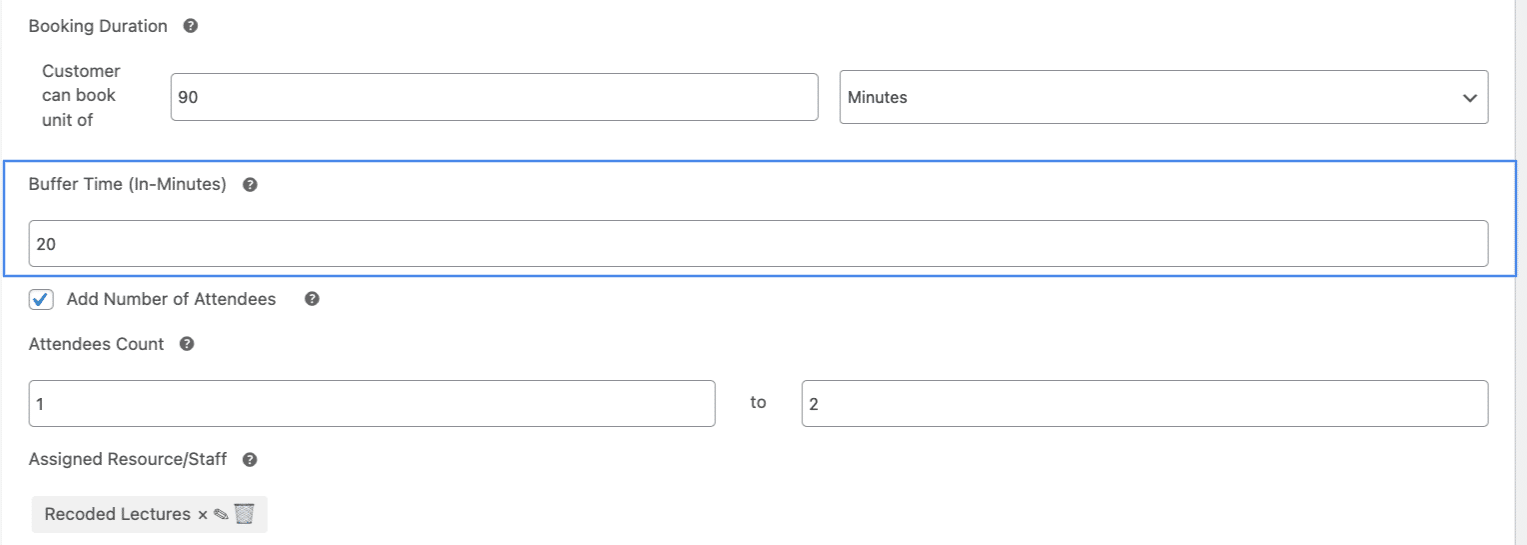
The Booking Settings tab with the Buffer Time field highlighted, alongside the session duration and the Attendees Count range that sets class size.
Online and Hybrid Class Delivery Through WooCommerce
Setting up virtual classes with Zoom in WooCommerce
Online delivery is no longer a fringe option: the IMARC Group valued the global e-learning market at about $342 billion in 2024 and projects it to be past $680 billion by 2033. The WooNinjas WooCommerce Bookings plugin connects with Zoom and Google Meet to deliver virtual class links automatically at registration. When a student completes their booking and payment, the plugin generates a Zoom meeting for that session and delivers the link in the confirmation email. There is no manual forwarding step between payment and access.
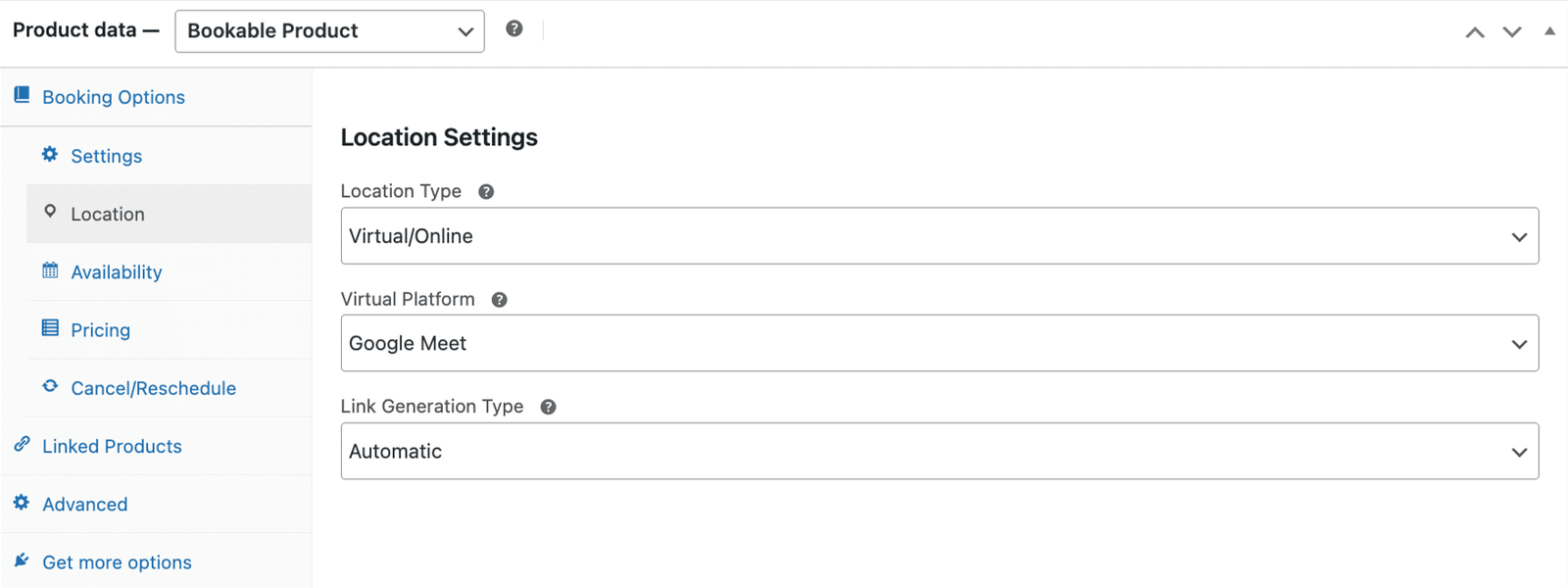
The Location Settings tab is set to Virtual/Online, with Google Meet selected as the platform and automatic link generation for online classes.
This works for both one-off online workshops and recurring virtual courses. For a weekly online photography course running for 6 weeks, the Zoom meeting link for each session can be generated in advance, with each session’s link delivered in the relevant session reminder email. Full configuration steps are in the WooCommerce Bookings Zoom and Google Calendar setup guide.
Hybrid classes: in-person and online simultaneously
Businesses running hybrid WooCommerce Bookings setups, where some students attend in person, and others join online, configure two separate Bookable Products for the same session. The in-person product has a physical space capacity limit. The virtual product has its own (typically higher) capacity and connects to Zoom for automatic link delivery.
Both products can be listed on the same page or as product variations. Students choose their preferred attendance format at registration, pay the appropriate rate (in-person and virtual pricing often differ), and receive the correct confirmation. The admin sees both registration streams in the same Booking Reports view.
Looking for a Ready-Made Solution?
Explore our WordPress, WooCommerce, and LMS plugins built to extend functionality without custom development.
What Does the Admin Dashboard Show for a Class Business?
The Booking Reports view for class businesses
The Booking Reports section in the WooCommerce menu shows all WooCommerce Bookings across all products and instructors. Filter by product, date/time, booking status, or customer name. Each record shows the booking product, session date and time, customer, and current status. For businesses running multiple class types simultaneously, this filtered view replaces any need for a separate enrolment tracking spreadsheet.
Walk-in registrations and last-minute phone enrolments are handled through WooCommerce > Booking Reports > Add New Booking. Select the student from existing WooCommerce customers or create a new account, choose the class product and session, configure any optional resources, and set the payment status. The student receives the same automated confirmation as an online registration, including any Zoom link if the session is virtual.
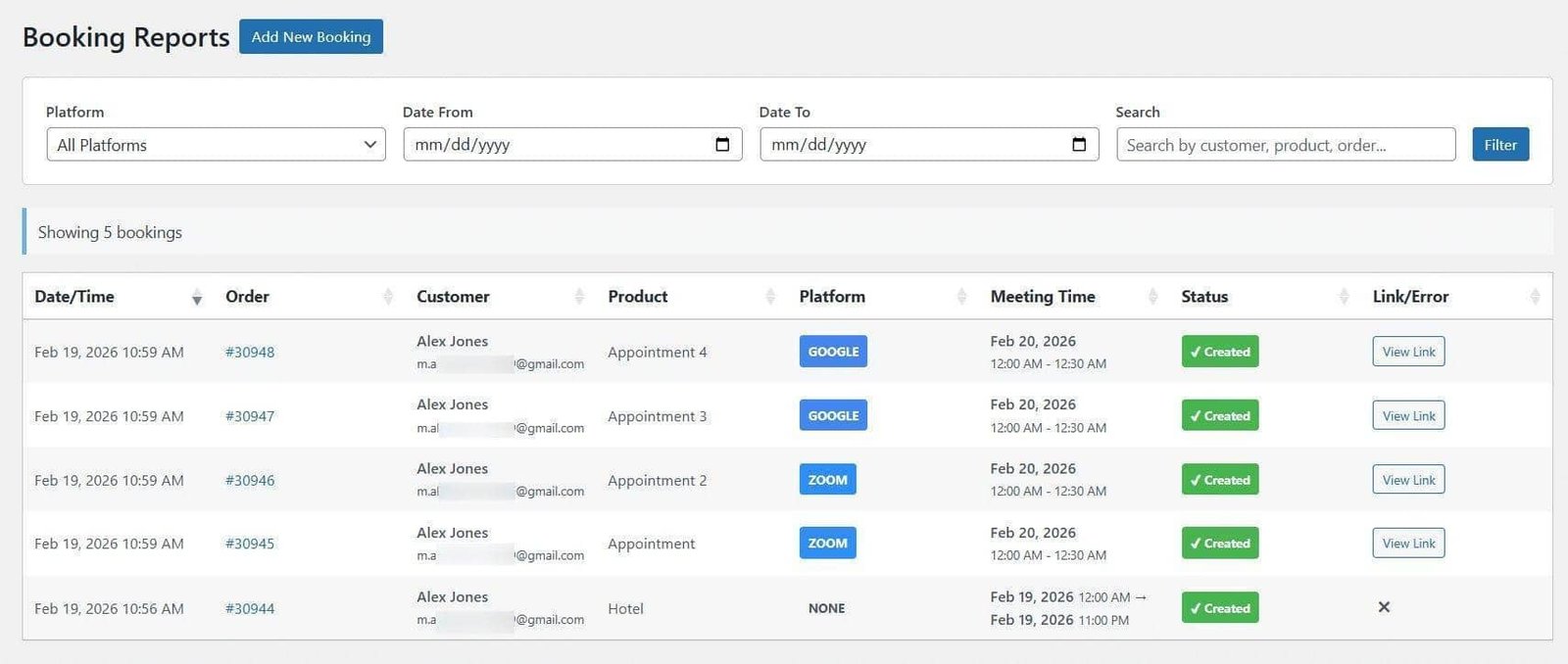
The Booking Reports dashboard shows bookings filterable by platform, date, and customer, each row showing the product, session time, status, and a direct order link.
The Student Experience: Registration and Self-Service
How students register for WooCommerce Bookings
Students register through the standard WooCommerce product page. The available session slots appear in the booking calendar. Students select their preferred date and time (or the single available session date for a fixed course), confirm any optional add-ons, review the registration total, and pay through the WooCommerce checkout. Confirmation is immediate. No waiting for a registration email to be manually sent.
Student self-service for class management
Registered students access all their WooCommerce Bookings from the Bookings tab in their WooCommerce My Account area. Each class is listed with the product name, booking date, status, and available actions. For upcoming sessions, students can view their full registration details, request a reschedule if the policy permits, or cancel within the deadline you have set.
The cancellation confirmation modal displays the studio’s cancellation policy before the student confirms. For structured courses with significant instructor preparation, a non-refundable policy after a set date is appropriate and can be configured per product. Cancelled spots return to the booking calendar immediately, allowing other students to take them.
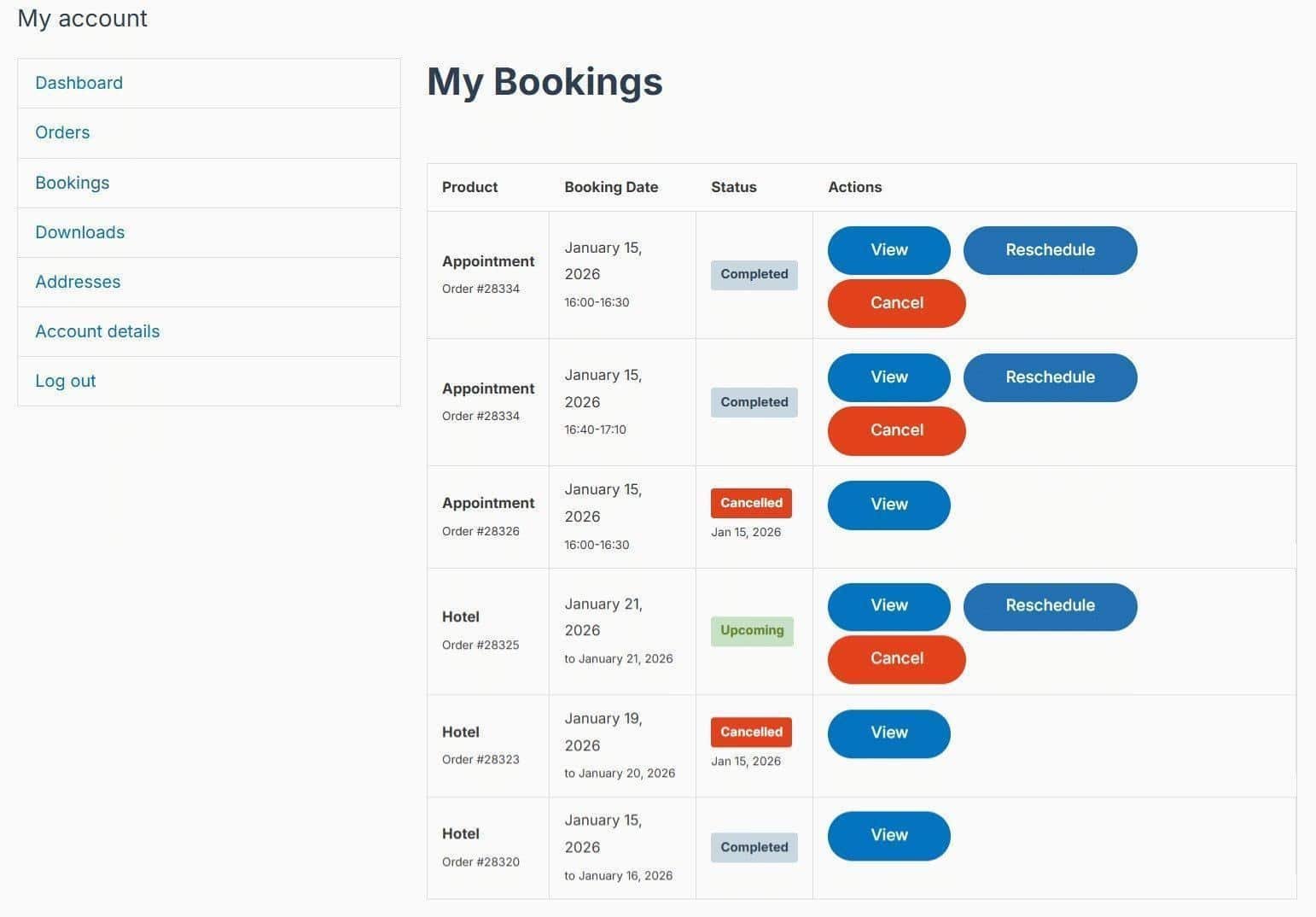
The My Bookings page shows each reservation with its product, booking date, status, and the View, Reschedule, and Cancel actions.
Class Materials and Add-Ons as Booking Resources
Selling materials alongside WooCommerce Bookings
Resources attached to WooCommerce Bookings products allow businesses to offer materials or equipment as optional paid additions to the registration. A pottery class might offer a clay and glaze pack as an add-on resource. A photography workshop might offer a printed reference guide. A cooking class might offer an ingredient kit for delivery. Students select these during the booking flow, and the total updates before they reach the payment step.
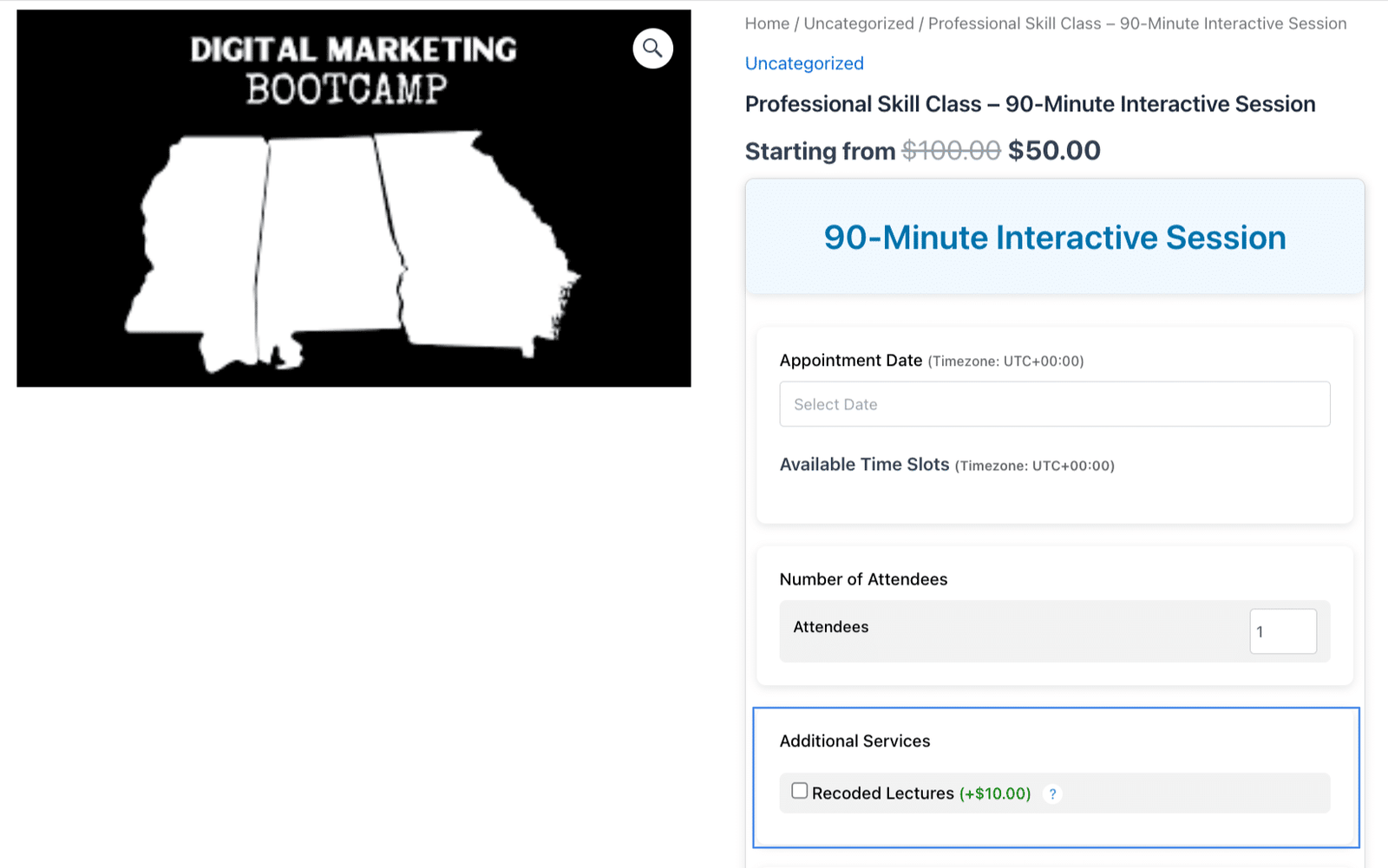
The same product page with the Additional Services section highlighted, where a priced add-on, such as a recorded lecture,s is offered during registration.
Including required materials in the course fee
Resources configured at no additional charge are displayed as included items in the booking summary. Listing what is included in the registration fee, such as all materials, access to equipment, or a digital course pack, builds student confidence before they confirm and reduces post-purchase questions about what the class covers.
Payment for WooCommerce Class Bookings
Flexible payment options for class registrations
Every WooCommerce Bookings process goes through the standard WooCommerce checkout. Students see the base registration fee, any selected material add-ons, and the total before confirming. Payment processes through the gateways are already active in your WooCommerce settings.
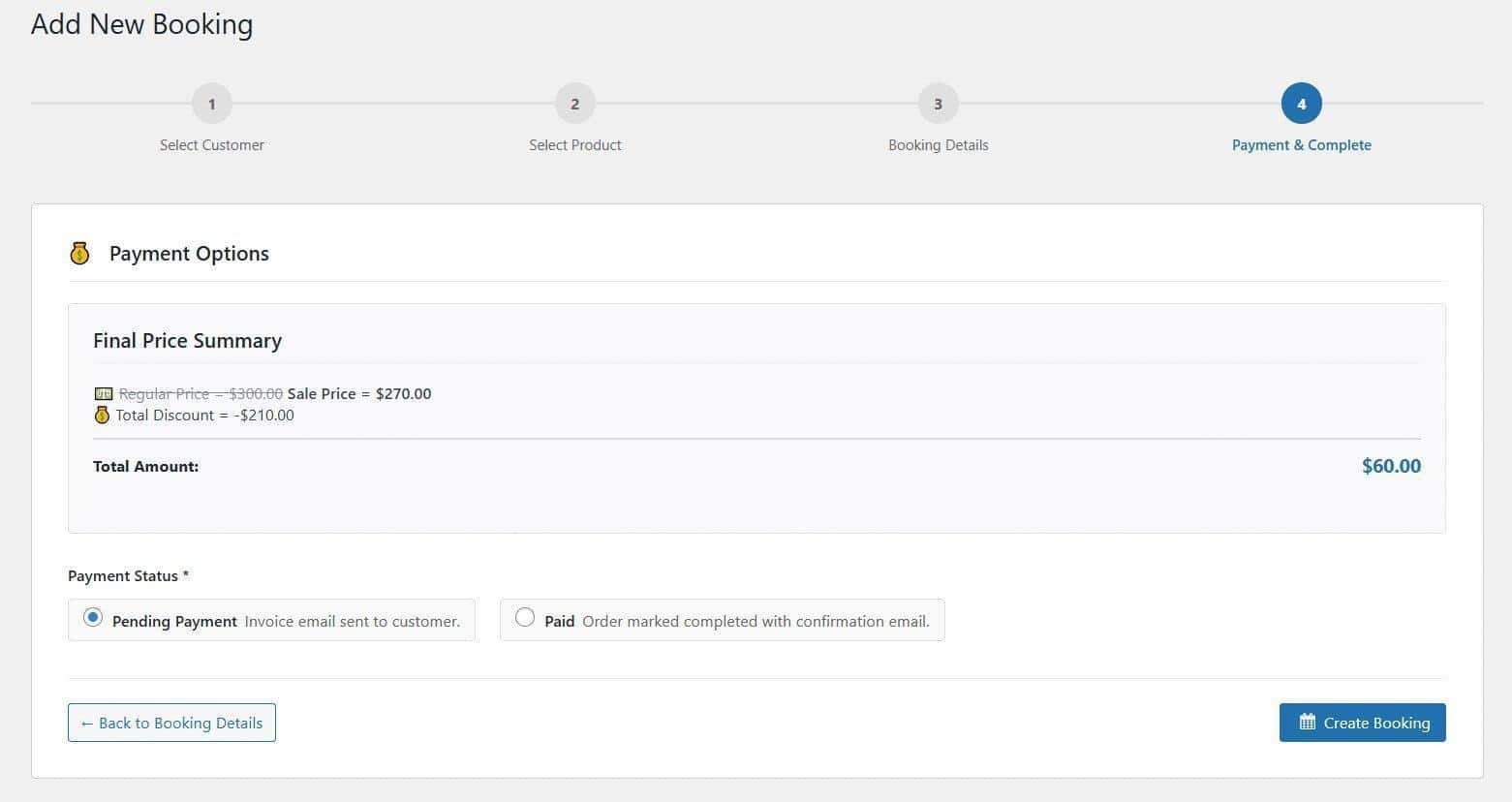
The Payment and Complete step shows the final price summary with any discount applied and the pending or paid status options before the booking is created.
WooCommerce Class Booking: The Direct Answer
WooCommerce class booking lets any class-based business take registrations directly from a WordPress site, with each class or course configured as a Bookable Product using the Event booking type. Key configuration points:
- Enrollment cap: Slots Per Event setting in the Availability tab: the session closes automatically when reached.
- Single-session workshops: one Bookable Product with a fixed time slot and Slots Per Event cap.
- Multi-week courses: one Bookable Product with start and end dates covering the full course duration.
- Availability: Available Days and Available Time Range define when each session is bookable.
- Instructors: assigned using the Assigned Resource/Staff field in the Settings tab.
- Buffer time: configured in the Settings tab via the Buffer Time field.
- Material add-ons: configured as priced resources attached to the product.
- Virtual delivery: Zoom or Google Meet links delivered automatically at registration.
Every registration creates a WooCommerce order, and students manage their class bookings from the My Account Bookings tab.
The Add-on starts at $79/year. Full documentation at the WooCommerce Bookings documentation.
For further reading on introducing bookings to a WooCommerce store, see the introducing WooCommerce Bookings page.
A multi-course program or a busy weekly timetable is where this setup takes real planning. The WooNinjas team configures WooCommerce Bookings systems for creative studios, educational businesses, and professional development providers. From single-session workshop setups to full multi-course programme configurations, WooNinjas handles the product structure, schedule entries, and payment rules. Get in touch with the WooNinjas team here, and they will review the class setup requirements.
Pro Tip
When setting up WooCommerce Bookings class products for workshops or masterclasses that require physical materials, close bookings in advance of the session by configuring your availability rules to suit. Leaving at least 48 to 72 hours between the booking cutoff and the class start gives staff time to prepare materials, arrange supplies, and send pre-class information to registered students. Same-day booking for structured workshops often creates unnecessary pressure on delivery. Match your booking cutoff timing to the actual preparation requirements of each class type.
Frequently Asked Questions
Can WooCommerce handle class and course registrations?
Yes. The WooNinjas WooCommerce Bookings plugin lets any class-based business configure registrations through WooCommerce Bookable Products. Each class has its own enrollment cap, schedule, and Assigned Resource/Staff. Students register through a live availability calendar, pay through the WooCommerce checkout, and receive automated confirmation. The plugin covers single sessions, recurring classes, and structured multi-week courses.
How do I limit the number of students in a WooCommerce Bookings?
The enrollment cap for a WooCommerce Bookings product is set through Slots Per Event in the product Availability tab. When the cap is reached, the session no longer appears as available in the calendar. No further registrations are possible through the front-end booking flow. The setting is configured per product, so each class type has its own independent limit.
Should I use one product per course or separate products per session in WooCommerce?
For structured courses with a fixed cohort, one Bookable Product per course is the cleaner WooCommerce Bookings approach. Students register once, and the enrollment covers the full program. For drop-in classes where students attend individual sessions independently, separate products per session give more flexibility. The right structure depends on whether the business model is cohort-based enrolment or session-by-session attendance.
Does WooCommerce Bookings support virtual and online classes?
Yes. The WooNinjas WooCommerce Bookings plugin connects with Zoom and Google Meet. When a student registers for a virtual class, the plugin automatically generates a meeting link and includes it in the confirmation email. Both in-person and virtual versions of the same class can run as separate products in the same WooCommerce catalogue.
Can I sell class materials or equipment alongside WooCommerce Bookings?
Yes. Resources configured in the Bookable Product settings allow optional paid add-ons to be attached to any WooCommerce Bookings product. Students select resources during the registration flow and the total updates before checkout. Resources can be configured as paid extras or as included items displayed in the booking summary at no additional charge.
Need Ongoing WordPress Maintenance & Support?
We handle updates, performance monitoring, security hardening, and technical fixes so your WordPress and WooCommerce site stays stable and secure.

5 LLM SEO Tools Worth Trying for Your WordPress Site in 2026
Compare the best LLM SEO tools for WordPress in 2026: Peec AI, Otterly AI, Profound, Rankability, and AthenaHQ. Find the…
Read More...
WordPress MCP Plugin vs MCP Adapter: Which One Fits Your Site
WordPress MCP Plugin vs. MCP Adapter: a plugin is fast to install, the adapter is official and built on the…
Read More...
Managing WooCommerce Products with MCP: Add, Update & Sync via AI
See how a WordPress MCP server lets AI add, update, and sync WooCommerce products, what's possible today, and where the…
Read More...
