LearnDash Course Planner Pro

Years In Business
Sites Built
Plugins Developed
Repeat Clients
Add-On Requirements
 1.16.4
Current Version
 10 Sep 2026
Last Update
 6.8 Or Higher
WordPress Version
 4.20.0 Or Higher
LearnDash Version
 7.4 Or Higher
PHP Version
Add-On Overview & Features
Set a schedule for all of your courses, lessons, topics and quizzes and keep track of these scheduled events from the add-on’s calendar. By displaying custom messages, informing students of course content available and using the add-on widget, you can easily keep your students in the loop about upcoming events.
Control the visibility of your courses by choosing when content is available and which users or user roles will be able to access it.
Features Of LearnDash Course Planner Pro
1 Drag And Drop Calendar Interface
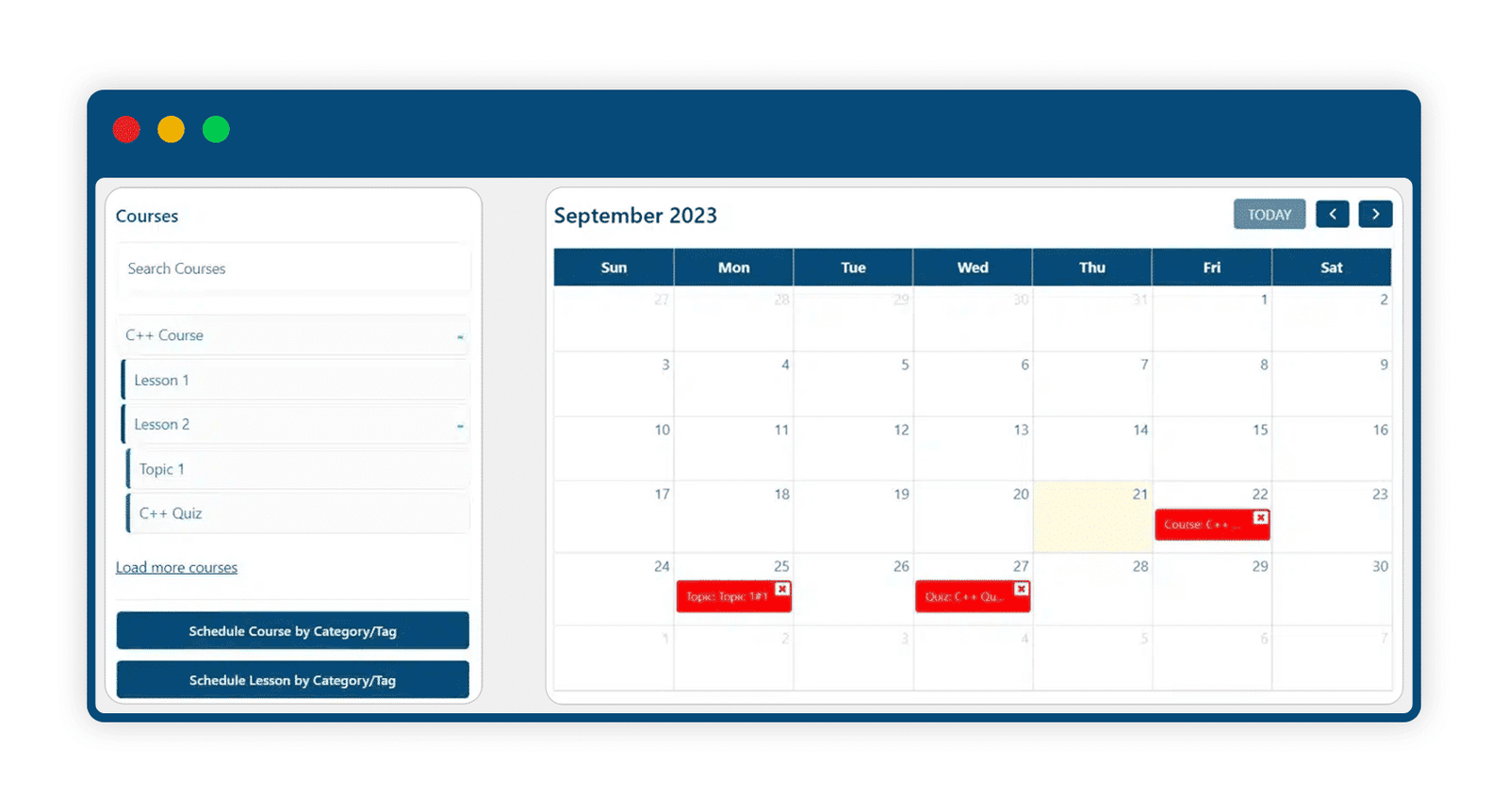
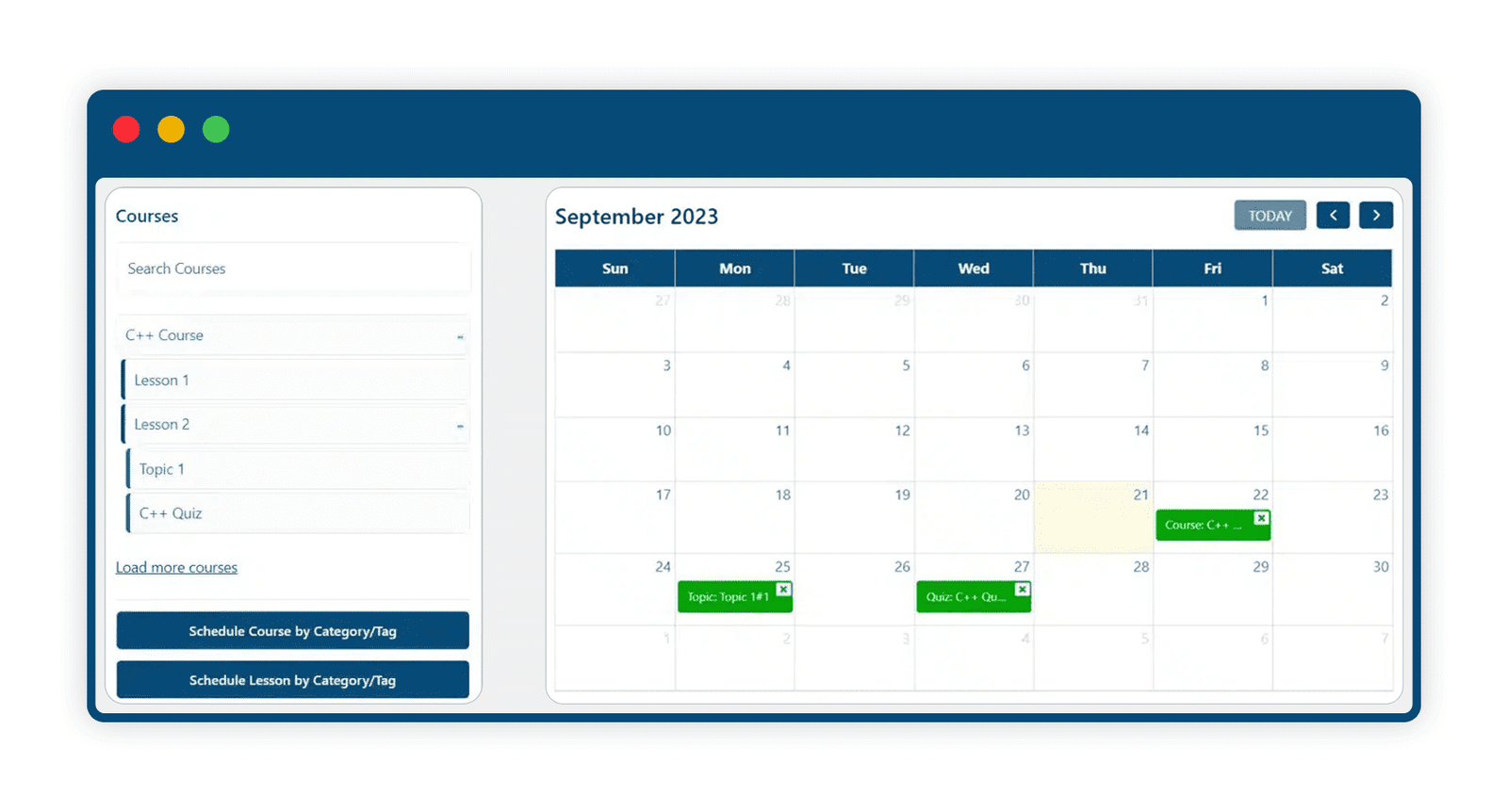
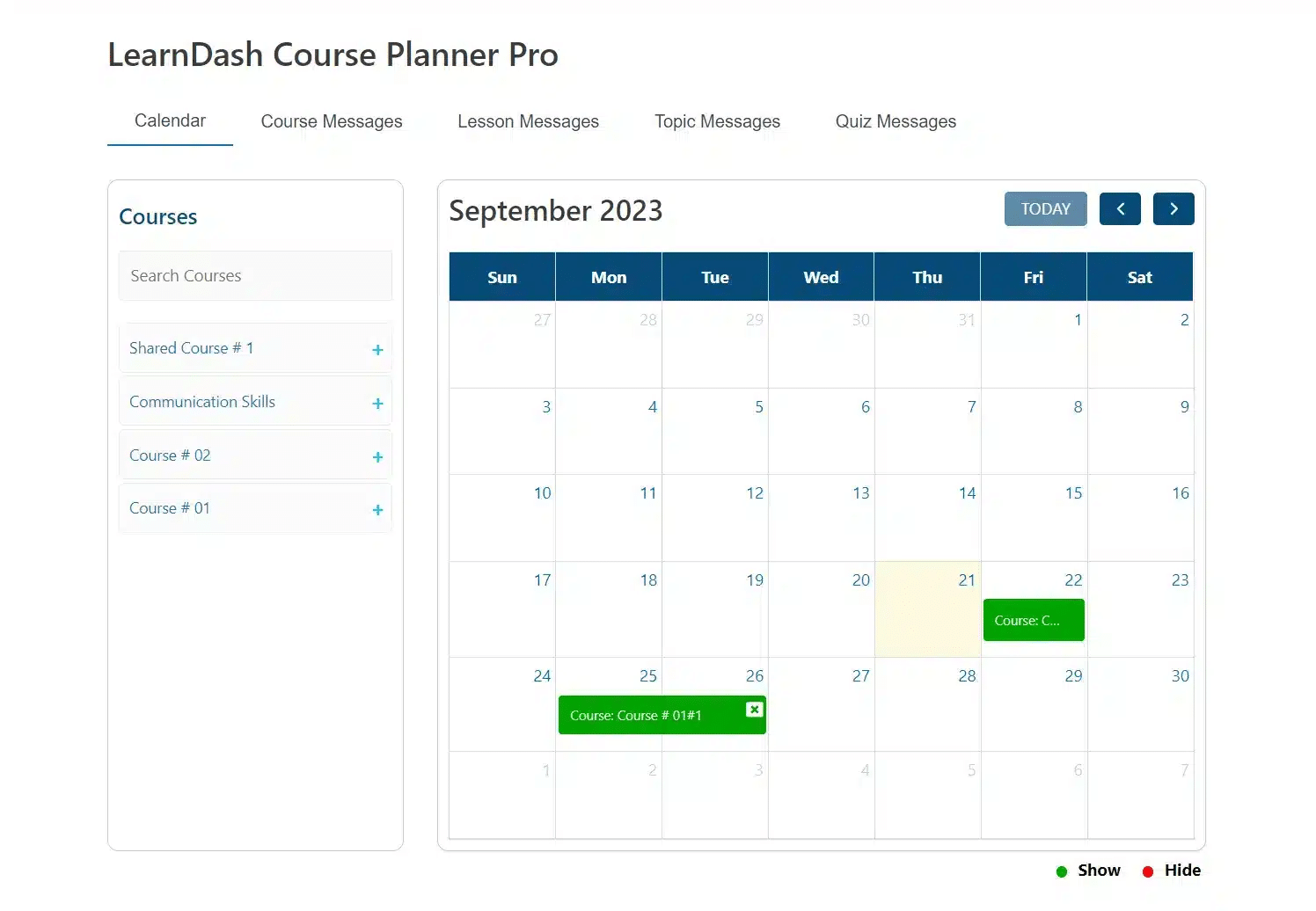
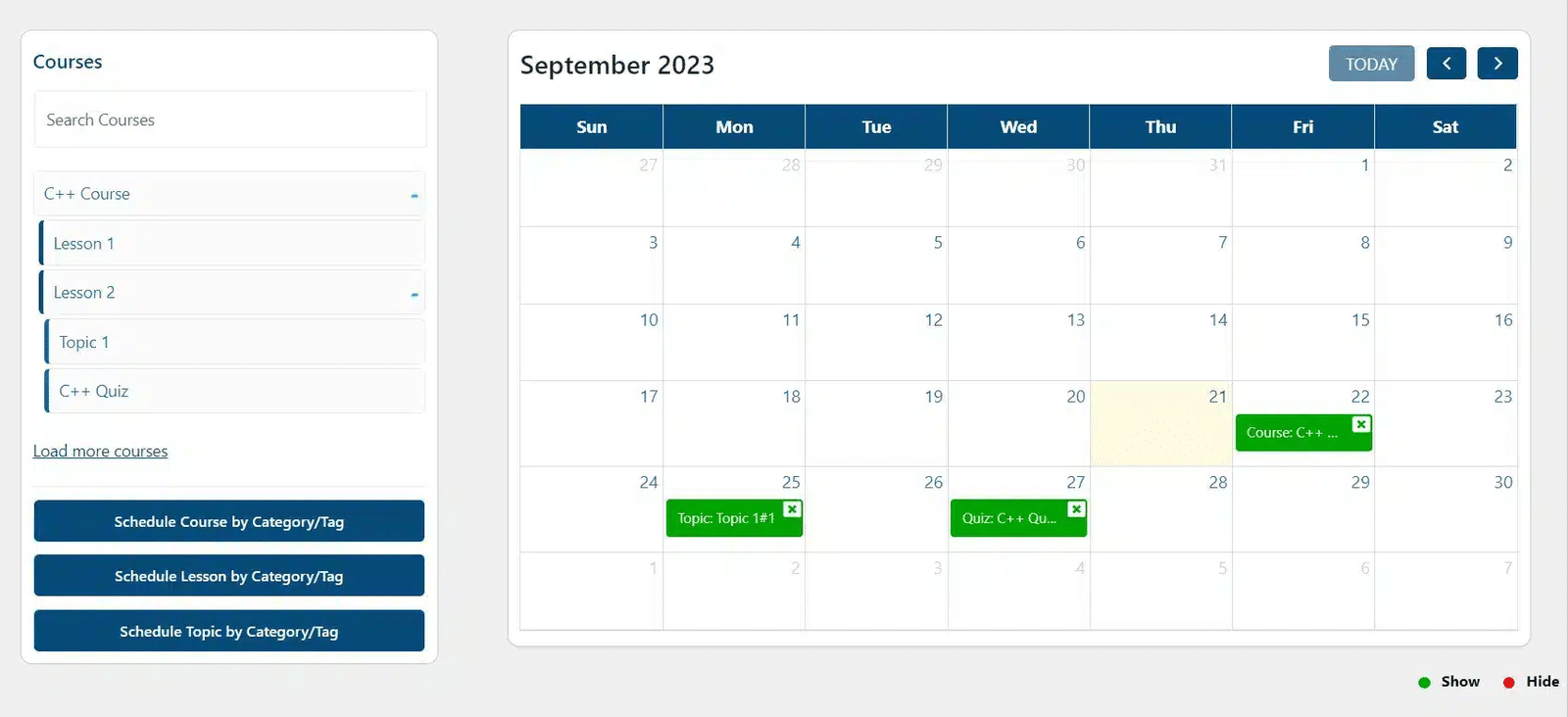
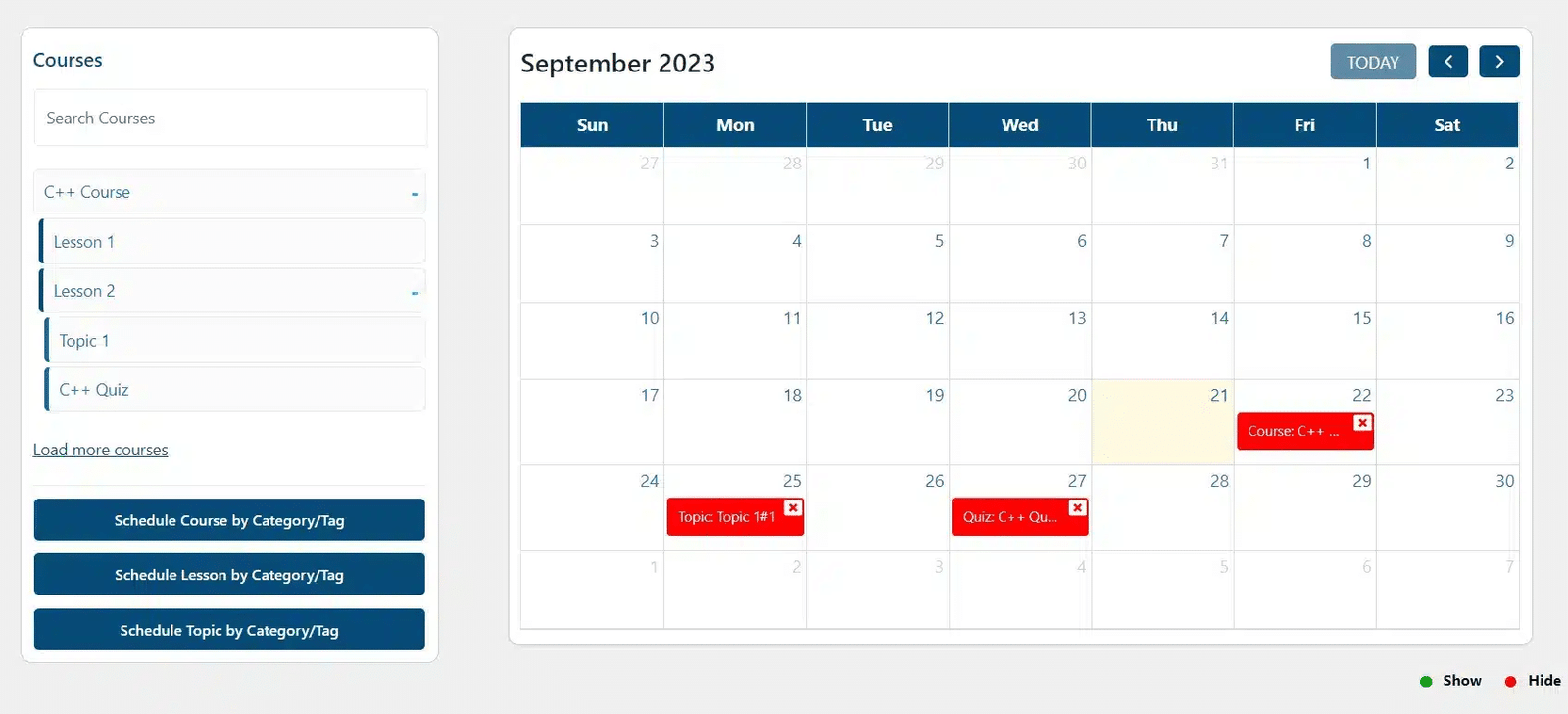
The process of scheduling content to be visible or hidden is easily done by simply dragging and dropping content onto any date on the calendar. From the calendar, you can also access additional scheduling settings. Furthermore, it is easy to delete scheduled dates directly from the calendar.
2 Hide Course Content For A Selected Period Of Time
You can also determine dates in which course content becomes hidden from your students. Similarly, these courses, lessons, topics and quizzes can be scheduled individually or according to their category or tag. Whilst content is hidden, you also have the option to hide these courses from the course listing page.
3 Execute When Course Content Becomes Visible
With this add-on, you can set dates for when course content becomes visible to your students. Courses, lessons and topics can be scheduled individually or according to their category or tag.
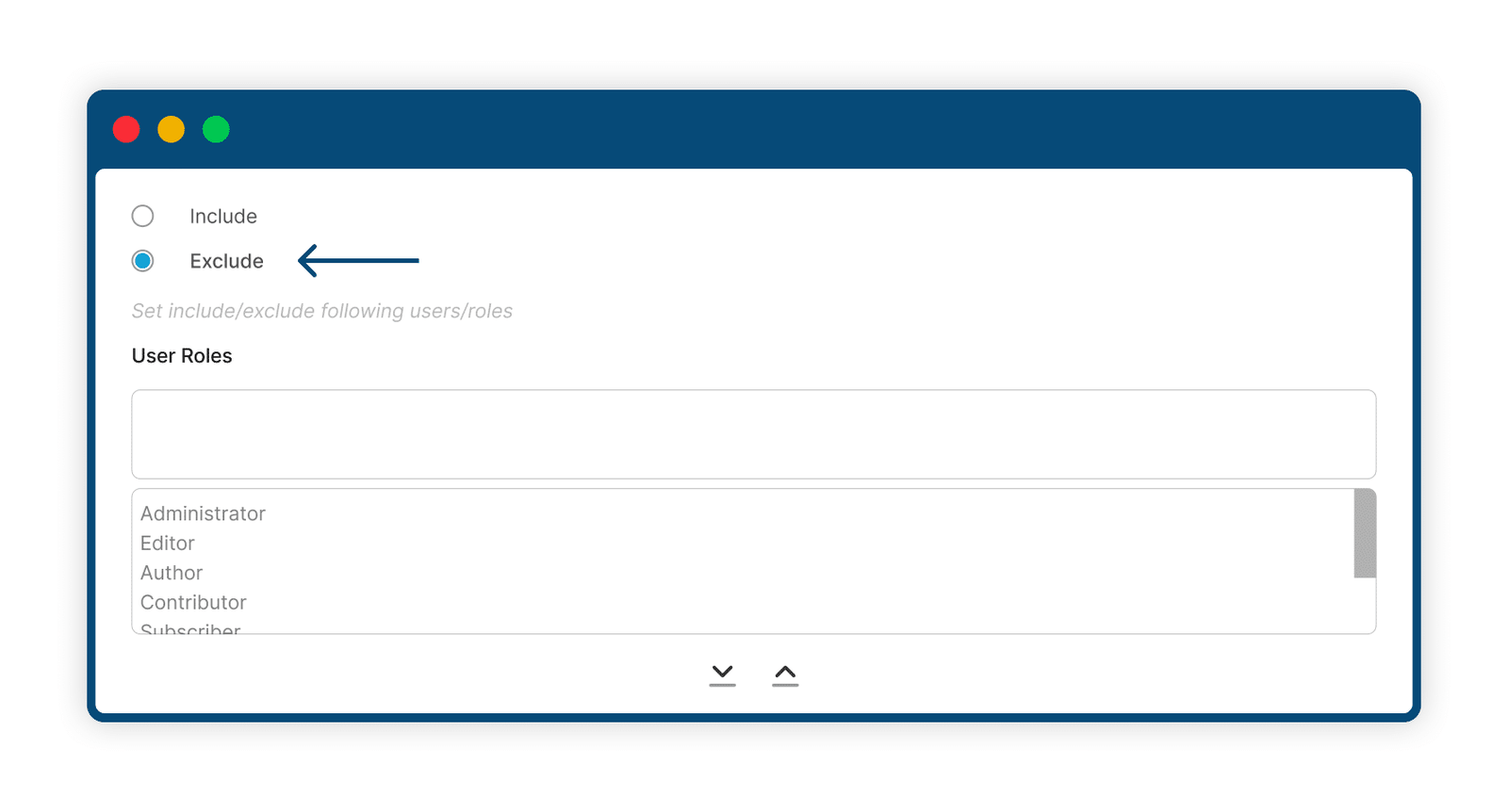
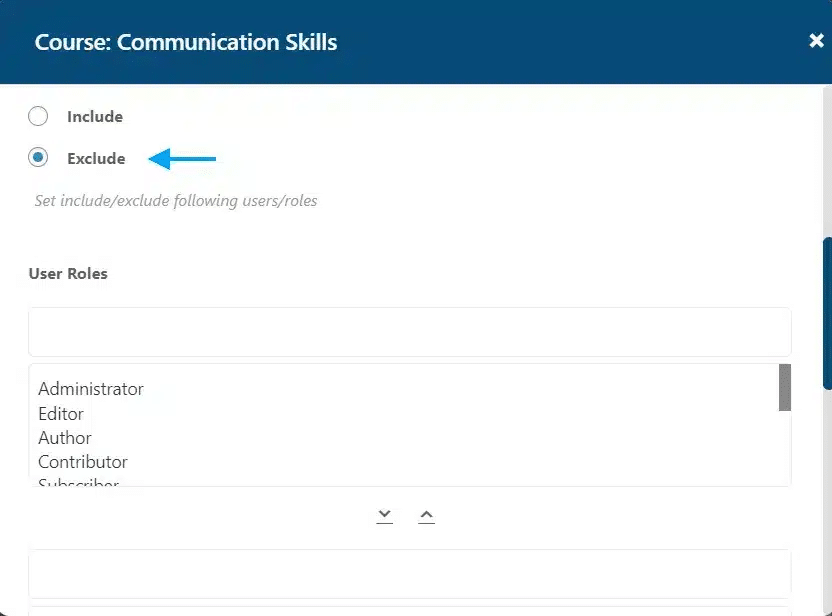
4 Exclude User Roles From Scheduling
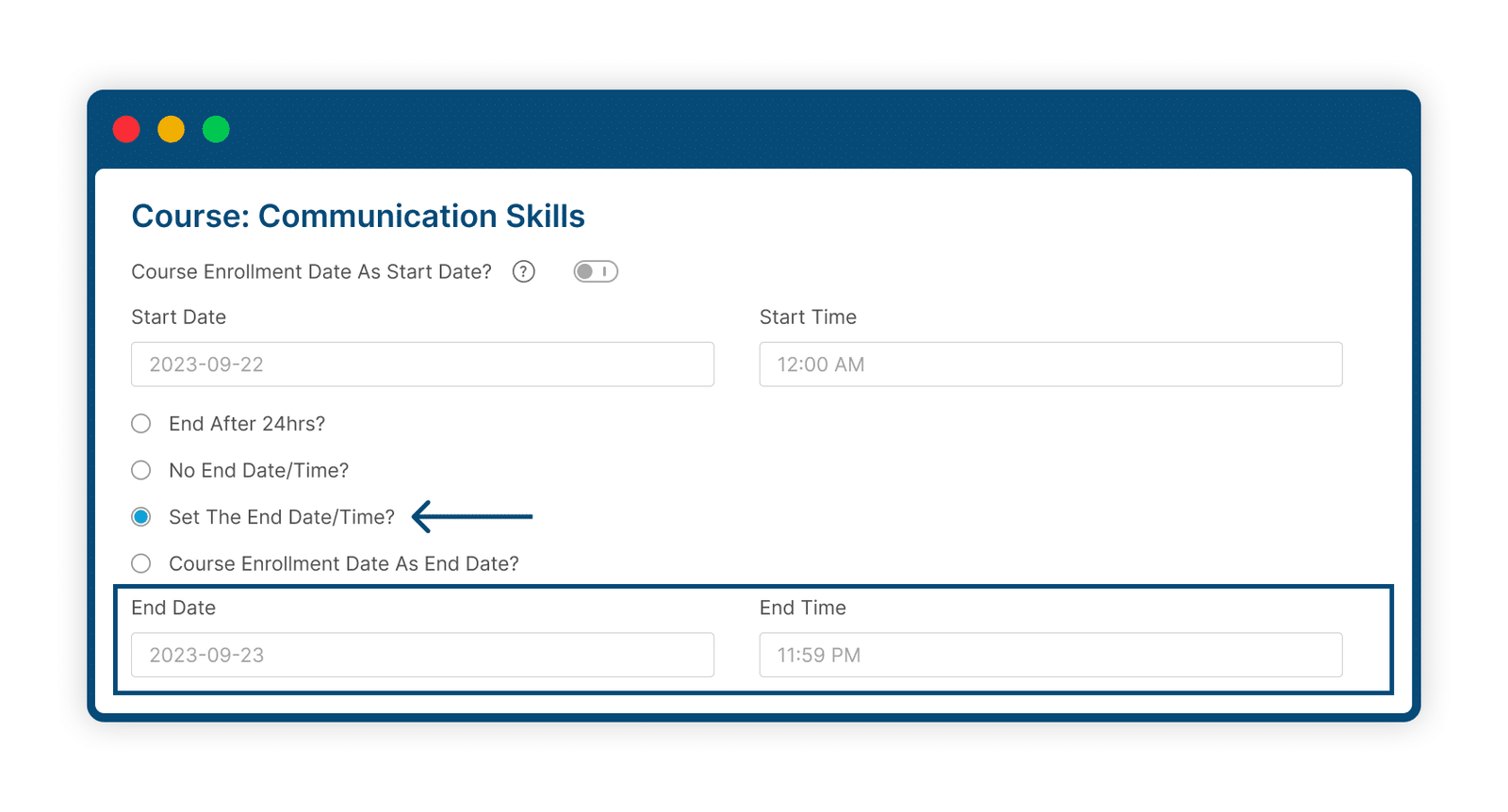
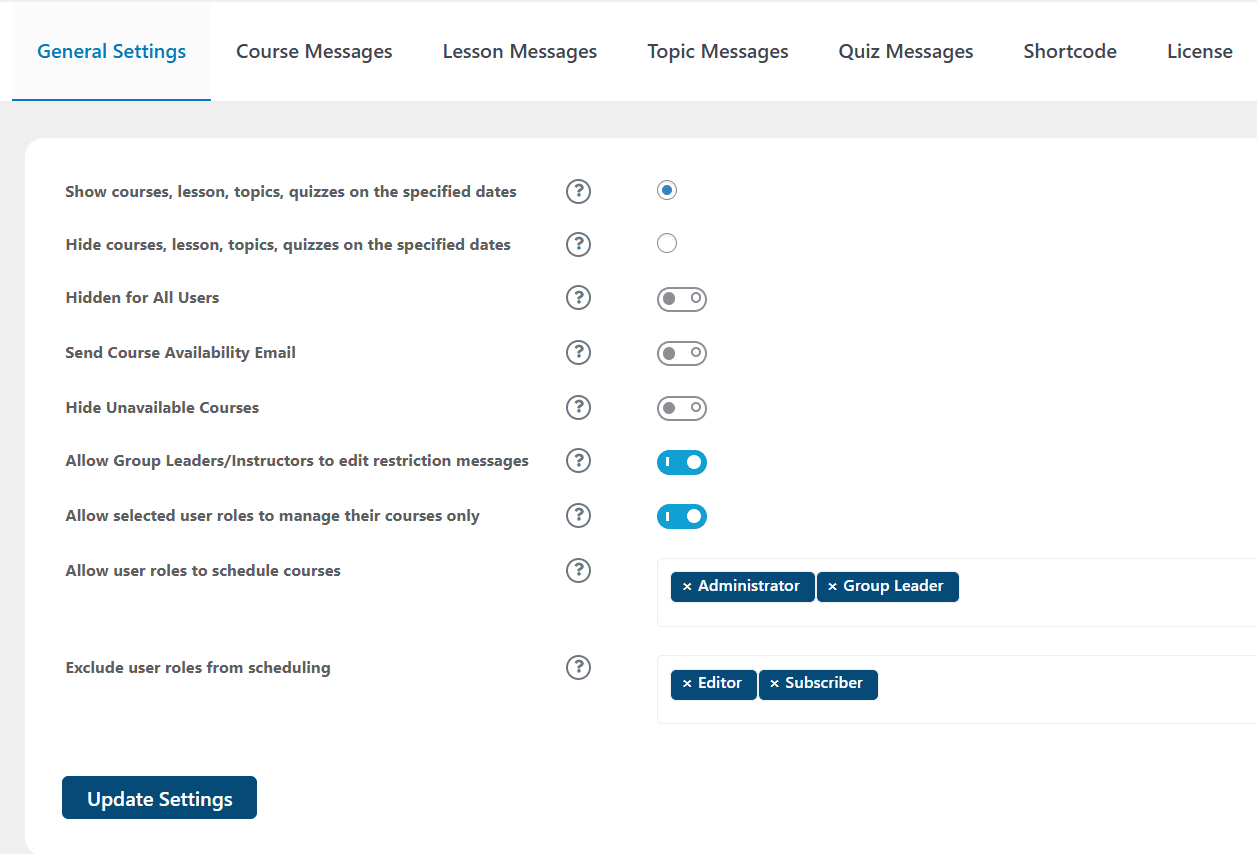
You can exclude the selected user roles from scheduling so they will be able to view all of the unavailable courses.
5 Select End Date
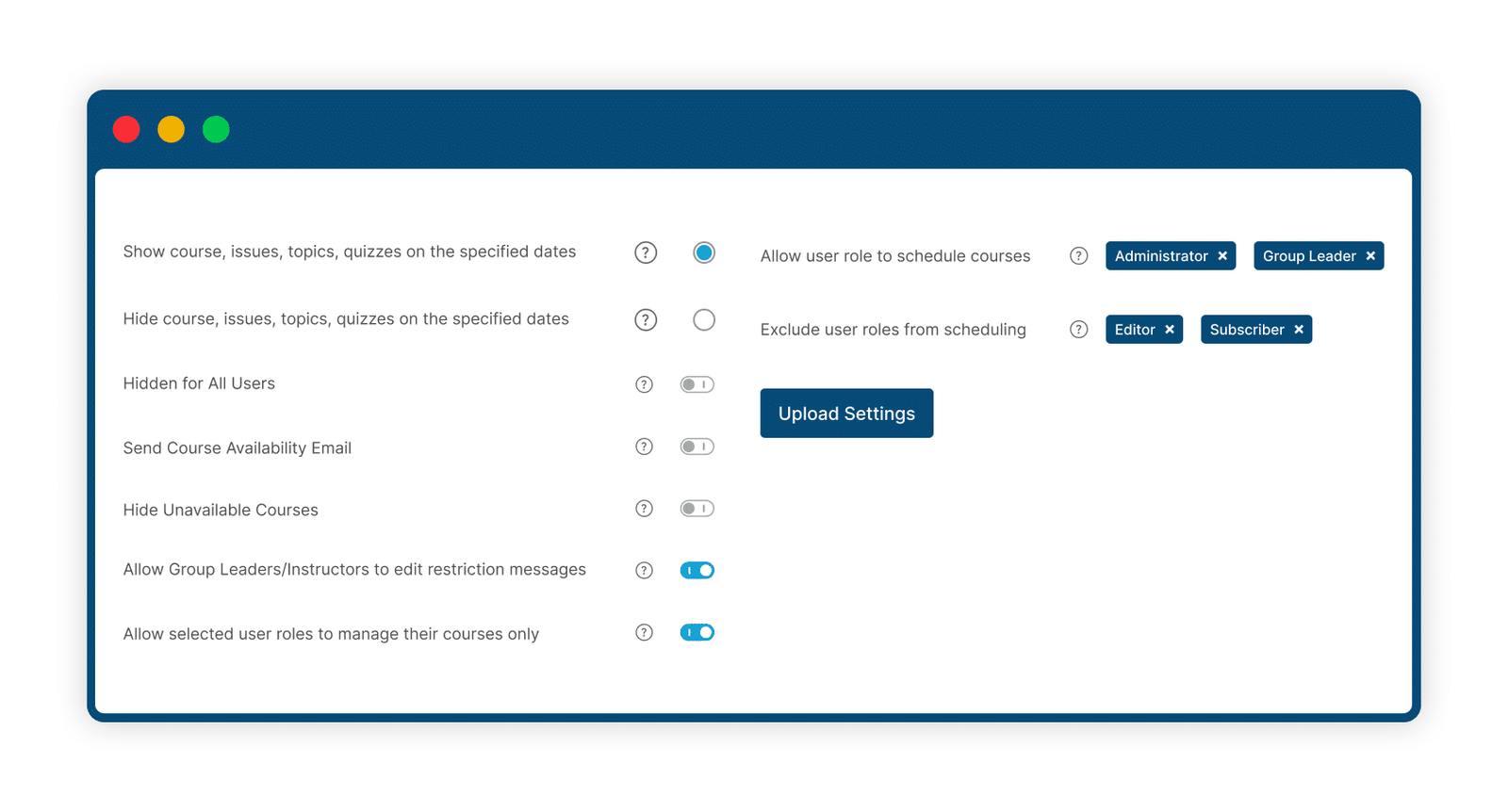
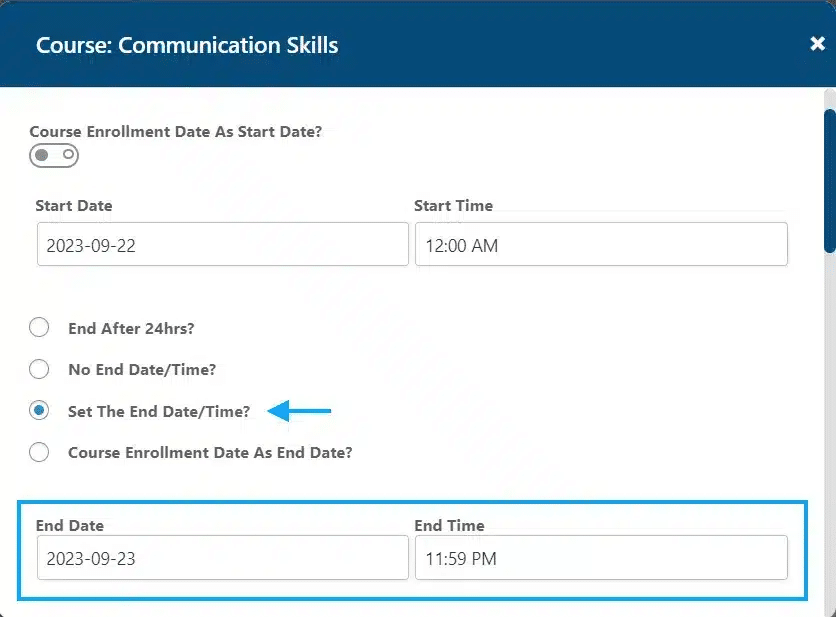
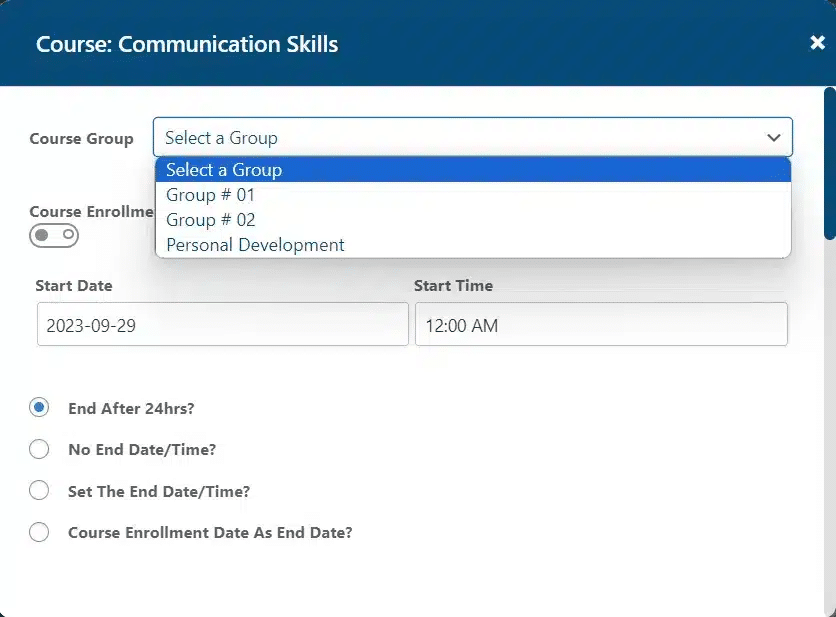
To set the end date of the schedule, you can schedule the end date after 24 hours or set a specific end date and time. There is also an option if you do not want to set any End Date.
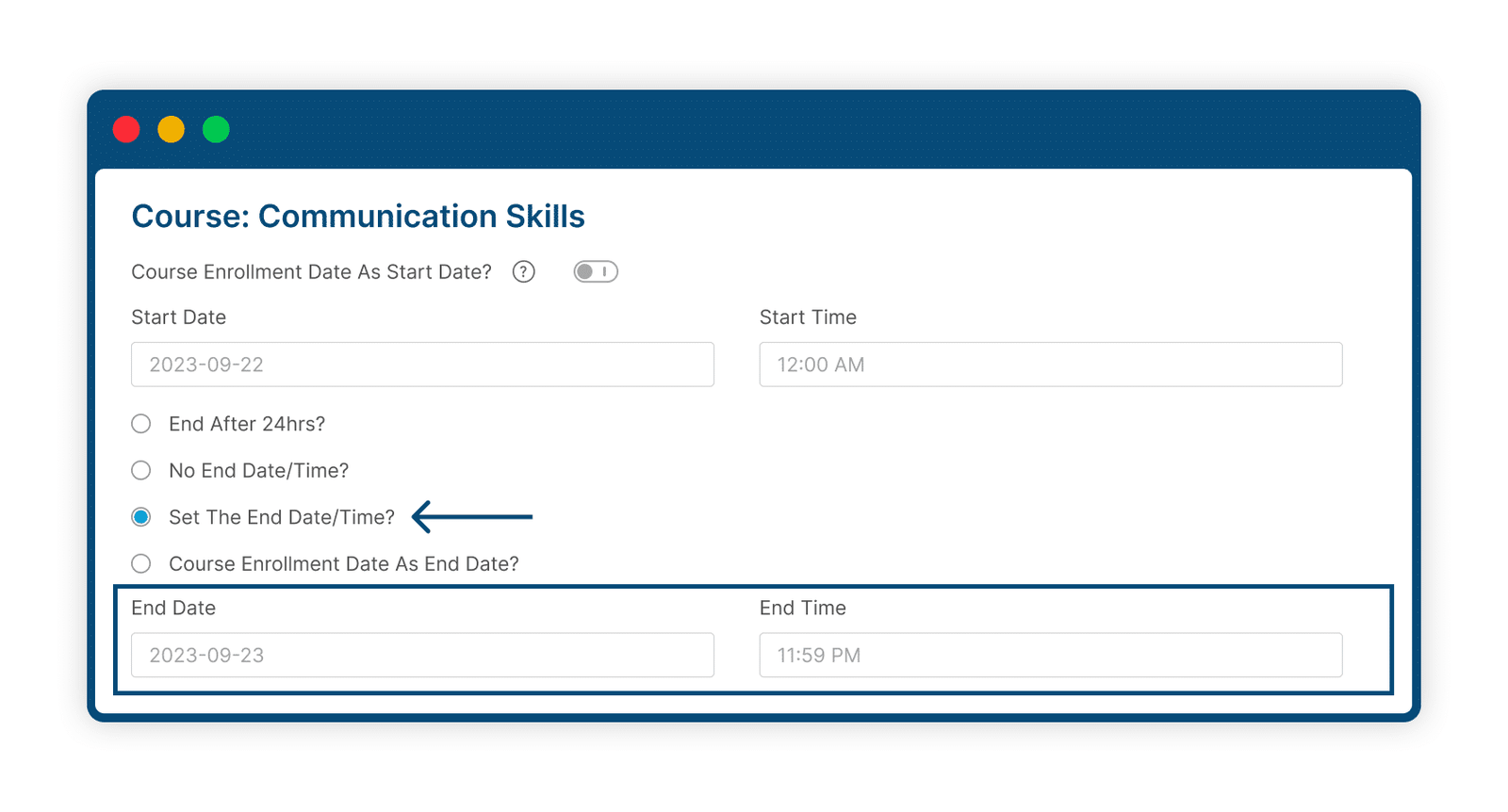
6 Exclude Specific Users Or User Roles From The Course Schedule
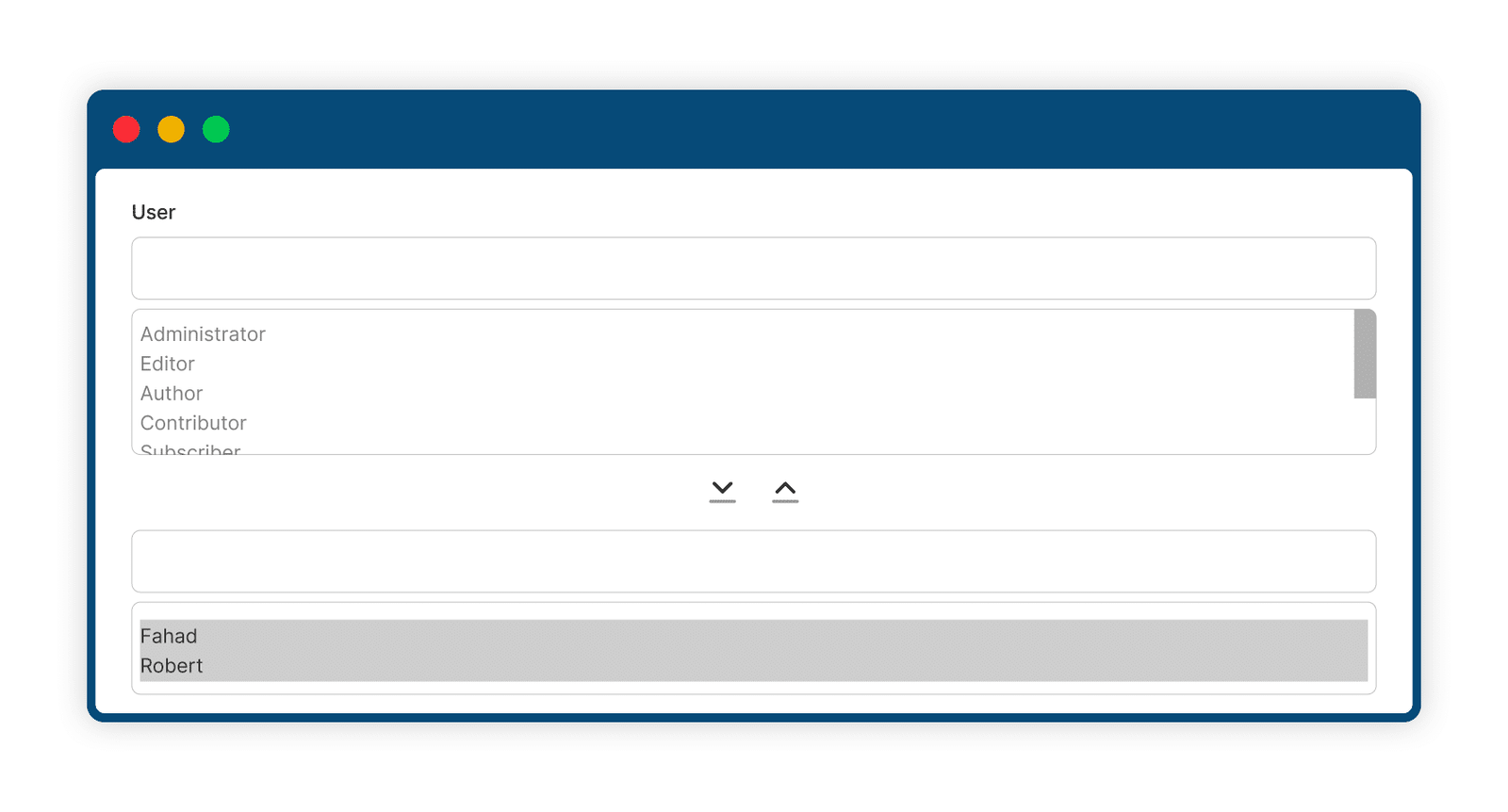
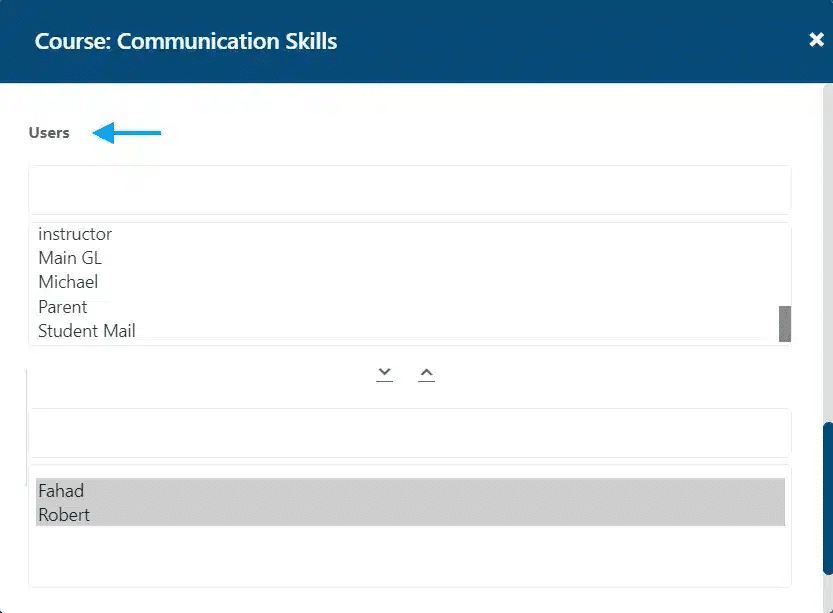
The add-on allows you to select specific users or user roles to be excluded from the selected schedule for a course, lesson, topic or quiz.
7 Set A Different Schedule For Specific Users Or User Roles
Part of being an adaptive learning platform is offering flexibility to your students. With the add-on you can offer unique scheduling of course content for specific users or users roles by using the “Include Users” and “Include User Roles” scheduling options.
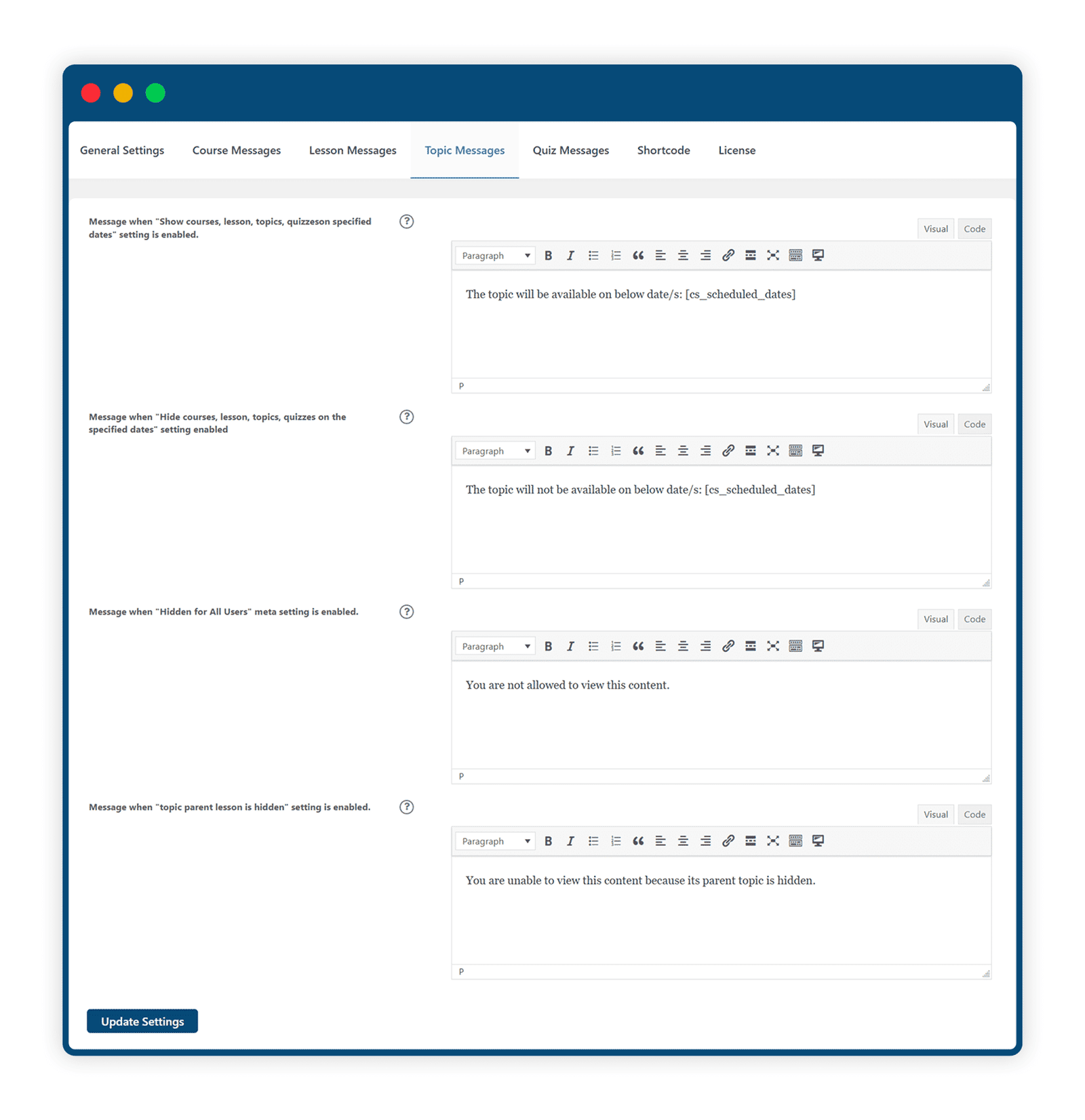
8 Messaging To Keep Students Up To Date And Informed
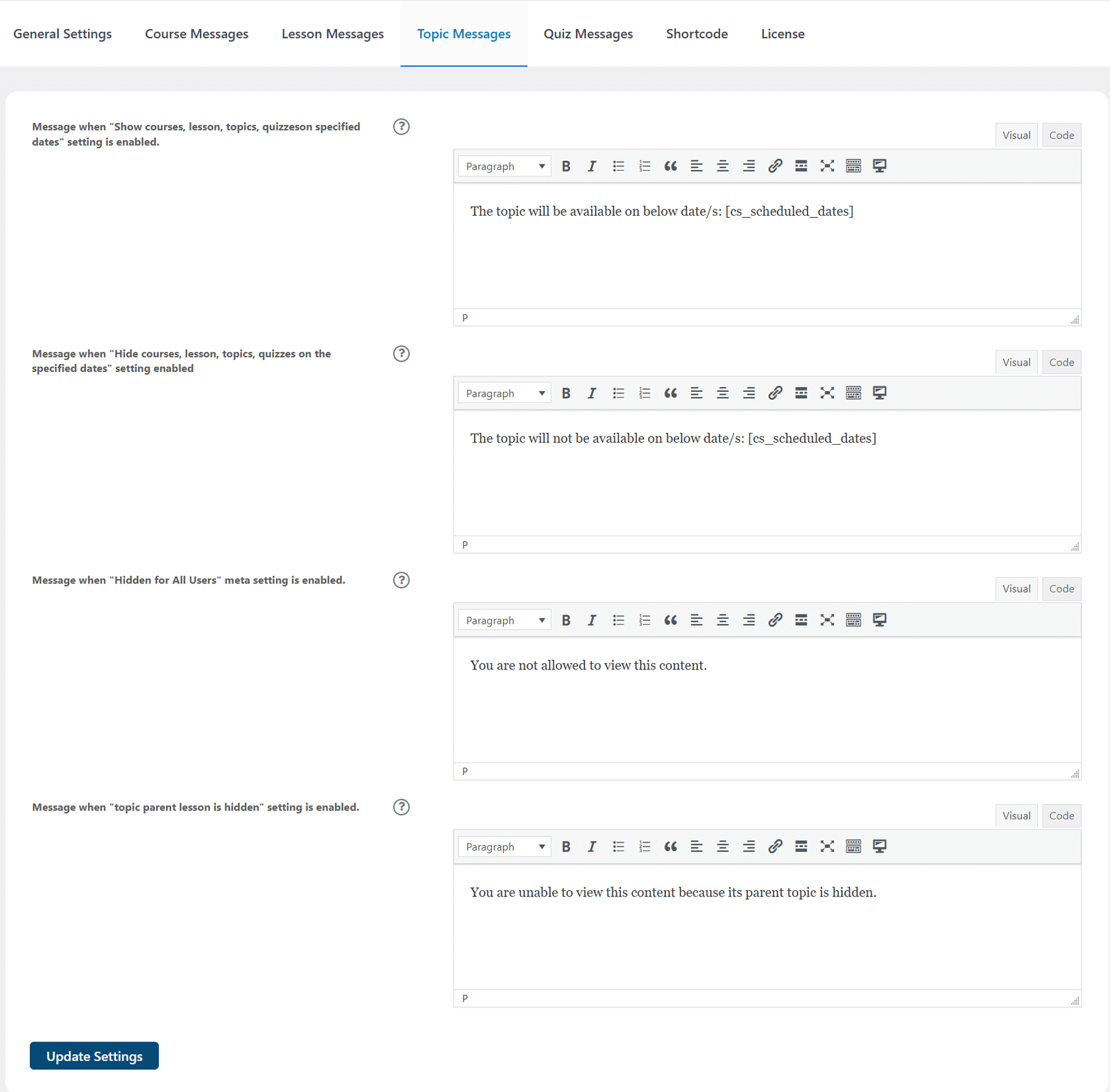
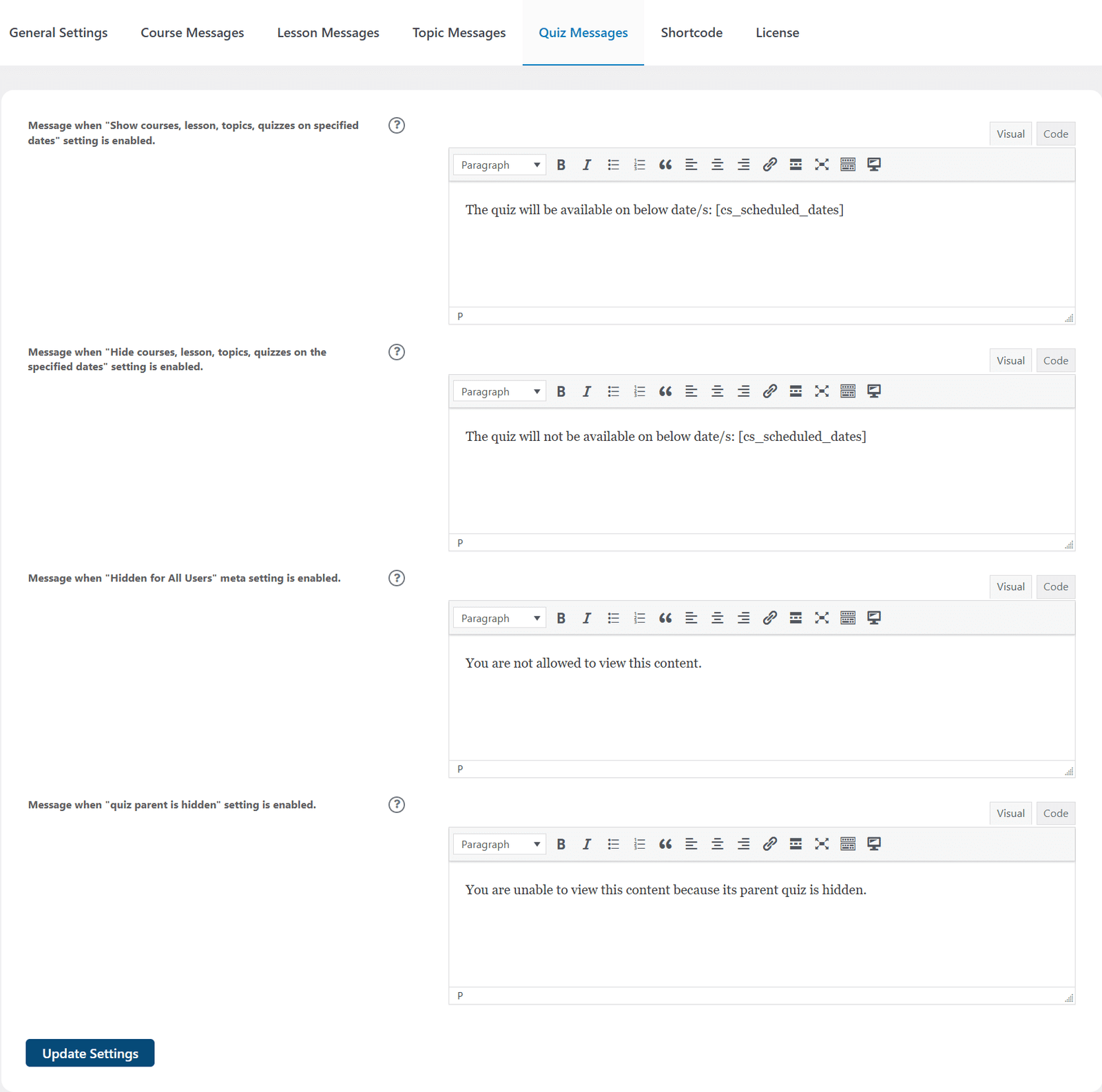
Set custom messages to inform users about the availability status of each course, lesson, topic or quiz. By displaying the dates course content becomes available, students can better prepare their individual schedules needed for success. Messages are displayed right on the page.
9 Schedules Available At All Times
The LearnDash Course Planner Pro Widget allows you to display course schedules to students on any widget area on your site.
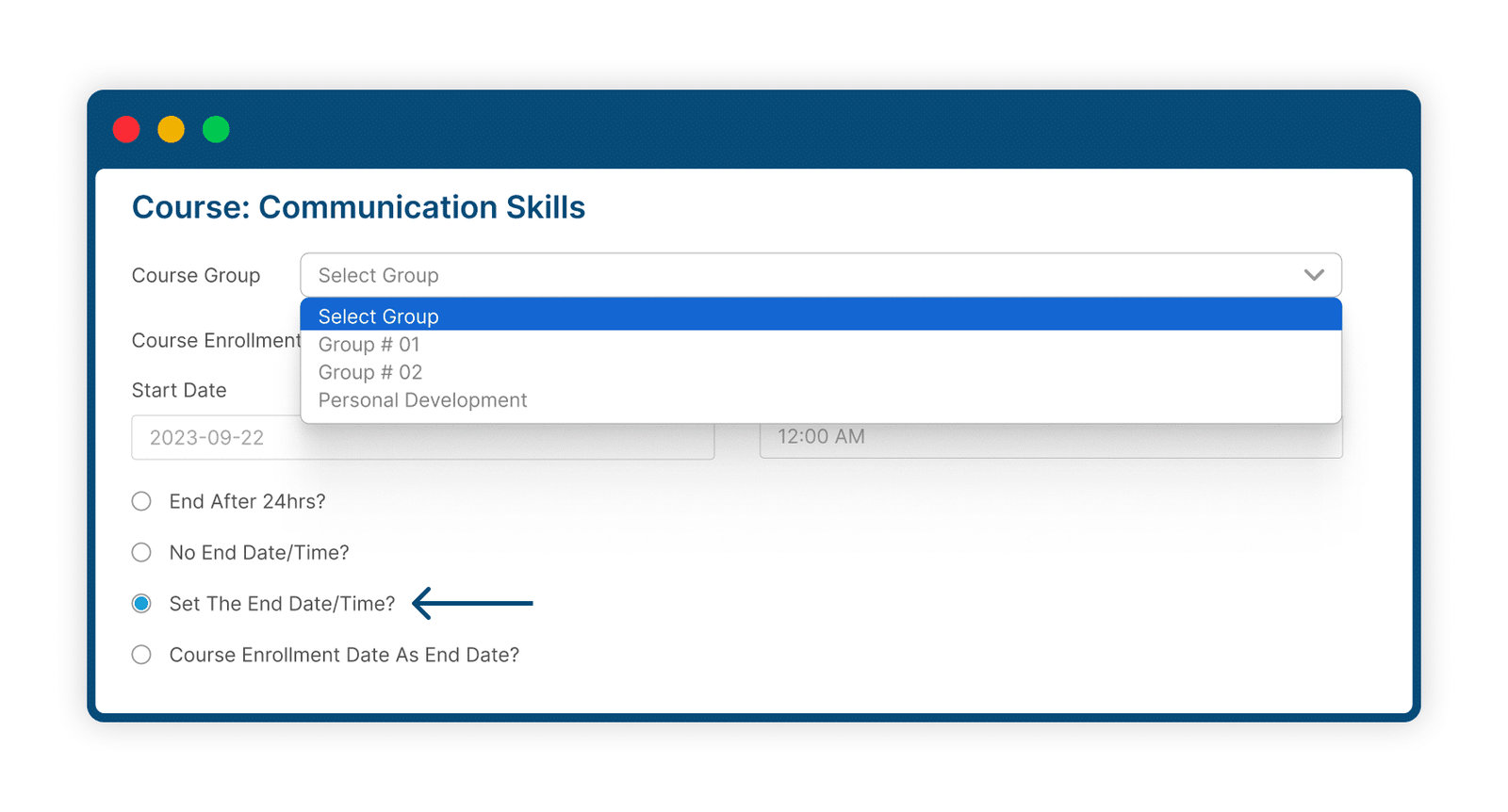
10 Schedule Courses For Specific LearnDash Groups
Select specific dates for courses, lessons, topics, and quizzes to be shown or hidden for selected LearnDash groups.
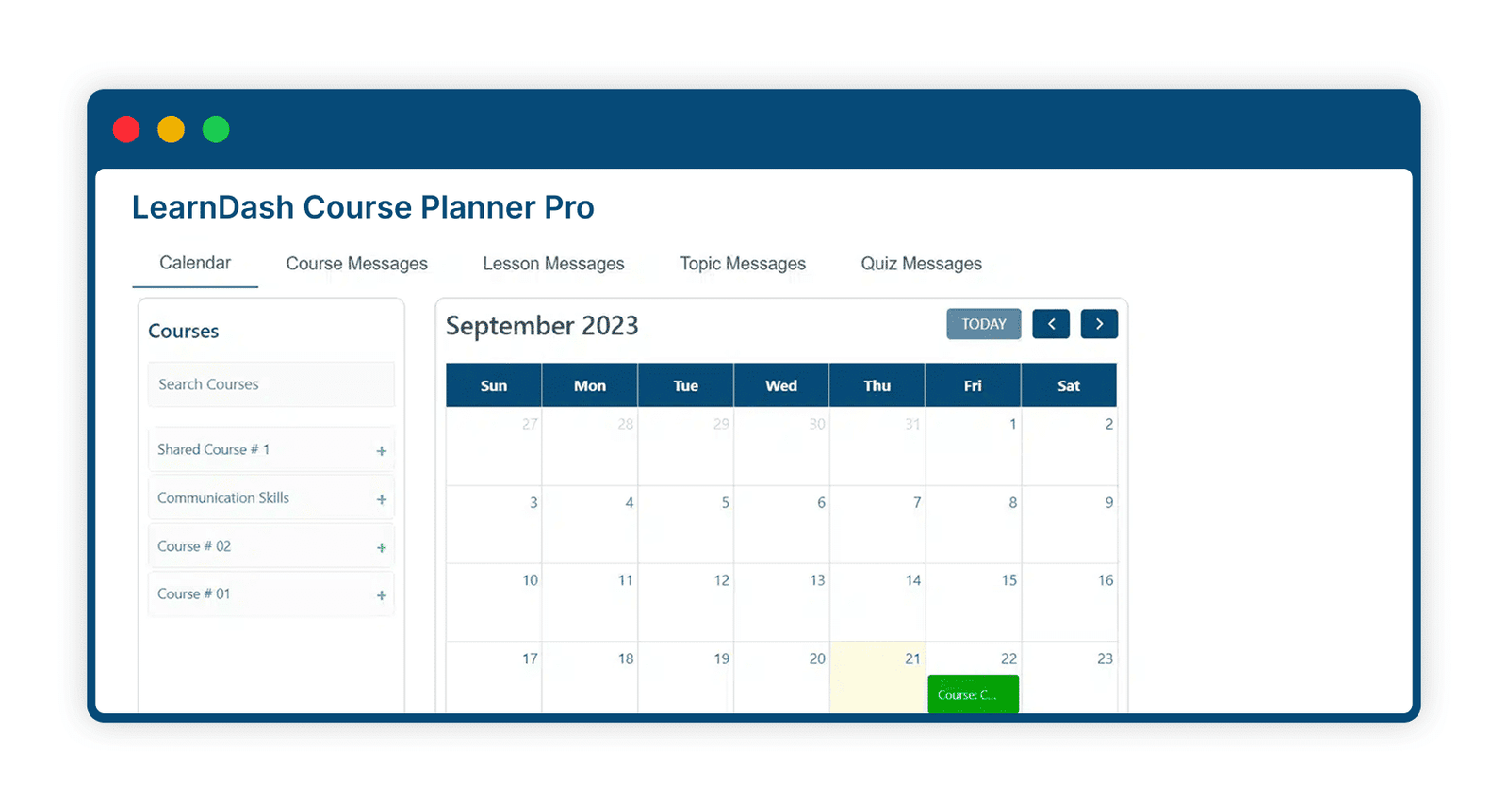
11 Front-End Course Scheduling
The add-on allows you to display the calendar interface on the front end, using a shortcode, meaning administrators and group leaders can easily schedule courses, lessons, topics, and quizzes. Moreover, you can also allow any other user roles for scheduling.
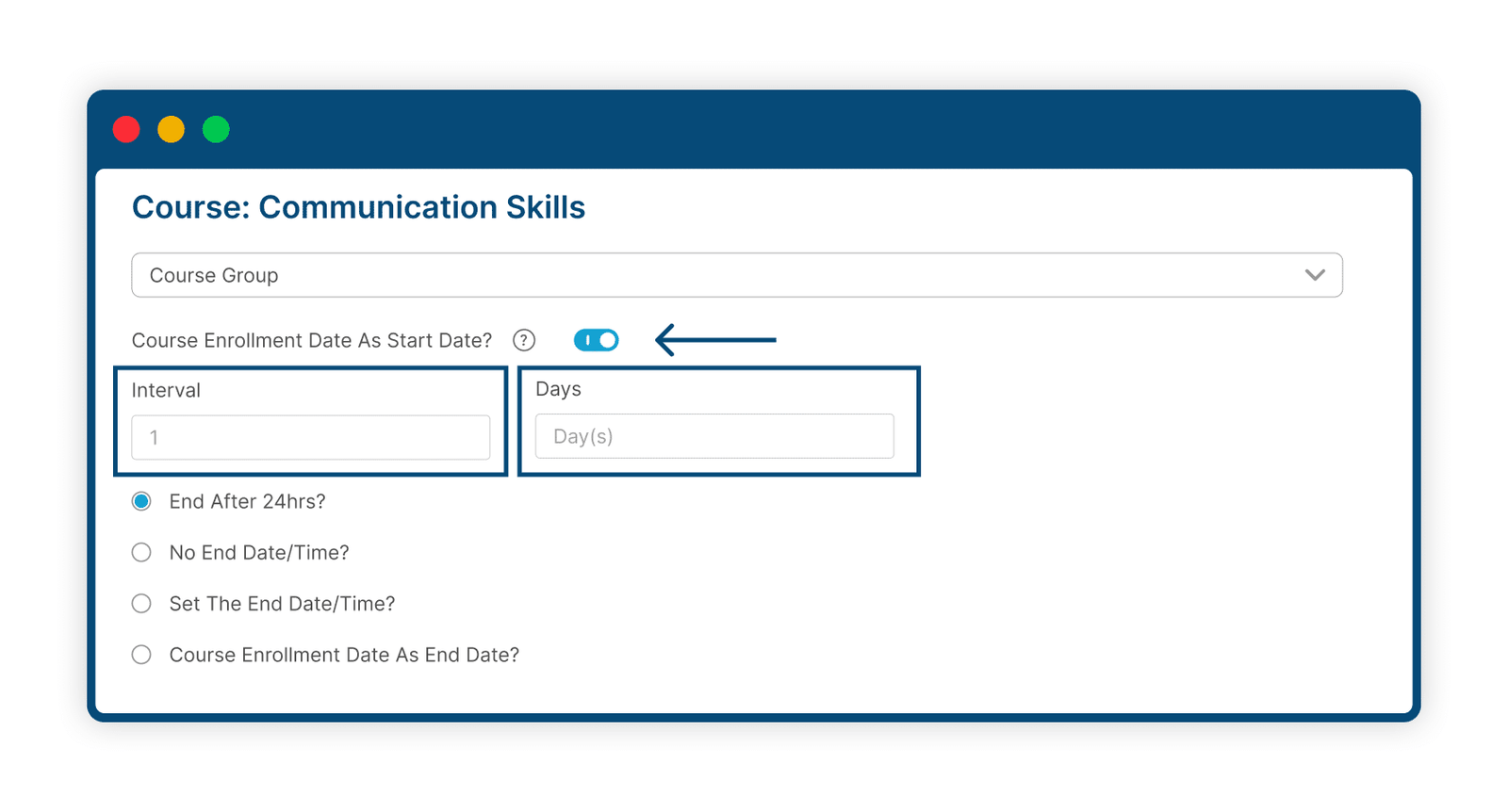
12 Enrollment Date = Start Date
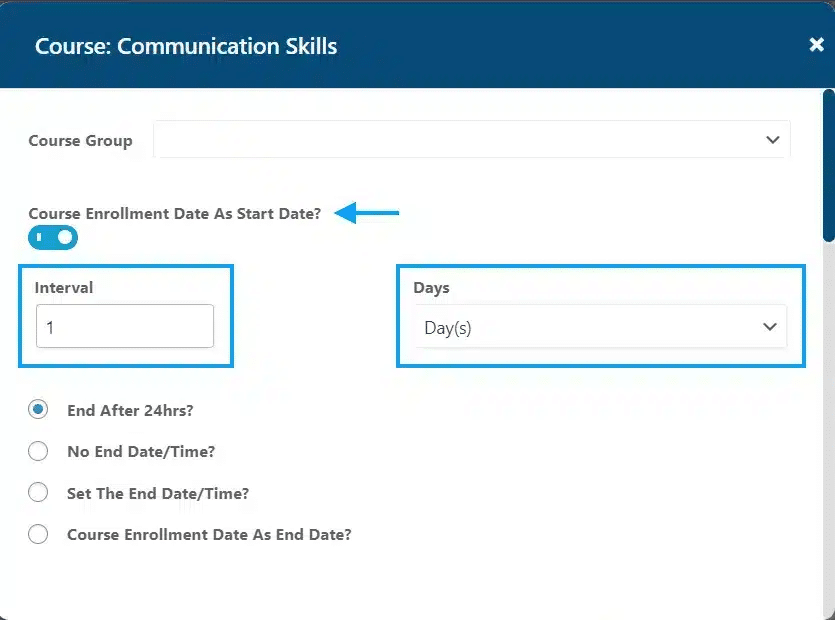
This add-on gives you the option to select a student’s course enrollment date as their scheduled start date.
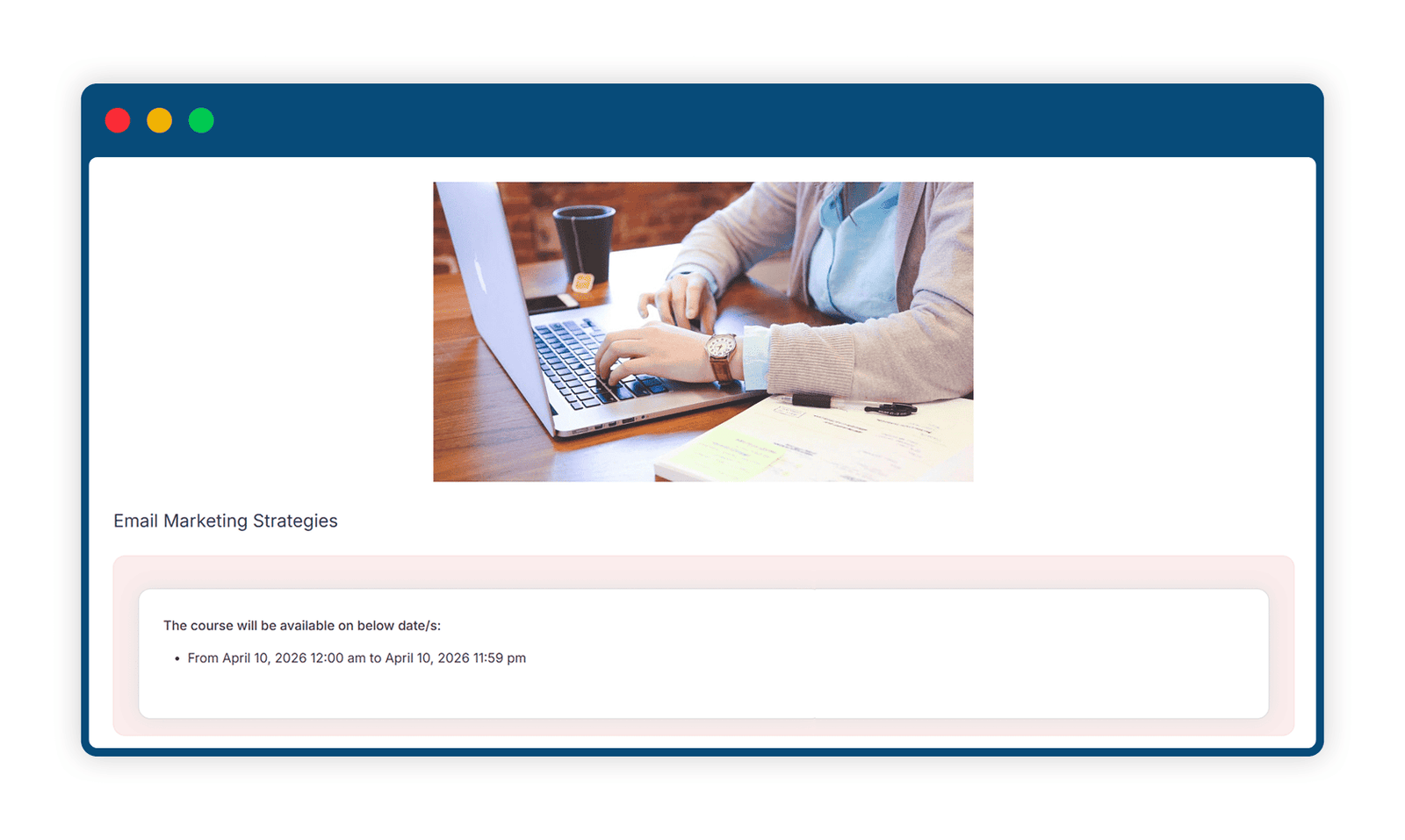
13 Email Notification
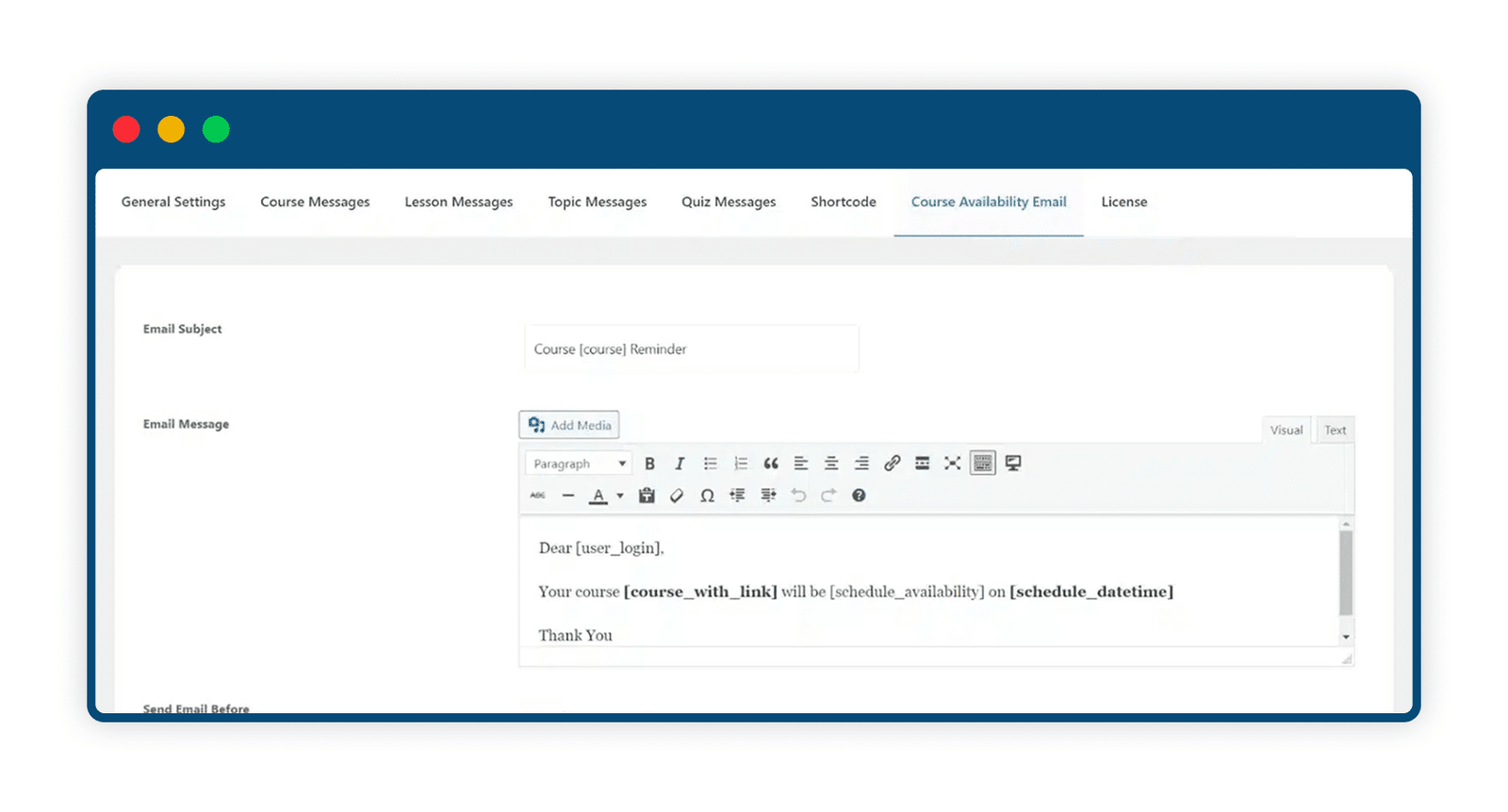
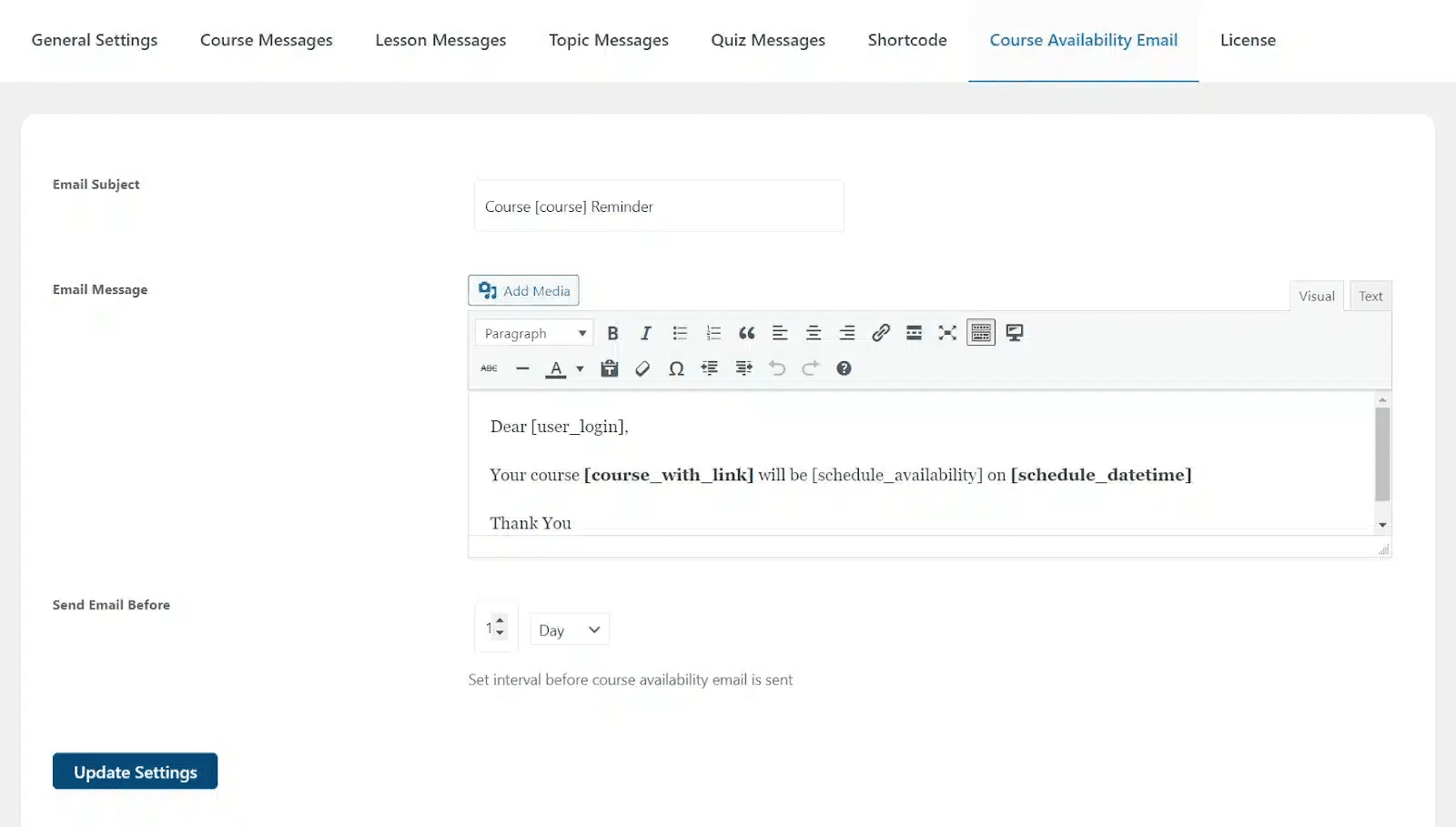
Administrators can send a course availability email to course enrollees, informing users when a course becomes available.
14 Import Schedules/Events
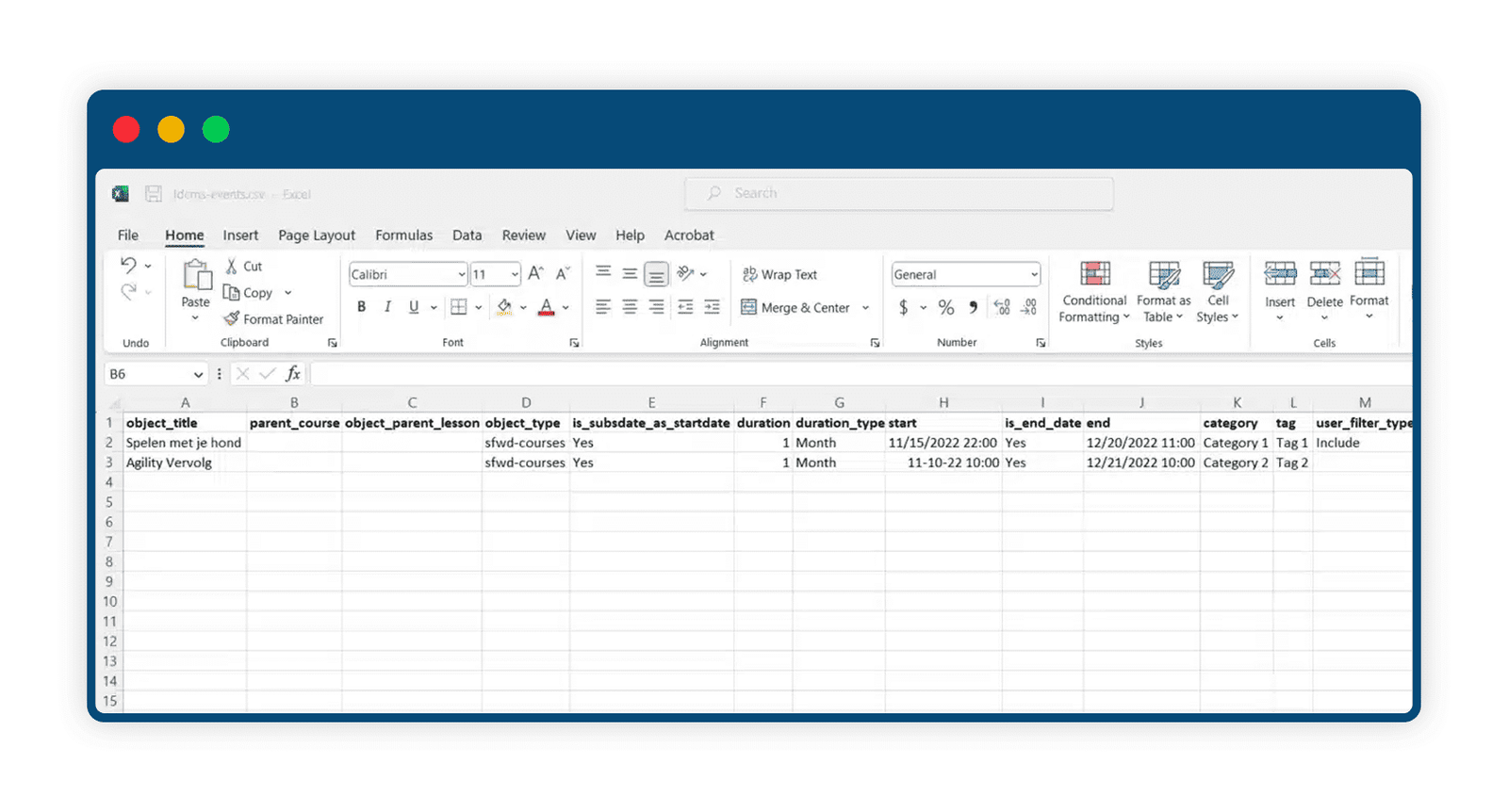
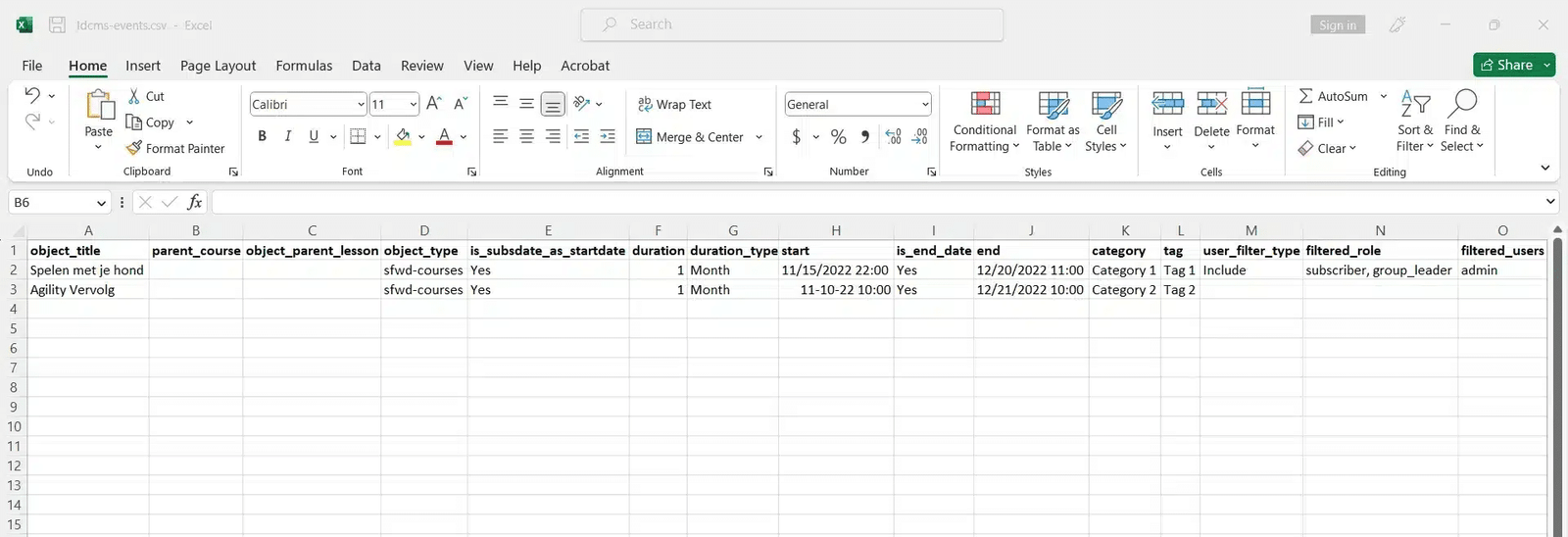
The process of scheduling the courses/topics/lessons and quizzes can easily be done using the Import Events wizard. This feature allows users to schedule multiple courses, lessons, topics, and quizzes at once by importing a single CSV file
Get The Plugin Now!
License for 1 site
1 year technical support & updates
Full documentation
Support forum
License for 3 sites
1 year technical support & updates
Full documentation
Support forum
License for Unlimited sites
1 year technical support & updates
Full documentation
Support forum
LearnDash Redis Object Cache
LearnDash Progress Reset
LearnDash Course Planner Pro
Are You interested In Full Access Pass?
Get NowLearnDash Course Planner Pro Screenshots

What Our Happy
Customer Says

A terrific company with great plug-ins. I needed support for trying to figure out some functionality, and it went like all Support should go. I asked the question and I got a timely and thorough response. Keep up the good work everyone!

WooNinjas provided great customer service to me to solve an issue uploading quizzes into my website. They responded quickly and located and resolved the issue very well.

Great customer service, we had issues but the Wooninjas team didn’t give up and were very helpful in fixing my issue.

The plugins offered by the company are fantastic and their support team is the best, I have had the opportunity to use LearnDash Certificate Verify and Share and I am very satisfied with the results obtained. I highly recommend them.
Build Your Bundle & Save 20%
Pick any 3+ add-ons from the same category and get 20% off automatically at checkout. No coupons and extra steps required. Just choose the features you need and save instantly.
FAQ’s
We’re here to help.
Follow these steps to schedule lessons based on their categories/tags:
- Go to Calendar from the Course Scheduler Pro menu.
- On the left side of the calendar, click on the Schedule Lessons by Category/Tag option. Next, a pop-up window will appear.
- Select the Starting Date, Time, Category, or Tag.
- Save the schedule.
Follow these steps to exclude a user role from a schedule:
- From the WordPress dashboard, go to the Course Scheduler Pro menu and select Calendar.
- On the Calendar, click on the selected scheduled course, lesson, topic, or quiz. Next, a pop-up window will appear.
- Select the User role you wish to exclude from the Exclude User Role option.
- Save the schedule.
Follow these steps to set the end date/time for content schedules:
- From the WordPress dashboard, go to the Course Scheduler Pro menu and select Calendar.
- On the Calendar, click on the selected scheduled course, lesson, topic, or quiz. Next, a pop-up window will appear.
- Check the box next to the “Do you want to set the end date/time?” option.
- Select the End Date and enter the Time.
Save the schedule.
On the left side of the calendar, you will find a list of all courses created. By clicking the “+” sign next to any course, you will be able to view all the Lessons and Quizzes associated with that specific course. Similarly, to view the Topics associated with a specific lesson, you have to click on the “+” sign next to each lesson. Select any course, lesson, topic, or quiz you want to show/hide during specific dates. Drag and drop the content you wish to schedule to the specific date on the calendar. Now, that specific course, lesson, topic, or quiz will be visible/invisible to the users on the scheduled dates.
Yes, you can easily create custom messages to share information about scheduling and visibility status for courses, lessons, topics, and quizzes. Go to the Course Scheduler Pro menu and select Settings. There you will find tabs for course messages, lesson messages, topic messages, and quiz messages. Go to any of these tabs and change the text according to your preference and scheduling settings. You can use [cs_scheduled_dates] to insert the scheduled dates into the message.
There are two general setting options:
1. Hide courses, lessons, topics, or quizzes on the specific dates:
This option allows the admin to make courses, lessons, topics, and quizzes visible only on set dates of the calendar. For the rest of the dates, that specific course, lesson, topic, or quiz content will not be visible for the users.
2. Hide courses, lessons, topics, or quizzes on the specific dates:
This option allows the admin to hide courses, lessons, topics, and quizzes only on set dates on the calendar. For the rest of the dates, that specific course, lesson, topic, or quiz content will be visible for the users.
Still have questions?
Contact us and we will clear up your doubts!

